

Hi, Readers.
Today, I’d like to provide a brief overview of the Copilot and Agent features currently available in Business Central.
Copilot is an AI-powered assistant that helps spark creativity, boost productivity, and eliminate tedious tasks. Copilot in Business Central is the world’s first AI-powered assistant across all lines of business. With Copilot in Business Central, small and medium-sized organizations empower their workers through intuitive AI tools that boost creativity and save time.
Configure Copilot and agent capabilities
Prerequisites:
- You use Business Central online.
- You’re an administrator in Business Central.
1. Allow data movement across geographies
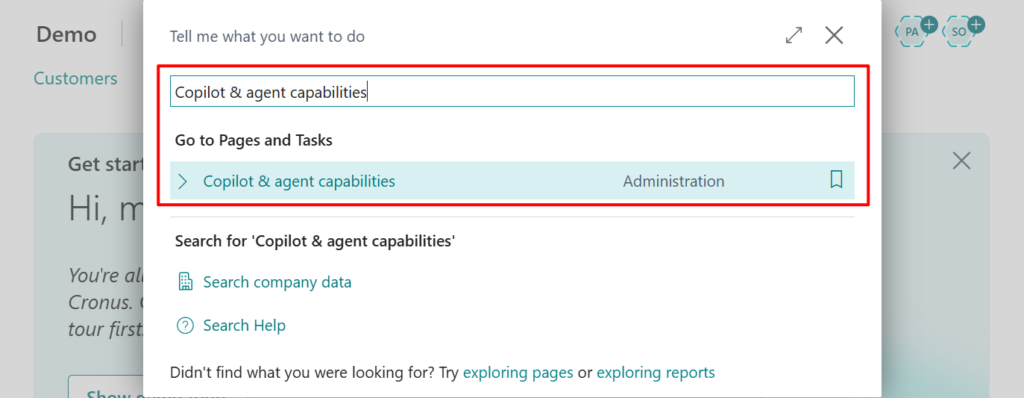
- In Business Central, search for and open the Copilot & agent capabilities page.
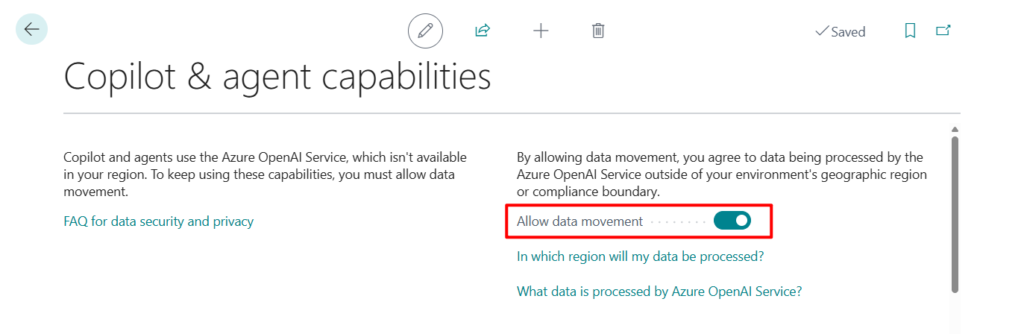
- Switch the Allow data movement toggle on or off as desired.
2. Activate features
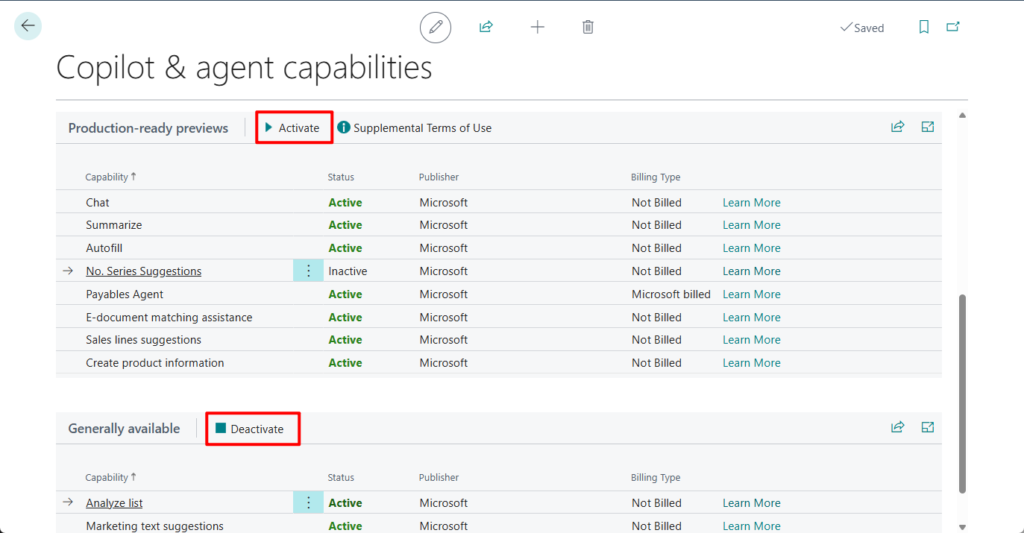
The page lists all available Copilot and AI-related features and their status (Active or Inactive). The features are divided into two sections: preview and generally available.
- To turn on a feature, select it in the list, and then select Activate.
- To turn off a feature, select it in the list, and then select Deactivate.
More details: Configure Copilot and agent capabilities
Copilot capabilities
Marketing text suggestions
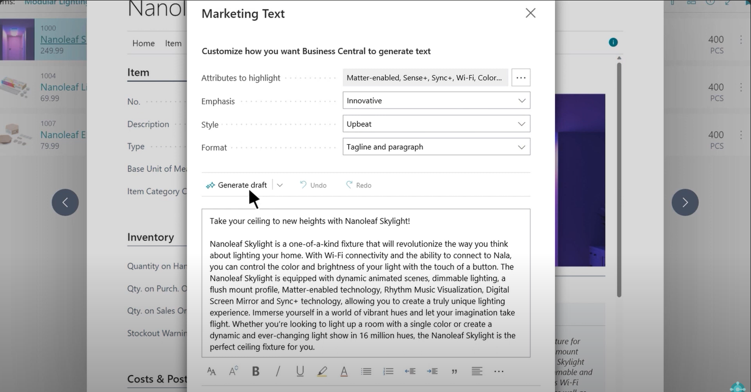
Copilot provides AI-powered writing assistance for Business Central users responsible for authoring marketing text (product descriptions) on items sold in online shops, like Shopify.
BC:
Shopify:
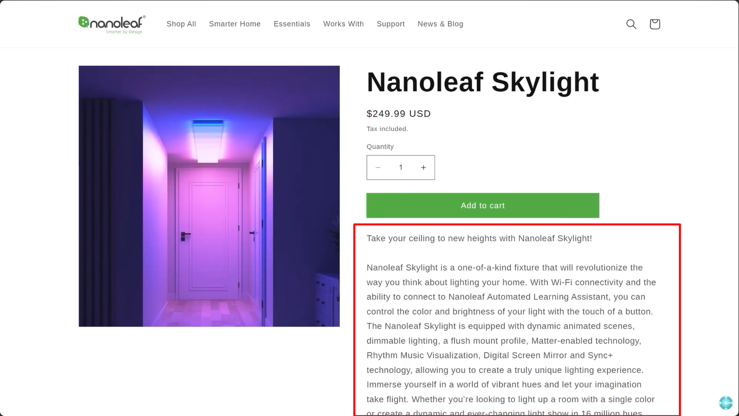
With the click of a button, Copilot generates text that’s engaging and creative, and that highlights key attributes of the specific item. With a bit of reviewing and editing, it’s ready to publish.
Let’s see more details.
From the item card, there are two ways to get started writing marketing text with Copilot: from the Marketing Text FactBox or using the Marketing text action. These methods are indicated in the following figure of an item card.
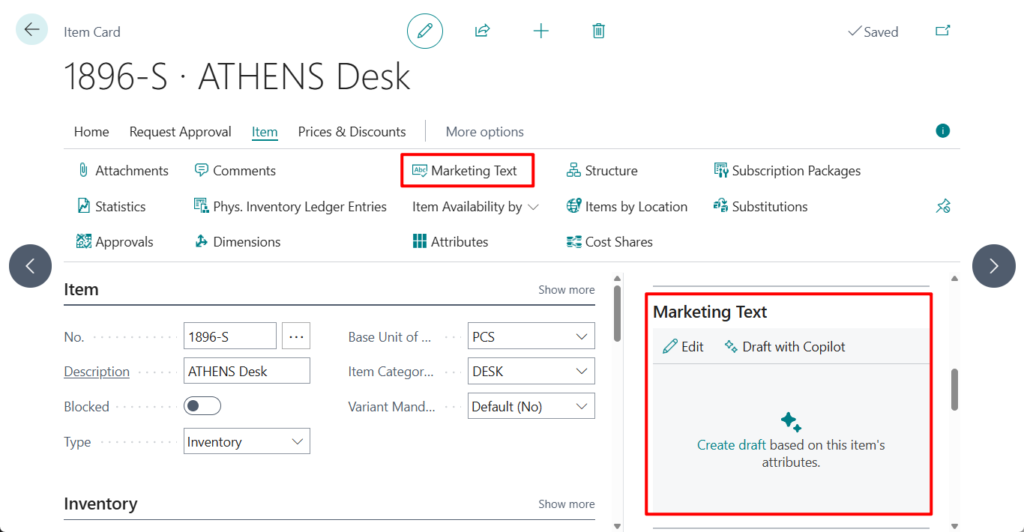
To create the first draft for an item, do one of the following steps:
- In the Marketing Text pane in the FactBox on the right side of the page, select Draft with Copilot.Copilot starts to draft the marketing text.
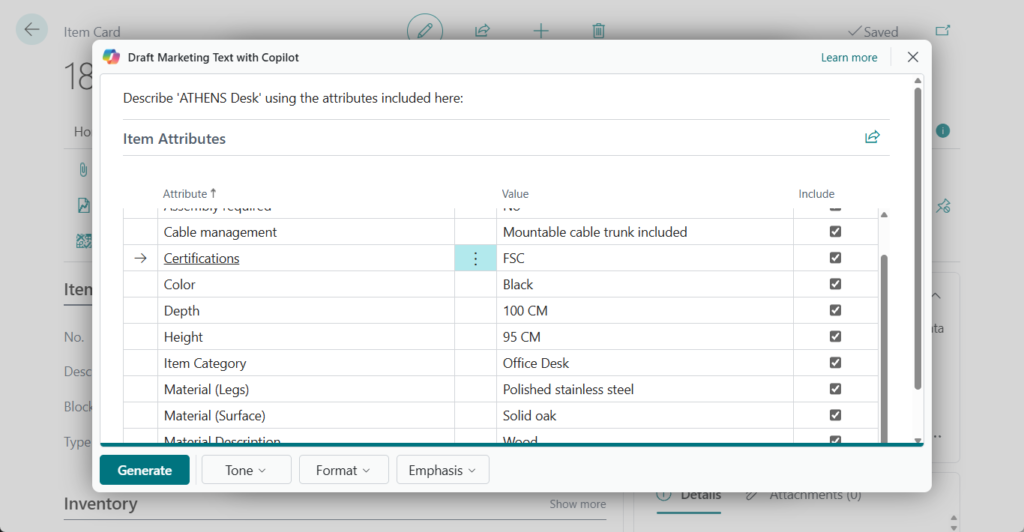
- At the top of the page, select the Marketing Text action, then select Draft with Copilot on the Edit Marketing Text window. The Draft Marketing Text with Copilot windows appears and lists all available attributes for the item.
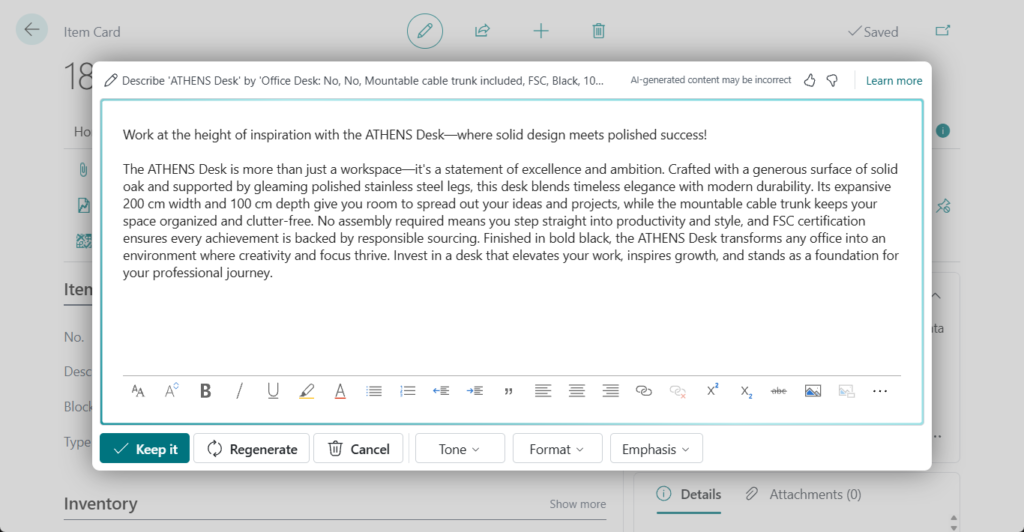
PS:
1. Select the attributes you want Copilot base suggestions on, then select Generate. You can change the selected attributes and other options later. Copilot starts to draft the marketing text.
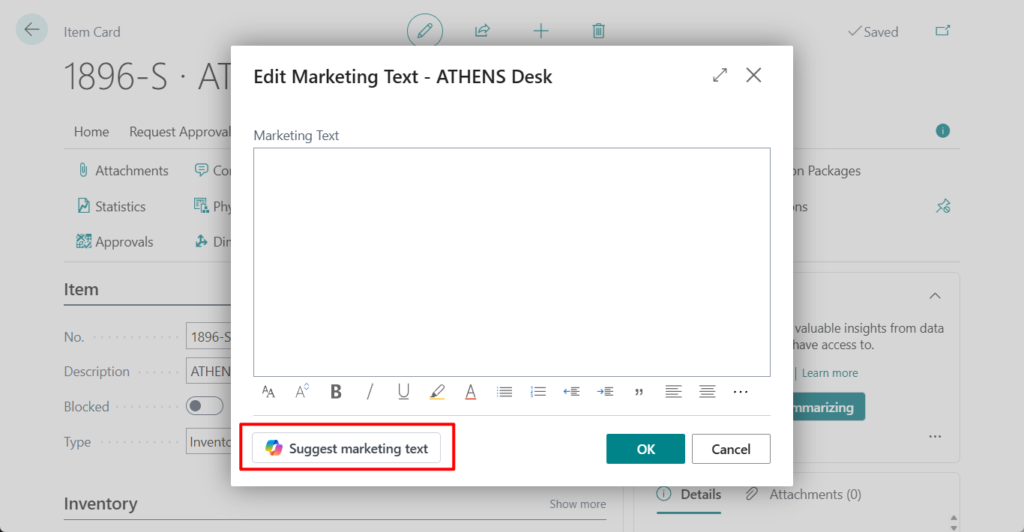
2. Change your preference settings for Tone, Format, and Emphasis options.
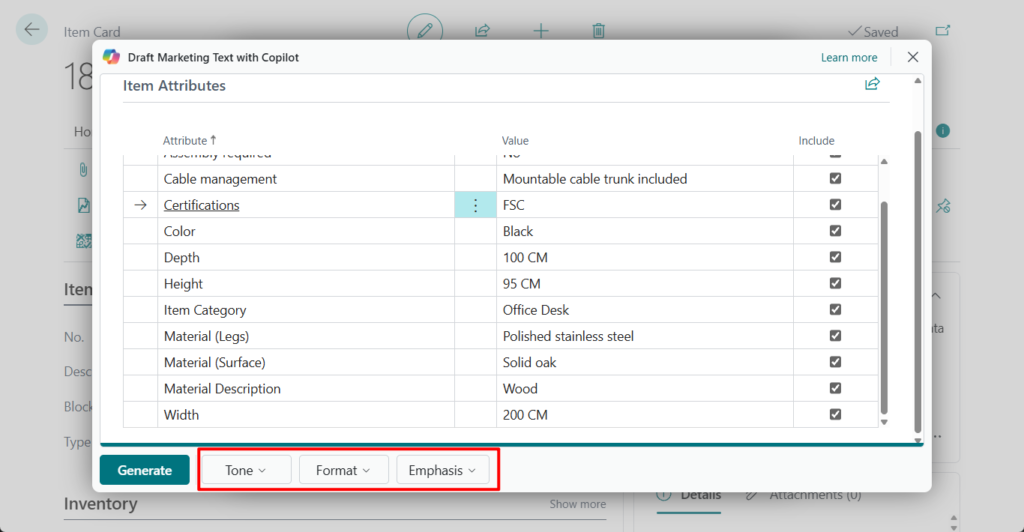
| Option | Description |
|---|---|
| Tone | Use this option to influence what kind of words, phrases, and punctuation are used to engage the target audience. You can choose from several predefined tones of voice, ranging from Formal (which results in a business tone) to Creative (which results in an informal tone). |
| Format and length | Use this option to control the general structure of the text, which consists of three parts, covered by four different options:Tagline – A catchy phrase or short sentence that identifies the item or brand.Paragraph – A single paragraph of fluent and verbose text, consisting of several complete sentences.Tagline + Paragraph – A tagline followed by a paragraphBrief – An introductory sentence, similar to a tagline, followed by a bulleted list of key points of interest. |
| Emphasis | Use this option to choose from a list of predefined qualities that you want to emphasize in the text. Choose a quality that best aligns with the type of item you’re writing about. The qualities don’t directly correspond to the item’s attributes, description, or category. For example, Quality could be a good choice for both a bike or desk, while Speed would suit a bike, but not a desk. |
More details: Add marketing text to items
2. Get started with a Business Central preview version – Copilot edition (Try it out!)
3. Dynamics 365 Business Central: How to bulk import marketing text to items – Customization
Suggest number series
For each company you set up in Business Central, you must assign unique identifiers to things like:
- General ledger accounts
- Customer and vendor accounts
- Invoices and other documents
Numbering isn’t only important for identification. A well-designed numbering system also makes the company more manageable and easier to analyze, and can reduce data entry errors.
By letting you use natural language or structured input, Copilot can reduce the time it takes to set up number series and make it easier to maintain them. For example, when you need to update year or month-based numbering for many draft and posted documents in Business Central.
This is a completely new Copilot feature in Business Central 2024 wave 2 (BC25).

Let’s see more details.
To help you write the prompt, the Create new action in the Generate No. Series with Copilot dialog provides sets of prompt guides that you can use as inspiration.

When you choose Generate, Copilot creates proposals for one or more number series, and you can review the proposals in the No. Series Proposals view. For example, “Create number series for purchase module”


You can remove the proposals that you don’t like, and edit the ones you do. When you’re ready, you can choose Keep it to add or update a proposal.


In addition, Copilot updates various setup pages with the number series you decided to keep.

Test video:
PS: If Number Series already exists, the following message will be displayed
Number series already configured. If you wish to modify the existing series, please use the Modify number series prompt.

In the Generate No. Series with Copilot dialog, Modify existing offers sets of prompt guides to help you write a prompt to update an existing number series.

For example, “Change the purchase order number to PO000001”


In the Generate No. Series with Copilot dialog, Prepare for next year offers sets of prompt guides to help you set up number series for the next year.


Since it is still in the preview stage, the following error may be prompted sometimes.

More details: Suggest number series with Copilot (preview)
PS: Business Central 2024 wave 2 (BC25): Suggest number series with Copilot
Suggest substitute items
To ensure they can fulfill orders quickly, businesses often assign similar items to each other so they can use them as substitutes. For example, substitutes are good to have when the item that was originally requested is out of stock.
You can set up items to have replacements, such as other items that can be used in place of the original item. More details: Dynamics 365 Business Central: Item Substitution
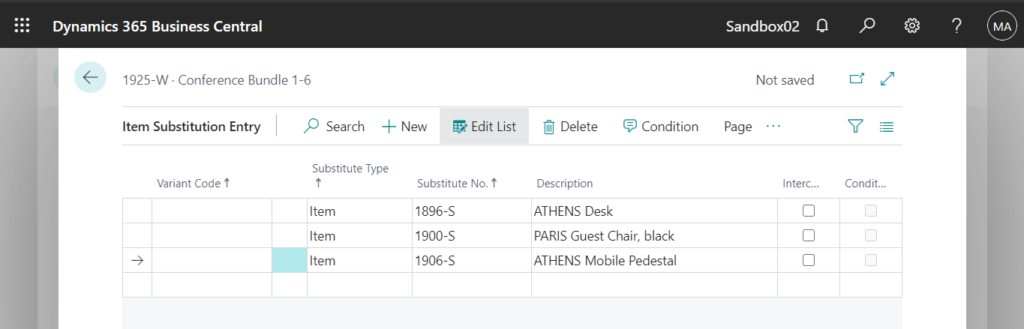
For example: Item 1925-W substituted with 1896-S, 1900-S and 1906-S.
Finding and assigning the right items to use as substitutes can be time consuming, and that’s where Copilot can help. The suggest item substitutions capability for Copilot can speed up the process of finding similar items.
Information about products is stored in multiple places in Business Central. For example, item numbers and descriptions are stored in the Item table, multiple barcodes are stored in the Item Reference table, and item properties are stored in the Item Attributes table. Copilot uses a large language model combined with embedded search to comb through this information and suggest items that might be good substitutes. While you might prompt for Red bicycle, the actual product might be Crimson Tourer*, where Bicycle is an item category and Red is an attribute.
Let’s see more details.
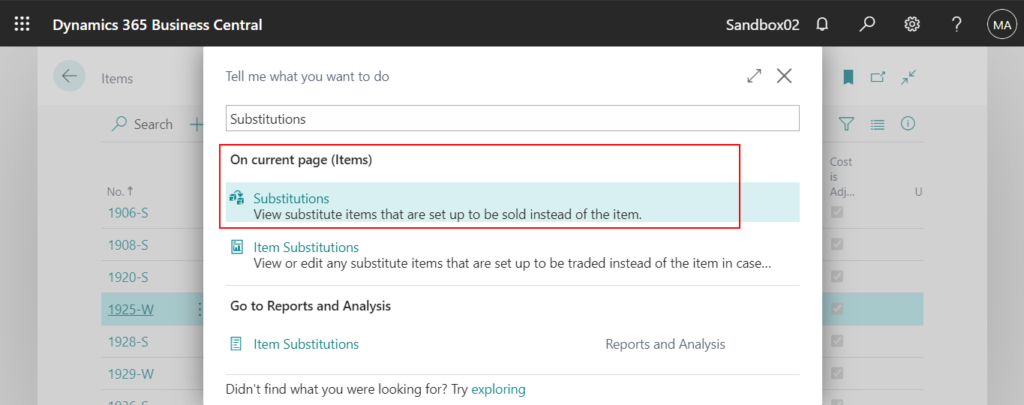
Choose Substitutions to open the Item Substitution Entry page.

You can see a new Copilot prompt action, Suggest with Copilot.
PS: Business Central 2024 wave 1 (BC24): Copilot prompt actions (Floating action bar)

After clicking, there is no need to enter any parameters, the system will generate them automatically.

For example, 1896-S ATHENS Desk

1900-S ∙ PARIS Guest Chair, black

You can also click the Edit icon in the upper left corner to edit the default prompt.

Then choose Generate to generate again.


PS:

We can choose View -> Lines and Confidence -> Generate to check the Score and Confidence


You can choose Delete Line to delete the lines you don’t need.

Select Insert all and the records will be inserted.

It’s that simple. Test video:
More details: Suggest substitute items with Copilot
PS: Business Central 2024 wave 2 (BC25): Suggest item substitutions with Copilot
Sales line suggestions
Sales line suggestion can assist with creating lines on sales documents such as sales quotes, orders, and invoices based on structured input or natural language. The feature isn’t a general-purpose chat, but a highly specific and integrated experience that you can use on sales documents. The feature offers two distinct skills that help you find data about individual products or entire documents.
- Find productsInformation that describes products is stored in multiple places in Business Central. For example, item numbers and descriptions are stored in the Item table, multiple barcodes are stored in the Item Reference table, and product properties are stored in the Item Attributes table. While you might prompt for Red bicycle, the actual product might be Crimson tourer, where Bicycle is a product category and red is an attribute.
- Find documents by referencePeople often repeat a previous order, or at least use it as a starting point. But it might be tricky to find the right order in a stack of orders. You might remember some of the order’s ID, which can be a company-assigned number or a reference number received from a customer. Being able to use prompts such as Need last invoice from April should help you find an order faster.
Let’s see more details.
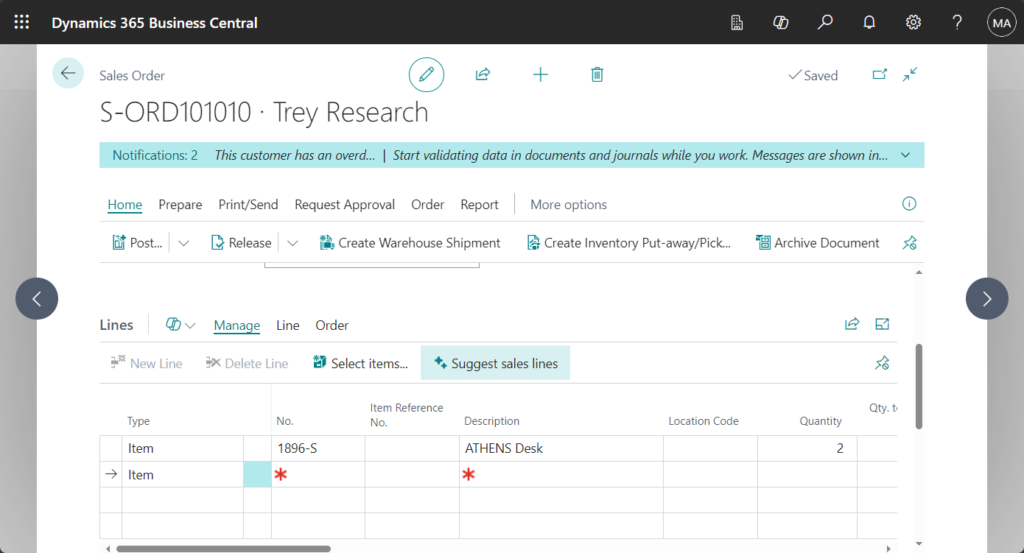
In this Business Central release (BC24), Copilot can suggest and assist with creating sales lines on sales documents like Sales Quote, Sales Order, and Sales Invoice based on structured input or natural language. This drastically relieves the user of manual input and drives operational efficiency.
For example, On the Sales Order Subform (46, ListPart)
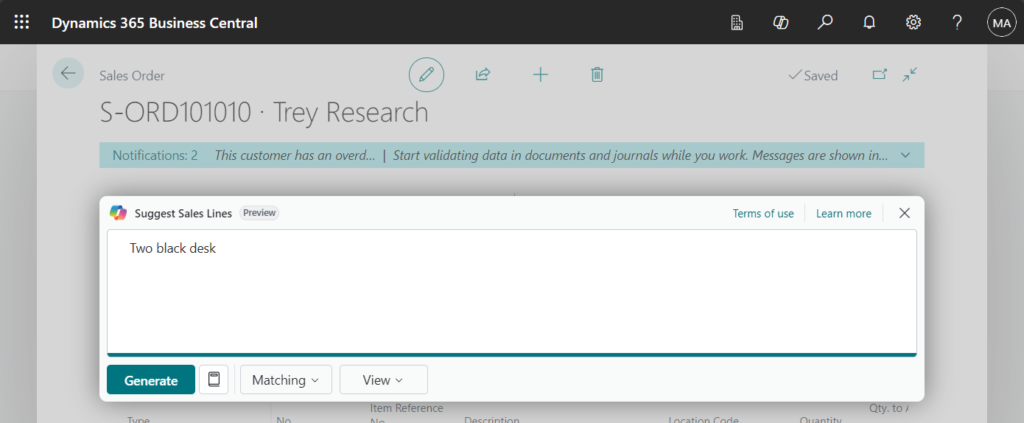
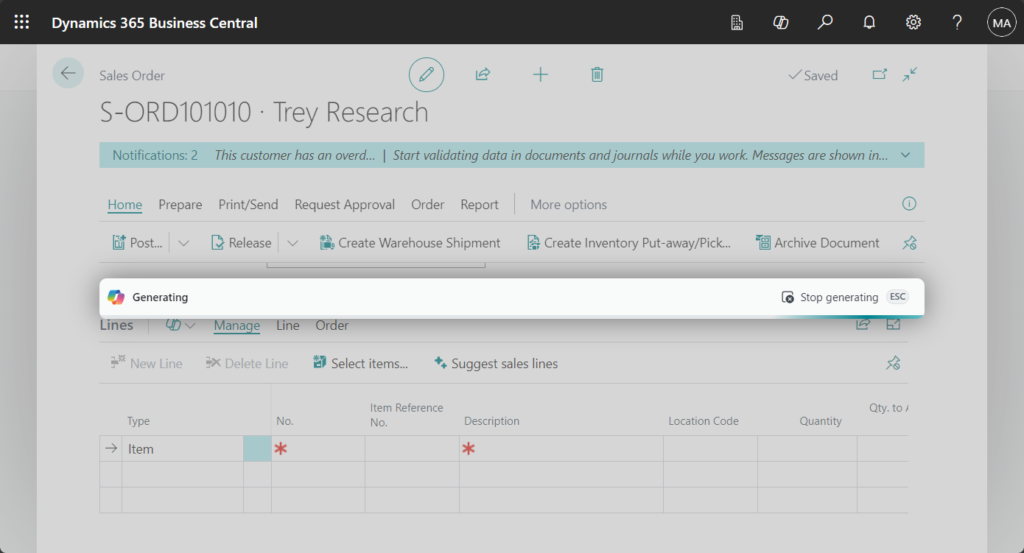
Choose Suggest sales lines
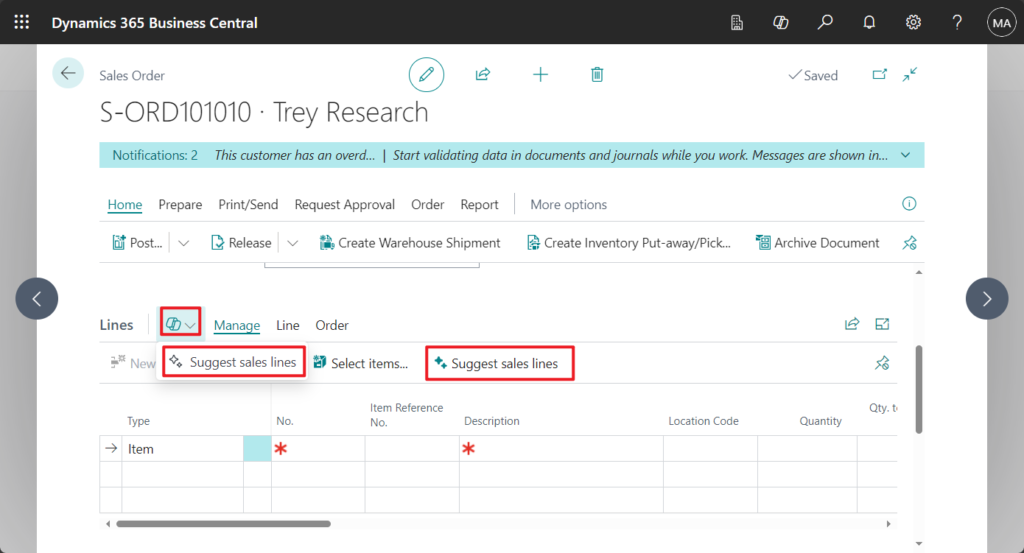
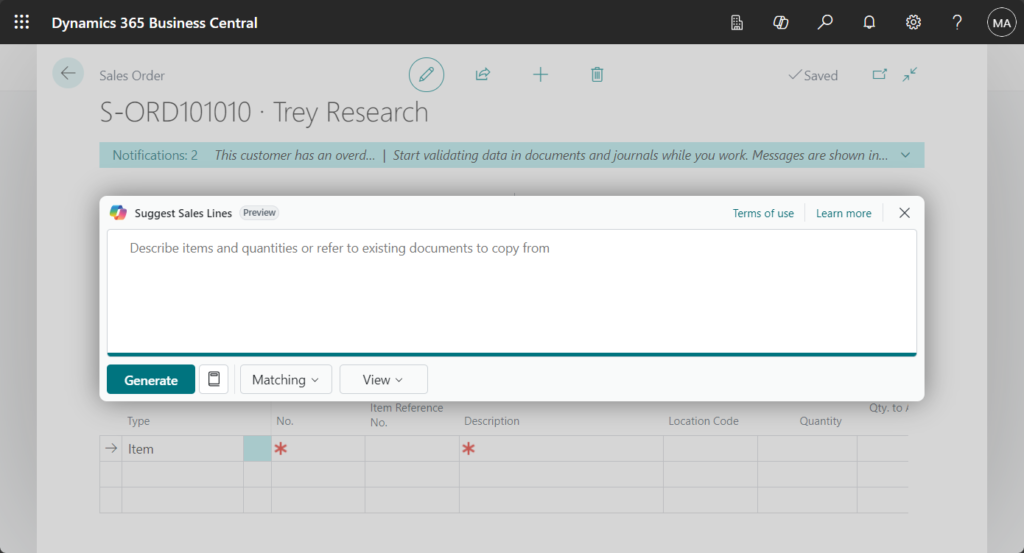
Describe items and quantities or refer to existing documents to copy from:
Versatile input methods: Copilot can accept various input methods, including free text, files, or prebuilt input prompt suggestions. This flexibility allows users to interact with the system in a way that is most convenient for them, further enhancing efficiency.
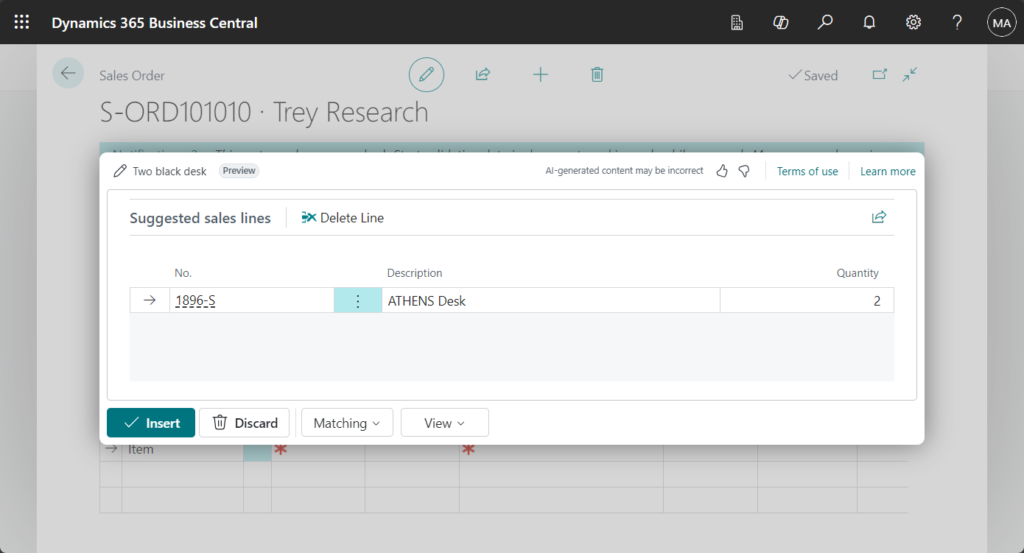
Intelligent processing: Leveraging advanced AI capabilities, Copilot understands the input provided and uses it to suggest sales lines. This intelligent processing eliminates the need for manual data entry, reducing the likelihood of errors, and saves time. Additionally, Copilot can suggest sales lines based on sales recency and frequency of the given customer of the sales document.
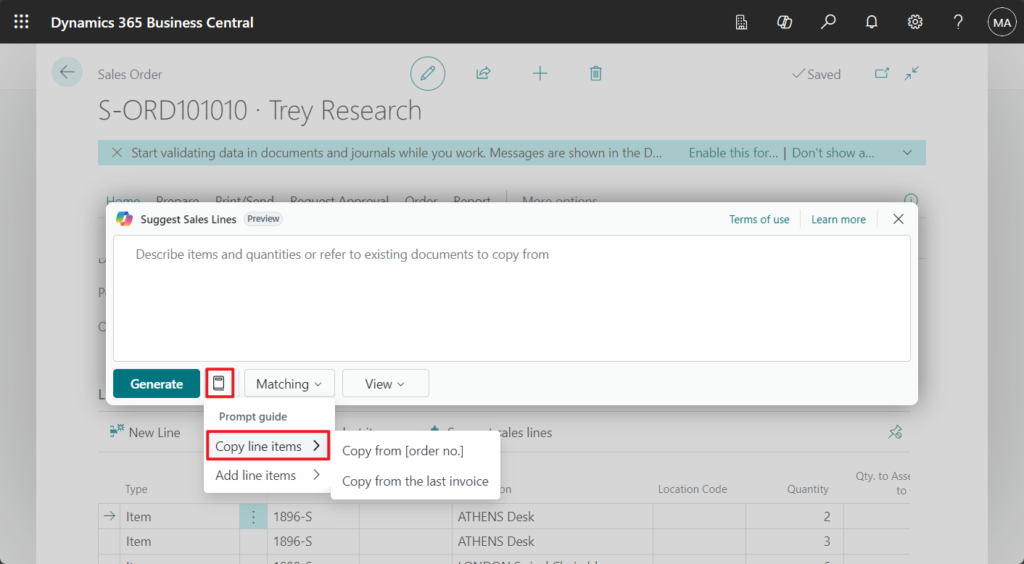
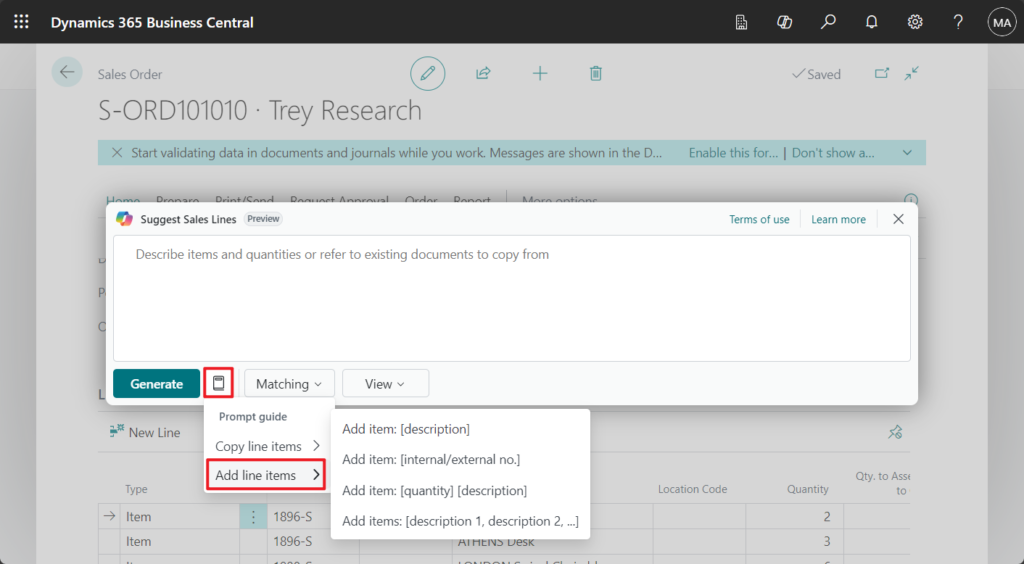
Prompt guide:
Copy line items:
Add line items:
For example, Two black desk
Attachments are a longer journey that starts with CSV files. Copilot analyzes the structure of an attached file to identify things like field and row separators, date and decimal formats, columns, and headers. It suggests field mappings to fill in product and quantity fields.
Let’s see more details.
Below is the csv file I used for testing. As you can see, this is not the one used by Sales Line template, but the one I used when importing items into BC.

In Excel:

This time we use this file to import sales lines.
Choose Copilot icon -> Suggest sales lines on the Sales Lines.

Choose Attach.

Drag and drop a file to uplaod or select a file.

PS: Only CSV (comma-separated values) can be selected

Select a file with the following extension: csv

Fetching search terms from file…


After completion, the Colum Mapping page will open. In this page, we can set Column action and other contents.

Column action:

Matching:

View:

Choose Generate.


Choose Insert.

Great.

Test video:
More details: Suggest lines on sales documents with Copilot (preview)
PS:
1. Business Central 2024 wave 1 (BC24): Create sales lines easily with Copilot (Suggest sales lines)
Analysis assist
Analysis assist is a Copilot for the analysis mode on list pages in Business Central. Analysis mode provides an interactive and versatile way to calculate, summarize, and examine data. To analyze data in analysis mode, create an analysis tab where you transform the data to display the desired aggregations and summarizations—for example, arranging fields in rows and columns, specify filters, sorting columns, and pivot on fields.
With analysis assist, instead of doing these tasks manually, you can express the structure you want in natural language and get a suggested layout as a starting point. Copilot can also help by adding fields from related tables (for example, showing items together with the purchasing vendor address). It can translate instructions like “sort on quantity from smallest to largest” or “show average cost per category” into the corresponding rows, columns, filters, and aggregations.
Let’s see more details.
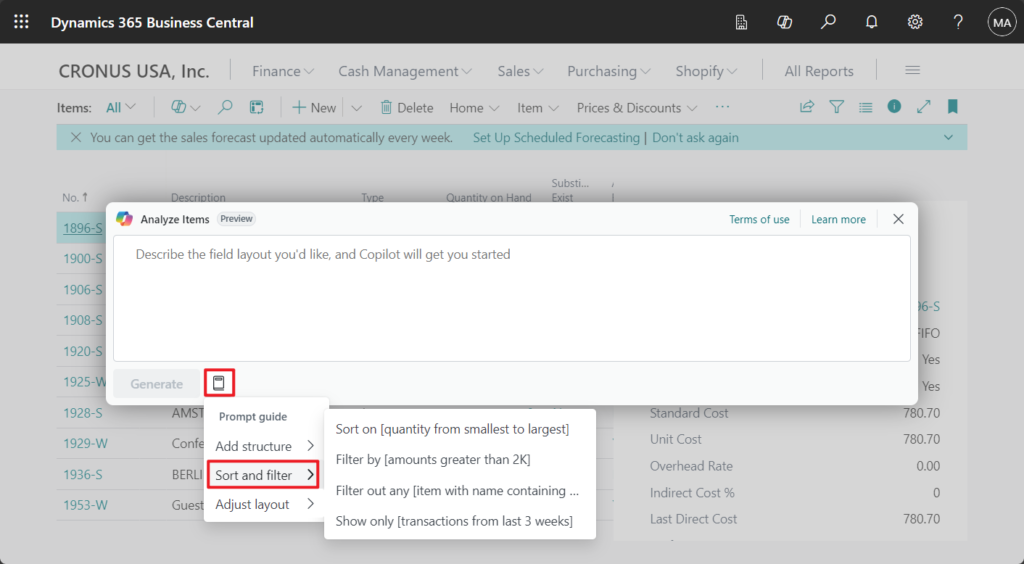
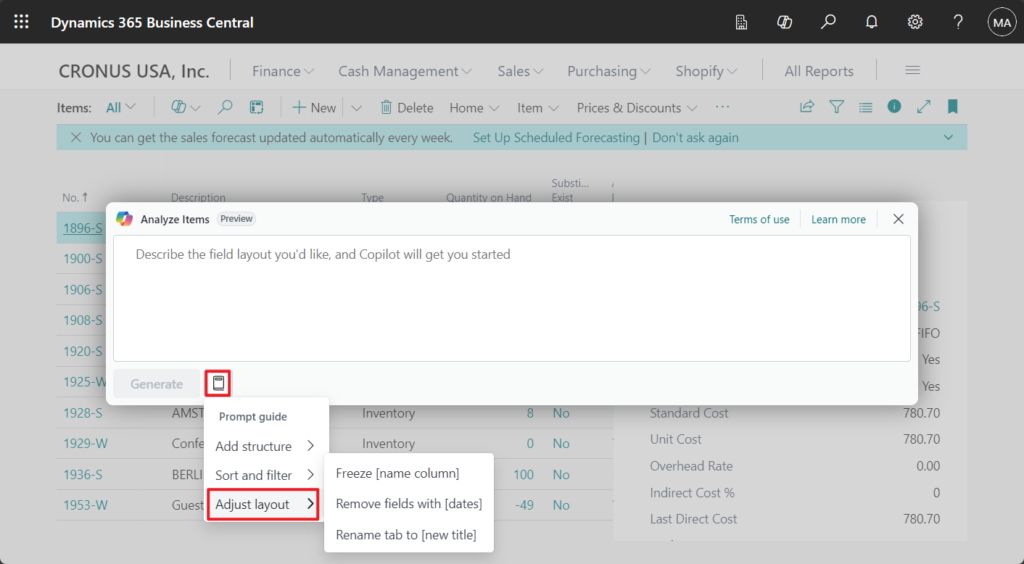
In any list/worksheet page you will see a Copilot prompt action, Analyze list. More details about Copilot prompt actions: Business Central 2024 wave 1 (BC24): Copilot prompt actions (Floating action bar)
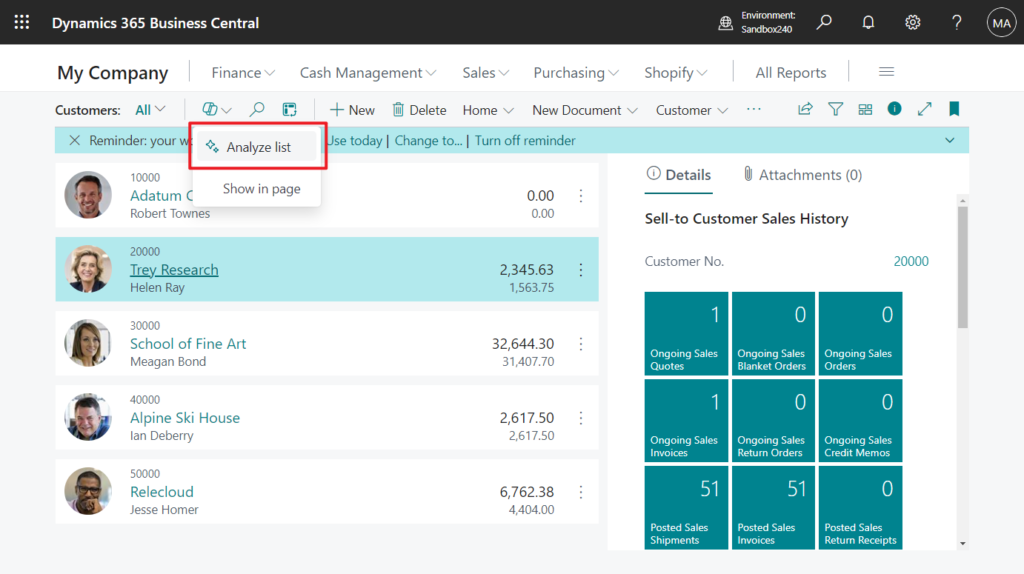
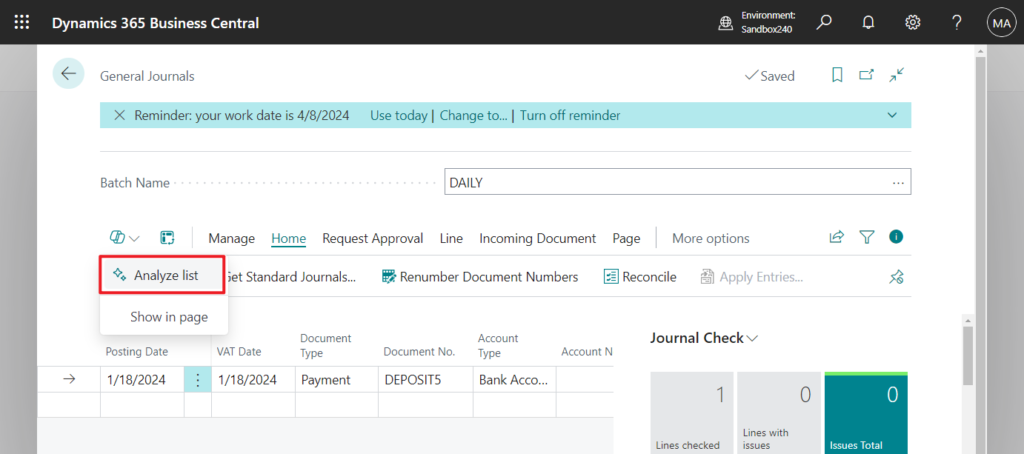
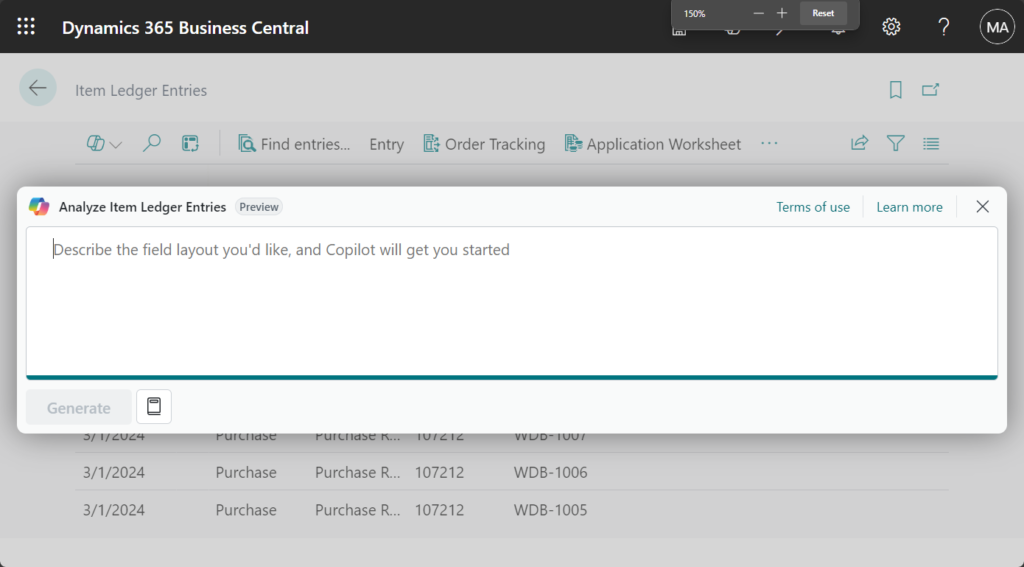
Prompt guide:
Add structure
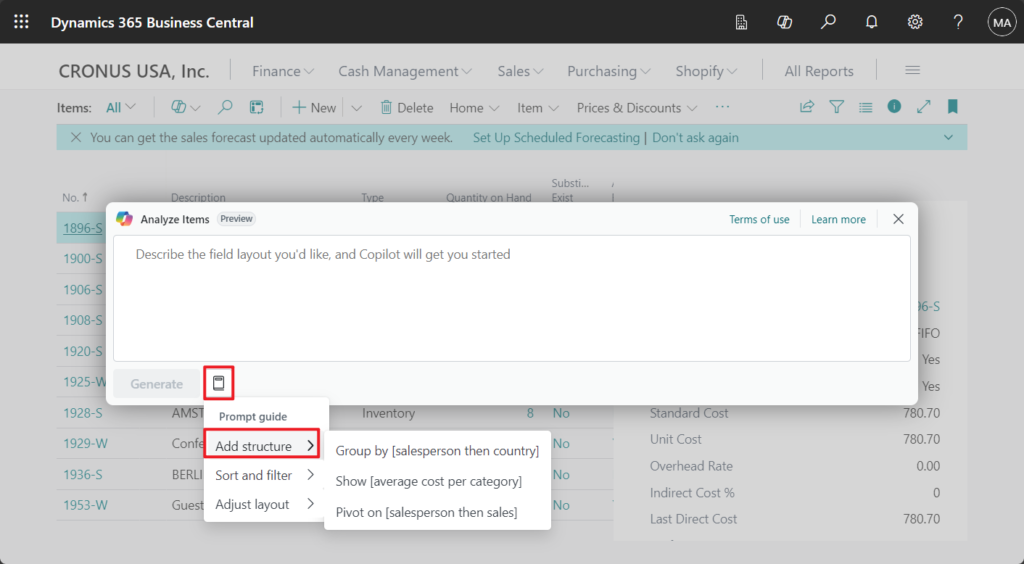
Sort and filter:
Adjust layout:
PS:
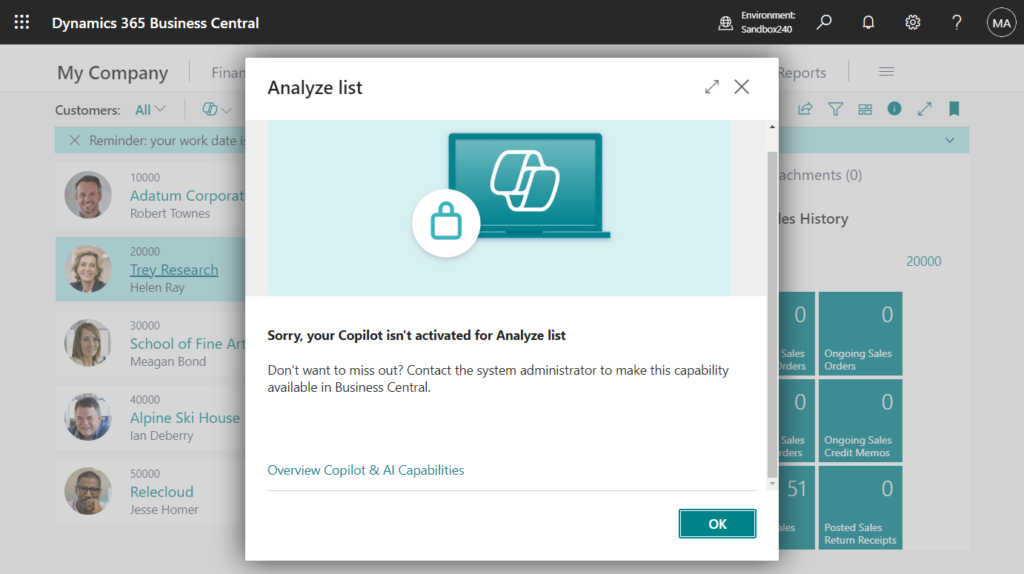
1. If Allow data movement is not enabled on the Copilot & AI capabilities page, the following message will be prompted.
2. If it is in Analysis mode, Create new analysis is displayed.
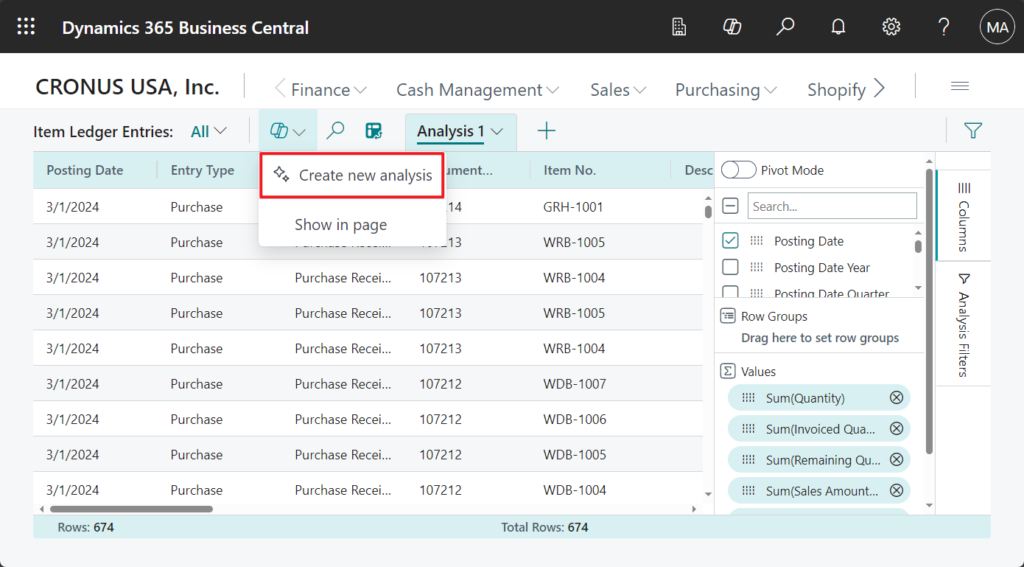
This is actually a Copilot feature that helps us quickly create analysis tabs/views in In-client Analysis mode. More details about In-client Analysis mode: Business Central 2023 wave 1 (BC22) new features: Analyze, group, and pivot data on list pages using multiple tabs (In-client Analysis mode)
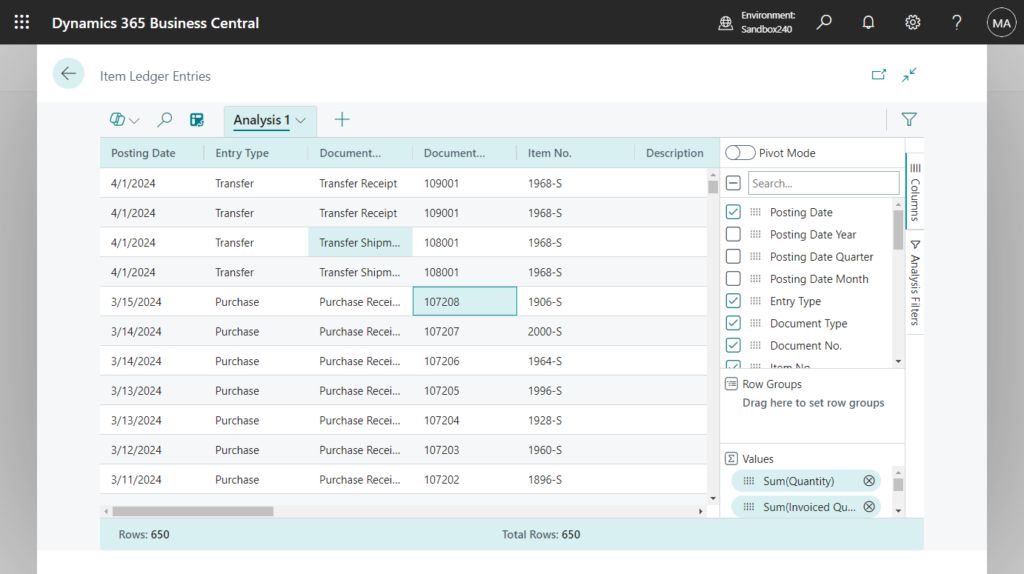
Available in preview with update 24.0:
- Create: Starting from any list in Business Central, put Copilot to work by providing keywords or a description, indicating the columns, groups, pivots, filters or sorting that you want to use to present fields from the table. Copilot uses AI to understand your desired layout, and helps you refine and build upon the generated analysis when you provide more keywords. Copilot also suggests a name for your new analysis tab.
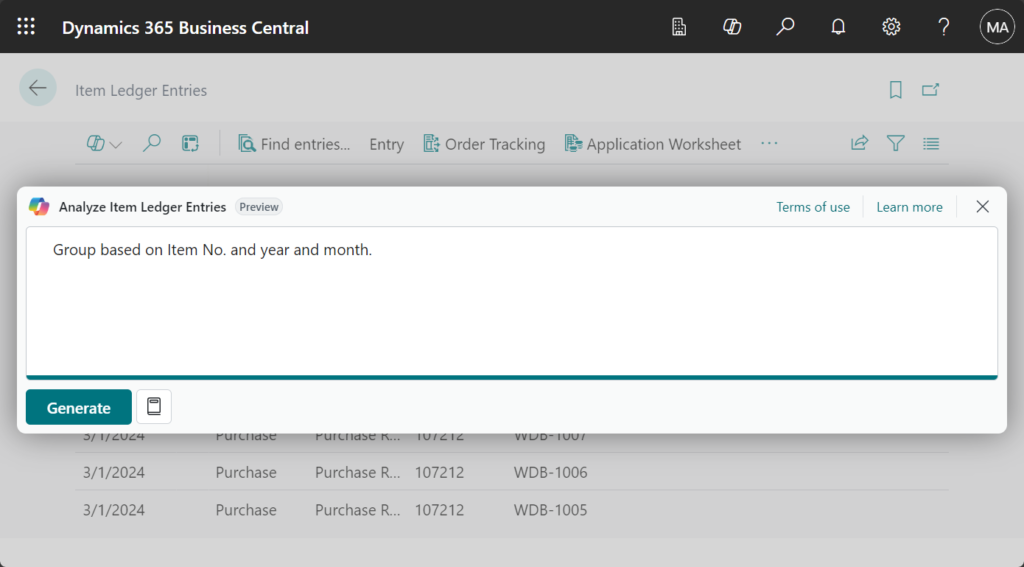
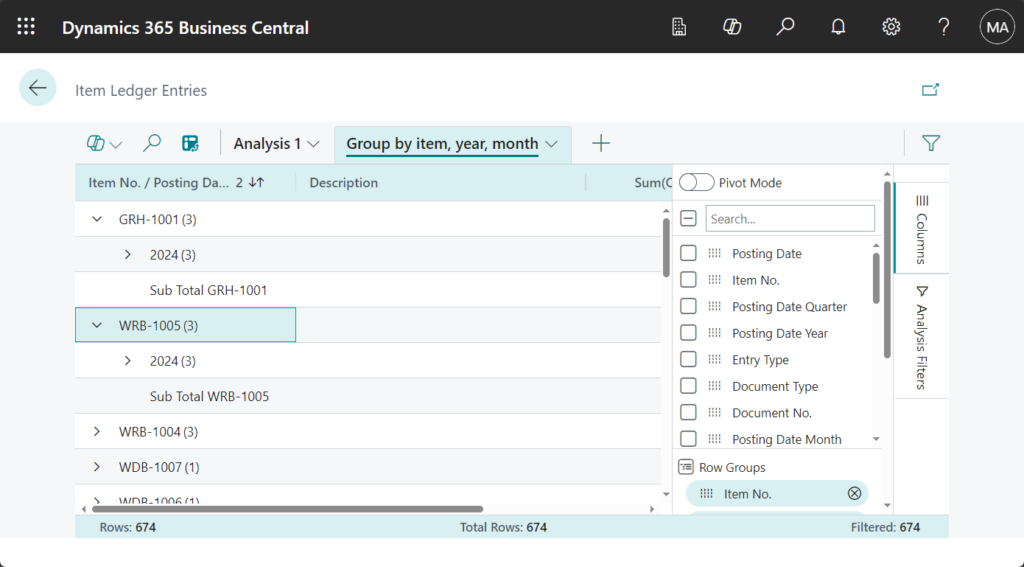
For exmaple, some test on the Item Ledger Entries page:
Group based on Item No. and year and month:
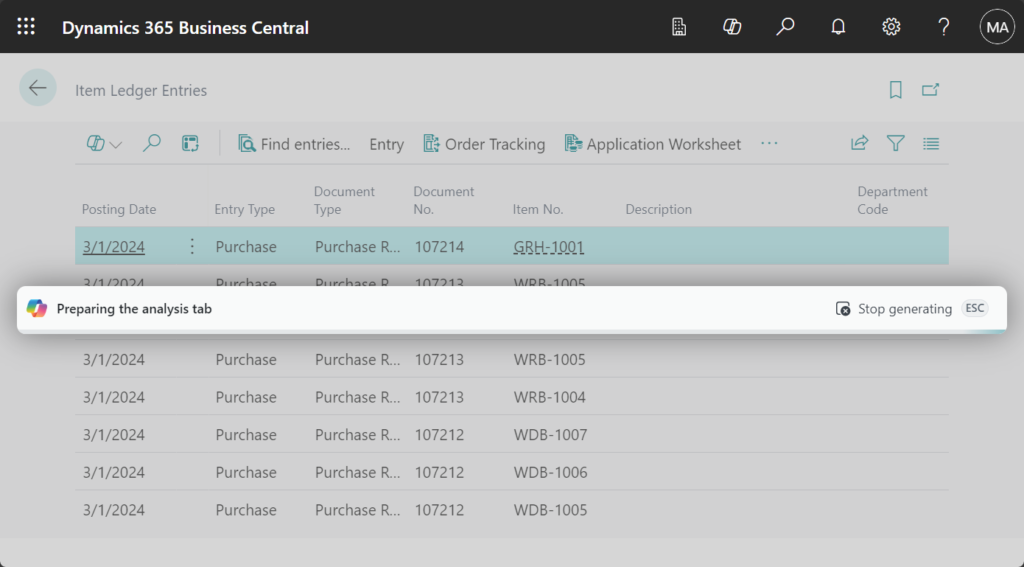
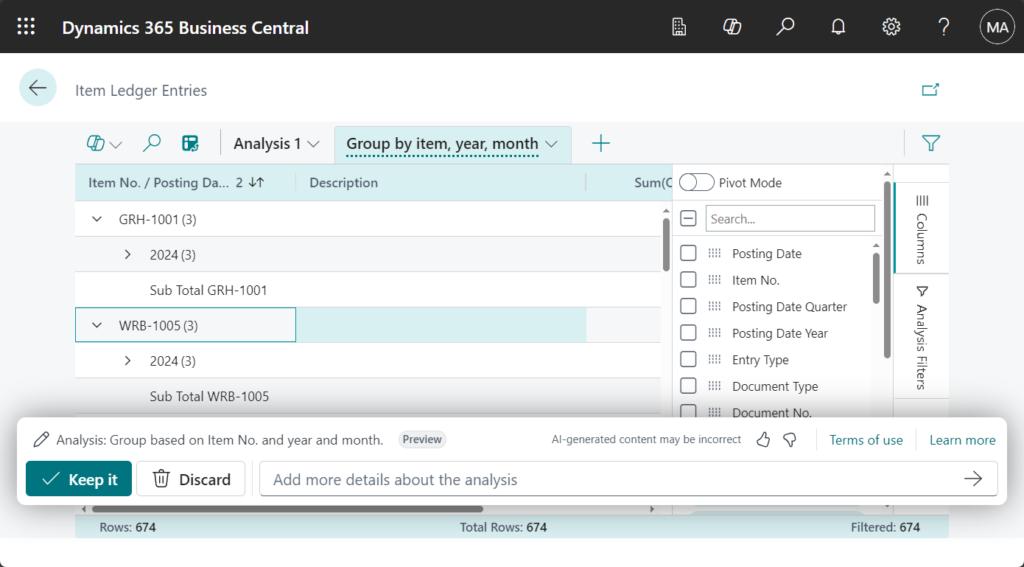
Choose Keep it to save this view.
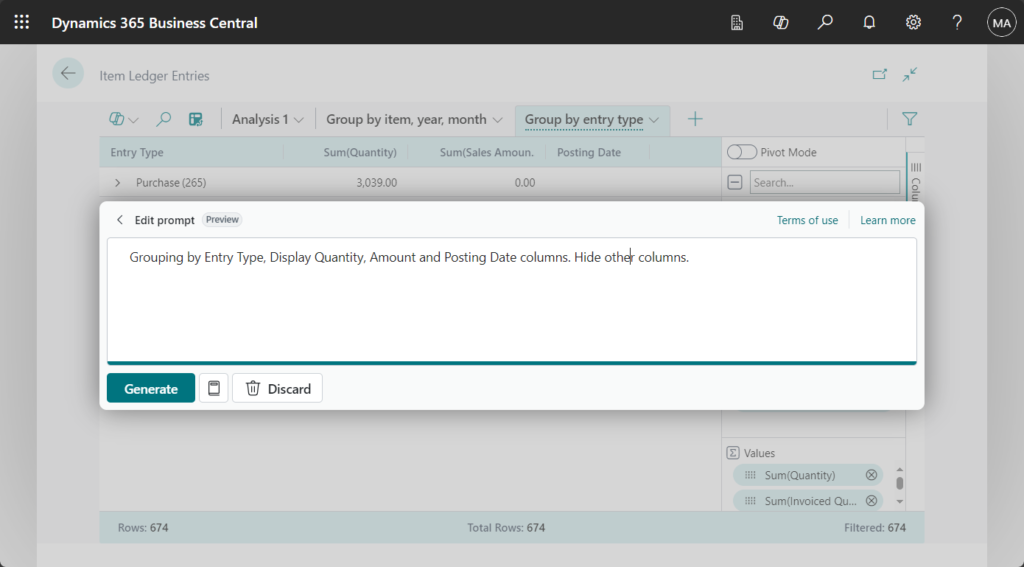
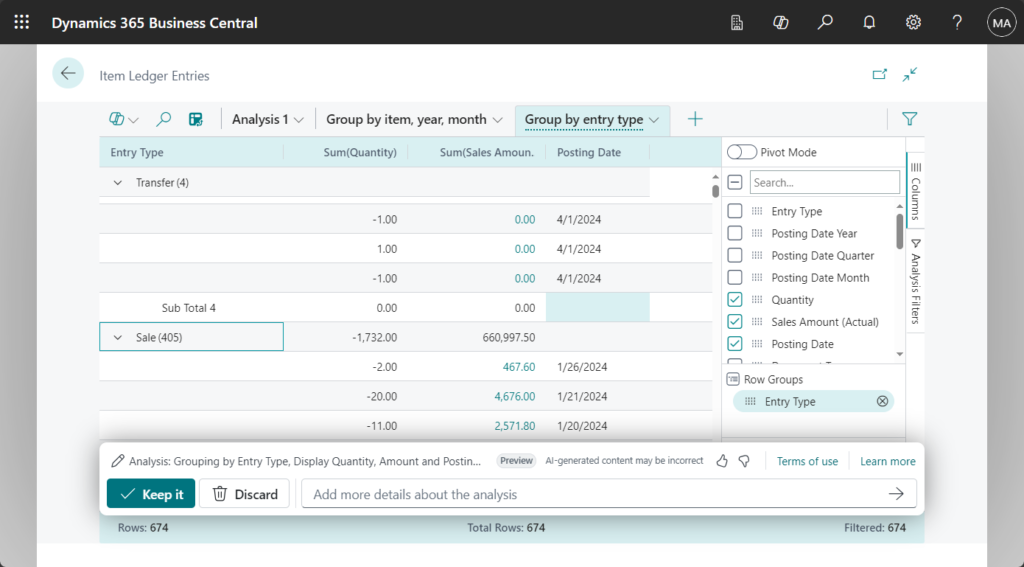
Grouping by Entry Type, Display Quantity, Amount and Posting Date columns. Hide other columns:
Looks good.
This feature can be accessed from the specific list page that you want to analyze. Copilot can work with most fields that are already present on the list page, including summing up totals, but cannot add fields from the source table or correlate data across tables.
With wave (BC25), Microsoft has introduced new experience enhancements. Let’s see more details.
This update to the preview includes:
- Availability for more users: Added support for more languages, now including: English, Danish, German, Italian, French, Dutch, Spanish, Portuguese (Brazil), Japanese, Swedish, Finnish, Norwegian, Polish, Russian, Thai, Turkish, Czech, Greek, Korean, Chinese (simplified)
Let me try Chinese (simplified), the system language is still English (United States).

按类型汇总: Group by type


隐藏描述和文档号码: Hide description and document no.

Great.

Test video: If your local language is in the supported list, please give it a try.
- Flexibility: Copilot can draft analysis tabs using all fields from the list page, including columns that might be hidden.
A simple example is that the Source Type and Source No. fields on the Item Ledger Entries page are not added to the page, but can be analyzed through Copilot.


PS: There is no way to analyze fields that are only in the table but not added to the page.
The specified field couldn’t be found in the Item Ledger Entries page. Please rephrase and try again.

- Improved control: It is easier to make manual changes to an analysis tab drafted by Copilot, with the ability to navigate back and forth through the history of the tab before finalizing it.
For example,


Test video:
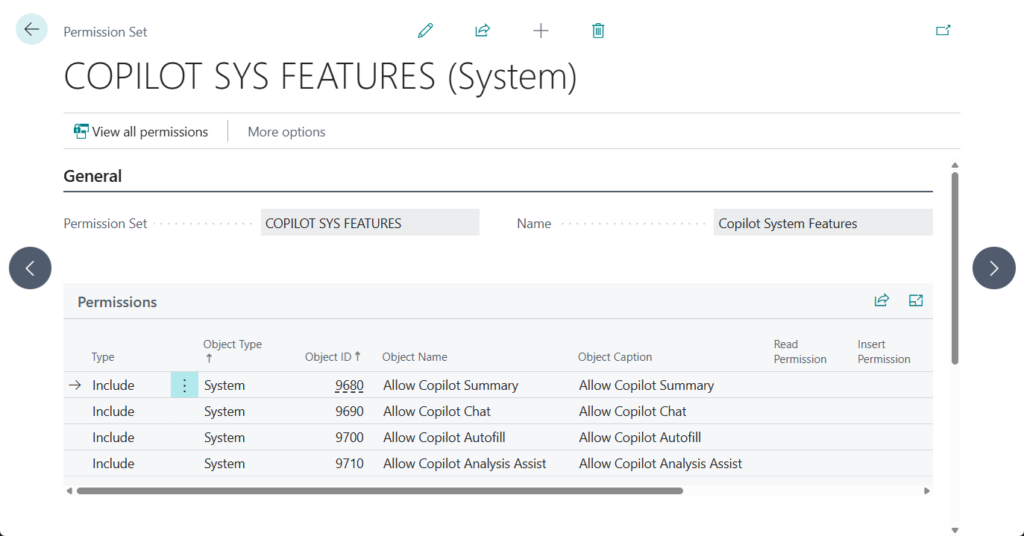
And in 2025 wave 2 (BC27), you get general availability of Copilot’s analysis assist feature with the following key enhancements:
- A new system permission in the Copilot System Features permission set that grants or denies access to the feature.
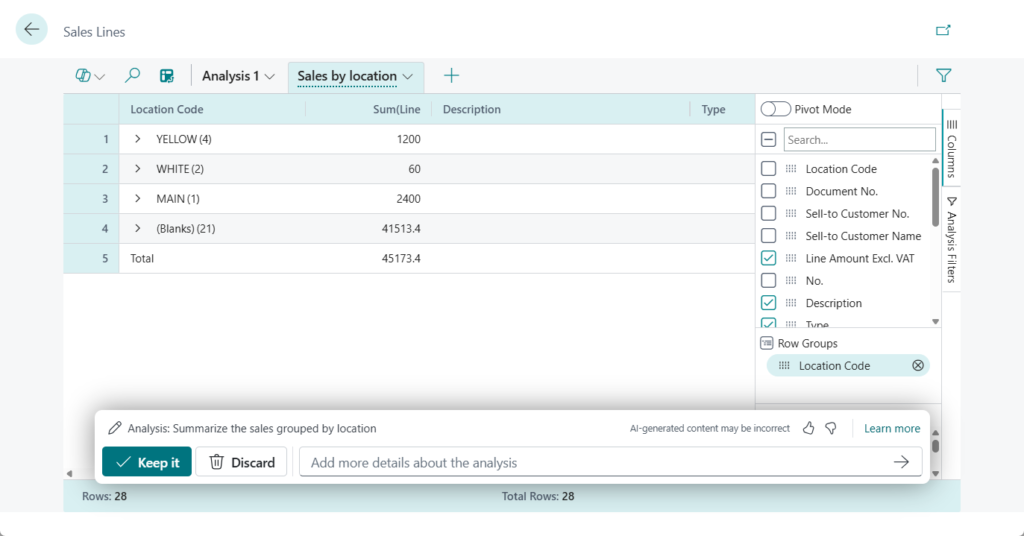
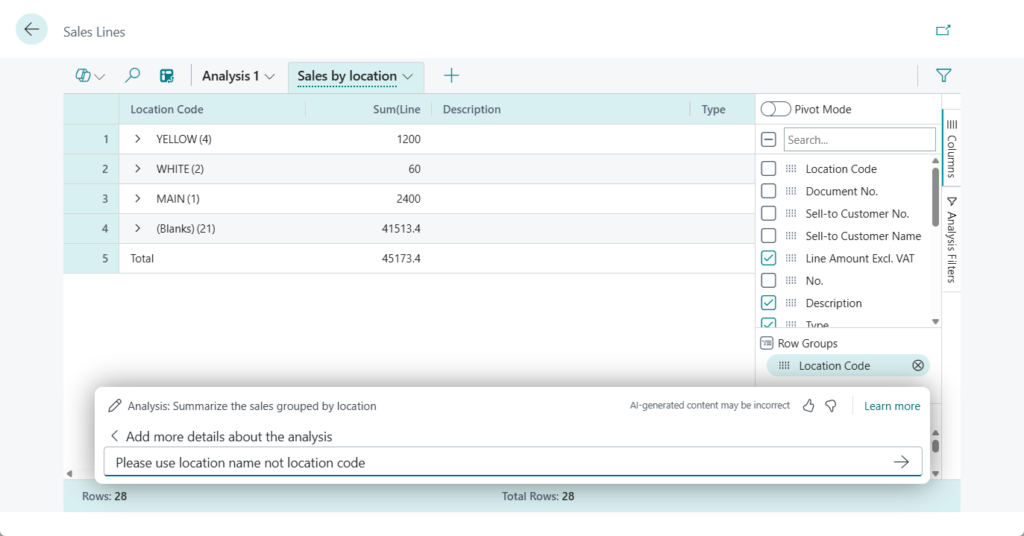
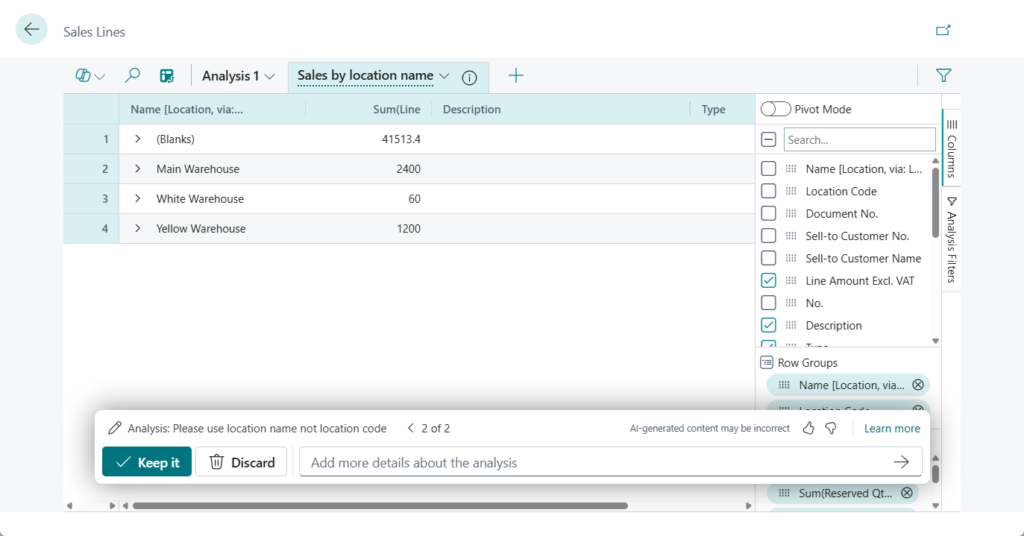
- The ability to ask Copilot to include fields from related tables.
For example, the Sales Lines page
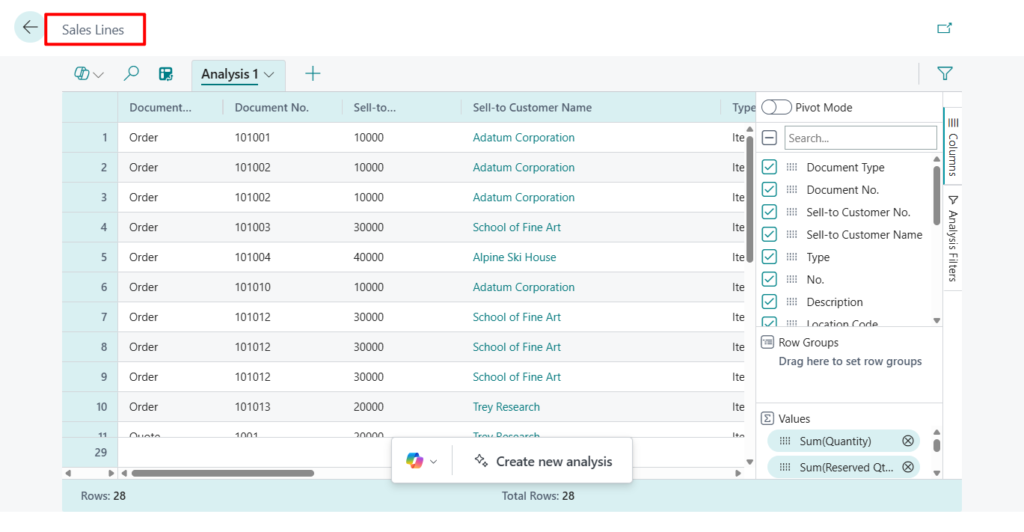
Summarize the sales grouped by location

Please use location name not location code
Done.
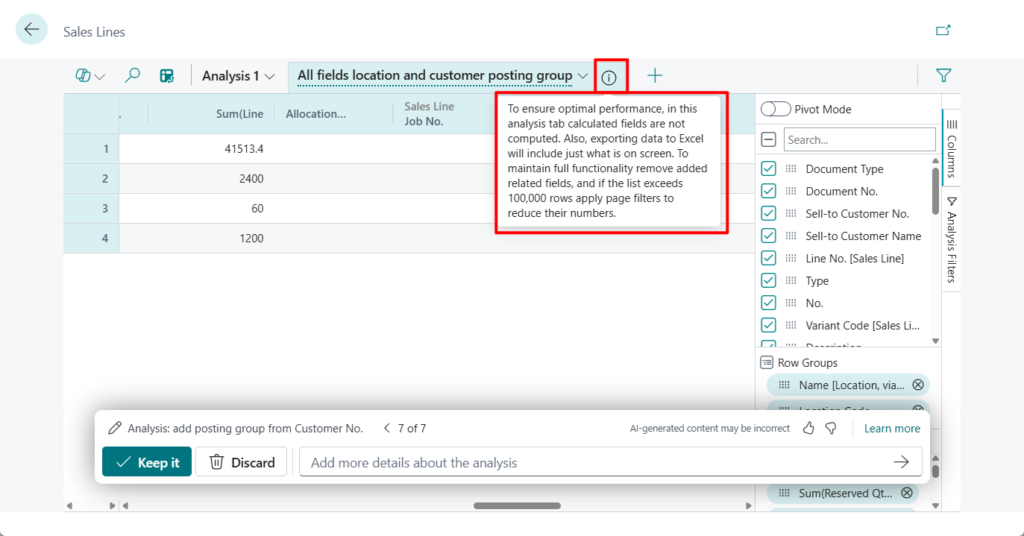
- Immediate feedback when making analysis design choices that might affect performance.
For example,
To ensure optimal performance, in this analysis tab calculated fields are not computed. Also, exporting data to Excel will include just what is on screen. To maintain full functionality remove added related fields, and if the list exceeds 100,000 rows apply page filters to reduce their numbers.
One more: You can now pivot on date hierarchy fields in server-saide data mode

More details: Analyze data in lists with Copilot
2. Business Central 2024 wave 2 (BC25): Experience enhancements to analysis assist with Copilot
4. Business Central 2025 wave 2 (BC27): Use enhanced analysis assist with Copilot
Autofill
Copilot’s autofill feature assists you by automatically filling in editable blank fields on your page. Use autofill when creating or modifying a record to get suggestions for field values that you can choose to keep or discard. These suggestions can be based on your Business Central data, AI-generated, or based on information from the web.
PS: When Copilot generates suggestions, it only accesses the business data you can access. Copilot never saves suggestions automatically but presents them for you to decide what to keep. Copilot uses AI, and suggestions might not be correct.
Let’s do a simple test.
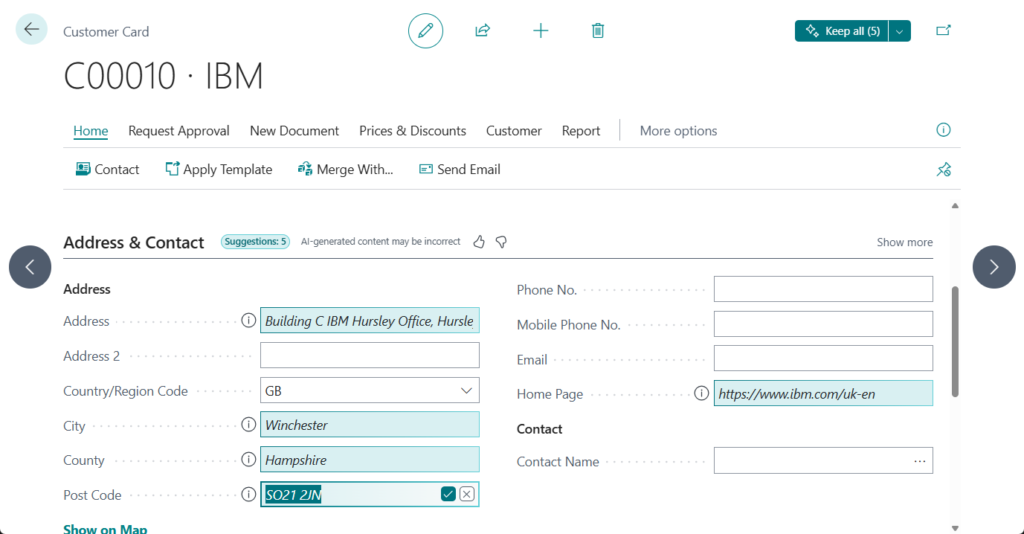
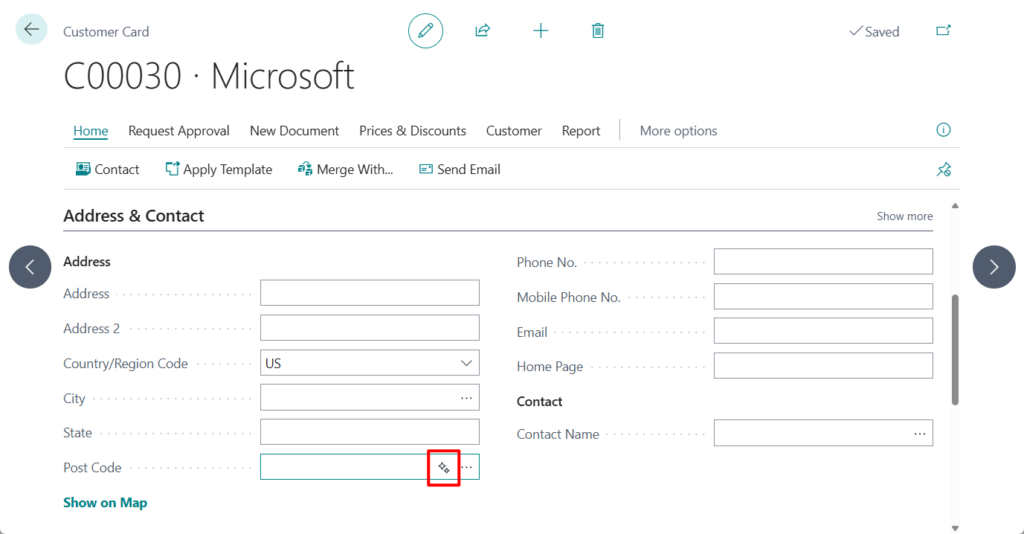
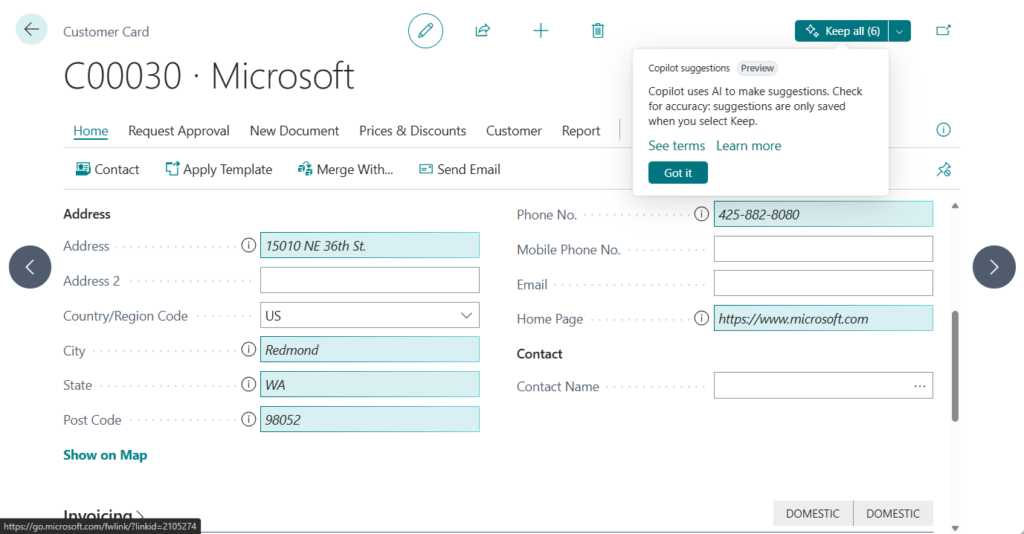
On the Customer Card, look for the sparkle icon on fields to ask Copilot for suggestions.


Copilot makes suggestions for multiple fields within the FastTab (group). Use the information icon to understand how Copilot made the suggestion.


Test video:
Review, keep, or discard a suggestion. You can also do this in bulk by keeping or discarding all suggestions.


If you don’t make any selections, you can’t close this page.

If there is no suggestion, the following message will be displayed.

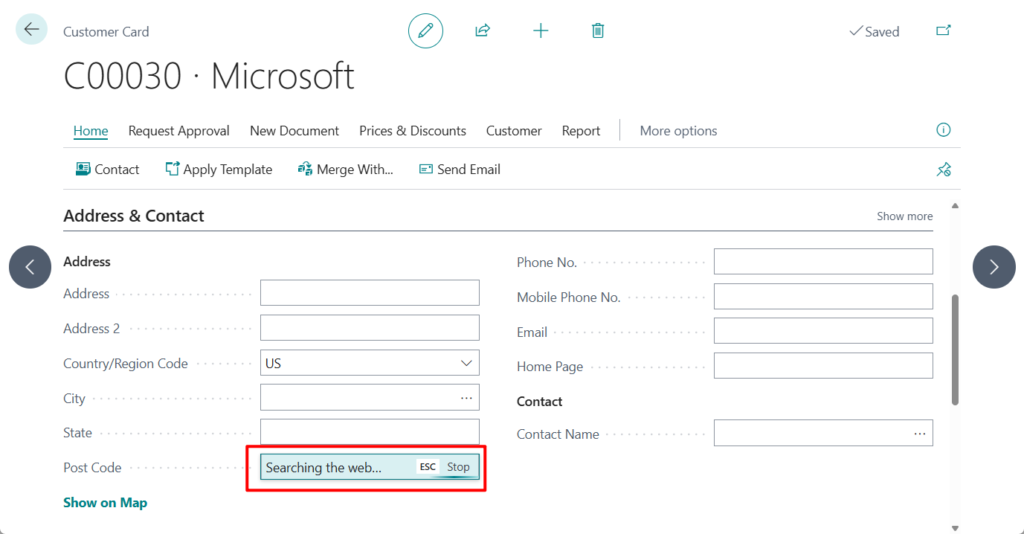
In 2025 wave 2 (BC27), Copilot now automatically searches the web for information and provides suggestions for customer or vendor contact details such as address, phone, email, and website. It can also use a web search to autofill similar fields that typically contain publicly available information.
- Autofill of contact details is now available in production environments.
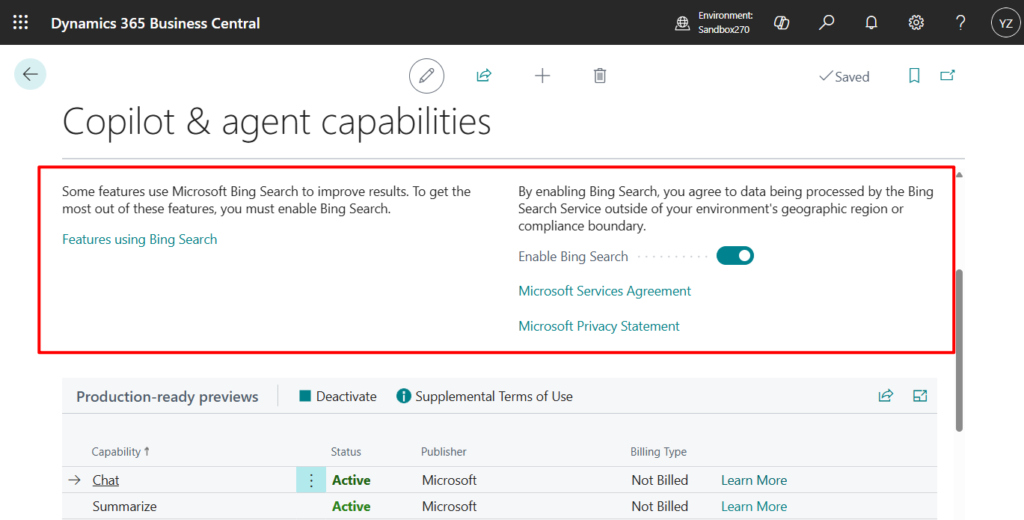
- To enable Copilot to get information from the web, administrators must first Enable Bing Search on the Copilot & agent capabilities page.
More details: Searching the web with Copilot (preview)
Let’s see more details. For example, I create a new customer.
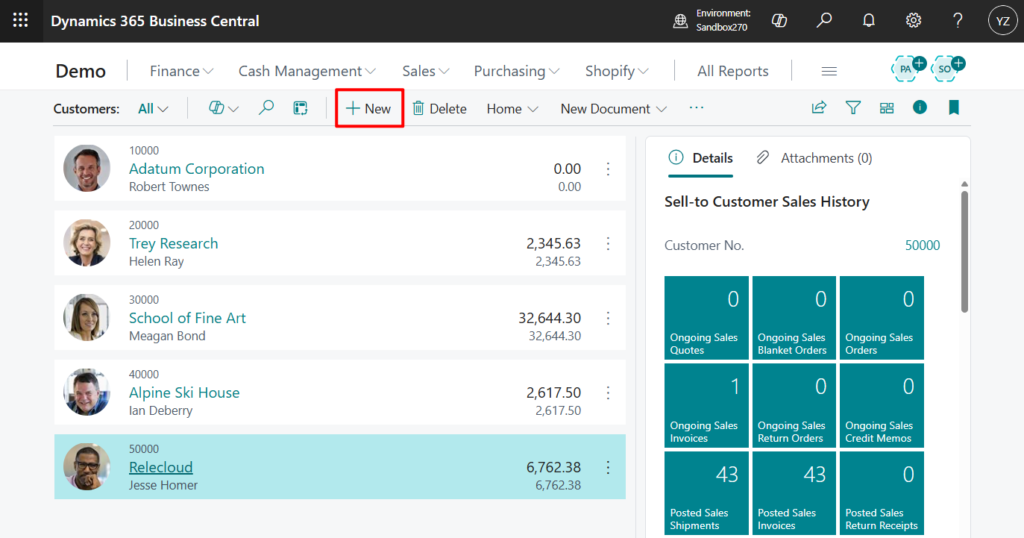
Enter the name of the new customer.
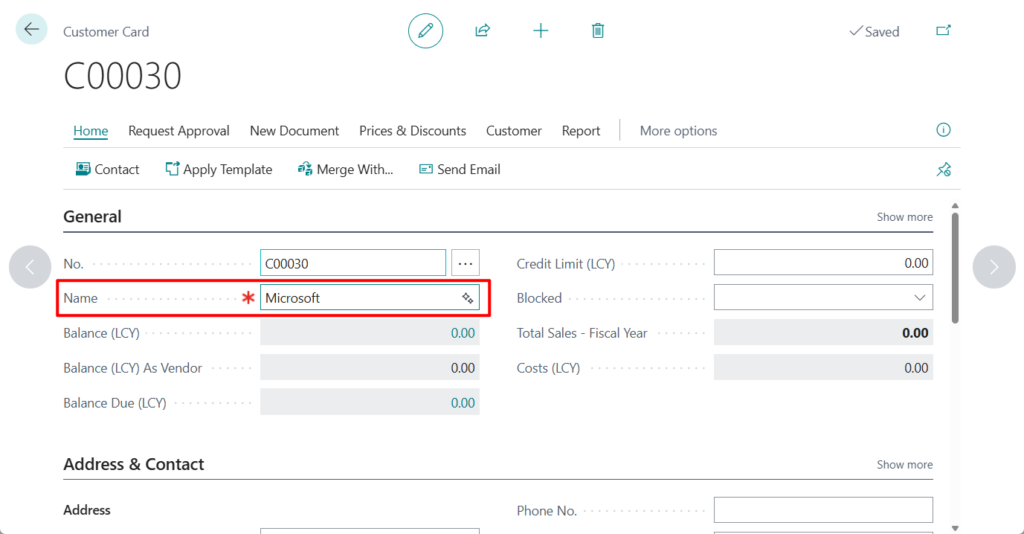
For contact details, I don’t know other customer information except Country/Region Code, so I need to ask the customer or get it from the customer’s official website.
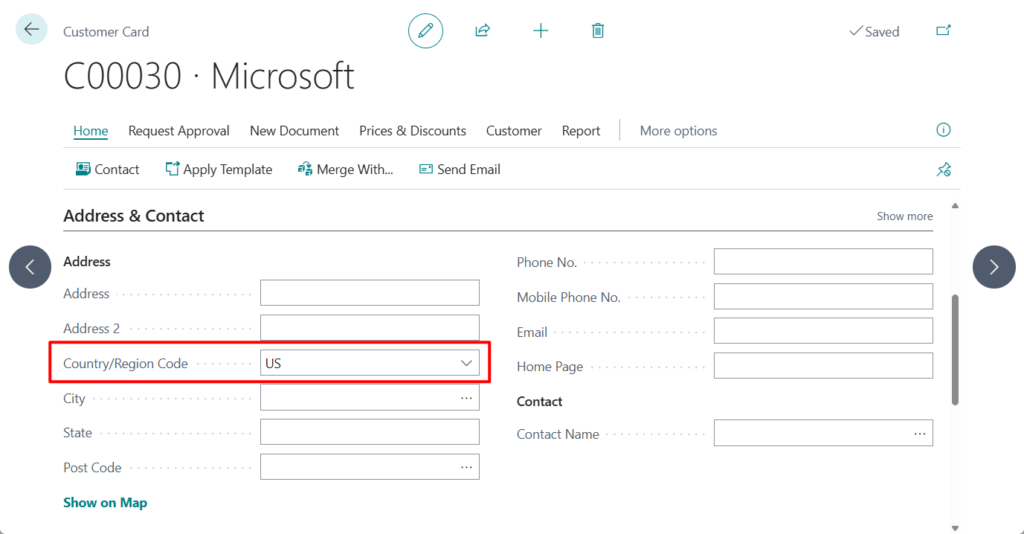
At this time we can use the new Autofill feature.
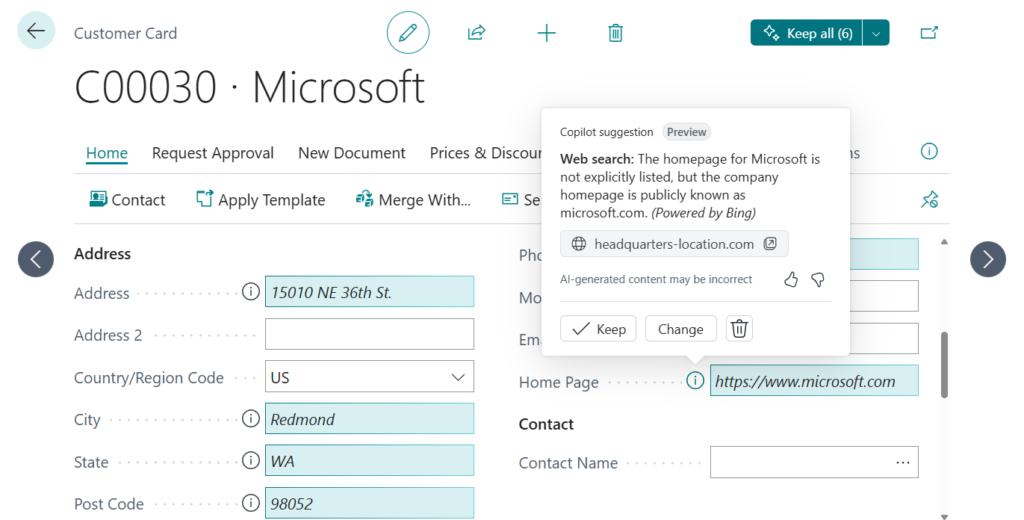
Searching the web…
Done.
Web search: The homepage for Microsoft is not explicitly listed, but the company homepage is publicly known as microsoft.com. (Powered by Bing)
Contact details automatically obtained this time:
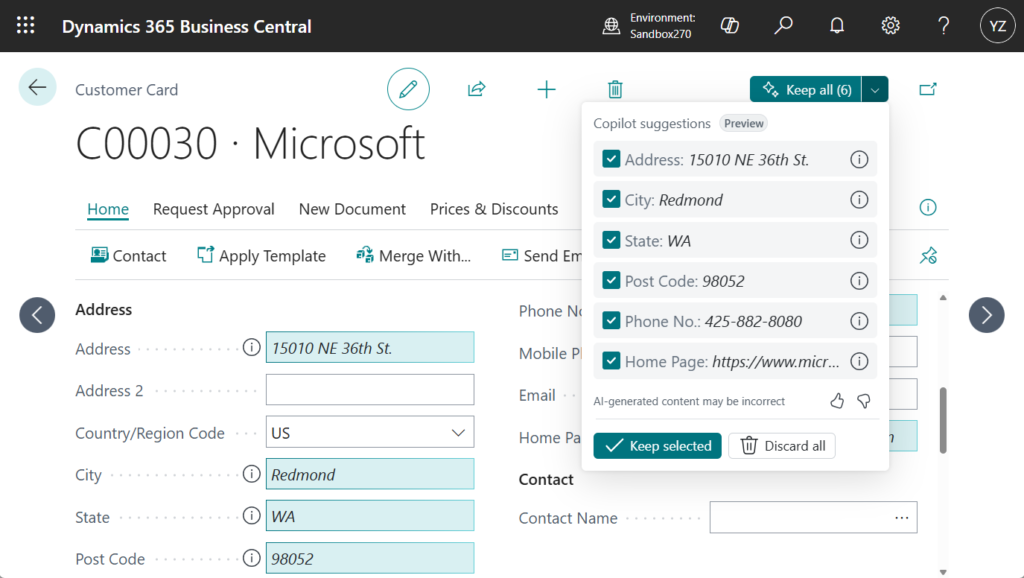
Selecting Keep selected will apply these values.
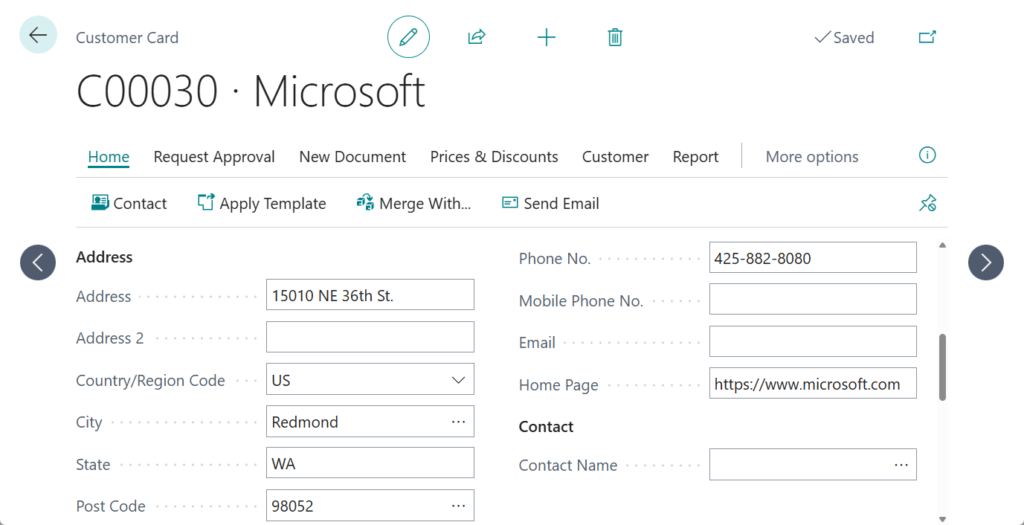
Test video:
Other improvements include:
- Better reliability: More consistent and accurate field suggestions.
- Expanded language support: Later in this wave, autofill will support 20 more languages.
More details: Autofill fields with Copilot (preview)
PS:
1. Business Central 2025 wave 1 (BC26): Autofill fields with Copilot (New capability of Copilot)
2. Business Central 2025 wave 2 (BC27): Autofill contact details with Copilot
Bank reconciliation assist
Bank account reconciliation assist is a set of AI-powered features that help you reconcile bank accounts. It offers two distinct tasks through Copilot:
- Improved matching of transactions with ledger entriesAs you might already know, the Match Automatically button on the Bank Acc. Reconciliation page automatically matches most bank transactions with ledger entries. We refer to this operation as automatch. Although automatch works well, the algorithms that it uses can sometimes result in many unmatched transactions. Copilot uses AI technology to inspect those unmatched transactions and identify more matches, based on the dates, amounts, and descriptions. For example, if a customer paid multiple invoices in one lump sum that you have registered as individually paid invoices, Copilot reconciles the single bank statement line with the multiple bank ledger entries.
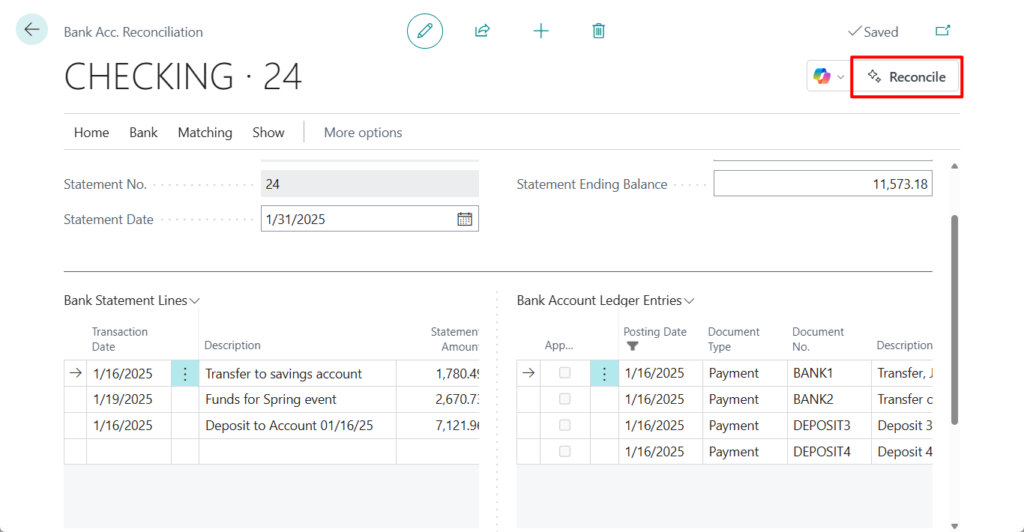
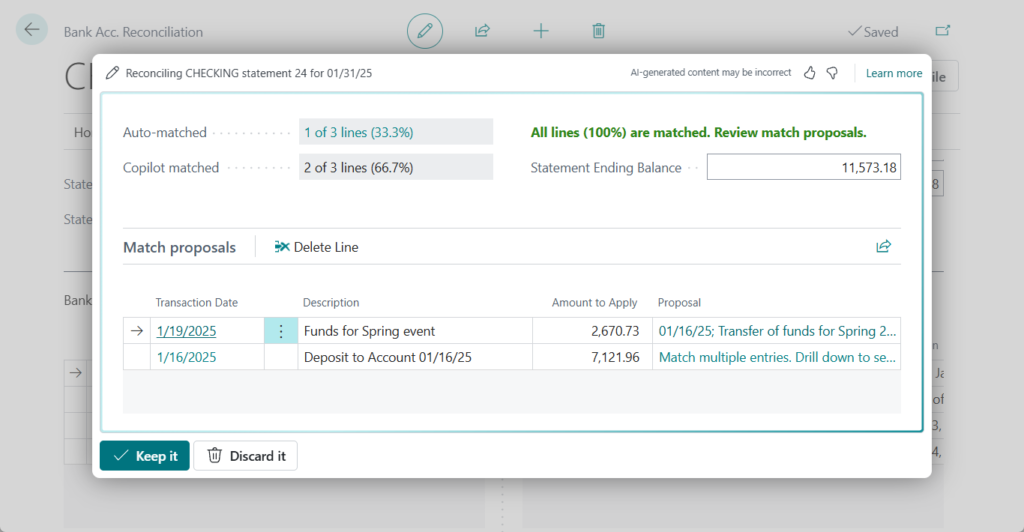
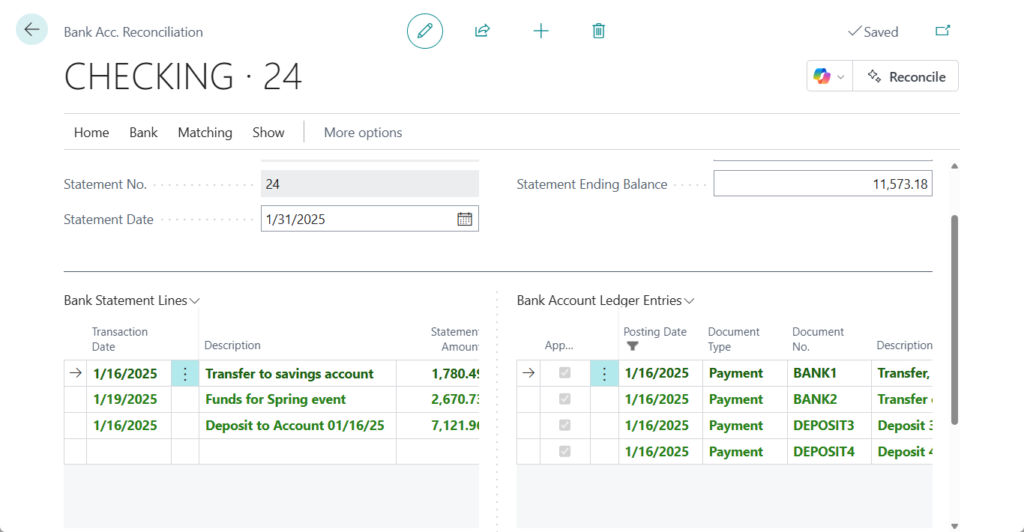
- Suggested general ledger (G/L) accountsFor residual bank transactions that can’t be matched to any ledger entries, Copilot compares the transaction description with G/L account names and then suggests the most likely G/L account to post to. For example, if unmatched transactions have the narrative Fuel Stop 24, Copilot might suggest that you post them to the Transportation account. Learn more about this task

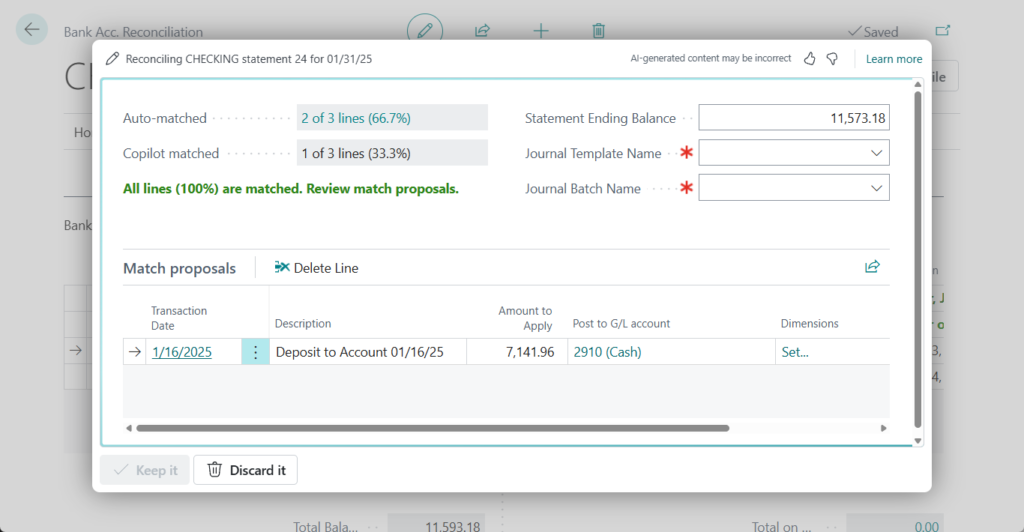
More details: Reconcile bank accounts with Copilot
Chat with Copilot
Microsoft Copilot is an AI-powered assistant that helps spark creativity, boost productivity, and eliminate tedious tasks. By chatting with Copilot in Business Central, you can ask questions and find business data using natural language. Here’s what you can do:
- Find business data for your company in Business Central. Use chat to look up and open data about entities or records related to business processes, such as customers, vendors, sales orders, and items. For example, ask: “Show me the latest sales order for Adatum”.Copilot can also organize data for you. Just ask it to group records or do calculations like adding or averaging, and it generates an analysis tab, displaying the results. Learn more about prompting in Prompting for aggregating data on analysis tabs.
- Get explanations or step-by-step guidance on various tasks. For example, ask: “Help me understand dimensions” or “How do I post a sales order?”. You can also ask for explanations about the apps installed in your Business Central. For example, you can ask “how do I cancel hotel reservations?” if you installed a hotel management app.
- Know the purpose and use of each field. When you choose Ask Copilot in a tooltip for a field, chat opens with an Explain prompt for the field name and Copilot provides information about it. Copilot links to the articles it referenced, so it’s easy to verify the description.
Let’s see more details.
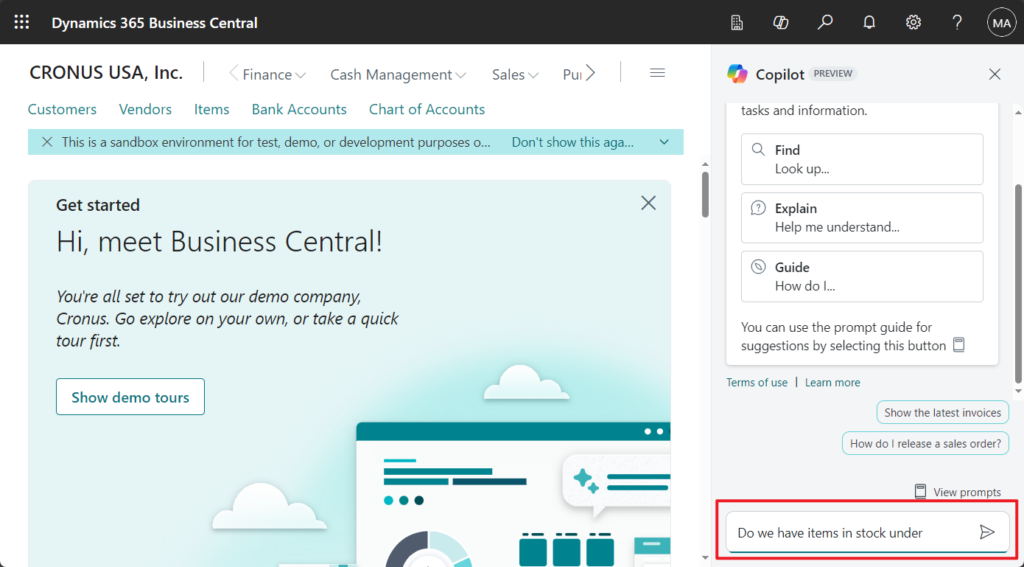
To experience this feature, sign in to your Business Central environment and choose the new Copilot icon in the app bar.
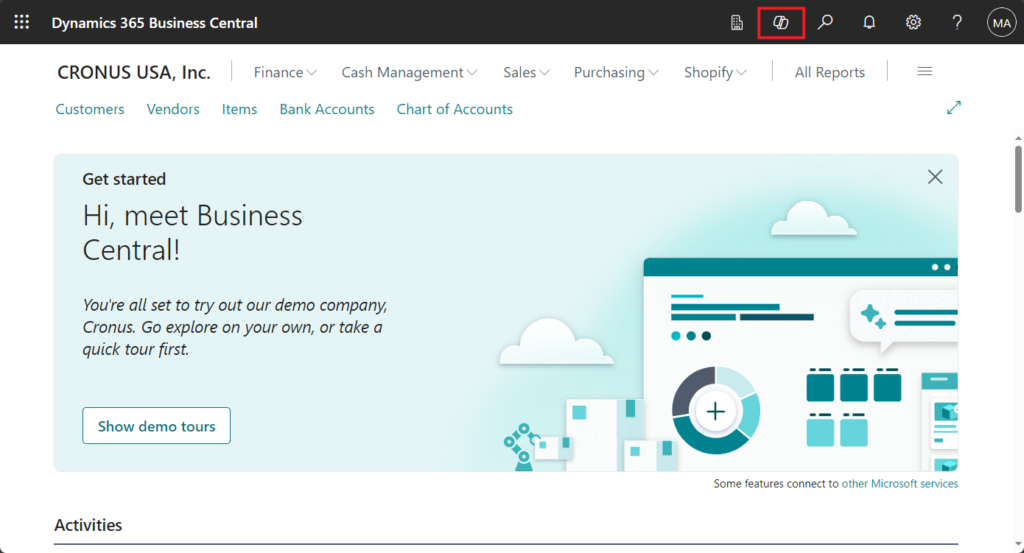
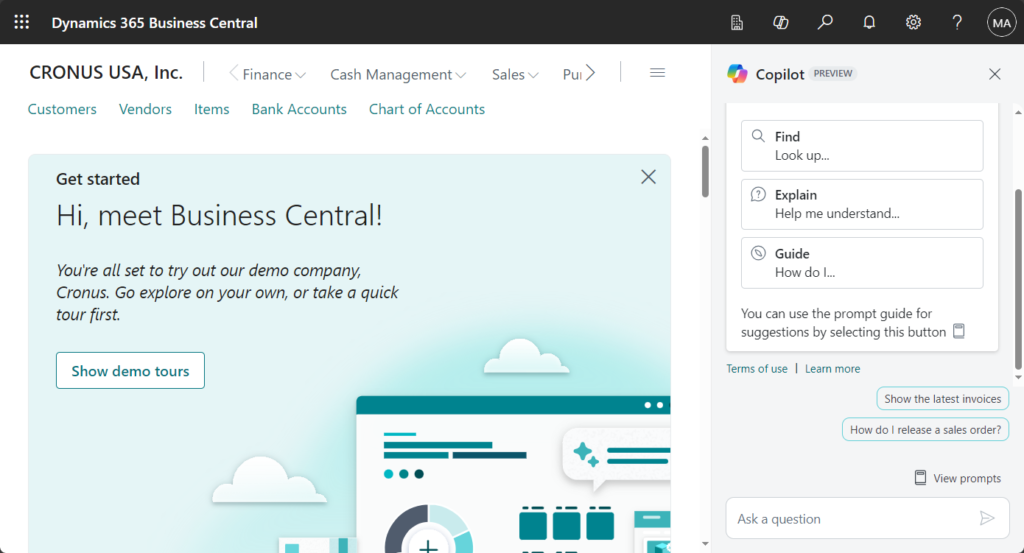
For example,
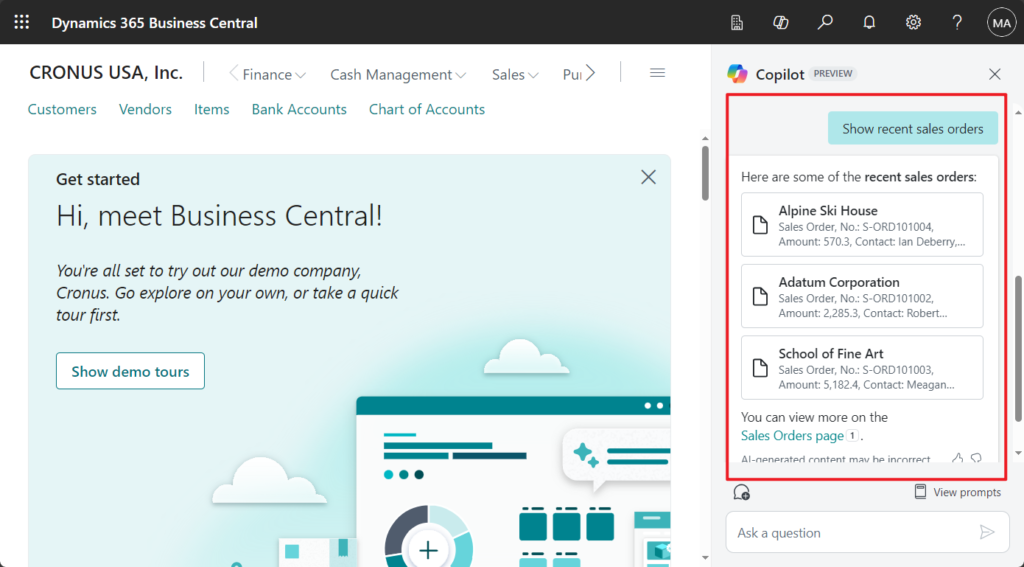
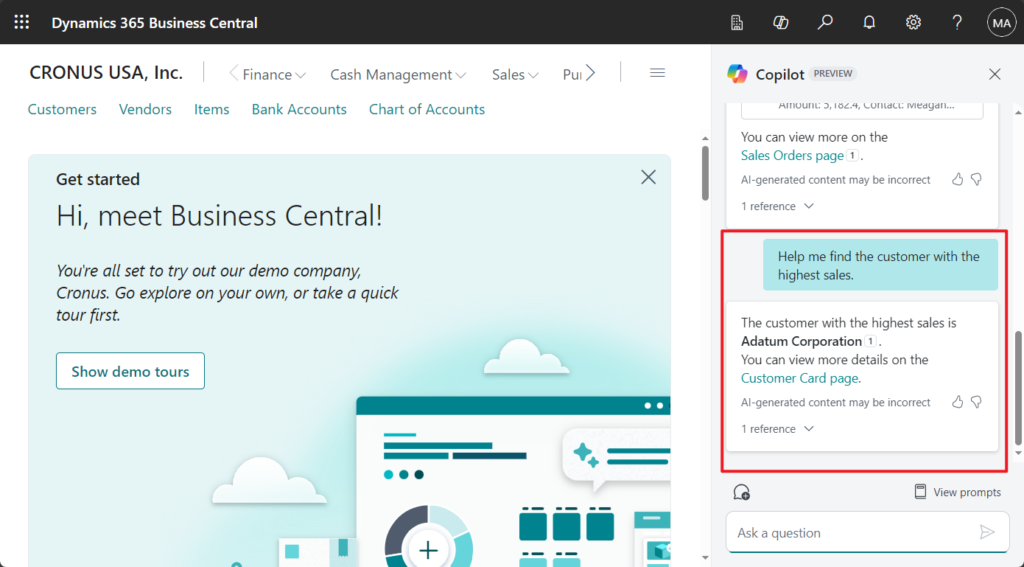
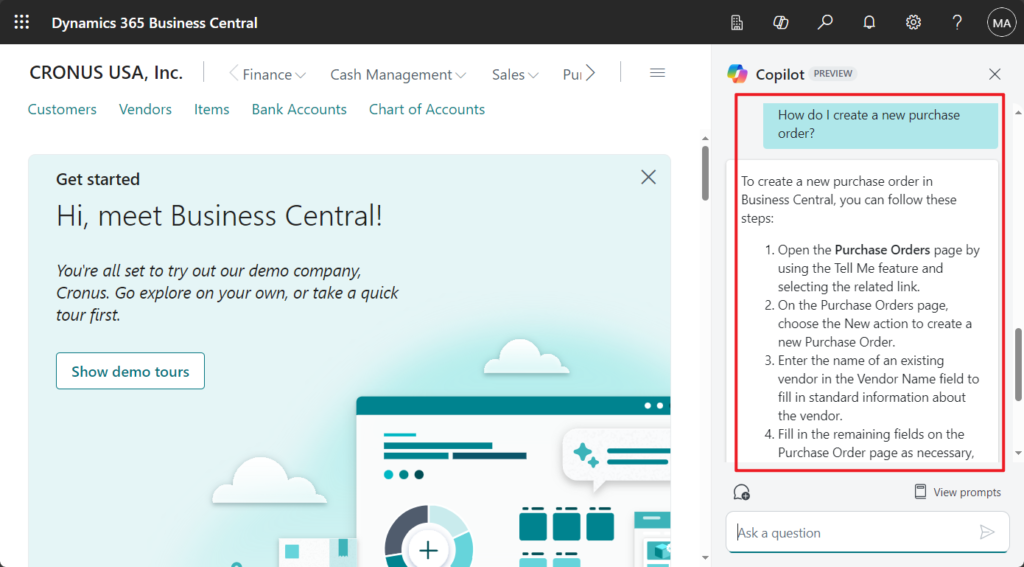
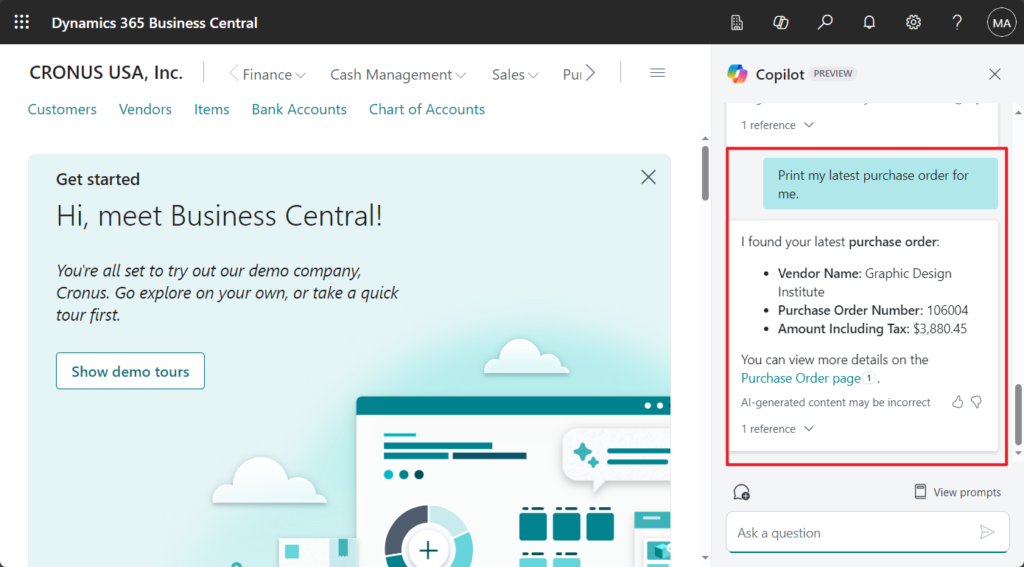
Very good. While in preview, Copilot will be able to assist with the following:
- Quickly find and go to your data by expressing what you’re looking for in natural language. Locate pages by name or one or more records based on their fields and constraints. For example, tell Copilot: “Show me the latest sales order for Adatum.”
- Explain and guide to learn about Business Central concepts or how to accomplish tasks, based on Business Central’s extensive online documentation. For example, ask Copilot: “How do I save my list filters so that I can use them again later?”
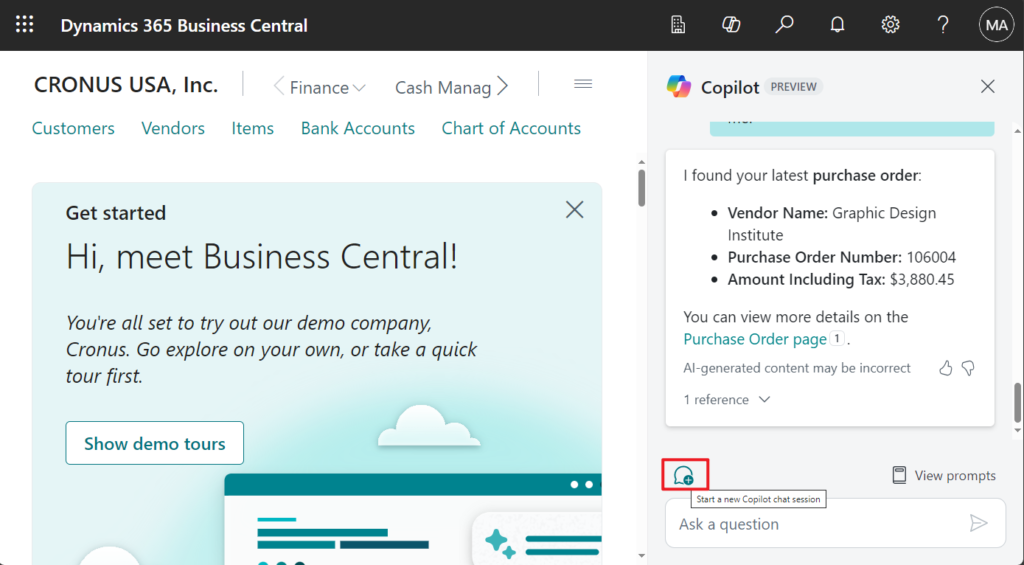
You can choose Chat icon to start a new Copilot chat session.
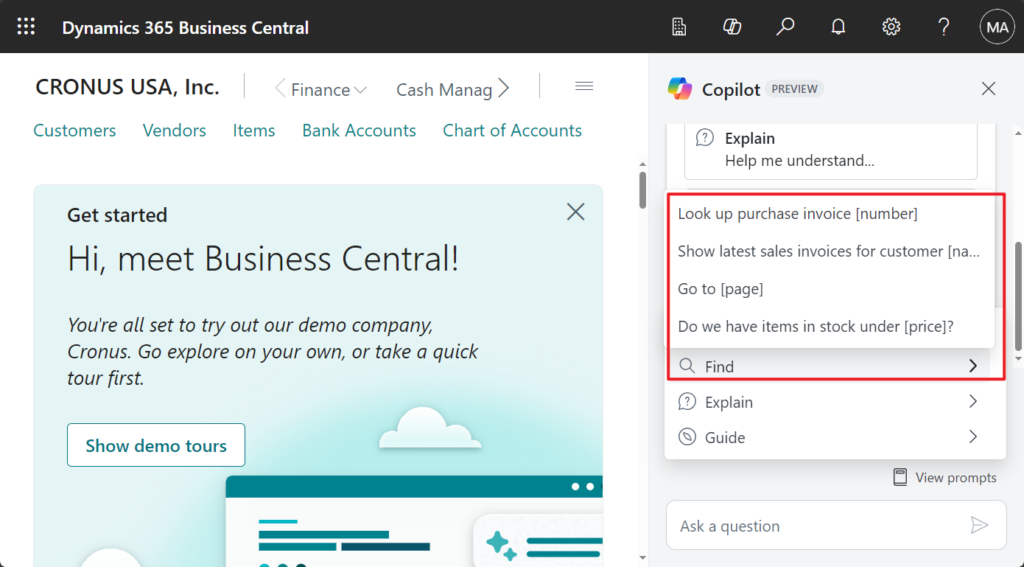
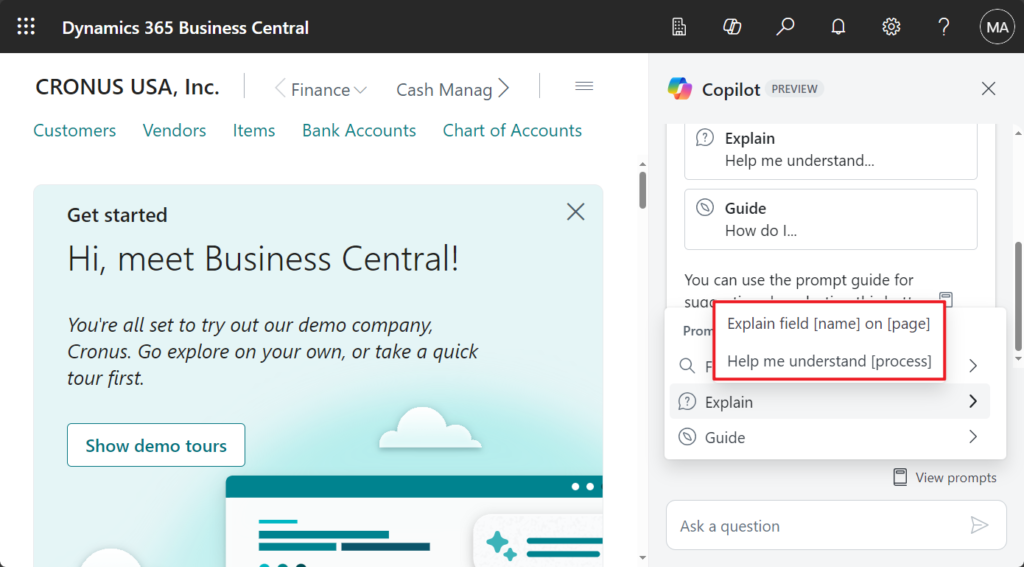
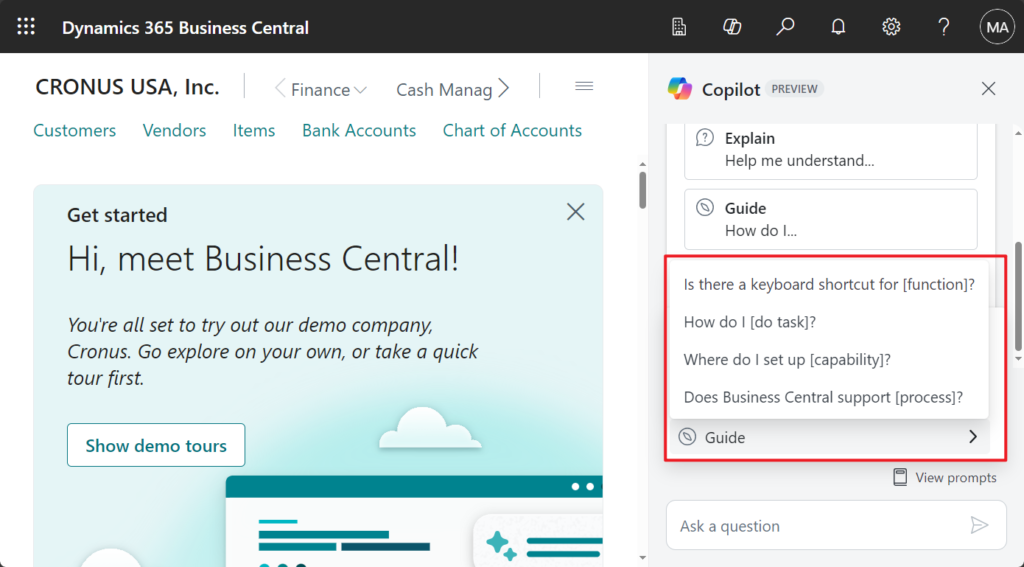
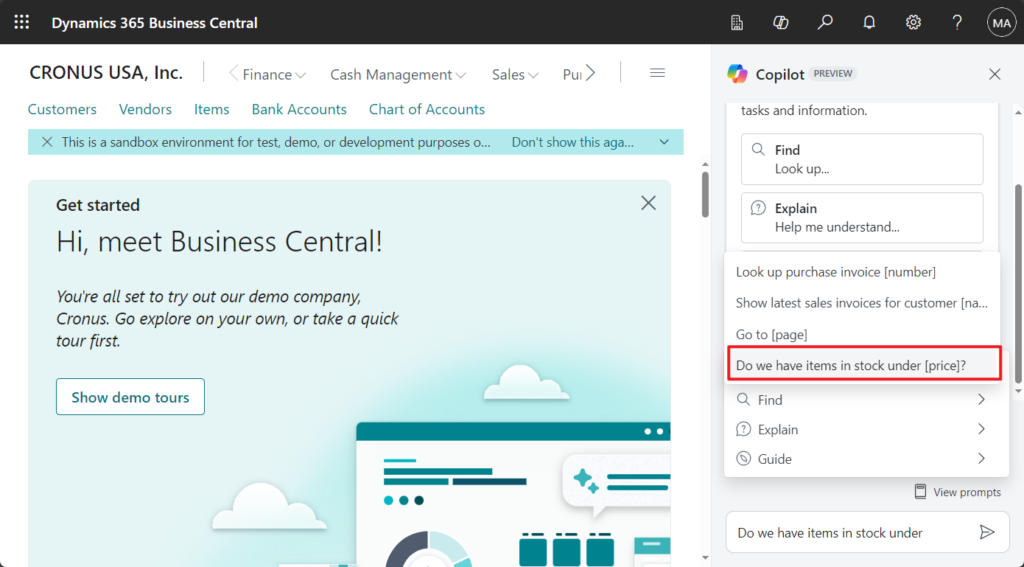
Choose Veiw prompts to see some tips on how to ask questions.
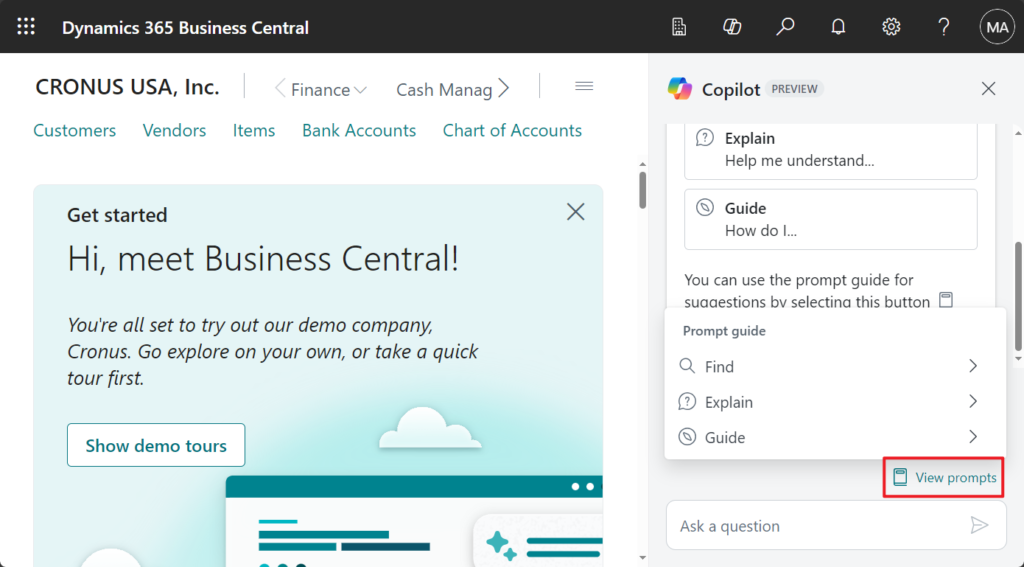
Find:
Explain:
Guide:
Click to enter quickly.
Test video: Youtube
More details: Chat with Copilot (preview)
PS:
1. Business Central 2024 wave 1 (BC24): Chat with Copilot
3. Business Central 2024 wave 2 (BC25.4): Chat with Copilot from anywhere (All countries and regions)
4. Business Central 2025 wave 1 (BC26.3): Chat with Copilot to learn how to use installed add-on apps
5. Business Central 2025 wave 2 (BC27): Use enhanced chat with Copilot (Supports 20 more languages)
Summarize
Use Copilot to get a quick summary of a record, such as a customer, item, or sales order, directly in the page’s FactBox pane. Copilot uses AI to generate two or three concise bullet points that provide details and insights about the data tailored to your role in Business Central. The summary helps you understand the data and identify areas that need attention. Interact with the summary to link to data sources and open related pages, so you can act on your data.
Let’s see more details.
- A new summary FactBox displays on card and document pages, such as a Customer, Sales Order, Item, and even your custom pages.


- Get summaries of the record by displaying a few bullet points that are the top things you need to know, with even more insights available on demand.

- Copilot searches through data from the current page, from FactBoxes, and from related pages and statistics to identify what is urgent and important, so you don’t have to.


- Summaries are tailored to your role, focusing on what matters to you.

- Interact with the summary to navigate, explore, and quickly act on your data.

- Refresh the summary based on the latest data.

Choose Show more to jump to the Chat with Copilot panel.


You can ask further questions and request Copilot to perform tasks.


More details: Summarize records with Copilot (preview)
PS:
1. Business Central 2025 wave 1 (BC26): Summarize with Copilot (New capability of Copilot)
2. Dynamics 365 Business Central: Show or hide Summarize with Copilot FactBox
Map e-documents
More details: Map e-documents to purchase order lines with Copilot (preview)
Advanced Tell Me search
The Business Central client includes the Tell me feature that lets users find objects by entering search terms.
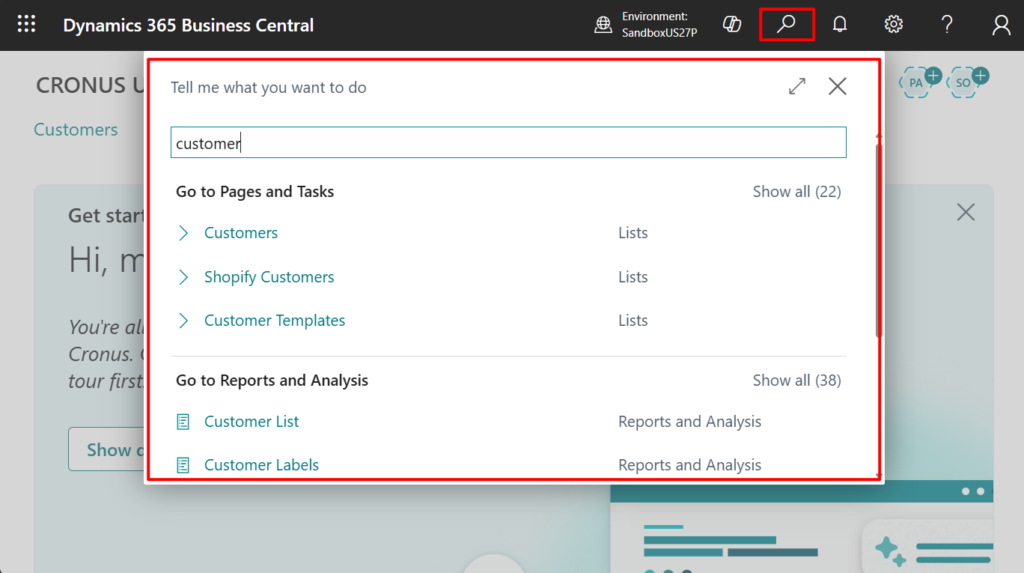
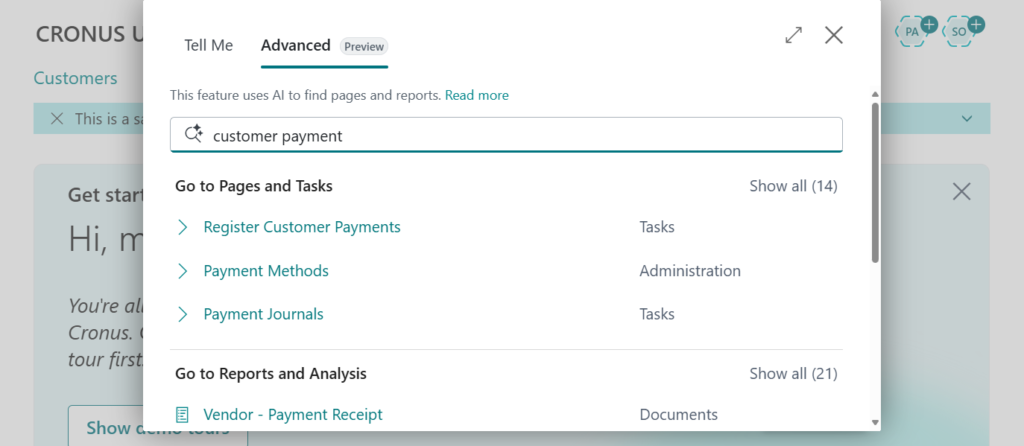
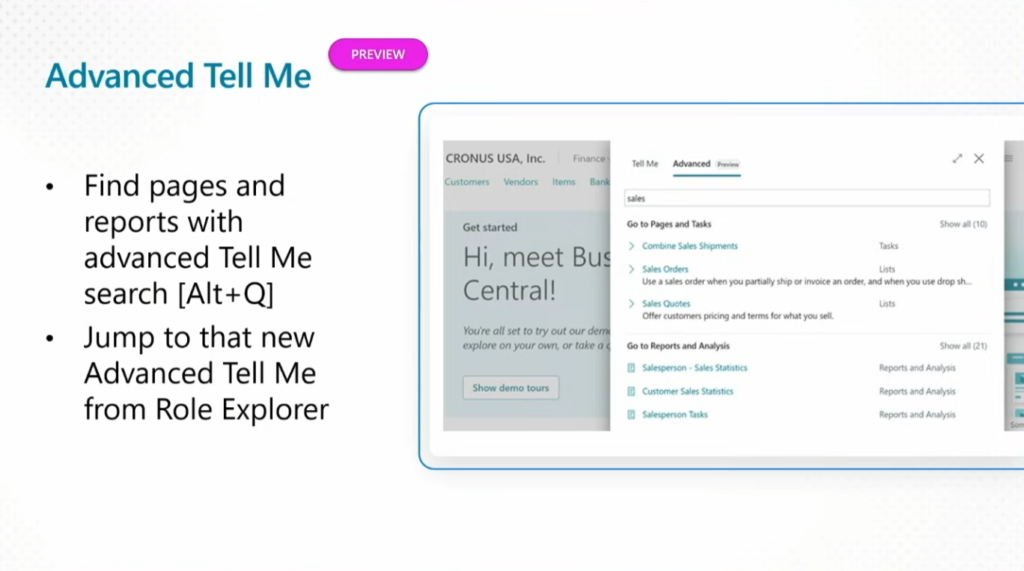
With this wave (BC27), this feature adds an advanced search option in Tell Me that finds results based on semantic meaning, not just exact text matches. It considers various page properties and additional search terms to provide an ordered list of relevant results.
In the current Public Preview environment, this feature needs to be manually enabled in Feature Management.
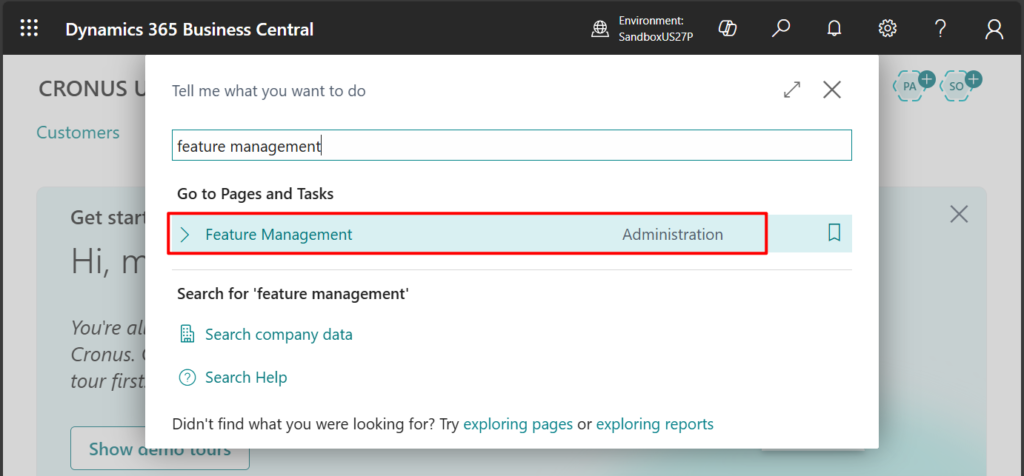
Feature: Advanced Tell Me (preview):
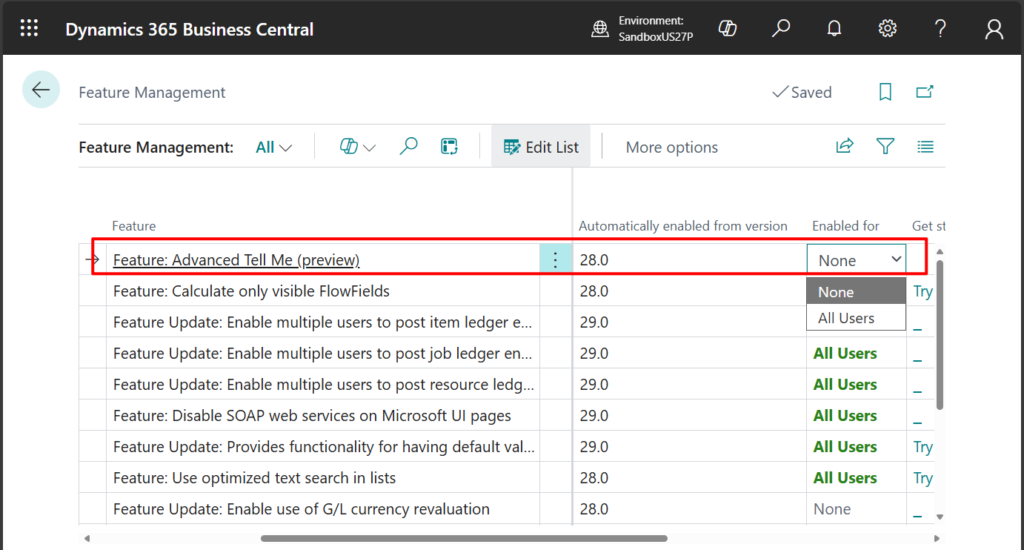
You must sign out and then sign in again to make the changes take effect.

After enabling, you can see a new tab, Advanced, on the right side of Tell Me.
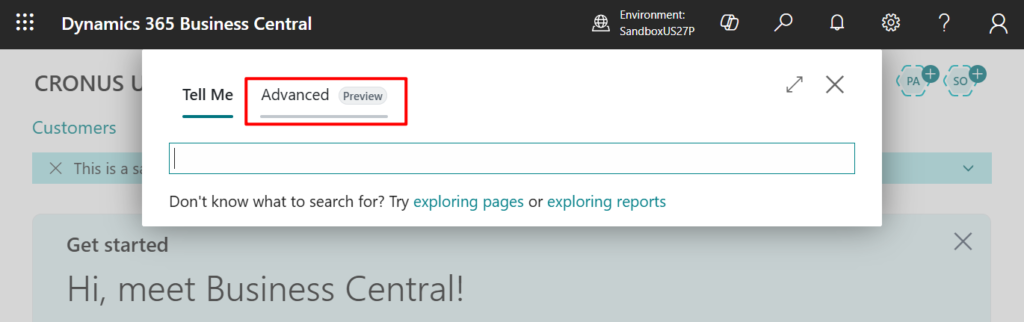
Tell Me opens to the Advanced tab. The search terms entered in the Find box are automatically copied to Tell Me, where the search results are shown. From here, you can enter other search terms to try again. (Note that unlike the standard Tell Me, it will not automatically display the results and you need to press the Enter key)
More details:
Suggest gas emissions in sustainability journals
Suggest gas emissions in sustainability journals with Copilot (Public preview: Feb 2026)
Business value:
https://learn.microsoft.com/en-us/dynamics365/release-plan/2025wave2/smb/dynamics365-business-central/suggest-gas-emissions-sustainability-journals-copilot?wt.mc_id=DX-MVP-5004336
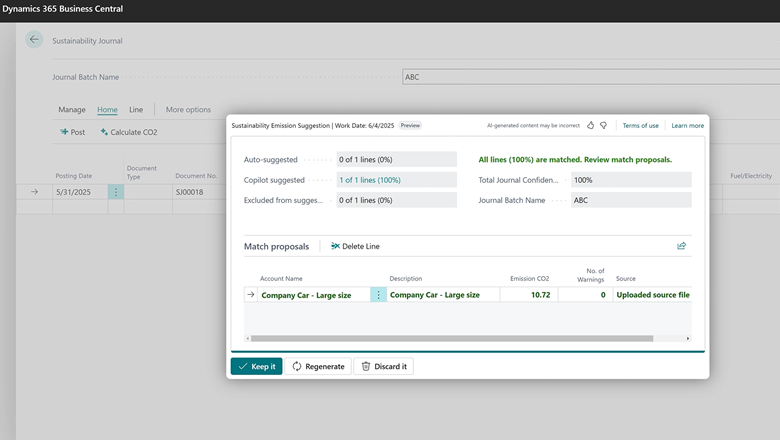
Microsoft Copilot is the AI-powered assistant that helps spark creativity, boost productivity, and eliminate tedious tasks. This feature improves accuracy and productivity when you collect gas emissions and calculate emission factors.
For greenhouse gas (GHG) emissions, Copilot estimates total emissions from descriptions and input parameters. It also adjusts emission factors for future use.
Agent capabilities
Sales Order Agent
Sales Order Agent helps Business Central users automate the process of capturing sales orders. The agent uses AI to analyze customer requests received via email and locates the customer in Business Central. If important details are missing or more choices are available, the agent engages in multi-turn email conversations to clarify the request. It checks and informs the customer about the availability of the items they’re looking for. The agent then follows up with a sales quote. The quote is formatted as a PDF and includes the requested items, quantities, units of measure, prices, taxes, requested delivery dates, provided external document reference, and other important details.
After entering the environment, you can see an icon that is not available in the environments of other countries or regions, Sales Order Agent.

Click it to open the Copilot window.


Similar to the wizard page, there are four areas that require confirmation.

PS: When setting up a mailbox, only Microsoft 365 is currently supported. Using other mailboxes will not be effective.
A discussion in the BC Yammer Group


After confirming all the information, choose Update to complete the setup.

Choose Allow Always.

Done.

Let me give you a very simple example. As a customer, I send an email to the email address I just set up.

Then BC users can confirm it immediately in Sales Order Agent.

Choose Review. Then you can open this email in BC.

Choose Confirm. This step will be closed.


The Sales Order Agent will then give you the next steps based on the current situation and the information in the email.


This is the end of my testing. If you are interested in the function, I still recommend watching the two official videos above first. The BC Copilot feature is getting more and more exciting. Give it a try!!!😁
PS:
1. To activate the agent with the current settings, a mailbox must be selected first.

2. After completing the settings, you can set up users who will use this feature.


More details: Sales Order Agent overview
Payables Agent
The Payables Agent solves a decade-old challenge: end-to-end processing of vendor invoices. Processing vendor invoices often creates bottlenecks and relies on accounting knowledge and mapping data and business rules to register invoices correctly.
The core goal for the Payables Agent is simple: get accounting skills and help register invoices correctly, ideally removing bottlenecks in accounts payable so finance support doesn’t slow company growth. The agent needs almost no setup—just configuration and activation.
The Payables Agent monitors mailboxes for incoming vendor invoices, uses AI to analyze invoice content, and shows invoice drafts to agent supervisors for review. Ideally, users make few or no corrections before finalizing drafts, so invoices are ready for approval and posting.
More details: Payables Agent overview
Expense Agent (2026 release wave 1)
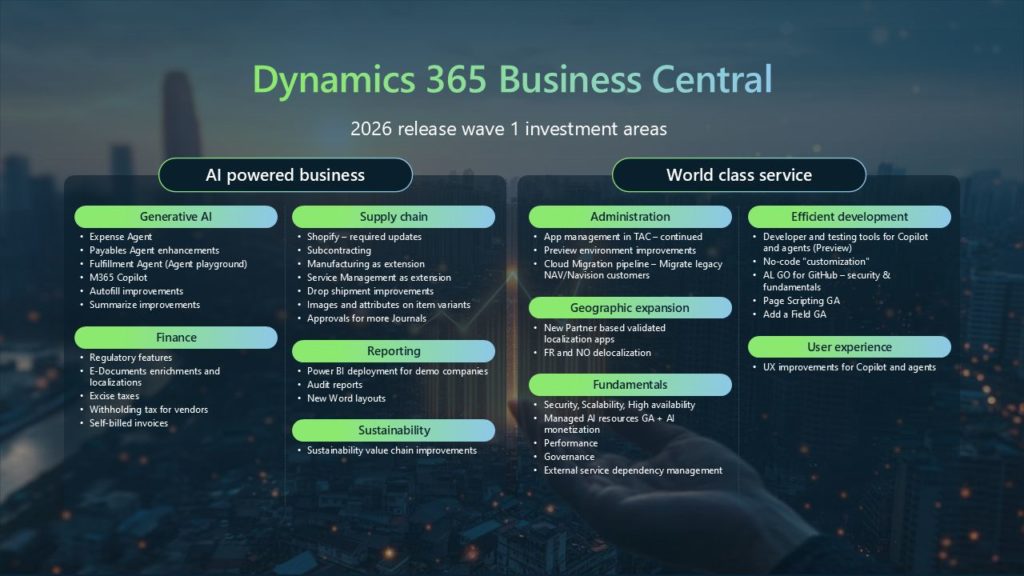
Agent playground overview (preview)
The Agent playground is a prototyping environment that allows developers and partners to experiment with AI capabilities in Business Central by building playground agents. It’s available in sandbox environments and designed for testing and learning purposes, providing a safe environment to explore AI functionalities without affecting production data. More details: Agent playground overview (preview)
Create and activate a playground agent (preview):
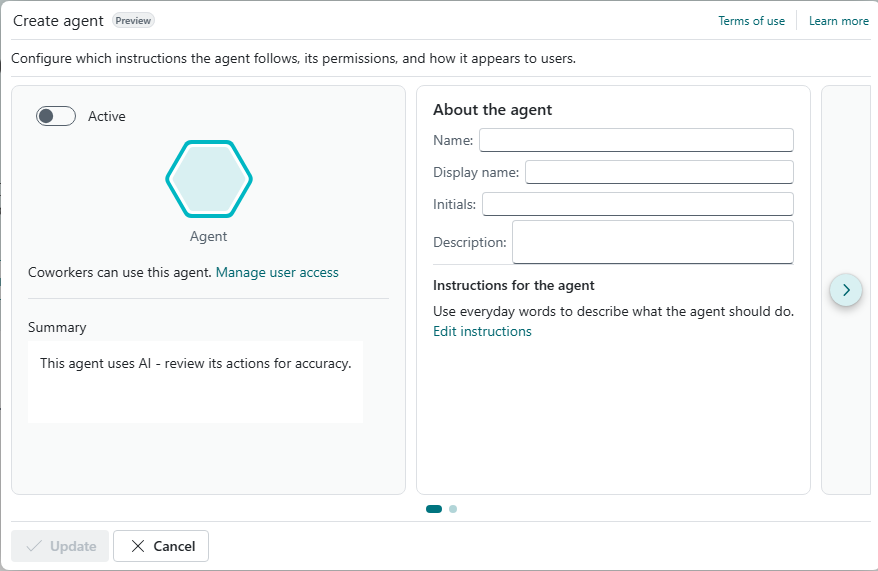
Others
Business Central MCP
The Model Context Protocol (MCP) server for Business Central helps businesses unlock the full potential of AI-driven automation and orchestration. When the server exposes Business Central entities such as customers, items, and sales orders through a standardized API, you get seamless integration with intelligent agents built on any AI platform that supports the MCP protocol, including Azure OpenAI and Copilot Studio. With this capability, users can automate repetitive tasks, streamline workflows, and interact with their ERP data conversationally. The result is improved efficiency, faster decision-making, and a more intuitive user experience across business operations.
1. In Business Central side, Microsoft added a new page to manage APIs for Model Context Protocol (MCP) server.

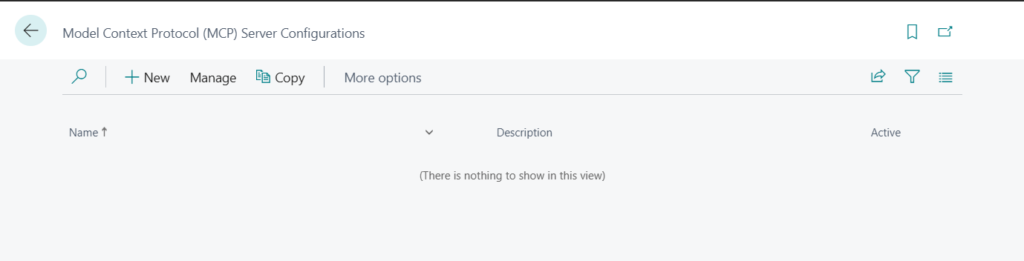
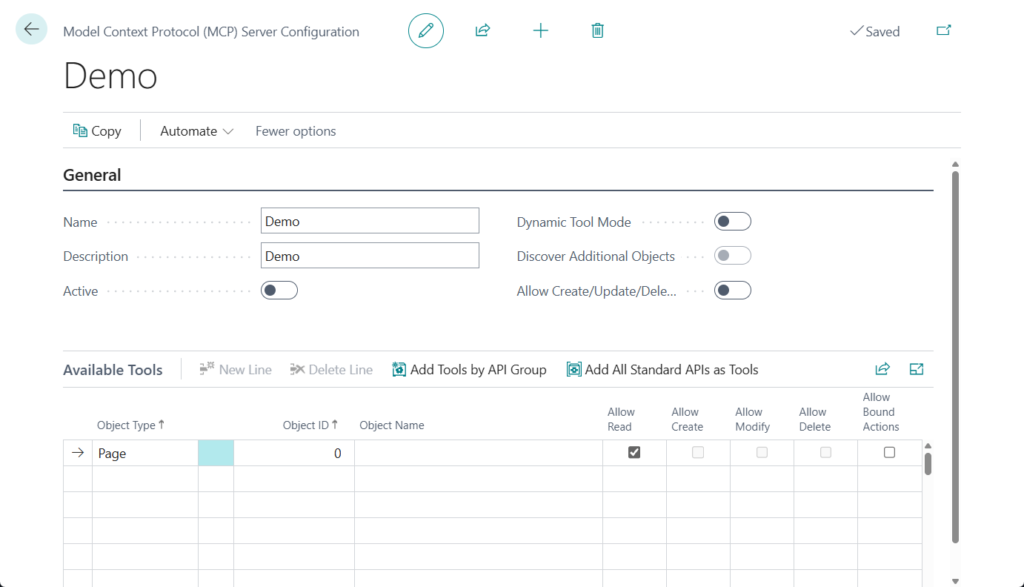
You can add All Standard APIs as Tools or add you custom APIs.
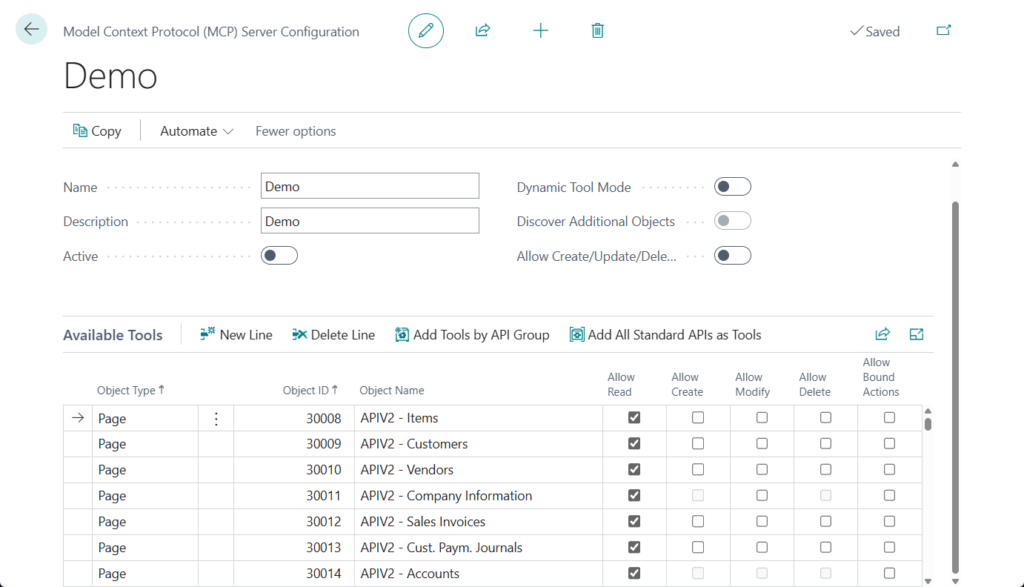
In addition to Allow Read, Create, Modify, Delete, and Bound Actions on the line, the Header also has the following settings.
Active
Specifies whether the MCP configuration is active.
Dynamic Tool Mode
Specifies whether to enable dynamic tool mode for this MCP configuration. When enabled, clients can search for tools within the configuration dynamically.
Discover Additional Objects
Specifies whether to allow discovery of read-only objects not defined in the configuration. Only supported with dynamic tool mode.
Allow Create/Update/Delete Tools
Specifies whether to allow create, update and delete tools for this MCP configuration.
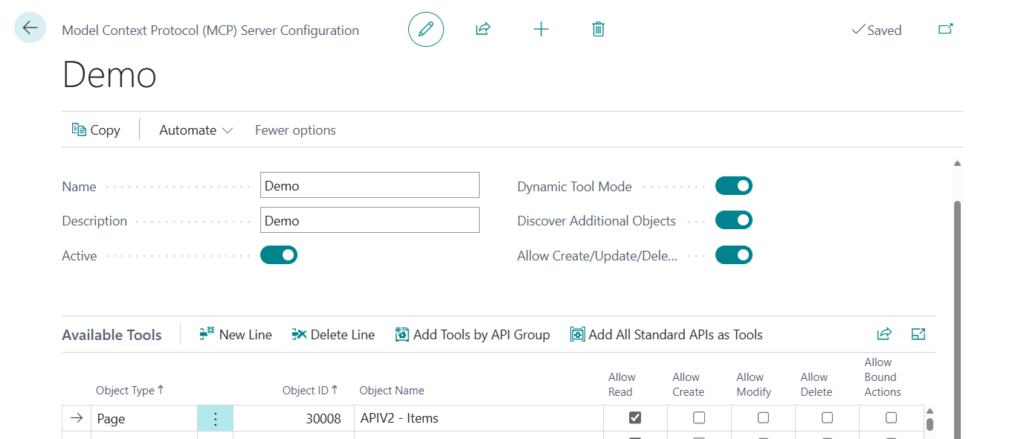
PS: The Object Type only shows Page, not Query. Does this mean it doesn’t support the Query API?
More details: Dynamics 365 Business Central: API query type (Develop a custom API using Query)

2. In Microsoft Copilot Studio side, Microsoft added standard Dynamics 365 Business Central MCP.
As of now (2025.11.10), I checked three Tenant, and only the paid environment created in the Japan region showed the Business Central MCP server in Microsoft Copilot Studio.
Create a new agent.
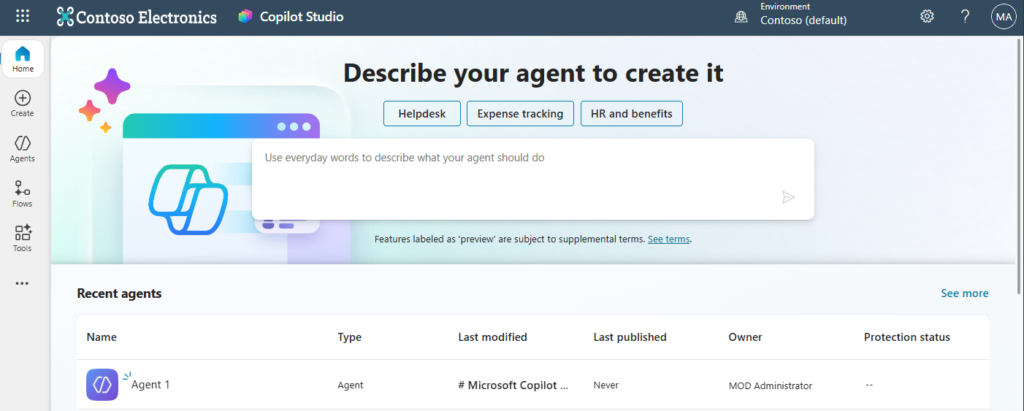
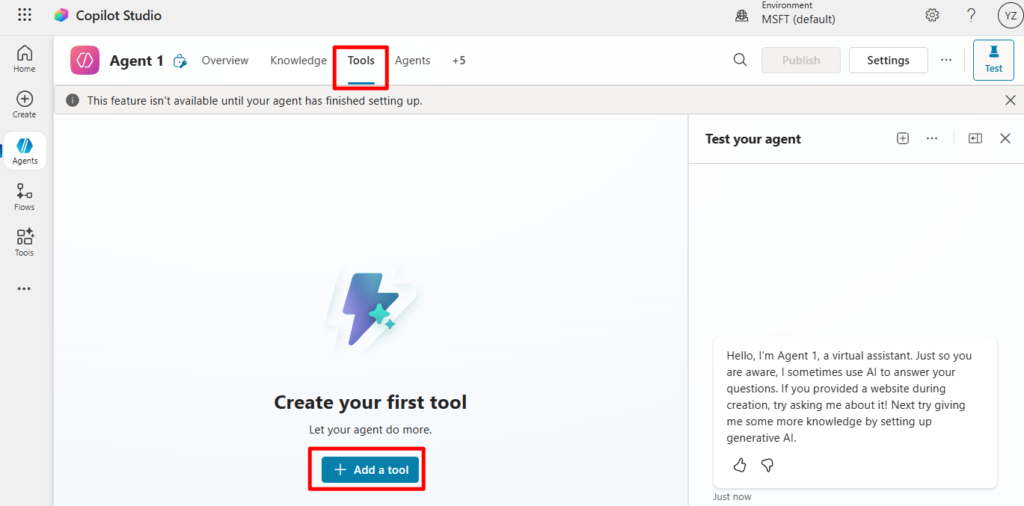
Then choose Tools -> Add a tool.
Search for Business Central in the Model Context Protocol.
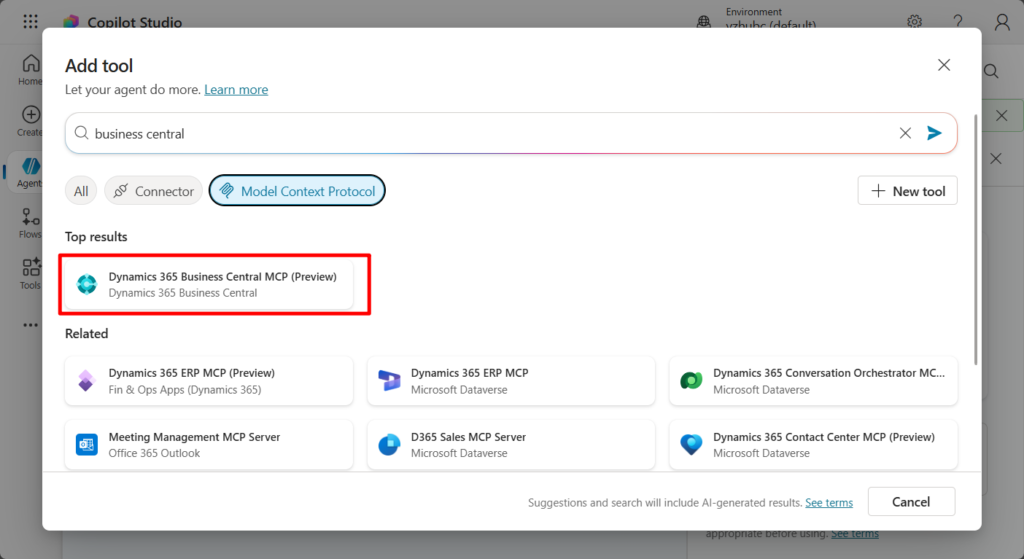
PS: Other Tenant

Click it, then choose Not connected -> Create new connection
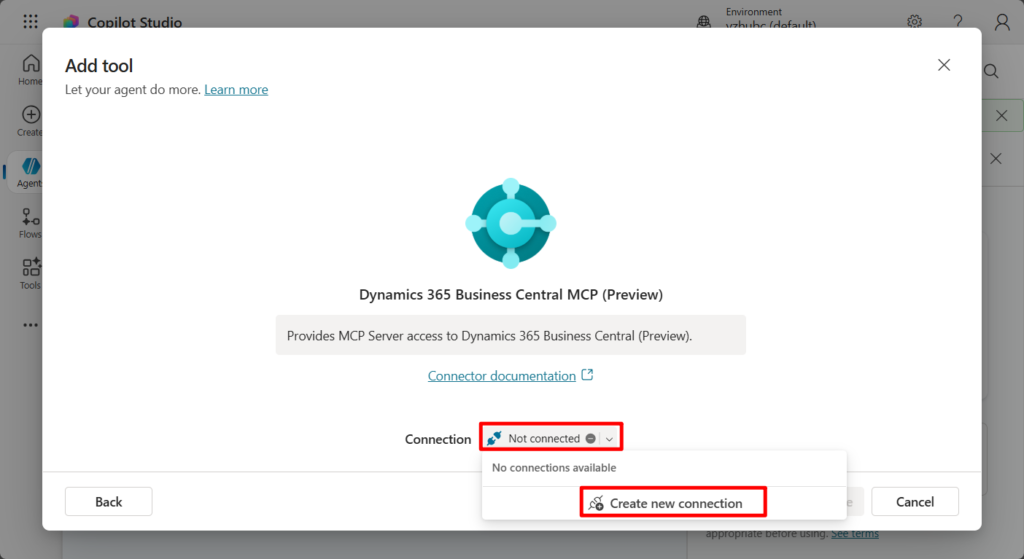
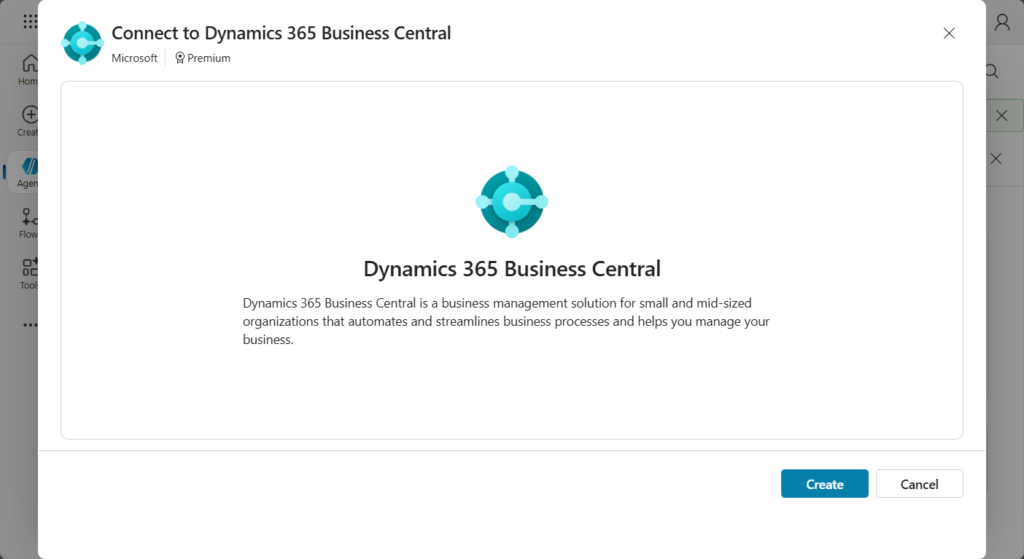
Choose Create.
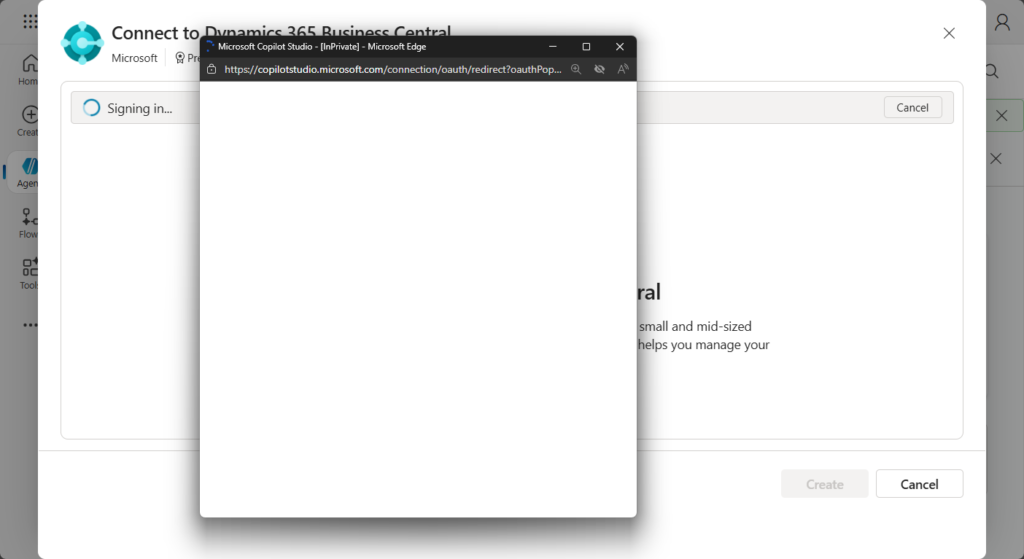
Signing in…
Then Choose Add and configure.
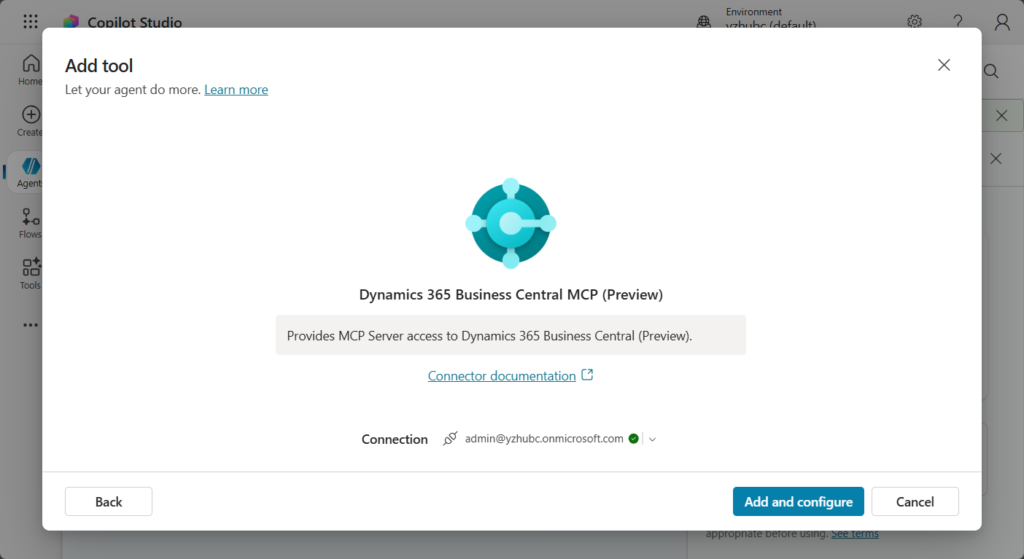
Done.
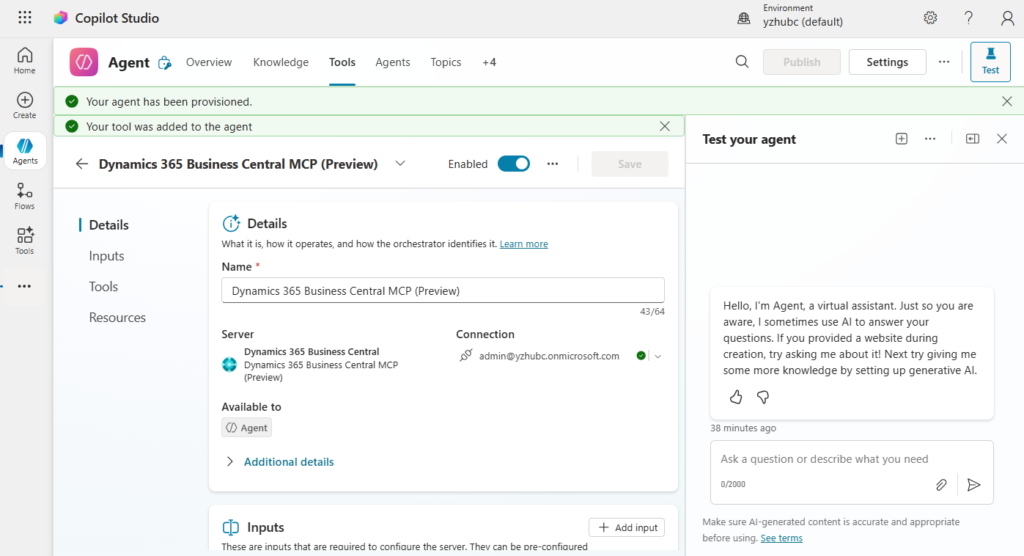
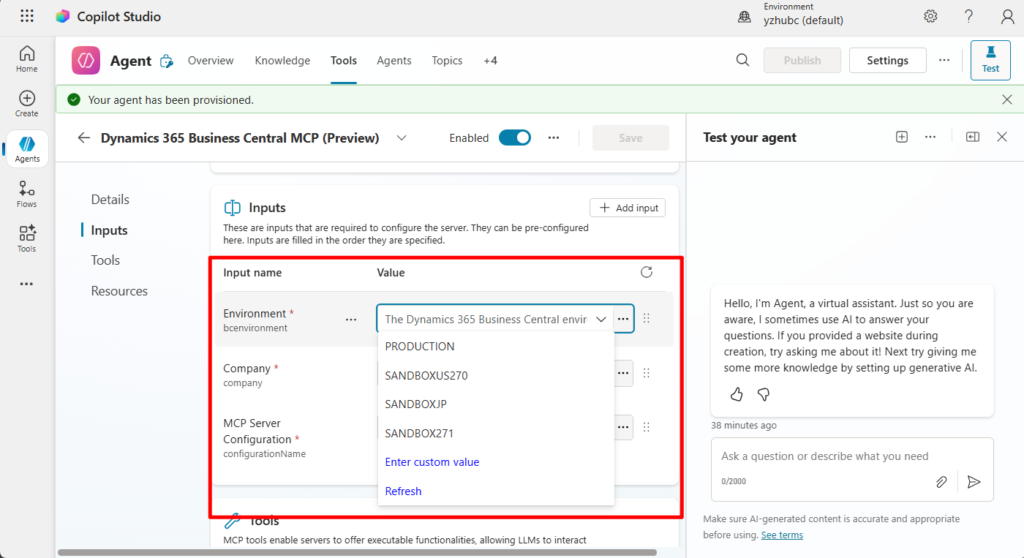
In the Inputs tab, you can configure the Environment, Company, and MCP Server Configuration.
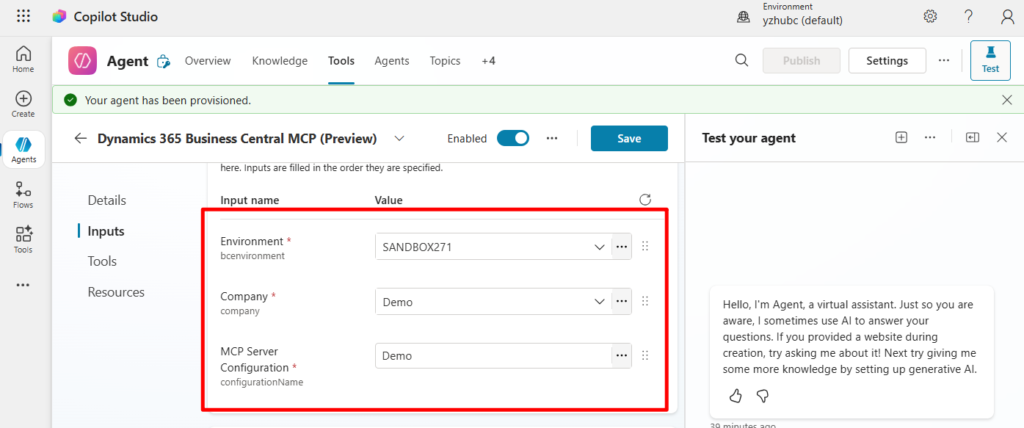
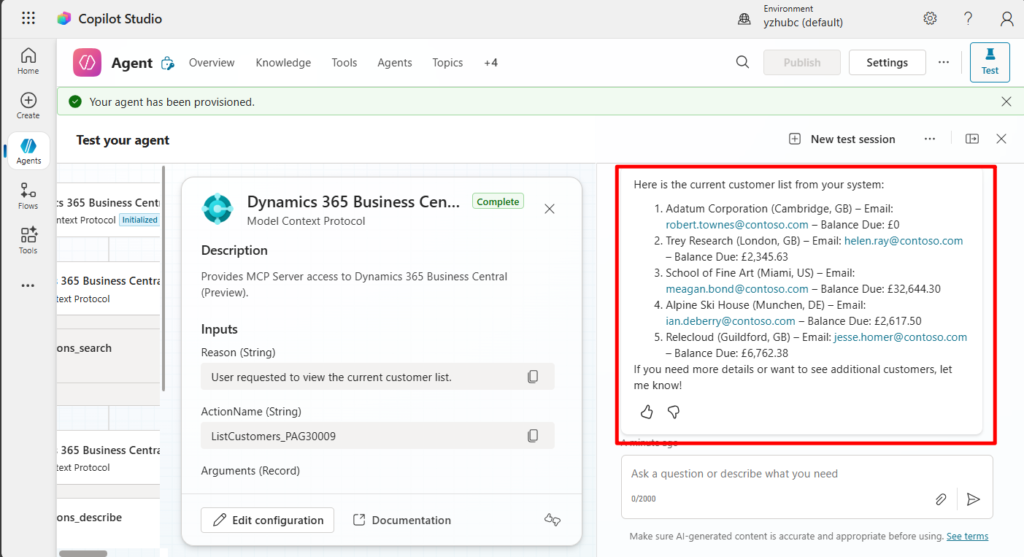
A simple test: I want to view the current customer list
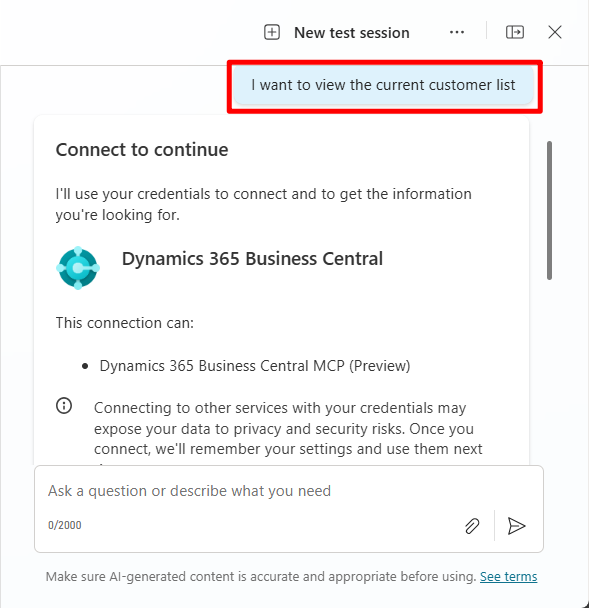
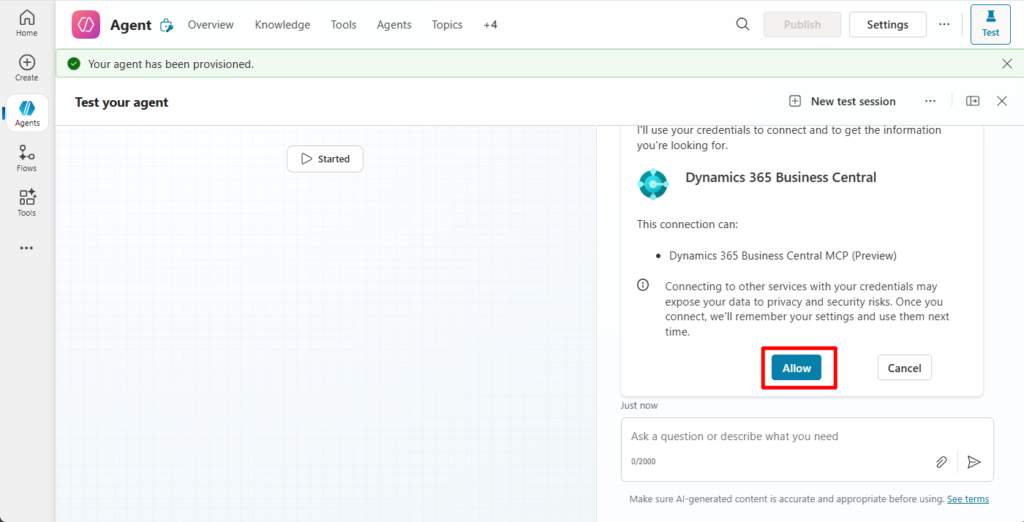
PS: You need to click Allow on the first run.
Great.
Test video:
More details: Connect AI agents to Business Central through MCP server
Github Copilot
GitHub Copilot · Your AI pair programmer: GitHub Copilot uses the OpenAI Codex to suggest code and entire functions in real-time, right from your editor.
What is GitHub Copilot?
GitHub Copilot is an AI pair programmer that helps you write code faster and with less work. It draws context from comments and code to suggest individual lines and whole functions instantly. GitHub Copilot is powered by OpenAI Codex, a generative pretrained language model created by OpenAI. It is available as an extension for Visual Studio Code, Visual Studio, Neovim, and the JetBrains suite of integrated development environments (IDEs).
First of all this is not a free service. If you want to do some testing, start the free trial.
Pricing:
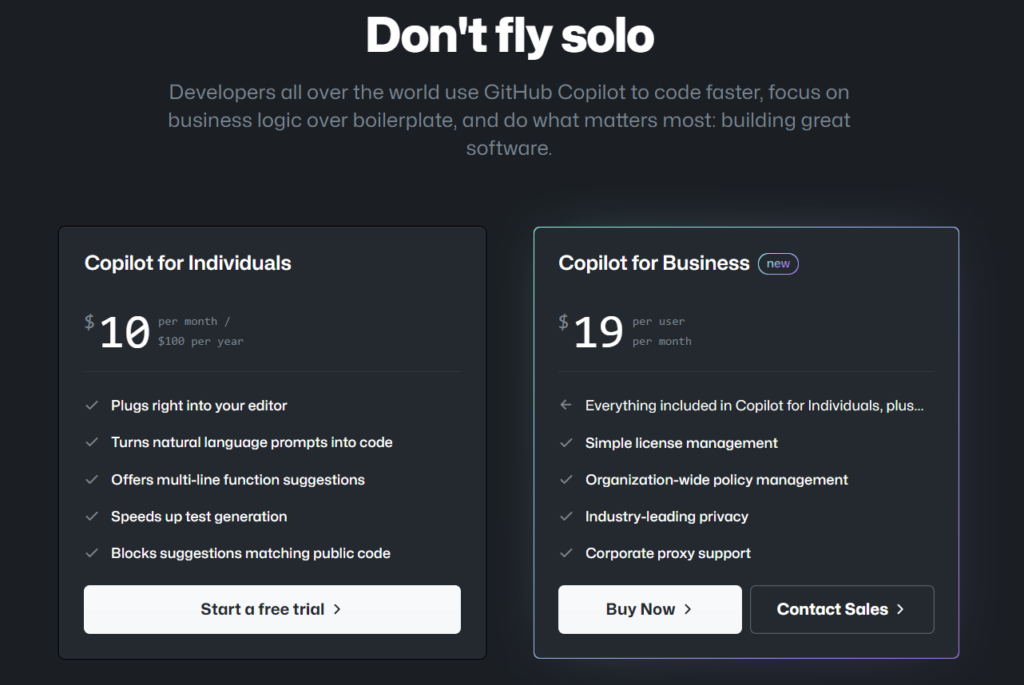
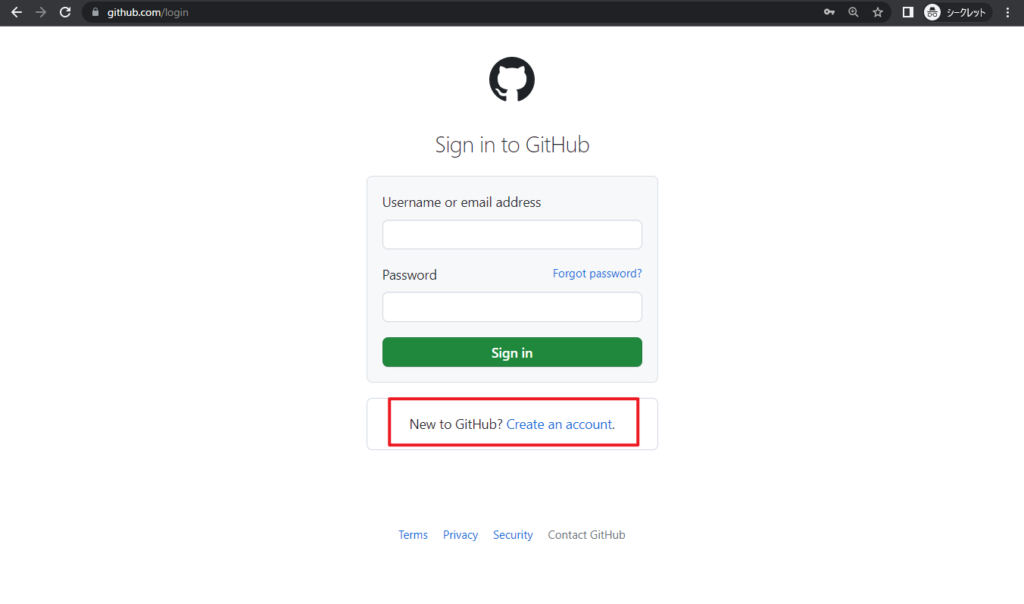
You must have a Github account, if not, please create an account first.
Github Login:
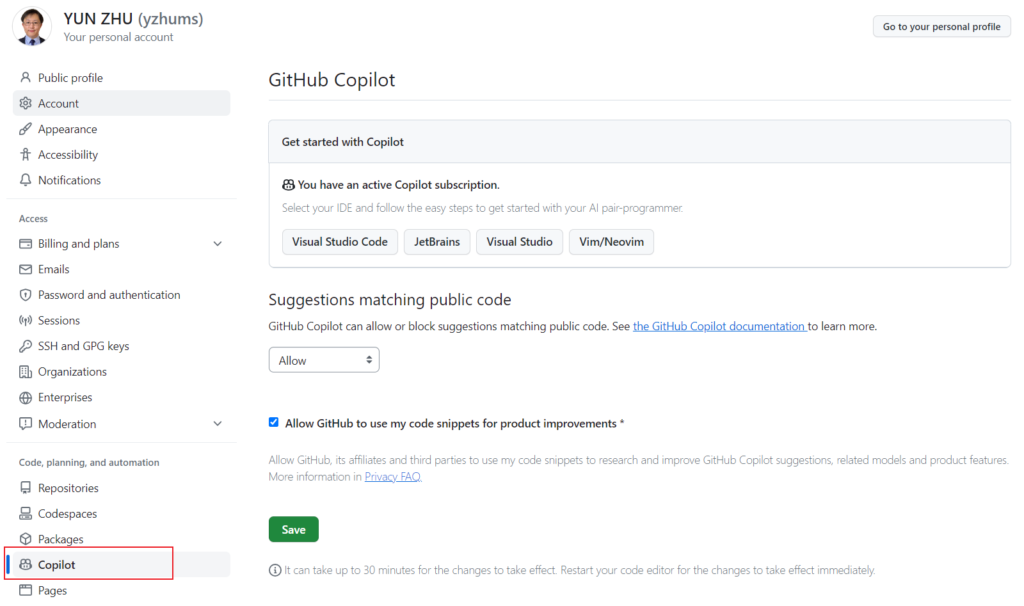
When you click the Start a free trial, you will jump to the Github Copilot settings page, and you will see the following message.
Your Github Copilot setup is incomplete. Select your perferences below to start using Gihub Copilot.
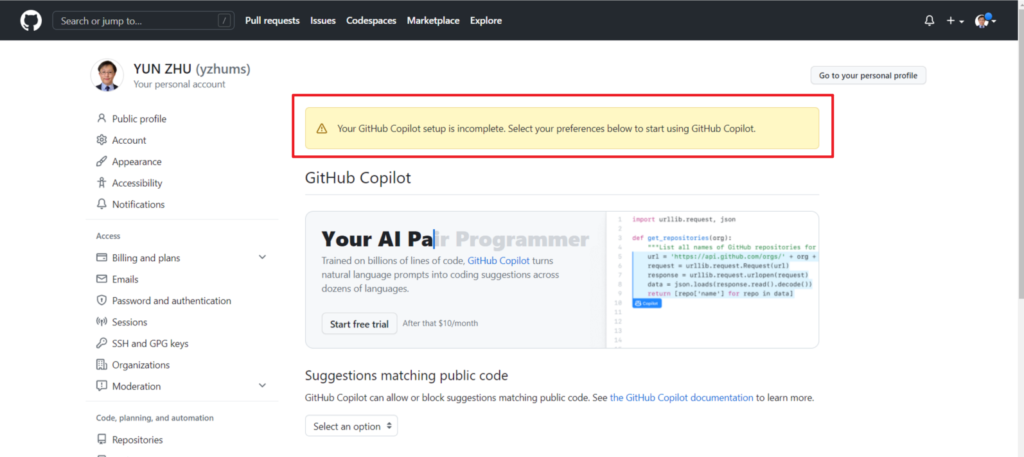
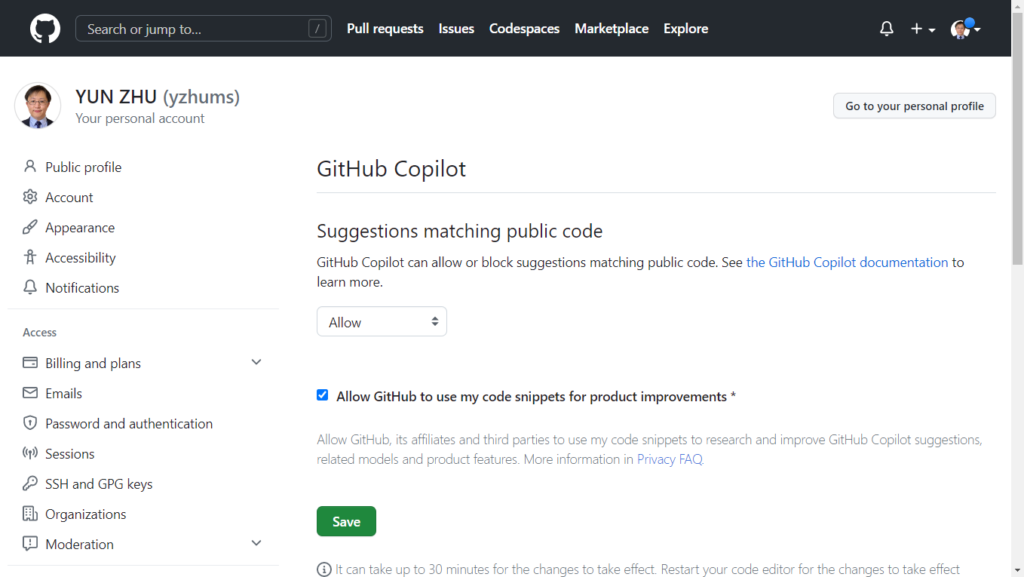
Setup is very simple. Just select suggestions matching public code
GitHub Copilot can allow or block suggestions matching public code. See the GitHub Copilot documentation to learn more.
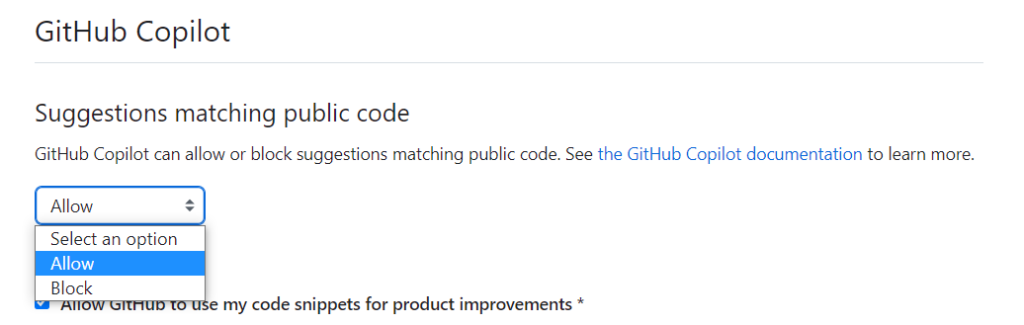
Then choose Save.
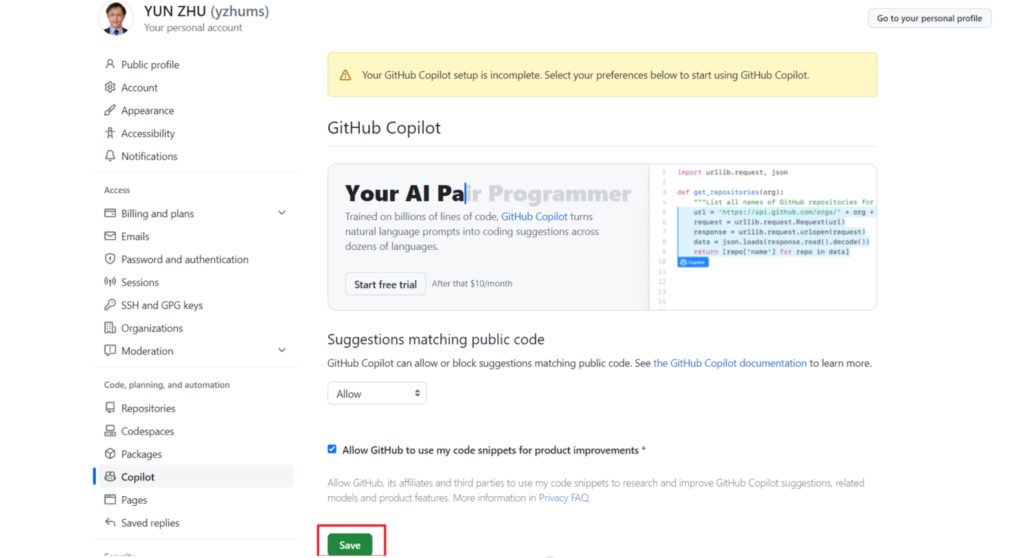
Setup in Github is complete.
It can take up to 30 minutes for the changes to take effect. Restart your code editor for the changes to take effect immediately.
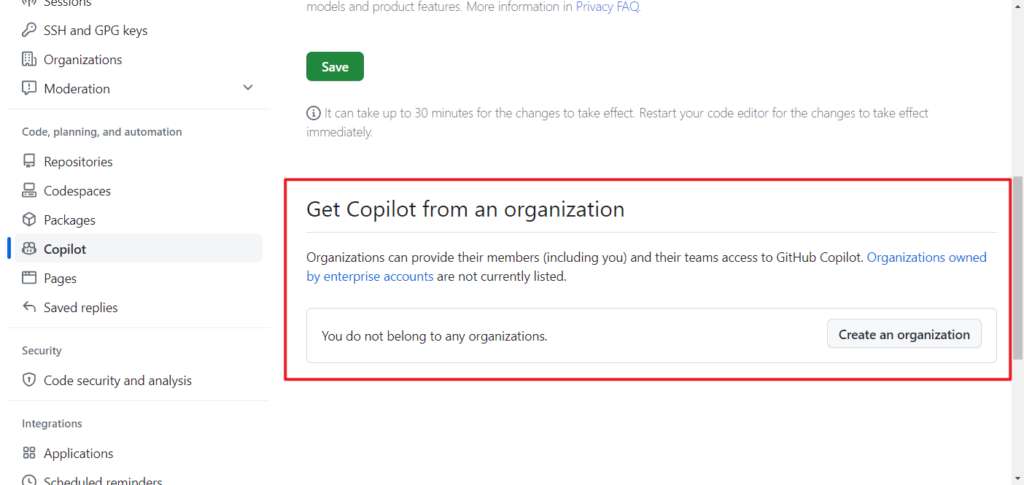
PS: You can also get Copilot from an organization.
Organizations can provide their members (including you) and their teams access to GitHub Copilot. Organizations owned by enterprise accounts are not currently listed.
Okay, let’s continue the test. As you know, the common development tool for Business Central is VS Code, so we need to install the Github Copilot extension in VS Code.
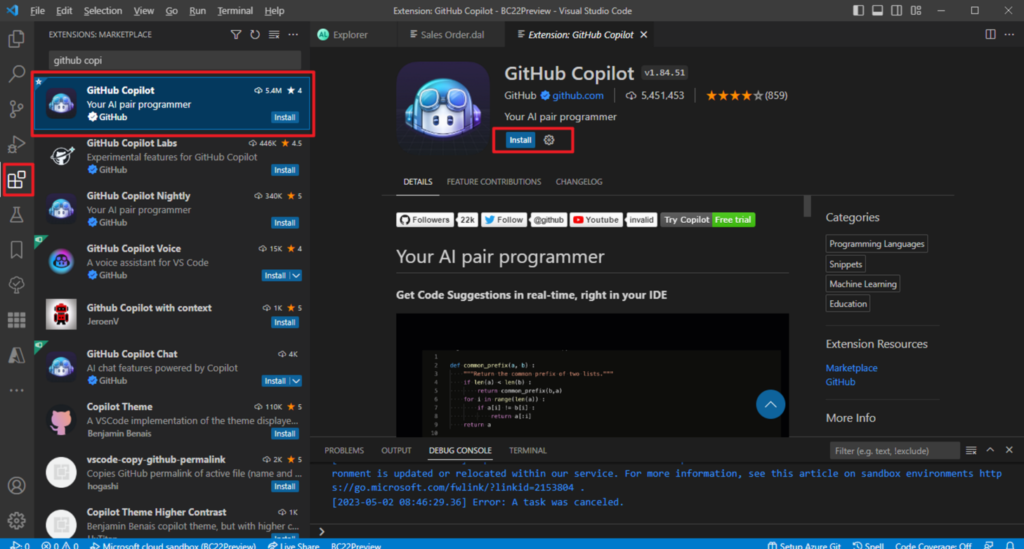
After successful installation, it is recommended to restart VS Code, and then you can see the prompt that you need to sign in to Github Copilot.
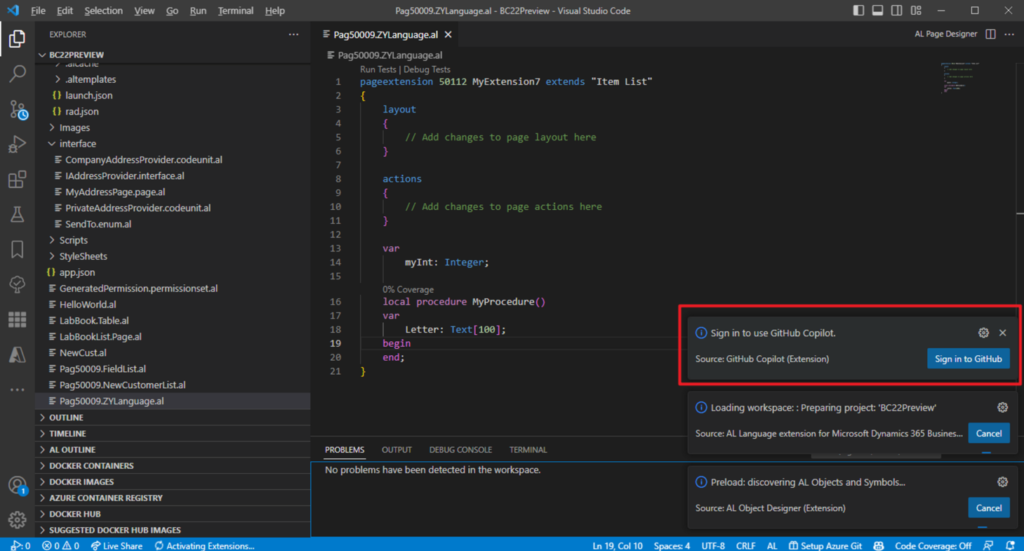
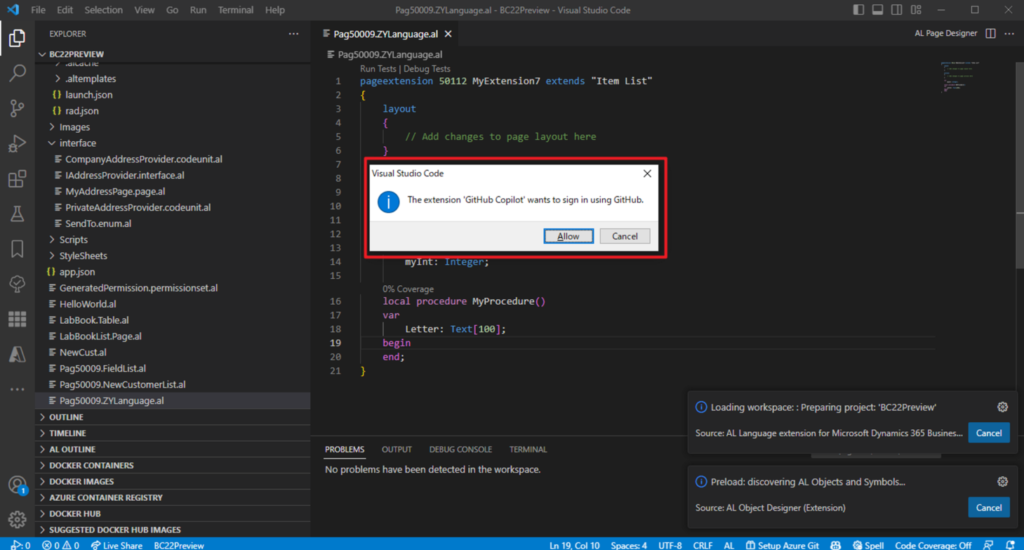
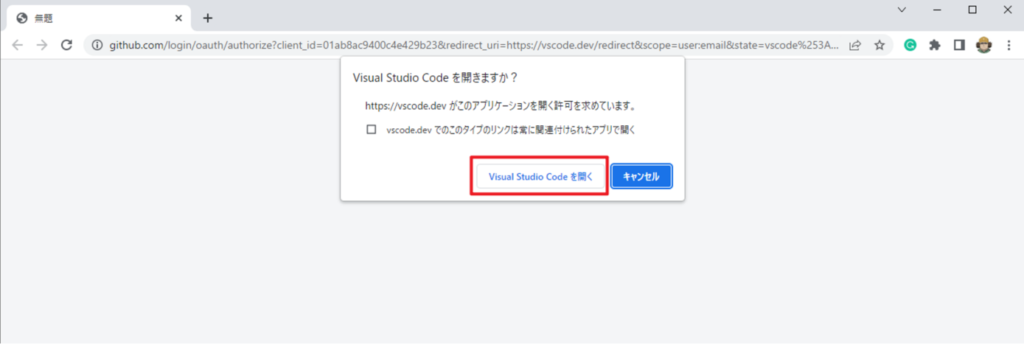
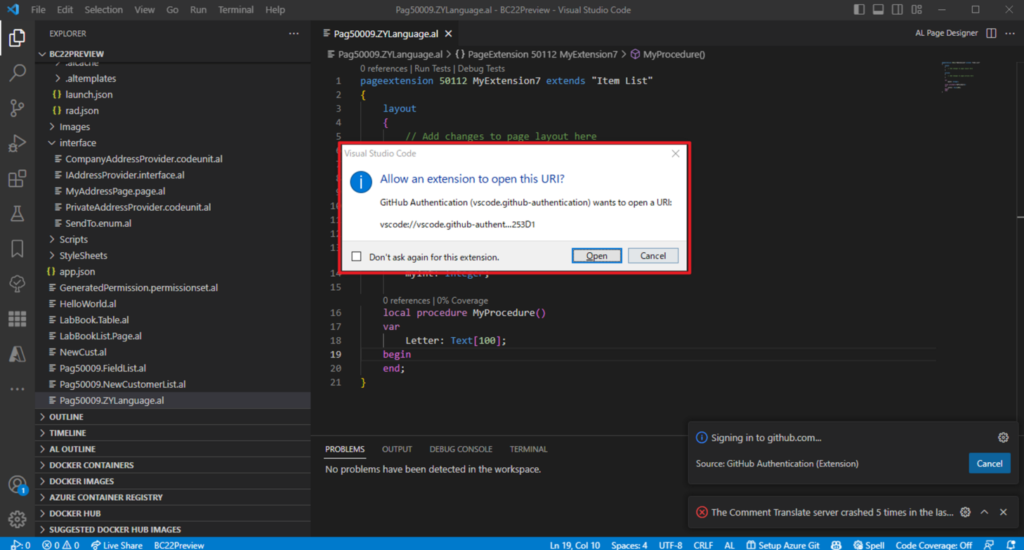
PS: If you do not have a license to use Github Copilot, you will be prompted with the following message.
GitHub Copilot could not connect to server. Extension activation failed: “Your Copilot experience is not fully configured, complete your setup.”

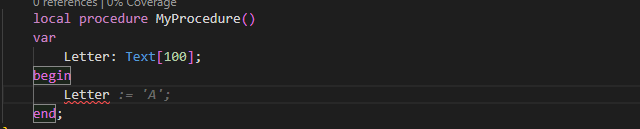
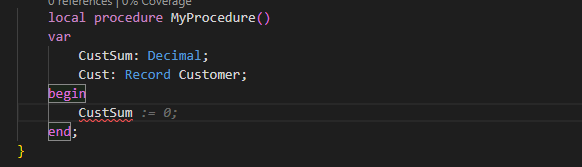
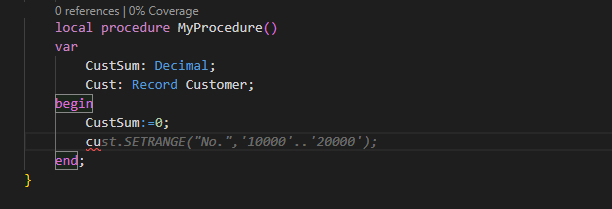
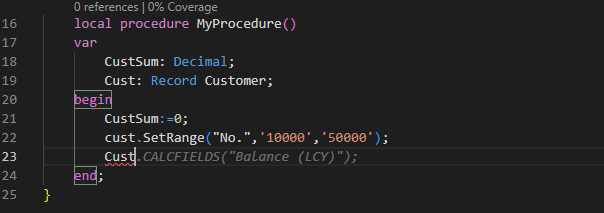
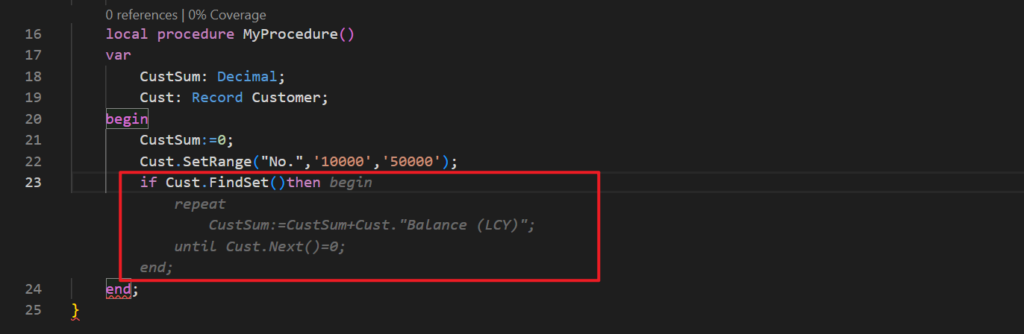
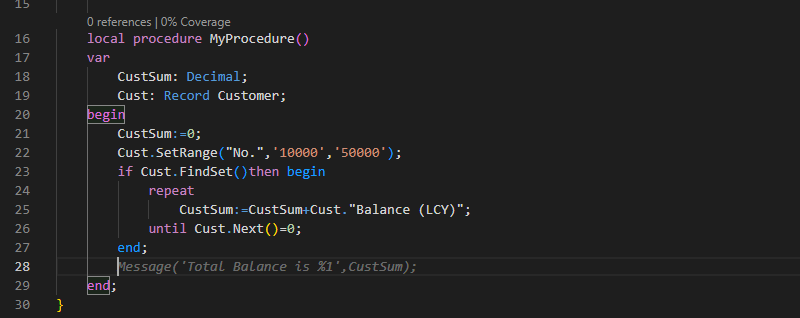
That’s the end of the setup, let’s test it briefly. (Press the Tab key to add the Copilot proposal to the content)
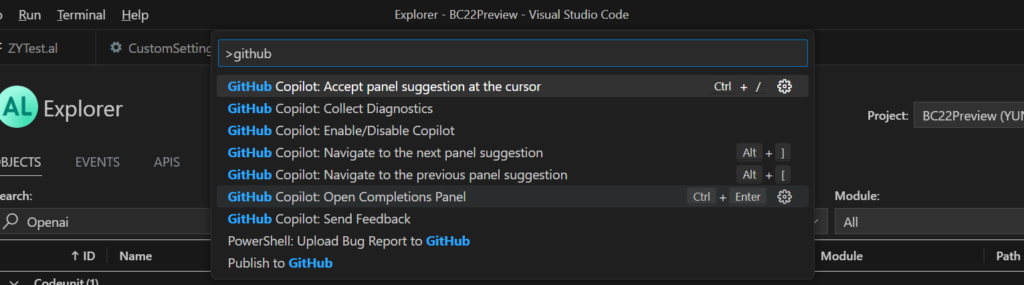
GitHub Copilot commands:
Test Video:
You will find that Copilot will always provide useful suggestions as you write code. You can directly apply its suggestions, or ignore them, and then it will propose new suggestions again in the next line. This is very convenient.
In addition, for example, when adding fields, triggers and other information, corresponding suggestions will also be provided.
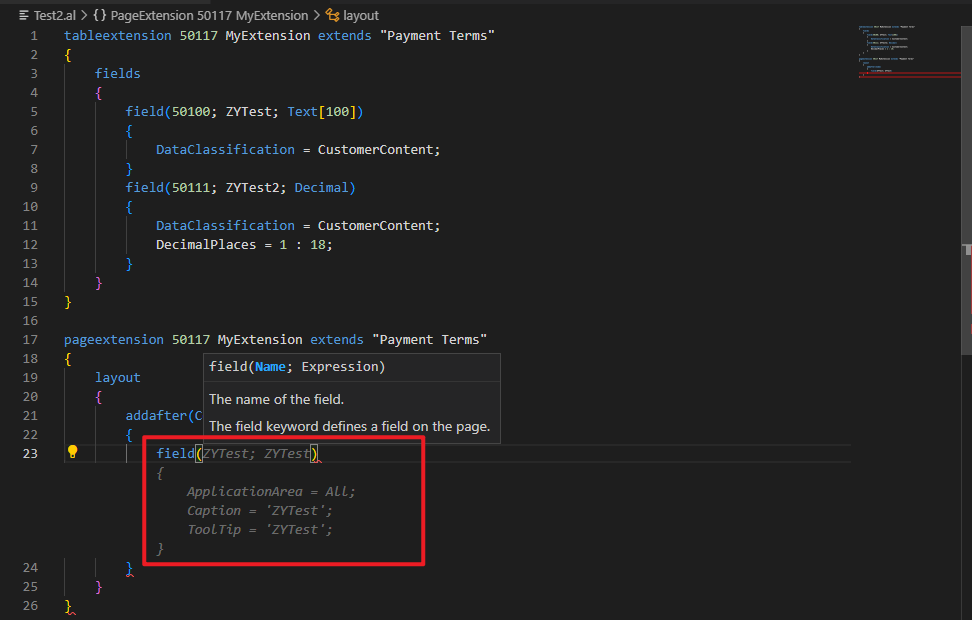

Very interesting, this is the way of writing code in the future. Give it a try!!!😁
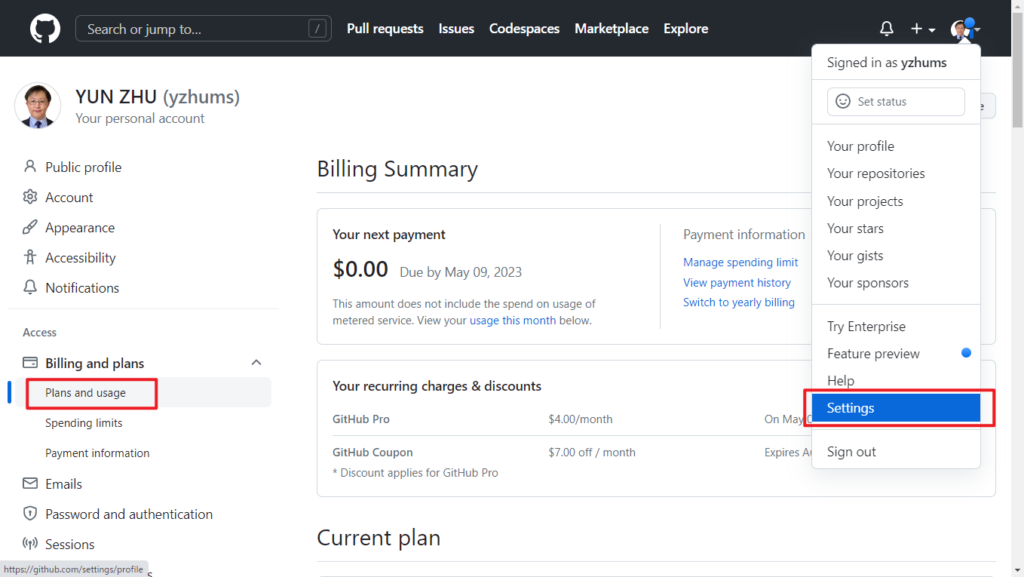
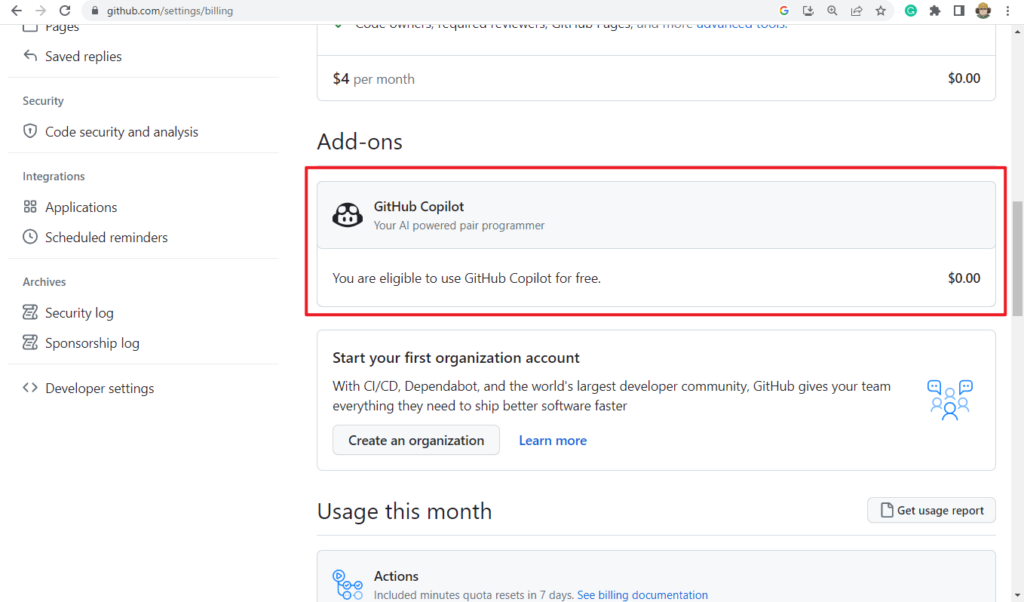
PS: In Github, you can choose Settings -> Billing and plans 0> Plans and usage to manage your Github Copilot add-on.
MS Learn: Introduction to GitHub Copilot
FGitHub Copilot Chat now supports AL language, which is also mentioned in Business Central Launch Event (2023 release wave 2).
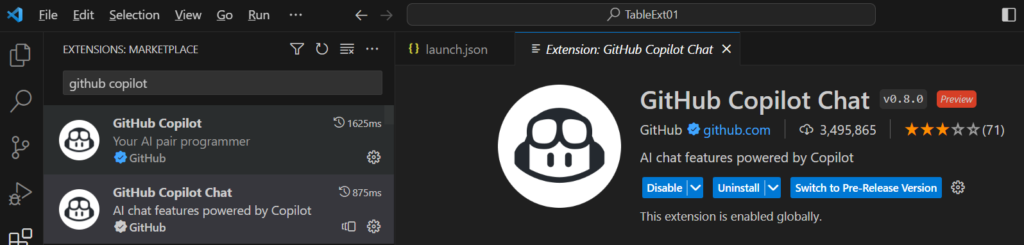
In the VS Code extension marketplace, you can find Github Copilot and Github Copilot Chat extensions. GitHub Copilot Chat is a companion extension to GitHub Copilot. When you install it, Github Copilot will also be installed automatically.
- To use GitHub Copilot Chat you must have an active GitHub Copilot subscription. For more information, see “About billing for GitHub Copilot.”
Note: If you have a GitHub Copilot for Individuals subscription, you are automatically granted access to the GitHub Copilot Chat beta.
- To use GitHub Copilot Chat in Visual Studio Code, you must have the latest version of Visual Studio Code installed. For more information, see the Visual Studio Code download page.
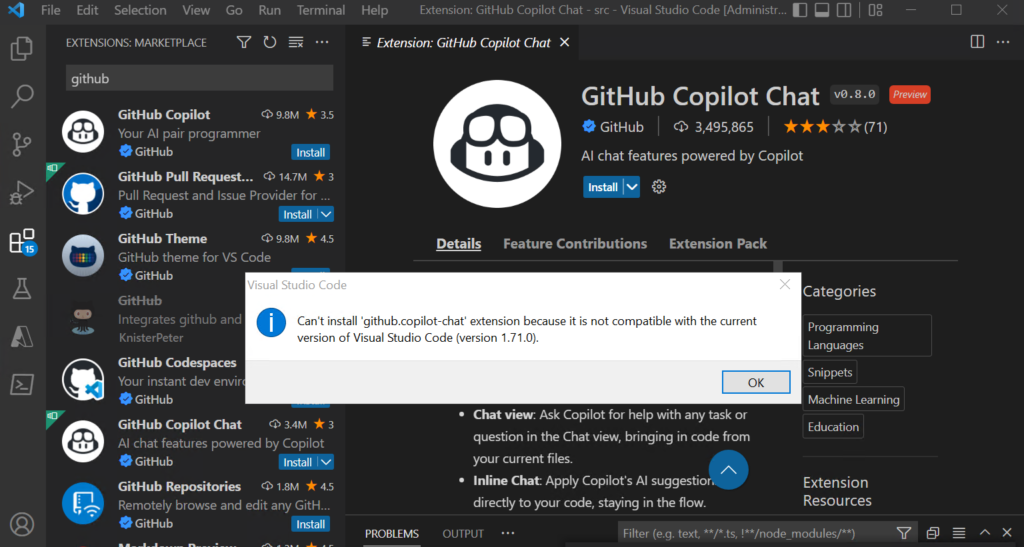
- To use GitHub Copilot Chat in Visual Studio Code, you must be signed into Visual Studio Code with the same GitHub ID that has access to GitHub Copilot.
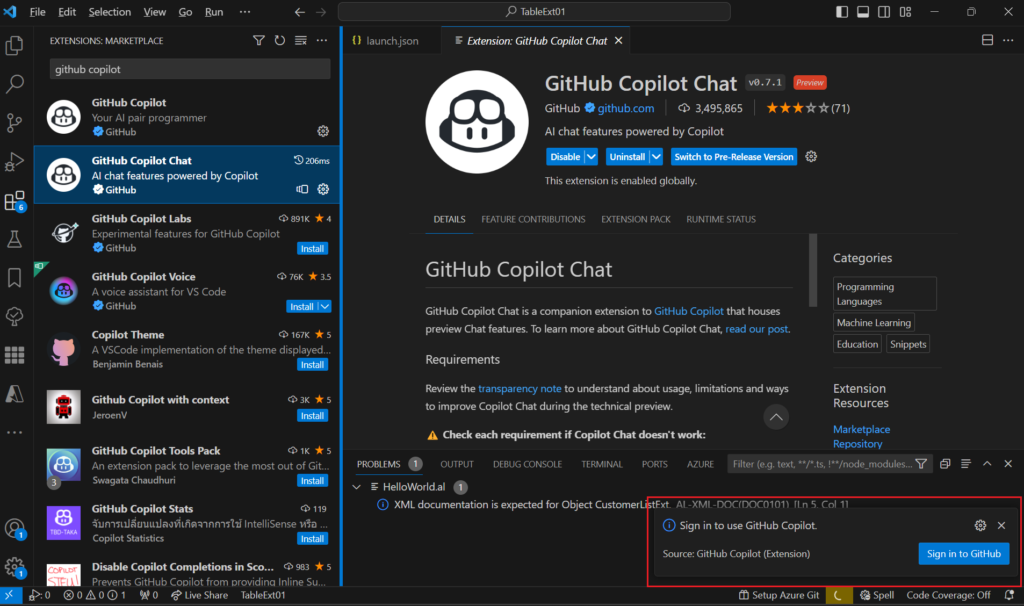
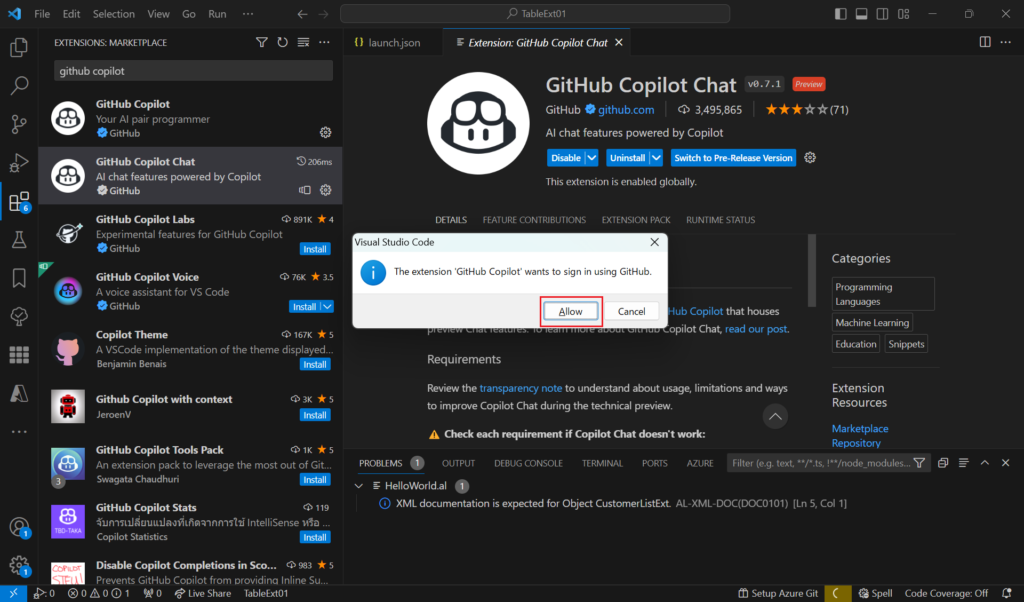
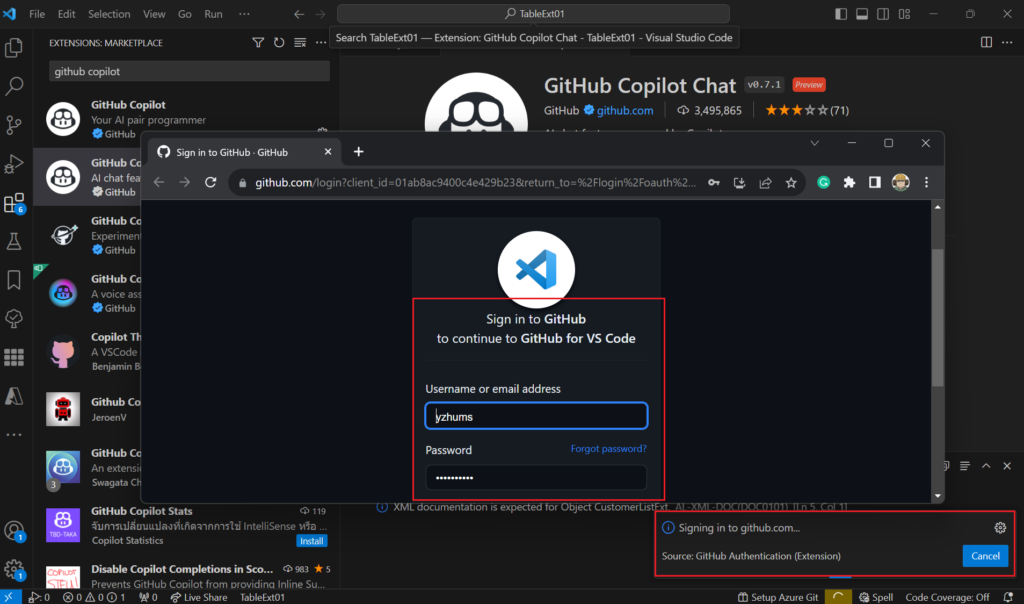
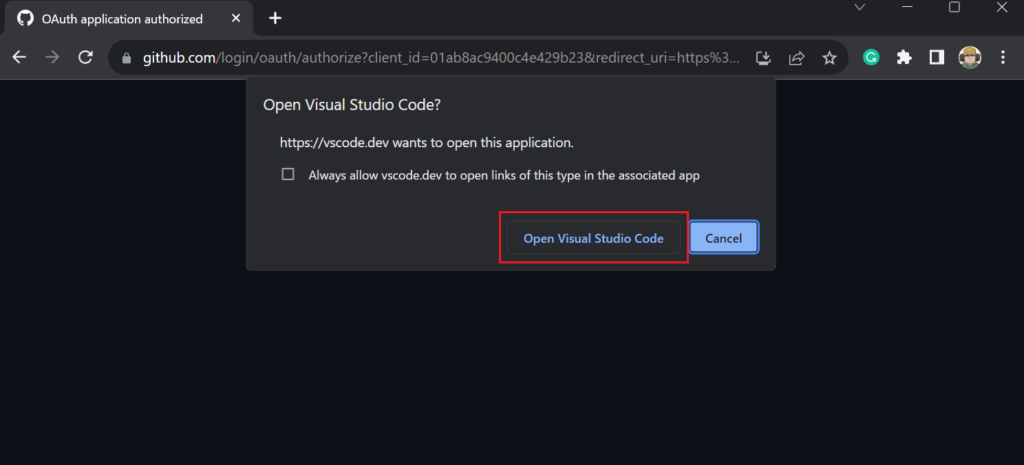
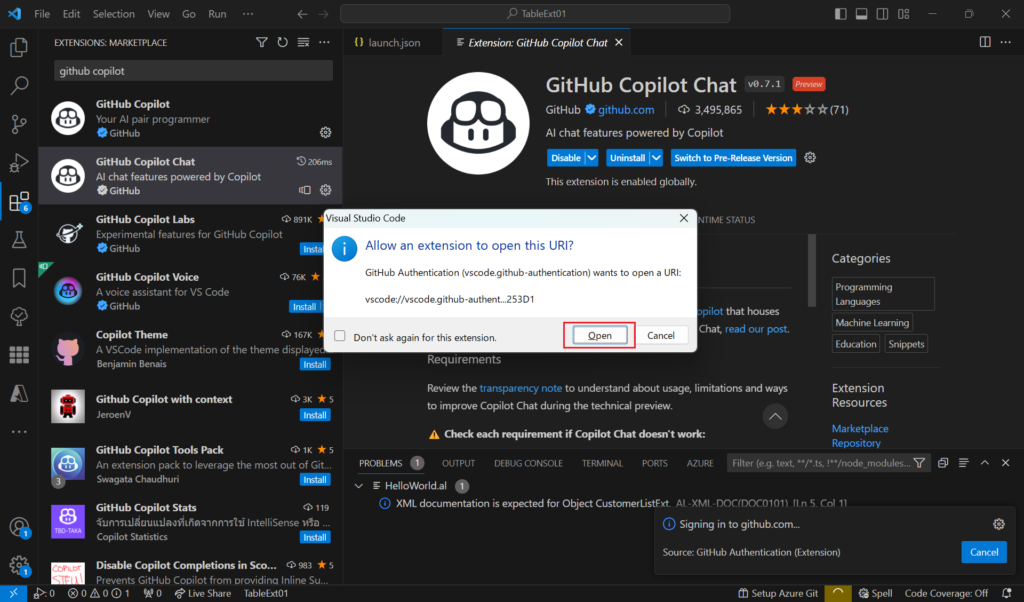
Done.
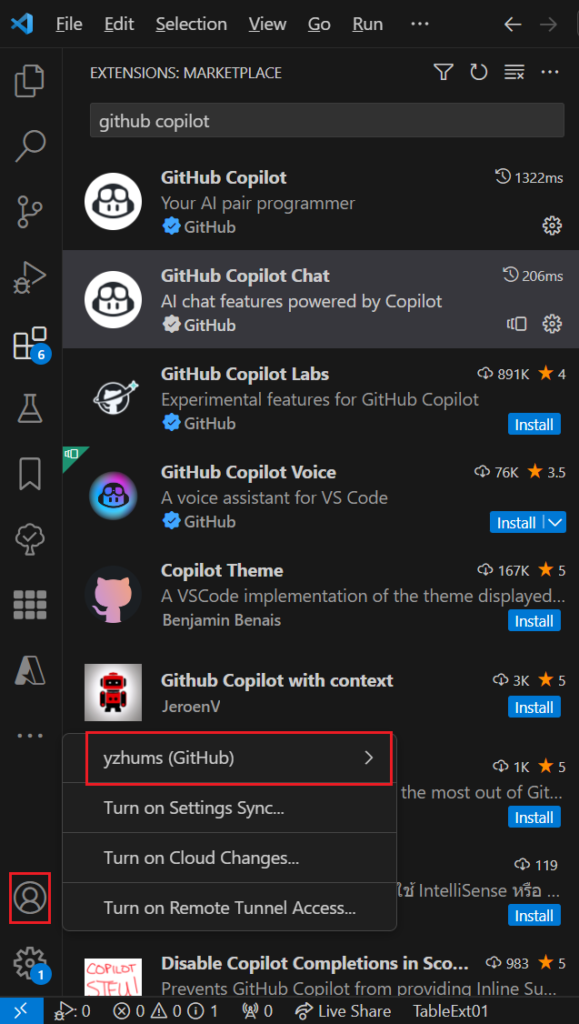
Okay, let’s briefly test some of the main features..
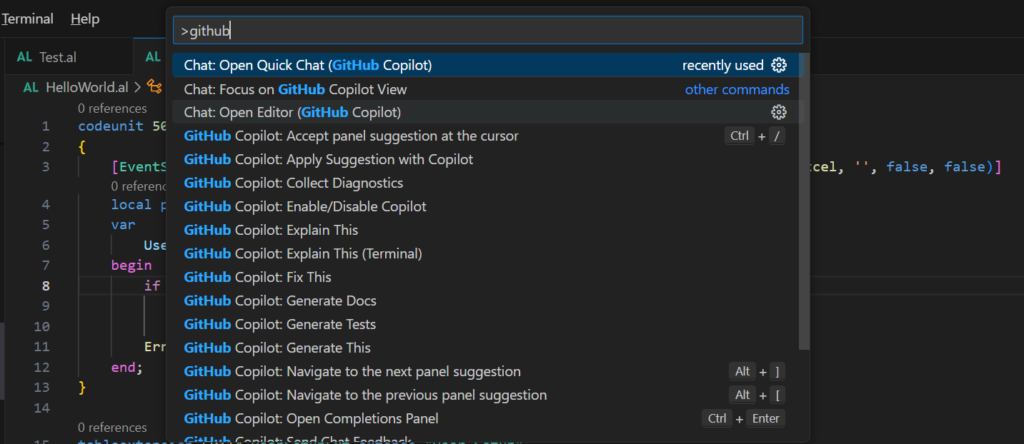
First, you can see the related commands of Copilt Chat in Show All Commands (Ctrl+Shift+P or F1).
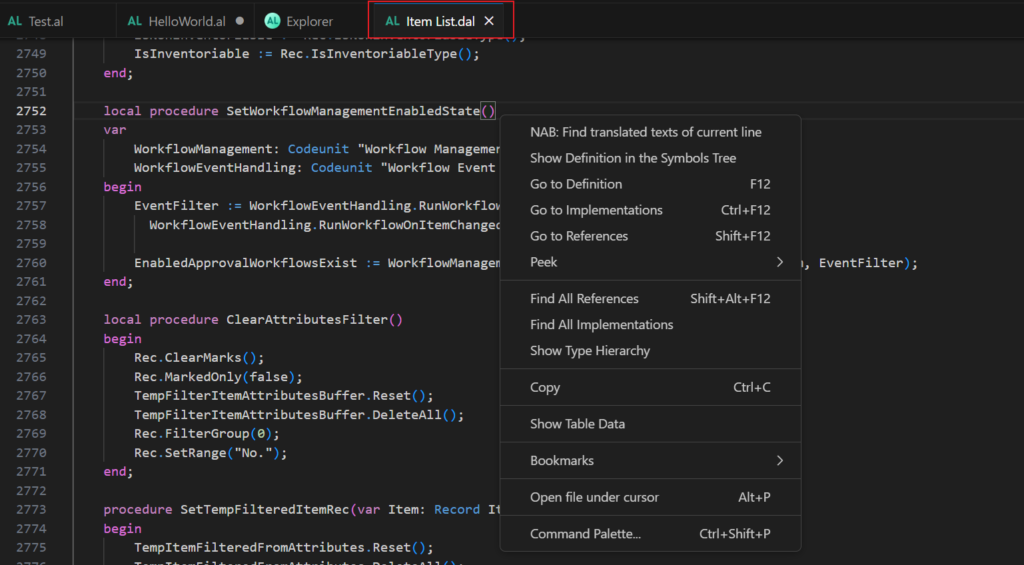
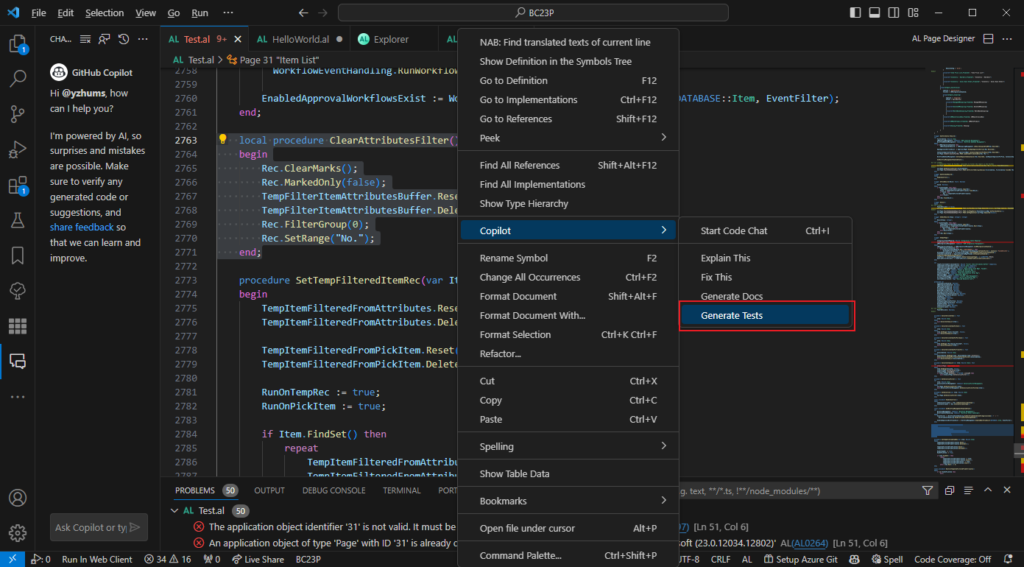
By right-clicking, you can also see Copliot’s menu.
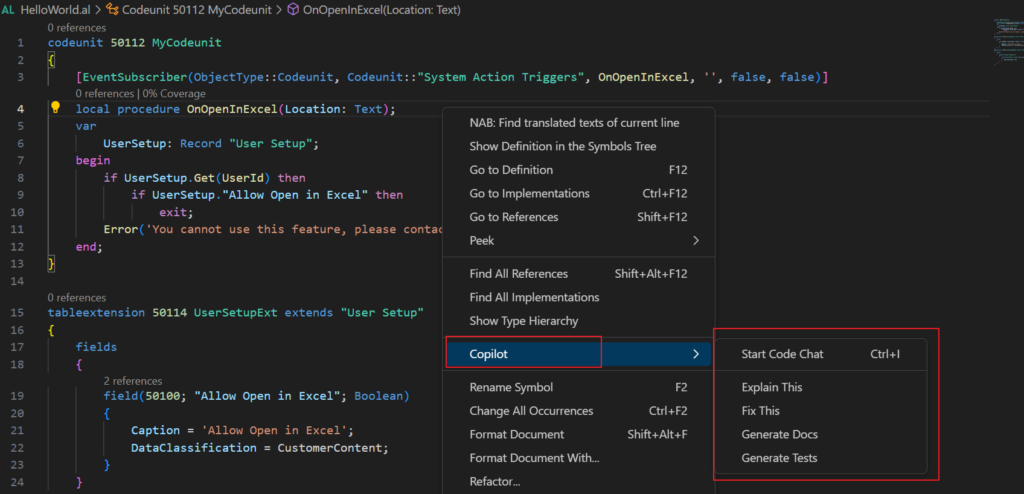
PS: This is not available in standard code .dal files.
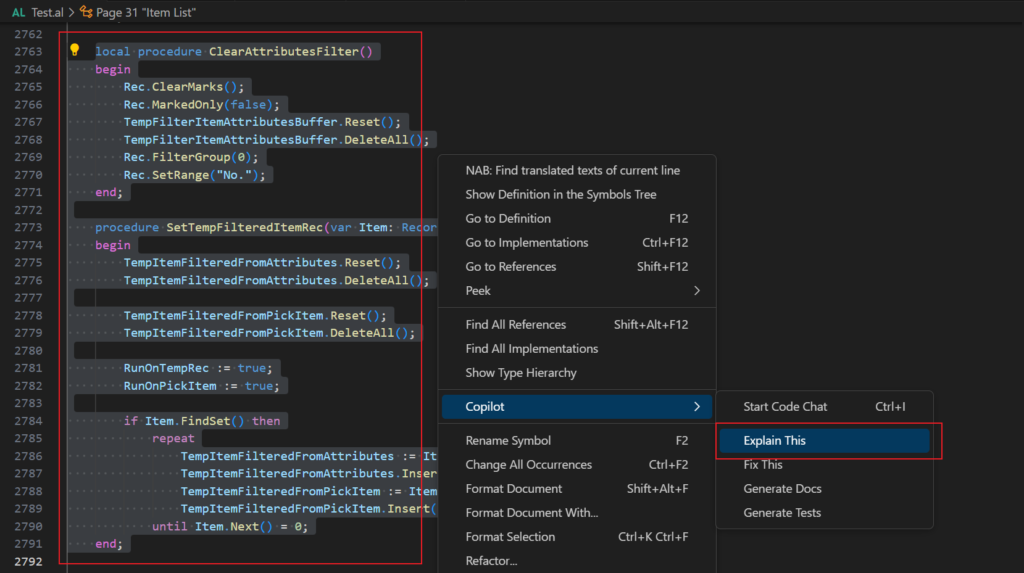
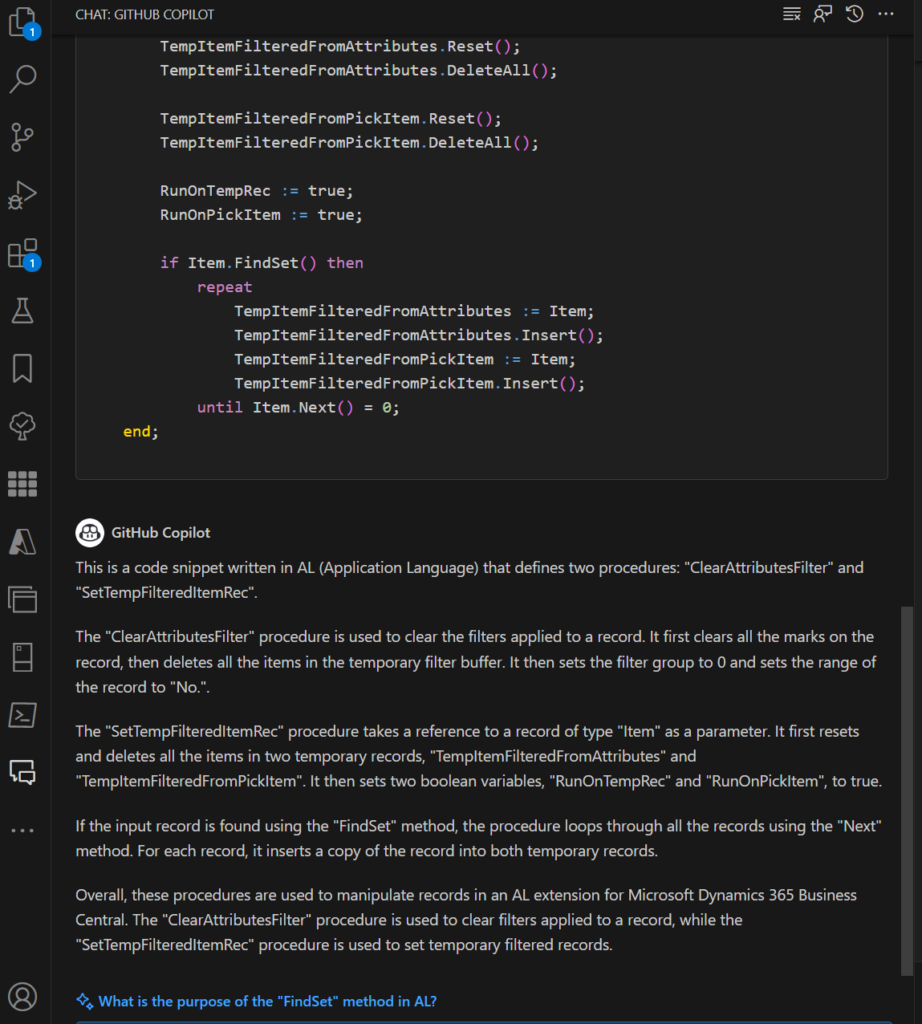
Test01: Explain This.
Copilot Chat can help explain selected code by generating natural language descriptions of the code’s functionality and purpose. This can be useful if you want to understand the code’s behavior or for non-technical stakeholders who need to understand how the code works.
Test video:
Test02: Code Chat
You can ask Copilot Chat for help or clarification on specific coding problems and receive responses in natural language format or in code snippet format. This can be a useful tool for programmers, as it can provide guidance and support for common coding tasks and challenges.
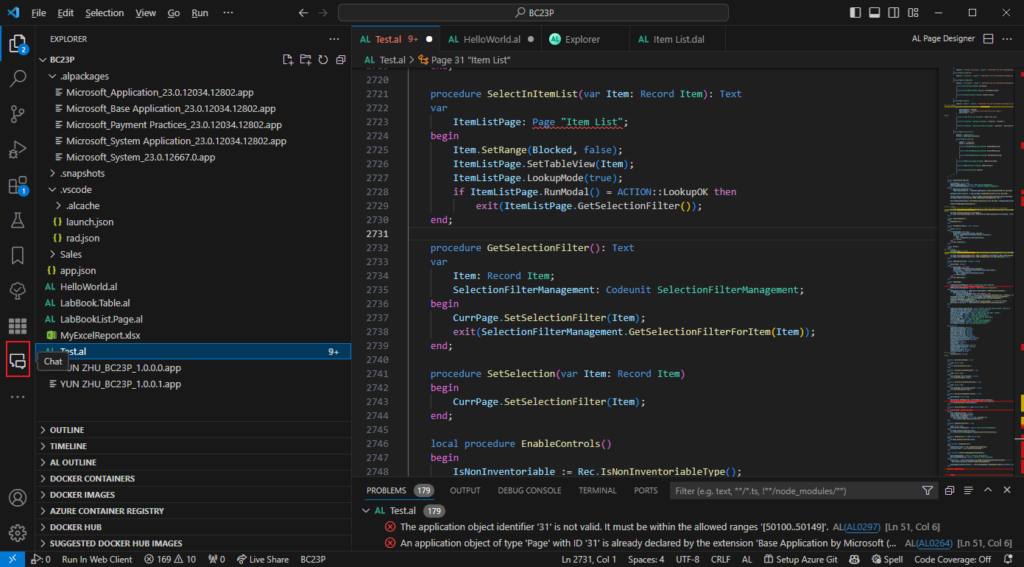
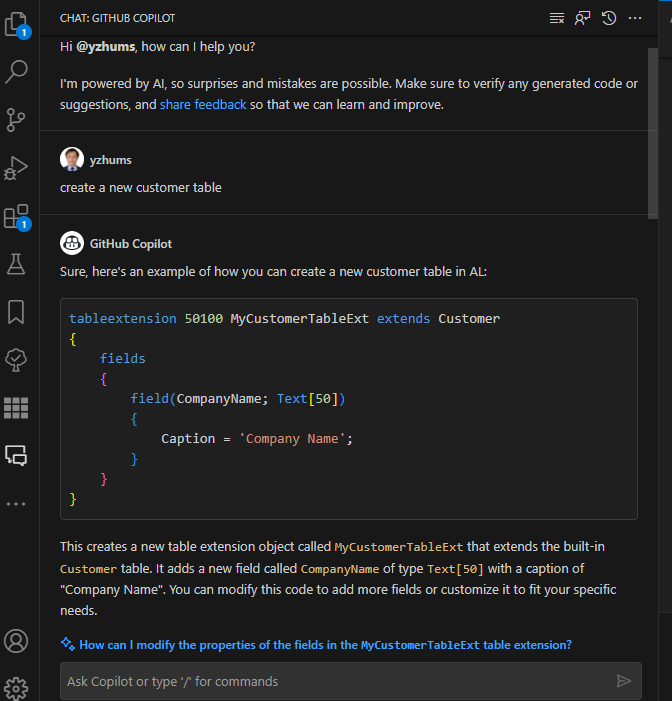
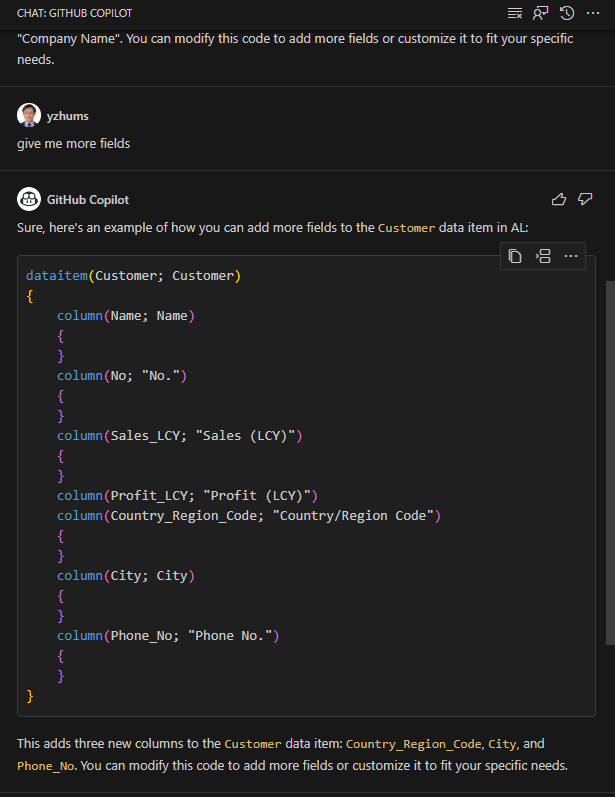
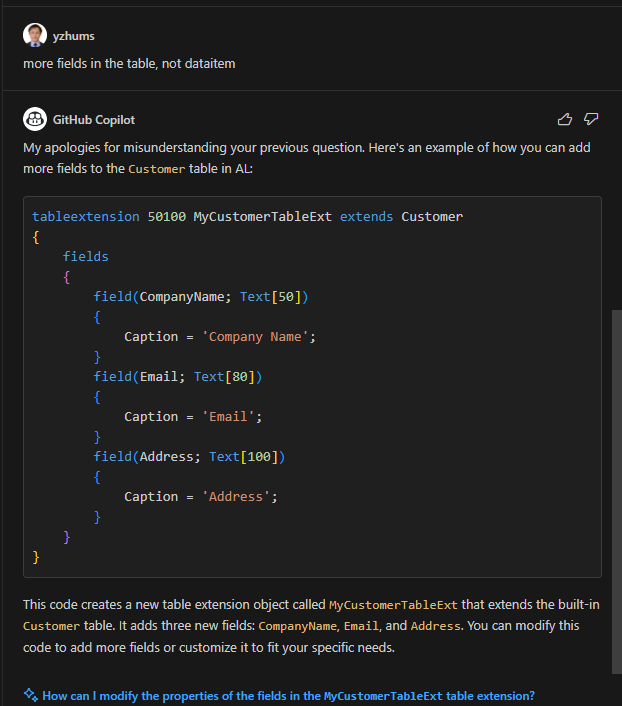
Test video: Just like in ChatGPT.
PS: In addition to the Chat window on the left, you can also start Quick Chat from Command Palette and Copilot menu.
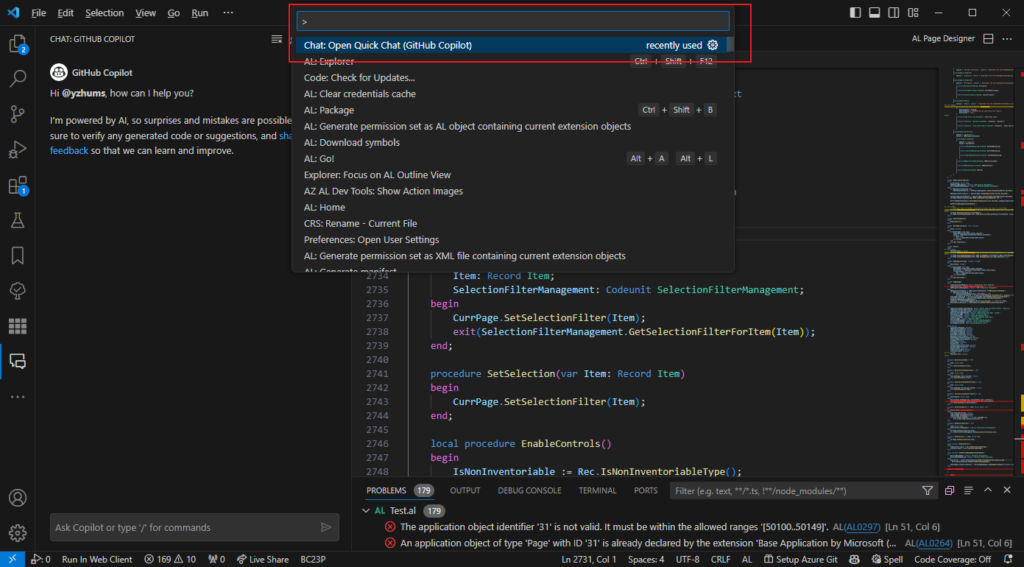
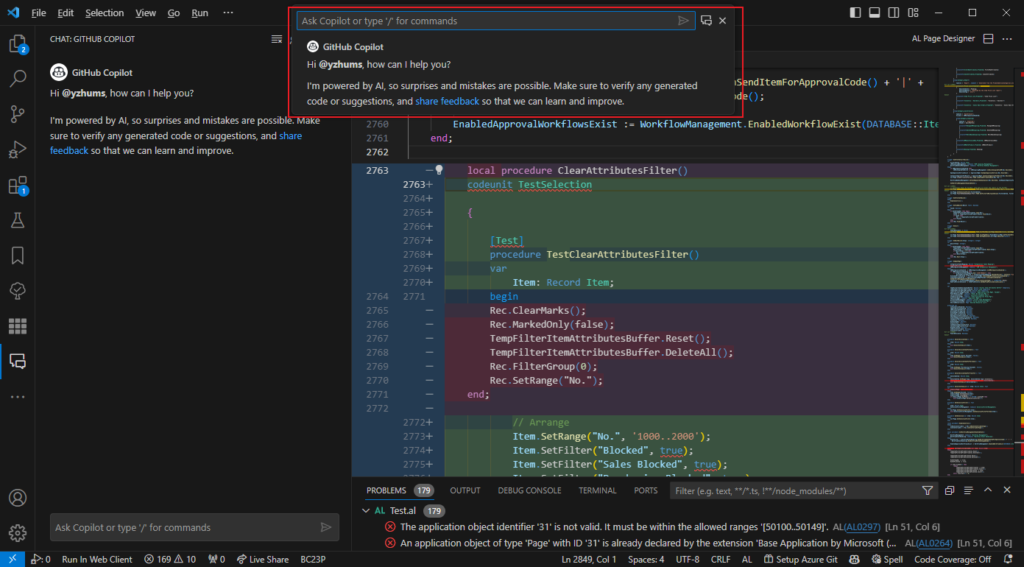
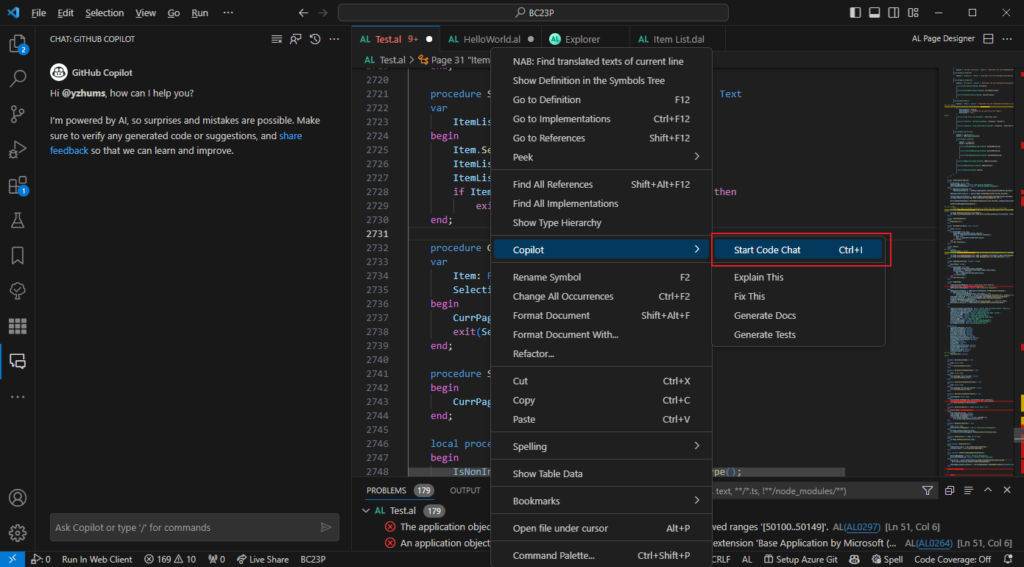
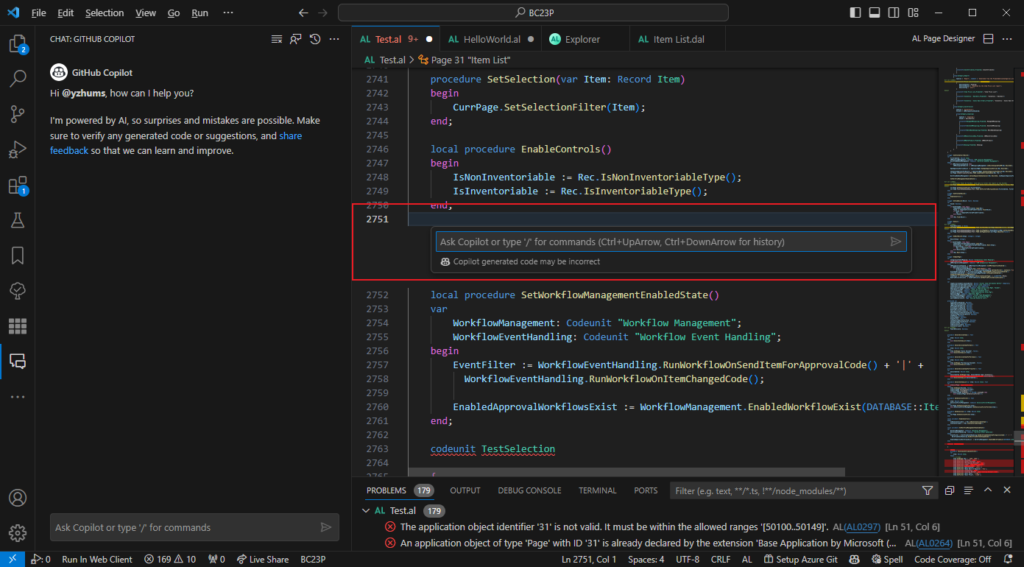
And press Ctrl + I.

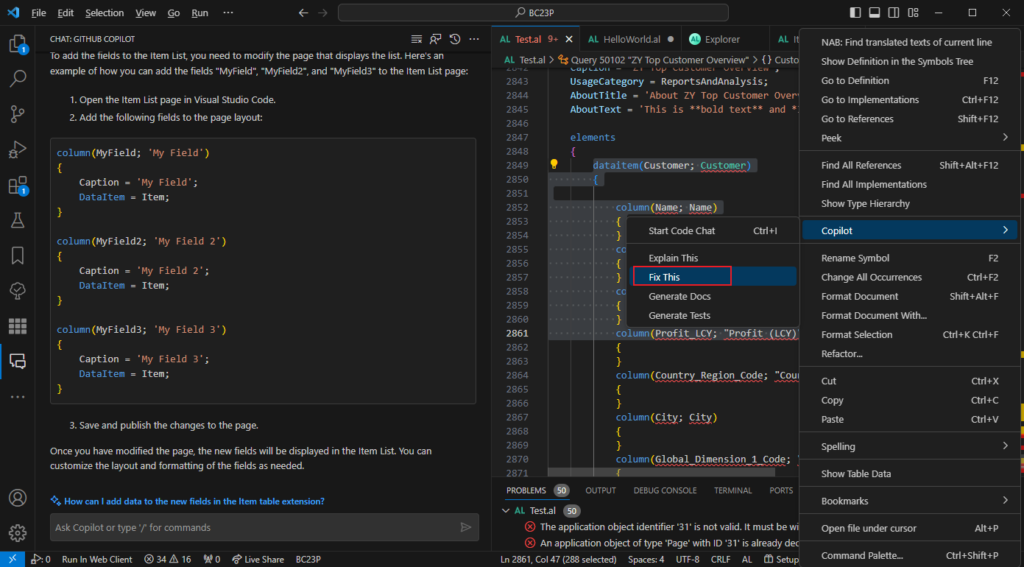
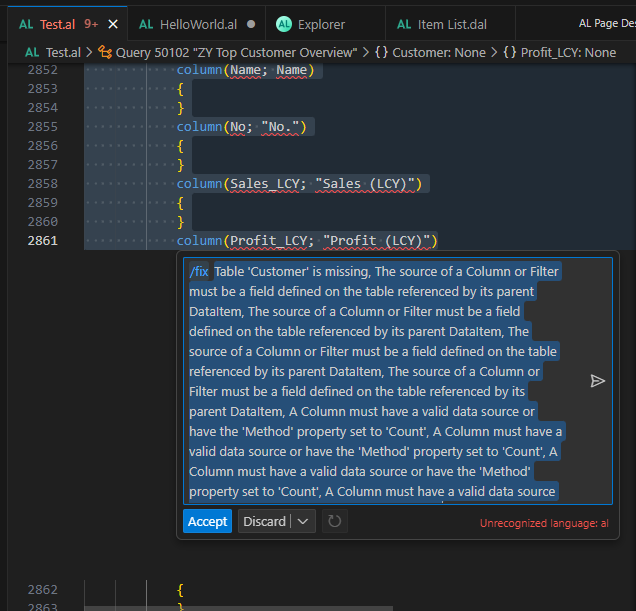
Test03: Fix code
Copilot Chat can propose a fix for bugs in your code by suggesting code snippets and solutions based on the context of the error or issue. This can be useful if you are struggling to identify the root cause of a bug or you need guidance on the best way to fix it.
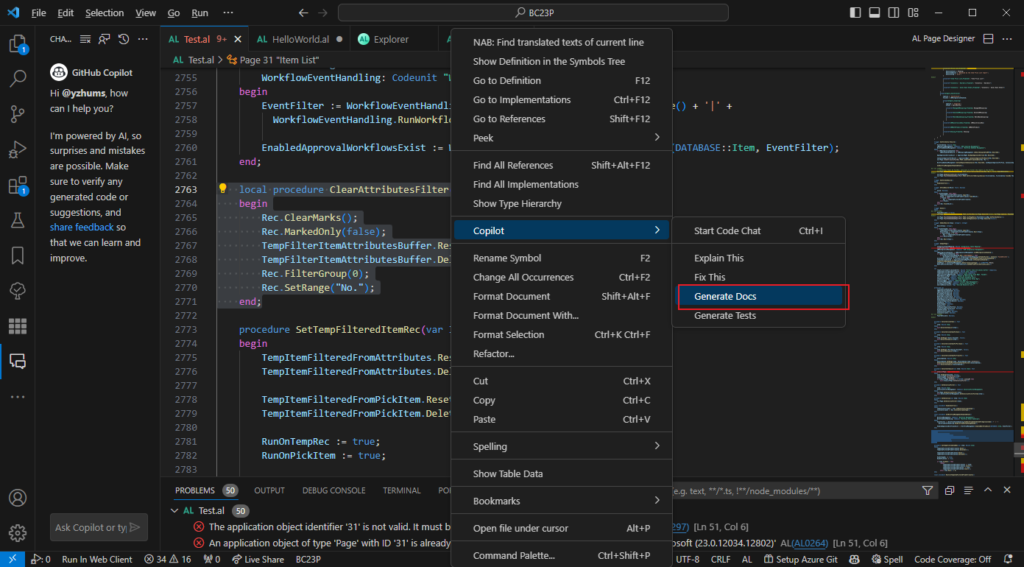
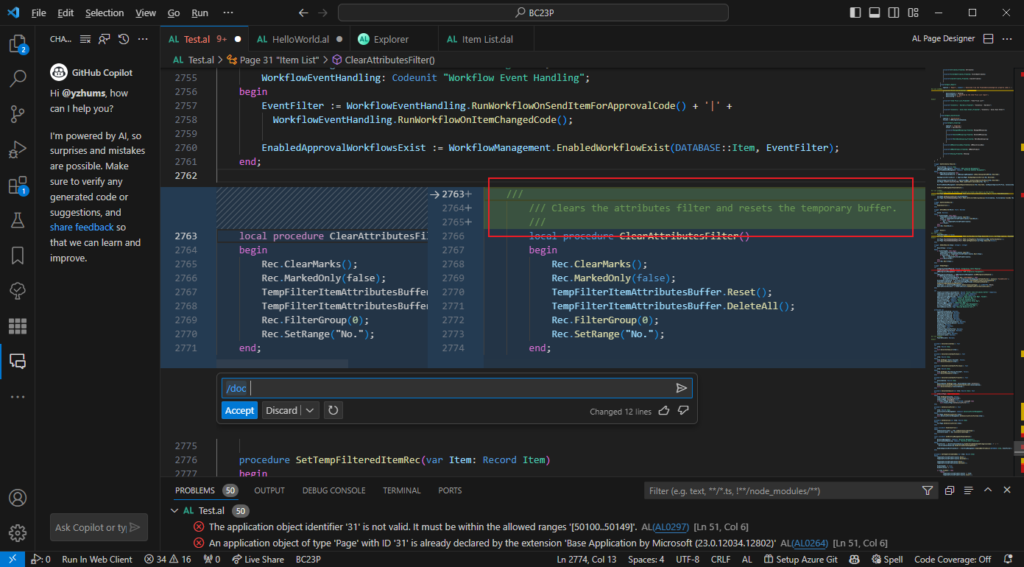
Test04: Generate Docs
Github Copilot Chat can be used to automatically generate descriptions as well as longer texts such as documentation.
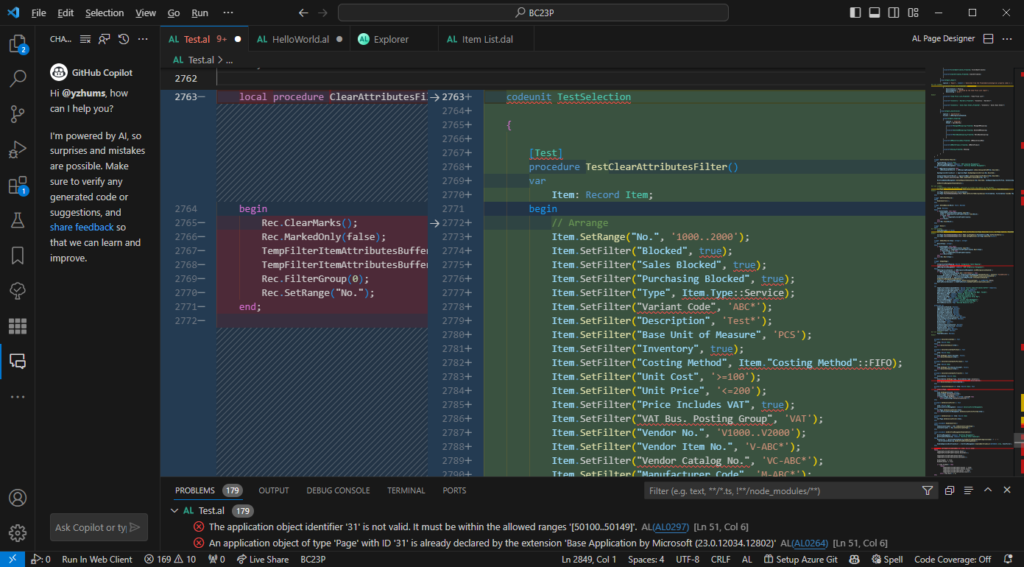
Test05: Generate Tests
Copilot Chat can help write unit test cases by generating code snippets based on the code open in the editor or the code snippet you highlight in the editor. This may help you write test cases without spending as much time on repetitive tasks.
And we can now search objects from downloaded symbol packages via the ‘Open Symbol by Name‘ functionality (Ctrl+T).

Then enter the keyword you want to search, for example, Customer Card.

After selecting, you can open the standard AL file (standard code). This makes it much easier to find objects, and open the source, if the symbols include source code.

PS:
1. Instead of using Ctrl+T, you can also manually enter the number sign (#) in the search box to start your search.

2. Wildcard search (* and ?) is not supported at this time.


More details: Business Central 2024 wave 2 (BC25): Wildcard search (* and ?) in AL Explorer
It also empowers GitHub Copilot in Visual Studio Code. You can open the source for selected, related symbols to use as context for Copilot Studio when you write your own code, to get better suggestions.


And you can also use special keyword #sym to specify files.

After entering keyword #sym, press Enter to jump to the search bar.


Great.

More details:
- Dynamics 365 Business Central: GitHub Copilot (Your AI pair programmer)
- Dynamics 365 Business Central: GitHub Copilot Chat
The performance of searching workspace symbols has, furthermore, been improved to support the larger amount of available symbols.
Test video:
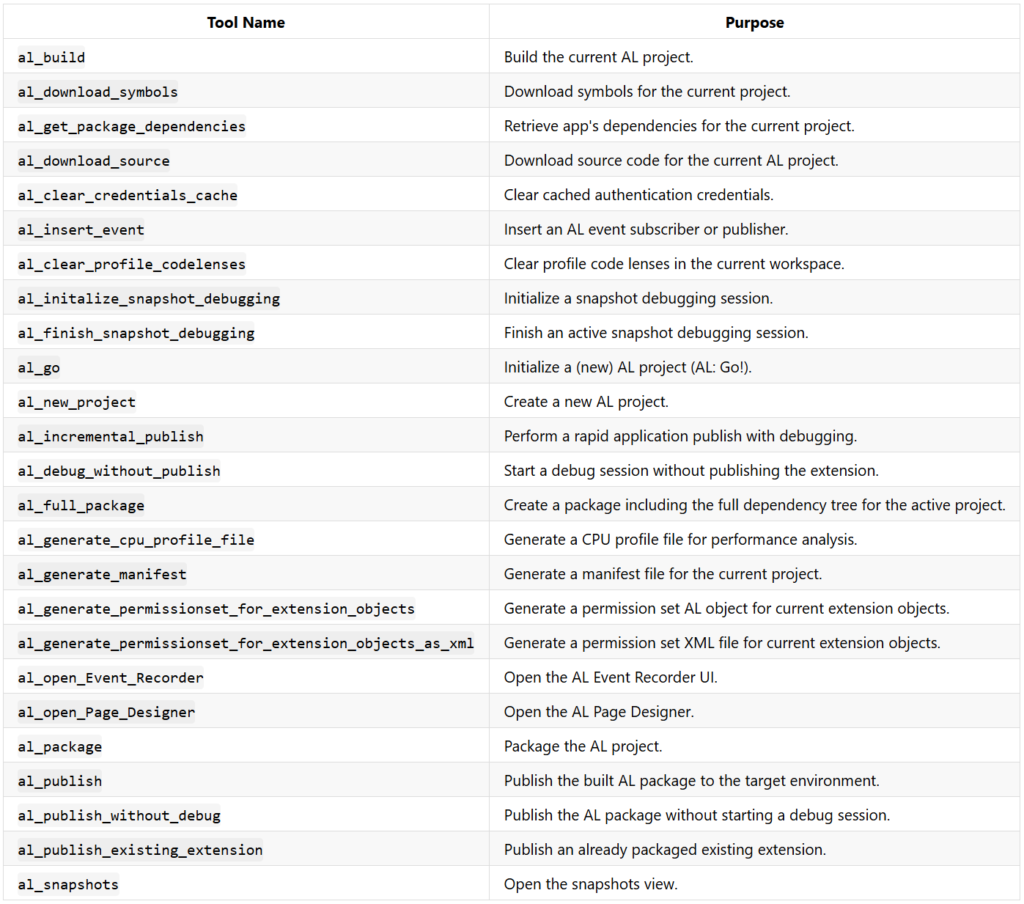
GitHub Copilot Agent Tools are mentioned in the AL Language extension Changelog Business Central 2026 release wave 1 (Version 17.0).
New AL Tools Available for Agents: The following AL development tools are now accessible to agents:
Don’t worry, this also works in the current version (runtime: 16.0). Let me do a simple test, first we need to install the latest AL Language Extension.
AL Language extension

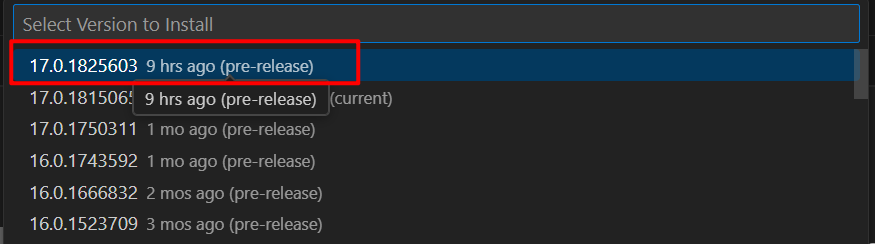
Test version: v17.0.1825603 (pre-release)
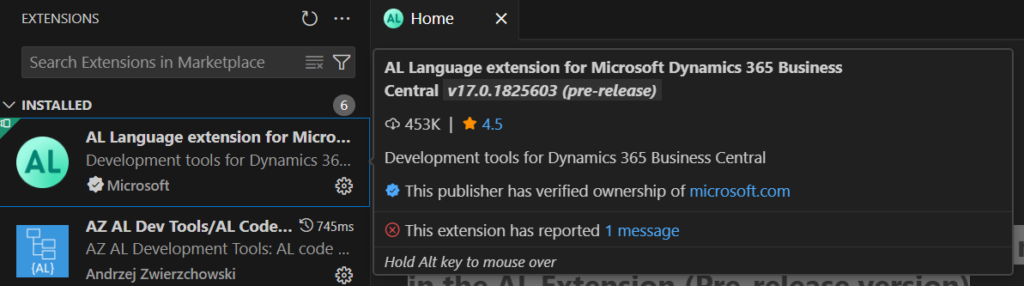
Then we need to enable agent mode in VS Code.
Use agent mode in VS Code: Agent mode is available starting from VS Code 1.99.
To enable agent mode in VS Code, enable the chat.agent.enabled setting.

Open the Chat view (Ctrl+Alt+I) and select Agent from the chat mode selector.
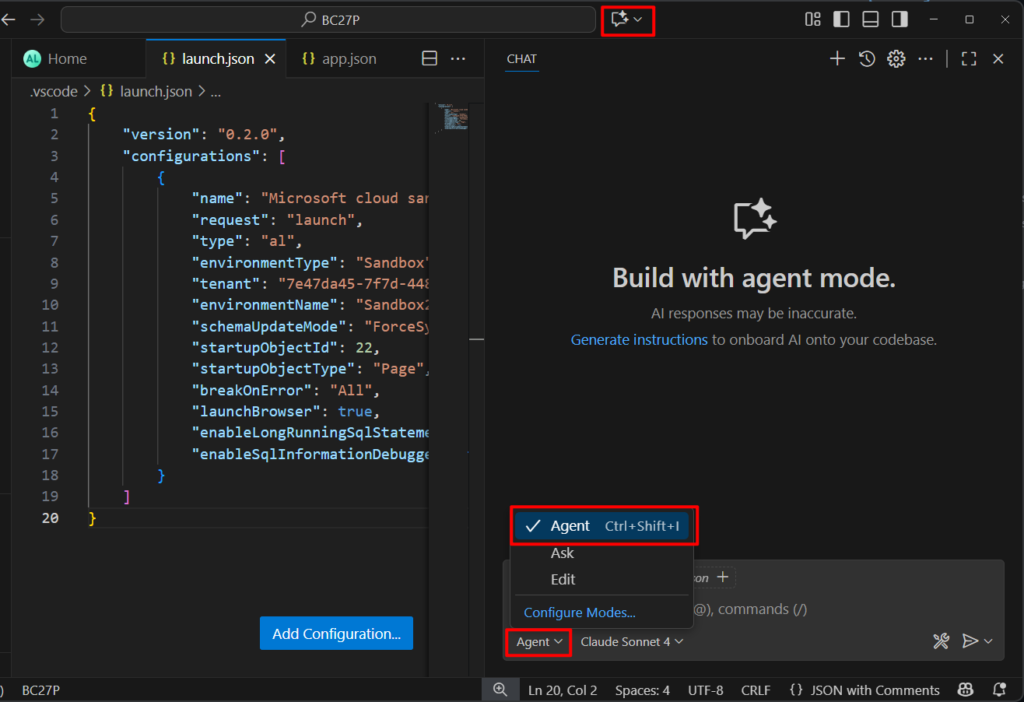
Done. Then we can try some tools provided by Microsoft.
al_build:
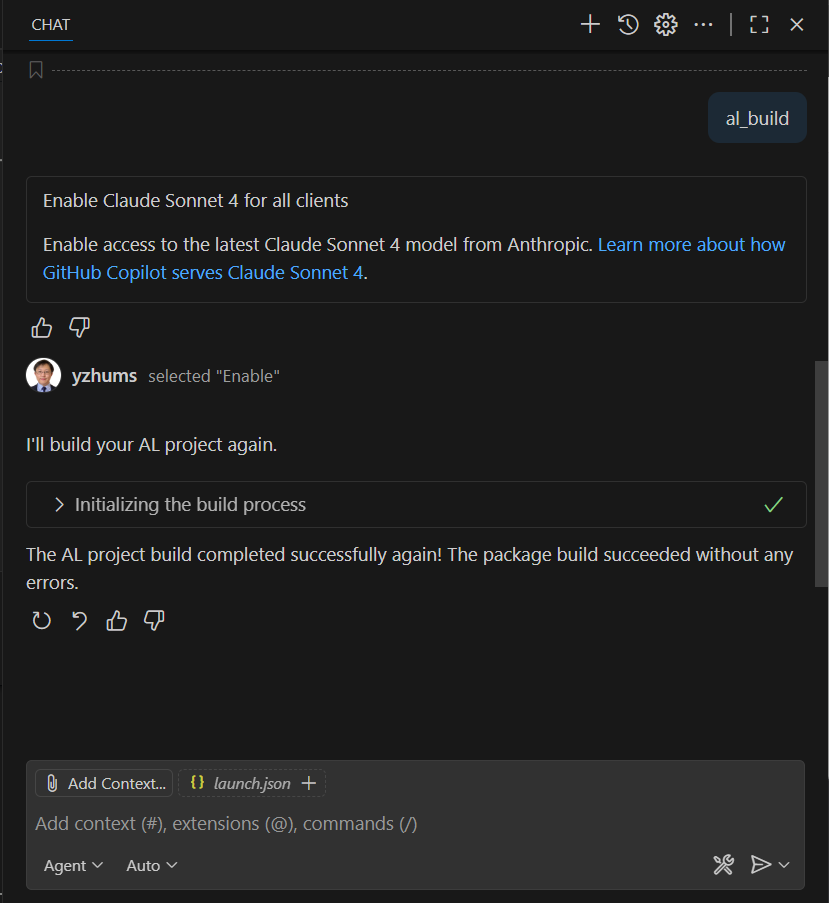
al_download_symbols:
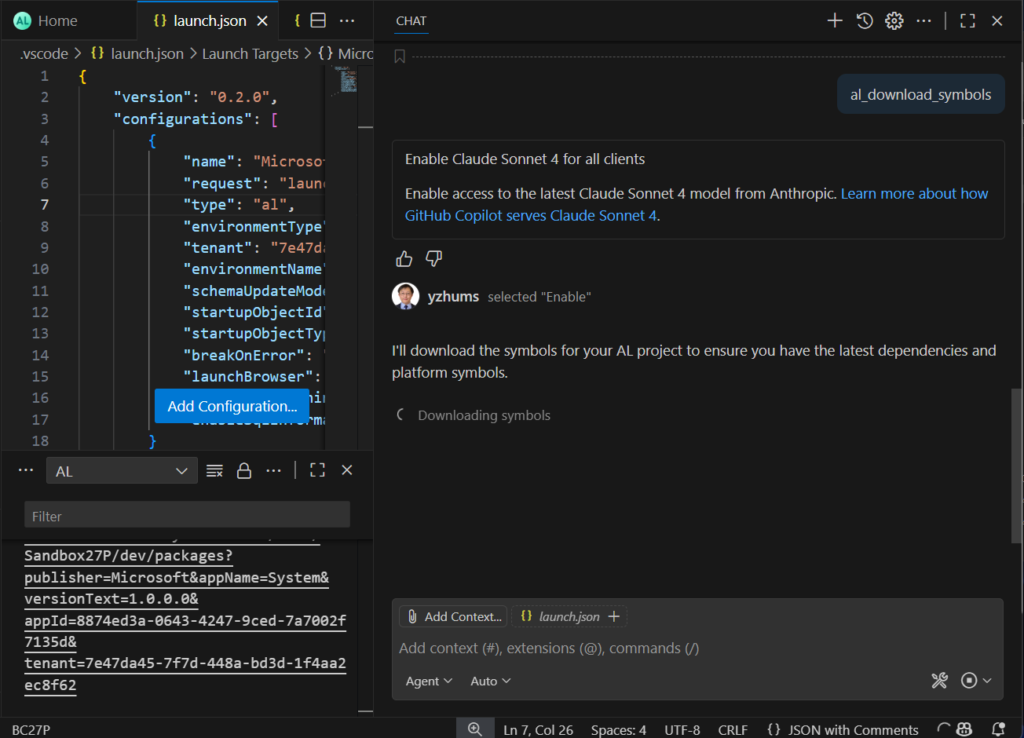
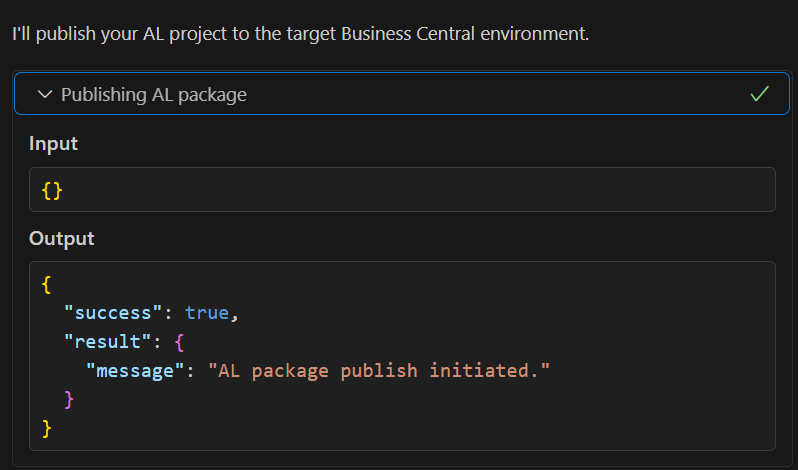
al_publish:

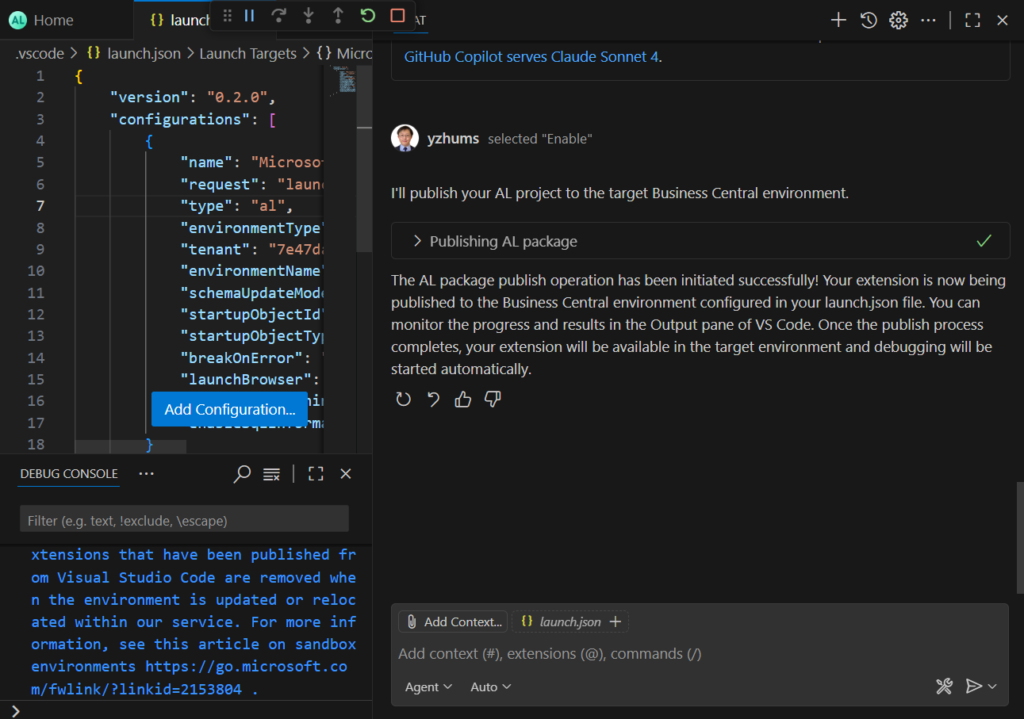
PS: If you click on a command, you can see the Input and Output details.
PS:
1. Dynamics 365 Business Central: GitHub Copilot (Your AI pair programmer)
2. Dynamics 365 Business Central: GitHub Copilot Chat
Integration with other Microsoft products
Business Central supports multiple integrations to Microsoft 365. Enabling integrations to Microsoft 365 augments the functionality in Business Central with extra features. It also augments Microsoft 365 apps with new features so that users can stay in the flow of work and get access to the right data at the right time from the app they prefer working with. Along with built-in integration, Business Central offers more ways for you to integrate with Microsoft 365 apps using API apps. More details: Integrating with Office apps and Microsoft 365
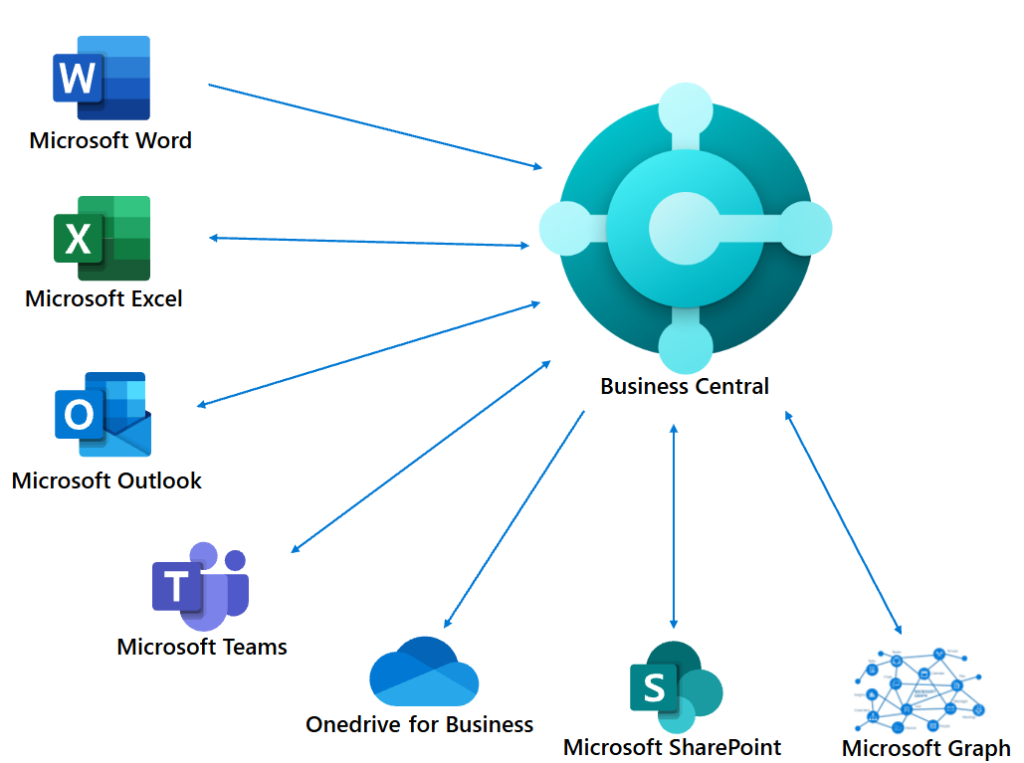
You can also integrate Business Central with Power Platform and other Dynamics 365 products, such as, Sales and Field Service. More details: Integration overview for Business Central (for architects and developers)

Therefore, in addition to the built-in Copilot features in Business Central, you can also leverage the Copilot capabilities of integrated products to work with Business Central data.
END
Hope this will help.
Thanks for reading.
ZHU

コメント