
Hi, Readers.
The public preview for Dynamics 365 Business Central 2026 release wave 2 (BC28) is available. Learn more: Link.
I will continue to test and share some new features that I hope will be helpful. In this post, I would like to talk about Add pictures to item variants to differentiate product options.
Add pictures to item variants to differentiate product options:
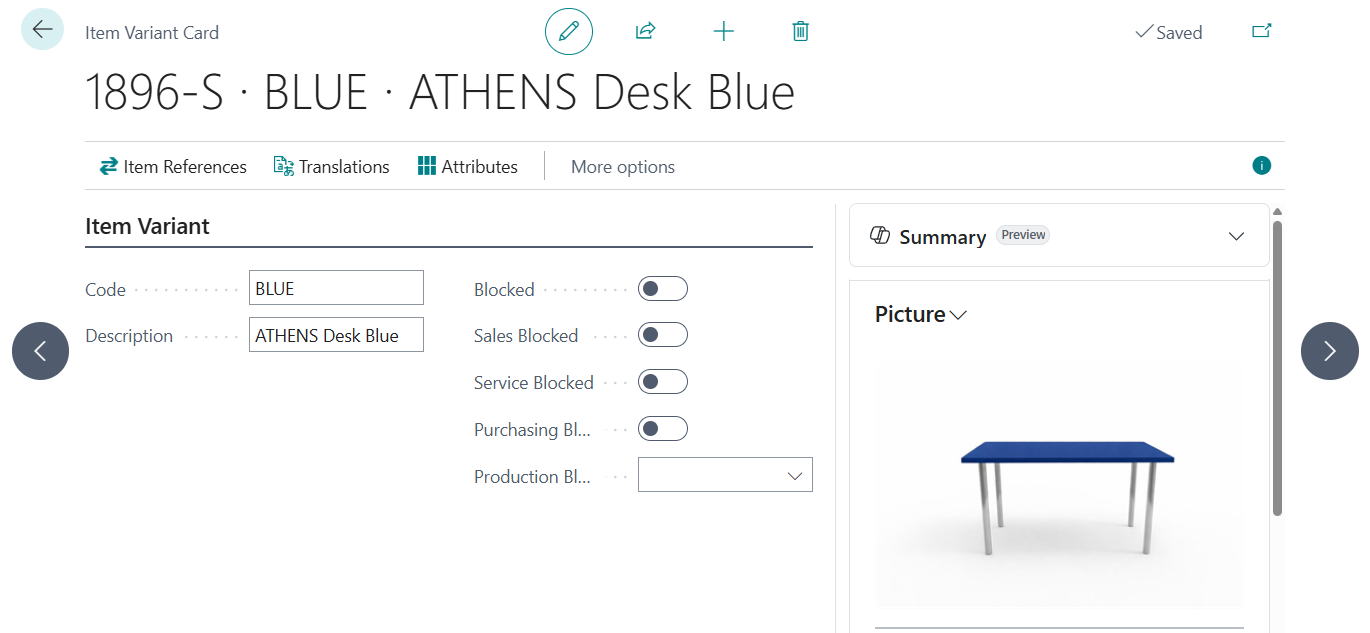
You can now store pictures for item variants, letting you add images that represent each variant, such as color or size, so you can quickly recognize differences. You can take a picture, import an existing file, export the current image, or delete it from a Picture FactBox on the Item Variant Card page.
https://learn.microsoft.com/en-us/dynamics365/business-central/dev-itpro/whatsnew/preview-feature-details?wt.mc_id=DX-MVP-5004336#add-pictures-to-item-variants-to-differentiate-product-options
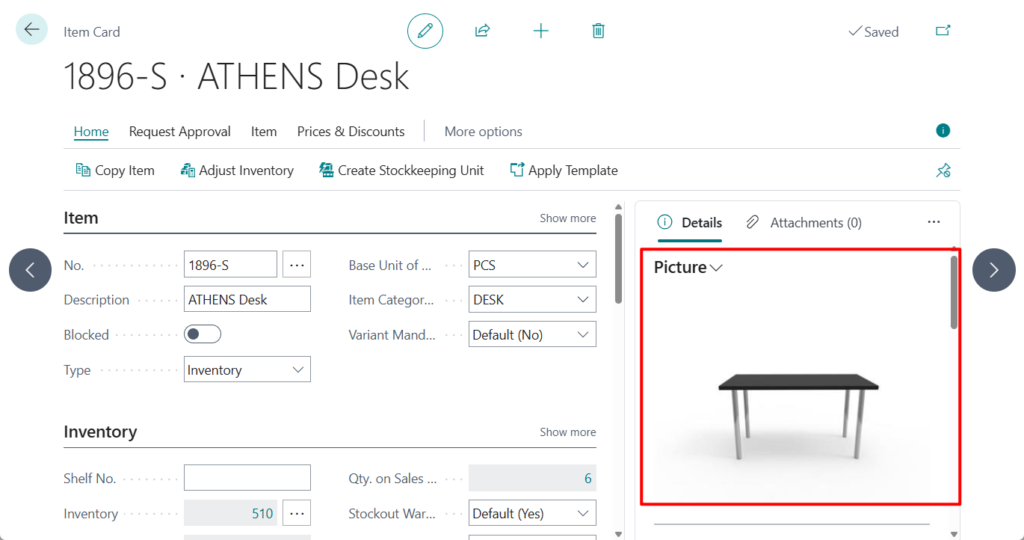
In Business Central, an item picture is more than just a nice-to-have visual—it’s a powerful tool for accuracy. From streamlining warehouse picking to enhancing your customer-facing sales quotes, leveraging item images can significantly reduce errors and improve your daily workflow.
We’ve discussed some interesting topics before.
- How to add and display multiple pictures for Item (Picture Gallery) – Customization
- How to add a picture to Item Category (Manage item picture by group) – Customization
- How to show/display picture thumbnails on the list page
With this wave, Microsoft introduced a standard feature that we can add pictures to item variants.
Item variants are a great way to keep your list of products under control in Business Central. For example, you have a large number of items that are almost identical and vary only in color. You can define each variant as a separate item. But you can also choose to set up one item and specify the various colors as variants of the item.
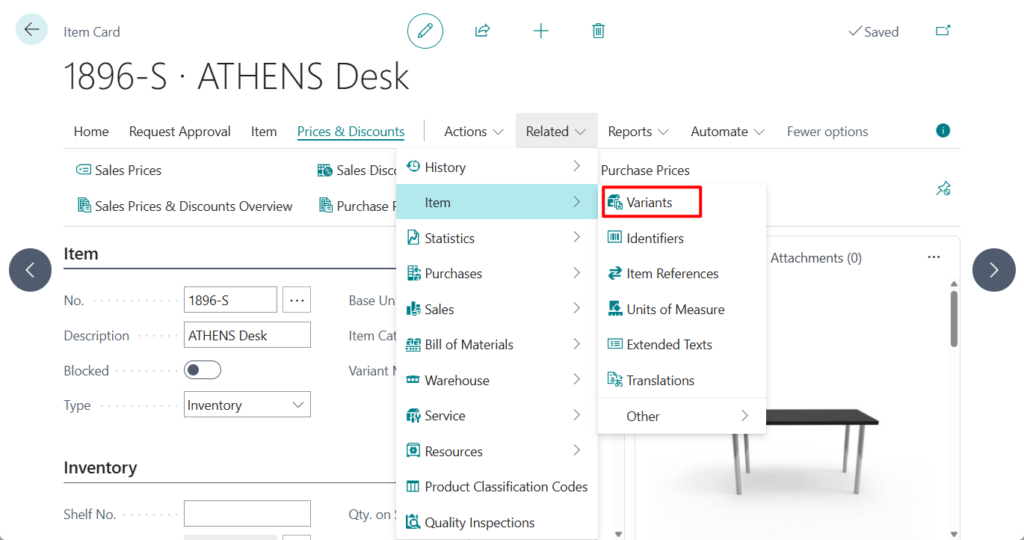

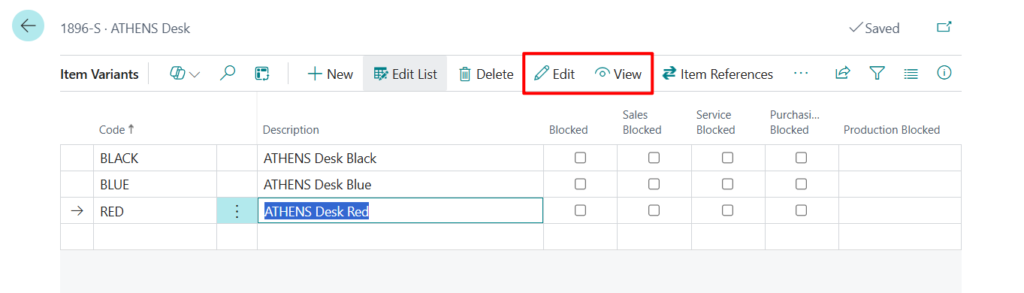
Select the variant that you want to update. Then choose Edit or View.
On the Item Variant Card, in the Picture FactBox, choose one of the following actions:
- Import to upload a file.
- Take to use your device camera to capture an image.
- Delete if you don’t want the picture.
- Export if you want to save the current image.

Page, Table, and Field info:

In BC27 and previous versions:

For example,

Test video:
Great, give it a try!!!😁
3. Business Central 2025 wave 1 (BC26): Block items or variants from production output
END
Hope this will help.
Thanks for reading.
ZHU

コメント