

Hi, Readers.
Today I would like to share another mini tip about Business Central, how to quickly check the current filters used on the current page via Page Inspection.
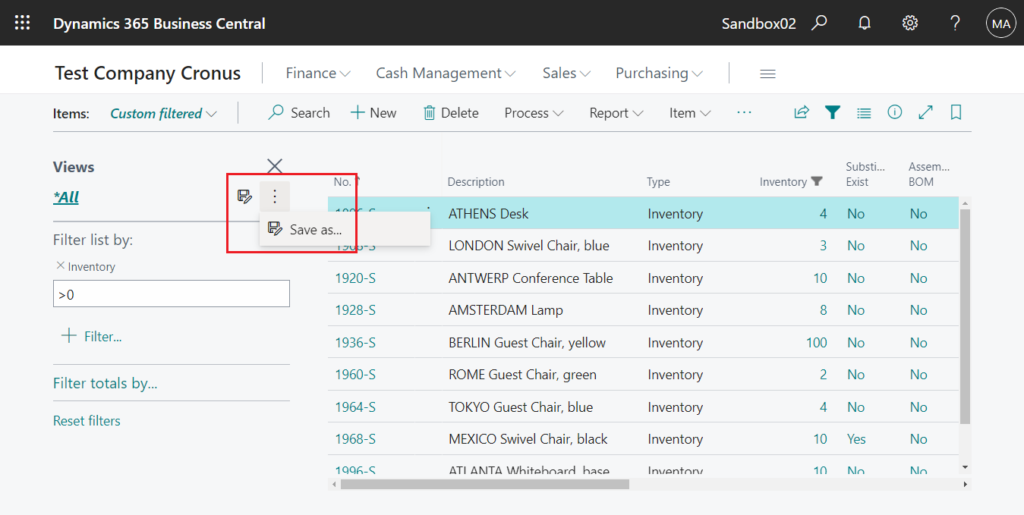
As you might know, on lists, you set filters by using the filter pane. To display the filter pane for a list, choose the drop-down arrow next to the name of the page, and then choose the Show filter pane action. Alternatively, select Shift+F3. For example, on the Item List (31, List) page:

And, when you have set a filter on a list and you want to keep the filter for later, you can save it as a view. (Views are only available on list pages)
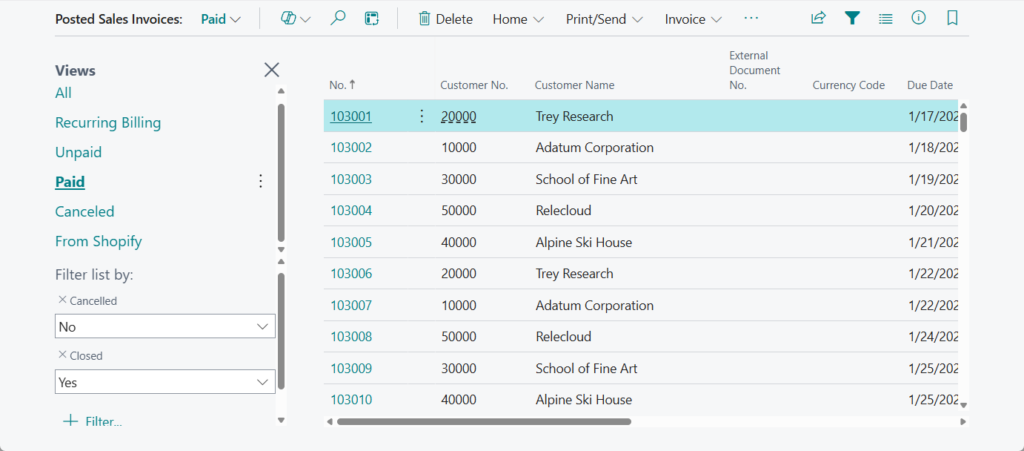
Some standard pages also include some default views. For example,

So, is there a simple way to check the current filters on the page? Yes, we can use the page inspection feature.
The page inspection feature in Business Central enables you to get details about a page, providing insight into the page design, the different elements that comprise the page, and the source behind the data it displays.
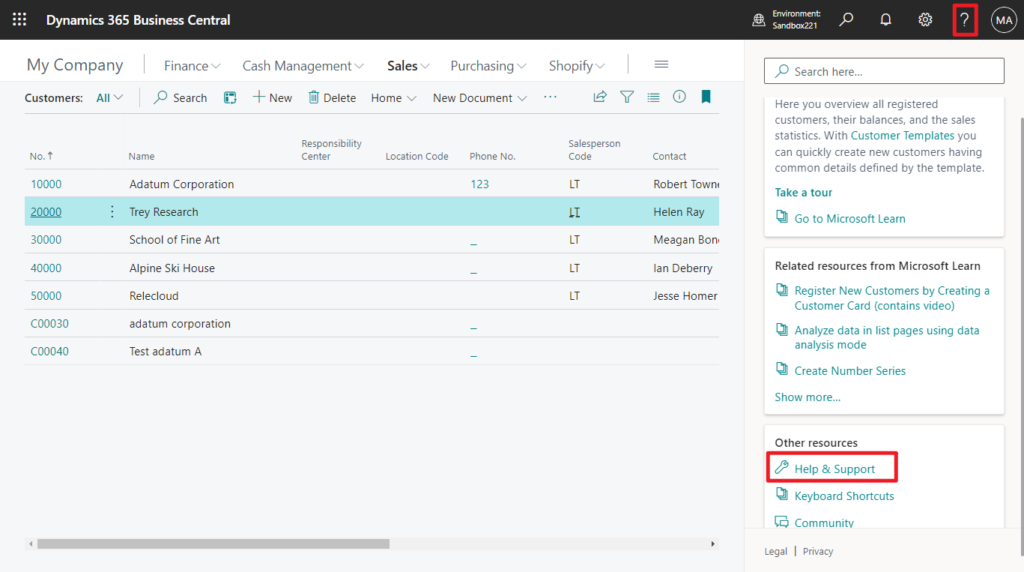
You can start page inspection from the Help & Support page. Choose the question mark in the top right corner, choose Help & Support, and then choose Inspect pages and data.
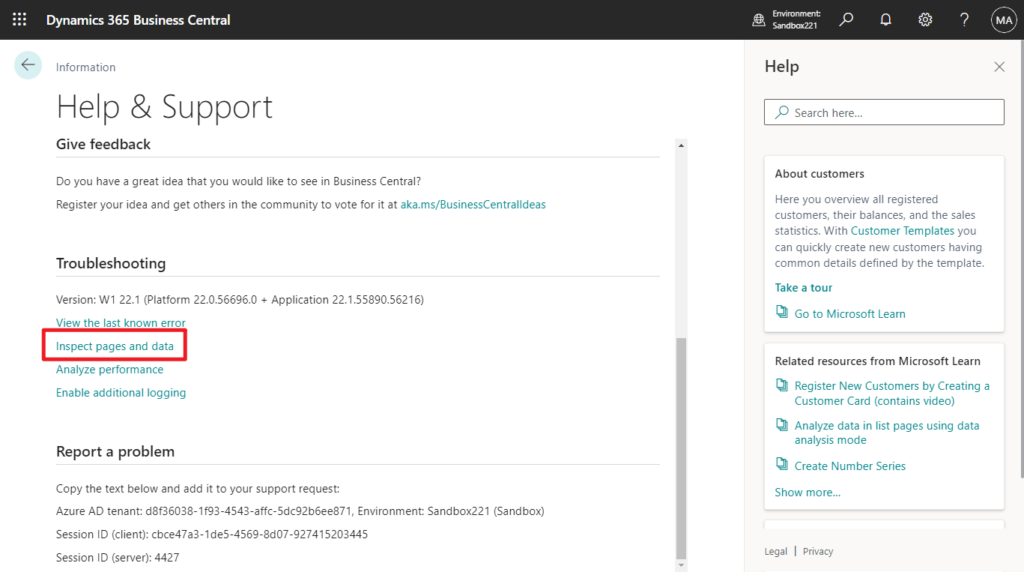
Or, you can just use the keyboard shortcut Ctrl+Alt+F1.
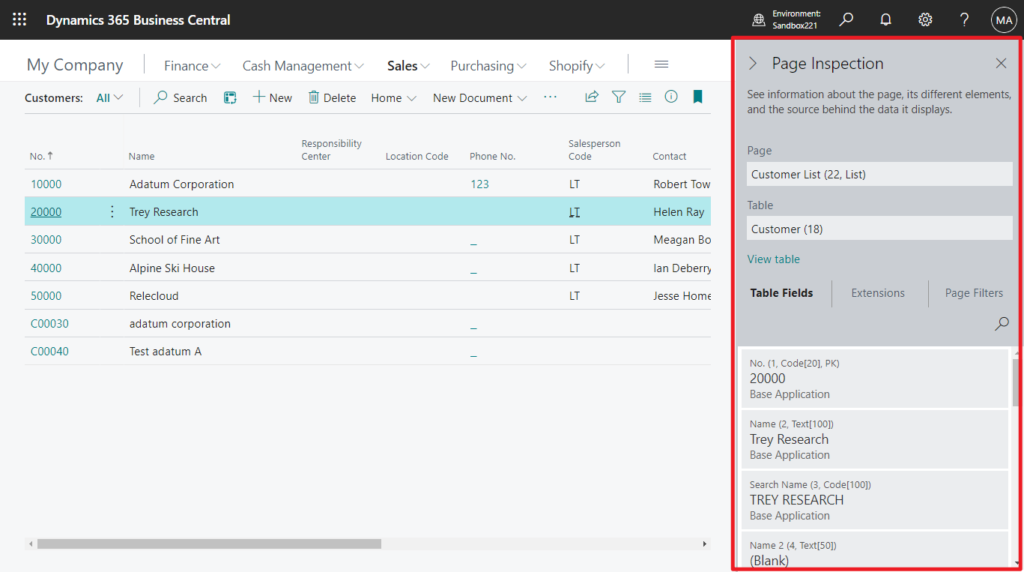
The Page Filters tab displays the current filters used on the current page. The tab shows filters set by code, set in list views, or defined by the user in the filter pane of the page.
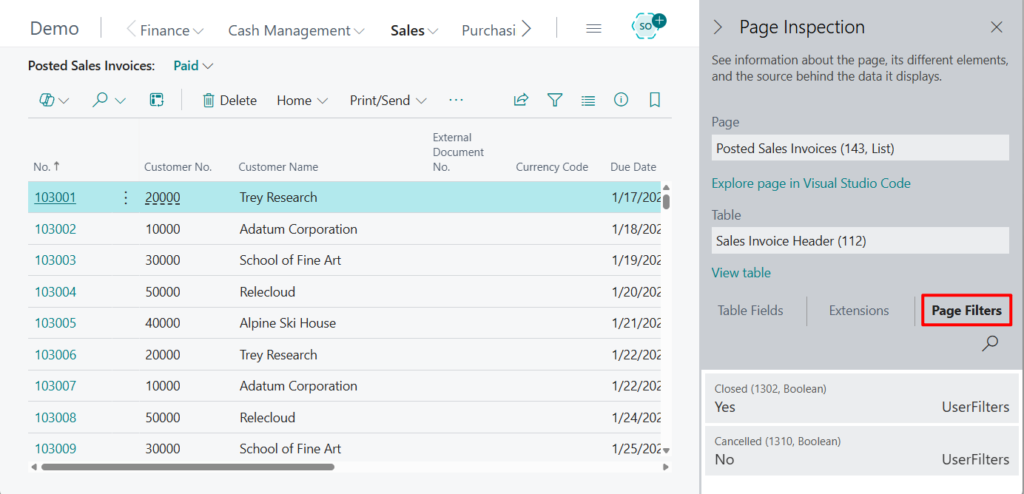
This also allows you to identify filters that are not displayed on the page. For example,
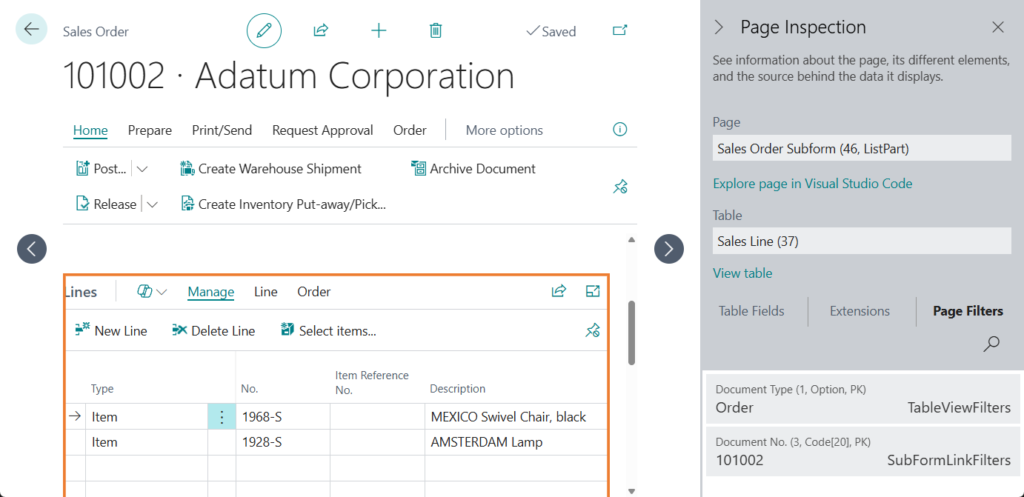
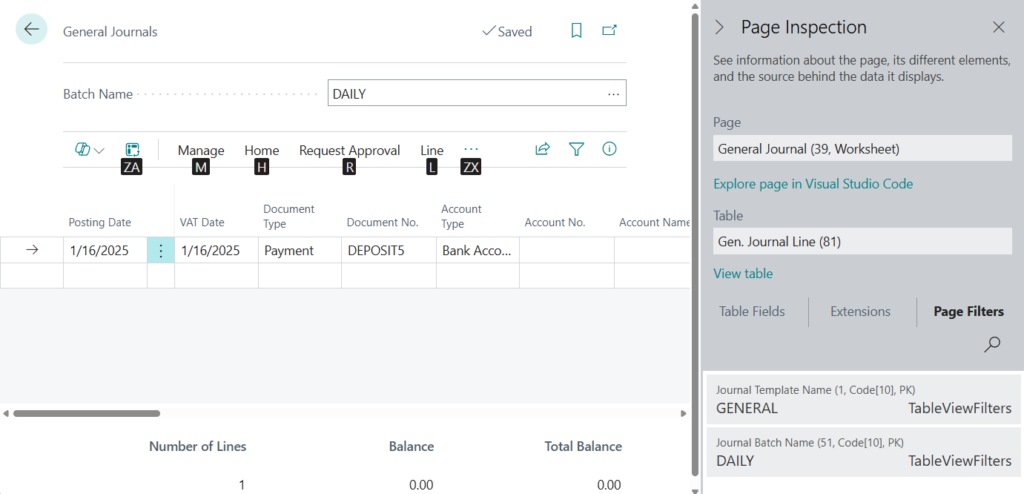
PS: What Page Inspection Shows
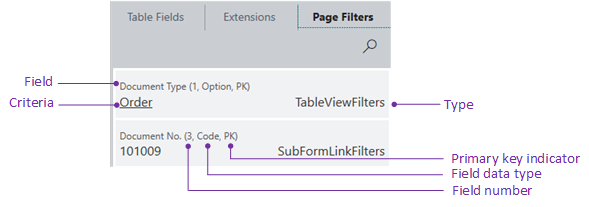
The following table describes the different filter types.
| Type | Description |
|---|---|
| UserFilters | Filter that is defined by the client user, by using the Filter pane (see Filtering), or defined in code by using filter methods like SetFilter or SetRange. |
| TableViewFilter | Filter that is defined on the page by the SourceTableView property |
| SubFormLinkFilters | Filter that is defined by the SubPageLink property on a part control that contains the subpage. |
| FormViewFilters | Filter that is defined by the RunPageView property of the action that opens the page. |
Yes, this not only confirms the filters on the current page, but also lets you know the source of those filters.
Actually, this feature has another very powerful aspect. For example, we can use the Record.FilterGroup([Integer]) Method to add mandatory filters that the user cannot remove.
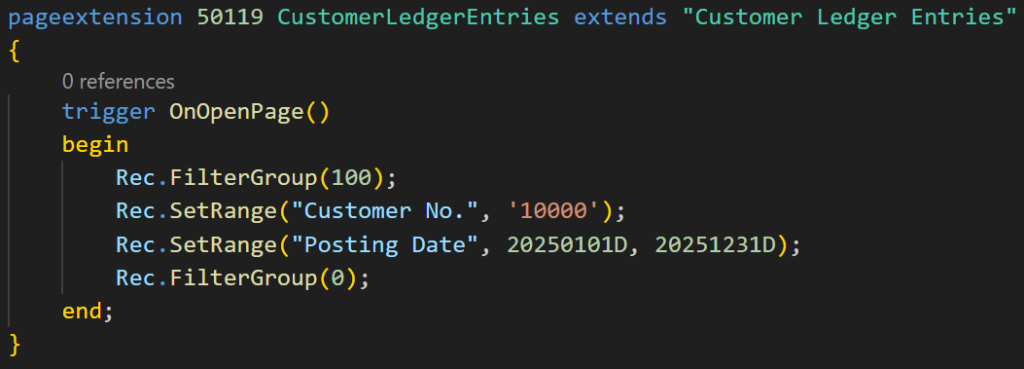
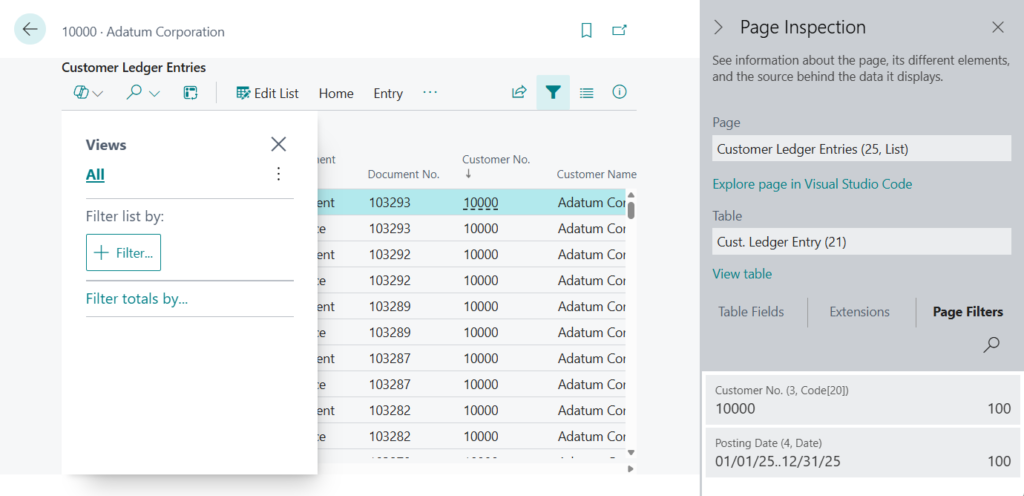
Users cannot remove these filters. More details: How to make some filters mandatory on the list page (users can not change or remove)

And this can also be found in Page Fitlers, which is very helpful for developers. At this point, the Filter Type displays the Filter Group number.
Great, give it a try!!!😁
PS:
1. Security filters cannot be viewed using this method.

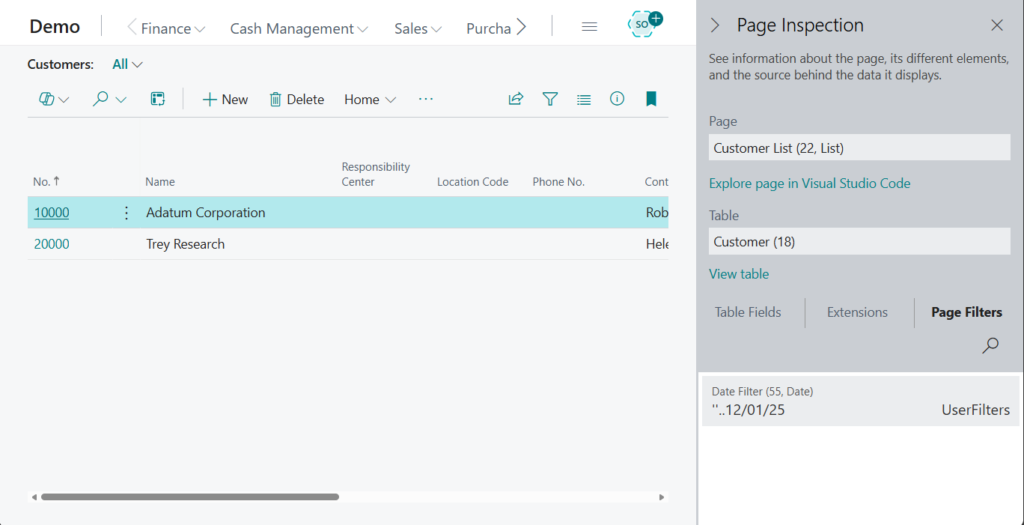
More details: Using Security Filters and SecurityFiltering Property
2. How to hide page inspection details (Table Fields, Extensions, Page Filters and View table action)
3. Controlling Access to Page Inspection Details
4. Highlight the field in Page Inspection (Quickly locate a field on the page)
5. View size of text, code fields in page inspection
6. Collapsible page inspection pane
END
Hope this will help.
Thanks for reading.
ZHU
コメント