

Hi, Readers.
The public preview for Dynamics 365 Business Central 2025 release wave 2 (BC27) is available. Learn more: Link.
I will continue to test and share some new features that I hope will be helpful. In this post, I would like to talk about Add more fields and columns by personalizing pages.
Add more fields and columns by personalizing pages:
Business value:
Different businesses and users need specific information to complete their processes efficiently. Personalization in Business Central is a powerful tool that lets you tailor the information on your pages by adding fields or columns from a set list. You can now choose from even more fields and columns to add to some pages. This enhancement is driven by community feedback, addressing a common request and giving you greater control over the information displayed. It helps you work more effectively with the data that’s most important to your business operations.
https://learn.microsoft.com/en-us/dynamics365/release-plan/2025wave2/smb/dynamics365-business-central/add-more-fields-columns-personalizing-pages?wt.mc_id=DX-MVP-5004336
In each major update, Microsoft will add some fields to the page object, which allows users to use the Personalization feature to customize the workspace and display these on the page. For examples,
- Business Central 2021 wave 2 (BC19): Add additional columns (fields) through personalization in various pages to gain more insight
- Business Central 2023 wave 1 (BC22): Add more columns to pages for better insight
- Business Central 2023 wave 2 (BC23): Add more columns to pages for better insight (Description 2 field and Item Reference No. field)
- Business Central 2025 wave 1 (BC26): Add more columns to various pages to gain more insight
It’s the same this time, Microsoft has added the following columns.
Statistics Group field
You can add the Statistics Group field on these pages:
- Item Card
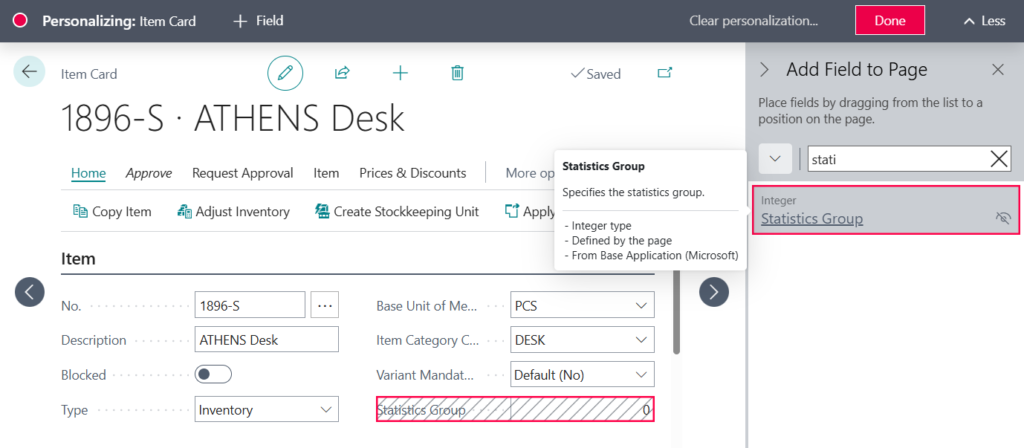
- Item Template Card
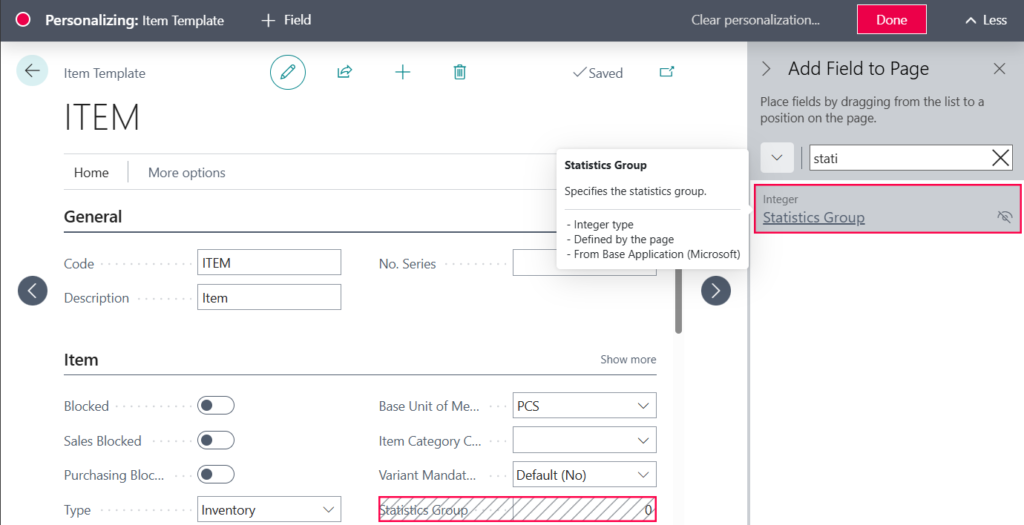
- Vendor Card

- Vendor Template Card
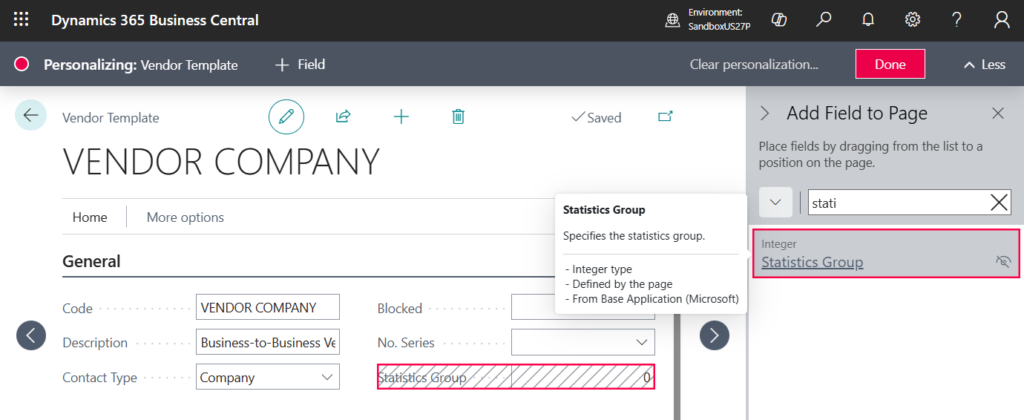
- Customer Card
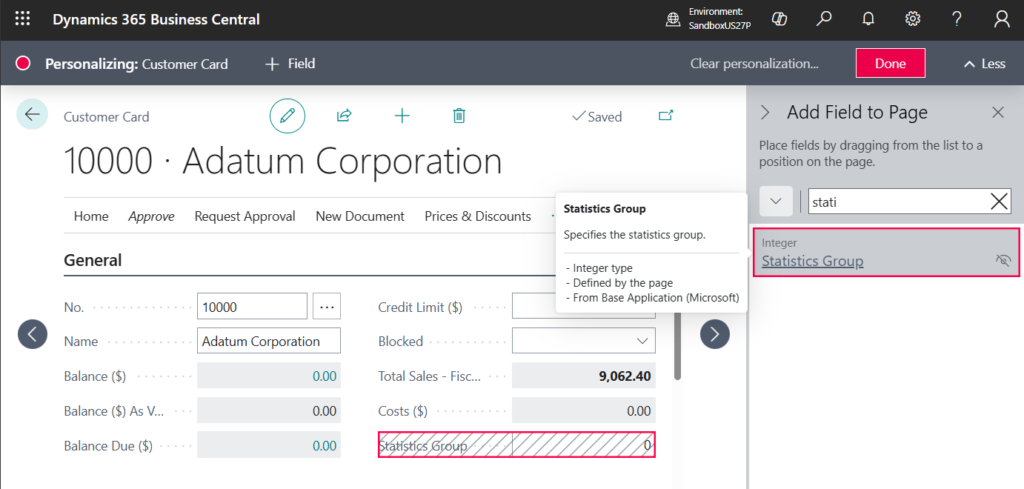
- Customer Template Card
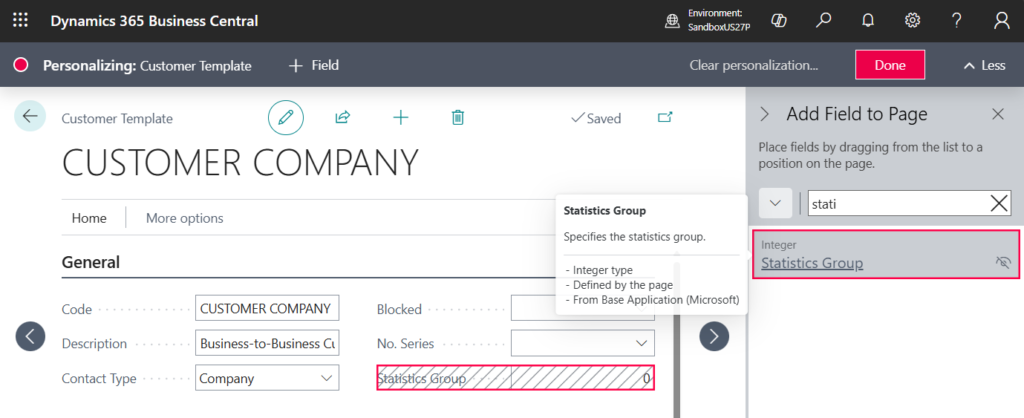
Allow Multiple Posting Groups and Price Calculation Method fields
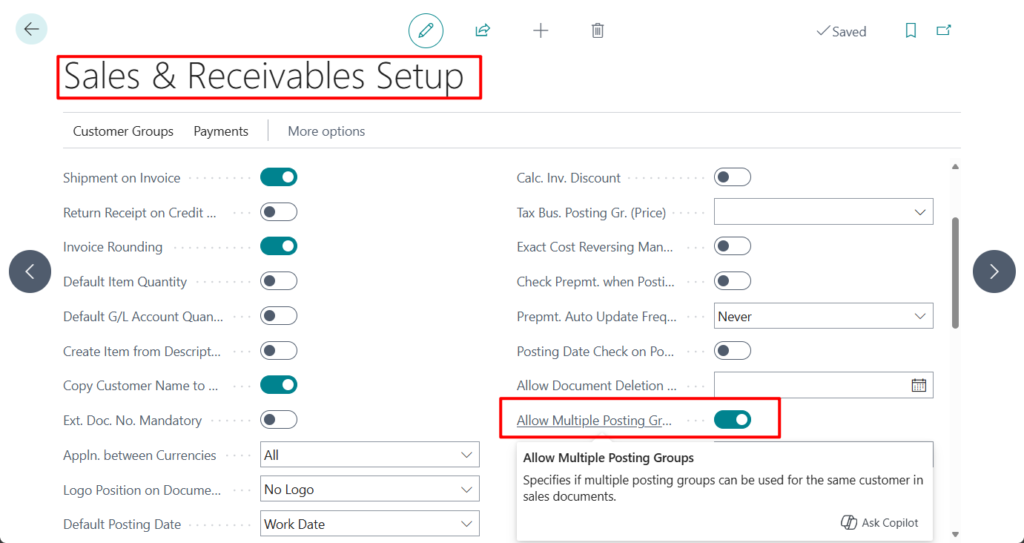
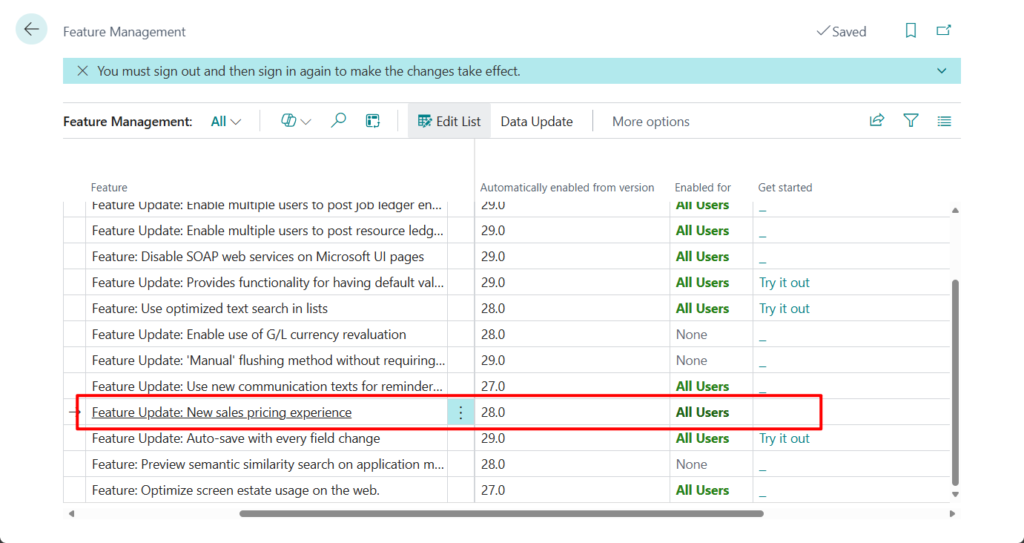
Besides the Statistics Group field, you can add the Allow Multiple Posting Groups and Price Calculation Method fields on the Customer Template Card page.
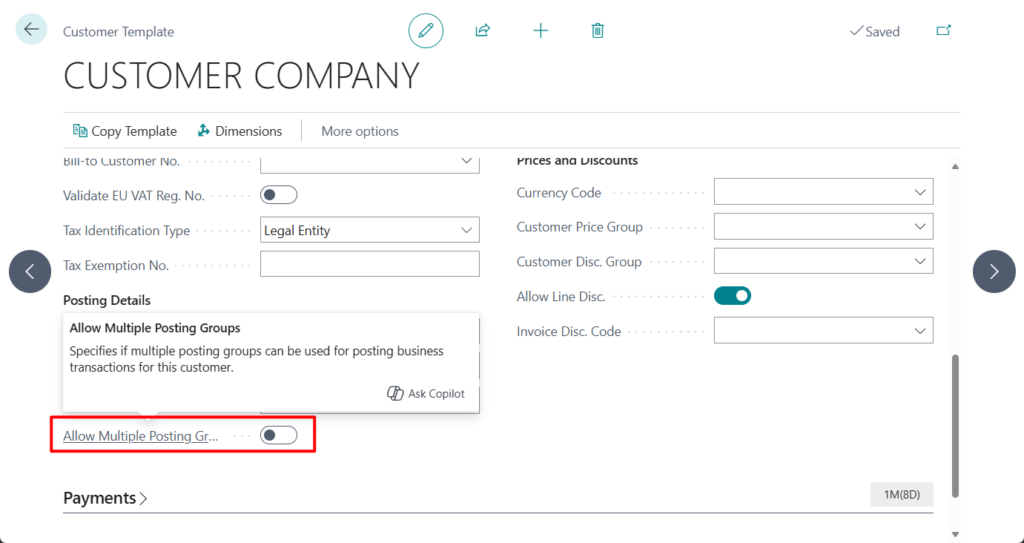
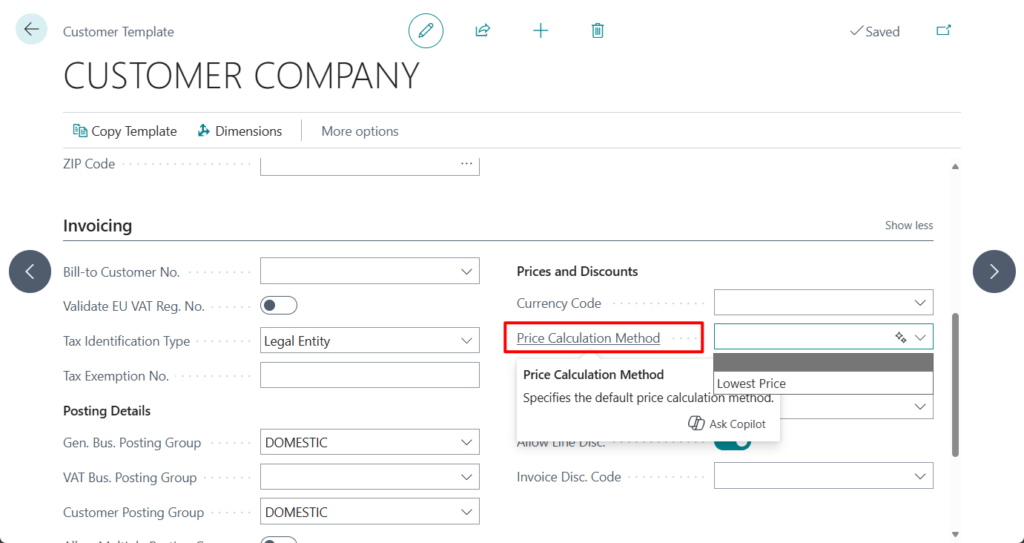
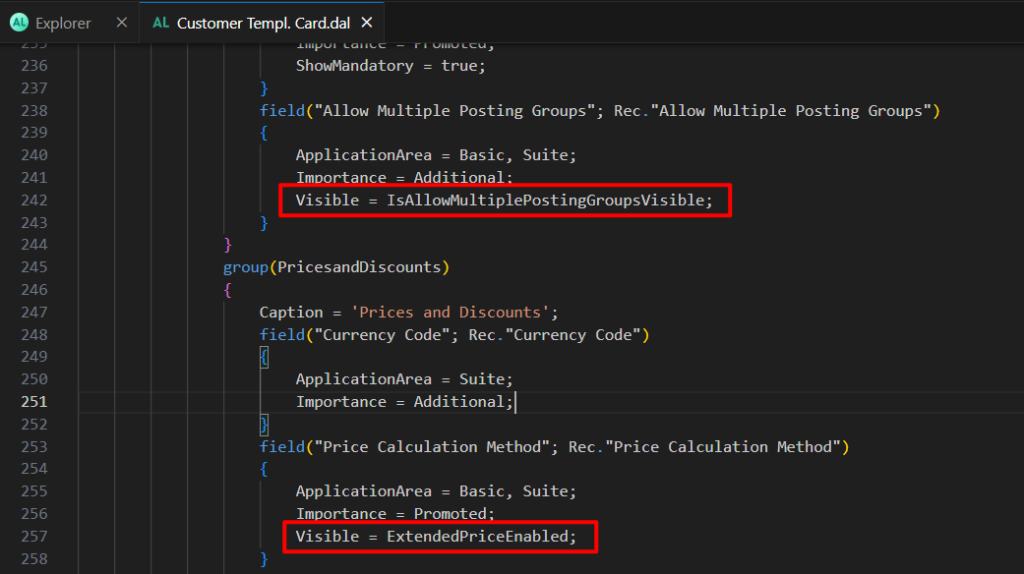
According to my test, these two fields have been added to the page, but they are controlled by variables. If you turn on the following two options, you can see these two fields.
Sell-to Customer Name 2, Bill-to Name 2 on project documents
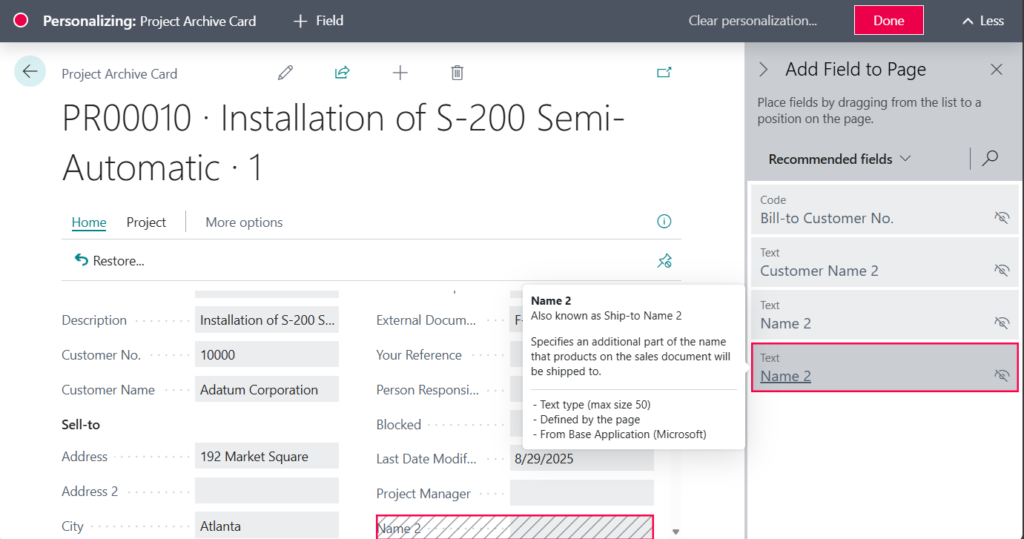
You can add the Sell-to Customer Name 2 and Bill-to Name 2 fields on these pages:
- Project Archive Card
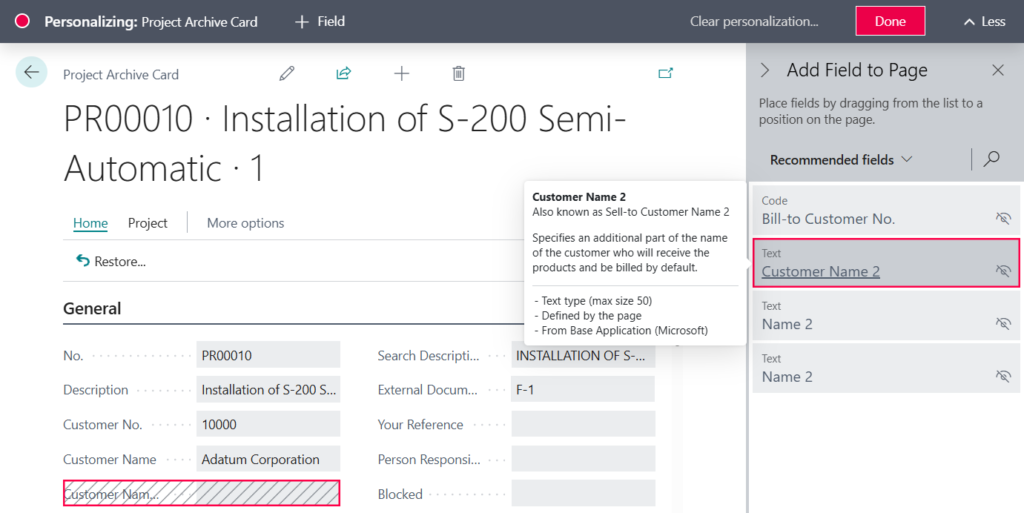
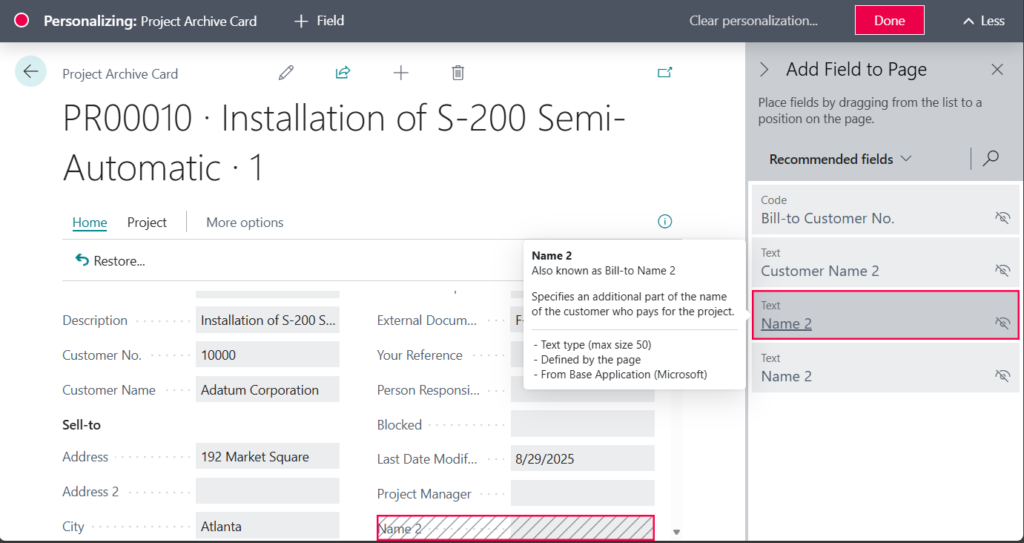
- Project Task Card
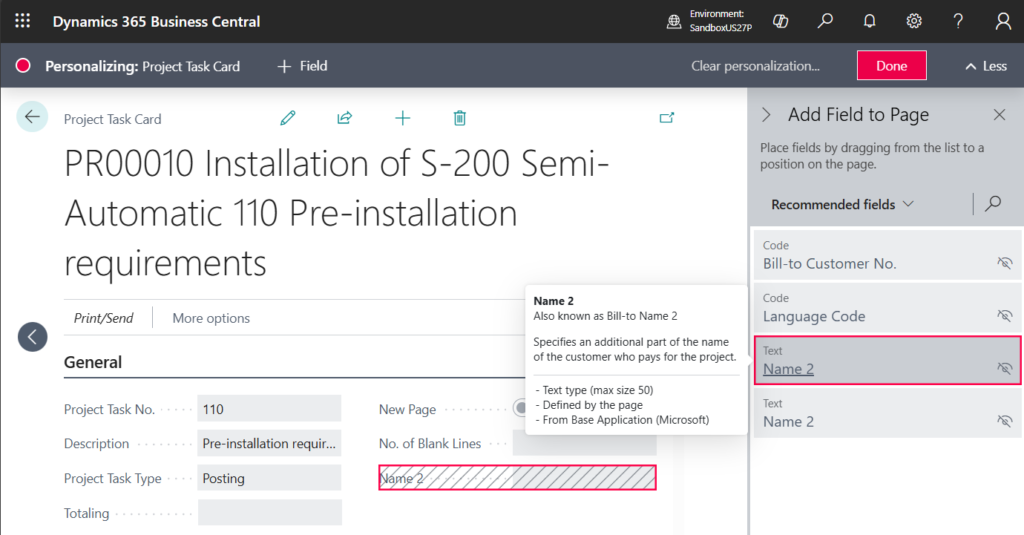
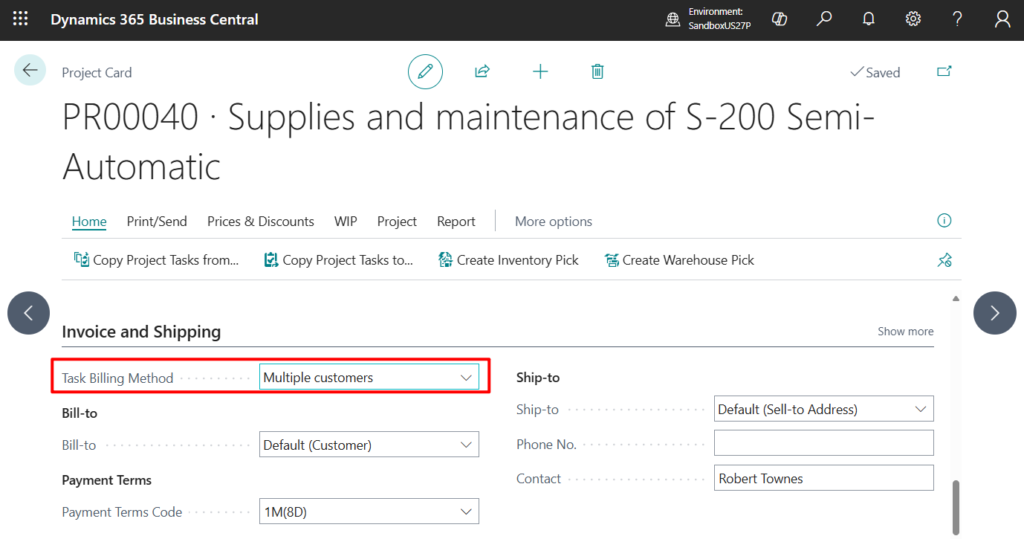
Sell-to Customer Name 2 is displayed only when the Project’s Task Billing Method is Multiple customers.
More details: Business Central 2024 wave 1 (BC24): Create projects you can invoice to multiple customers (Task Billing Method)
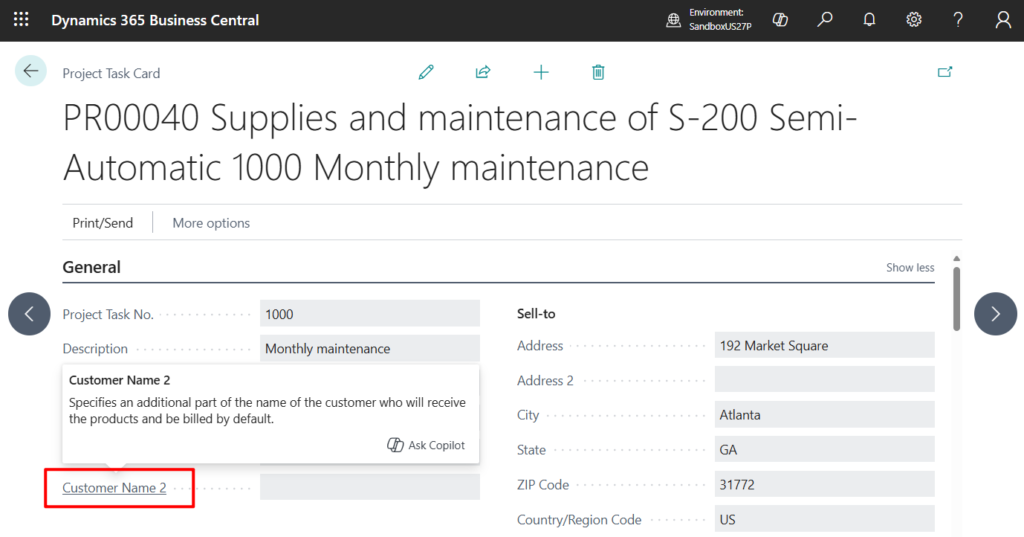
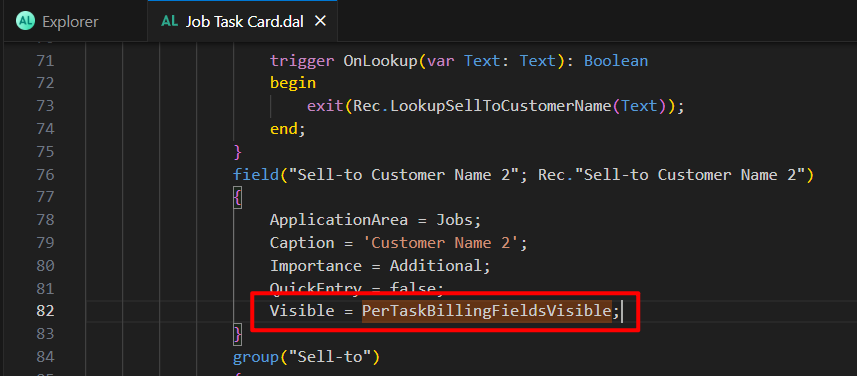
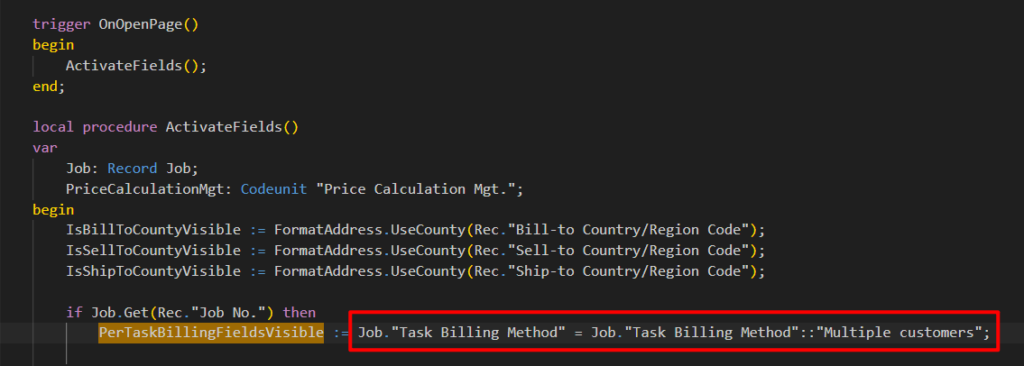
These fields are available in personalization only when you set up the document to use alternate or custom addresses instead of the default addresses for shipping and billing. For example, the Ship-to field is set to Alternate Shipping Address or Custom Address. The same rule applies to address-related fields in the following sections.
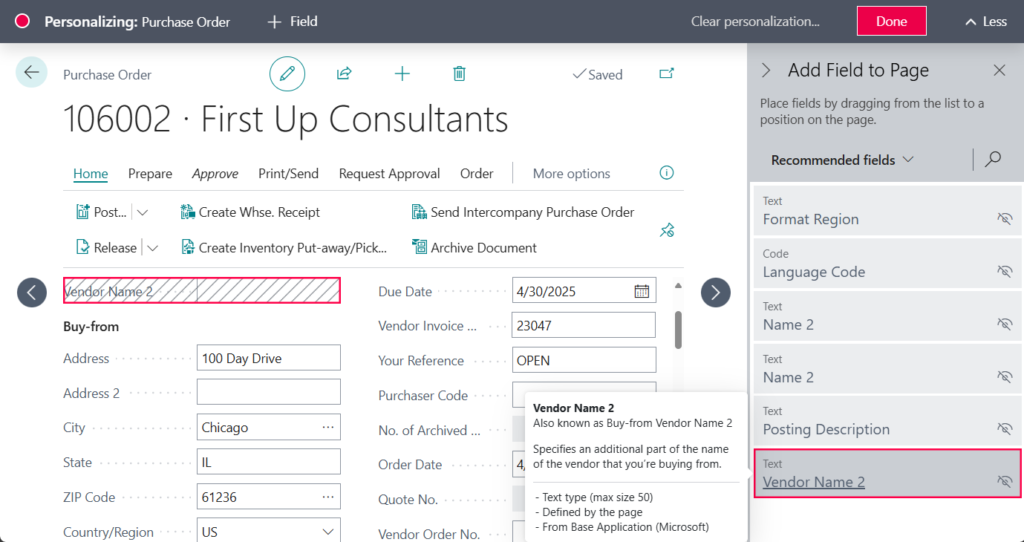
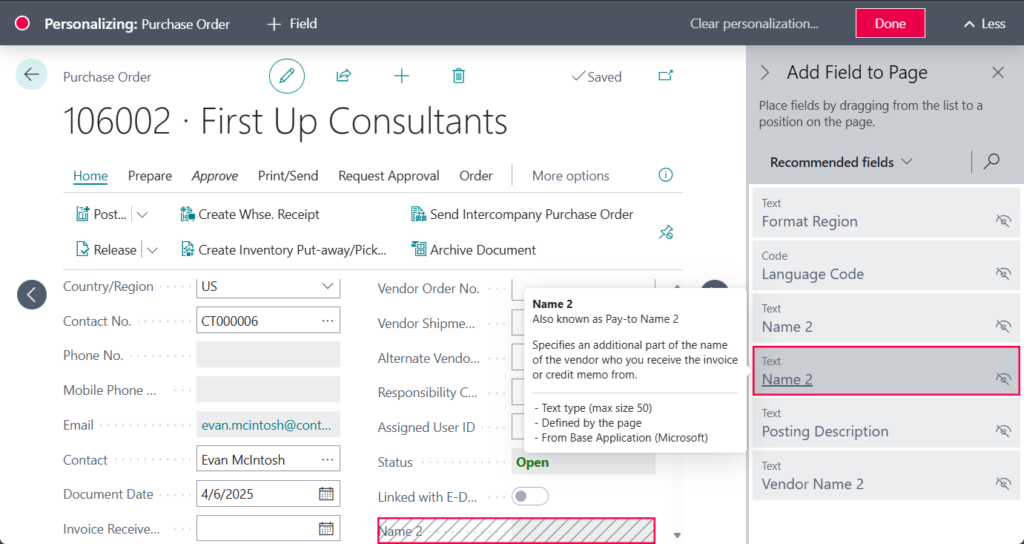
Buy-from Vendor Name 2 and Pay-to Name 2 fields on purchase documents
You can add the Buy-from Vendor Name 2 and Pay-to Name 2 fields on these pages:
- Blanket Purchase Order Archive
- Purchase Order Archive
- Purchase Quote Archive
- Purchase Return Order Archive
- Blanket Purchase Order
- Purchase Credit Memo
- Purchase Invoice
- Purchase Order
- Purchase Quote
- Purchase Return Order
- Posted Purchase Credit Memo
- Posted Purchase Invoice
- Posted Purchase Receipt
- Posted Return Shipment
For example,
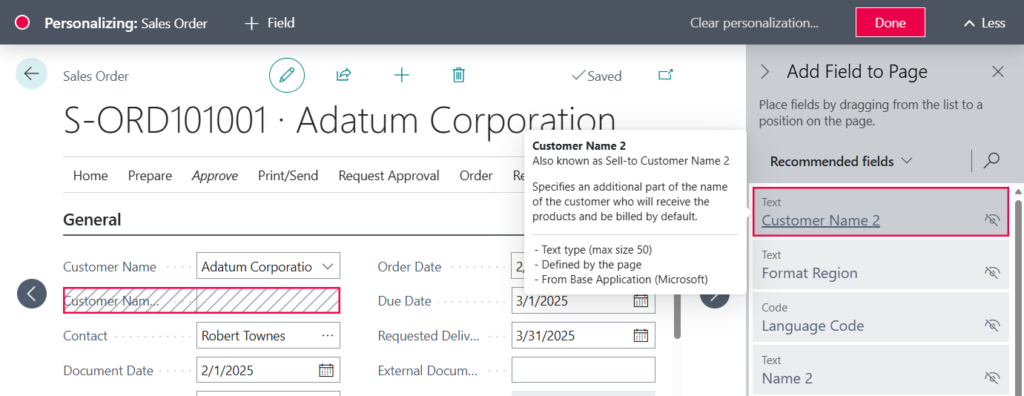
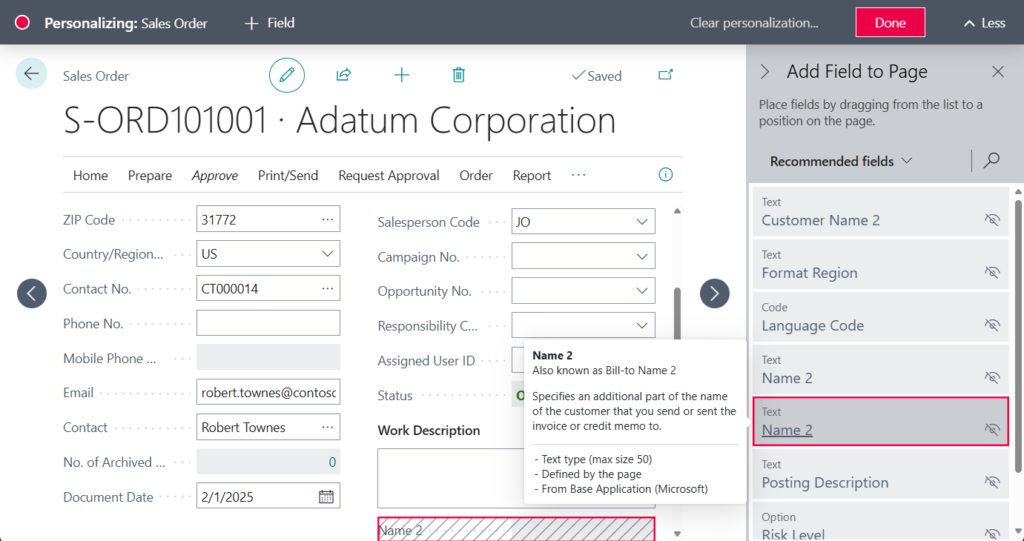
Sell-to Customer Name 2 and Bill-to Name 2 fields on sales documents
You can add the Sell-to Customer Name 2 and Bill-to Name 2 fields on these pages:
- Blanket Sales Order Archive
- Sales Order Archive
- Sales Quote Archive
- Sales Return Order Archive
- Blanket Sales Order
- Sales Credit Memo
- Sales Invoice
- Sales Order
- Sales Quote
- Sales Return Order
- Posted Return Receipt
- Posted Sales Credit Memo
- Posted Sales Invoice
- Posted Sales Shipment
For example,
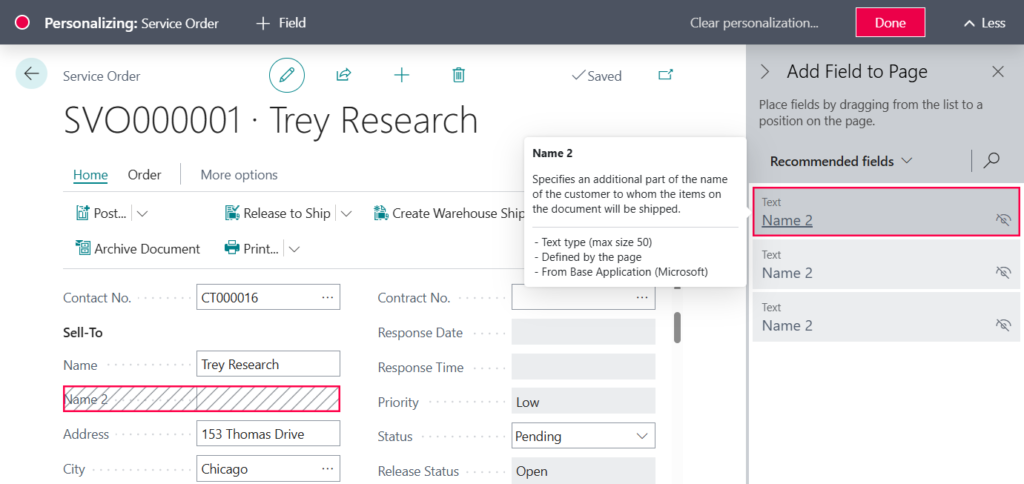
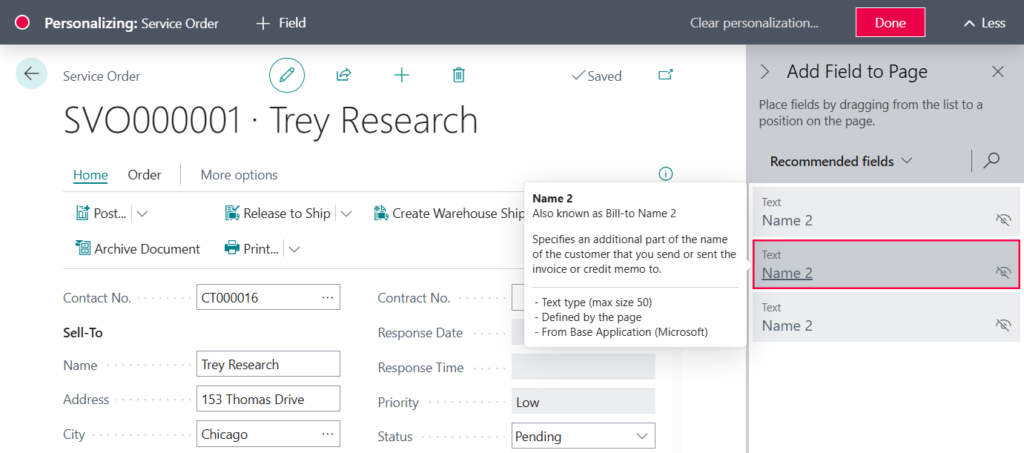
Name 2 and Bill-to Name 2 fields on service documents
You can add the Name 2 and Bill-to Name 2 field on these pages:
- Service Order Archive
- Service Quote Archive
- Service Credit Memo
- Service Invoice
- Service Order
- Service Quote
- Posted Service Credit Memo
- Posted Service Invoice
- Posted Service Shipment
For example,
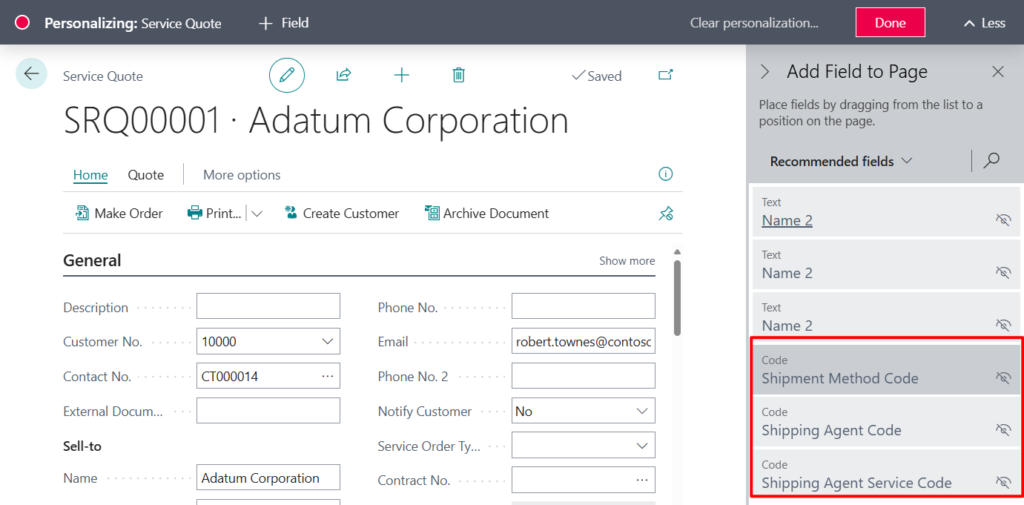
Shipment Method Code, Shipping Agent Code, Shipping Agent Service Code on Service Quote
Use personalization to add Shipment Method Code, Shipping Agent Code, and Shipping Agent Service Code fields on the Service Quote page.
Great, give it a try!!!😁
END
Hope this will help.
Thanks for reading.
ZHU
コメント