

Hi, Readers.
Today I would like to discuss a question that was recently asked, how to get database usage through API.
By default, Business Central customers can use up to 80 GB plus an allowance per licensed Essentials or Premium user of database storage capacity. This storage capacity is shared, meaning that the sum of capacity usage across all environments in a tenant must not exceed the limit. If a tenant exceeds this limit, Microsoft restricts administrative actions that create additional environments. Exceeding the storage limit will not interrupt transaction processing within the existing environments. More details: What happens when the capacity limit is exceeded (Exceeding capacity quota)

Table and database sizes have a significant impact on the performance of Business Central online. Therefore, it is very important to manage the capacity in tenant.
PS: Understanding the Infrastructure of Business Central Online

To help our customers manage and plan their storage costs on an ongoing basis, the Business Central administration center includes the Capacity page.

The Capacity page provides an overview of the total database storage usage, with details about the storage used by every environment.
Tenant size:

Environment size:

The question here is whether it is possible to view the environment’s database usage through the API without logging into the Admin Center. Yes. As of now, we can use Admin Center API.
PS: Dynamics 365 Business Central: Manage environments via Admin Center API
The Business Central administration center API supports authentication using Microsoft Entra apps now. (This authentication type is supported from version 20.0 an onwards)
The method is similar to the OAuth we mentioned earlier, and only some key steps are pointed out here, more details: Using OAuth to connect Business Central APIs and Web Service in Postman

Grant the registered application AdminCenter.ReadWrite.All permission to the Dynamics 365 Business Central administration center API as follows:
- Select API permissions > Add a permission > Microsoft APIs.
- Select Dynamics 365 Business Central.
- Select Application permissions, select AdminCenter.ReadWrite.All, then select Add permissions.

Go to the Business Central administration center and navigate to the ‘Authorized Microsoft Entra apps’ page. Paste the Application (client) ID of your app in the form to authorize an app.

More details: The Business Central Admin Center API
There are two endpoints available:
1. Get environments and Get environments by application family
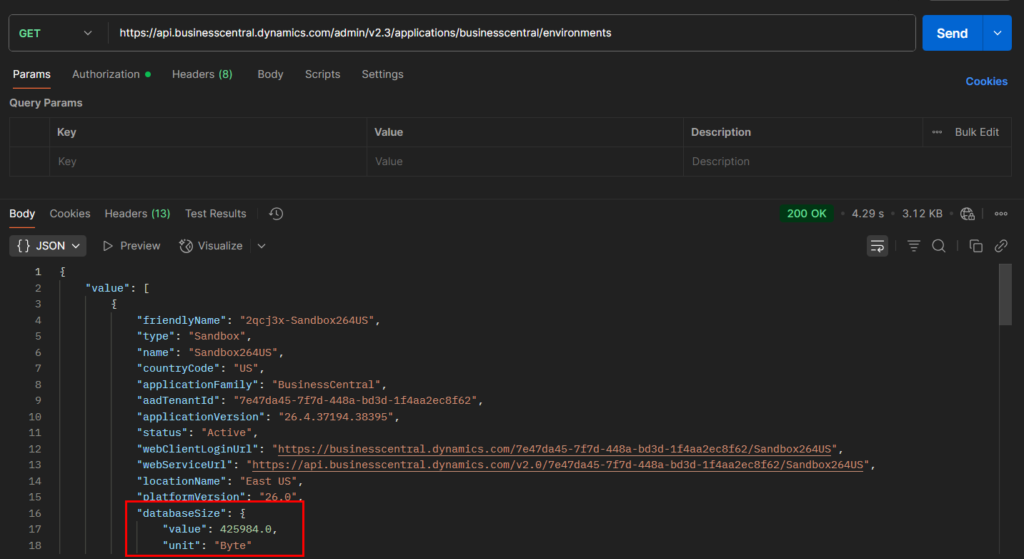
Endpoint: Please note that only version v2.3 returns the database size.
GET /admin/v2.3/applications/environmentsTest:
https://api.businesscentral.dynamics.com/admin/v2.3/applications/businesscentral/environmentsThere is a databaseSize field.
"databaseSize": {
                "value": 425984.0,
                "unit": "Byte"
            }
2. Get used storage of an environment by application family and name
Endpoint:
GET /admin/v2.26/applications/{applicationFamily}/environments/{environmentName}/usedstorageTest:
https://api.businesscentral.dynamics.com/admin/v2.26/applications/businesscentral/environments/Sandbox264/usedstorage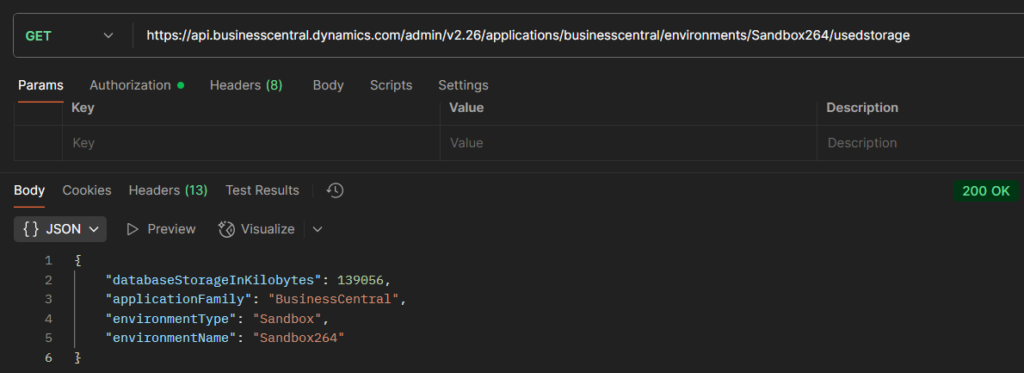
{
    "databaseStorageInKilobytes": 139056,
    "applicationFamily": "BusinessCentral",
    "environmentType": "Sandbox",
    "environmentName": "Sandbox264"
}
Note:
- If an error occurs when calculating database storage, the corresponding property value will be -1.
- For API versions older than 2.26, the value of
databaseStorageInKilobytesonly supports 32-bit integers. If the database storage usage cannot be represented as a 32-bit integer, the property value will be -1. Consume version 2.26 or newer to correctly retrieve database storage usage for large databases and make sure your client supports 64-bit integers.
Very simple. Give it a try!!!😁
END
Hope this will help.
Thanks for reading.
ZHU

コメント