

Hi, Readers.
Today I would like to talk about how to set a condition on a breakpoint in debugging (Conditional breakpoints).
The basic concept in debugging is the breakpoint, which is a mark that you set on a statement. When the program flow reaches the breakpoint, the debugger stops execution until you instruct it to continue.
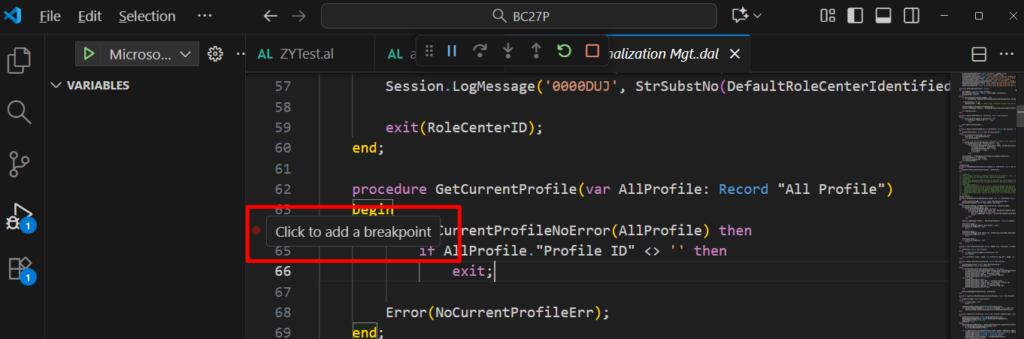
Without any breakpoints, the code runs without interruption when the debugger is active. You can set a breakpoint by using the Debug Menu in Visual Studio Code. For more information, see Debugging shortcuts. More details: Breakpoints
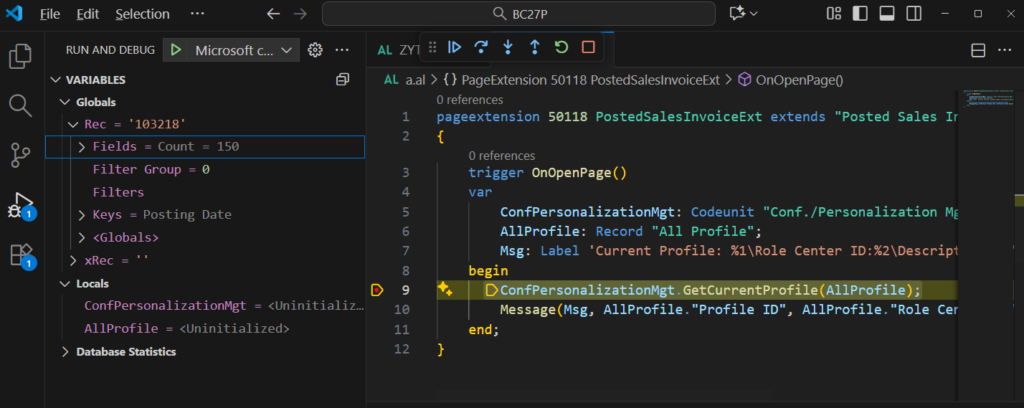
As part of debugging code, you can set breakpoints and for a certain breakpoint, you can define a condition.
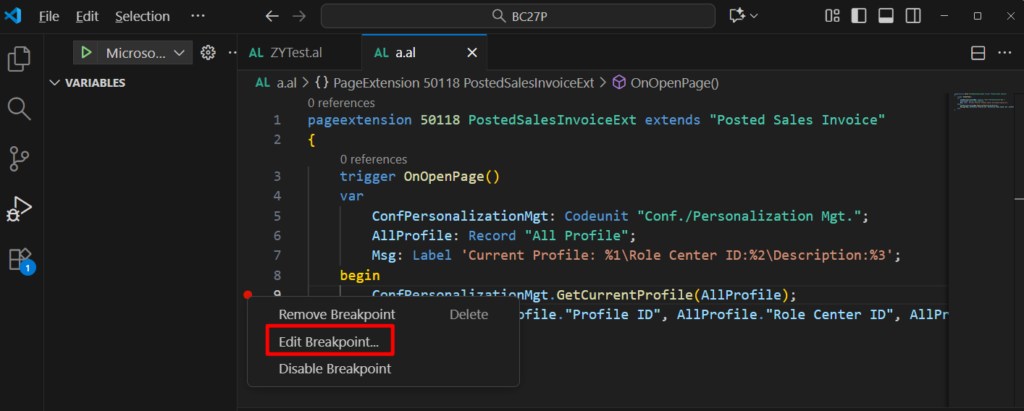
When you’ve enabled debugging mode, and found a place in the code where you want to test a condition, you can right-click the margin of the code editor, and then choose Add Conditional Breakpoint. Or, you can right-click on an existing breakpoint and choose Edit Breakpoint.
In the inline dialog, choose Expression and then enter a condition that you want to test. If the condition evaluates as true, then code execution breaks at the breakpoint. If the condition is false, then code execution continues.
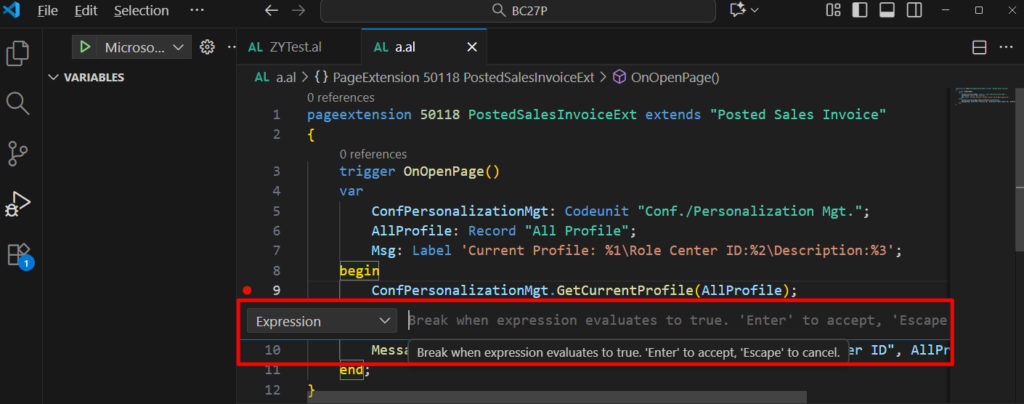
The condition can include any variables or fields that are currently in scope. You can compare a variable or a field to another variable or field, or you can compare a variable or field to a literal value. For example, set Rec.”No.” = ‘103218’
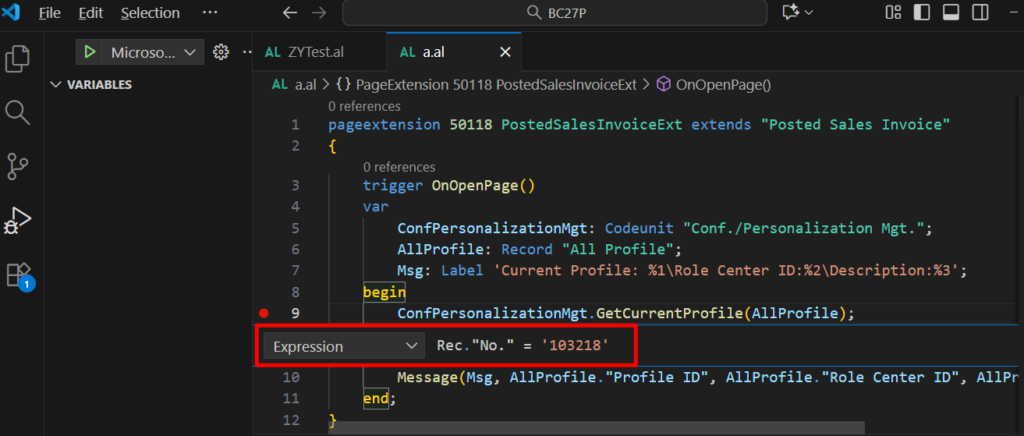
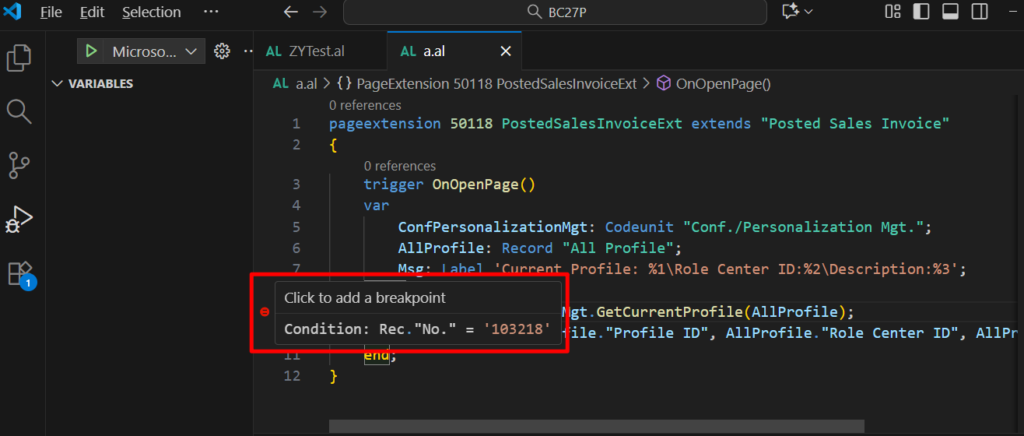
This way, the breakpoint will only be triggered when clicking on the posted sales invoice for number 103218.
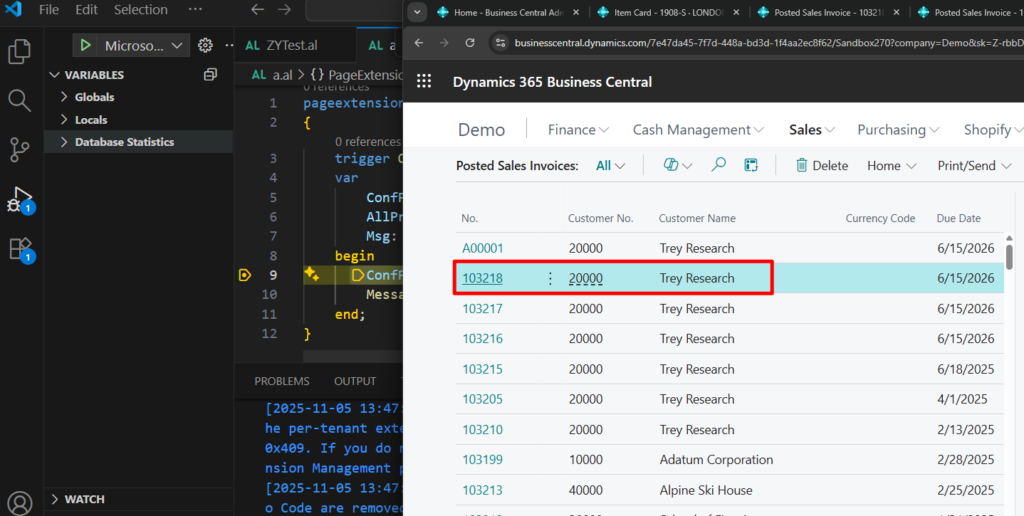
Test video:
If you compare to a literal value, then the variable or field that you use in the breakpoint condition must be of one of the following data types:
Simple data types supported:
- BigInteger
- Boolean
- Code
- Decimal
- Integer
- Option
- Enum
- Text
Complex data types supported (version 26 and later):
- Array
- List
- Dictionary
- Record/RecordRef fields
- Variant (when it wraps one of the above)
Operators supported:
| Operator | Description | Remarks |
|---|---|---|
= | Equal to | – |
<> | Not equal to | – |
< | Less than | – |
> | Greater than | – |
<= | Less than or equal to | – |
=> | Greater than or equal to | – |
- | Numeric negation | Supported from version 26 and later. |
NOT | Logical negation | Supported from version 26 and later. |
AND OR | Logical | Use parentheses to control precedence. Supported from version 26 and later. |
Parenthesize complex expressions explicitly; AL operator precedence rules apply.
If you clear an existing condition, then that breakpoint is no longer a conditional breakpoint.
PS: Dynamics 365 Business Central: How to quickly clear/remove all breakpoints in VS Code
Below are some examples provided by Microsoft, which hopefully will give you some hints.
Break when a dictionary entry equals a value:
CustomerAges['ALFRED'] > 30Break when the third element in an array is negative:
MyArray[3] < 0Break on combined criteria (parenthesized):
(SalesHeader.Status = SalesHeader.Status::Open) AND (SalesHeader."No." = '103007')Break when a Boolean flag is false:
NOT IsValidatedMore details: Setting conditional breakpoints
Very simple, give it a try!!!😁
5. Dynamics 365 Business Central: How to debug in phone/tablet client session
10. Dynamics 365 Business Central: View the actual error message in the debugger
11. Dynamics 365 Business Central: Snapshot Debugging (Debugging in Cloud Production)
12. Dynamics 365 Business Central: Debugging Upgrade and Install code in Visual Studio Code
END
Hope this will help.
Thanks for reading.
ZHU

コメント