
Hi, Readers.
This week, I found an interesting question on Twitter. Although it already had an answer. I’d like to talk a little more about the details.
Question:

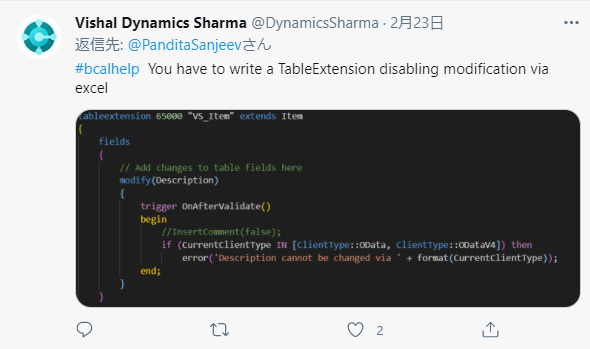
So in this post, we will discuss how to get the client type that is running in the current session via AL code.
First let’s take a look at Client Type in Business Central.
ClientType Option Type: Represents the type of the client executing the operation.
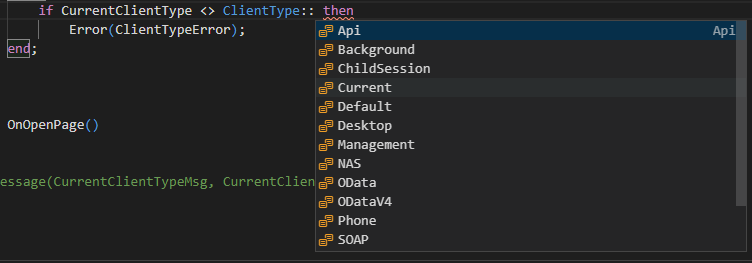
Memebers:
| Member | Description |
|---|---|
| Background | A background session. |
| ChildSession | A child session. |
| Desktop | A desktop client. |
| Management | A management client. |
| NAS | A NAS client. |
| OData | A NAS client. |
| Phone | Microsoft Dynamics Business Central Phone client. |
| SOAP | A SOAP client. |
| Tablet | Microsoft Dynamics Business Central Tablet client. |
| Web | Microsoft Dynamics Business Central Web client. |
| Windows | Microsoft Dynamics Business Central Windows client. |
| Current | Microsoft Dynamics Business Central Windows client. |
| Default | The default client. |
| ODataV4 | A ODataV4 client. |
| Api | An API client. |
| Teams | Microsoft Teams client. |
Then, there is a method.
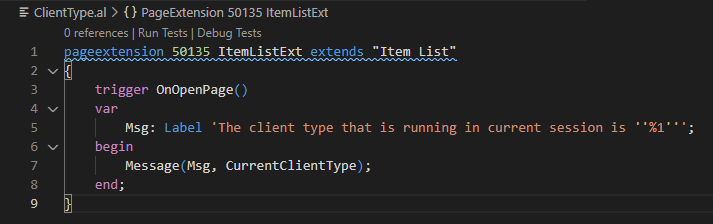
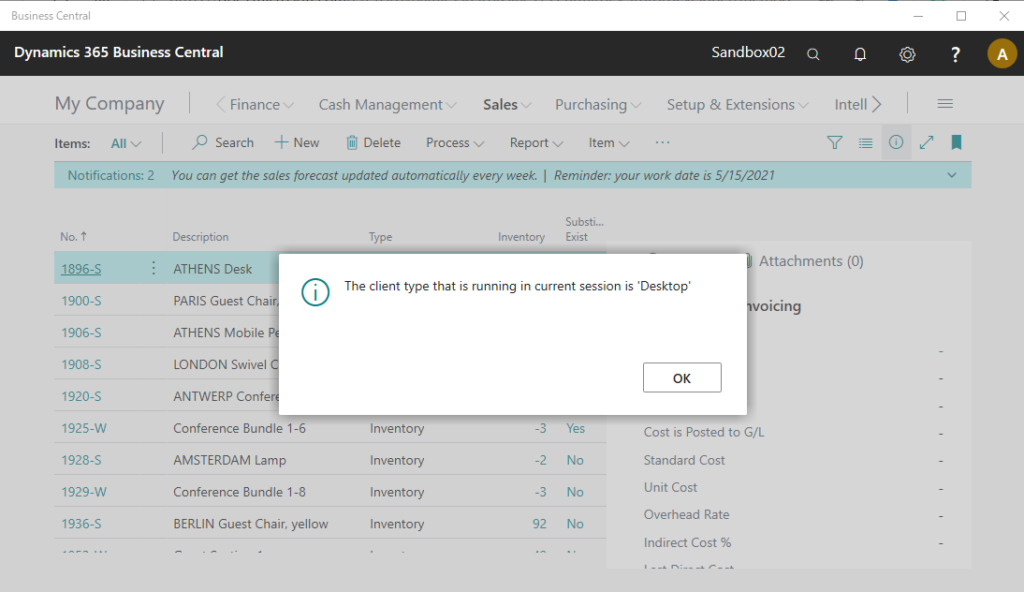
Session.CurrentClientType Method: Gets the client type that is running in current session.
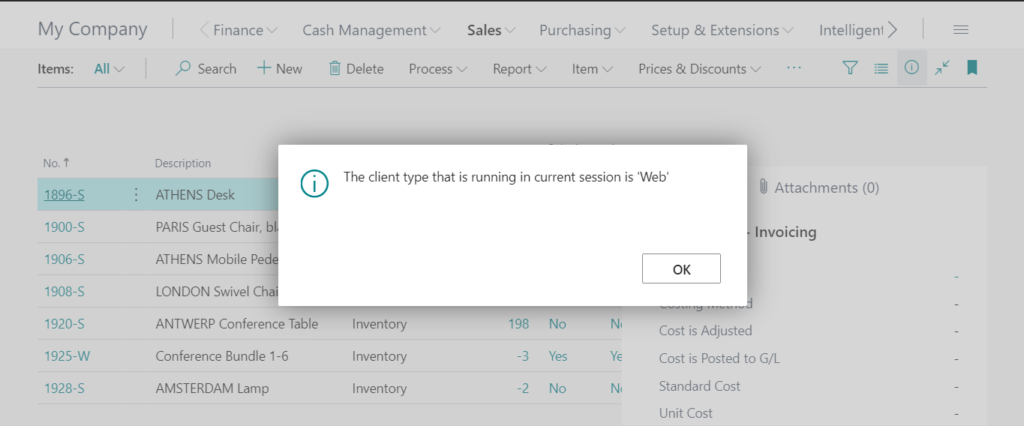
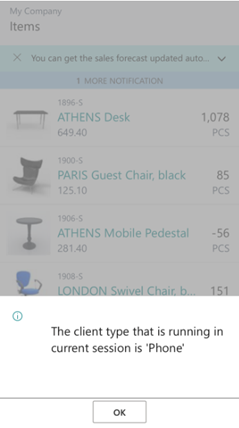
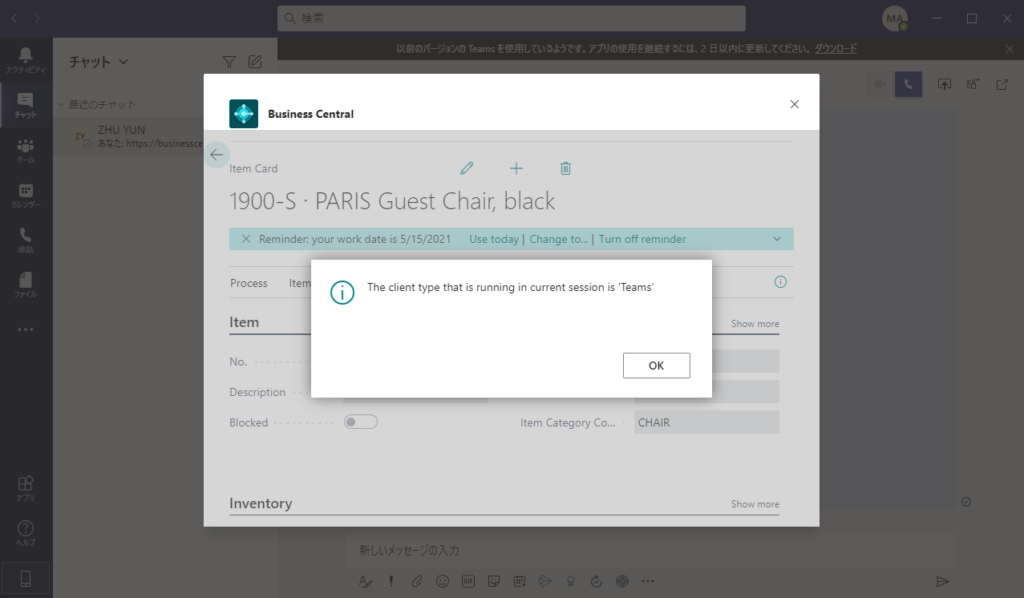
For example: Show the client type when open Item list page.
Browser:
Phone:
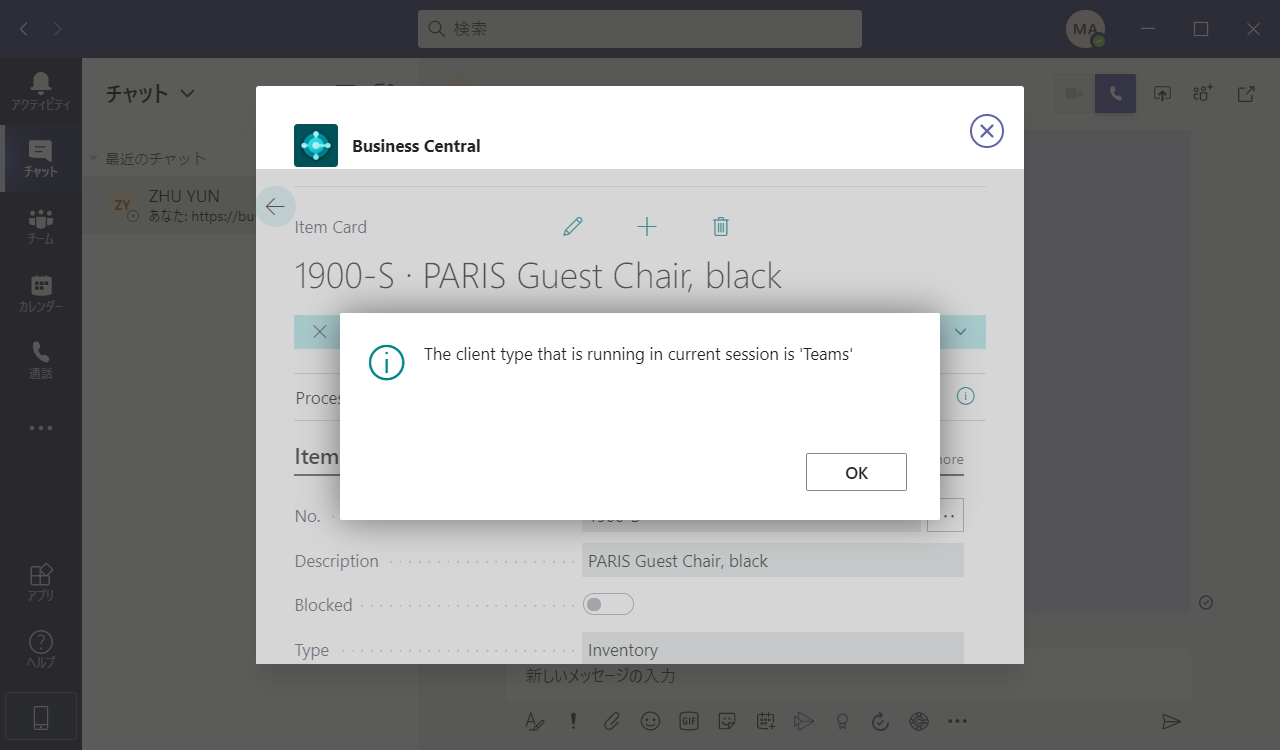
Teams:
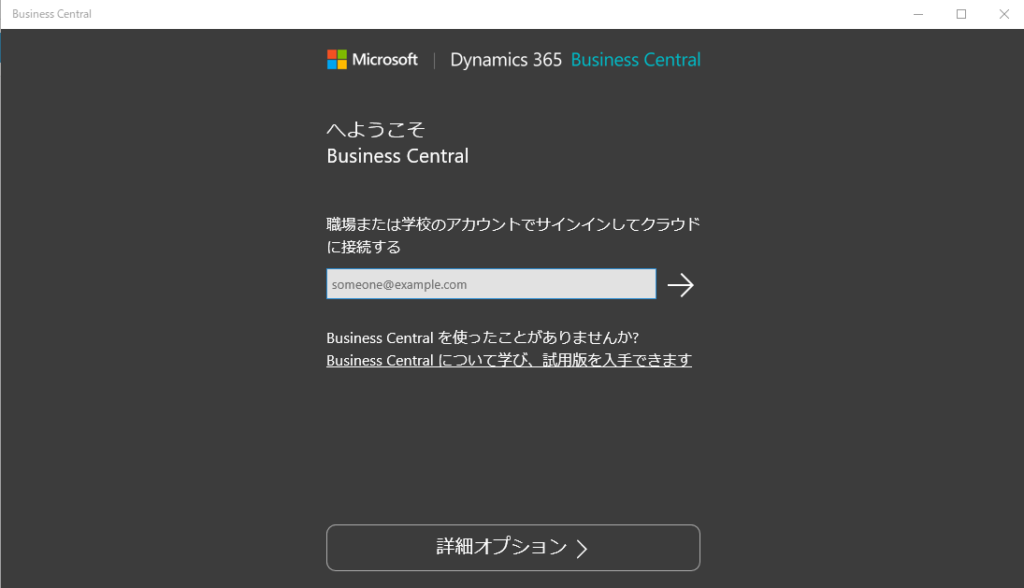
Business Central Windows 10 desktop app:
So what can we do more with client type?
Similar to the question at the beginning, we can use this function to specify each client type’s program separately.
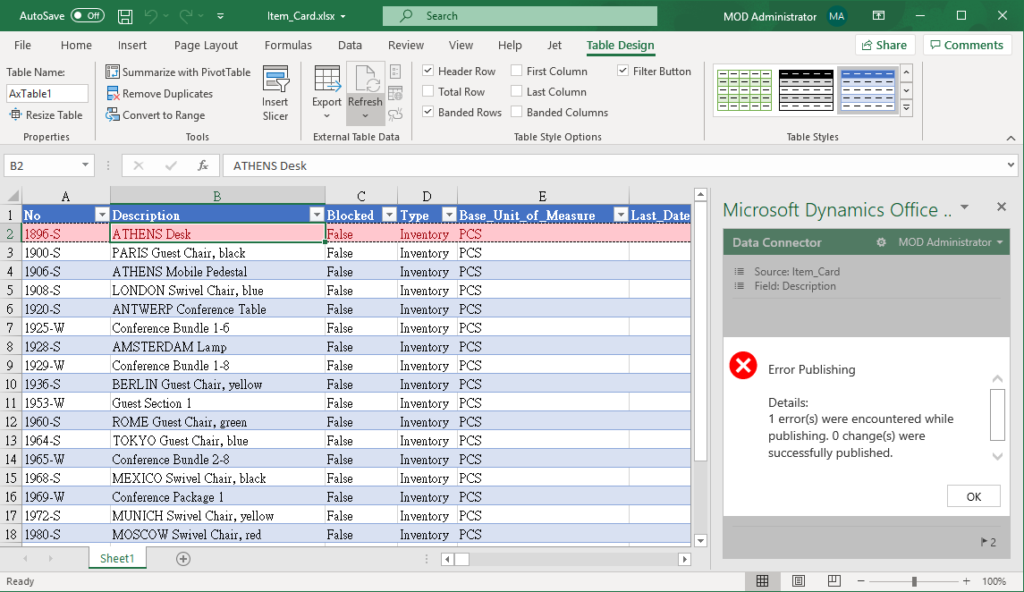
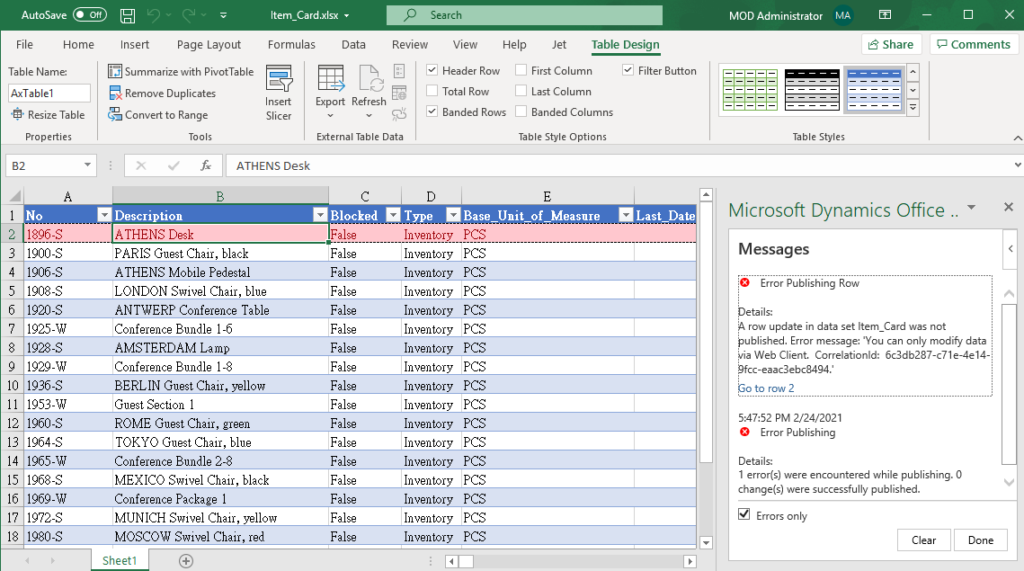
For example: Item Description can only be modified in the web client.
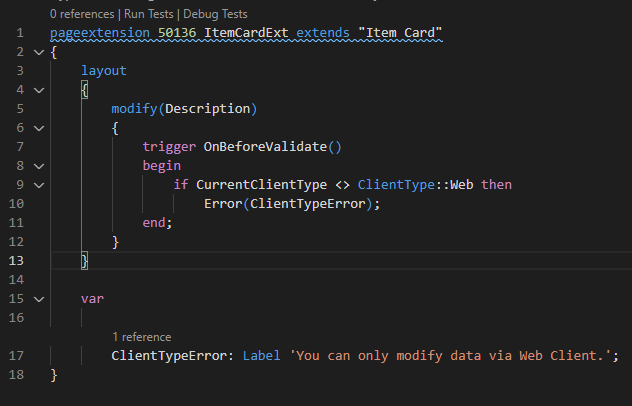
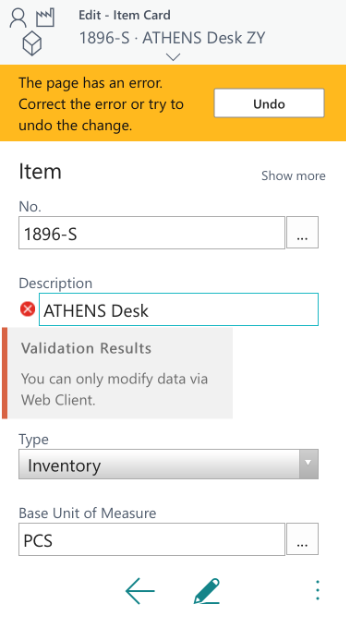
If you modify it in other client types, an error will be reported.
Edit in Excel
Test Video:
END
Hope this will help.
Thanks for reading.
ZHU


コメント