

Hi, Readers.
Today I would like to share another mini tip about Business Central, how to uninstall apps from Admin Center.
When an app is no longer needed, you can uninstall it from your environment. You uninstall an app by using the Extension Management page.
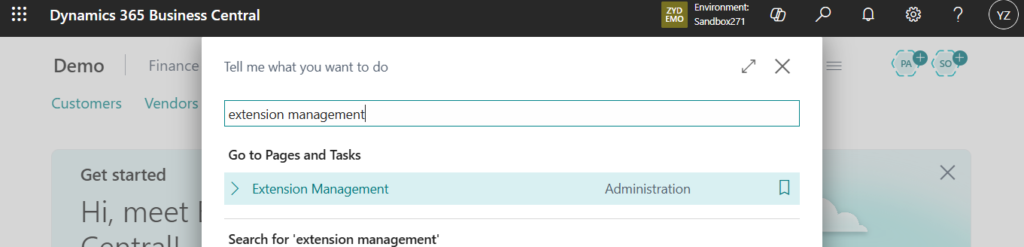
To uninstall an app, select it on the page, then select the Uninstall action. If you uninstall an app, and you then change your mind, you can install the app again.
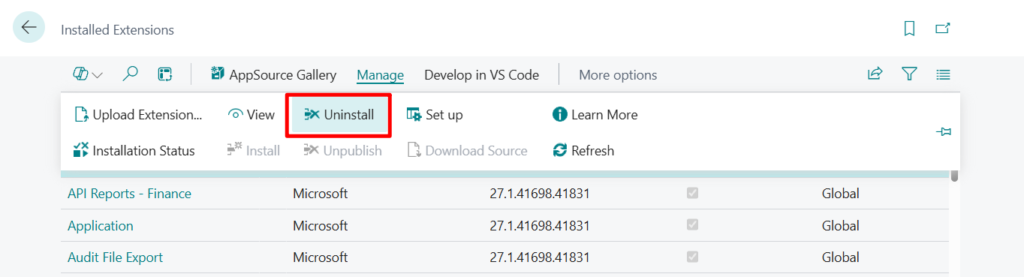
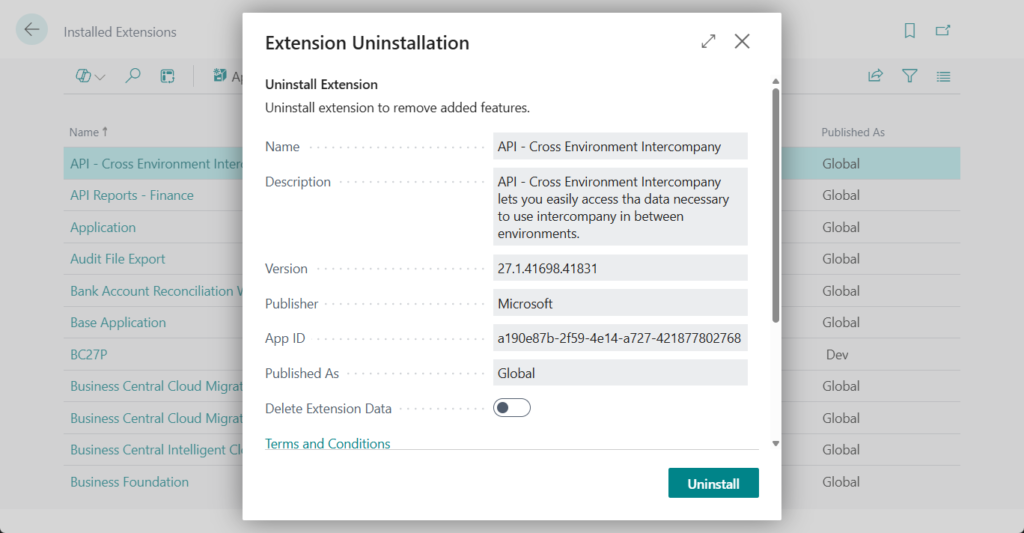
More details: Install and uninstall extensions (apps) in Business Central
However, this requires entering a specific environment. In fact, installed apps can be uninstalled directly from the Manage Apps page in the Business Central Administration Center. Let’s see more details.
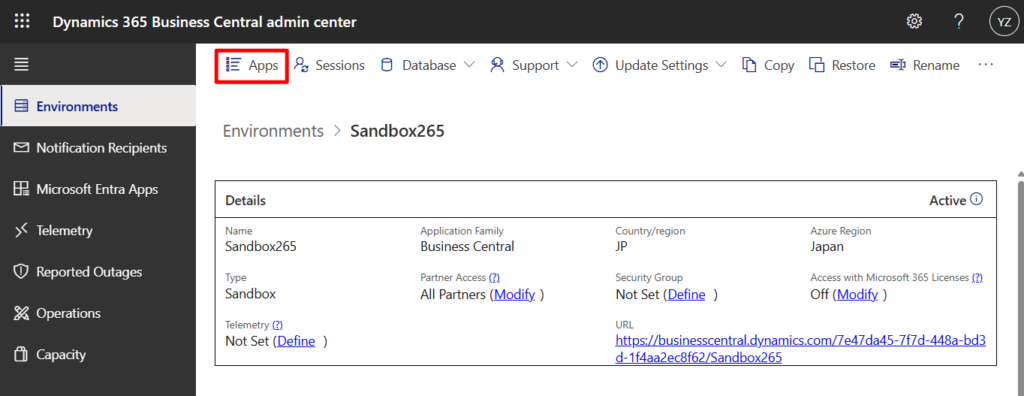
Open the Business Central administration center and select the environment from which you want to uninstall the apps. More details: Granular administration as Dynamics 365 Business Central Administrator (New BC admin role in Microsoft 365 admin center)
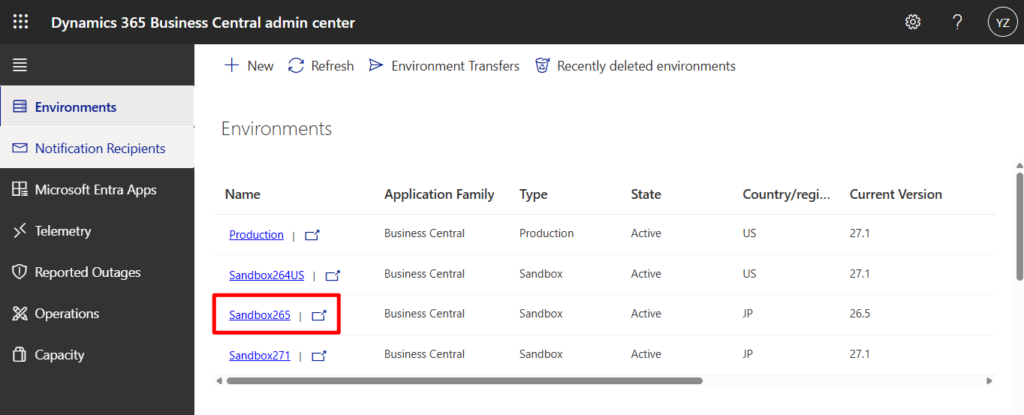
Choose Apps.
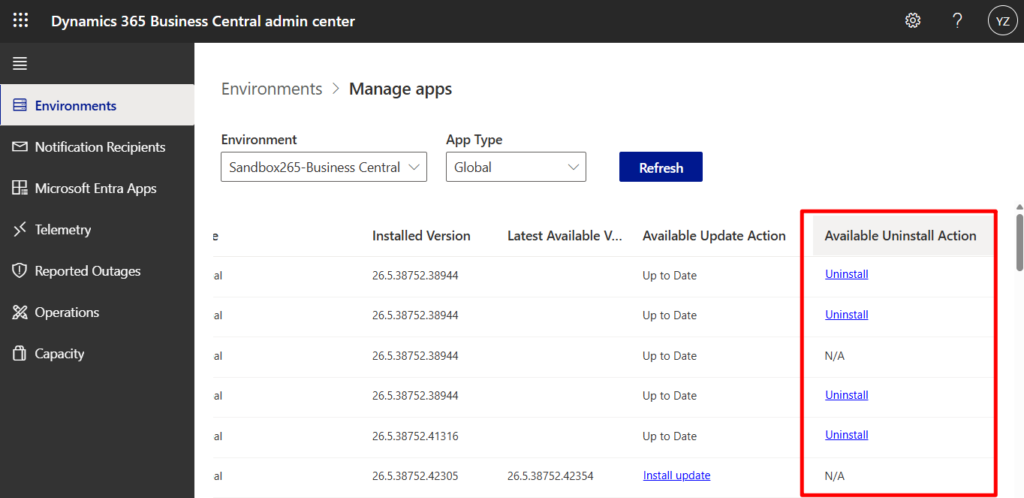
Then you can use Uninstall action in the Available Uninstall Action column in the list of installed apps. For apps that can’t be uninstalled, like Base Application, there’s no Uninstall action, and the Available Uninstall Action column displays “N/A”.
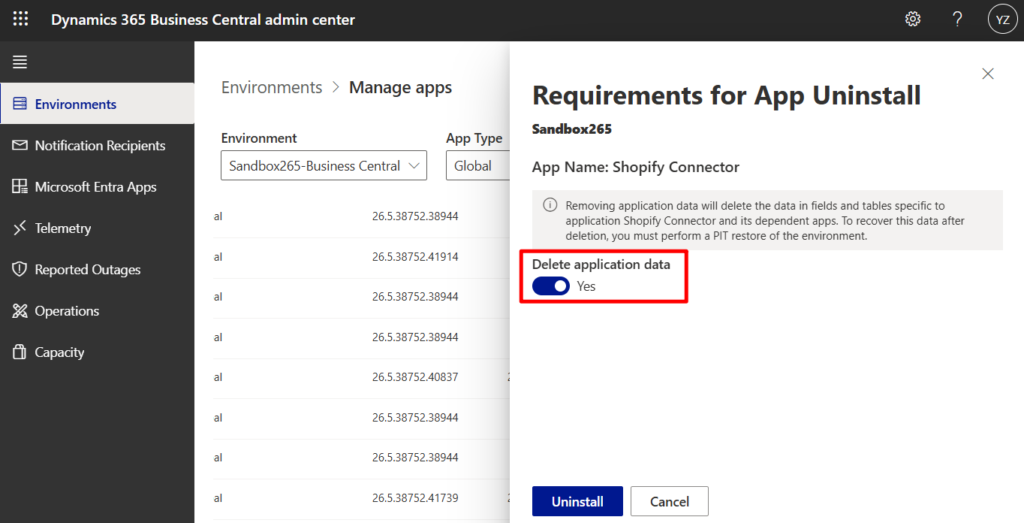
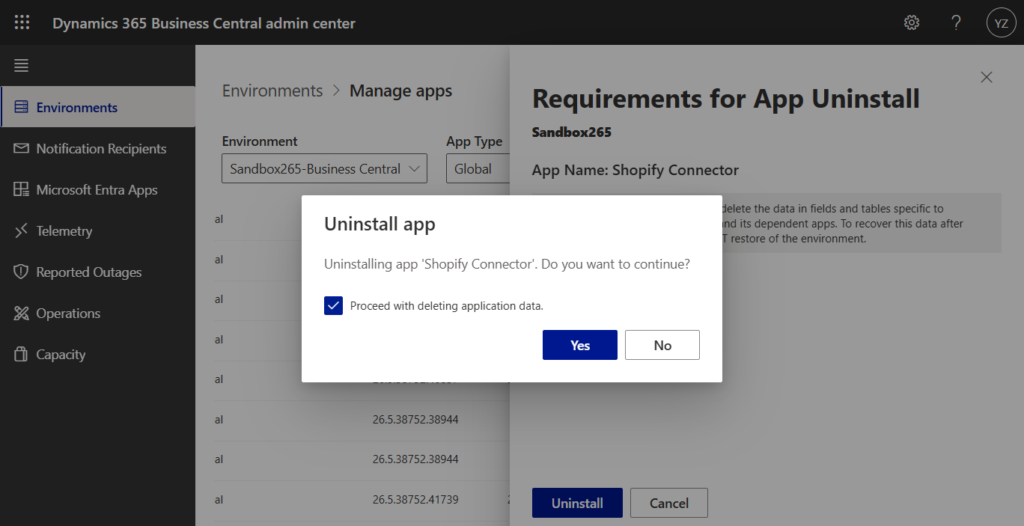
When uninstalling an app, it’s possible to delete application data as well. This action deletes data in fields and tables created by the application you’re uninstalling. If application data is deleted, the only way to recover it afterwards is by performing a point-in-time restore of the environment.
Very simple. You can also manage apps across other environments directly from the Manage Apps page, or filter them by App Type to narrow down the list.
PS: Business Central 2025 wave 1 (BC26): Managing PTE/DEV Apps in admin center
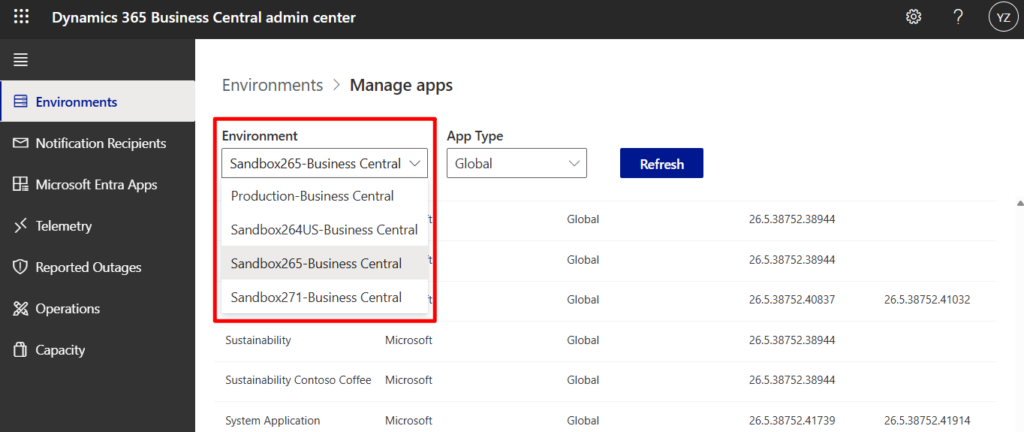
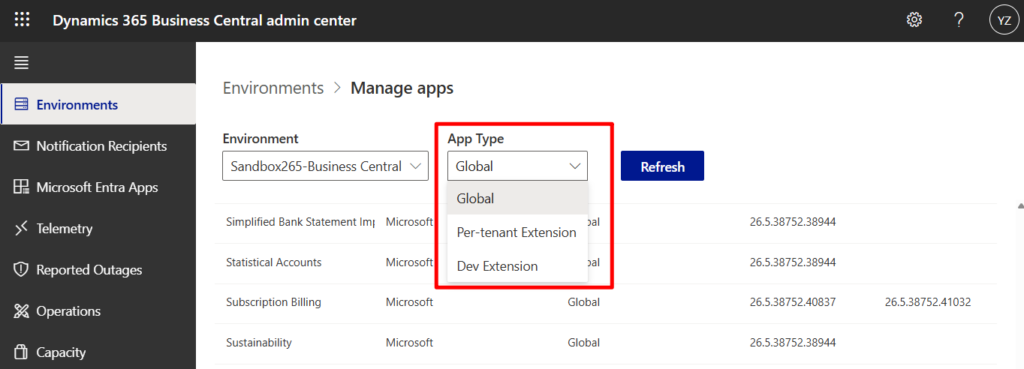
If other apps depend on the app that is being uninstalled, those dependent apps also have to be uninstalled. The Business Central administration center lists dependent apps in the App Uninstall pane and ask to confirm that these apps are to be uninstalled as well.
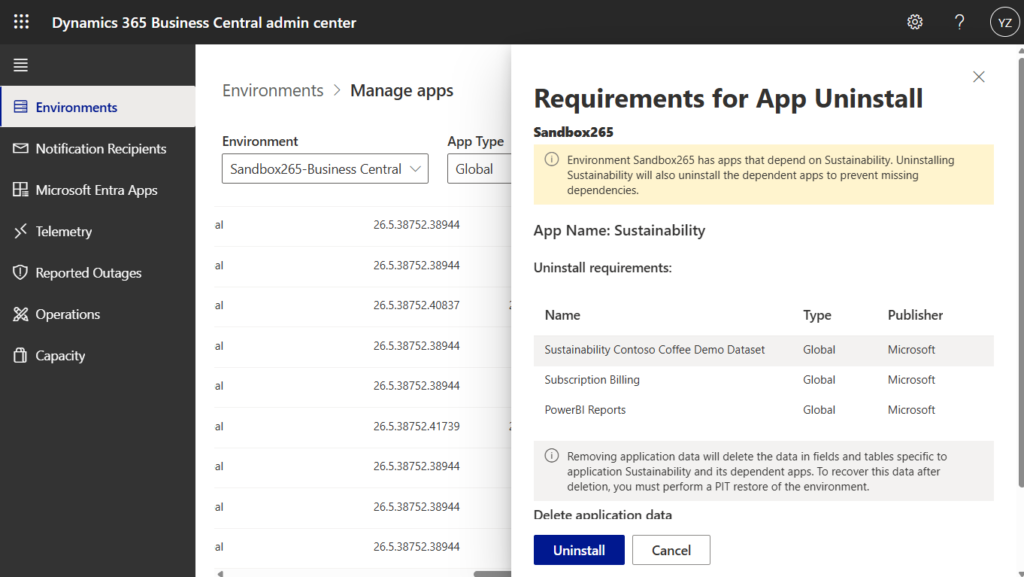
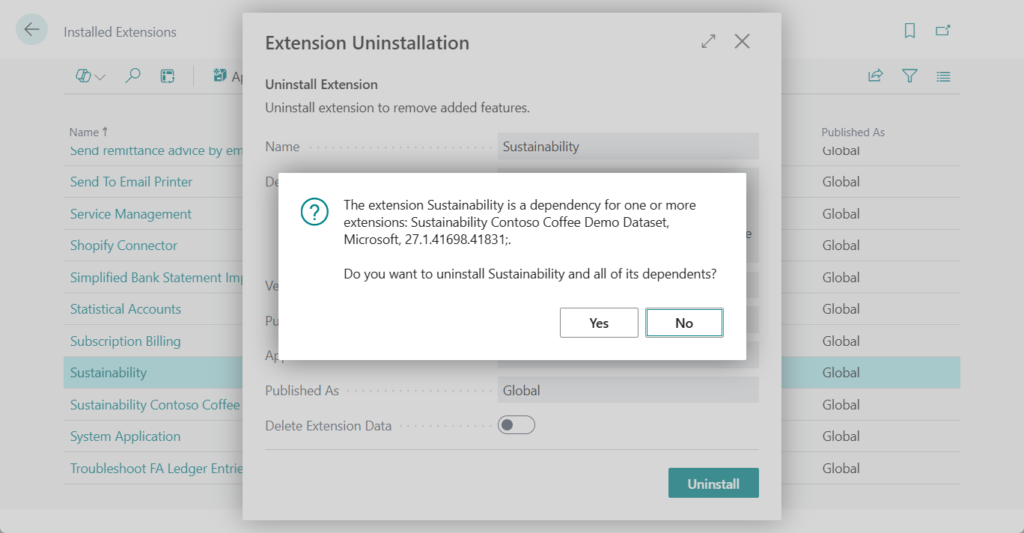
This method is slightly more convenient compared to using Extension Management. In Extension Management, when you uninstall an app that has dependents, a dialog lists the dependents.
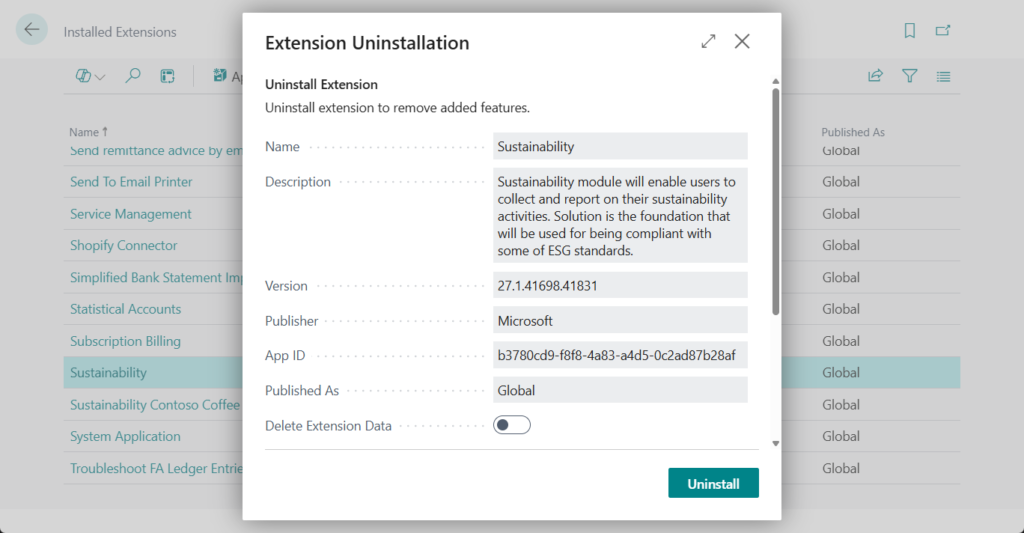
To continue, select Yes to uninstall the app and its dependents.
Great, give it a try!!!😁
PS:
1. Dynamics 365 Business Central: Install AppSource Apps via Admin Center API
END
Hope this will help.
Thanks for reading.
ZHU
コメント