

Hi, Readers.
Today I would like to share another mini tip about Business Central, how to set the Document No. with dynamic dates in Recurring General Journals, This is also a question I saw recently on the BC Forum, More details: Recurring Document Numbers.
A recurring journal is a general journal with specific fields for managing transactions that you often post with few, if any, changes. For example, transactions for expenses such as rent, subscriptions, electricity, and heat. Using recurring journals lets you post fixed and variable amounts, and specify automatic reversal entries for the day after the posting date.
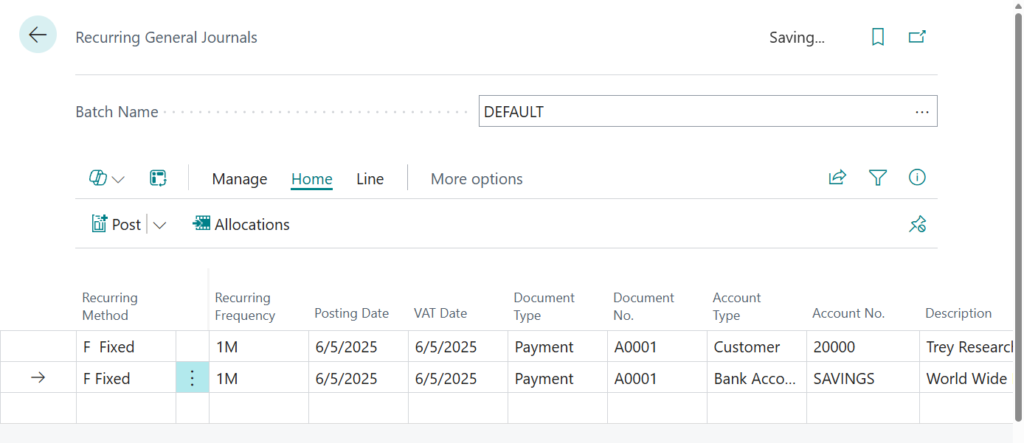
PS: Allocation keys let you divide the recurring entries among various accounts. Learn more at Allocating Recurring Journal Amounts to Several Accounts and Use General Ledger Allocations to distribute costs and revenue more efficiently (Allocation Account)
Regarding Document No., it is different from General Journals. On Recurring General Journals, only the Posting No. Series field can be filled.
Only the Posting No. Series field can be filled in on recurring journals.
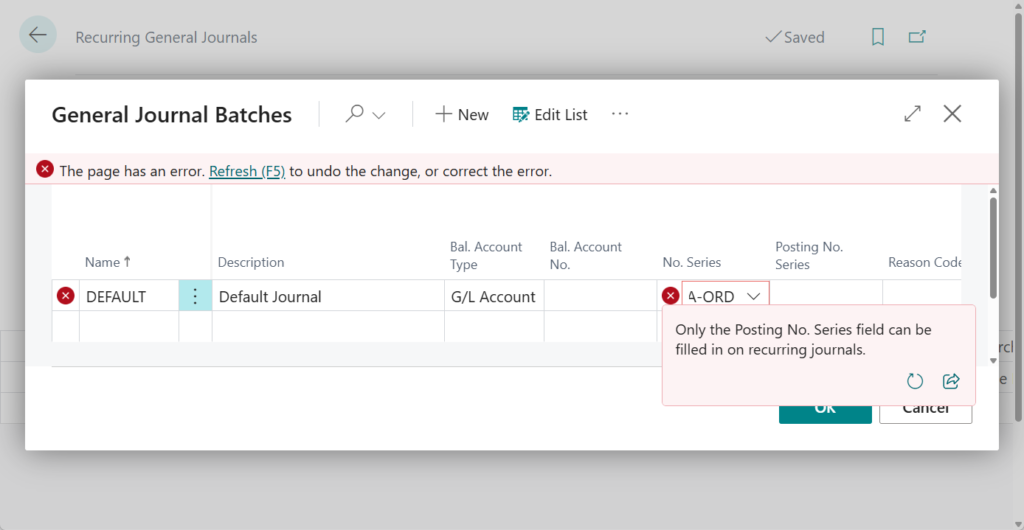
For example,
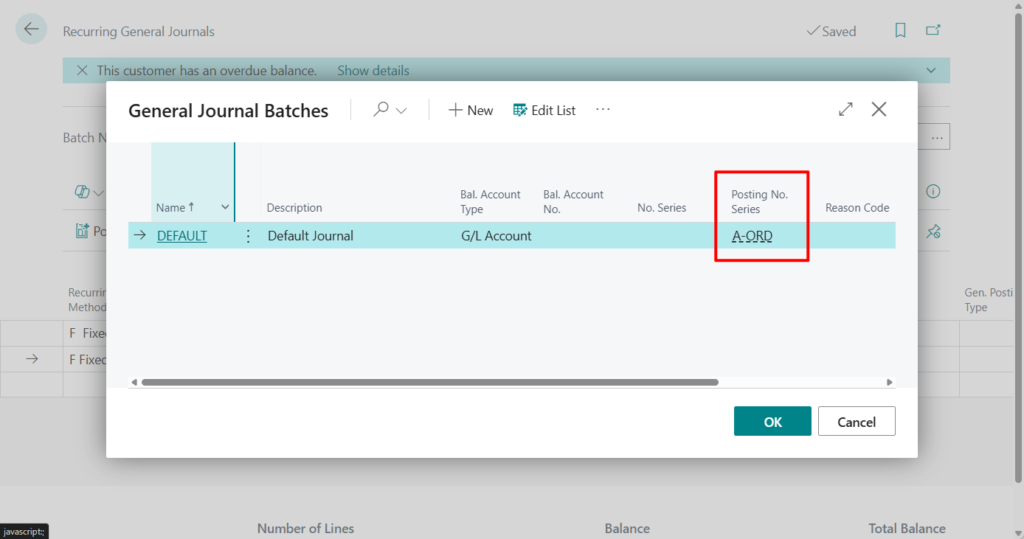
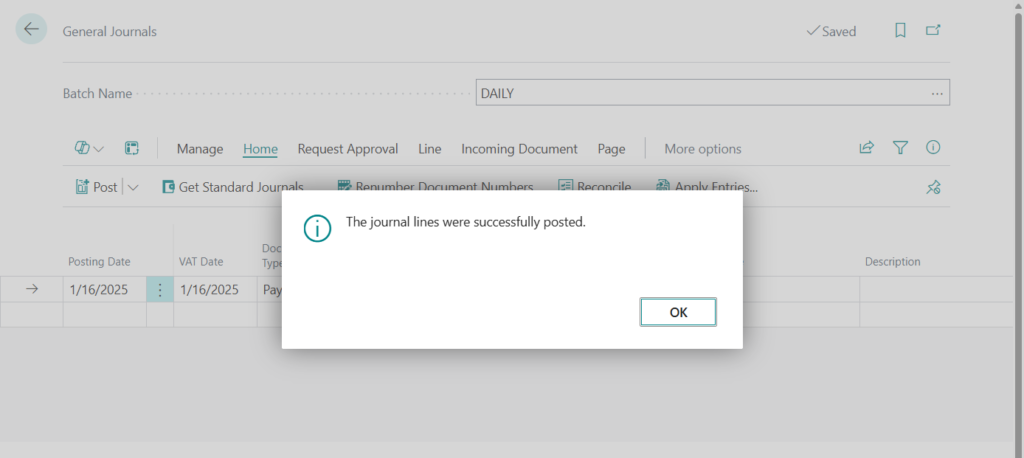
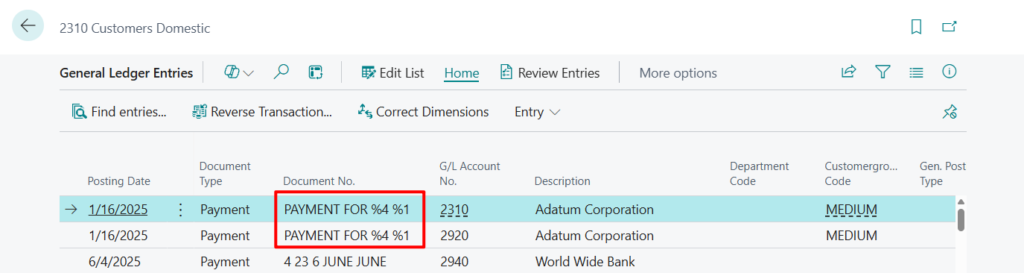
Regardless of the Document No. setting, the number after posting will be taken from the Posting No. Series in General Journal Batches.
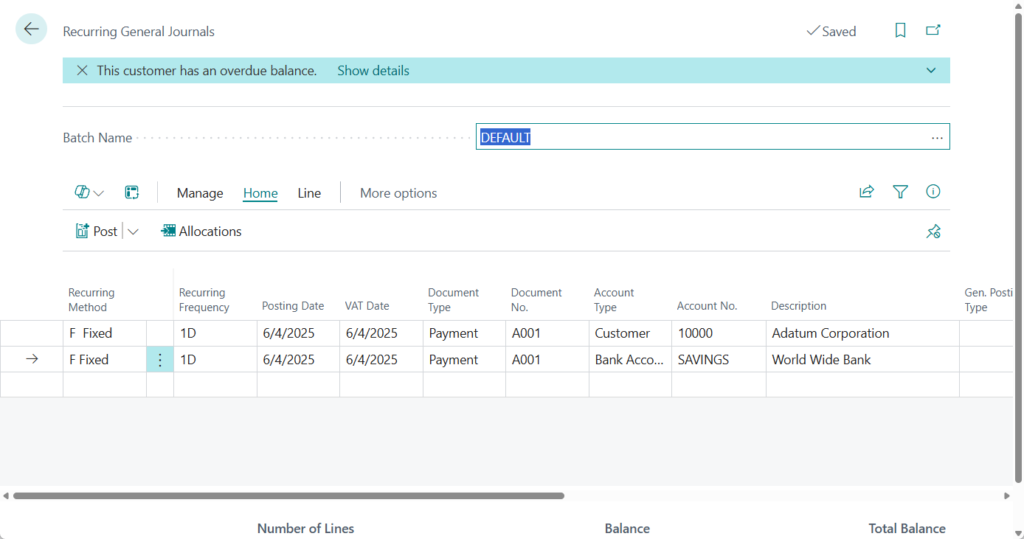
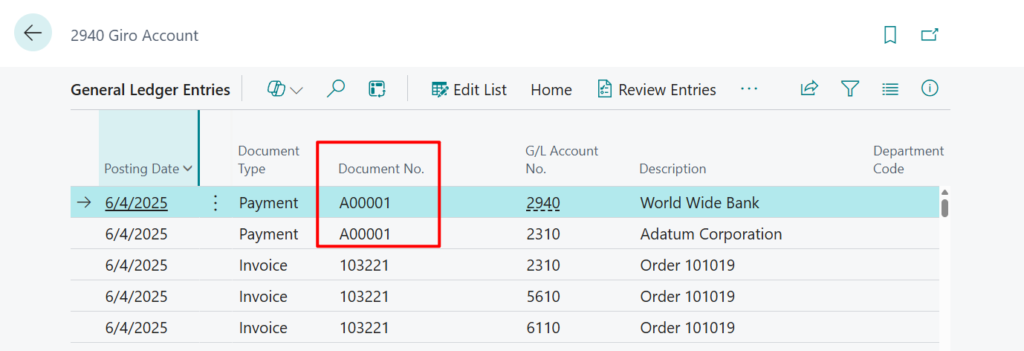
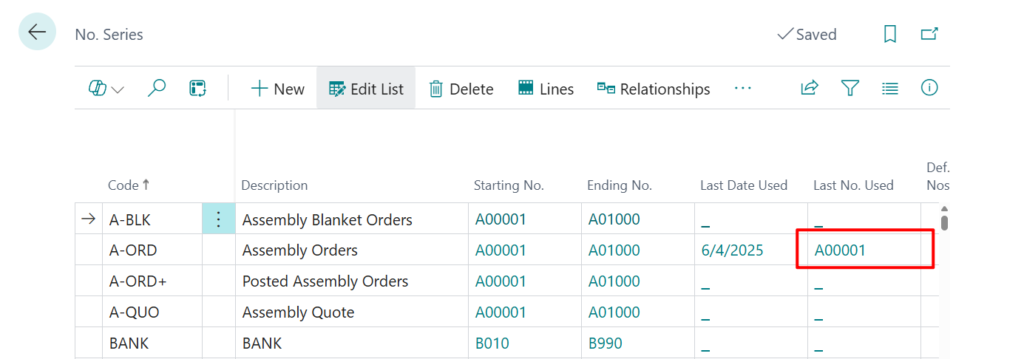
Let’s look at another example.
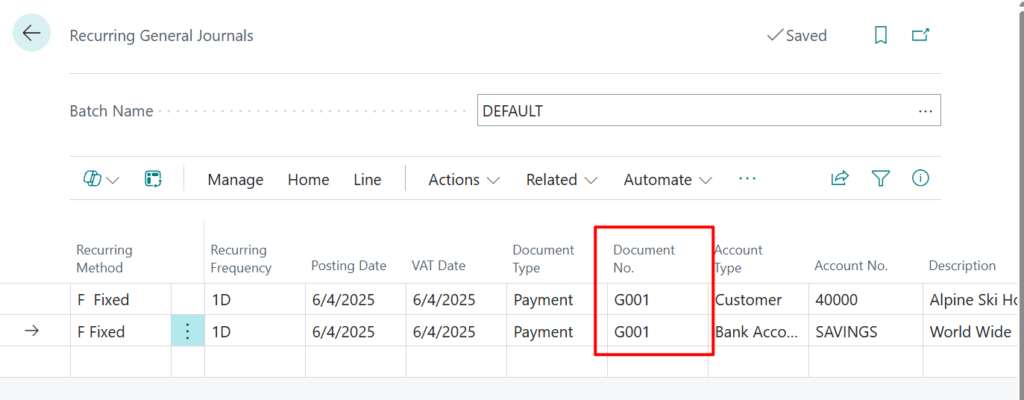
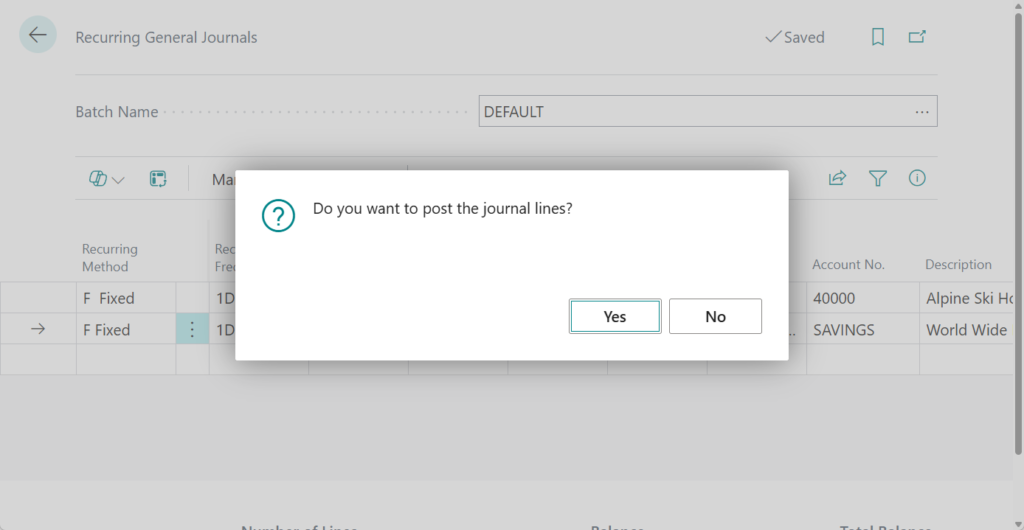

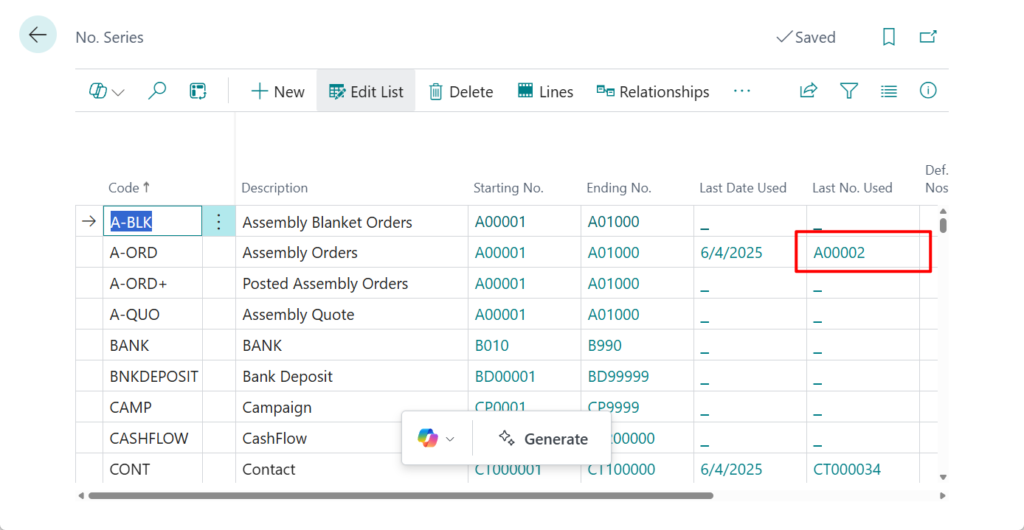
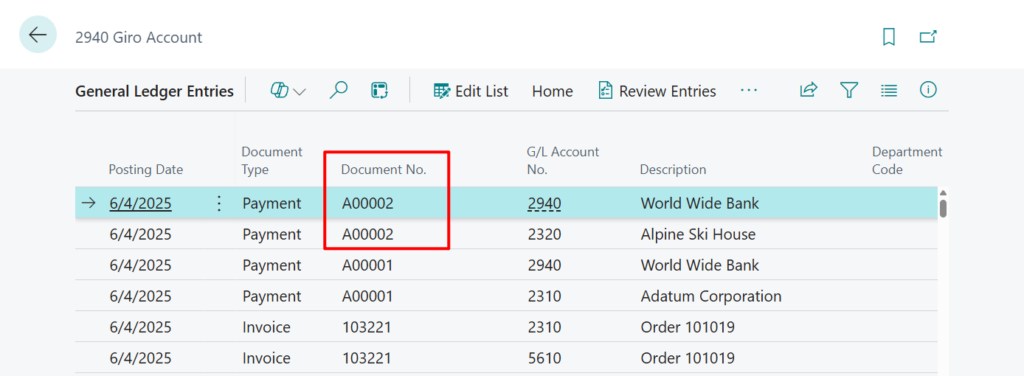
Of course, this can also handle many scenarios. We can also combine it with the date through the following method.
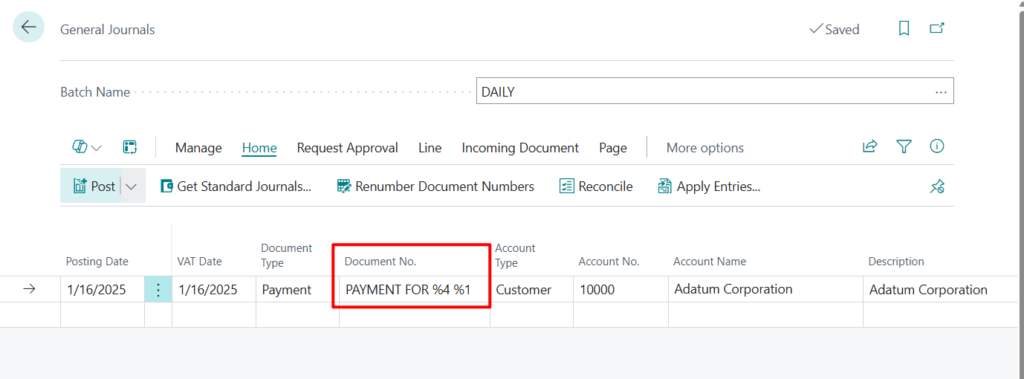
How to combine the No. Series with the date (No Customization).
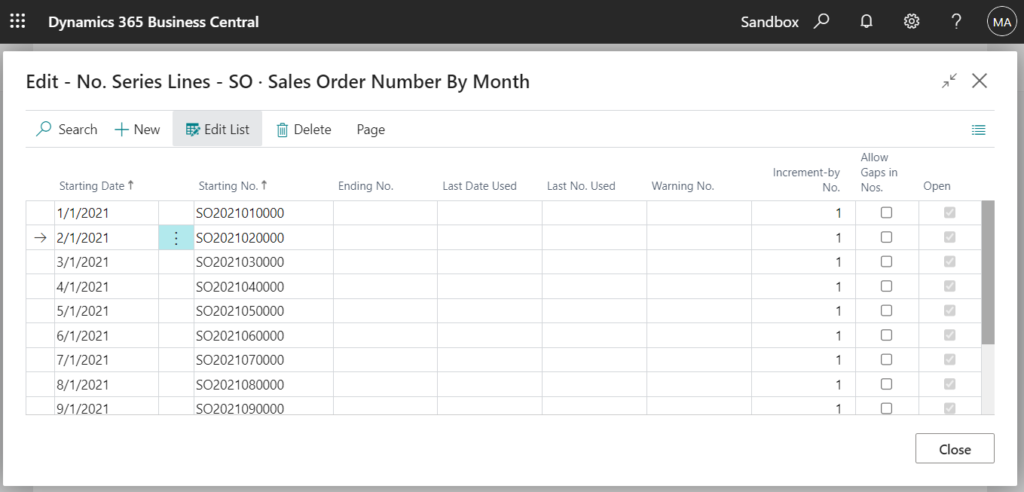
But there is actually a little trick here, we can use Document Number Formulas. You can enter the following placeholder codes for typical values. The values are added automatically when the period description displays.
- %1 = The day number of the period posting date
- %2 = The week number of the period posting date
- %3 = The month number of the period posting date
- %4 = The month name of the period posting date
- %5 = The accounting period name of the period posting date
%1 %2 %3 %4 %5
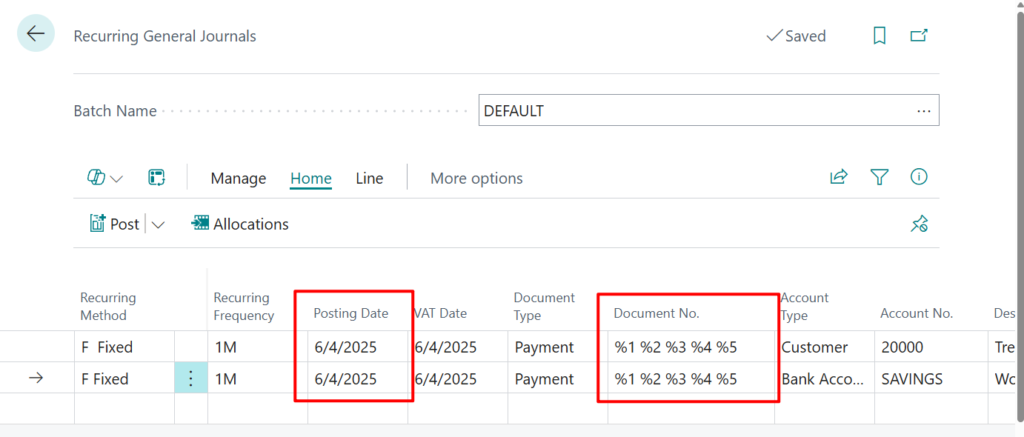
4 23 6 JUNE JUNE
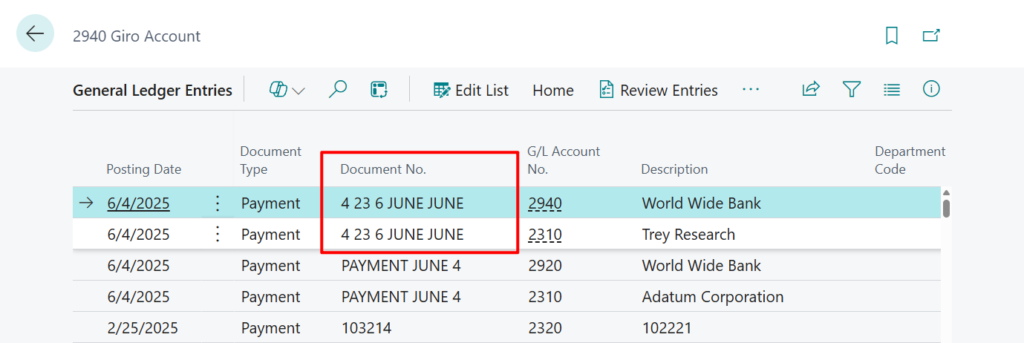
Example: The posting date is 7/1/2025. If you enter “PAYMENT FOR %4 %1”, the description display “PAYMENT FOR JULY 1”.
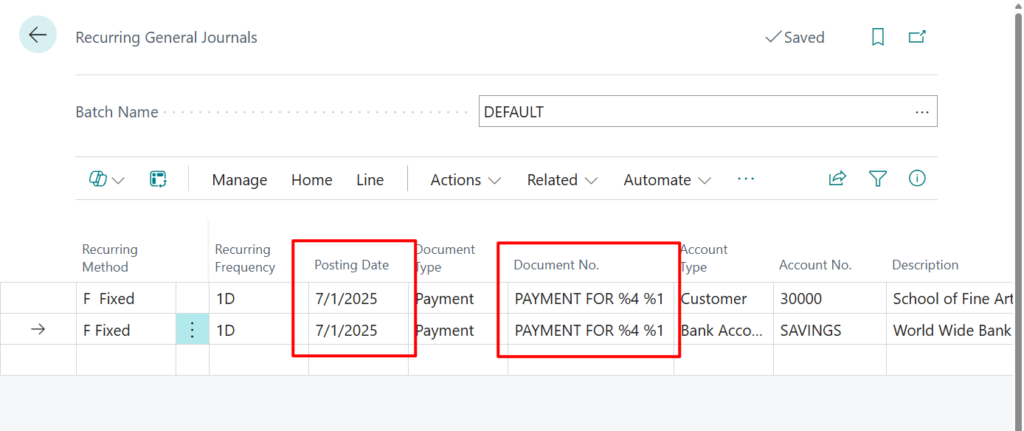
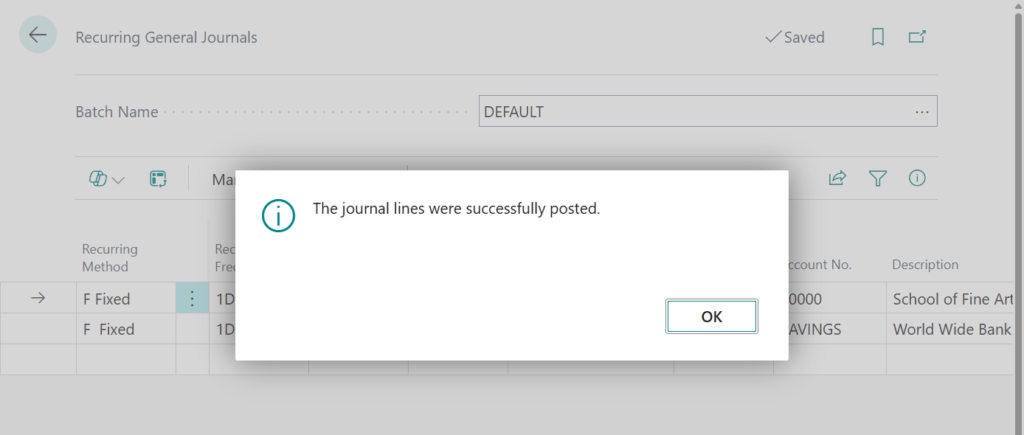
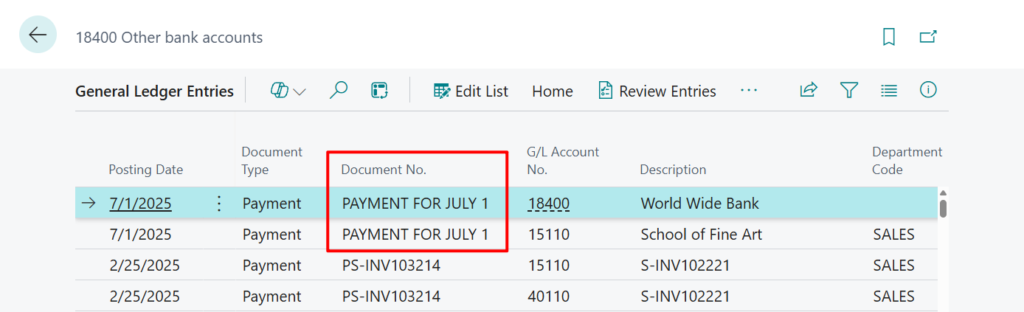
Example 2: The posting date is 7/3/2025. If you enter “PAYMENT %5”, the accounting period name of the period posting date is 2025 July, the description display “PAYMENT 2025 JULY”.

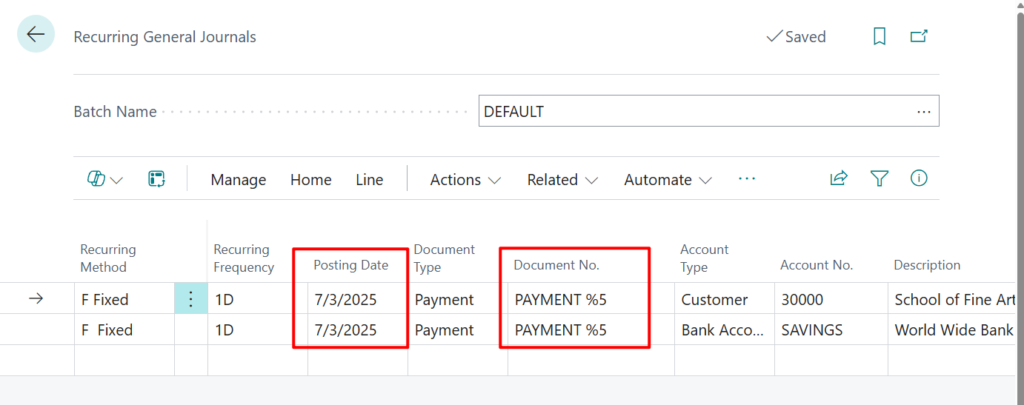
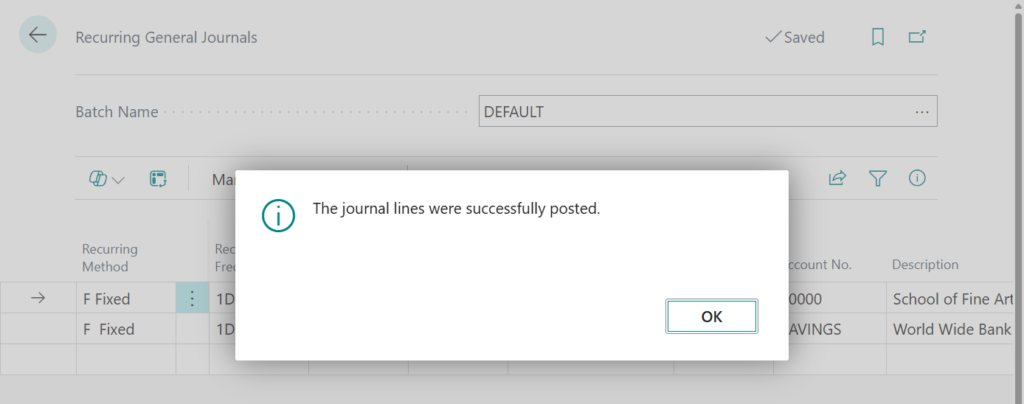
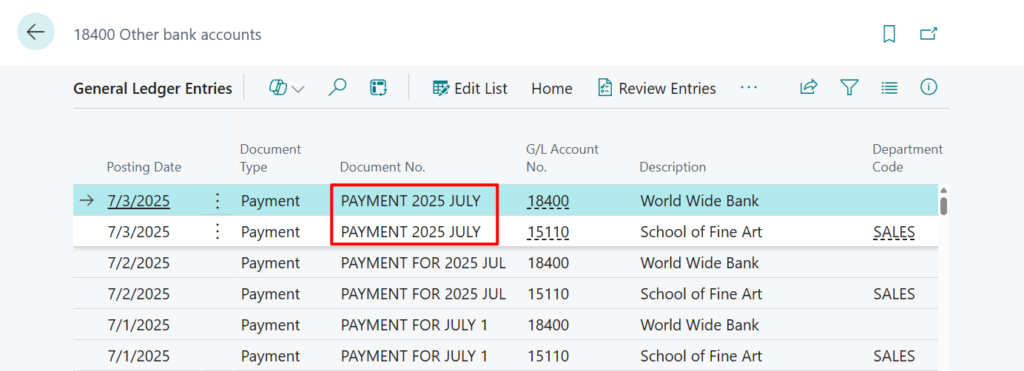
Very good. As for what document Microsoft mentioned this, I didn’t find any specific one for Recurring General Journals, but it is mentioned in the following document: Defer revenues and expenses -> To set up a deferral template
- %1 = The day number of the period posting date
- %2 = The week number of the period posting date
- %3 = The month number of the period posting date
- %4 = The month name of the period posting date
- %5 = The accounting period name of the period posting date
- %6 = The fiscal year of the period posting date (Not available in Recurring General Journals)
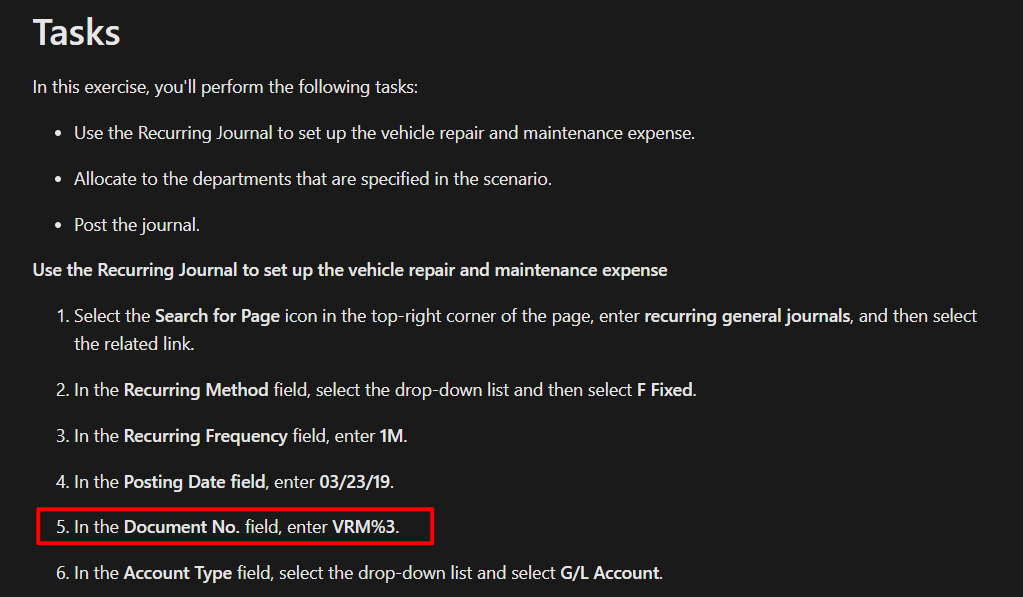
In addition, it is also briefly mentioned in the MS Learn exercise below.
Exercise – Create and post a recurring journal
Great, give it a try!!!😁
PS: This is not available in other journals, such as General Journals.
END
Hope this will help.
Thanks for reading.
ZHU
コメント