
Hi, Readers.
Today I would like to briefly talk about the question I saw in the Business Central forum, Cancelling a scheduled app update install.
As you know, when we need to deploy an app file, we can refer to the following manual. More details: Steps for deploying your .app file
- Log in to your customer’s Dynamics 365 Business Central tenant.
- Open the Extension Management page.
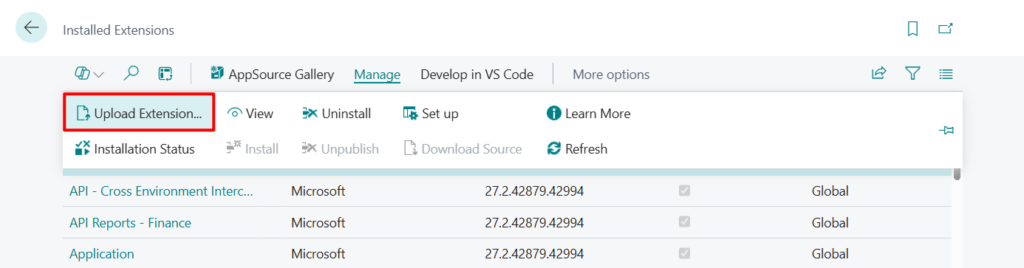
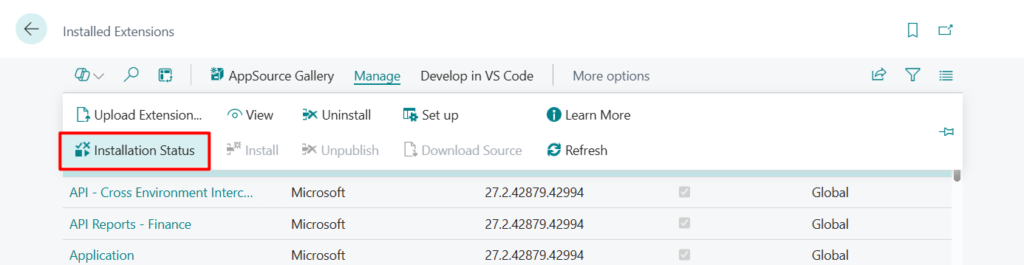
- Under Manage, choose the Upload Extension action.
- Select the browse button to select the .app file to upload. Browse to and select the extension’s .app file.
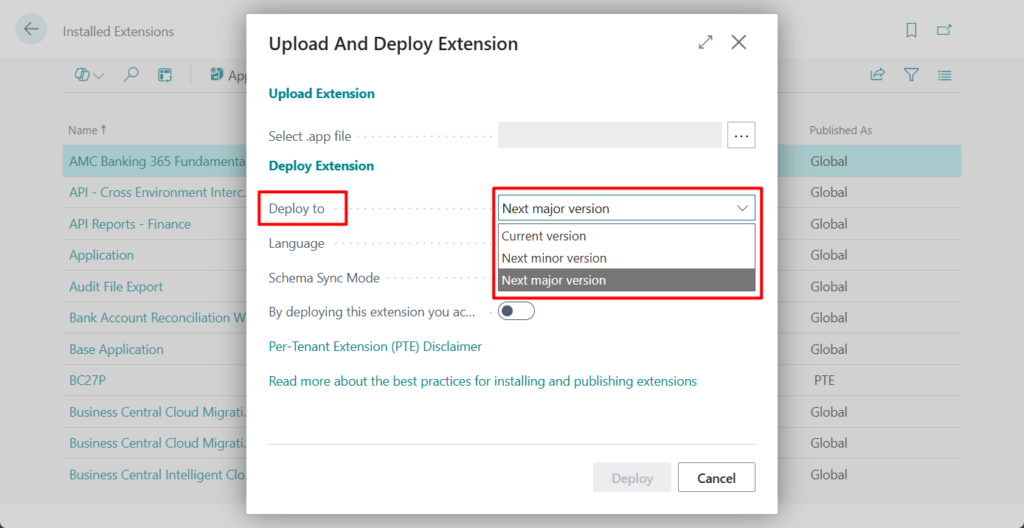
- Select if you want to deploy for the current version (most common) or next minor or major version. Select the language for the deployment.
- Choose the Schema Sync Mode and select whether to add schema changes or to force the schema changes.
- Select the option switch to on to accept the disclaimer.
- Choose the Deploy button.
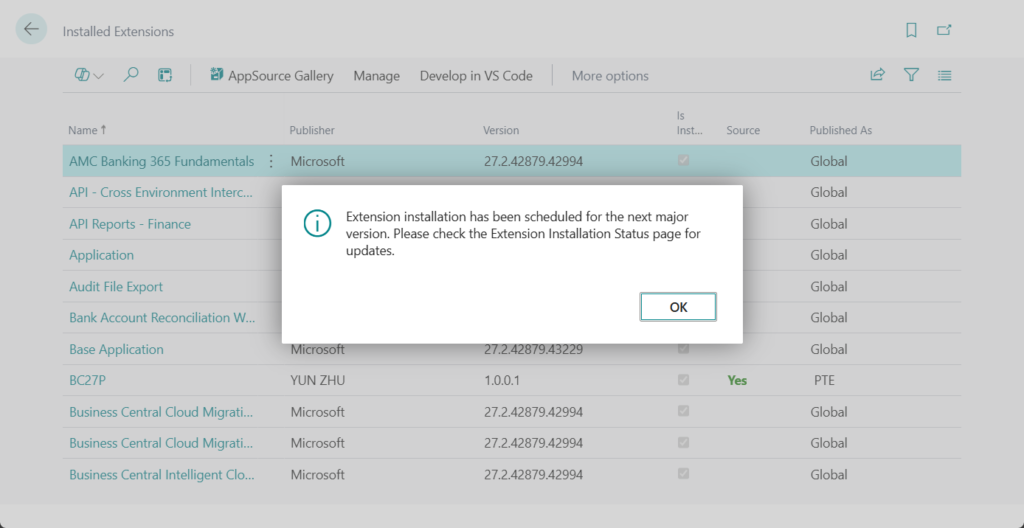
- The extension is deployed in the background.
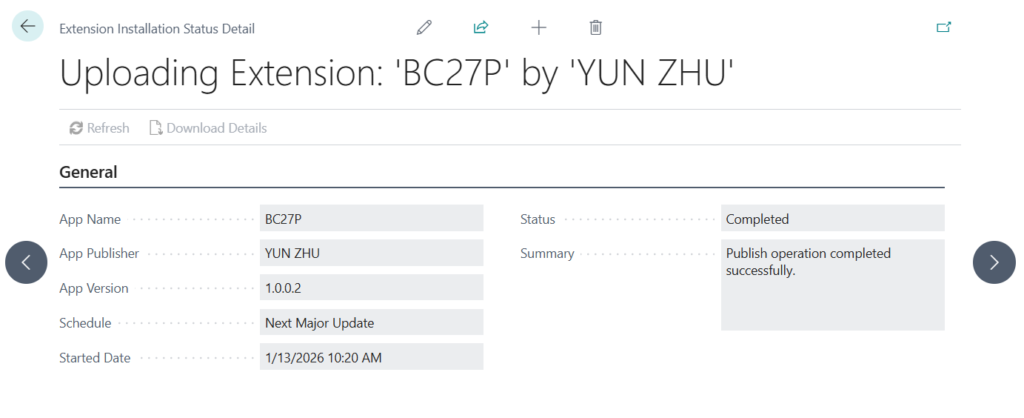
To check the status of the deployment, choose Deployment Status and then view the status of the extension deployment. Select the row to see other details.
In the deployment status details there’s a Refresh button in the actions you must select to retrieve the most recent status and details. - When the extension has been successfully deployed, choose the Refresh button to see the new extension in the list of installed extensions.
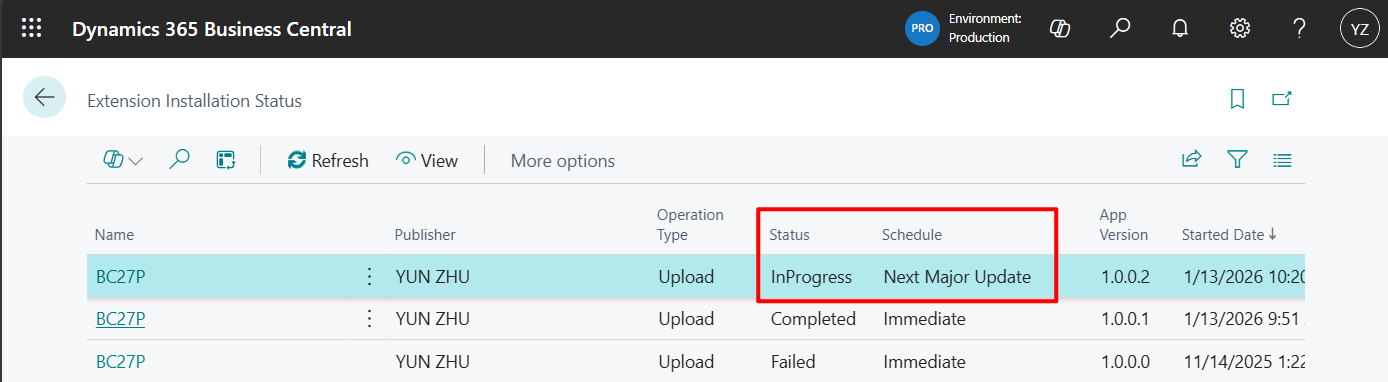
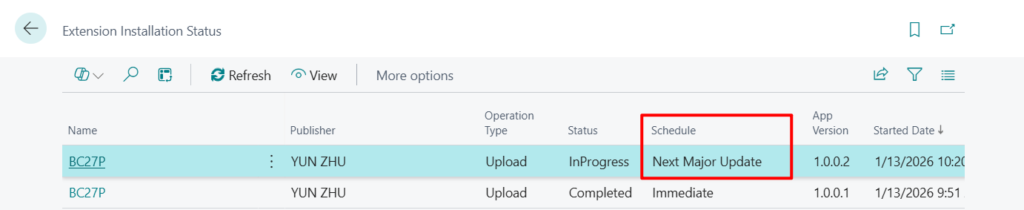
This point relates to the fifth step mentioned above. The question is whether we can cancel scheduled PTE update install when deploying the app to the next version. For example,
Schedule: Next Major Update
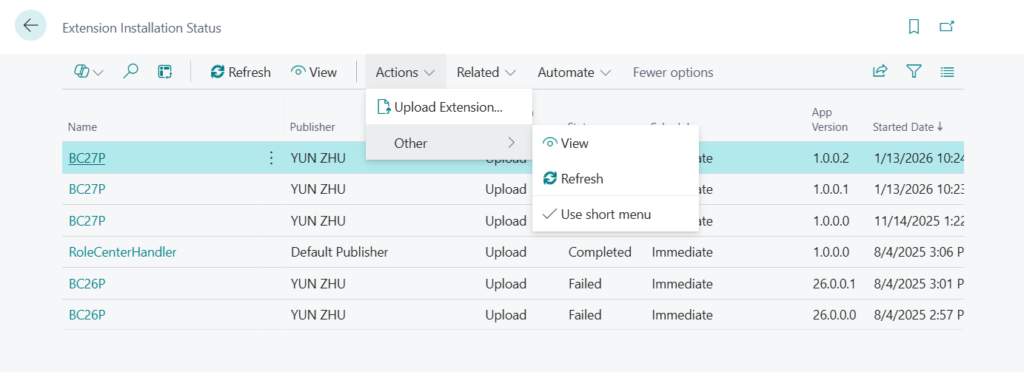
Unfortunately, there is no cancel action on the Extension Installation Status page.
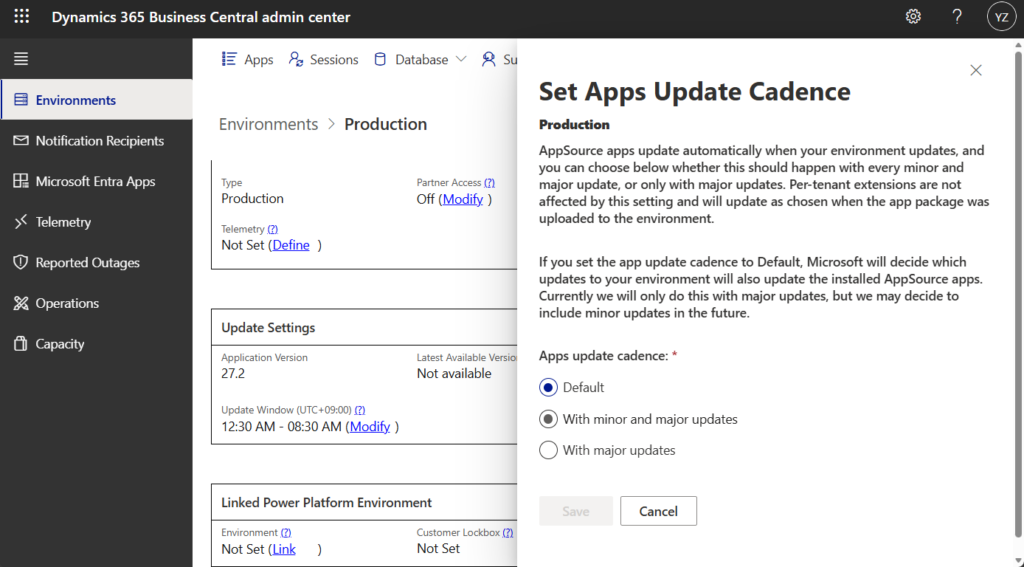
PS: In 2023 release wave 2 (BC23), Microsoft is introducing an environment-level setting that automatically updates all installed apps with every minor update, and lets you schedule individual app updates to take place during the environment’s update window: Apps Update Cadence
More details: Business Central 2023 wave 2 (BC23): Automatically update AppSource apps with minor updates (Apps Update Cadence)
So what should we do?
It’s actually very simple, just upload same version again. This will overwrite the original schedule details.

Test video:
If this app includes an update for the next version, installation will fail on the current version. In other words, if you don’t want the app to install successfully, you need to add some additional steps. For example, How to make extension only install on lower version of BC
Great, give it a try!!!😁
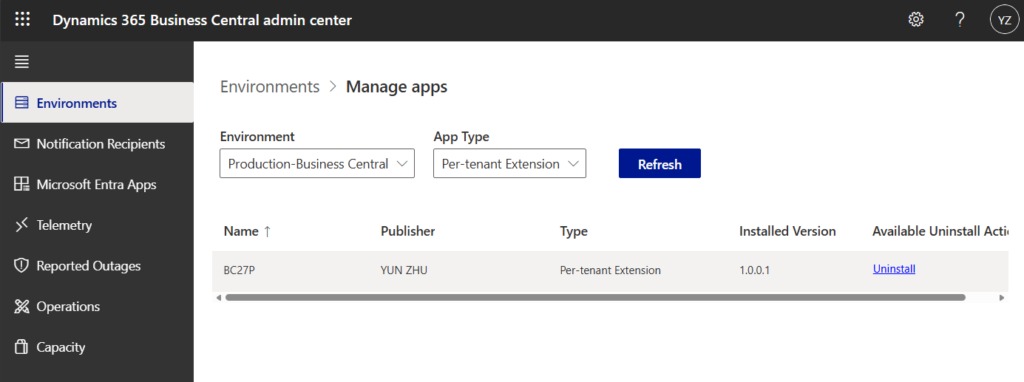
PS: When an app is no longer needed, you can also uninstall it from admin center
More details: Dynamics 365 Business Central: Uninstall apps from Admin Center
END
Hope this will help.
Thanks for reading.
ZHU
コメント