
Hi, Readers.
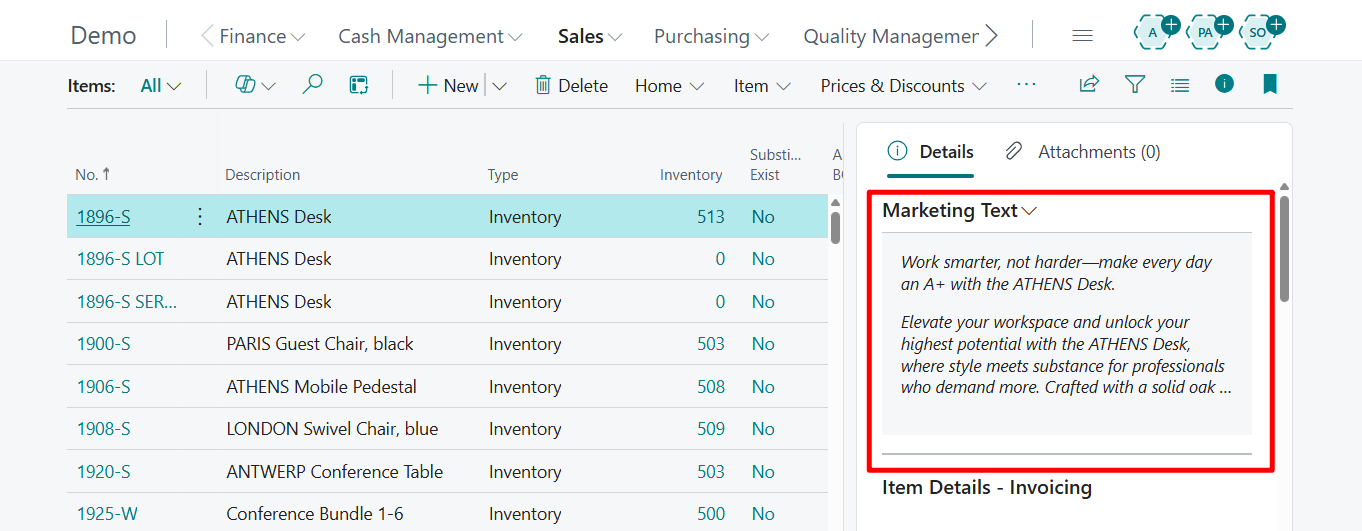
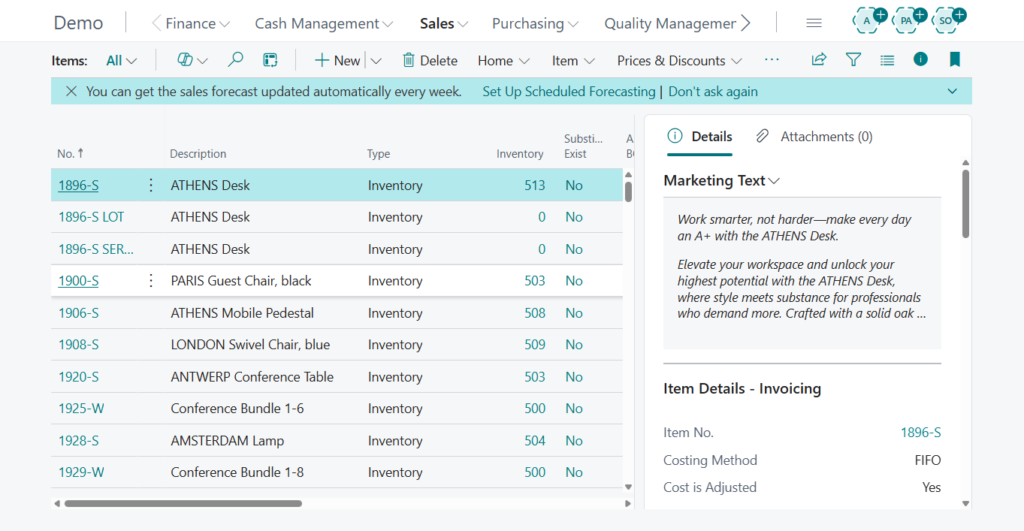
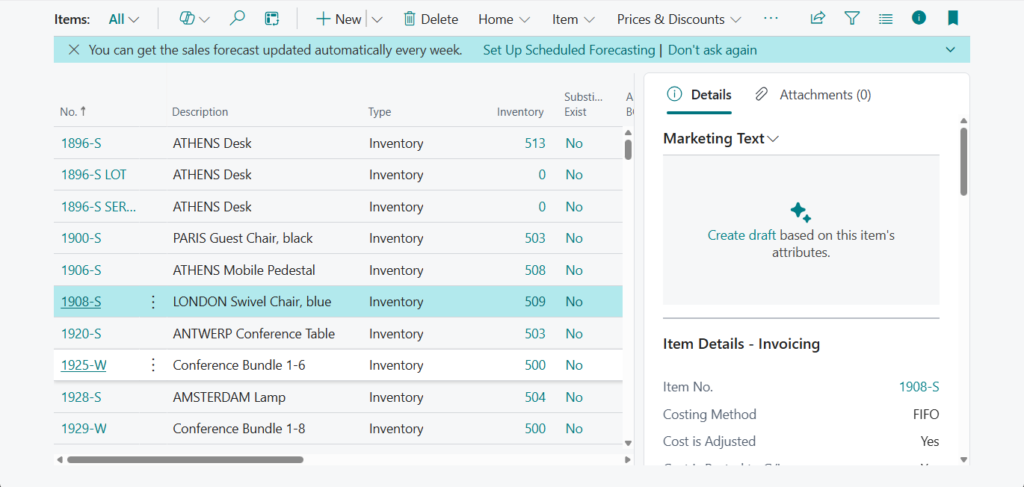
Today I would like to talk about how to add Marketing Text Factbox to Item List page.
For any item registered in Business Central, you can write marketing text about the item. Although marketing text is a kind of description, it’s different than an item’s Description field. The Description field is typically used as a concise display name to quickly identify the product. The marketing text, on the other hand, is a more rich and descriptive text. Its purpose is to add marketing and promotional content, also known as copy.

This text can then be published with the item if it’s published on a web shop, like Shopify, or pasted into emails or other communications with your customers. For example,


More details: Drive sales with AI-generated product descriptions in Business Central
And there are two ways to create the marketing text. The easiest way to get started is to use Copilot, which suggests AI-generated text for you. The other way is to start from scratch. More details: Add marketing text to items
Currently, Marketing Text can only be viewed on the Item Card. Would it be possible to display it directly on the Item List as well? Yes, of course, but it requires some simple customization. We can use the ‘Item Card’ (Page 30) as a reference for this.
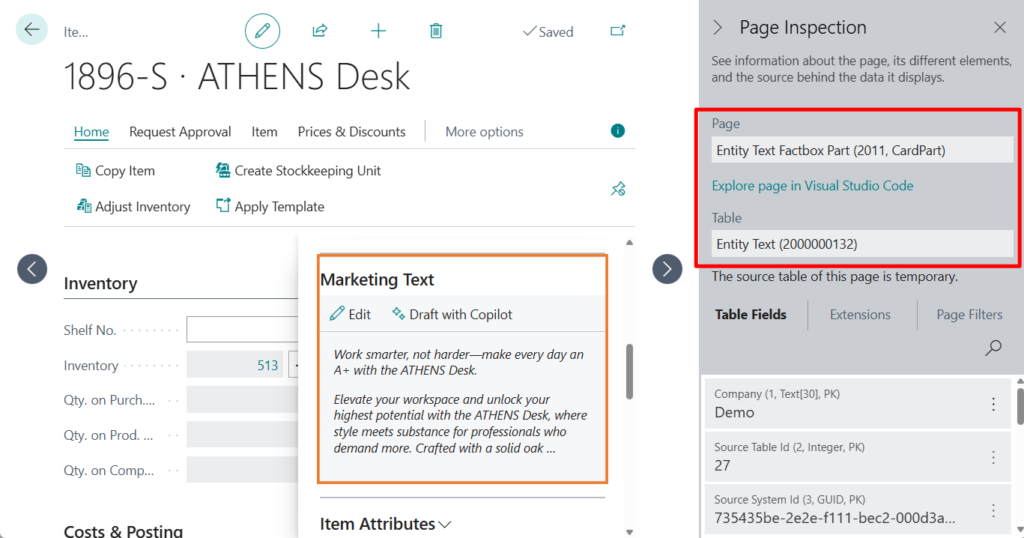
Let’s look at a simple example.
1. Add page 2011 “Entity Text Factbox Part” (Marketing Text) to the Item List.
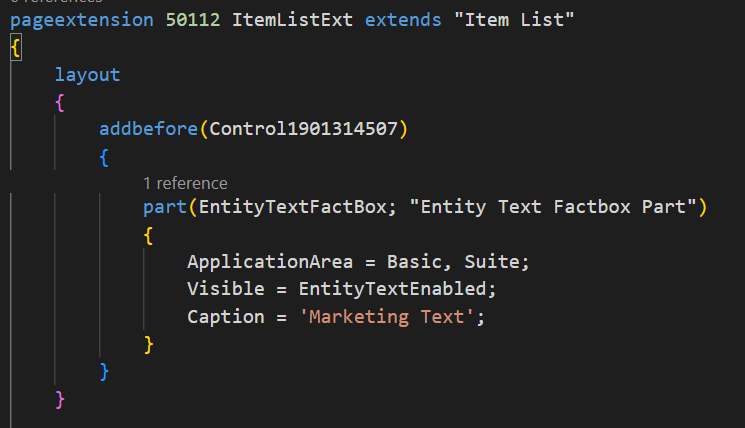
2. Add the logic to control visibility and set the content for this Factbox
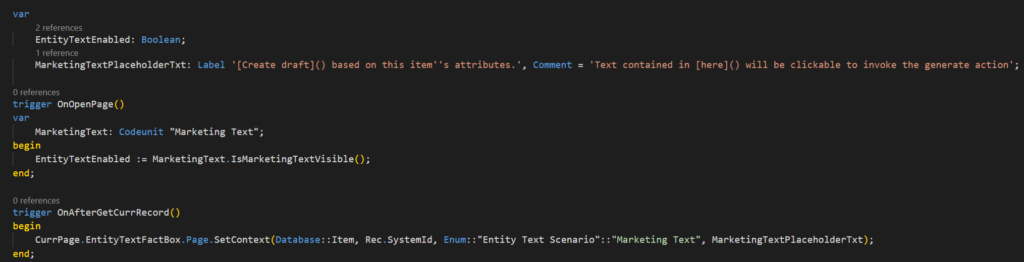
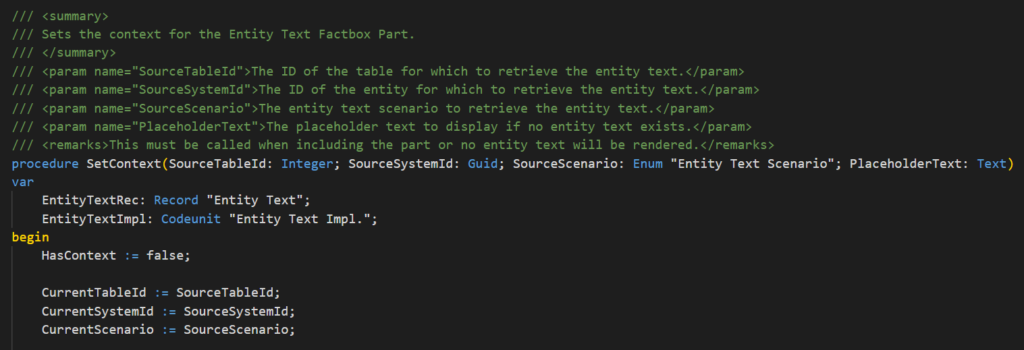
PS: page 2011 “Entity Text Factbox Part” -> procedure SetContext
Done.
Test video:
Very simple, and the same approach can be applied to other List or Worksheet pages containing ‘Item No.’ to include the Marketing Text FactBox. Give it a try!!!😁
Source code: Github (Please note that the source code is for reference only, you can improve it according to your own needs)
pageextension 50112 ItemListExt extends "Item List"
{
    layout
    {
        addbefore(Control1901314507)
        {
            part(EntityTextFactBox; "Entity Text Factbox Part")
            {
                ApplicationArea = Basic, Suite;
                Visible = EntityTextEnabled;
                Caption = 'Marketing Text';
            }
        }
    }

    var
        EntityTextEnabled: Boolean;
        MarketingTextPlaceholderTxt: Label '[Create draft]() based on this item''s attributes.', Comment = 'Text contained in [here]() will be clickable to invoke the generate action';

    trigger OnOpenPage()
    var
        MarketingText: Codeunit "Marketing Text";
    begin
        EntityTextEnabled := MarketingText.IsMarketingTextVisible();
    end;

    trigger OnAfterGetCurrRecord()
    begin
        CurrPage.EntityTextFactBox.Page.SetContext(Database::Item, Rec.SystemId, Enum::"Entity Text Scenario"::"Marketing Text", MarketingTextPlaceholderTxt);
    end;
}
PS:
1. How to bulk import marketing text to items – Customization
END
Hope this will help.
Thanks for reading.
ZHU
コメント