

Hi, Reades.
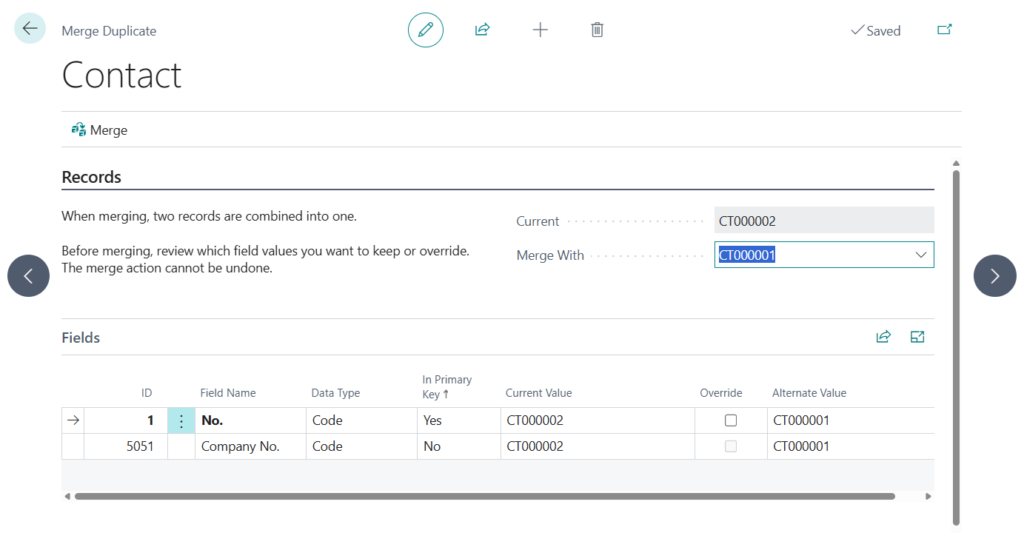
Last week we briefly discussed how to merge duplicate records (customers, vendors, or contacts) in Business Cenral. More details: Merge duplicate records (customers, vendors, or contacts)
Today I would like to share another mini tip. For contacts, you can use functionality to find duplicate contacts before you use the Merge Duplicate page.
When you create a contact, Business Central can automatically search for duplicates. Avoiding duplicate contacts can help ensure that you interact with the right person for the right company.
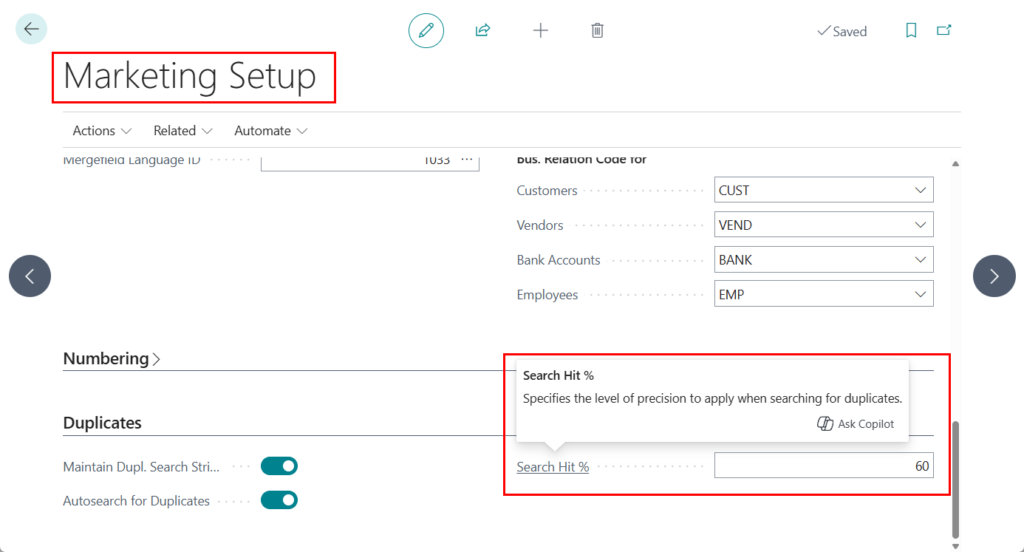
Let’s see more details. First you can specify the percentage of identical data that two contacts must have in order to consider them duplicates. You can also just use the default percentage, which is 60. You specify the percentage on the Marketing Setup page by entering a percentage value in the Search Hit % field on the Duplicates FastTab.
Search Hit %
Specifies the level of precision to apply when searching for duplicates.
There are two processing methods: automatic and manual.
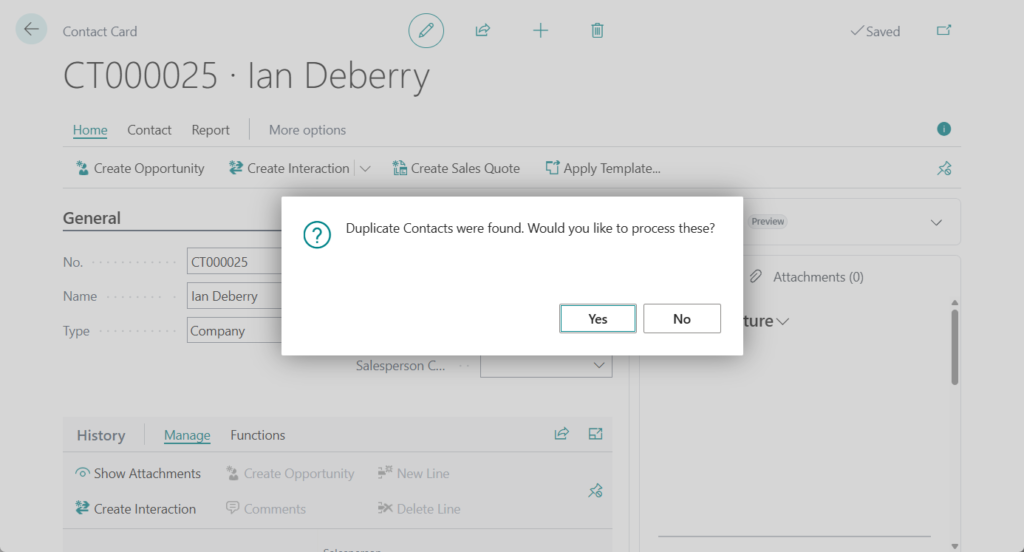
For automatic searches, when you create a contact that already has a business relation to a company, Business Central displays a message to inform you.
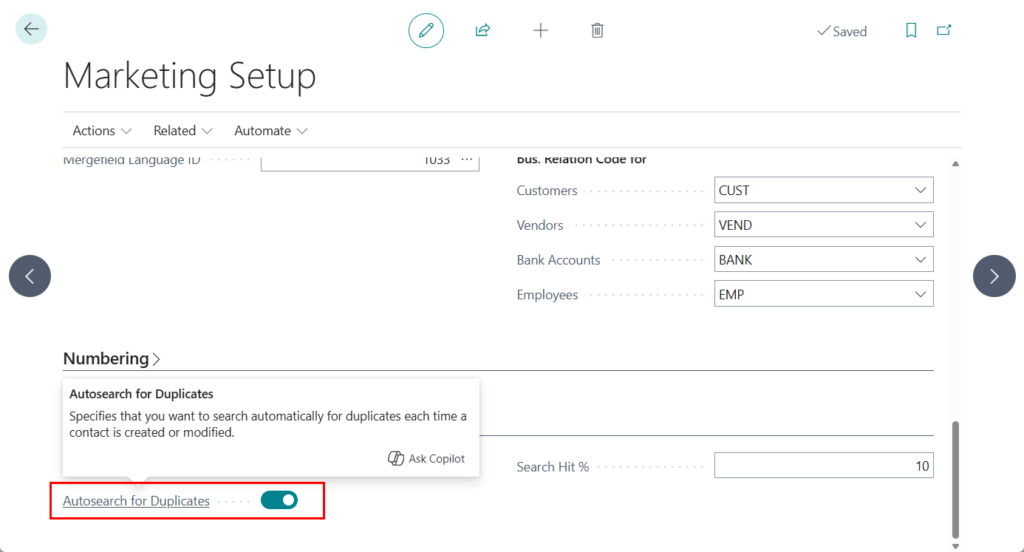
Autosearch for Duplicates
Specifies that you want to search automatically for duplicates each time a contact is created or modified.
Duplicate Contacts were found. Would you like to process these?
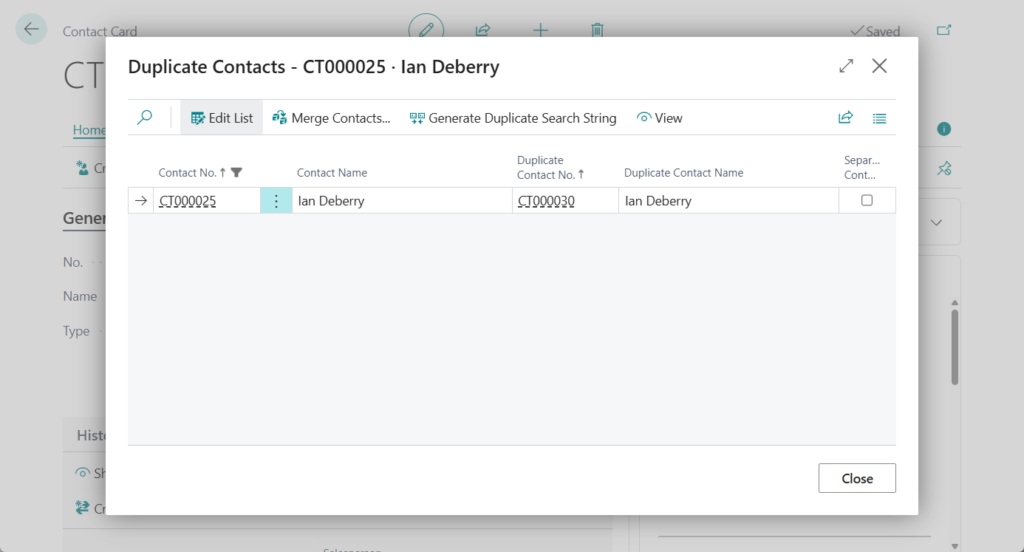
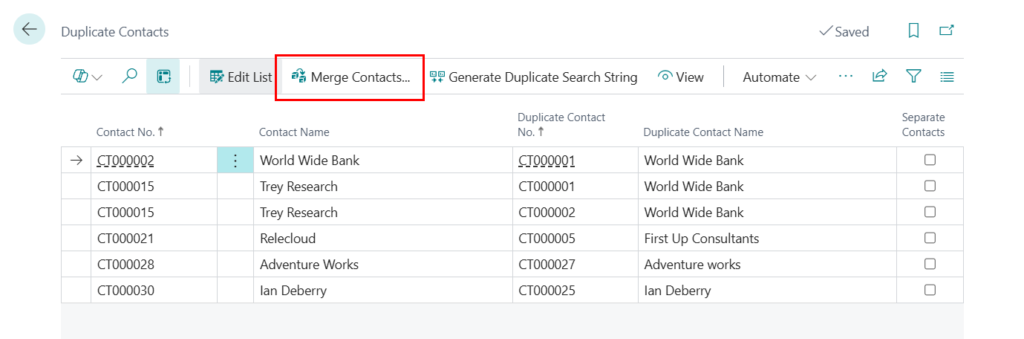
When you find a duplicate contact, you can use the Merge Contacts action to merge it with a contact record that you want to keep.
To manually search for duplicates, follow these steps:
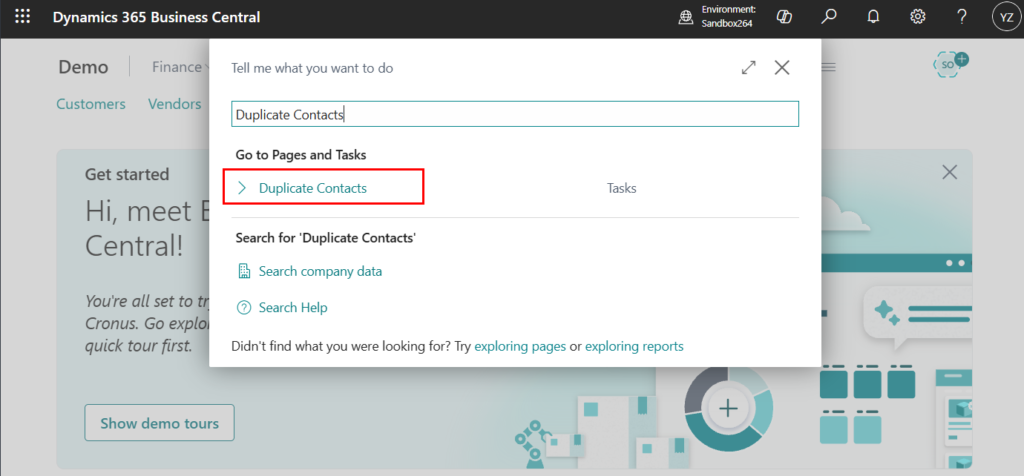
- Select Search (Alt+Q)
 in the upper-right corner, enter Duplicate Contacts, and then choose the related link.
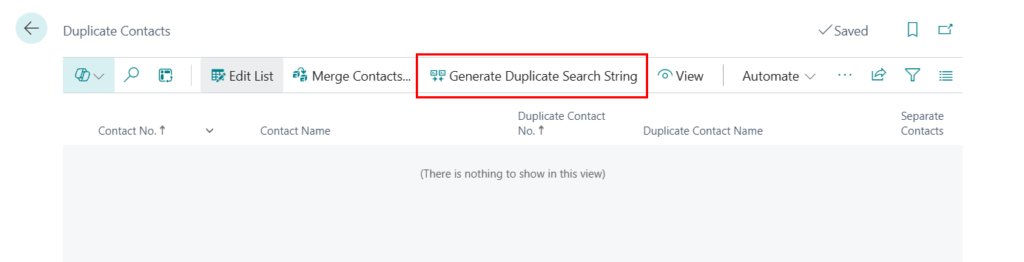
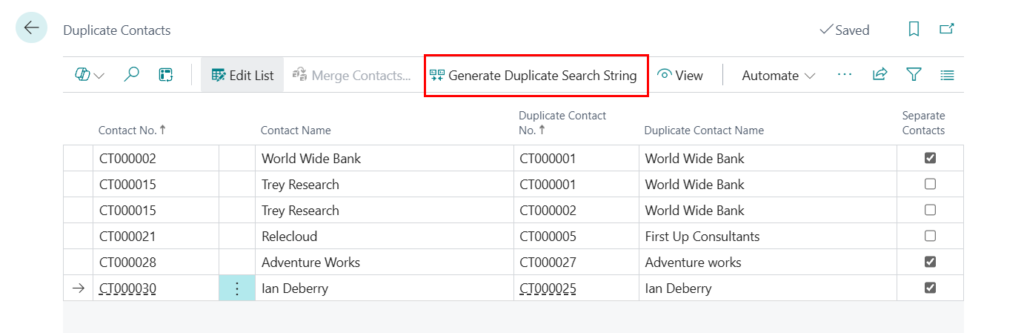
- Choose the Generate Duplicate Search String action.
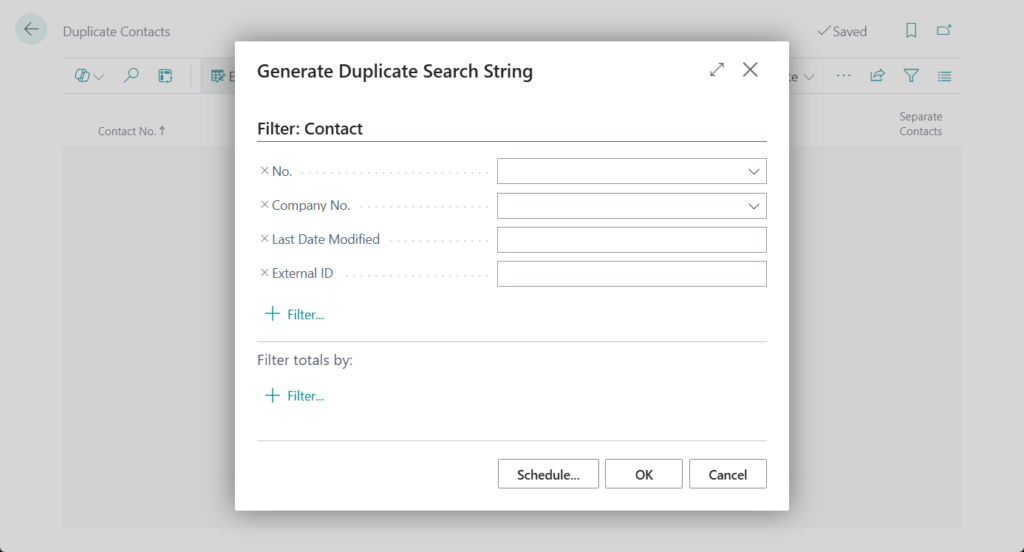
- On the Generate Duplicate Search String page, enter filter criteria that determine the match, and then choose OK.
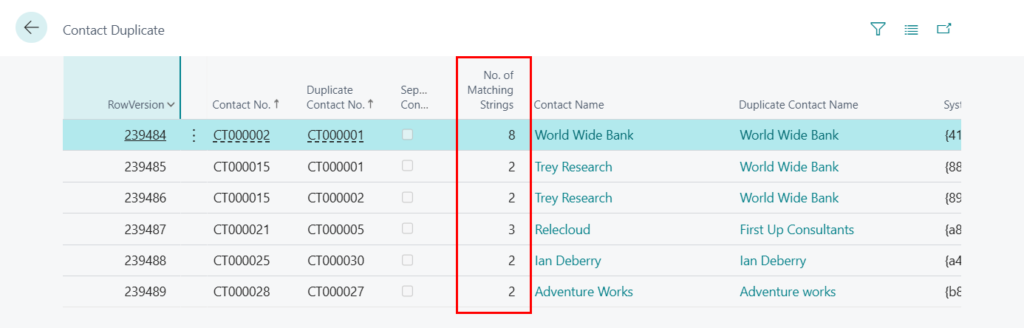
If no duplicate contacts are found, no data will be displayed. Below is the result when I set the Search Hit % to 10%.
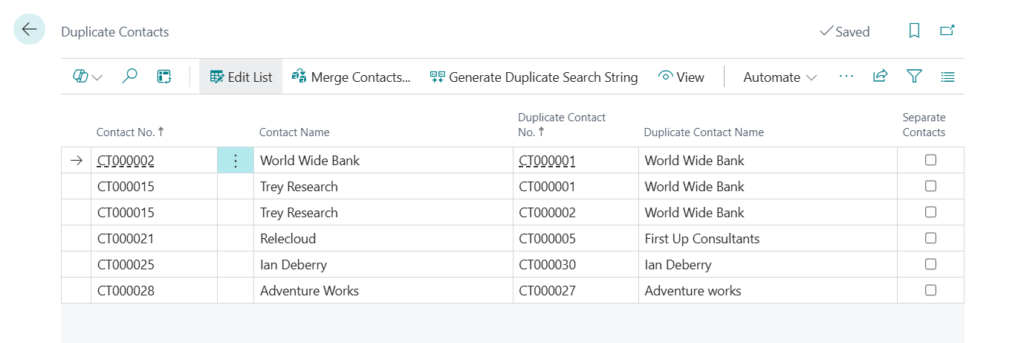
PS: The table contains a field called No. of Matching Strings, which you can use to check the number of matches.
You can use the Merge Contacts action to merge it with a contact record that you want to keep.
And if the two contacts are not true duplicates, but separate contacts, selected the following field.
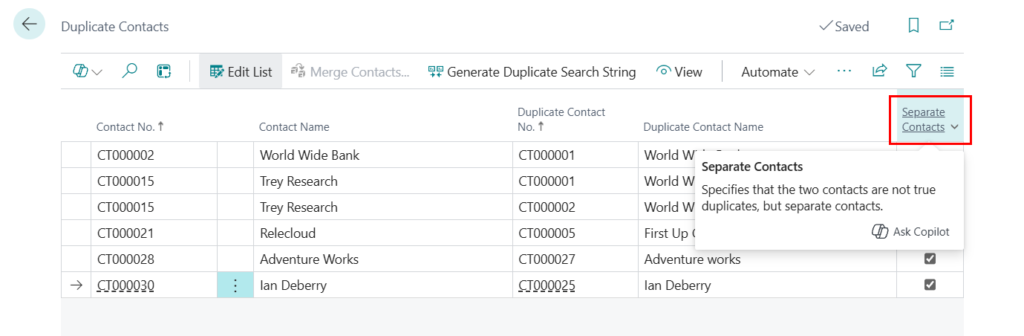
In addition, there is no delete button on this page. If you need to clean up the generated records, you can execute the Generate Duplicate Search String action again.
Very simple, give it a try!!!😁
PS:
1. Automatically create contacts when creating customers/vendors/bank accounts
2. Set up information for contacts – Business Central | Microsoft Learn
END
Hope this will help.
Thanks for reading.
ZHU

コメント