
Hi, Readers.
The public preview for Dynamics 365 Business Central 2026 release wave 1 (BC28) is available. Learn more: Link.
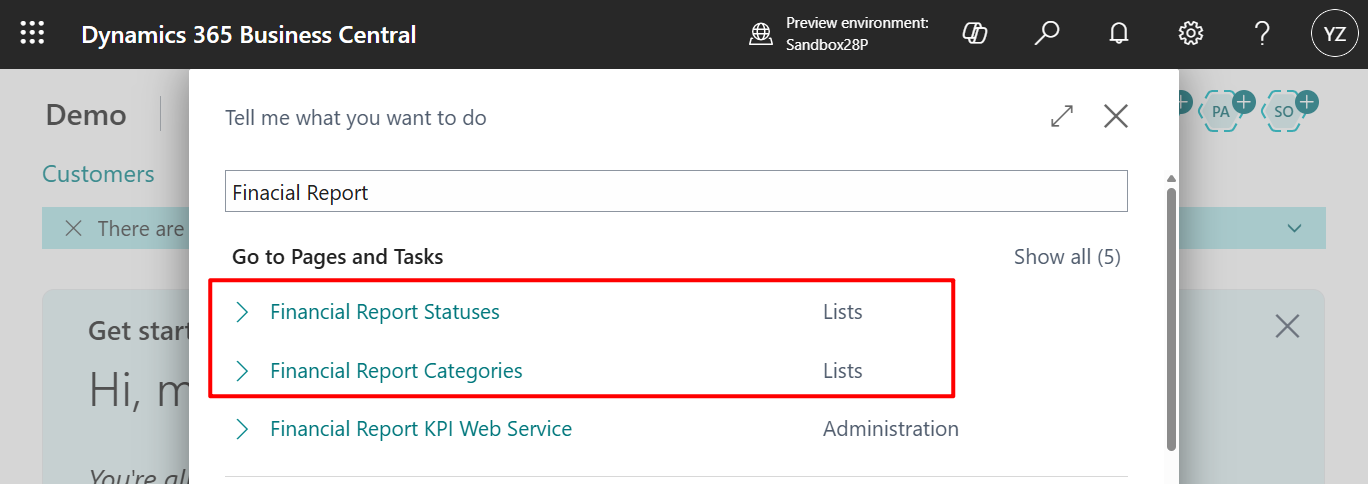
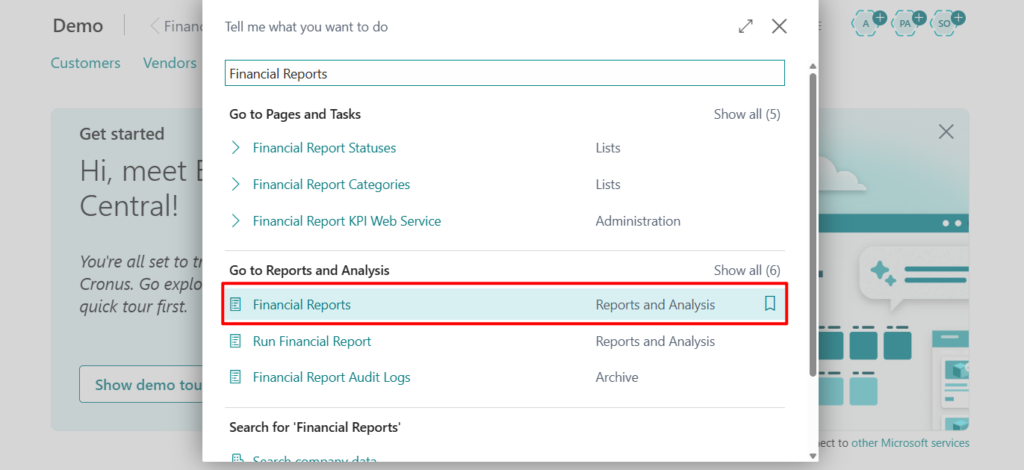
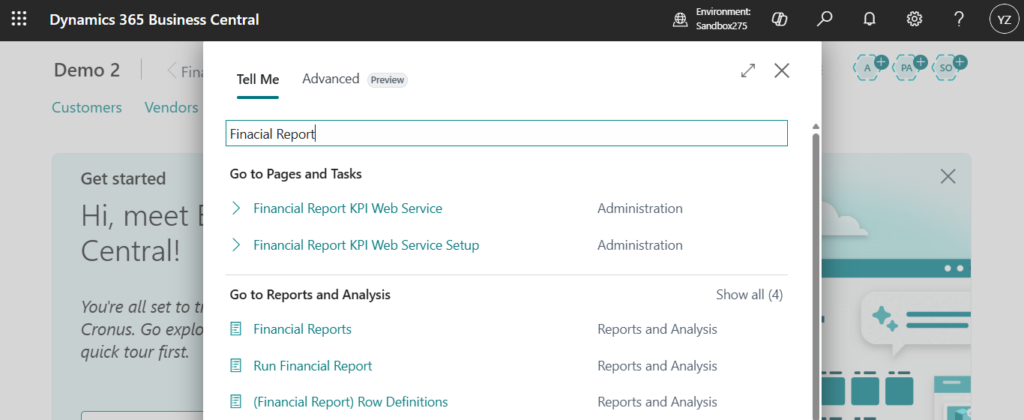
I will continue to test and share some new features that I hope will be helpful. In this post, I would like to talk about Finacial Report Statuses and Finacial Report Categories. As of now, there is no official documentation available.
In Business Central the Financial Reports feature gives you insights into the financial data shown on your chart of accounts (COA). You can set up financial reports to analyze figures in general ledger (G/L) accounts, and compare general ledger entries with budget entries. Business Central provides sample financial reports you can use right away as templates. You can also set up your own reports to specify the figures to compare.
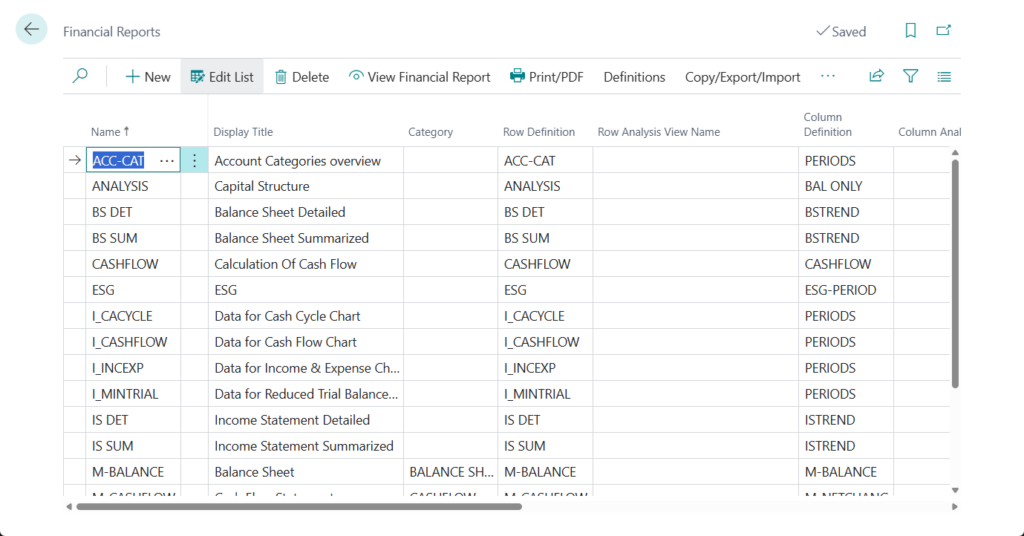
More details: Prepare financial reporting with financial data and account categories
Microsoft has enhanced this feature in recent versions.
- Financial reporting replaces account schedules (Account Schedules -> Financial Reports)
- Use new dedicated APIs for financial reporting (Advanced APIs -> reportsFinance/beta)
- Use new reports and demo data for financial reporting (New standard financial reports and row definitions)
- Use enhanced Financial Reporting capabilities
With this wave, Microsoft has further enhanced this feature. Microsoft has introduced two significant management features: Financial Report Statuses and Financial Report Categories.
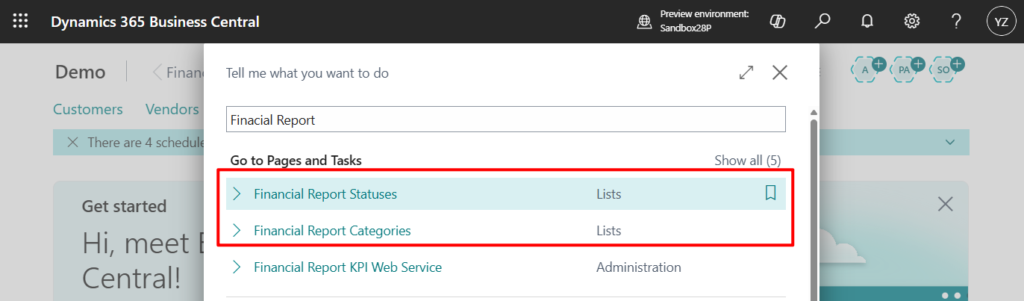
PS: In BC27 and previous versions
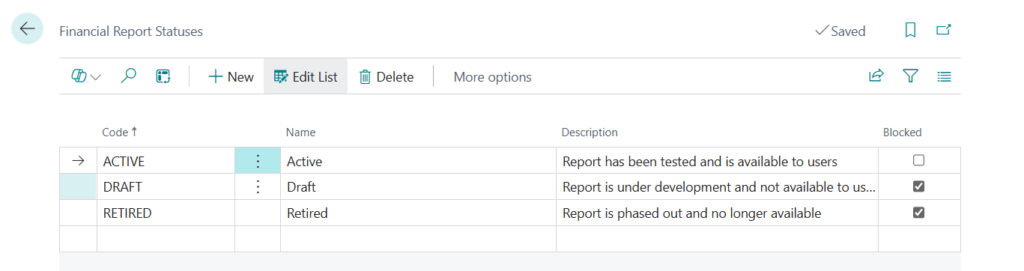
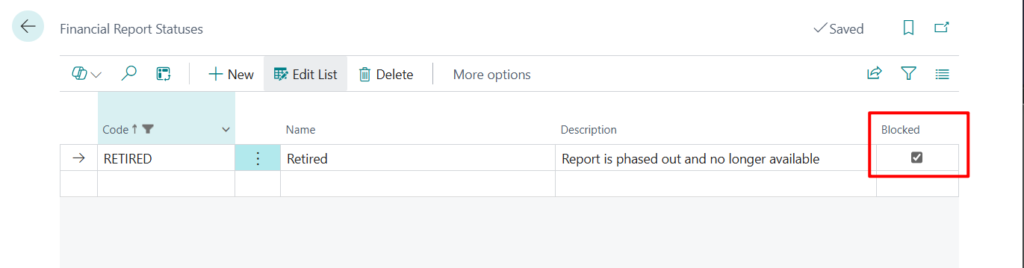
About Financial Report Status: This is fully configurable; you can either leverage the Microsoft demo data or simplify it to just two states: Enabled and Disabled.
Status codes help you organize the lifecycle of your financial report, row, and column definitions by hiding work-in-progress and retired definitions from users.
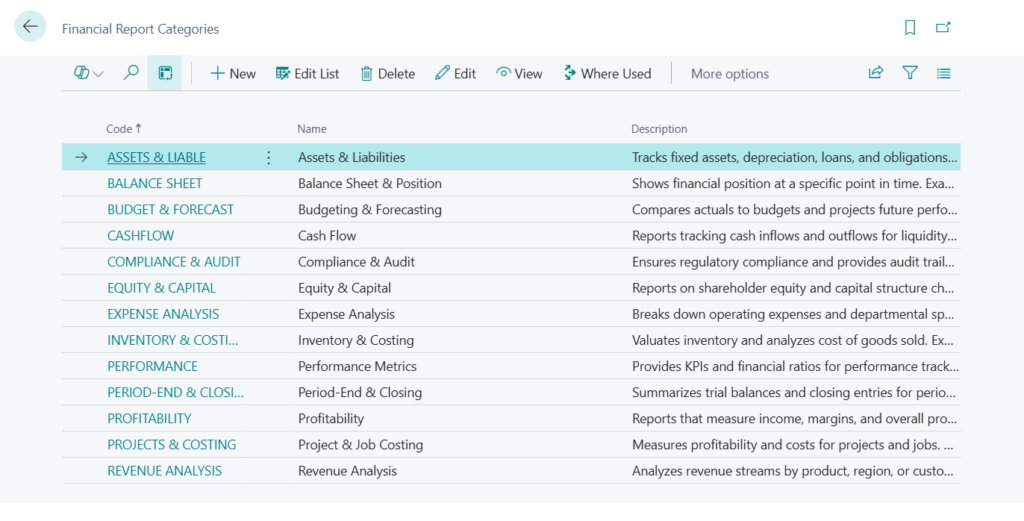
About Financial Report Categories:
Organize your financial reports with financial report categories, helping you find and manage financial reports.
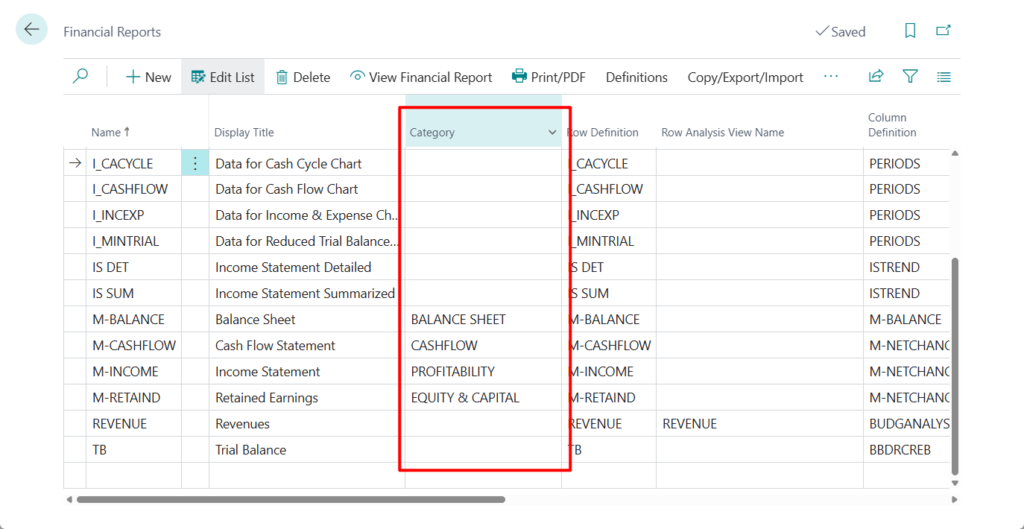
These can be managed via the Financial Report list and card pages.
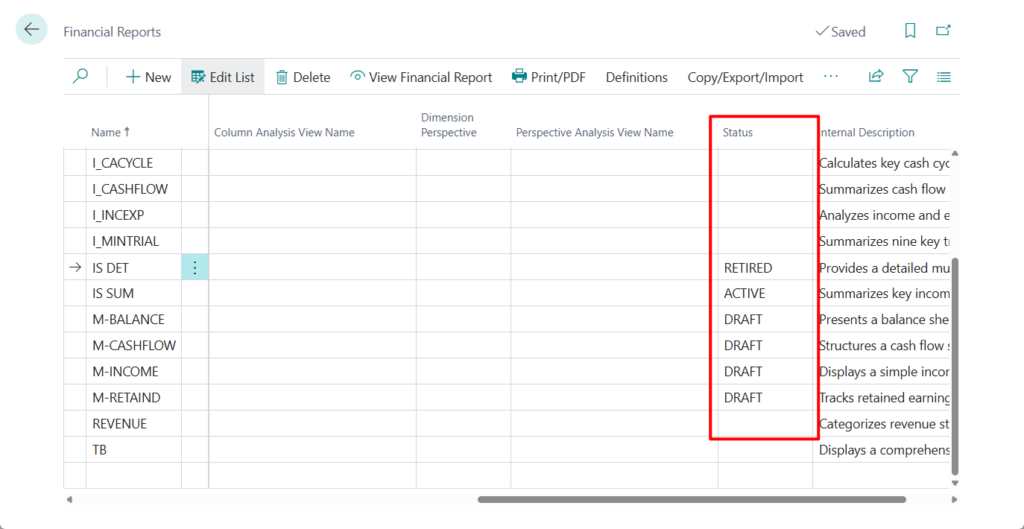
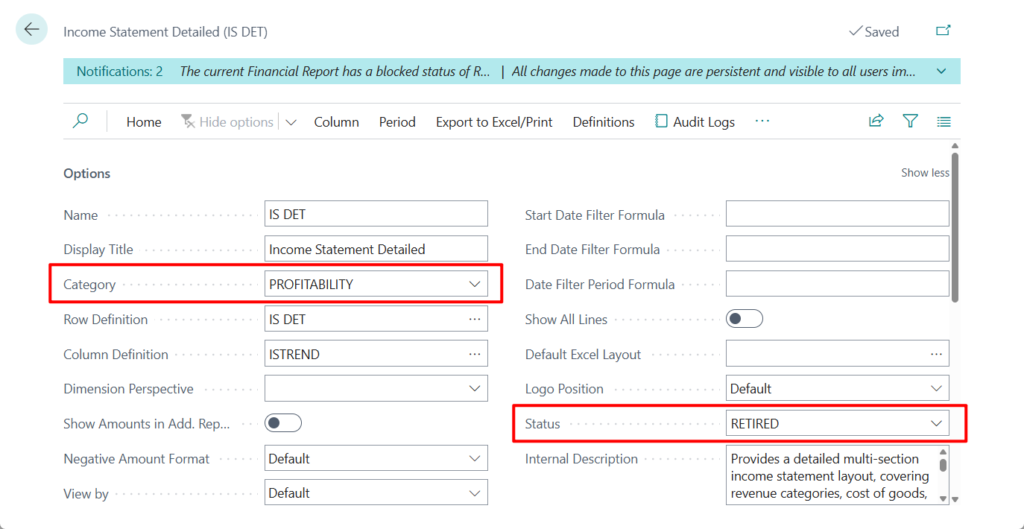
If the Blocked is true, the following notification will appear when you open the Financial Report.
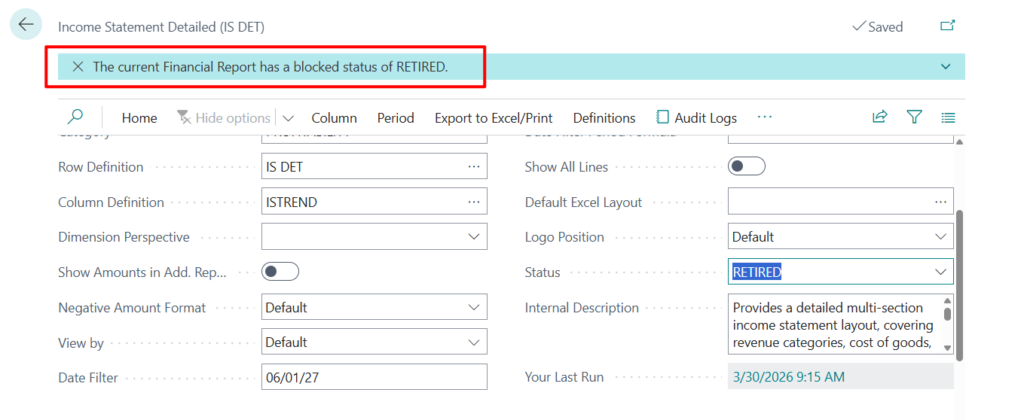
However, please note that this does not currently affect the default Financial Reports settings in General Ledger Setup.
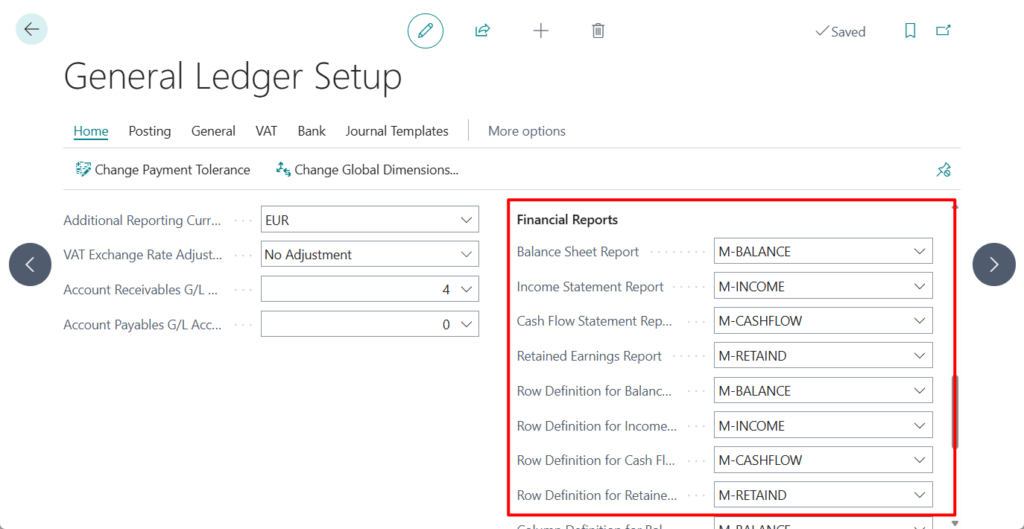
And this new status is available for both Row Definitions and Column Definitions.
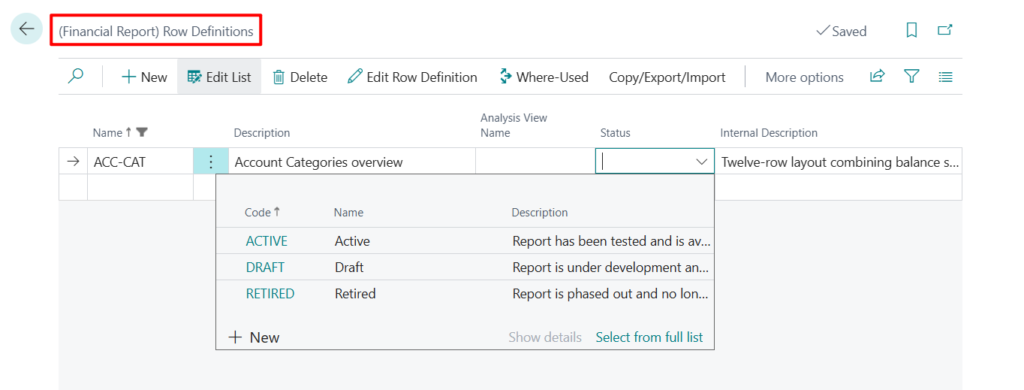
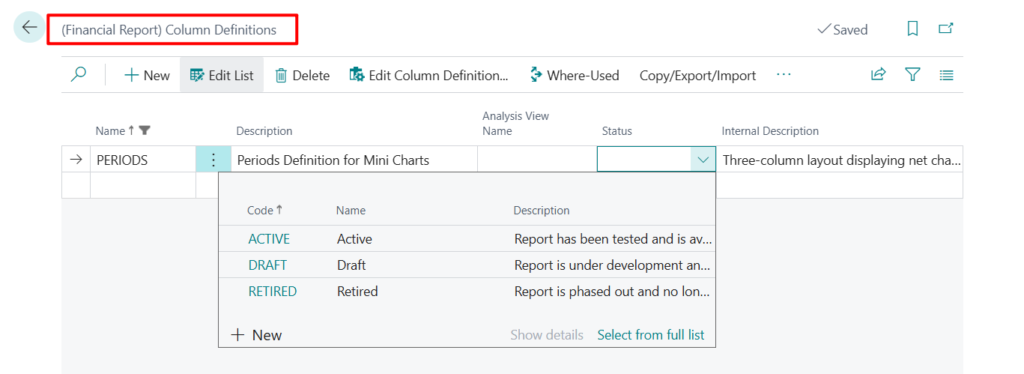
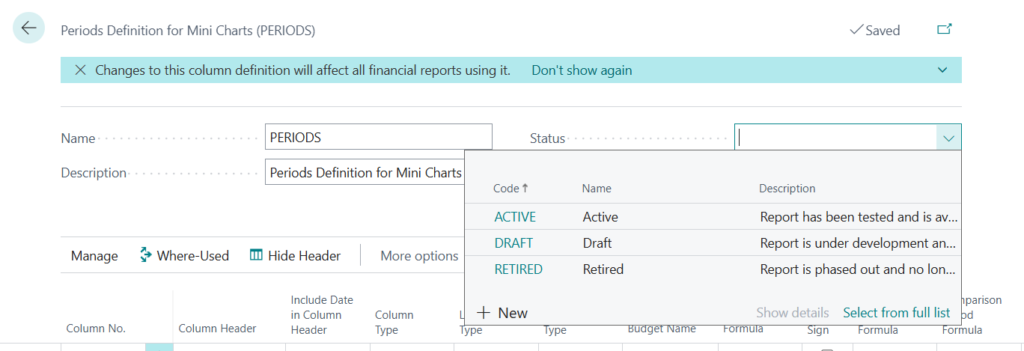
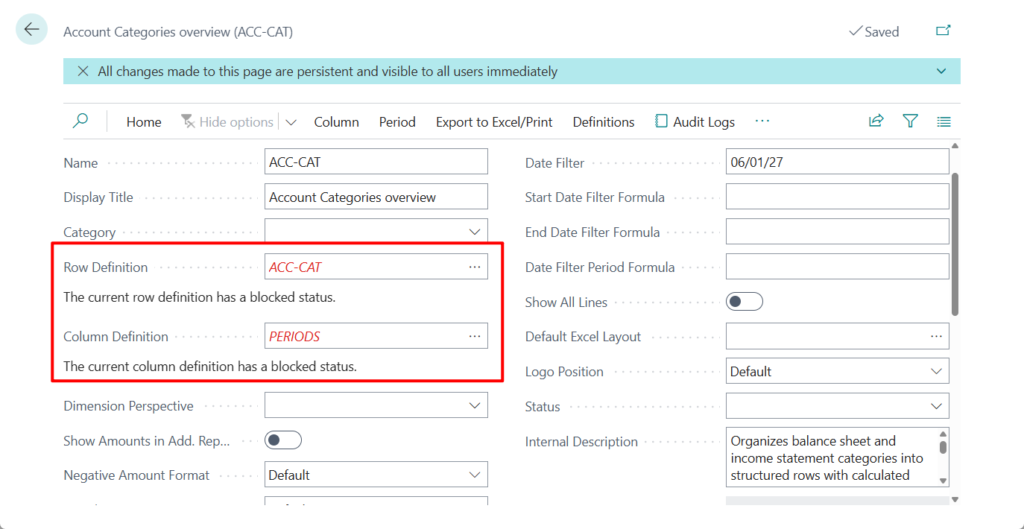
If Block is set to True, the following message will be displayed upon selecting these definitions. (This represents a new way for error messages: the field value is highlighted in red, with the error message appearing directly below it🤔)
The current row definition has a blocked status.
Great. Give it a try!!!😁
END
Hope this will help.
Thanks for reading.
ZHU
コメント