
Hi, Readers.
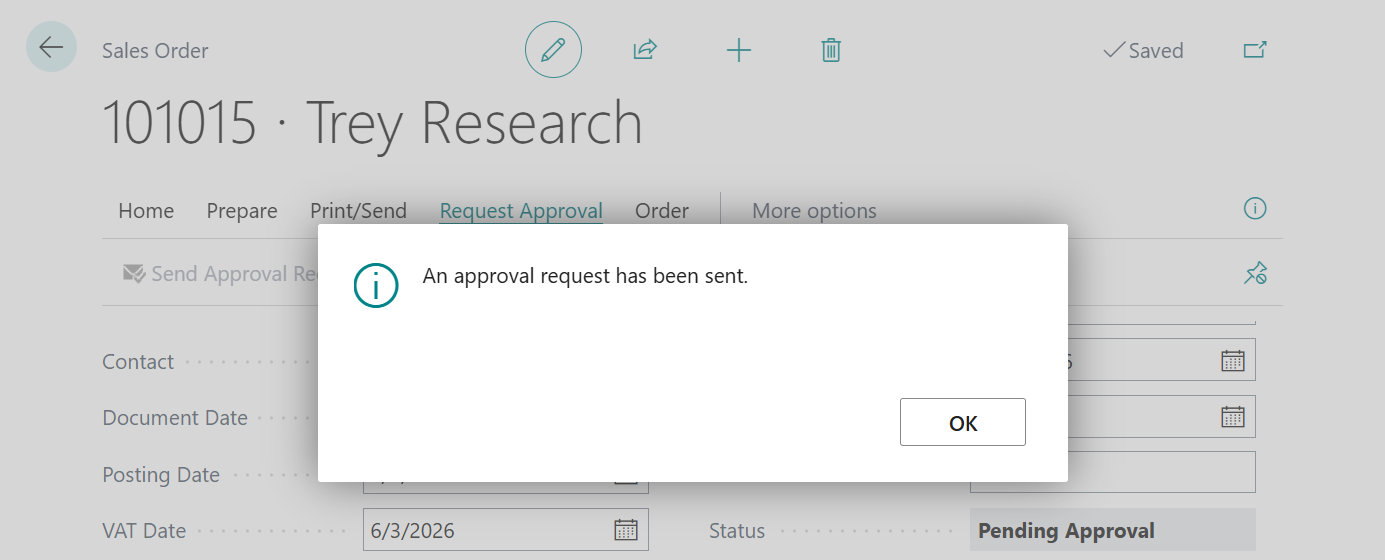
Today I would like to share another mini tip about Business Central, how to hide the confirmation message (An approval request has been sent) when sending an Approval Request?
A workflow is a sequence of tasks triggered by an action, a condition, or a rule. Workflows are usually implemented to integrate business logic into an organization, such as the separation of duties, unifying processes, or to apply best practices.
The workflows can be designed to create requests for approval of a record field change while keeping the old data in case the request isn’t approved. The new value won’t be implemented until the last request is approved.
In Business Central, the business logic could be the approval of:
- New master data such as general ledger (G/L) accounts, customers, vendors, or items.
- Changes to fields in existing records containing sensitive information, such as Vendor Bank Account No. or Customer Credit Limit.
- Changes to fields in existing records containing business critical information, such as Item Sales Prices.
- New users or changes to user permissions.
- Purchase documents.
- Sales documents.
- Incoming documents.
- Finance journals prior to posting.
More details: Use approval workflows
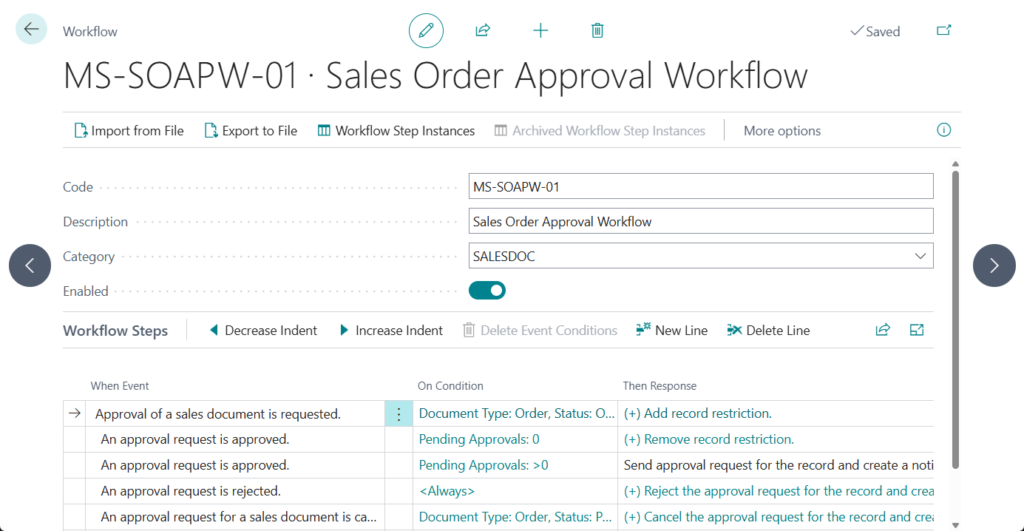
For example, I created a very simple Sales Order Workflow.
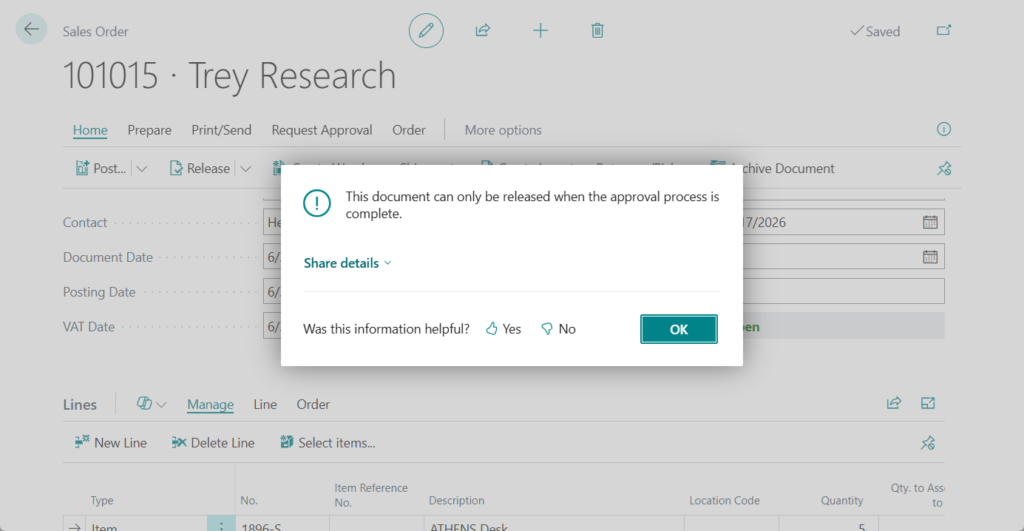
The order cannot be released until the approval process is complete.
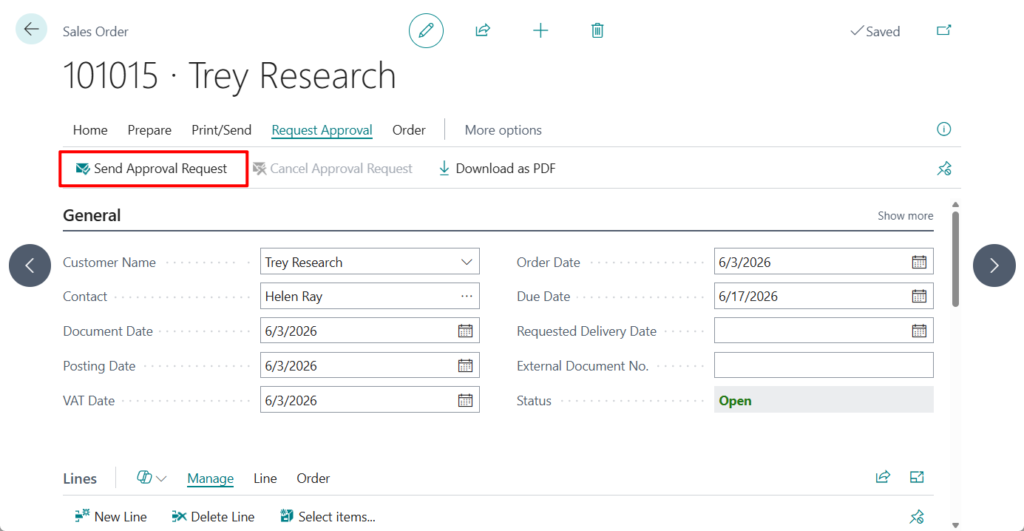
Therefore, we need to send an approval request.
Then a confirmation message will be displayed on the page.
An approval request has been sent.
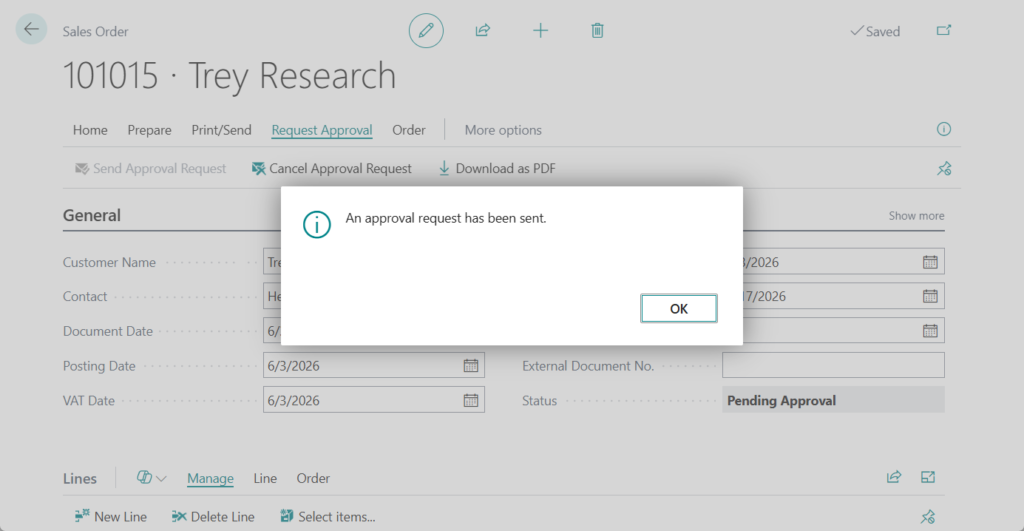
I recently saw an interesting question on a forum: can this confirmation message be hidden? Yes, this can be done, and no customization is required.
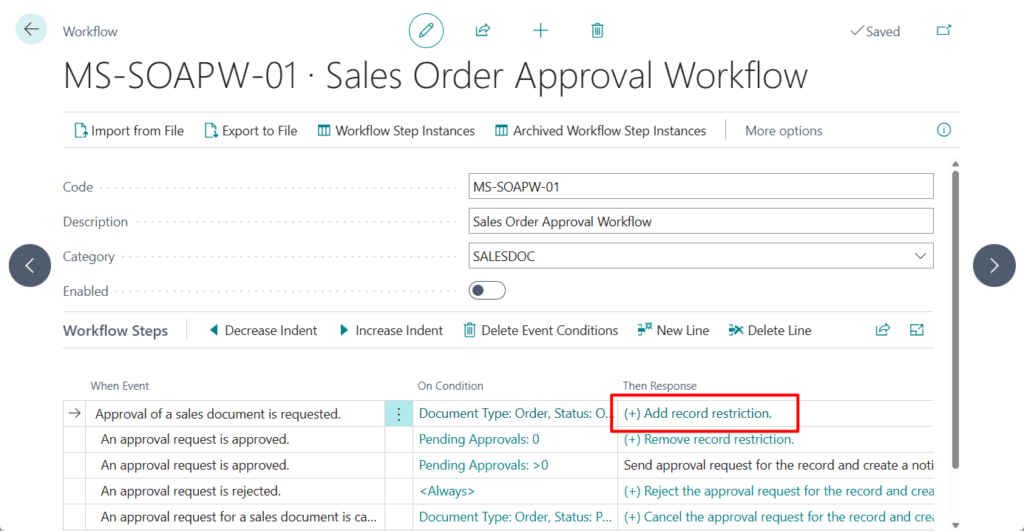
Let’s go back to the Workflow settings page. Choose Add record restriction
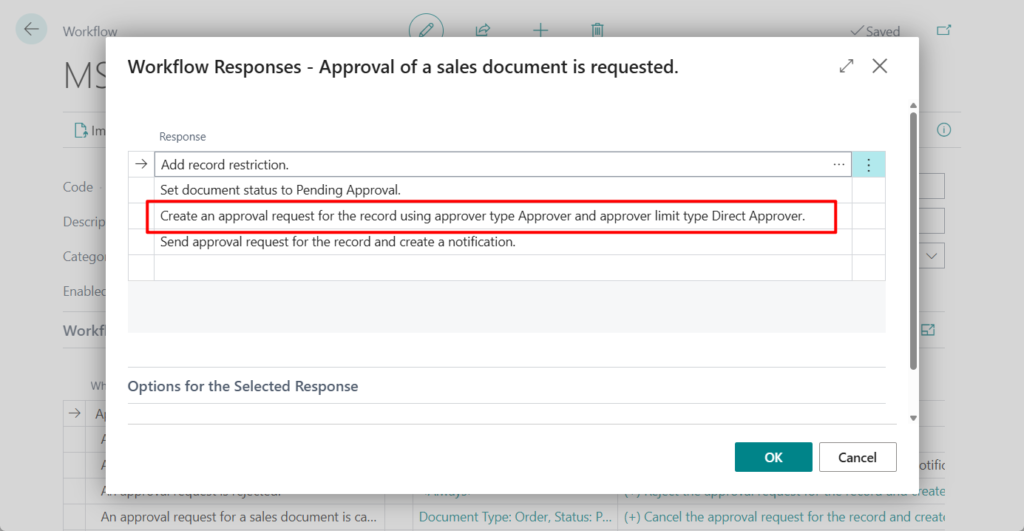
Choose Create an approval request for the record using approver type Approver and approver limit type Direct Approver.
Then you can find the following option in the Options for the Selected Response tab.
Show Confirmation Message
Specifies that a confirmation message is shown to users after they request an approval.
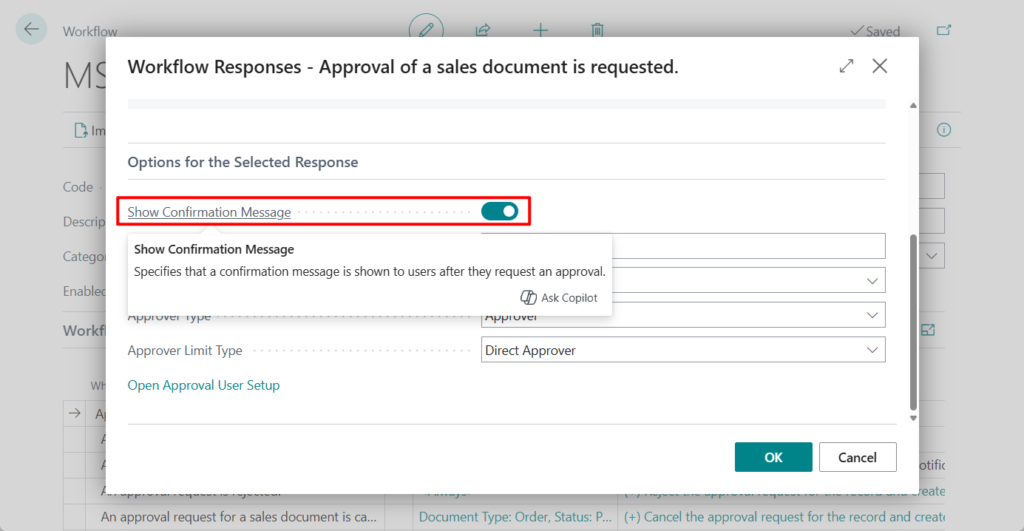
Just turn it off.
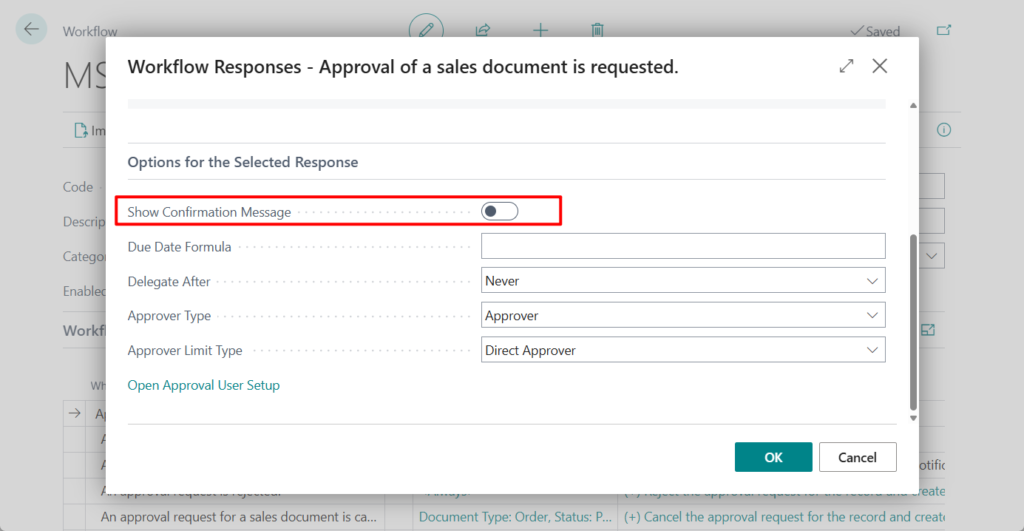
The confirmation message will be hidden.
Test video:
Great. Give it a try!!!😁
END
Hope this will help.
Thanks for reading.
ZHU
コメント