
Hi, Readers.
Today I would like to share another mini tip about Business Central, how to automatically add extended text.
We’ve discussed Extended Text in Business Central before.
With Extended Text feature, you can extend the description for items, stock-keeping units, general ledger accounts, and resources by adding extra lines as extended text. You can also set up conditions for use of the extra lines.
Let’s try to add some extended texts to a description of an item. (The same steps apply to stock-keeping units, general ledger accounts, and resources)
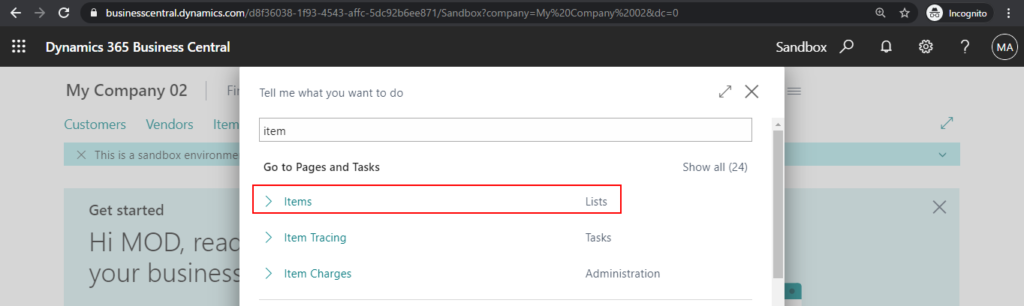
1. Enter Item in tell me, and then choose the related link.
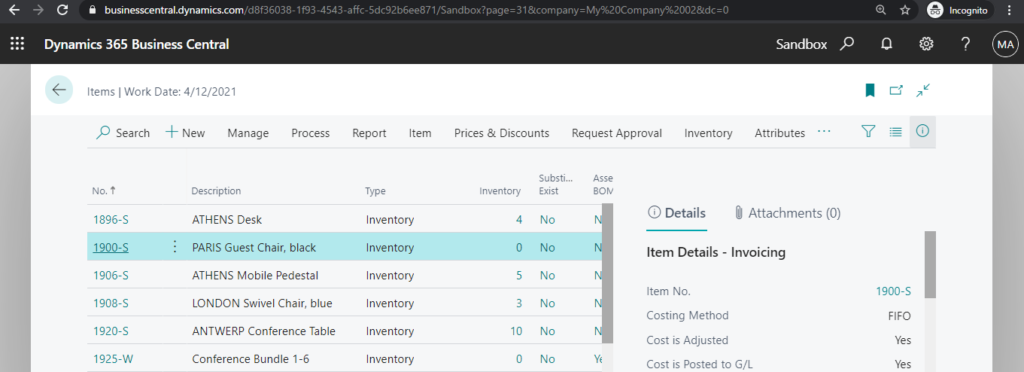
2. Open the card for an item that you want to add extended text to.
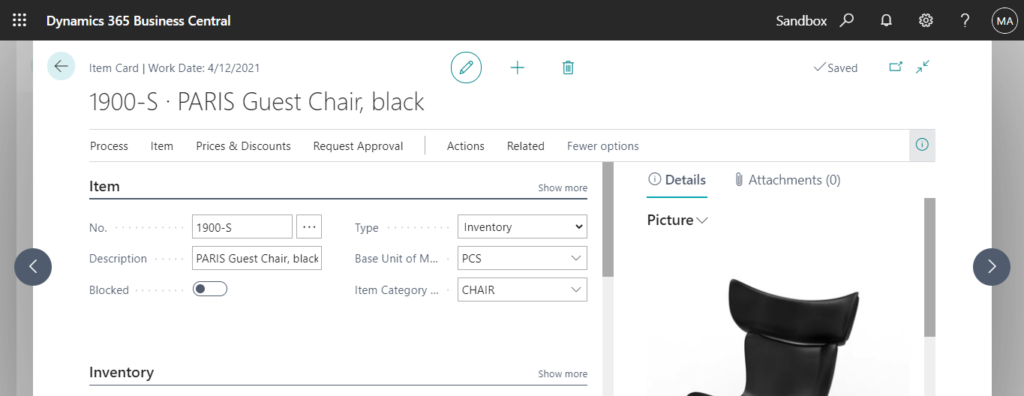
3. Choose the Extended Texts action.
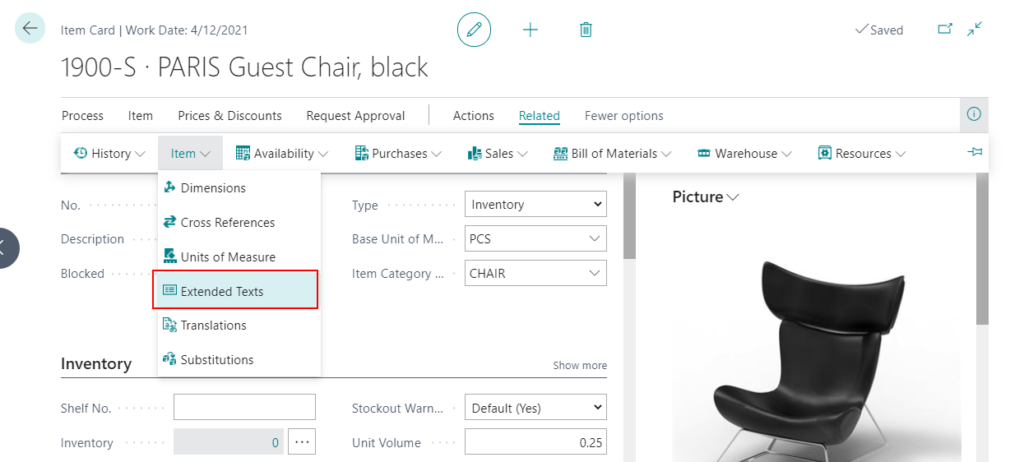
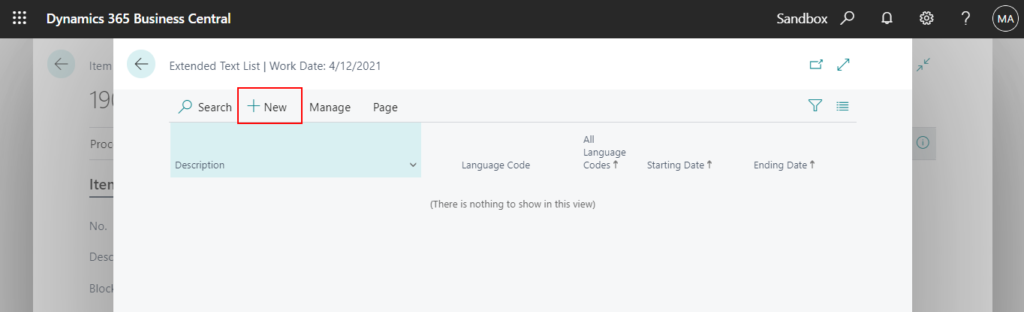
4. Choose the New.
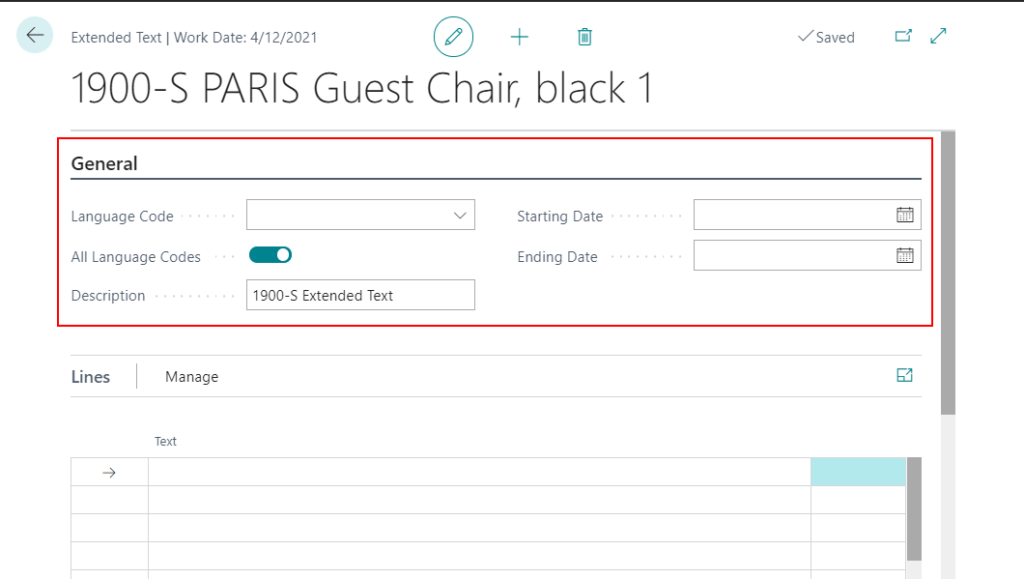
5. Fill in the Language Code field or select the All Language Codes check box if you use language codes.
And then fill in the Description field.
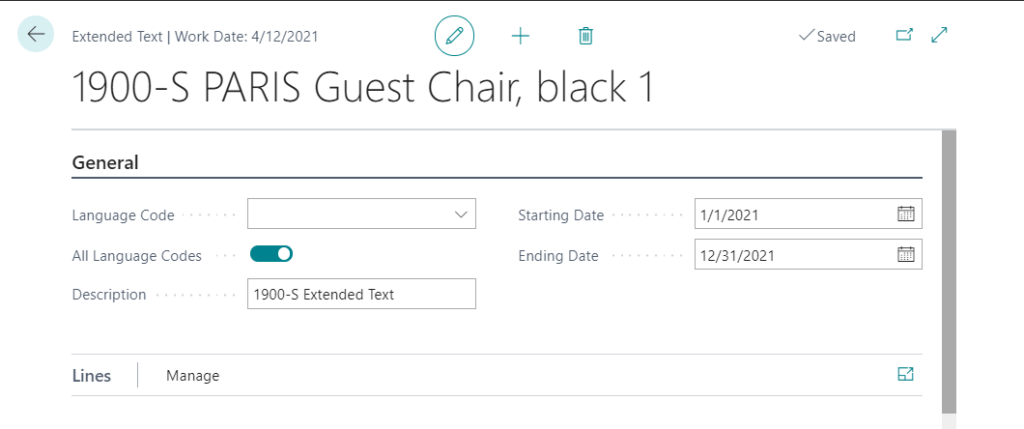
PS: You can fill in the Starting Date and Ending Date fields if you want to limit the dates on which the extended text is used.
6. In the Text field, write the extended text.
For example:
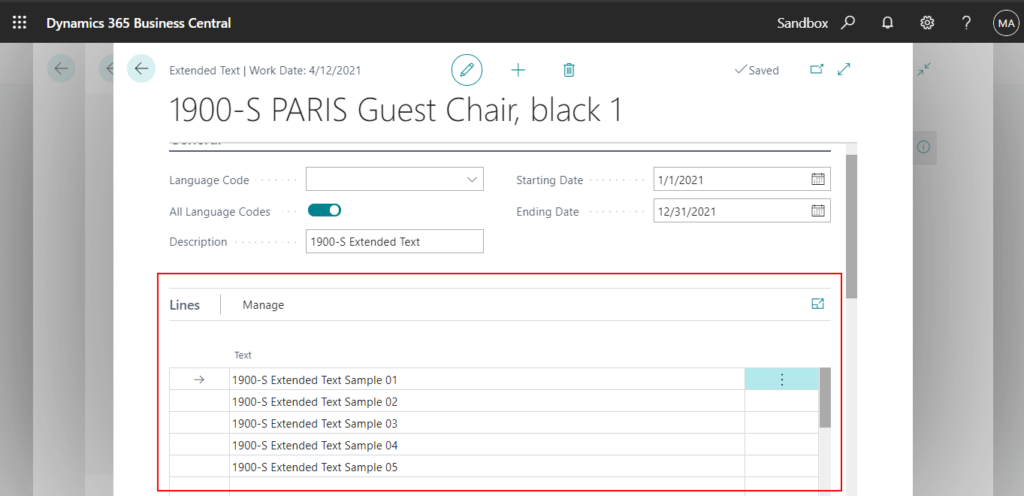
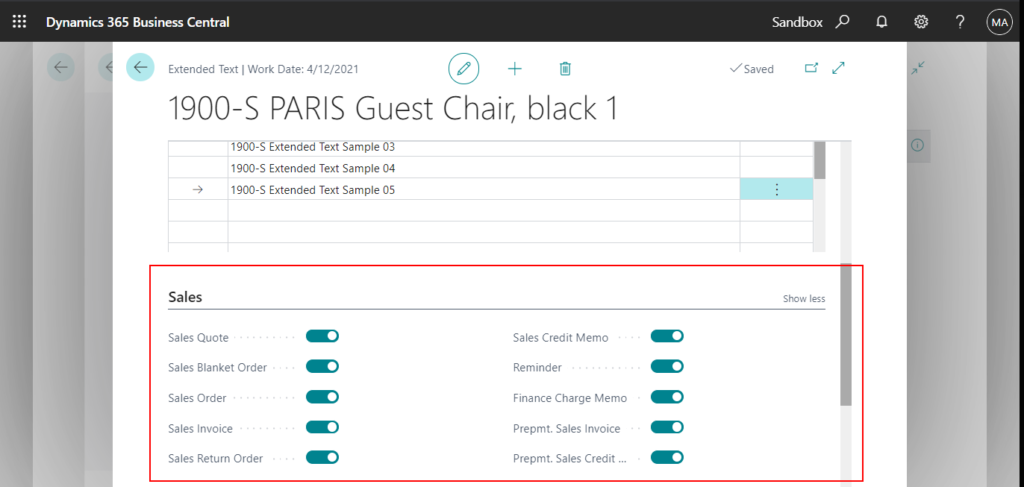
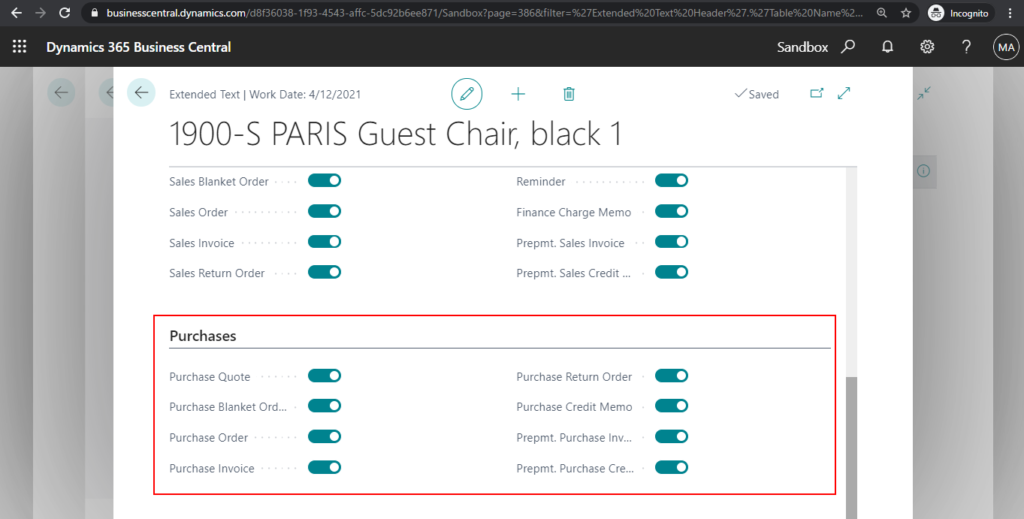
7. Select relevant check boxes for the document types where you want the extended text printed.
Sales:
Purchase:
8. Close the page.
You can now add this extended text to documents.
For example: To add an extended item text on a sales order line (the same steps apply to any other document that you specified for the extended text)
9. Create a sales order and add add a sales line for an item that has extended text defined.
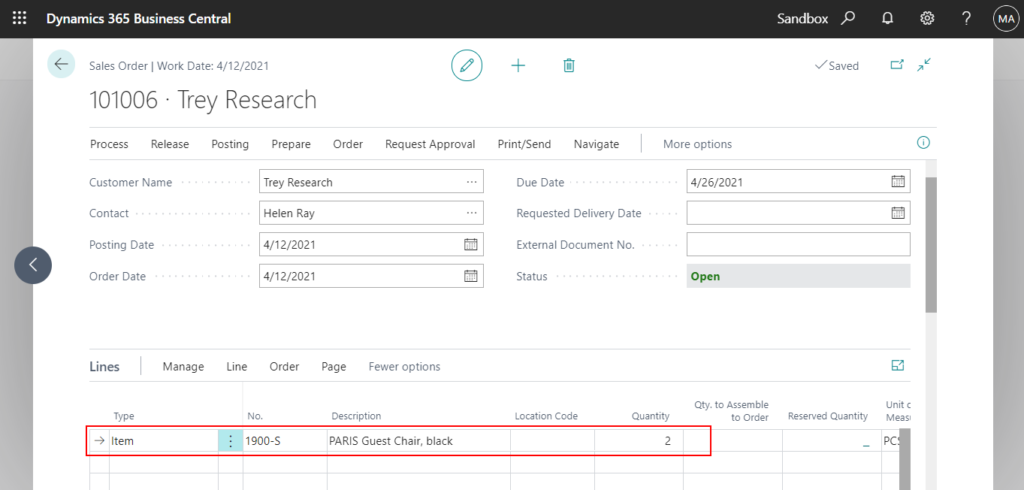
10. Select the line, and then choose the Insert Ext. Text action.
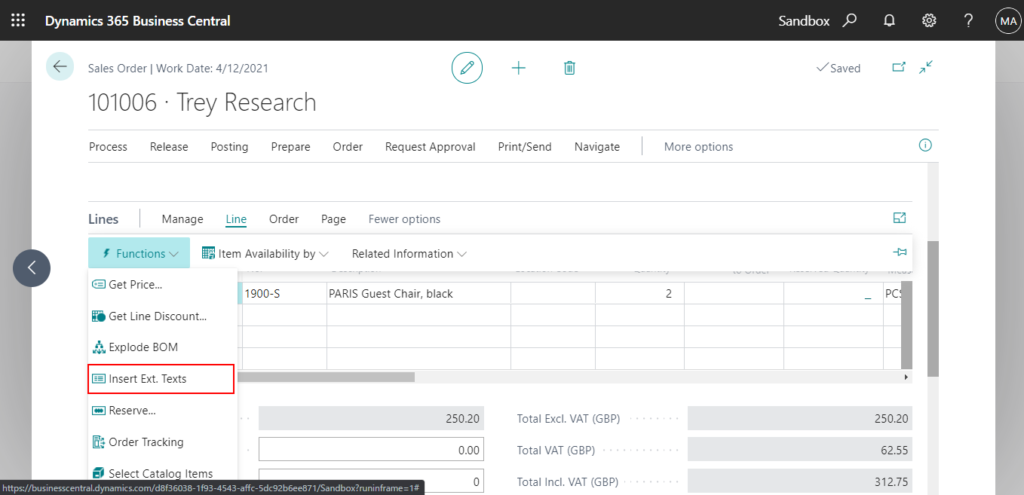
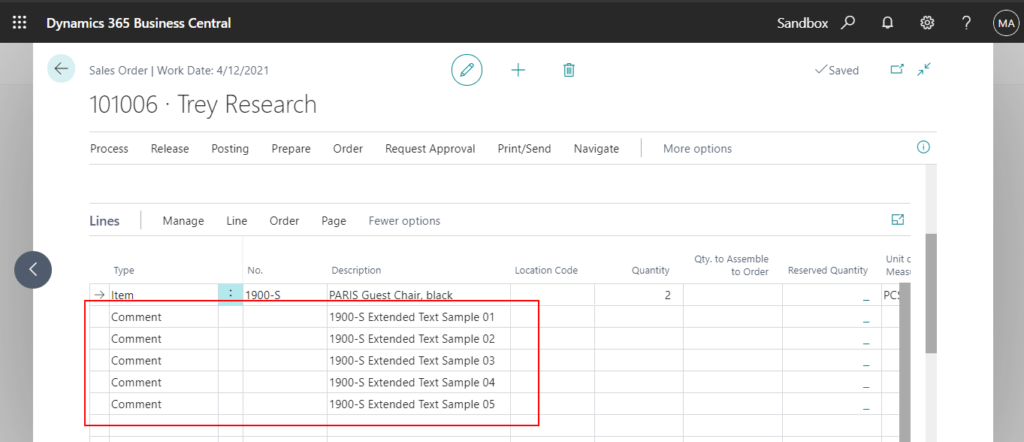
Extended texts you have defined will be automatically added as a comment.
Test Video:
In fact, the latest version supports adding extended text automatically. Let’s see more details.
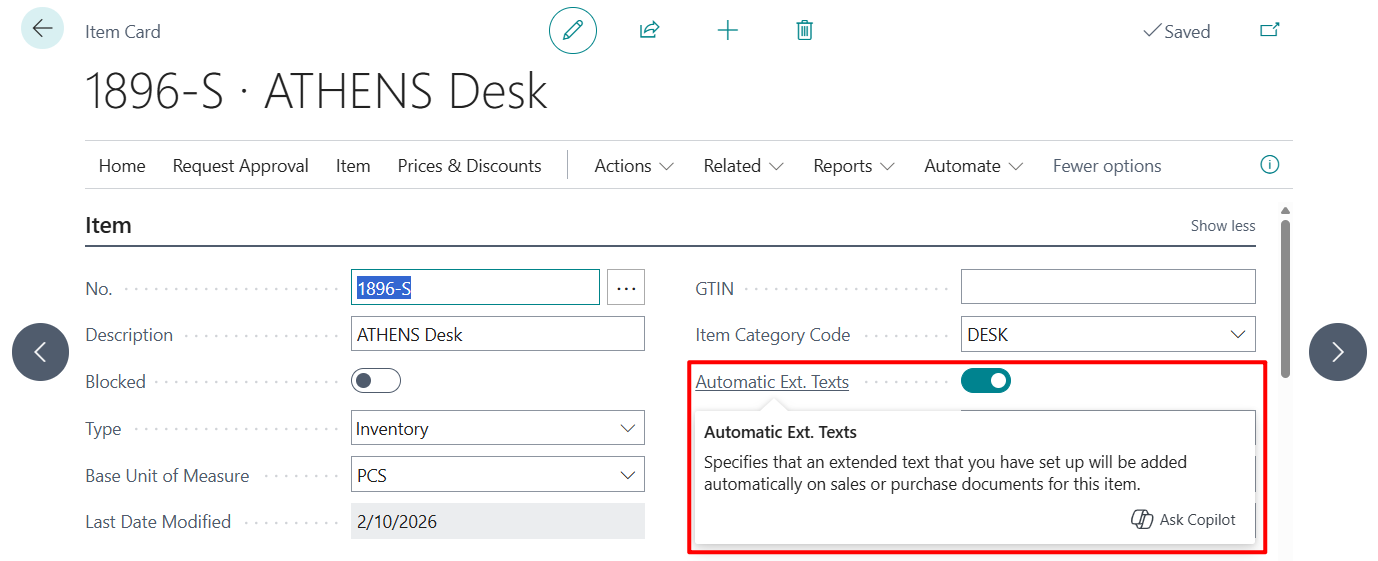
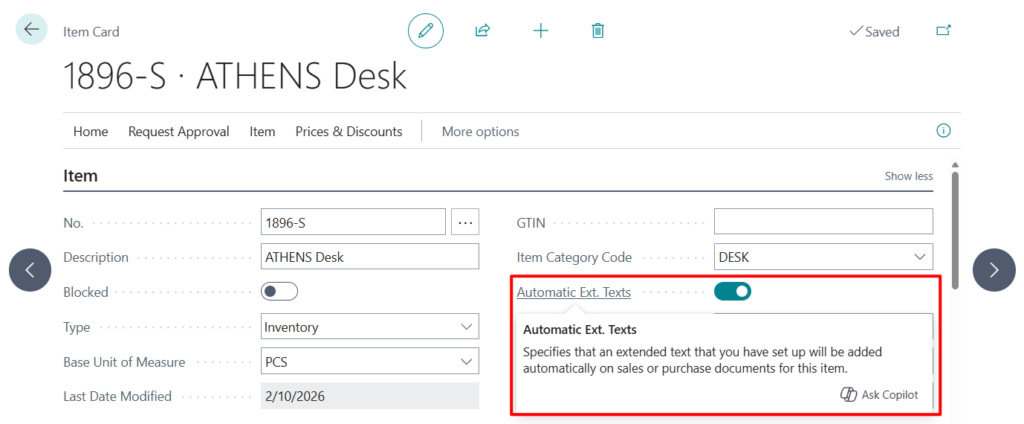
You can find Automatic Ext. Texts located on the Item Card page.
Automatic Ext. Texts
Specifies that an extended text that you have set up will be added automatically on sales or purchase documents for this item.
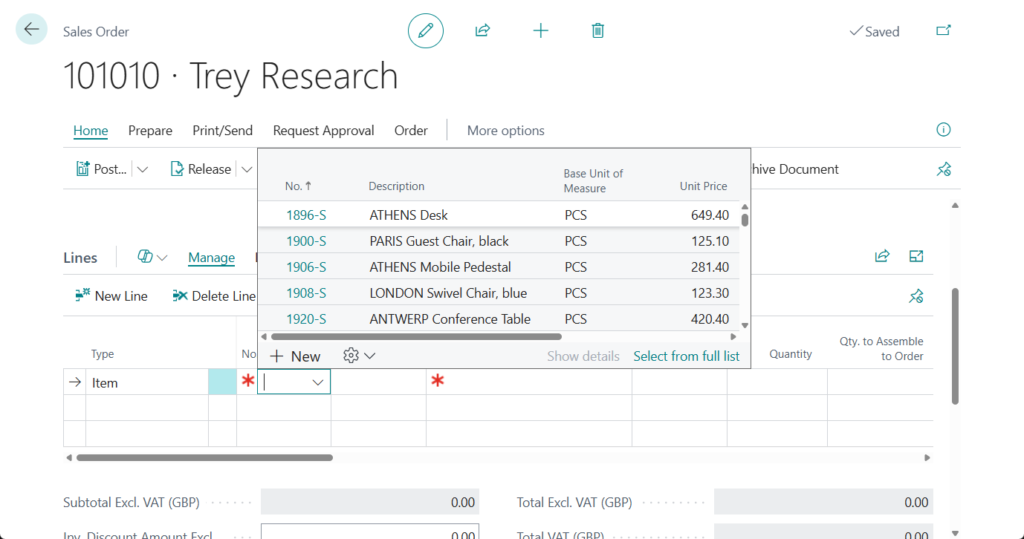
Once this setting is enabled, no further manual steps are needed; adding an item will automatically populate all associated Extended Texts into the lines.
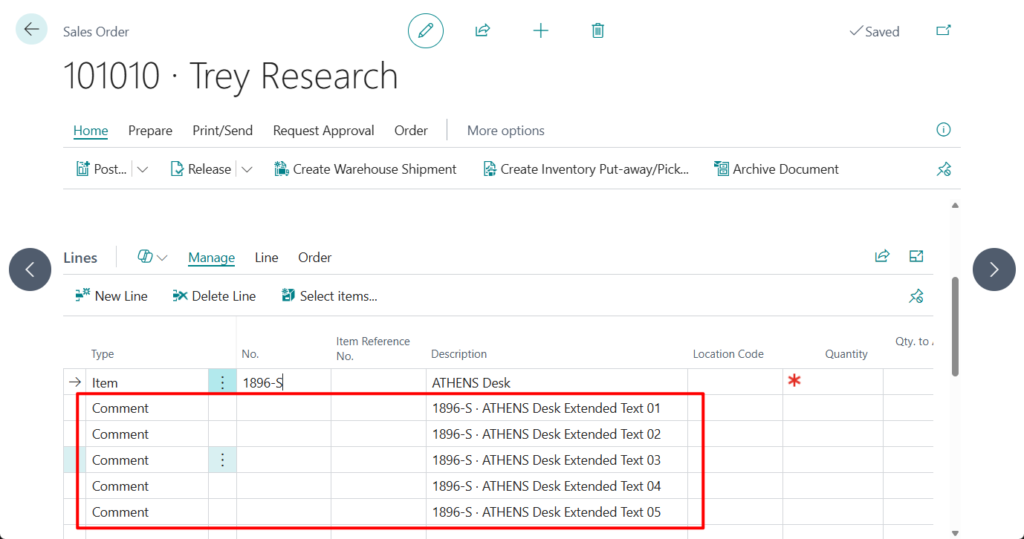
Test video:
Very simple, give it a try!!!😁
PS:
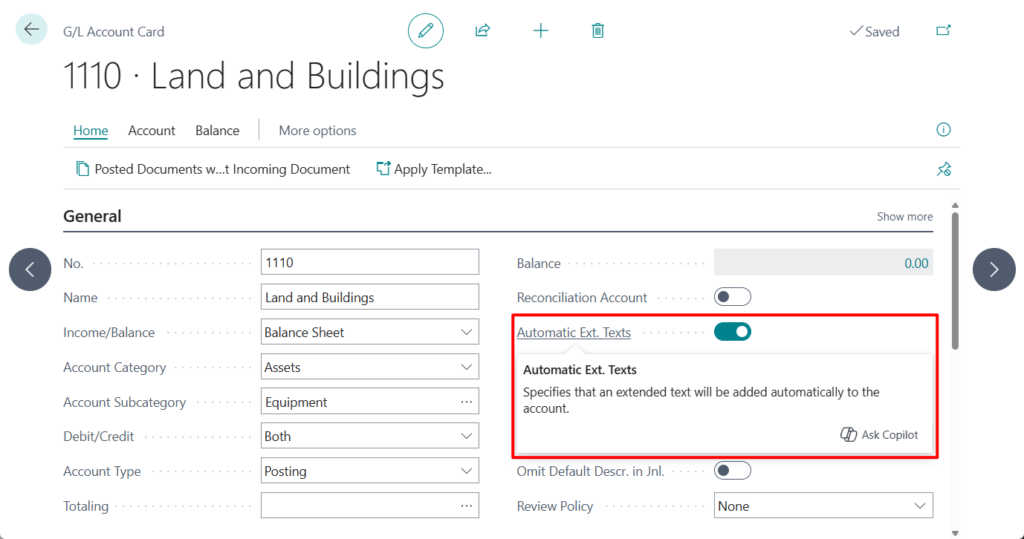
1. Chart of account:
Automatic Ext. Texts
Specifies that an extended text will be added automatically to the account.
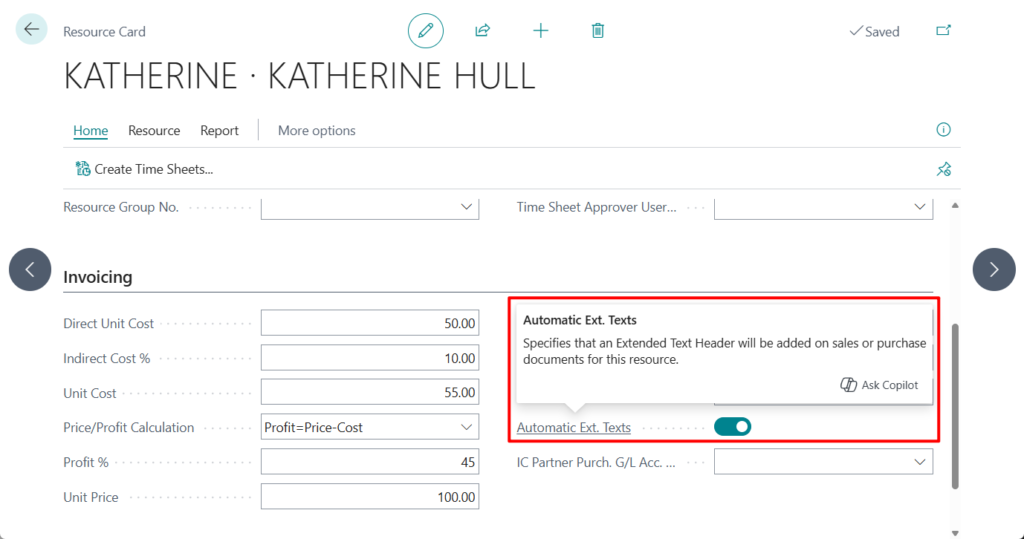
2. Resources:
Automatic Ext. Texts
Specifies that an Extended Text Header will be added on sales or purchase documents for this resource.
END
Hope this will help.
Thanks for reading.
ZHU
コメント