
Hi, Readers.
Today I would like to share another mini tip about Business Central, how to add or subtract hours from a DateTime field.
DateTime data type: Denotes a date and time ranging from January 1, 1753, 00:00:00.000 to December 31, 9999, 23:59:59.999. An undefined or blank DateTime is specified by 0DT.
In Dynamics 365 Business Central: Working with Duration Data Type, I briefly introduced how to use the Duration data type to calculate the interval between two dates.
Represents the difference between two DateTimes. This value can be negative. It is stored as a 64-bit integer. The integer value is the number of milliseconds during the duration.
The following are examples of durations:
DateTime – DateTime = Duration
DateTime – Duration = DateTime
DateTime + Duration = DateTime
However, if you only need to add or subtract hours from a DateTime field, there’s an even simpler method.
codeunit 10 “Type Helper” -> procedure AddHoursToDateTime:
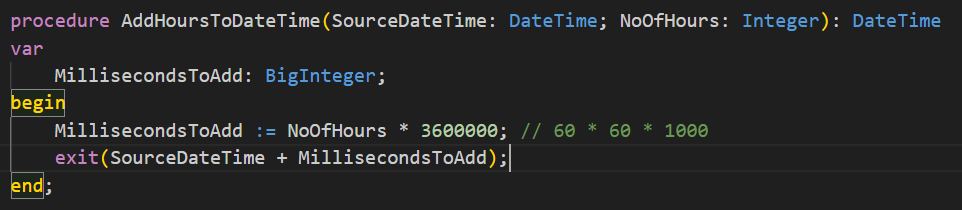
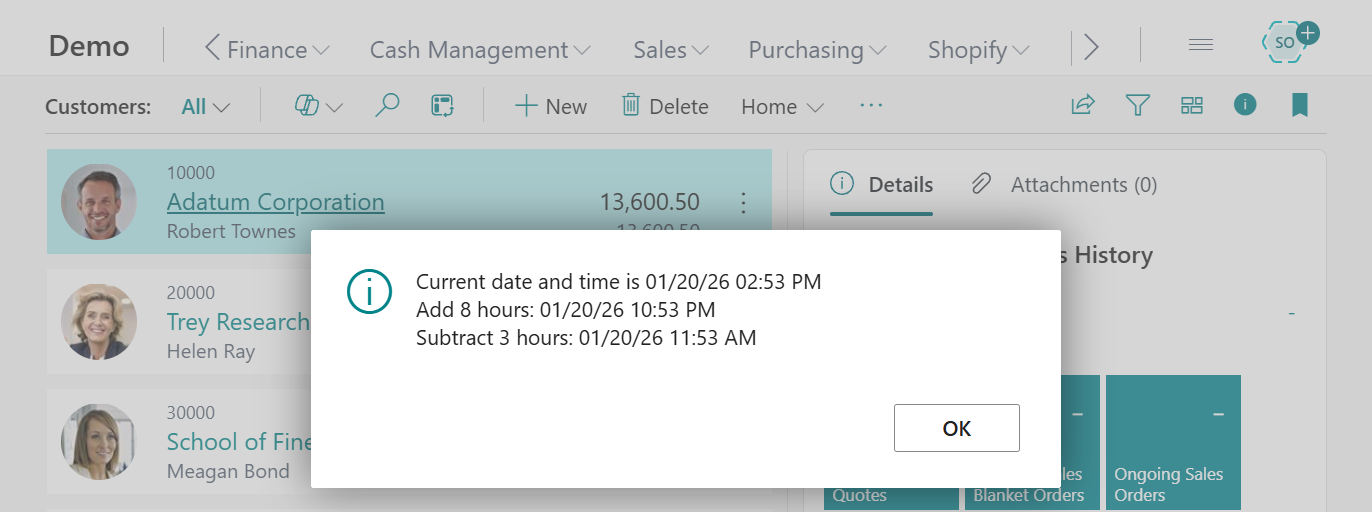
Let’s look at a simple example.
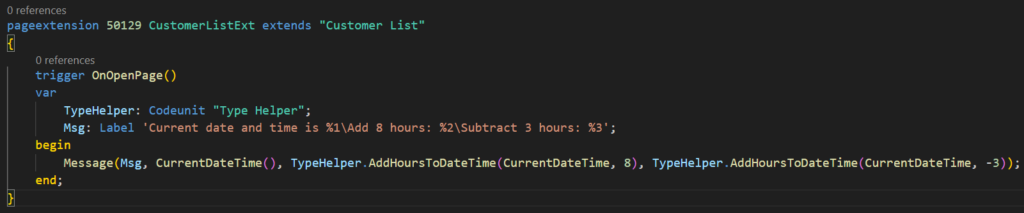
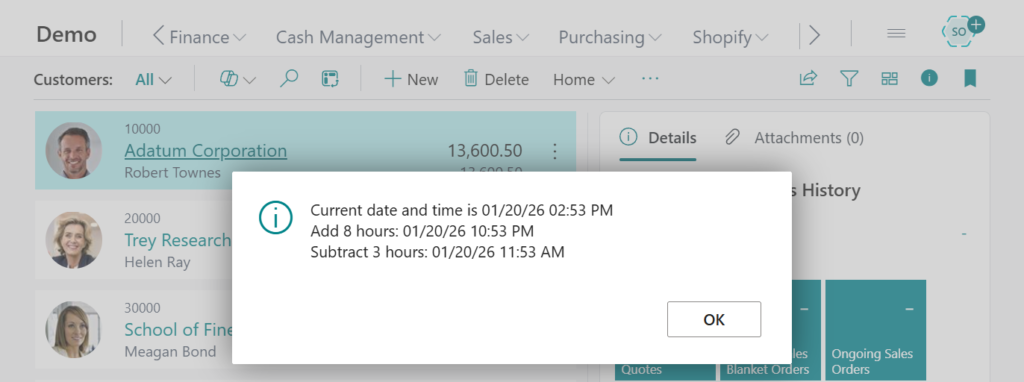
Test code:
pageextension 50129 CustomerListExt extends "Customer List"
{
    trigger OnOpenPage()
    var
        TypeHelper: Codeunit "Type Helper";
        Msg: Label 'Current date and time is %1\Add 8 hours: %2\Subtract 3 hours: %3';
    begin
        Message(Msg, CurrentDateTime(), TypeHelper.AddHoursToDateTime(CurrentDateTime, 8), TypeHelper.AddHoursToDateTime(CurrentDateTime, -3));
    end;
}
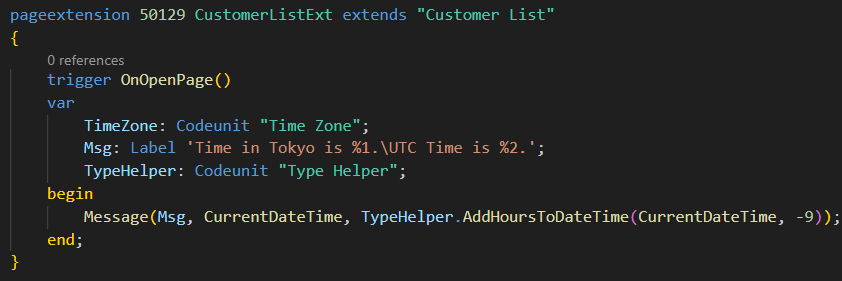
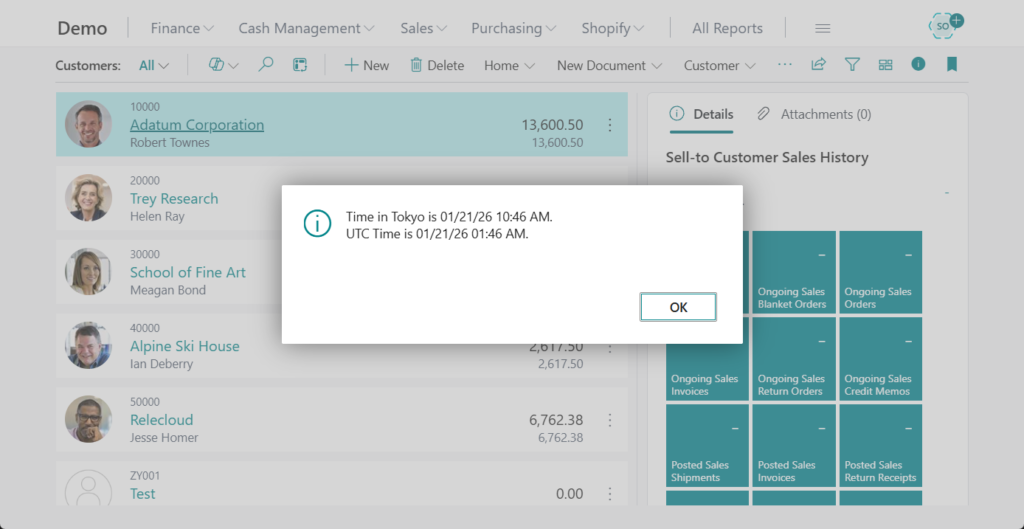
You can use this method to convert UTC values to other time zones, or vice versa, by simply adding or subtracting the hours based on the offset. For example,
Great. Give it a try!!!😁
PS:
1. How to get timezone offset in AL
2. How to easily convert DateTime between UTC and local time (UTC Time Zone Converter)
END
Hope this will help.
Thanks for reading.
ZHU
コメント