

Hi, Readers.
Today I would like to briefly share a question that I was asked recently, how to determine whether the current environment is Sandbox or Production.
You can create environments of different types in Business Central. Which type of environment to choose depends on what you need it for.
Production environments are meant to be precisely that: Environments that a business can run their daily business in Business Central in, deployed on performance tiers in Azure with a guaranteed high level of availability and support.
Sandbox environments are meant to be precisely that: Environments that you can play around with, use as a testbed for development, and delete at will. You can deploy apps straight from Visual Studio Code to a sandbox environment, and you can attach a debugging session to a sandbox.
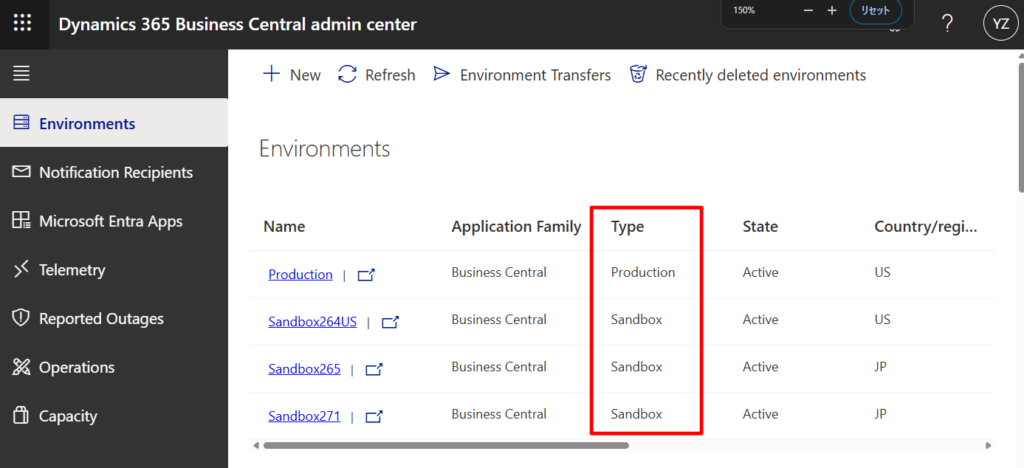
We usually add information such as Prod or Sand to the environment name to identify the type of the currently opened environment.
Sometimes customers share a link that includes an environment name labeled “Sandbox”, but the environment is actually Production—or the other way around, where a link labeled “Prod” is actually pointing to a Sandbox environment. Although the true environment type is visible in the Admin Center, we can’t verify it directly without having Admin Center access.
https://businesscentral.dynamics.com/7e47da45-7f7d-448a-bd3d-1f4aa2ec8f62/Sandbox271Is there a simple way? Yes, I will share two simple methods in this post.
1. Using Help & Support page
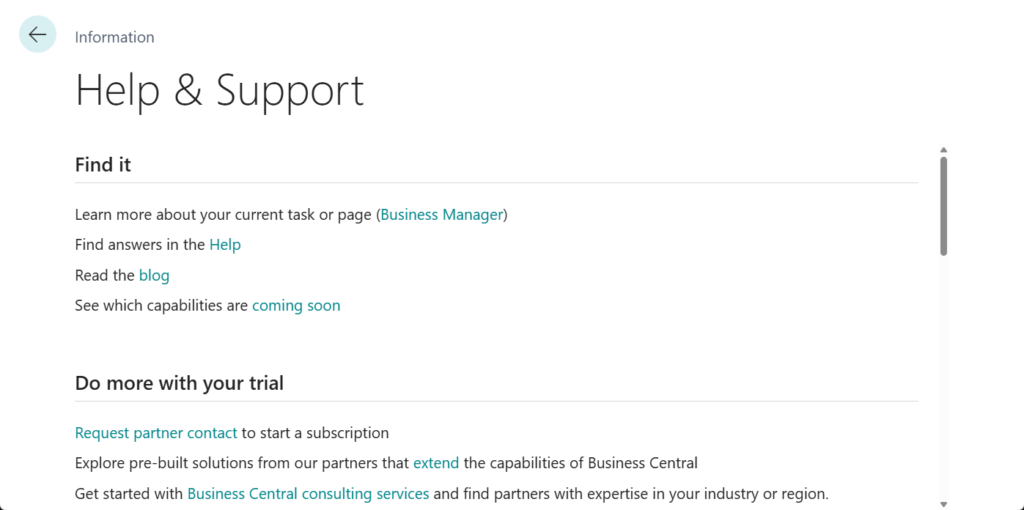
From the Help pane, you can access the Help & Support page inside Business Central that includes helpful links. You can also see how you can contact technical support for your Business Central.
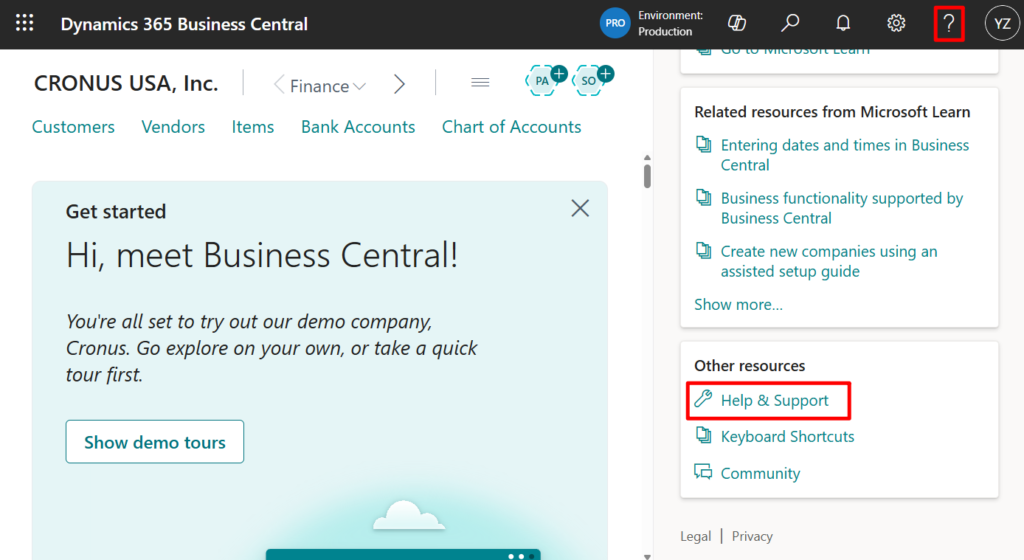
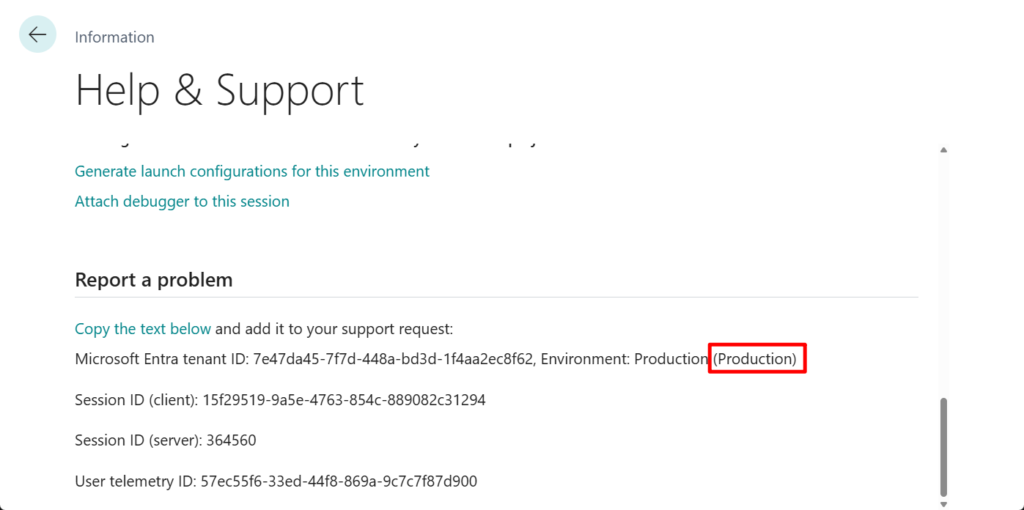
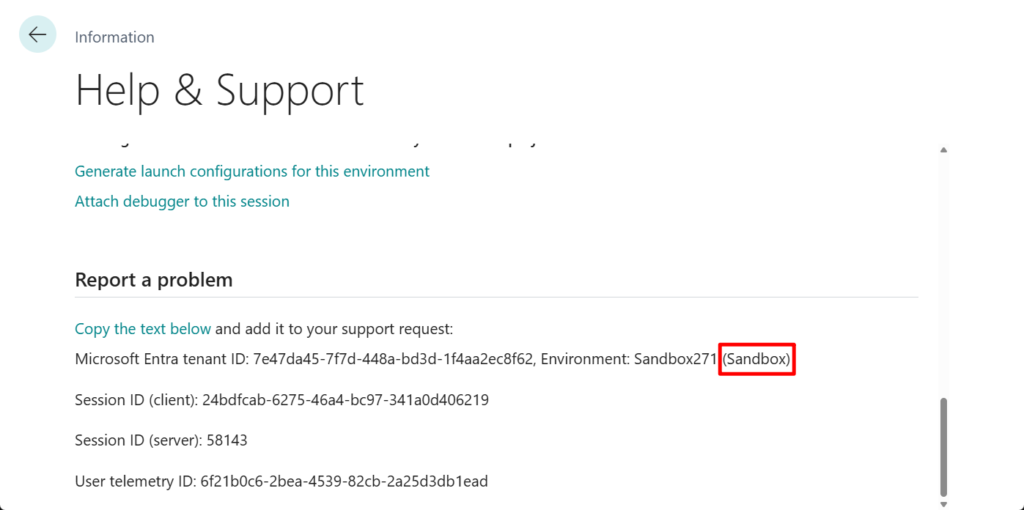
At the very bottom of this page, in the “Report a problem” tab, you can find the environment type at the end of the Microsoft Extra Tenant ID.
Production Type:
Sandbox Type:
2. Using New Company Badge (System Indicator)
On the Company Information page, you can replace the standard company icon with a custom badge on a per-company basis. A company badge can make it easier to identify the company you’re working in.
- On the Company Badge FastTab, fill in the fields as necessary. Hover over a field to read a short description.
- When done, refresh the browser (select Ctrl+F5) to update the badge in the client.
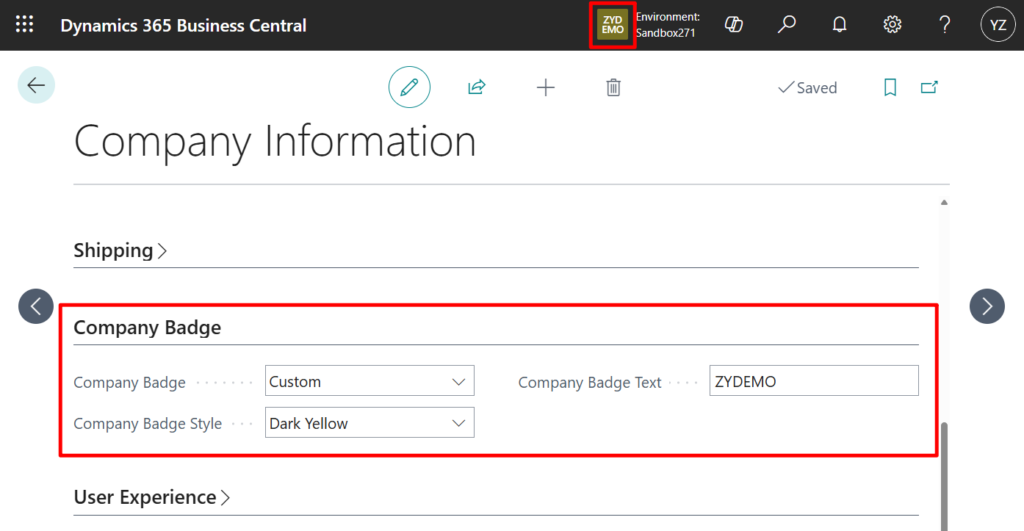
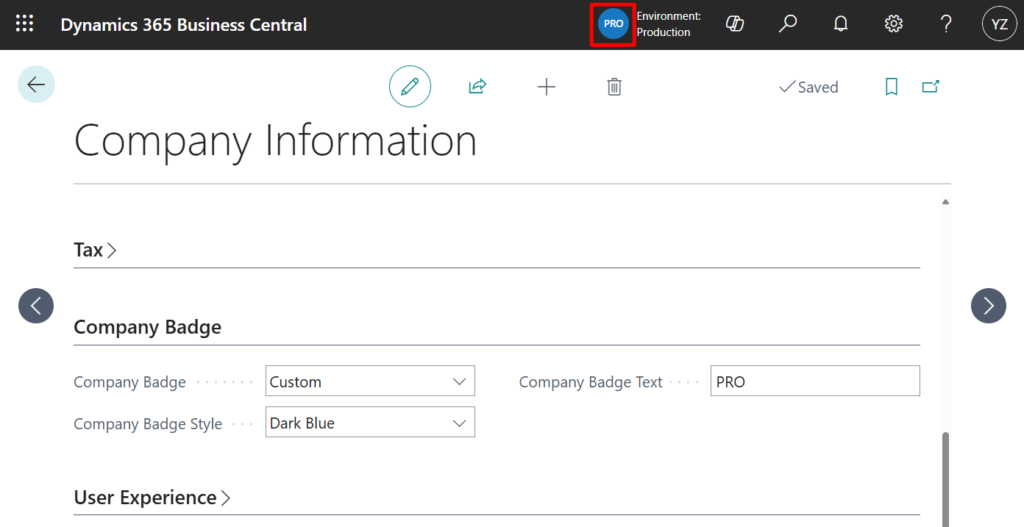
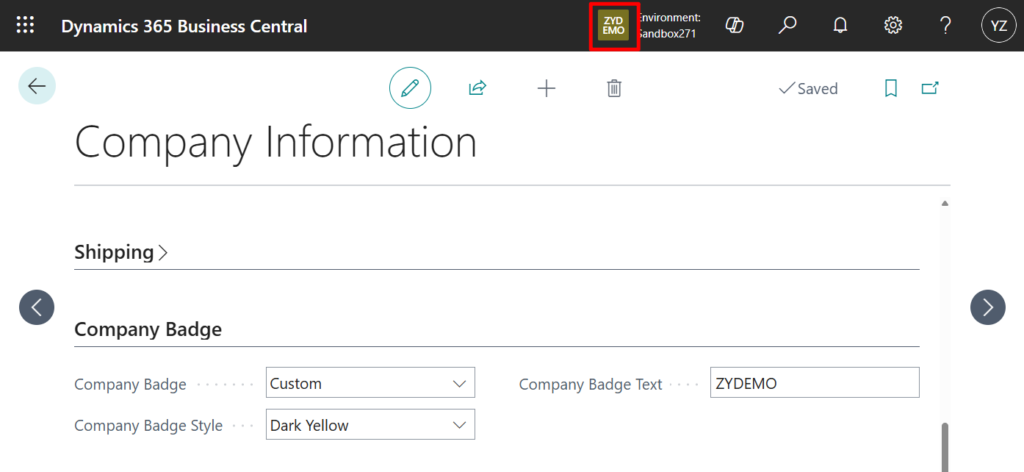
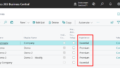
A company badge also indicates the type of environment the company is in. A round company badge signifies a production environment, and a square badge signifies a sandbox environment.
Production Type:
Sandbox Type:
In Company Swicher:
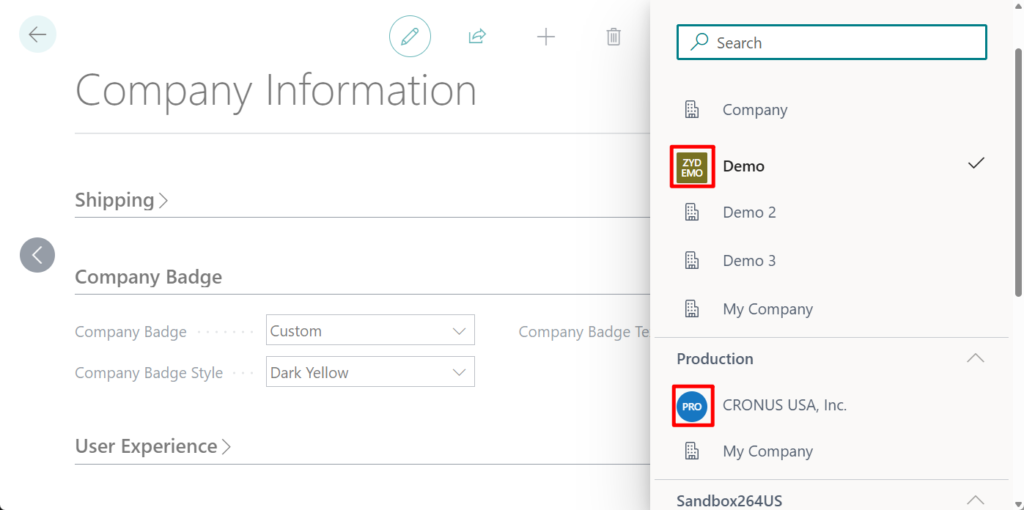
More details: Business Central 2022 wave 2 (BC21): New Company Badge (System Indicator)
Very simple. There are actually two other methods, but they are a bit more complicated. Hopefully, they can give you some hints.
1. Using App launcher
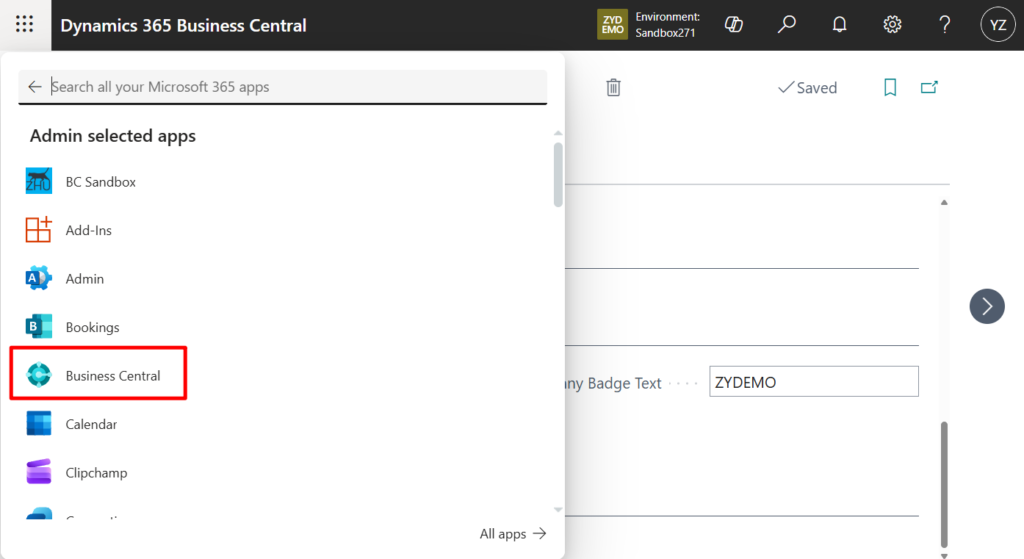
When you’re signed in to Business Central, the environments that you can access are available on the Microsoft 365.
- Select the App Launcher icon
 .
. - In the pane that opens, look for and choose Business Central. If you don’t see Business Central, choose All apps, then enter Business Central in the Search box.
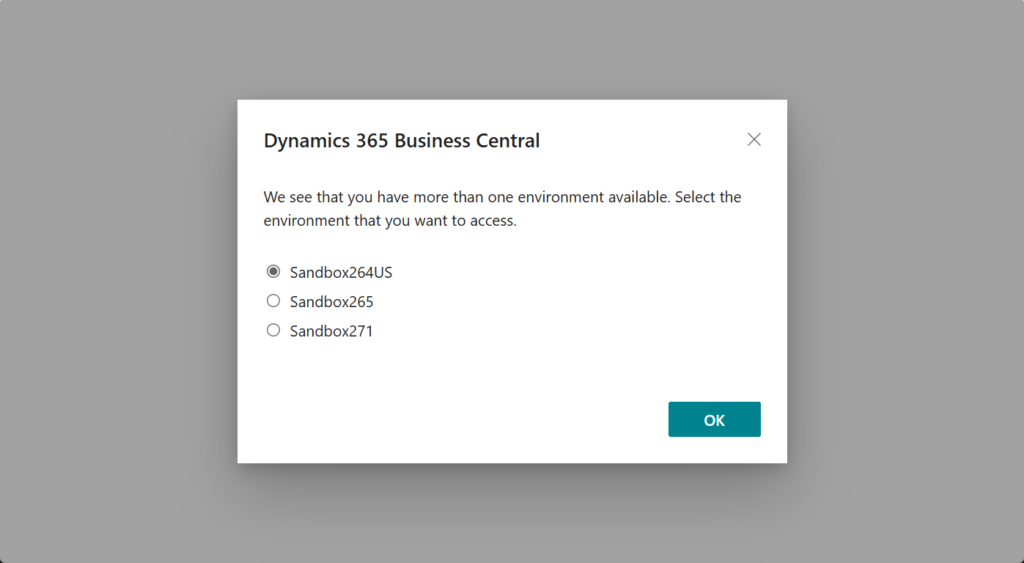
By default, only Production environments are displayed first. The list you see initially contains Production environments only. If you click “Show sandbox environments”, you will then be able to see all environments of the Sandbox type as well.
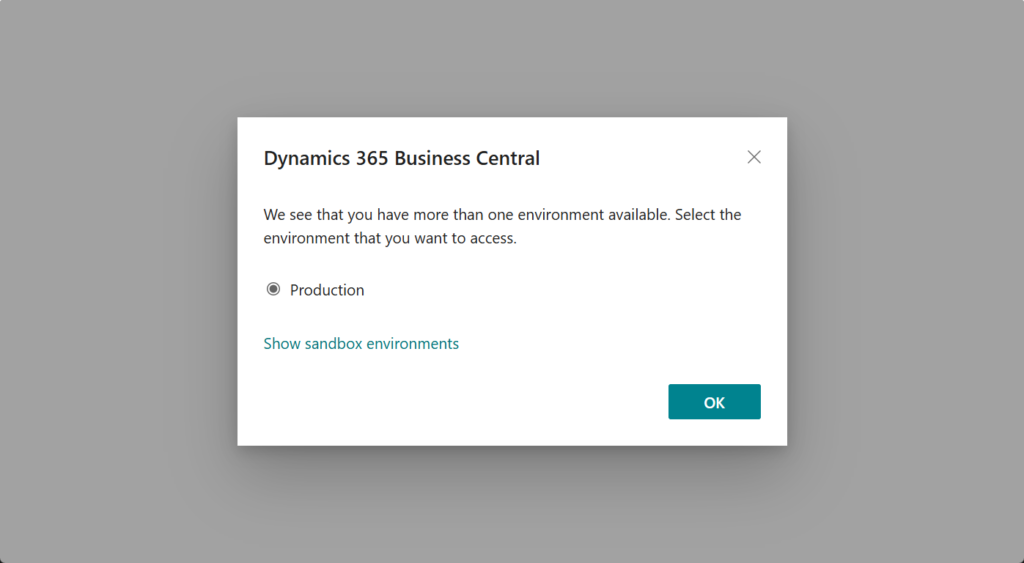
Although it’s a bit inconvenient, this method still allows you to confirm whether the environment you’re currently working in is a Production environment.
2. Through customization
Just using codeunit 457 “Environment Information”
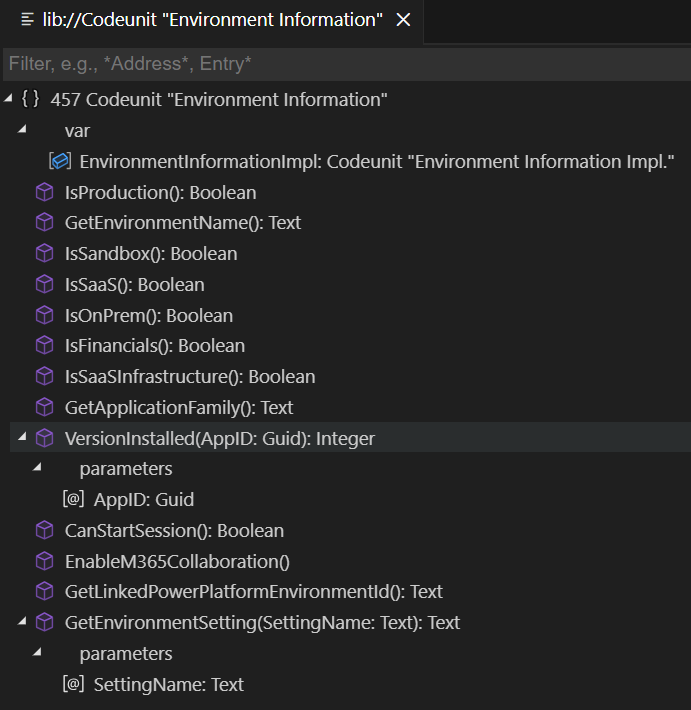
For example,


More details: Dynamics 365 Business Central: How to quickly get the current environment name, environment type, and deployment type via AL
3. You can also enable the notification below, but once you click “Don’t show this again,” it will not be displayed. You’ll need to enable it again.
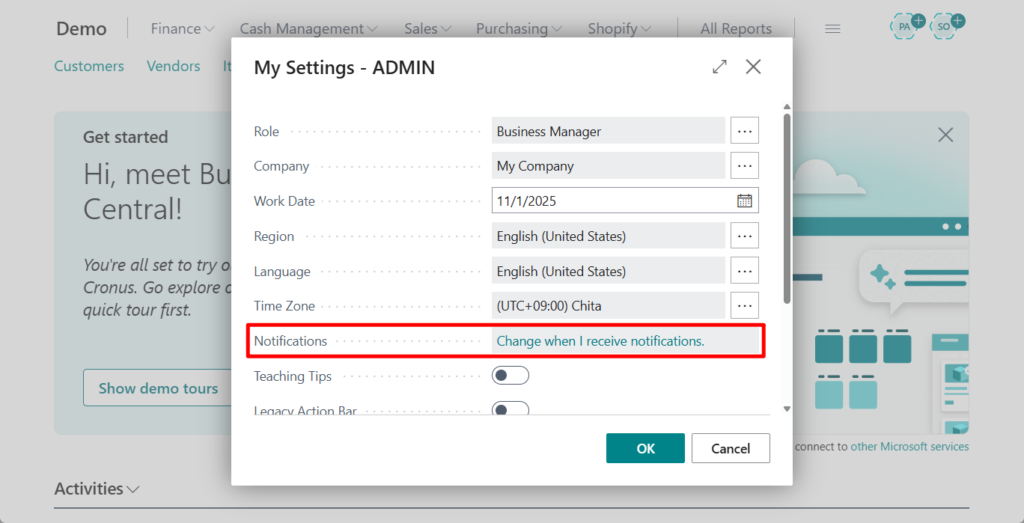
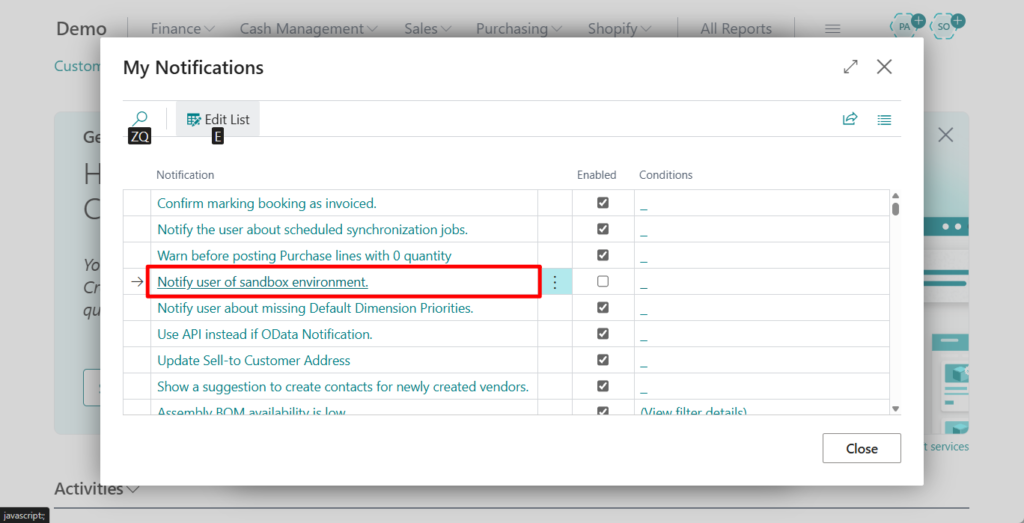
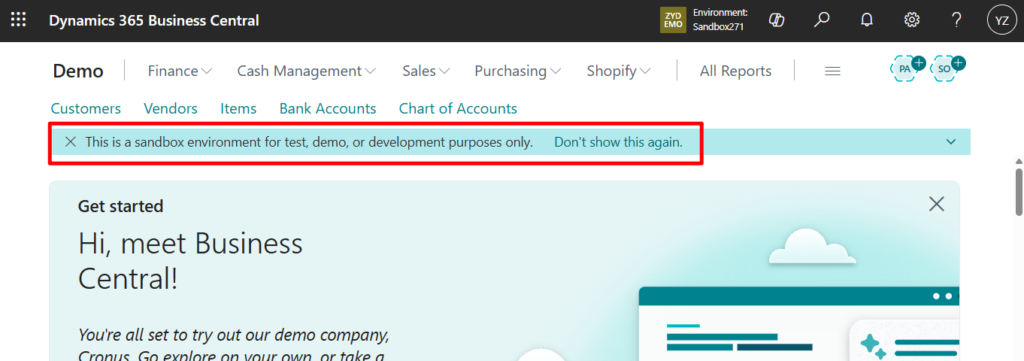
Great. Give it a try!!!😁
END
Hope this will help.
Thanks for reading.
ZHU
コメント