

Hi, Readers.
Dynamics 365 Business Central 2025 wave 2 (BC27) is generally available. More details: General Available: Dynamics 365 Business Central 2025 release wave 2 (BC27).
I will continue to test and share some new features that I hope will be helpful. In this post, I would like to talk about Updated report Word layout XML.
This new feature is documented in the Business Central 2025 release wave 2 (BC27) release plan and AL Language extension changelog Version 16.0.
Add data fields to report layouts using Word add-in
Business value:
https://learn.microsoft.com/en-us/dynamics365/release-plan/2025wave2/smb/dynamics365-business-central/add-data-fields-report-layouts-using-word-add-in?wt.mc_id=DX-MVP-5004336
This new task pane in the Word add-in streamlines the process of inserting data items and repeaters, making report creation faster and more intuitive. The tree structure view allows users to easily navigate and manage data, captions, and metadata. Tooltips provide helpful descriptions of fields, reducing errors and improving user confidence. Overall, this feature enhances productivity and ensures more accurate, user-friendly reporting workflows.
Updated report Word layout XML, enabling layouts to be compatible with the new data picker in the Word add-in; and it now includes the ‘Obsolete State’ attribute for Report Column and DataItem elements.
Changelog | Visual Studio Marketplace
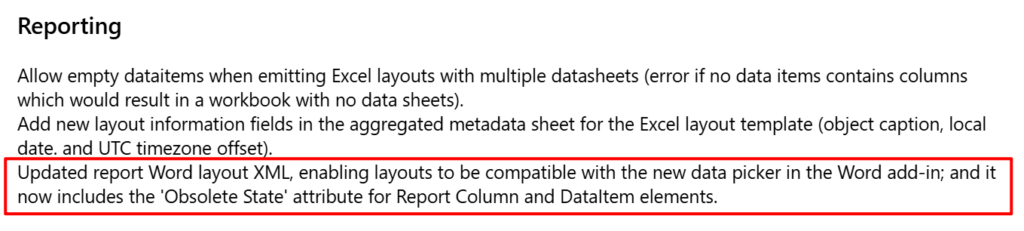
The Dynamics 365 Business Central Word Add-in provides functionality to add data controls and control conditional visibility of text, tables, or table rows/columns. Also allows the layout author to add comments to the layout.
More details: Business Central 2024 wave 2 (BC25): Use improved features for report documents (New Word add-in……)
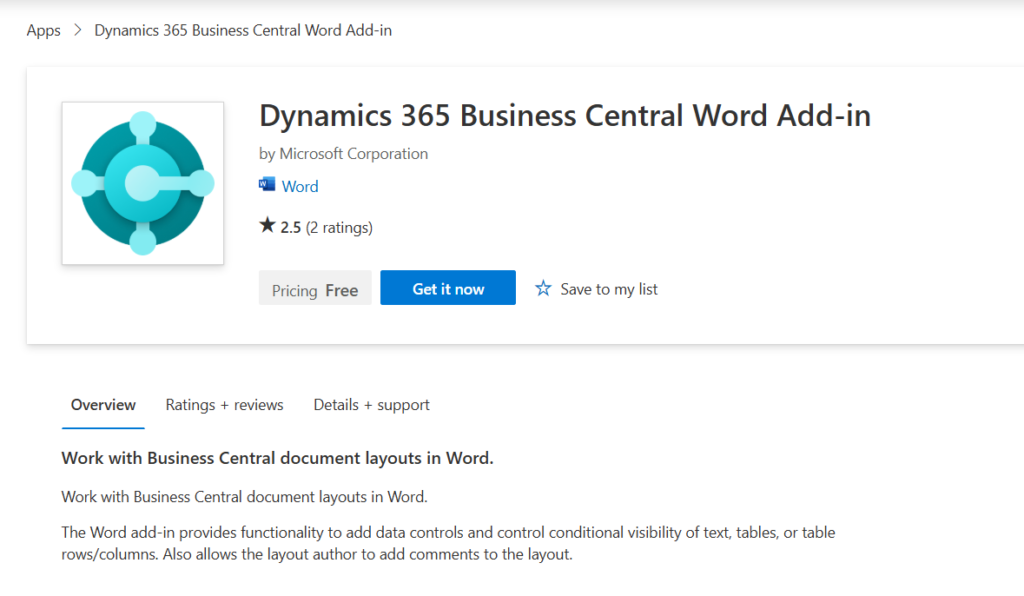
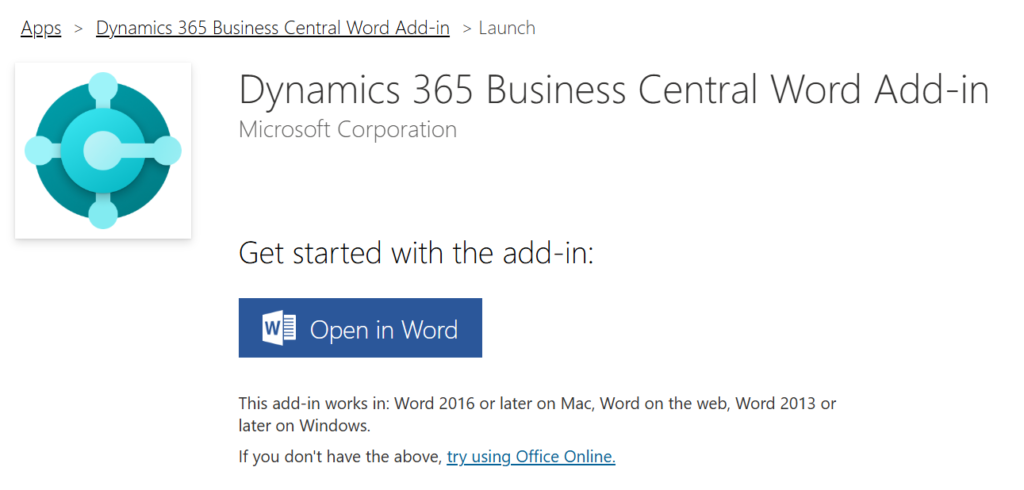
With this wave (BC27), Microsoft brings some updated features. If you already have the Dynamics 365 Business Central Word add-in installed, the add-in is automatically updated to include the new task pane. Otherwise, learn how to install the add-in at Use the Word add-in for report layouts.
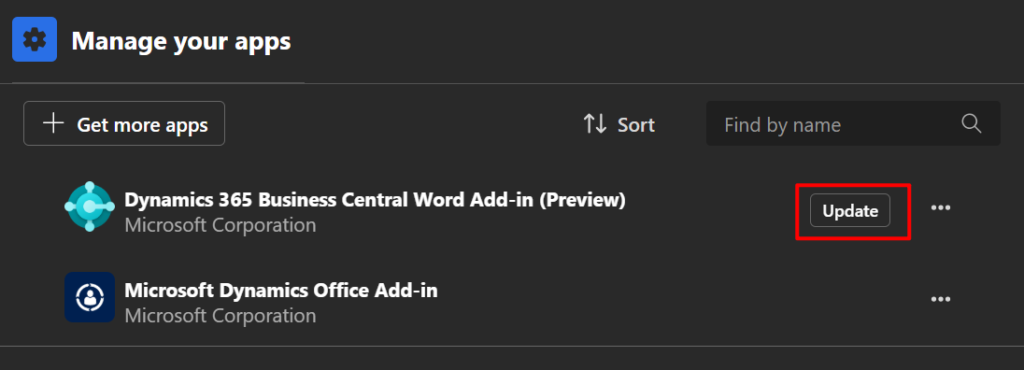
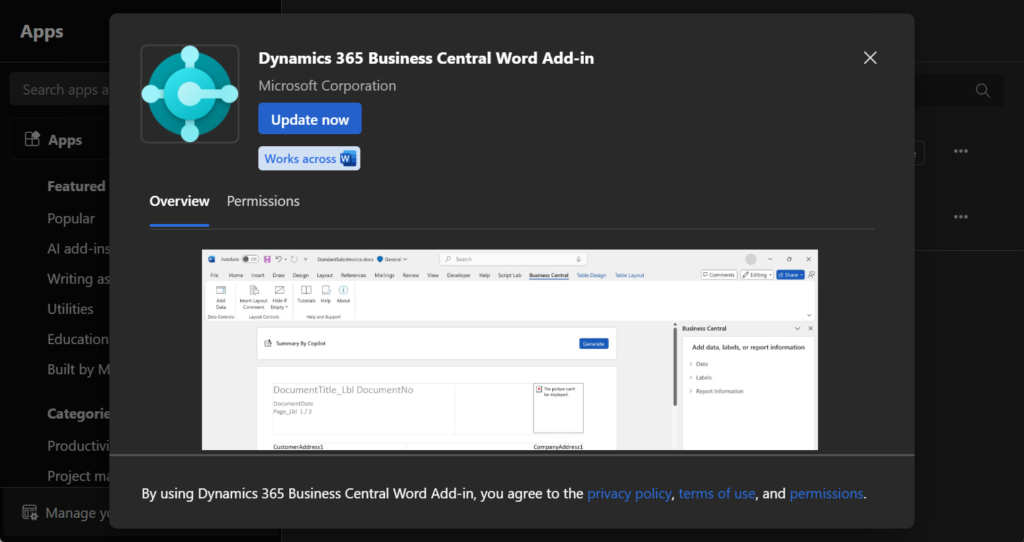
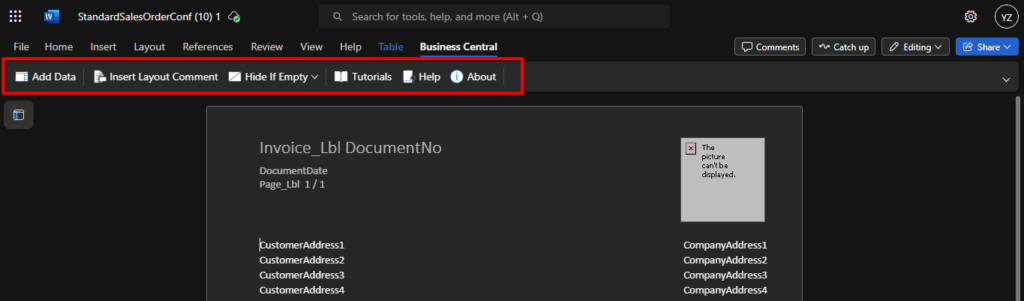
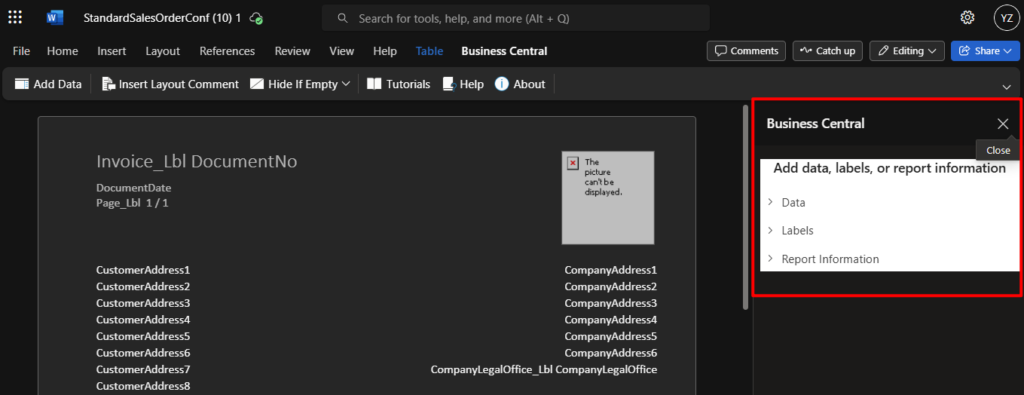
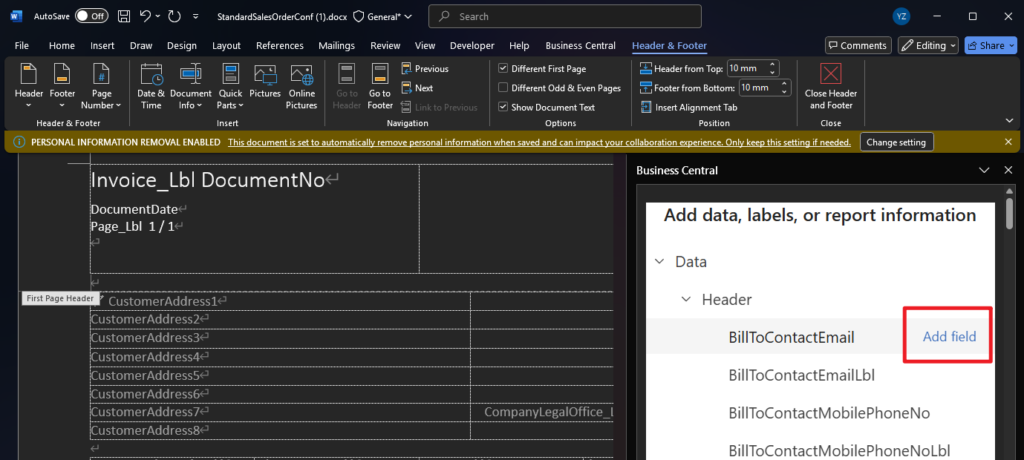
The Word add-in task pane lets you insert data items, repeaters, and fields directly into your layout document. It provides a more user-friendly alternative to working directly with the XML Mapping pane for dataset fields. To open the task pane in Word, select the Business Central tab and then select Add Data.
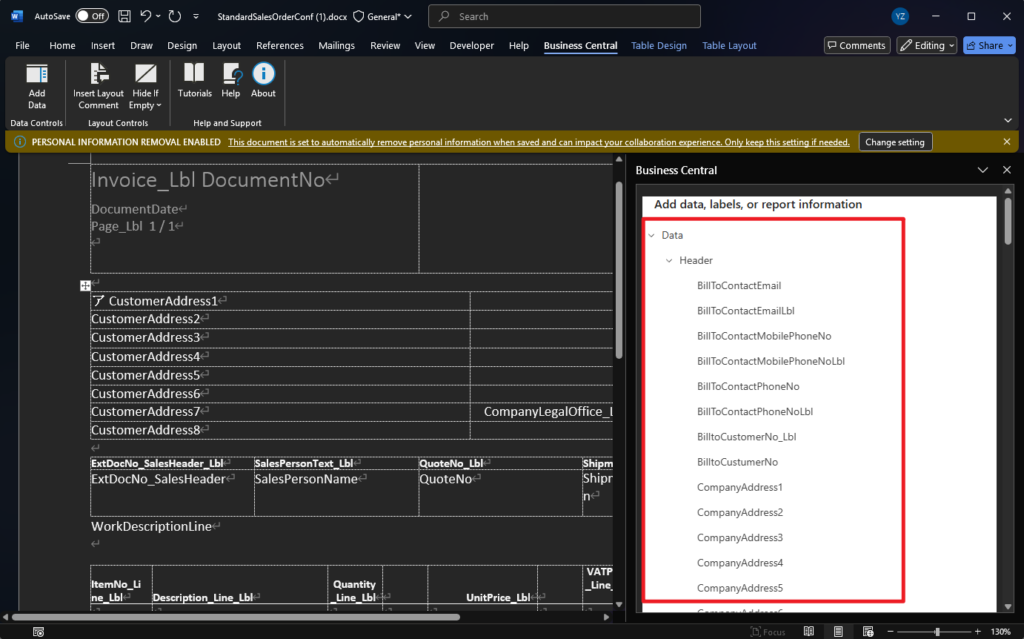
Expand the collapsible tree to view data, labels, and report metadata together, helping you maintain context while building layouts. When a field has a defined tooltip, it shows a short description to guide correct selection and reduce errors. For example, to add a data field, place your cursor in the document where you want it. In the task pane, select the field and then select Add field.
PS:
1. There is no Developer tab in Word Online, as the online version of Word lacks many features found in the desktop version, including content controls and macro capabilities. So even if you can use BC Word Add-in in Word Online, you cannot use the new Data picker.
Make sure a valid Business Central extended custom XML part is loaded in the document. To find XML parts, select Developer > XML mapping pane.
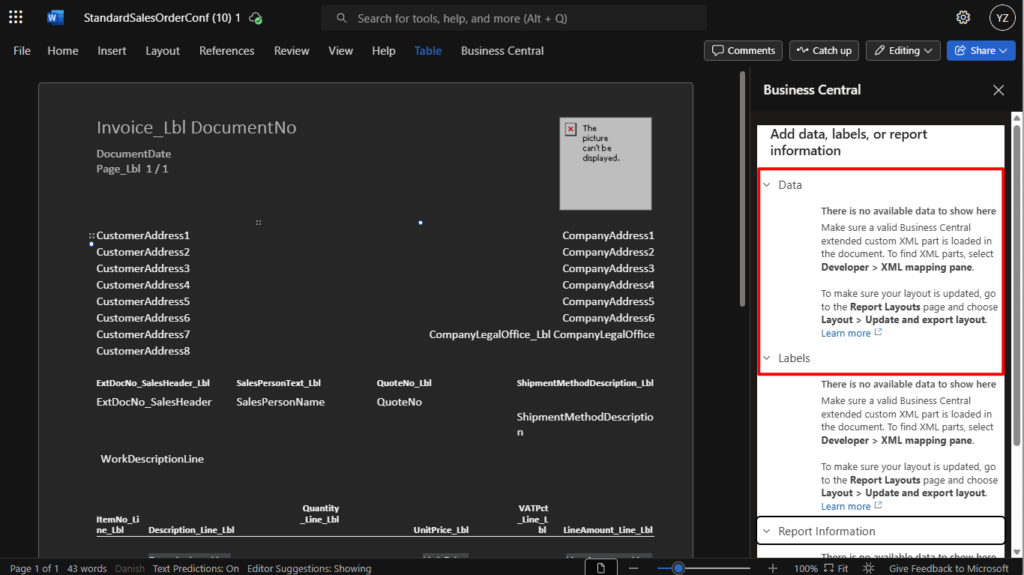
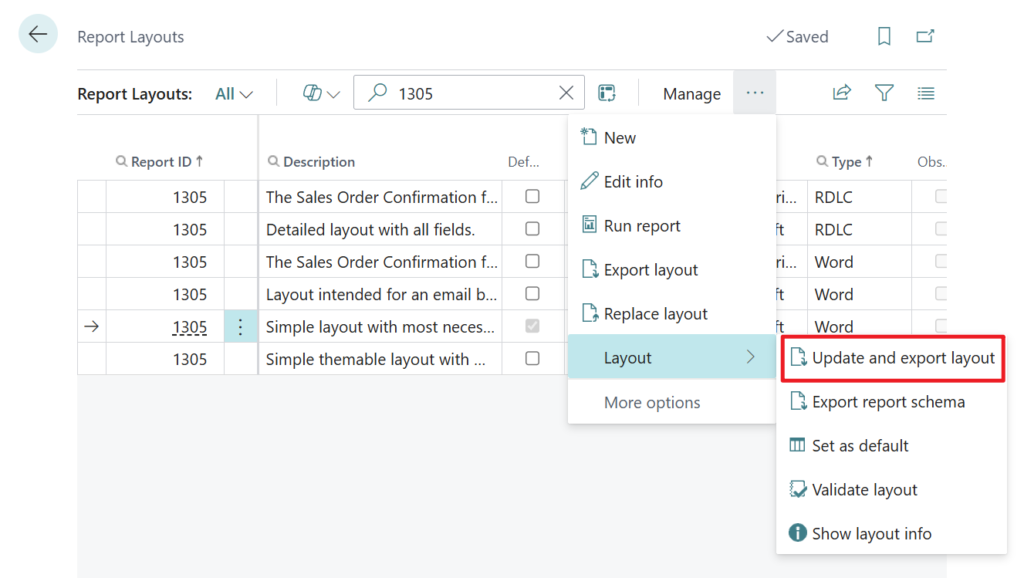
2. I’m not sure if this is necessary, but I could see the data in the new Data picker only after I updated and exported the layout file.
To make sure your layout is updated, go to the Report Layouts page and choose Layout > Update and export layout.
Great, give it a try!!!😁
PS: What’s new: Document reporting
END
Hope this will help.
Thanks for reading.
ZHU

コメント