

Hi, Readers.
Today I would like to share another mini tip about Business Central, How to quickly clear/remove all breakpoints in VS Code?
Debugging is the process of finding and correcting errors. With Visual Studio Code and the AL Language extension for Microsoft Dynamics 365 Business Central, you get an integrated debugger to help you inspect your code and verify that your application can run as expected. You can start a debugging session by pressing F5. For more information about Debugging in Visual Studio Code, see Debugging.

The basic concept in debugging is the breakpoint, which is a mark that you set on a statement. When the program flow reaches the breakpoint, the debugger stops execution until you instruct it to continue. Without any breakpoints, the code runs without interruption when the debugger is active.


But when we want to clear the breakpoints, we usually need to clear them one by one. Is there an easy way to clear them all at once? Yes, in this post I will share two simple ways.
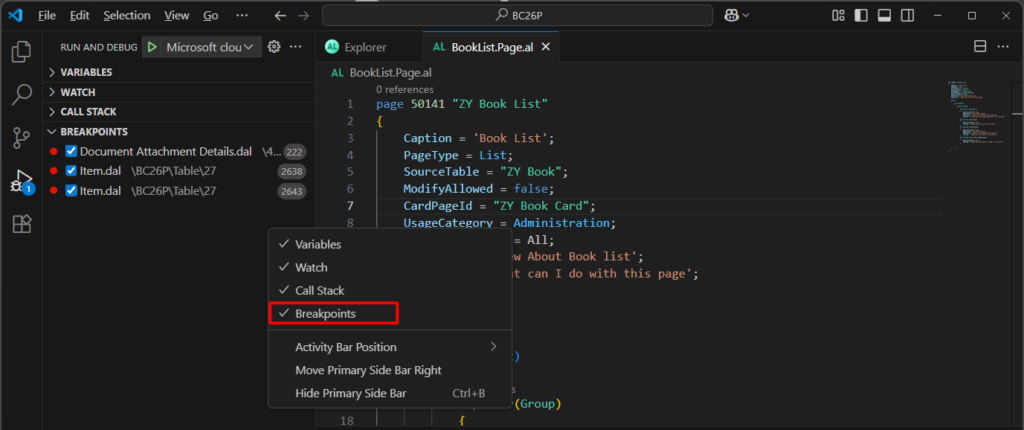
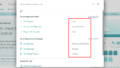
1. Use the Remove All Breakpoints button in the Breakpoints tab.

Very simple.

PS: The Breakpoints tab needs to be displayed first
2. Add a custom shortcut key
As you might know, in visual studio you can Ctrl+Shift+F9 to clear all breakpoints. More details: Debug: popular shortcuts

This shortcut does not exist by default in VS Code.
Visual Studio Code Keyboard shortcuts for Windows:

But we can add a shortcut to remove all breakpoints in VS Code. Choose File -> Preferences -> Keyboard Shortcuts

Search for “Remove all breakpoints“

Double-click to set a shortcut key. If one already exists, it will show 1 existing command has this keybinding below.
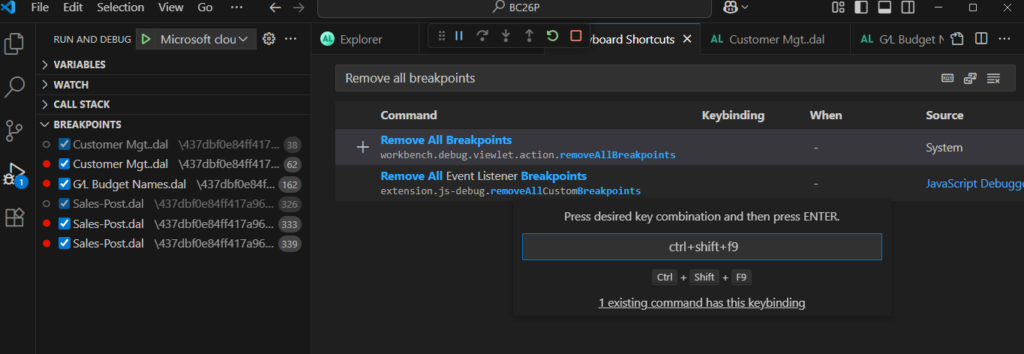
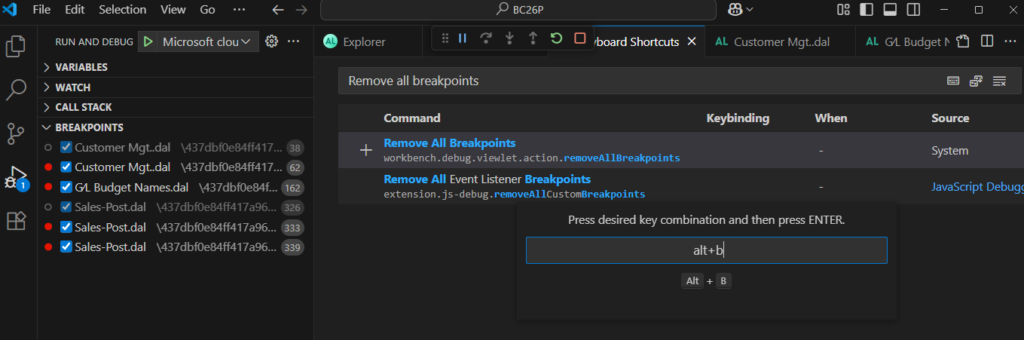
For example, Set alt+b.
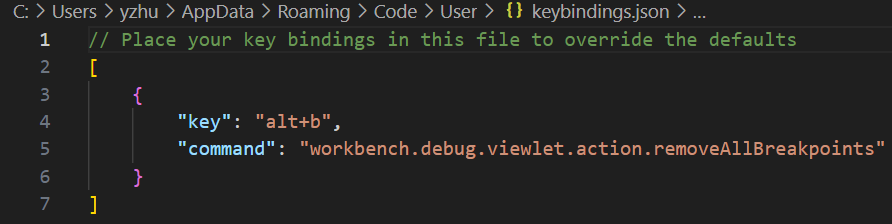
keybindings.json:
A simple test:
Great. Give it a try!!!😁
END
Hope this will help.
Thanks for reading.
ZHU

コメント