
Hi, Readers.
Today I would like to share another mini tip about Business Central, how to check whether the current page is standard or customized.
Every workday, I respond to questions from users and partners on Dynamics Community Business Central Forum. However, sometimes the questions raised are not about standard functions, but about customized functions. In such cases, you can only ask the partners who developed it……
Is there a simple way to determine whether the current page/report is standard or customized?
In this post, I will introduce two methods. However, before that, you need to understand the Object ranges in Business Central.
All functionality in Business Central is coded in objects. The extension model is object-based; you create new objects, and extend existing objects depending on what you want your extension to do.

So when you develop an app for Business Central online, you must request an object range in terms of licensing. Development for Business Central is done using Visual Studio Code with the AL Language extension for Microsoft Dynamics 365 Business Central.

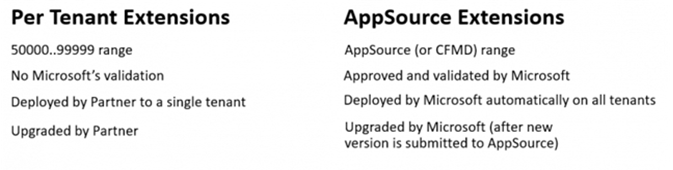
Depending on the object range, the type of extension is also different.
And objects of the same type and the same ID in the same environment cannot be repeated.
An application object of type ‘Codeunit’ with ID ‘50111’ is already declared by the extension ‘BC26P by YUN ZHU (26.0.0.0)’ AL AL0264

Below is a brief summary.
| Status | Object Range | Description |
| Standard | 0-49,999 | This range is assigned to Business Central base app functionality and mustn’t be used in extensions or customizations. |
| Customization | 50,000-99,999 | This range is for customizations, and for test purposes. For Business Central online, a partner can develop an extension tailored to the individual tenant to fit the needs. The partner develops the extension either by using a sandbox tenant or by obtaining a Docker image. Once the development is done, the extension can be deployed to the individual tenant. |
| Standard | 100,000-999,999 | The objects in this range are designed when the Microsoft team localizes Business Central for a specific country or region. These objects can’t be used by partners. |
| Customization | 1,000,000-69,999,999 | This object range is intended for the Registered Solution Program (RSP). The partner can choose to use this range for developing extensions that can be used in Business Central online or on-premises. When used in Business Central online, these extensions are obtained as apps from appsource.microsoft.com. |
| Customization | 70,000,000-74,999,999 | Partners can obtain IDs in this range for extensions for Business Central online. These extensions are obtained as apps from appsource.microsoft.com. |
The next question is, where can we see this object id? Let’s continue.
1. Using Page Inspection
The page inspection feature in Business Central enables you to get details about a page, providing insight into the page design, the different elements that comprise the page, and the source behind the data it displays.
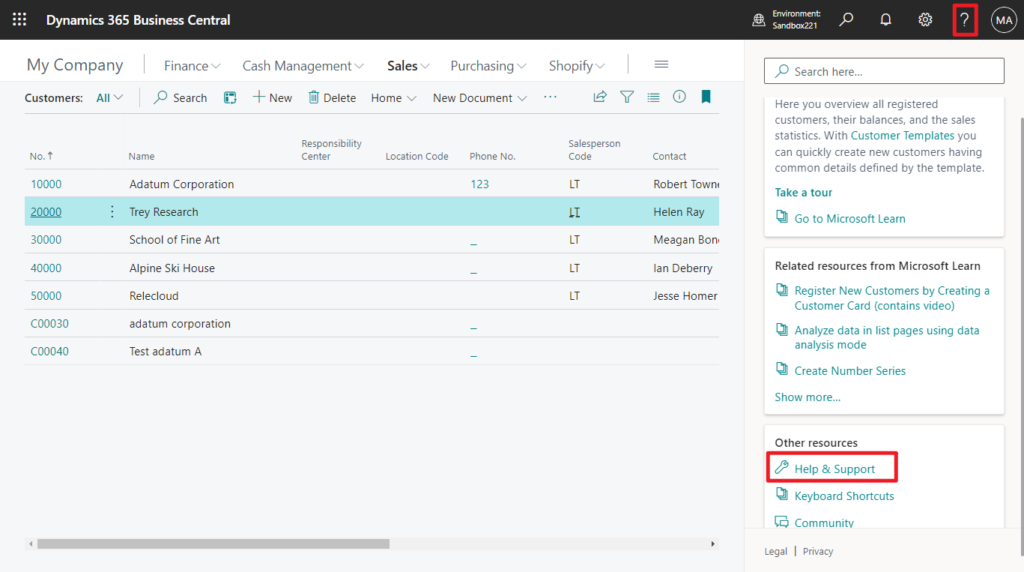
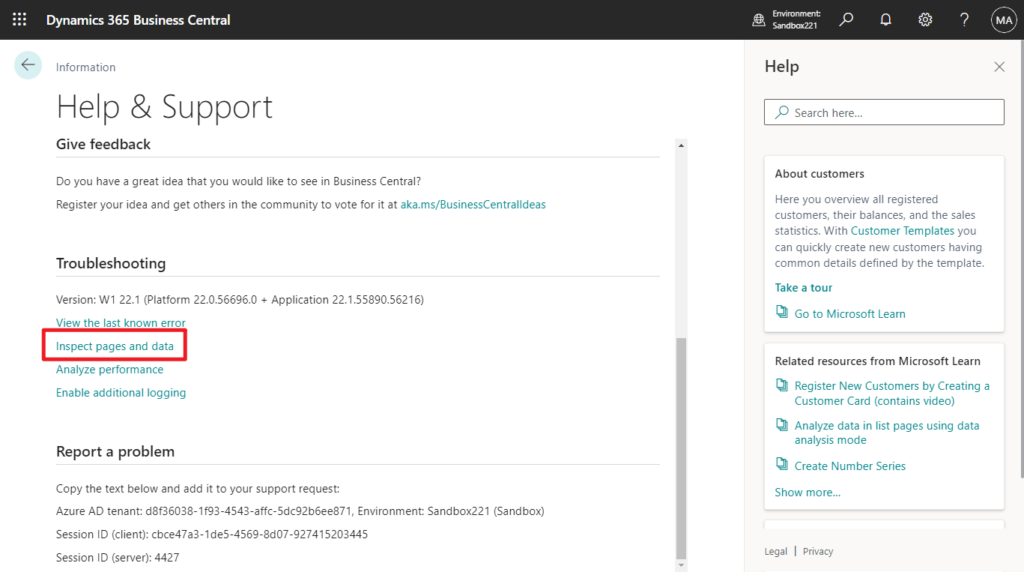
You can start page inspection from the Help & Support page. Choose the question mark in the top right corner, choose Help & Support, and then choose Inspect pages and data.
Or, you can just use the keyboard shortcut Ctrl+Alt+F1.
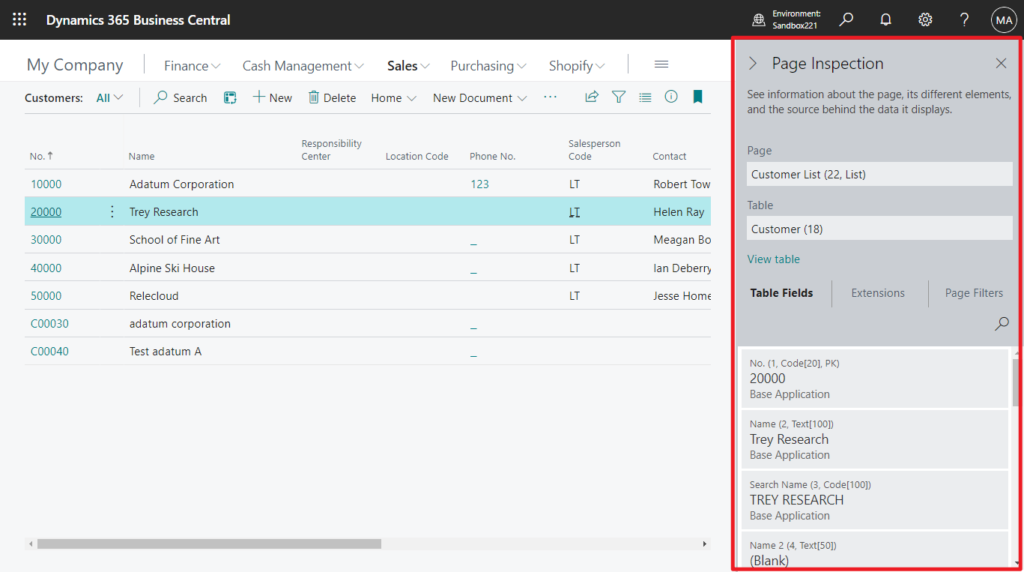
This feature allows you to directly view the ID of a Page or Report (Including Request page).


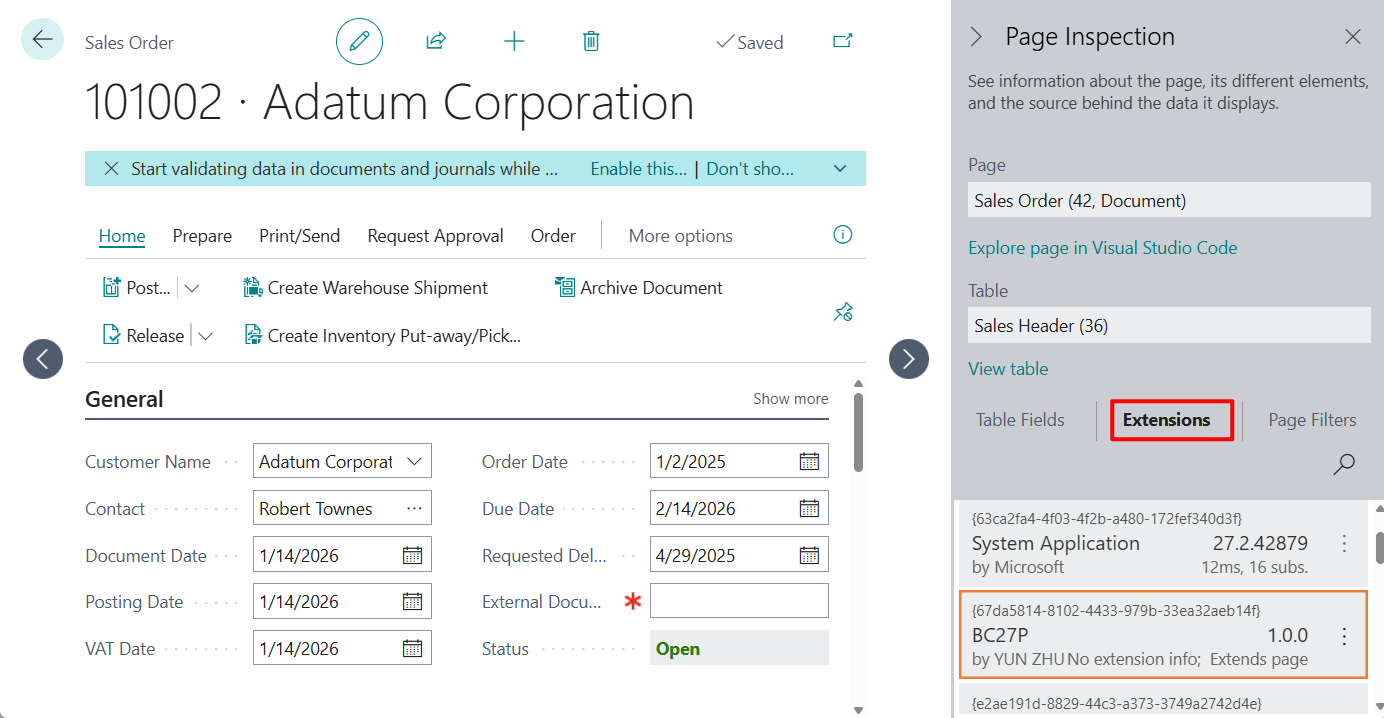
This method can also be used to check whether the standard page has been extended.
What Page Inspection Shows: The Extensions tab displays installed extensions that affect the selected page or its source table.
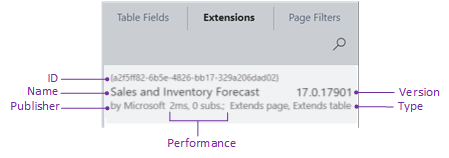
There are four different extension types:
- Adds page indicates that the extension adds the page object.
- Extends page indicates that the extension modifies the page, like adding a field, action, or code. In AL, these modifications are done by a page extension object.
- Adds table indicates that the extension adds the table object.
- Extends table indicates that the extension modifies the source table, like adding a field or code. In AL, these modifications are specified by a table extension object.
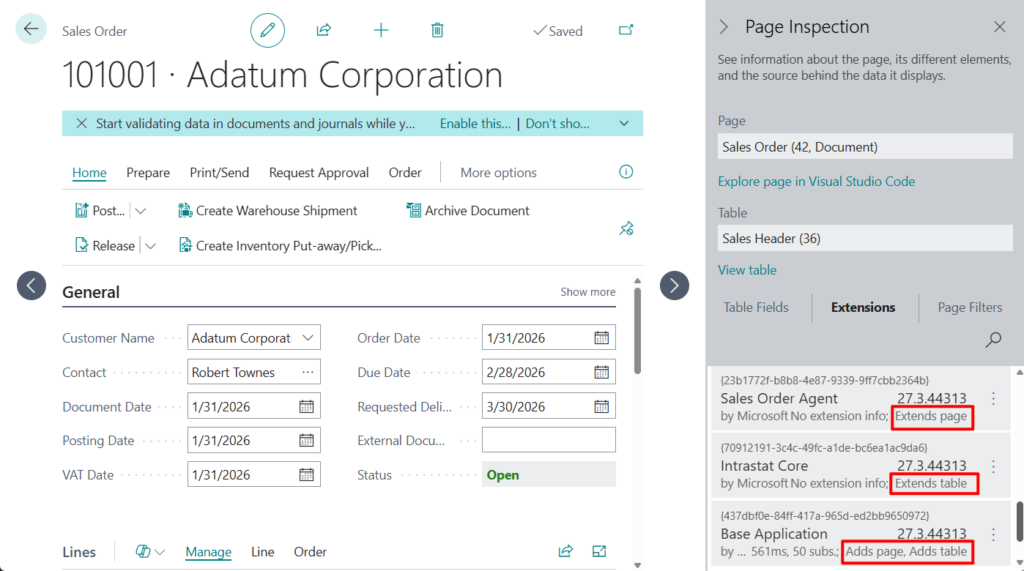
For example,

Unfortunately, the report does not support this approach.

2. Using Performance Profiler
In Business Central 2021 wave 2 (BC19), Micorosft added the AL performance profiler to the Visual Studio Code AL experience. This feature is mainly for developers. The performance profiler has empowered pro developers to investigate performance as part of developing new functionality.
More details: Profiling AL performance with snapshot debugger (AL: Generate profile file)
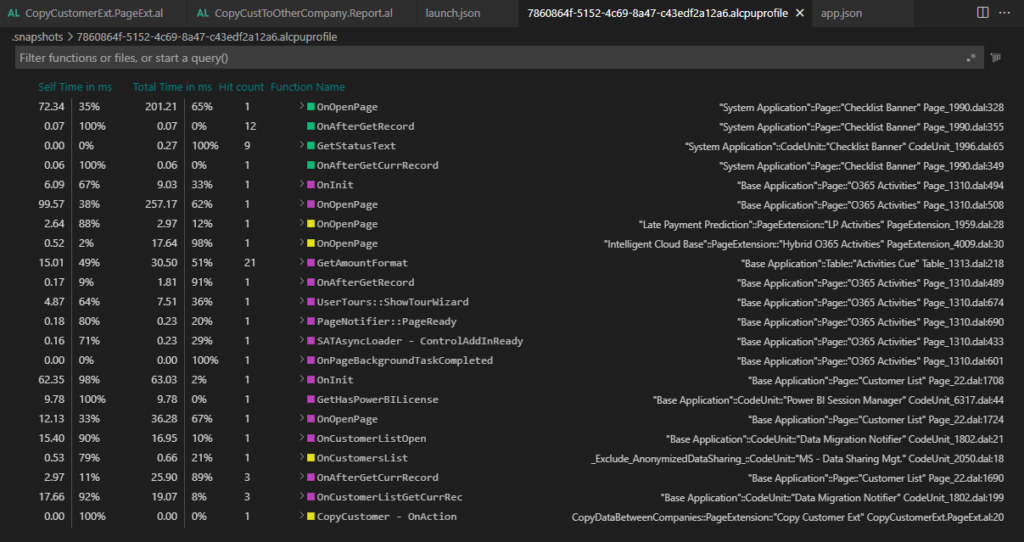
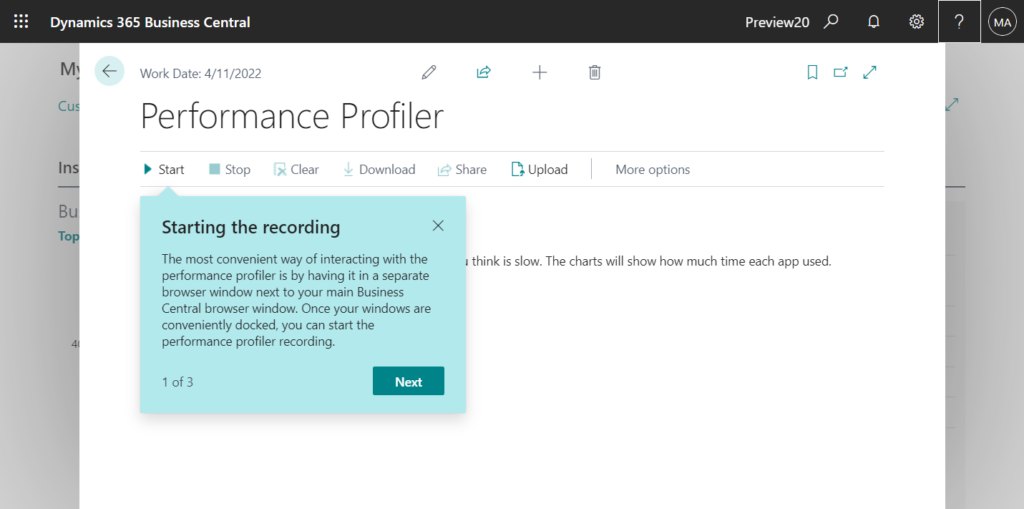
In Business Central 2022 wave 1 (BC20), Microsoft are going to take this even further. The in-client performance profiler feature is available. Any user with permission can analyze performance issues in Business Central.
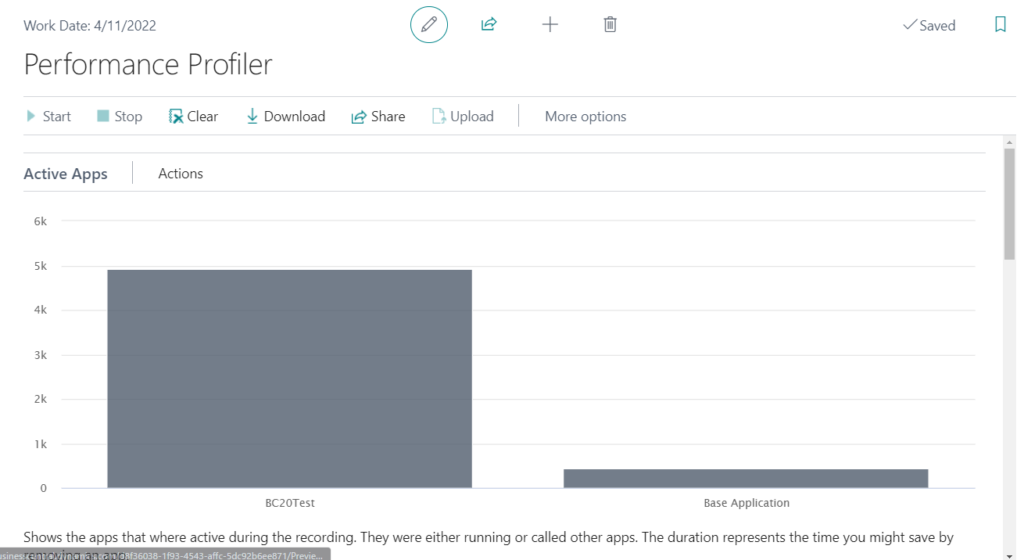
Active Apps: Shows the apps that where active during the recording. They were either running or called other apps. The duration represents the time you might save by removing an app.
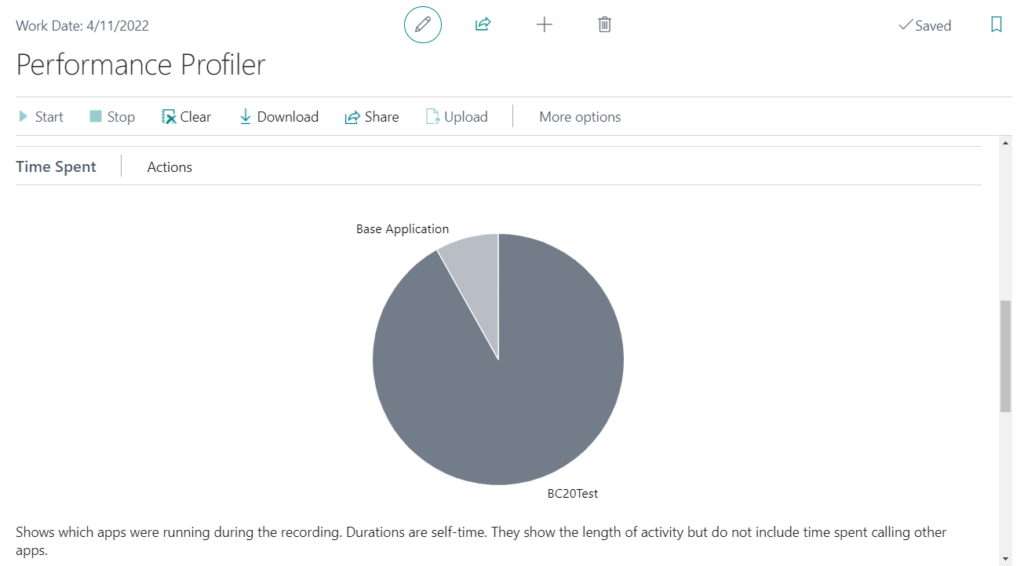
Time Spent: Shows which apps were running during the recording. Durations are self-time. They show the length of activity but do not include time spent calling other apps.
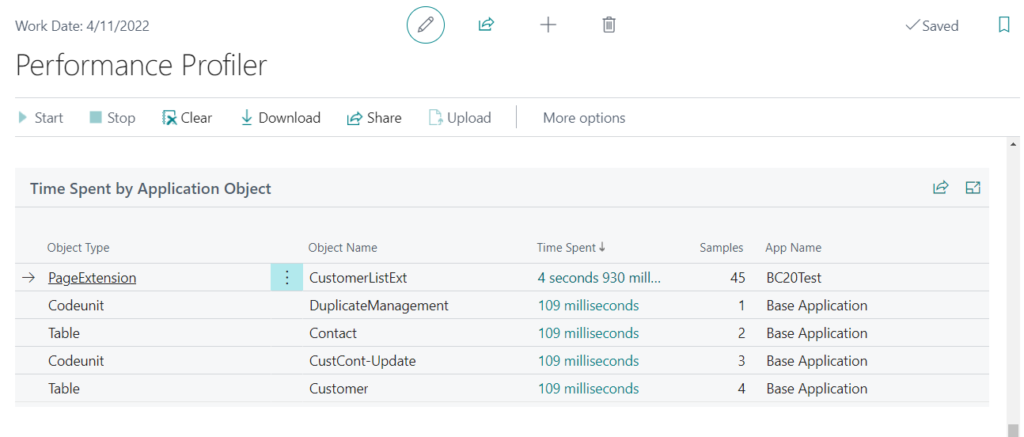
Time Spent by Application Object:
Call Tree:
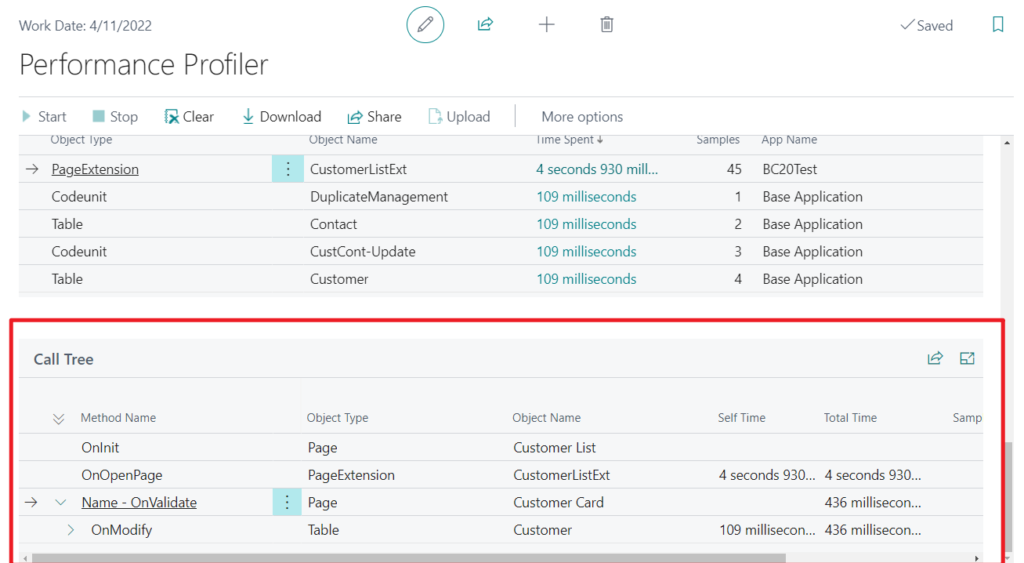
However, it’s important to note that this method only tracks the execution flow. If a page has been customized but the specific custom logic is not triggered, this method will not detect it.
In other words, this approach only identifies whether the active execution involves custom elements. For example,


More details: Dynamics 365 Business Central Blog Series: Performance Profiler
One more: Using Error details
If an error message is triggered, you can check the error details to see if it was caused by a customized extension. For example,

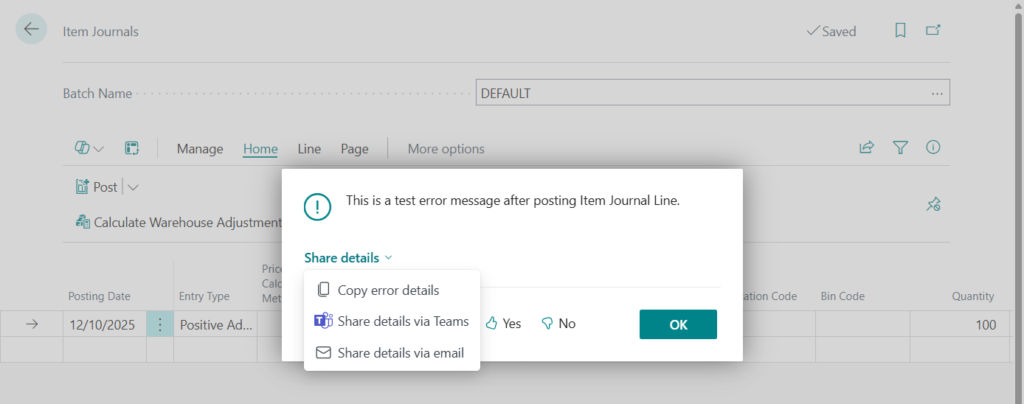
If requesting support, please provide the following details to help troubleshooting:

Error message:
This is a test error message after posting Item Journal Line.

Internal session ID:
1c3b447d-f7af-4098-a84d-071b2d856c90

Application Insights session ID:
14cba23d-e01a-4695-9809-946a54a4f196

Client activity id:
cf2be152-a42a-4b94-9ad6-f0b0825c475e

Time stamp on error:
2026-01-26T05:47:09.5007396Z

User telemetry id:
aba24e01-e652-46b6-b0a4-87927cee201d

AL call stack:
ExtDocNoHandler(CodeUnit 50123)."Item Jnl.-Post Line_OnAfterPostItemJnlLine" line 2 - BC27P by YUN ZHU version 1.0.0.4
"Item Jnl.-Post Line"(CodeUnit 22).OnAfterPostItemJnlLine(Event) line 2 - Base Application by Microsoft version 27.2.42879.44906
"Item Jnl.-Post Line"(CodeUnit 22).Code line 149 - Base Application by Microsoft version 27.2.42879.44906
"Item Jnl.-Post Line"(CodeUnit 22).PostSplitJnlLine line 12 - Base Application by Microsoft version 27.2.42879.44906
"Item Jnl.-Post Line"(CodeUnit 22).RunWithCheck line 16 - Base Application by Microsoft version 27.2.42879.44906
"Item Jnl.-Post Batch"(CodeUnit 23).PostLines line 57 - Base Application by Microsoft version 27.2.42879.44906
"Item Jnl.-Post Batch"(CodeUnit 23).Code line 56 - Base Application by Microsoft version 27.2.42879.44906
"Item Jnl.-Post Batch"(CodeUnit 23).OnRun(Trigger) line 6 - Base Application by Microsoft version 27.2.42879.44906
"Item Jnl.-Post"(CodeUnit 241).Code line 25 - Base Application by Microsoft version 27.2.42879.44906
"Item Jnl.-Post"(CodeUnit 241).OnRun(Trigger) line 6 - Base Application by Microsoft version 27.2.42879.44906
"Item Journal"(Page 40)."Post - OnAction"(Trigger) line 2 - Base Application by Microsoft version 27.2.42879.44906
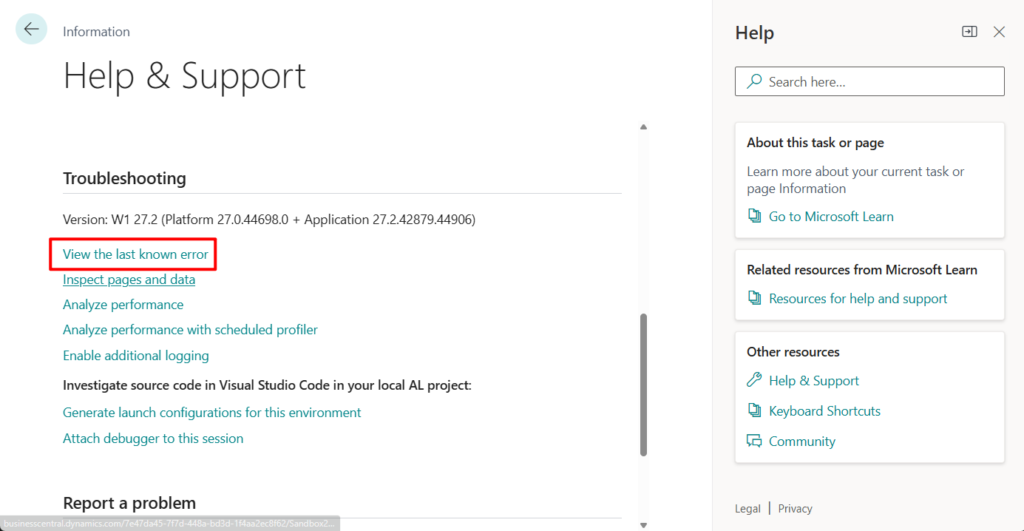
If you want to confirm this in BC, you can check it through the “View the last known error” feature on the Help & Support page.

PS: Business Central 2025 wave 1 (BC26): Get the current callstack (SessionInformation Data Type)
Great. Give it a try!!!😁
END
Hope this will help.
Thanks for reading.
ZHU

コメント