
Hi, Readers.
The public preview for Dynamics 365 Business Central 2026 release wave 1 (BC28) is available. Learn more: Link.
I will continue to test and share some new features that I hope will be helpful. In this post, I would like to talk about Filter receipt and shipment lines to quickly find documents you want to invoice.
Filter receipt and shipment lines to quickly find documents you want to invoice:
This improvement helps you locate the correct document lines more quickly, especially in environments with a large number of receipts or shipments. By filtering on recognizable business fields such as order number or references from vendors or customers, you reduce time spent searching and lower the risk of bringing in the wrong lines.
https://learn.microsoft.com/en-us/dynamics365/release-plan/2026wave1/smb/dynamics365-business-central/filter-receipt-shipment-lines-quickly-find-documents-want-invoice?wt.mc_id=DX-MVP-5004336
As you might know, if you want to invoice more than one purchase receipt at a time, you can select multiple receipt lines on the purchase invoice.
Before you can create a combined purchase receipt, more than one receipt from the same vendor in the same currency must be posted. In other words, you must have filled in two or more purchase orders and posted them as received, but not invoiced. Let’s look at a simple example.
I created two separate purchase orders for Vendor 10000 (Fabrikam, Inc.) and posted the receipts
106040:


106041:


Then, I created a new invoice using the same vendor and currency code. On the Lines FastTab, choose the Get Receipt Lines action.

Select multiple receipt lines that you want to include in the invoice.


Done.

PS: If an incorrect receipt line was selected or you want to start over, you can just delete the lines on the purchase invoice and then use the Get Receipt Lines function again.
To post the invoice, just choose the Post action.


When purchase receipts are combined on an invoice and posted, then a posted purchase invoice is created for the invoiced lines. The Quantity Invoiced field on the originating purchase order, is updated based on the invoiced quantity. However, this original purchase document isn’t deleted, even if it has been fully received and invoiced, and you must therefore delete the purchase document.

This has always been the standard practice for combining multiple receipts into a single invoice. More details: Combine receipts on a single invoice.
The same functionality applies to ‘Get Shipment Lines‘ and ‘Get Service Shipment Lines‘ features.
PS:
1. Populate/Flow Order No. & Order Line No. when using the Get Shipment Lines action in Sales Invoice
2. Invoice a customer for multiple projects/jobs (new Get Project Planning Lines action)
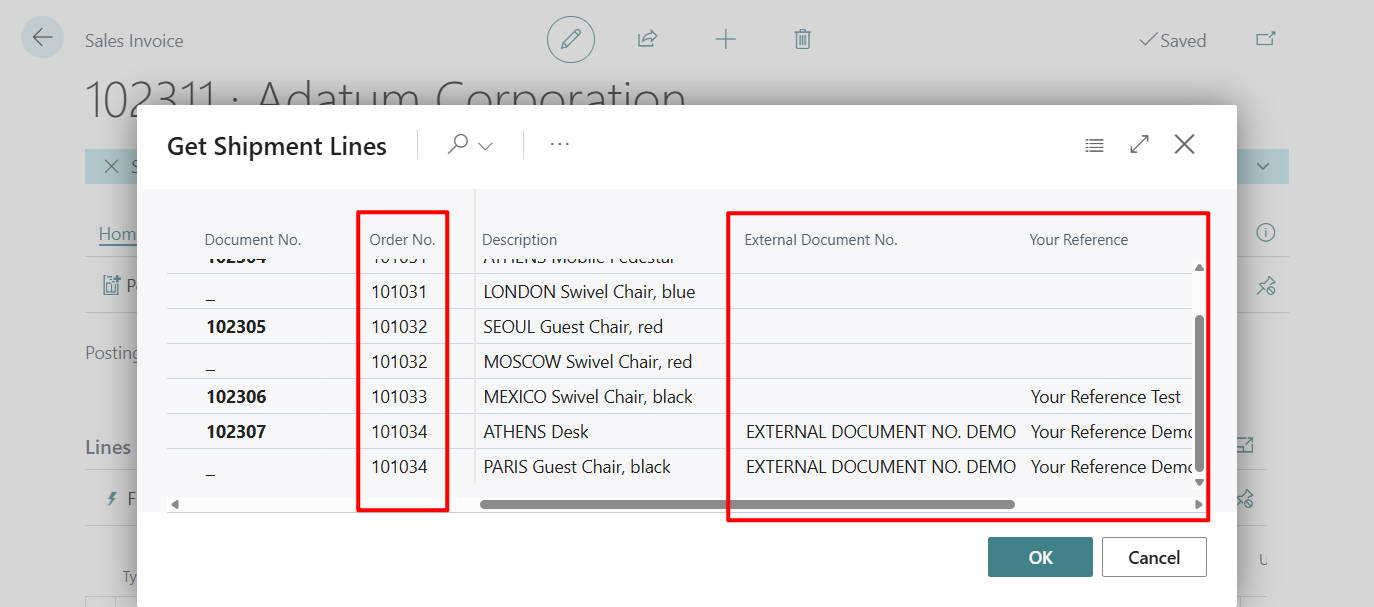
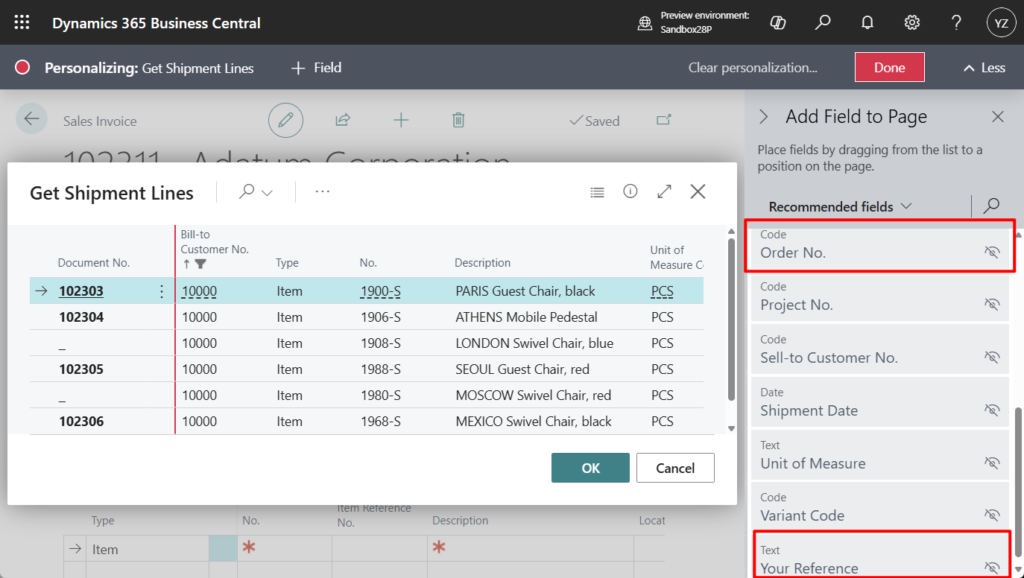
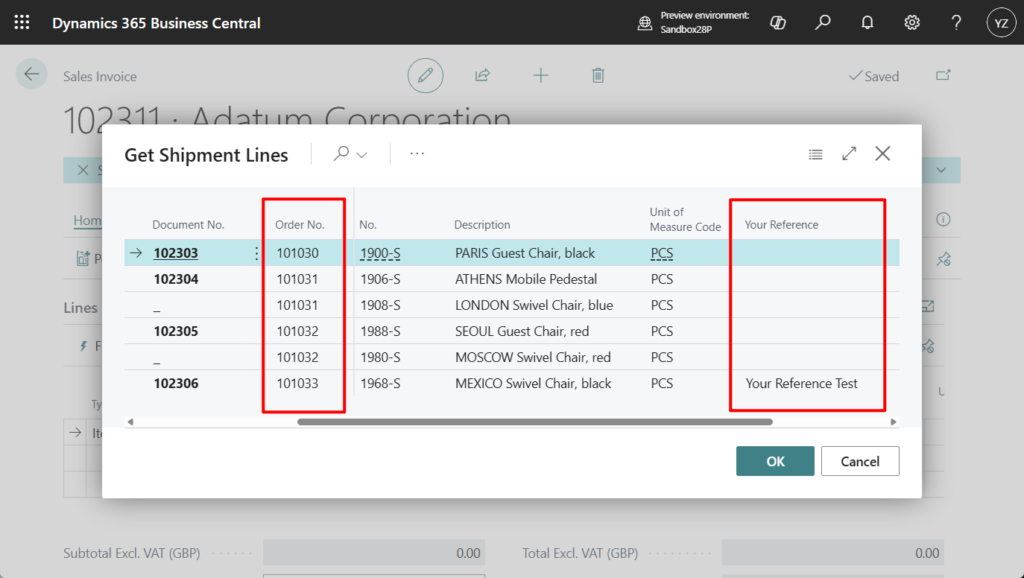
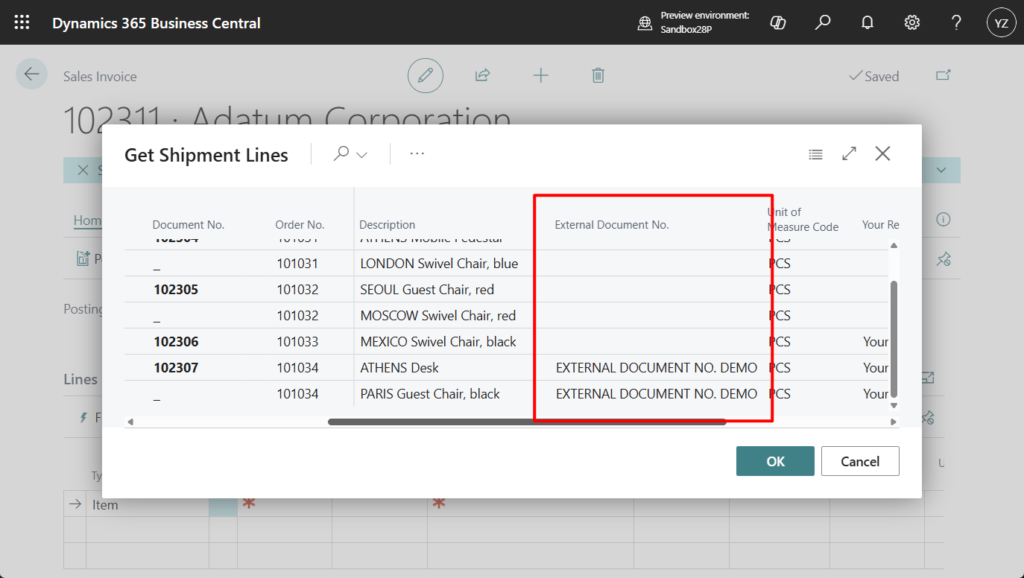
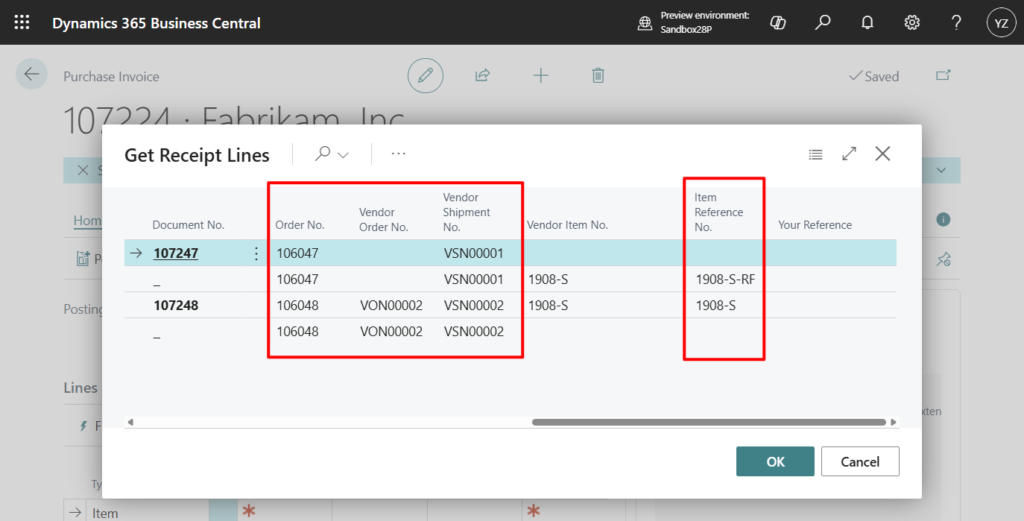
With this wave (BC28), there are new filters on the Get Receipt Lines, Get Shipment Lines, and Get Service Shipment Lines pages. When you bring receipt or shipment lines into documents such as purchase, sales, or service invoices, you can now narrow the list by filtering on the following fields:
All documents:
- Order No.
- Your Reference
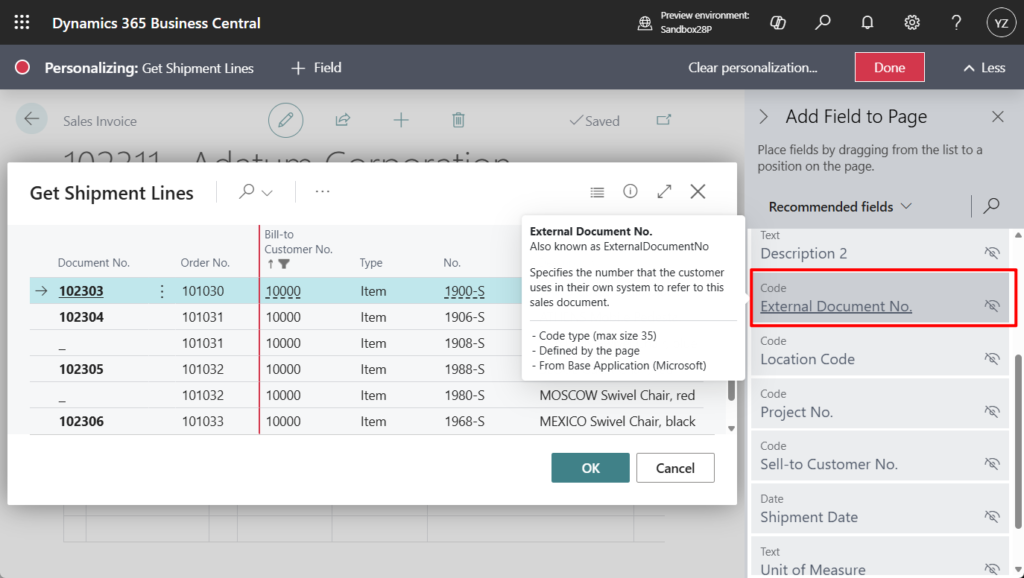
Sales and service shipments only:
- External Document No.
Purchase receipts only:
- Vendor Order No.
- Vendor Shipment No.
- Item Reference No.
For years, this was a ‘must-have’ customization for our clients. I’m thrilled to see it finally integrated into the standard Business Central features! Great improvement, give it a try!!!😁
END
Hope this will help.
Thanks for reading.
ZHU
コメント