

Hi, Readers.
The public preview for Dynamics 365 Business Central 2026 release wave 1 (BC28) is available. Learn more: Link.
I will continue to test and share some new features that I hope will be helpful. In this post, I would like to talk about Create purchase quotes for contacts.
Create purchase quotes for contacts:
You can create purchase quotes for contacts that aren’t yet associated with a vendor. This removes the need to set up a vendor record before you prepare a quote, which is useful when you’re unsure whether the purchase will proceed.
https://learn.microsoft.com/en-us/dynamics365/business-central/dev-itpro/whatsnew/preview-feature-details?wt.mc_id=DX-MVP-5004336#create-purchase-quotes-for-contacts
A purchase quote can be used as a preliminary draft for a purchase order, which can then be converted to a purchase order.
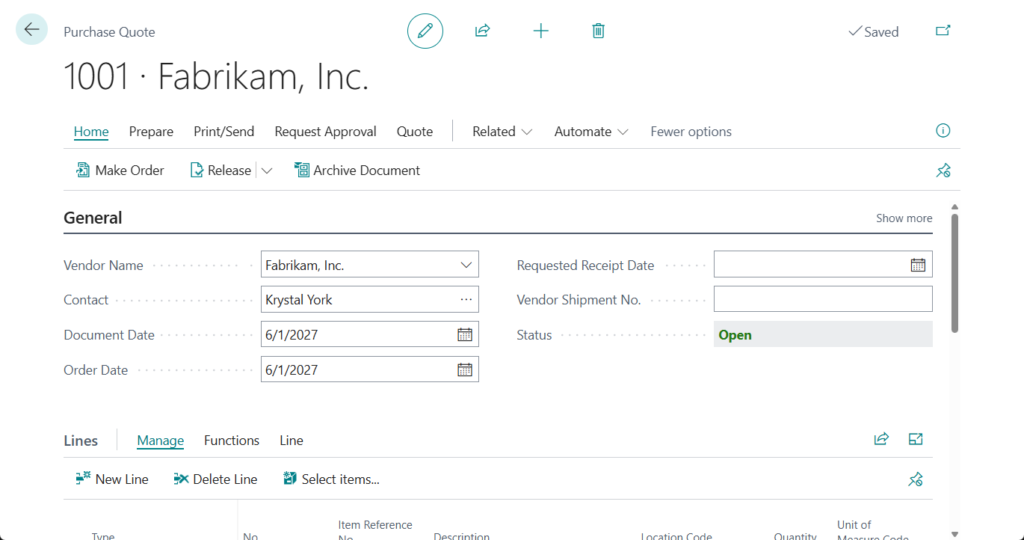
Another very important point is that Team Members license can also be used to create sales or purchase quotes. More details: Dynamics 365 Business Central: Team Members license
Download Dynamics 365 Licensing Guide:

In Can we create a Sales Quote without a customer and items?, we briefly discussed how you can create a quote without a customer (Use a contact instead).
Starting with this release wave (BC28), similar to the sales process, you can now create purchase quotes for contacts that are not yet associated with a vendor. Let’s see more details.
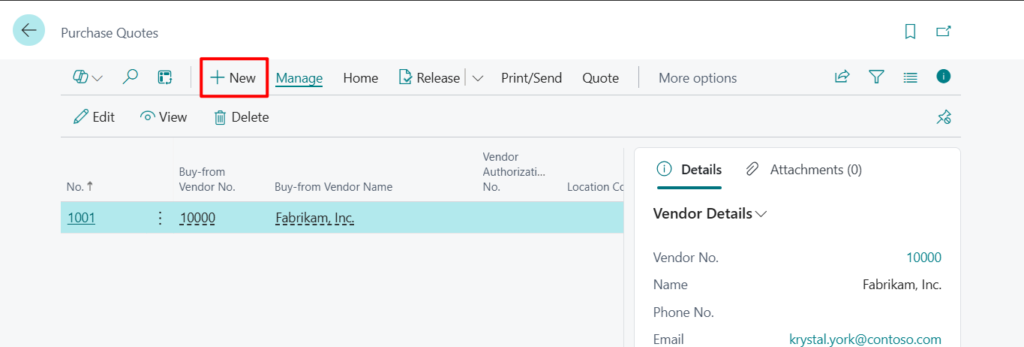
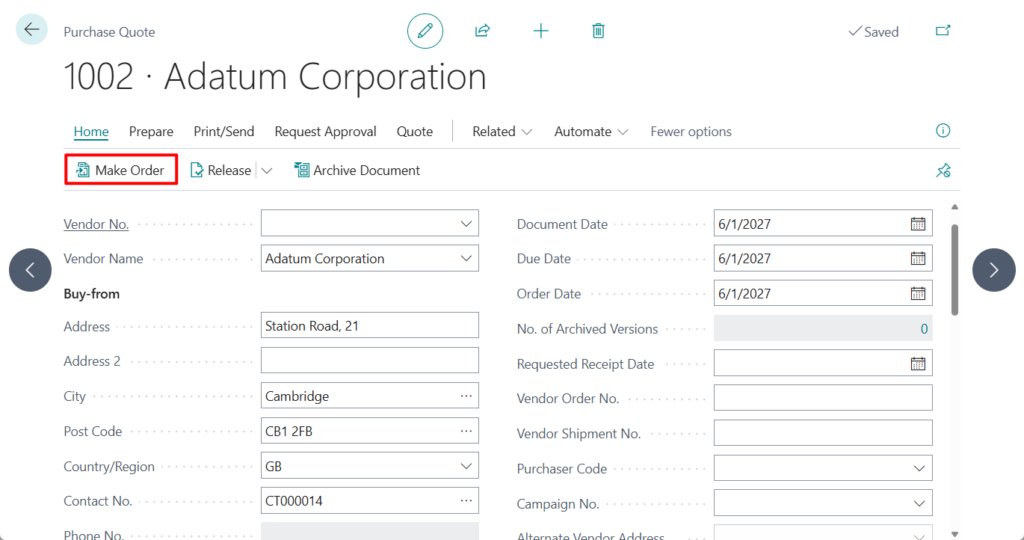
Create a new Purchase Quote.
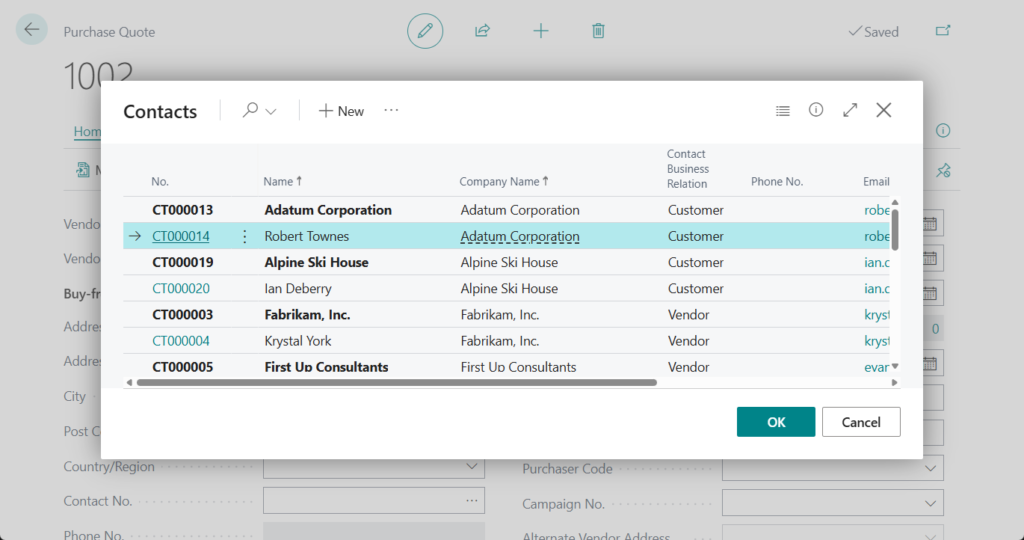
And select a contact that isn’t linked to a vendor.
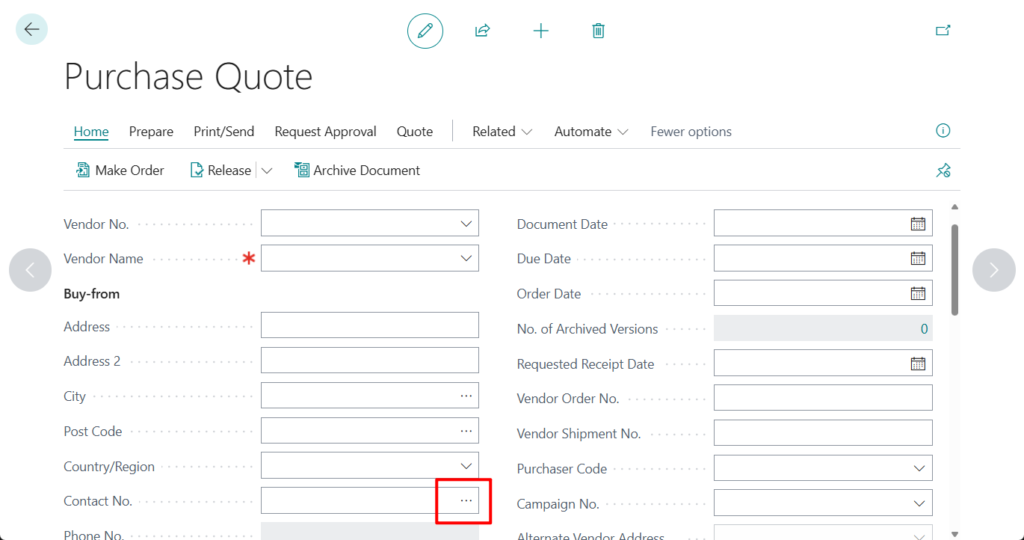
You can see that a Purchase Quote will be created that does not include the Vendor No.

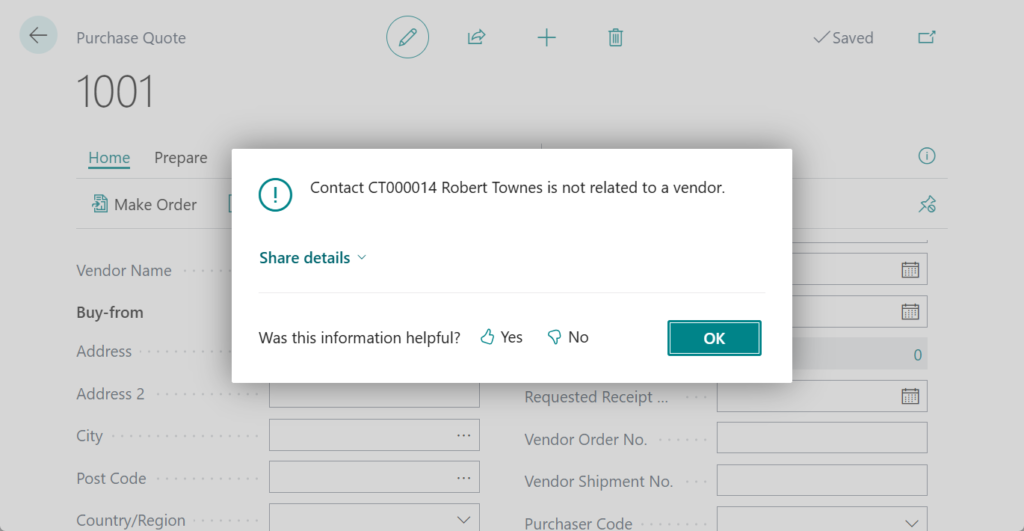
PS: In BC27 and previous versions
Contact CT000014 Robert Townes is not related to a vendor.
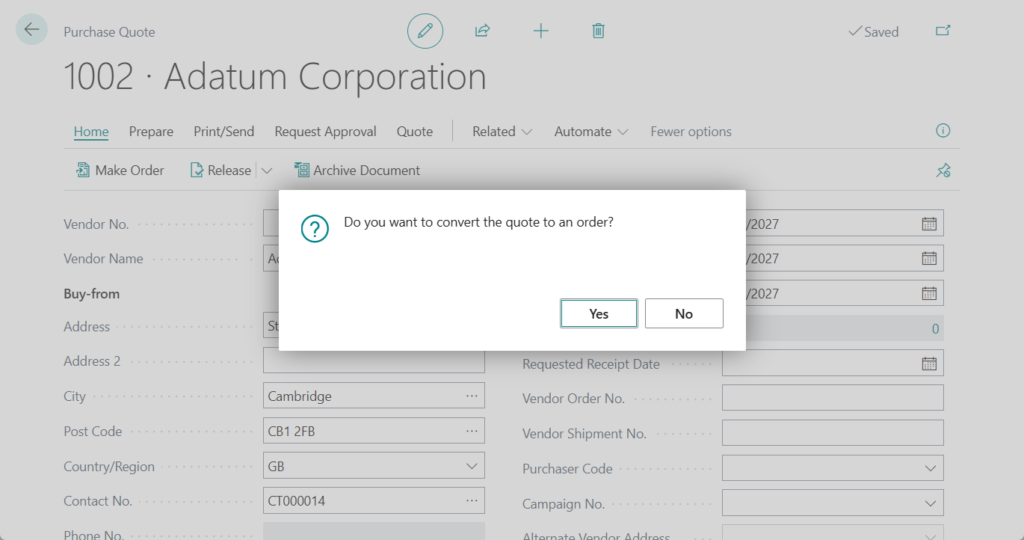
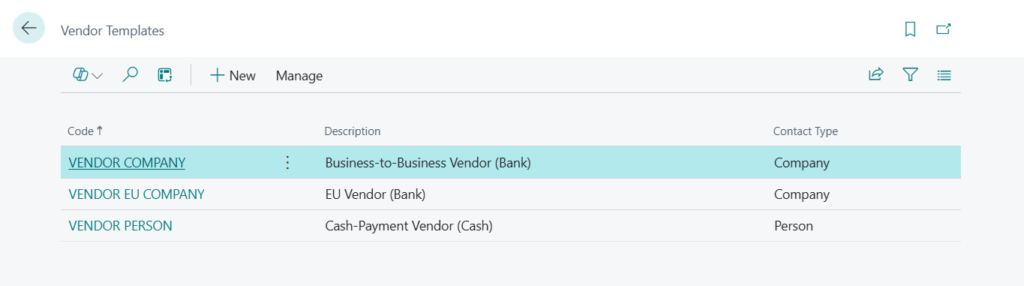
When you convert the quote into an order or release the document, Business Central automatically creates the vendor using a vendor template.
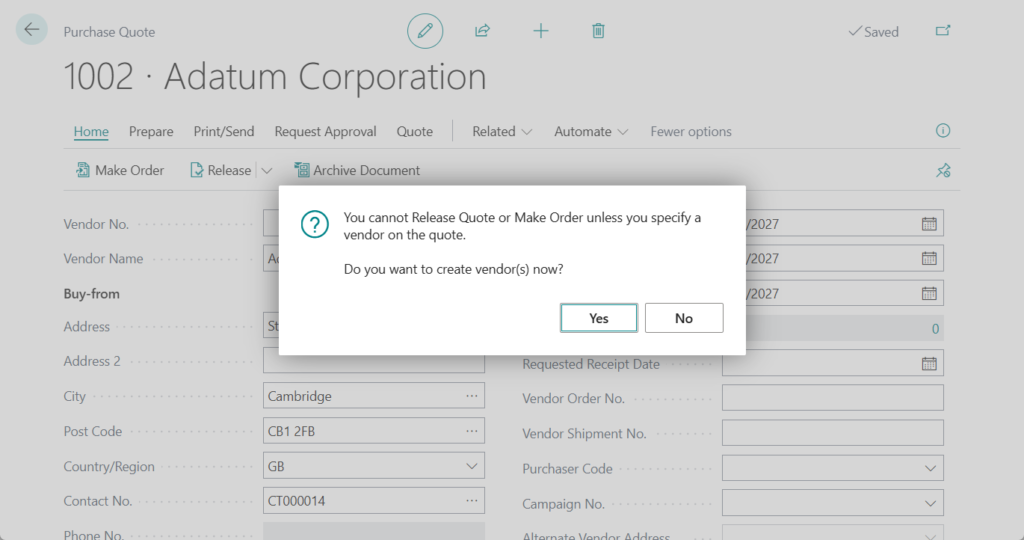
You cannot Release Quote or Make Order unless you specify a vendor on the quote.
Do you want to create vendor(s) now?

Great, give it a try!!!😁
PS:
1. Business Central selects the appropriate template based on criteria such as territory code, country/region code, and contact type from the contact. If only one template matches, it’s applied automatically, otherwise you’re prompted to choose from available templates.
END
Hope this will help.
Thanks for reading.
ZHU
コメント