

Hi, Readers.
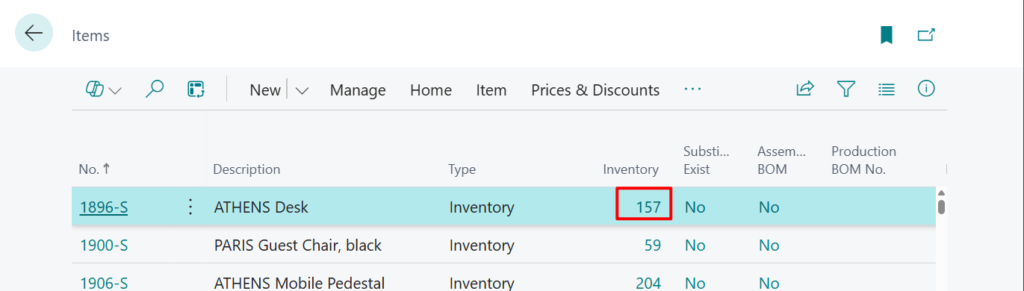
Today I would like to share another mini tip about Business Central, how to control over adjustment of one item (Adjust Inventory).
As you might know, in Business Central, a quick and easy way to increase or decrease an item’s stock is by running the Adjust Inventory function from the item list or item card. Let’s see more details.
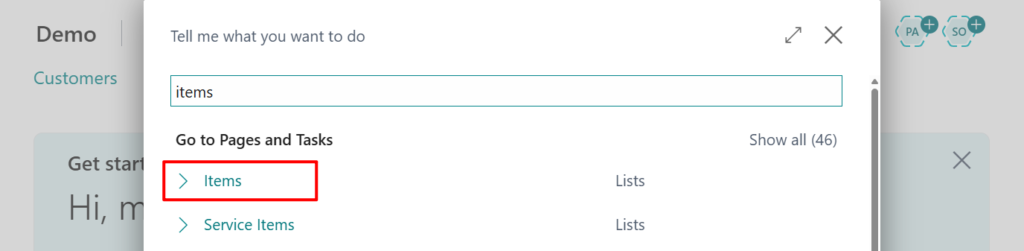
Select the Tell Me icon in the top-right corner of the page, enter items, and select the related link.
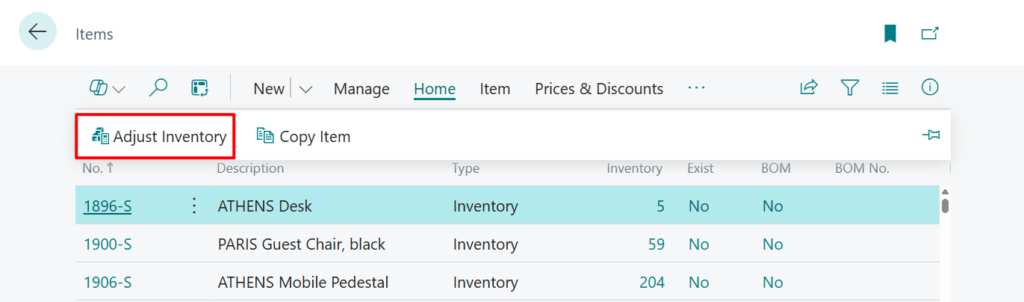
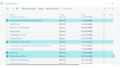
Select the item for which you want to adjust the inventory. Then select Home > Adjust Inventory.
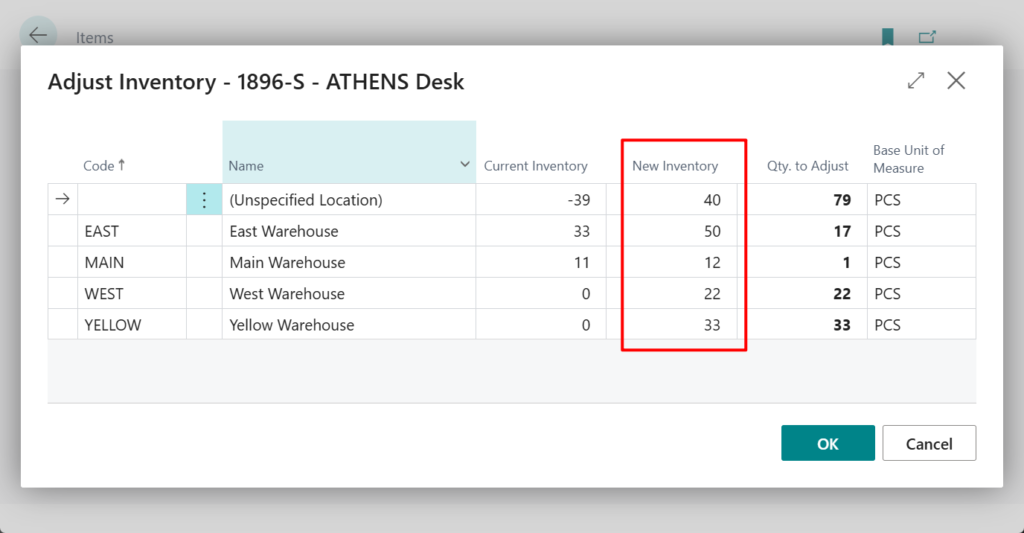
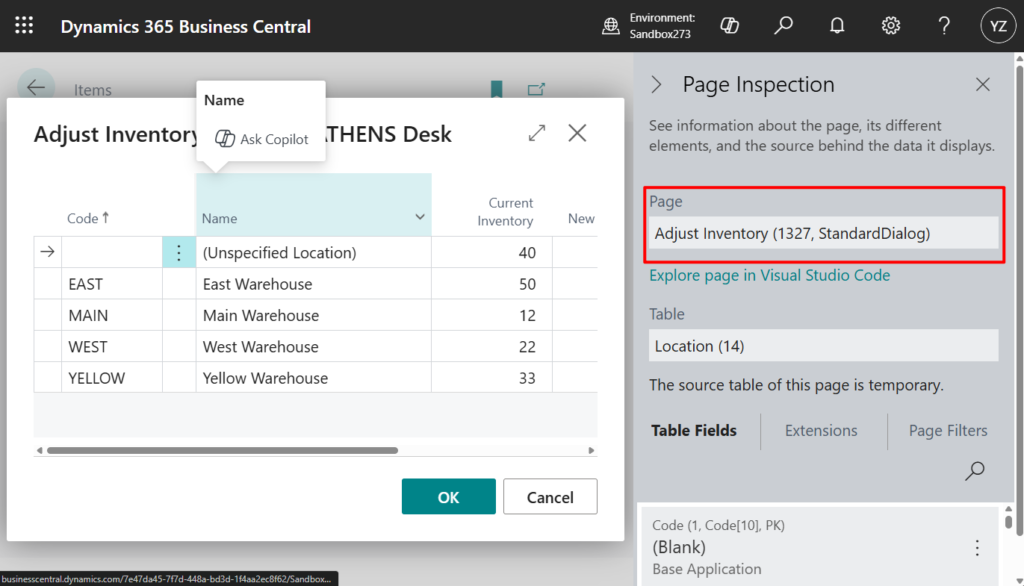
Select the location for which you want to set the new inventory, and in the New Inventory field enter the inventory for the item on that location.
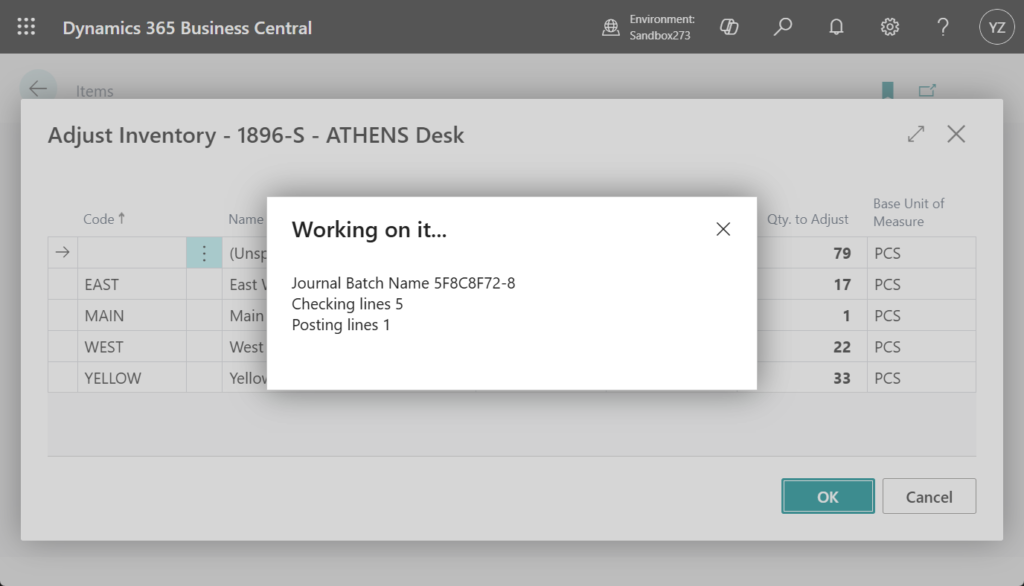
Select OK. Business Central posts a positive or negative adjustment in the background.
More details: How to quickly adjust the inventory of one item
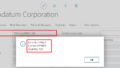
Although the Adjust Inventory dialog is helpful when you need to quickly adjust the inventory level for a specific item, larger organizations might require a more elaborate process. And for security reasons, clients may want to restrict users’ access to this feature. Of course, you can use permission set to restrict permissions at this time, such as excluding permissions for the Adjust Inventory (1327, StandardDialog) page below.
PS: Permission Exclusion (Exclude in Permission Set)
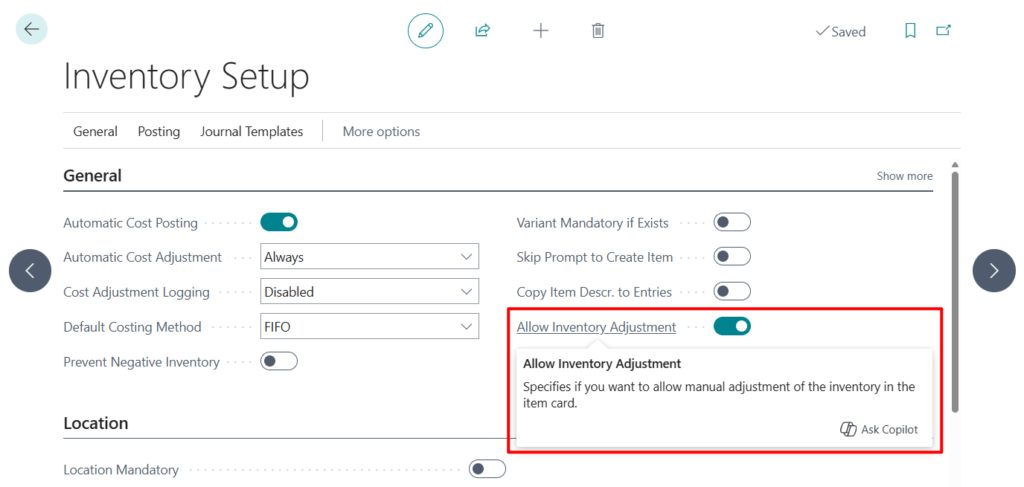
In fact, you can enable or disable the Allow Inventory Adjustment feature directly on the Inventory Setup page.
Allow Inventory Adjustment
Specifies if you want to allow manual adjustment of the inventory in the item card.
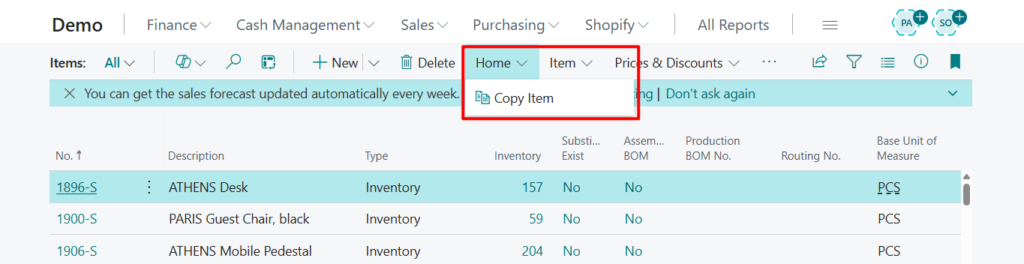
When disabled, users will not be able to see the Adjust Inventory action on the page.
Great. Give it a try!!!😁
END
Hope this will help.
Thanks for reading.
ZHU
コメント