

Hi, Readers.
Dynamics 365 Business Central 2025 wave 2 (BC27.1) is generally available. More details: Cumulative Update Summary for Microsoft Dynamics 365 Business Central (November, 2025).
I will continue to test and share some new features that I hope will be helpful. In this post, I would like to talk about Connect AI agents to Business Central through MCP server.
Just announced by Kennie Nybo Pontoppidan during Day 2 Keynote at Direction EMEA, the Public Preview for Business Central MCP Server (release 27.1) is here! More details: Link.

This is also mentioned in the Business Central 2025 wave 2 Release Plan.
Connect AI agents to Business Central through MCP server:
Business value:
The Model Context Protocol (MCP) server for Business Central helps businesses unlock the full potential of AI-driven automation and orchestration. When the server exposes Business Central entities such as customers, items, and sales orders through a standardized API, you get seamless integration with intelligent agents built on any AI platform that supports the MCP protocol, including Azure OpenAI and Copilot Studio. With this capability, users can automate repetitive tasks, streamline workflows, and interact with their ERP data conversationally. The result is improved efficiency, faster decision-making, and a more intuitive user experience across business operations.Feature details:
MCP is an open API standard that enables intelligent clients to discover, describe, and invoke operations on remote services in a self-describing, plug-and-play way.MCP standardizes how applications provide context to language models. This standardization helps applications integrate seamlessly with different data sources and tools. This open standard connects AI assistants and agents to various systems where data resides, such as content repositories, business tools, and development environments. An MCP-compliant agent uses rich contextual information to act efficiently. A non-MCP-compliant agent doesn’t have the necessary context.
With the MCP server for Business Central, you can easily connect agents to existing knowledge sources and APIs. You can enable agents to interface directly with Business Central. Actions and knowledge synchronize automatically. This synchronization facilitates real-time updates and the evolution of functionality. This model simplifies agent development and minimizes ongoing maintenance efforts.
For more information, go to The autonomous enterprise: How generative AI is reshaping business applications.
https://learn.microsoft.com/en-us/dynamics365/release-plan/2025wave2/smb/dynamics365-business-central/connect-ai-agents-business-central-through-mcp-server?wt.mc_id=DX-MVP-5004336
This minor update includes two key updates.
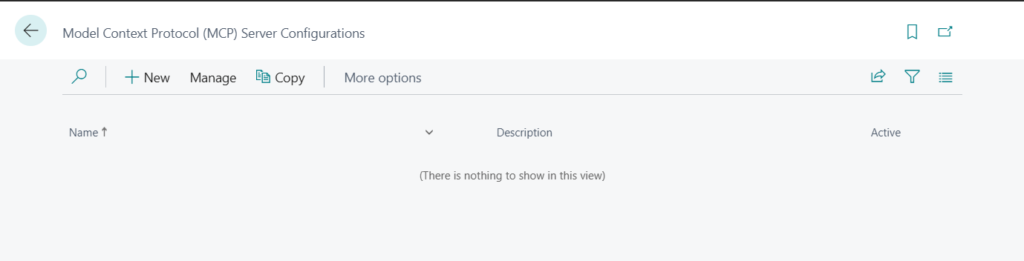
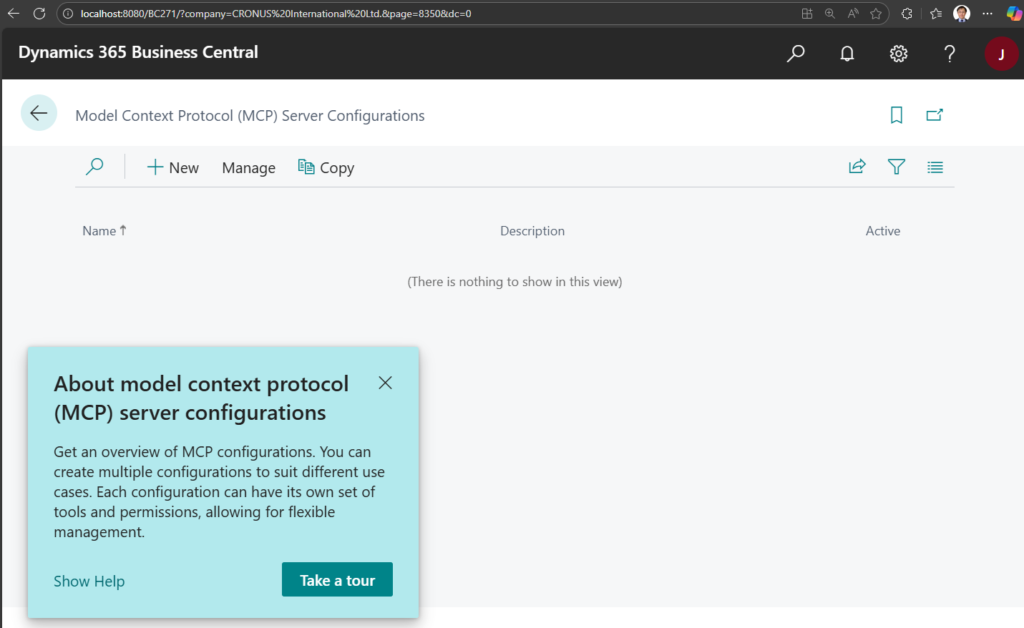
1. In Business Central side, Microsoft added a new page to manage APIs for Model Context Protocol (MCP) server.

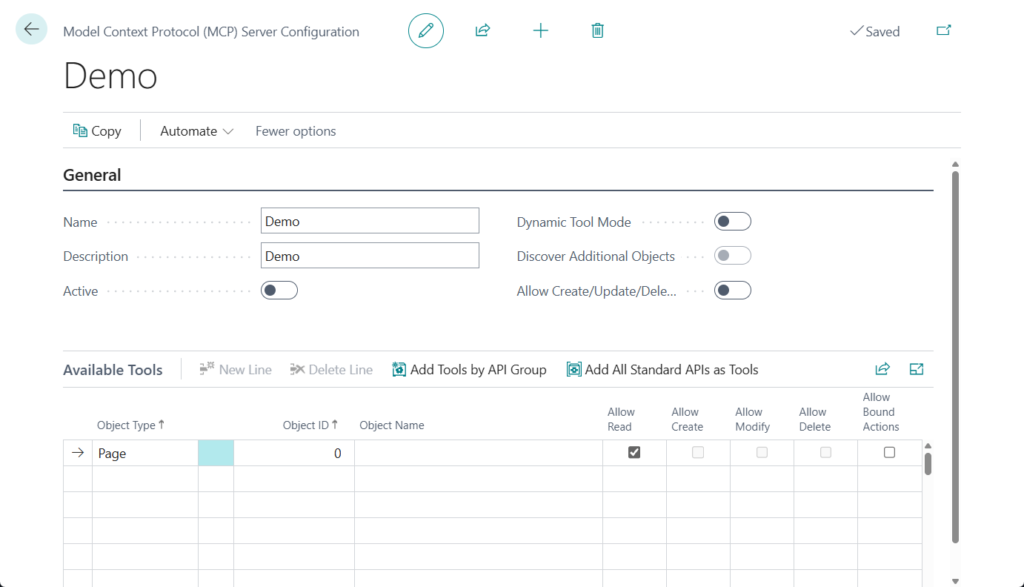
You can add All Standard APIs as Tools or add you custom APIs.
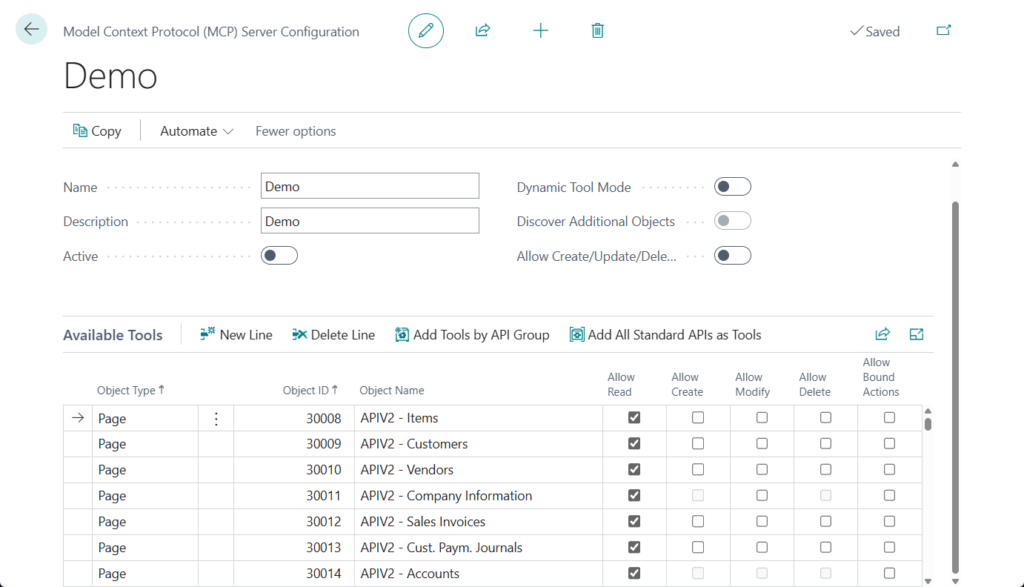
In addition to Allow Read, Create, Modify, Delete, and Bound Actions on the line, the Header also has the following settings.
Active
Specifies whether the MCP configuration is active.
Dynamic Tool Mode
Specifies whether to enable dynamic tool mode for this MCP configuration. When enabled, clients can search for tools within the configuration dynamically.
Discover Additional Objects
Specifies whether to allow discovery of read-only objects not defined in the configuration. Only supported with dynamic tool mode.
Allow Create/Update/Delete Tools
Specifies whether to allow create, update and delete tools for this MCP configuration.
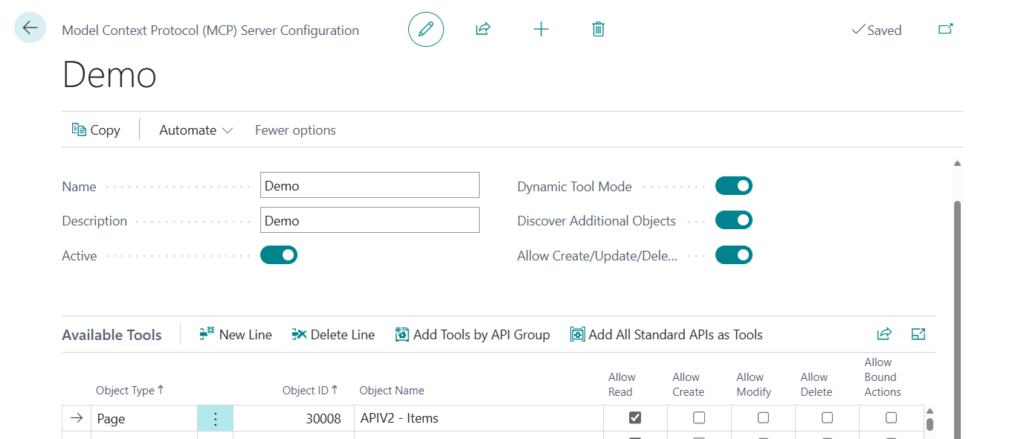
PS: The Object Type only shows Page, not Query. Does this mean it doesn’t support the Query API?
More details: Dynamics 365 Business Central: API query type (Develop a custom API using Query)

2. In Microsoft Copilot Studio side, Microsoft added standard Dynamics 365 Business Central MCP.
As of now (2025.11.10), I checked three Tenant, and only the paid environment created in the Japan region showed the Business Central MCP server in Microsoft Copilot Studio.
Create a new agent.
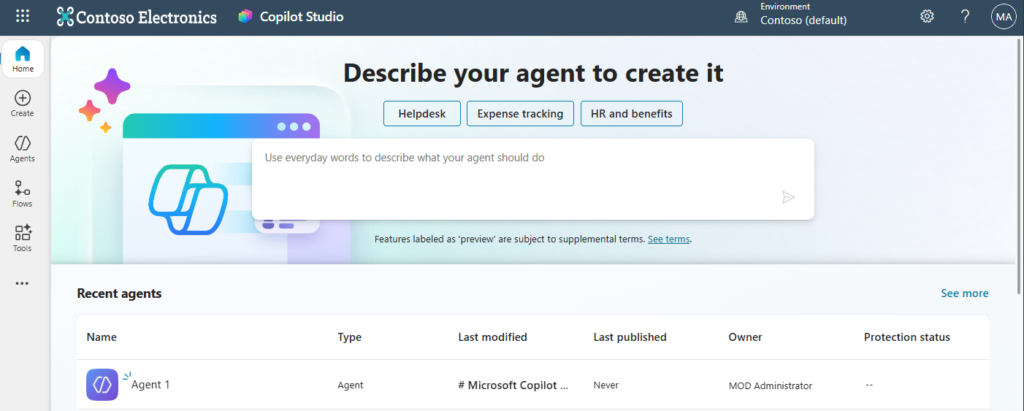
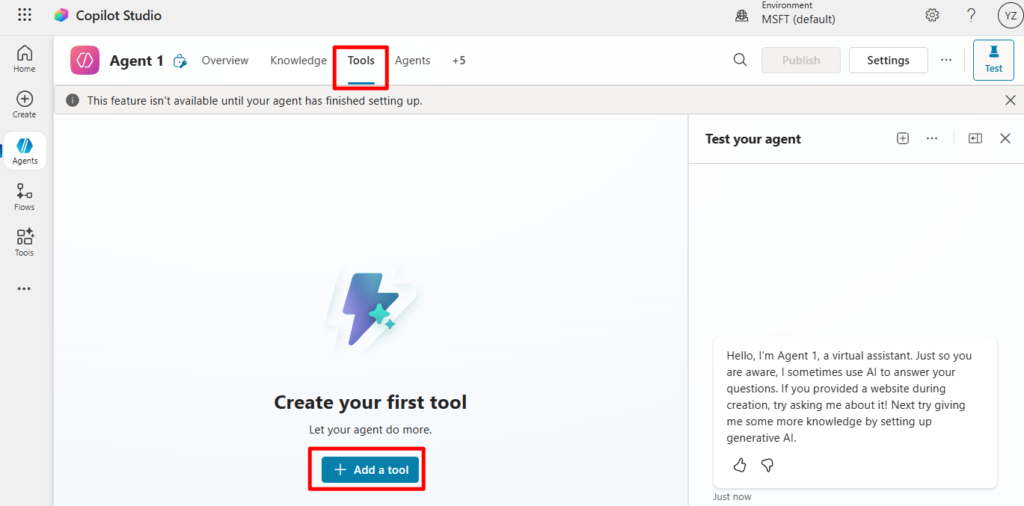
Then choose Tools -> Add a tool.
Search for Business Central in the Model Context Protocol.
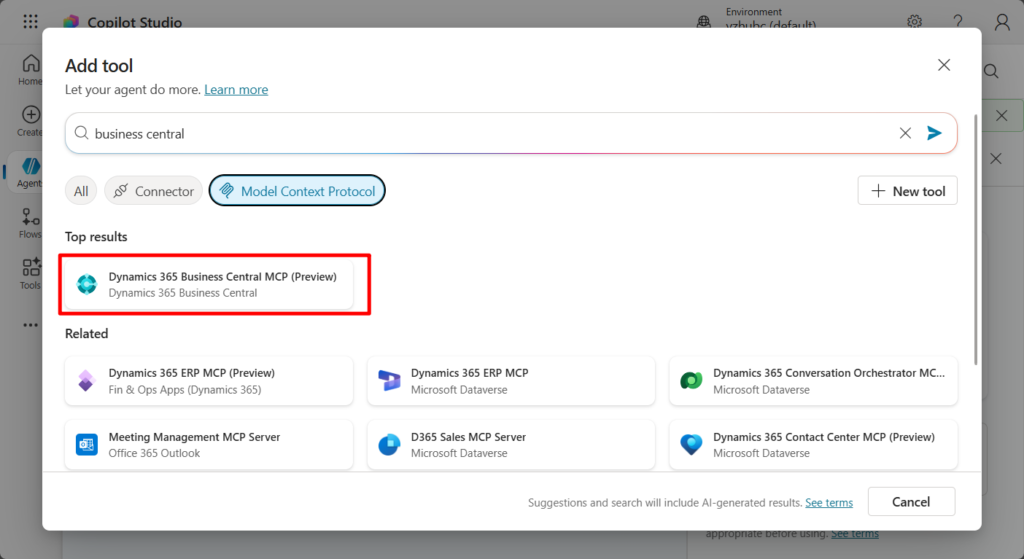
PS: Other Tenant

Click it, then choose Not connected -> Create new connection
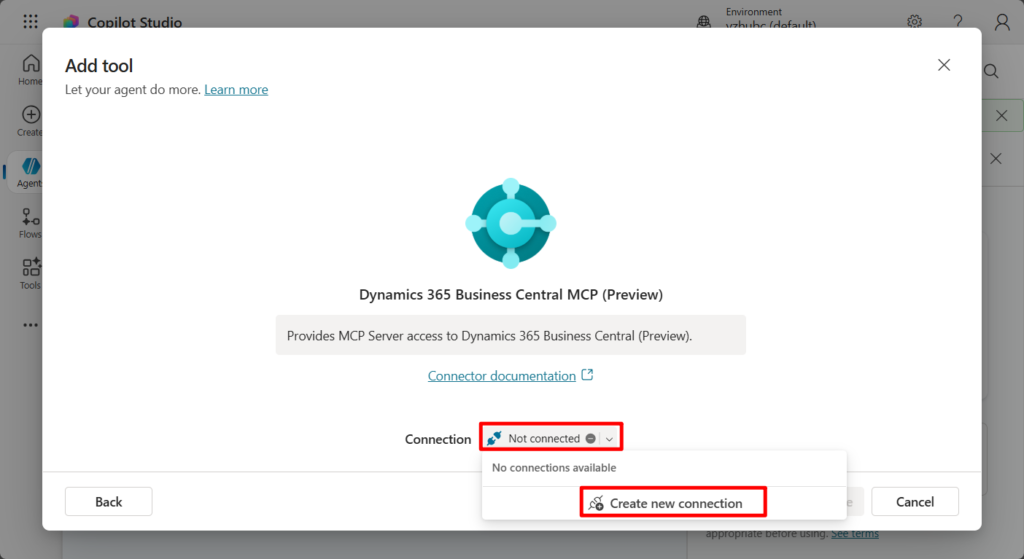
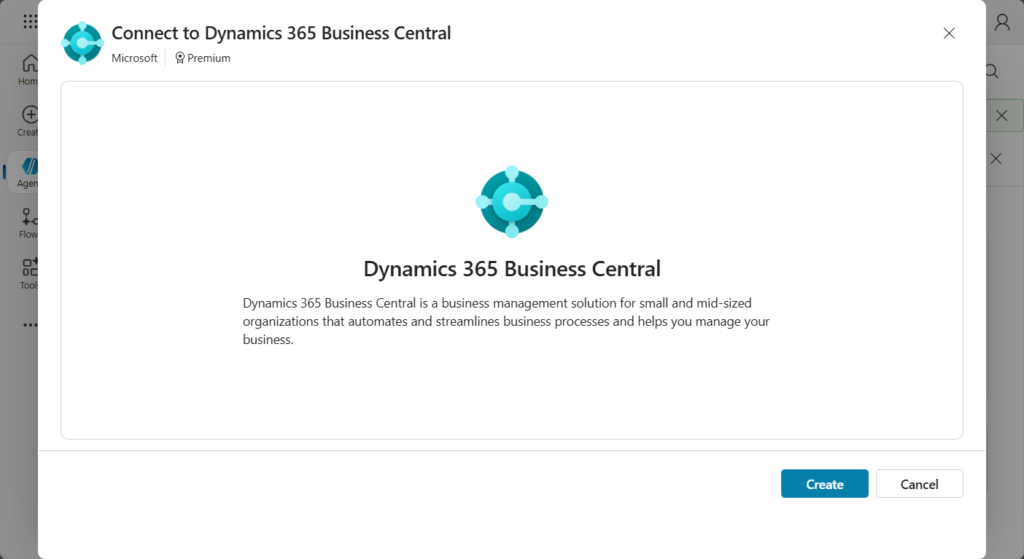
Choose Create.
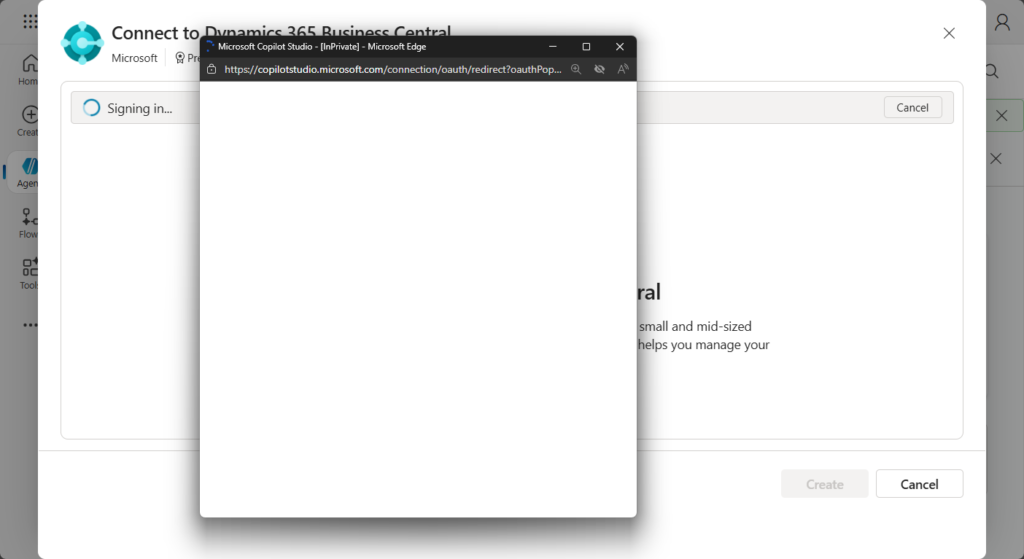
Signing in…
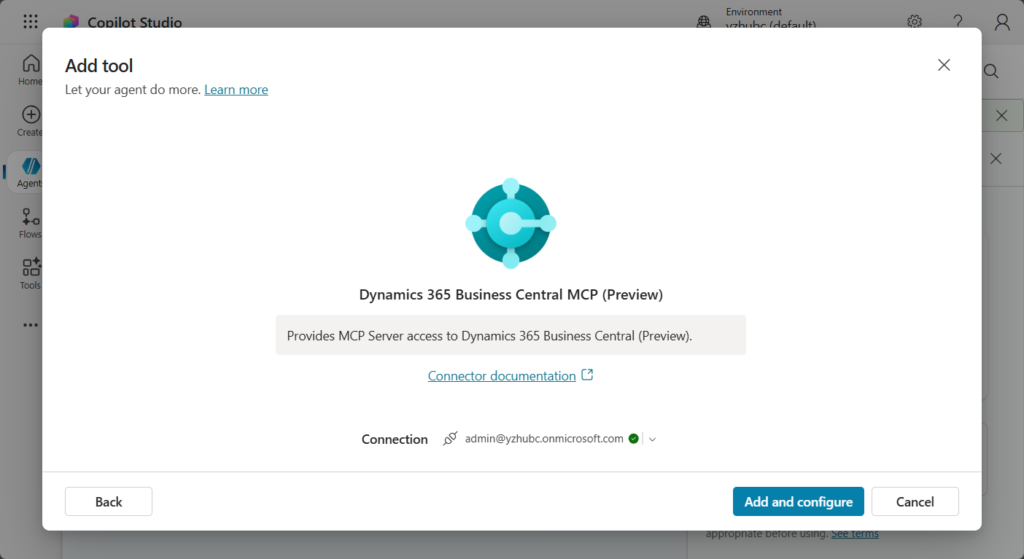
Then Choose Add and configure.
Done.
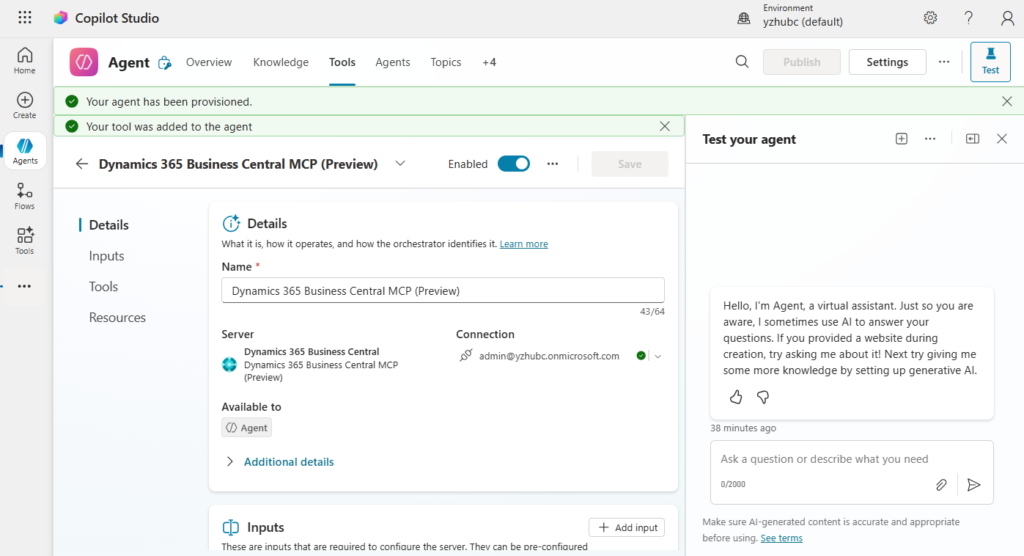
In the Inputs tab, you can configure the Environment, Company, and MCP Server Configuration.
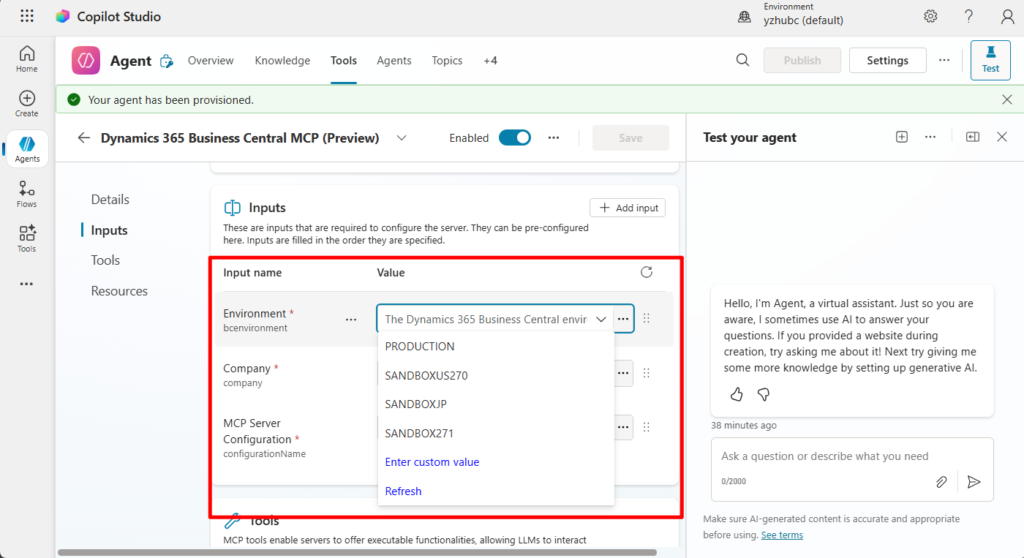
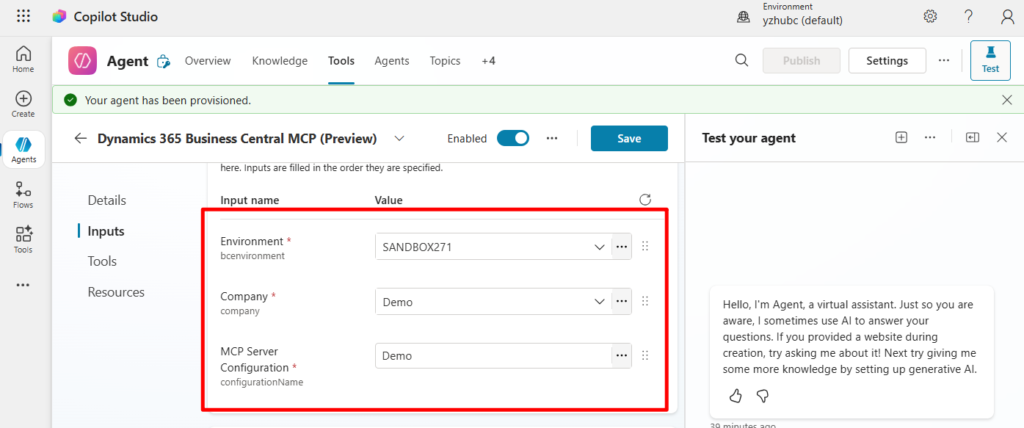
A simple test: I want to view the current customer list
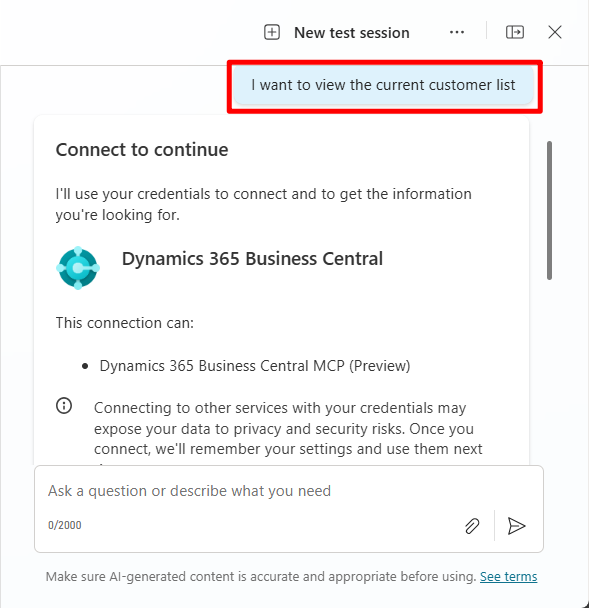
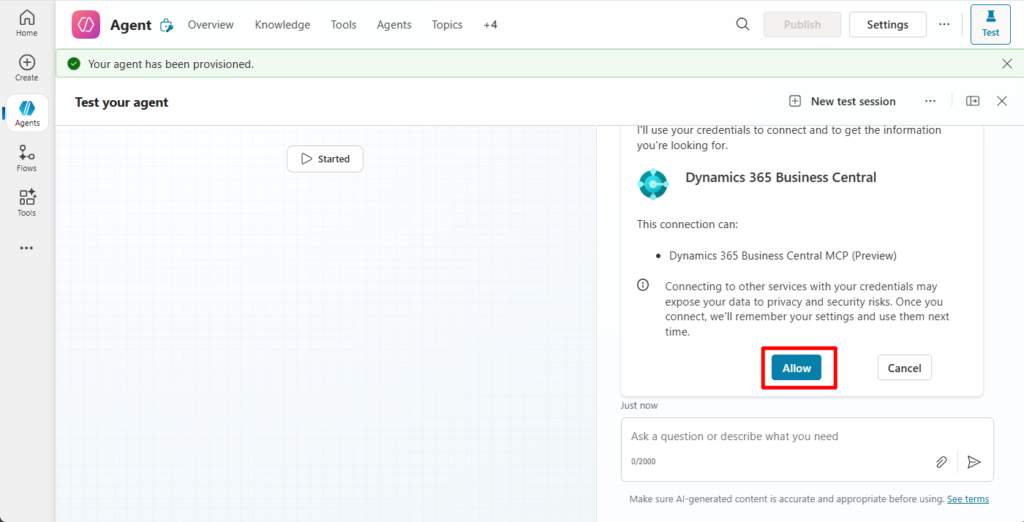
PS: You need to click Allow on the first run.
Great.
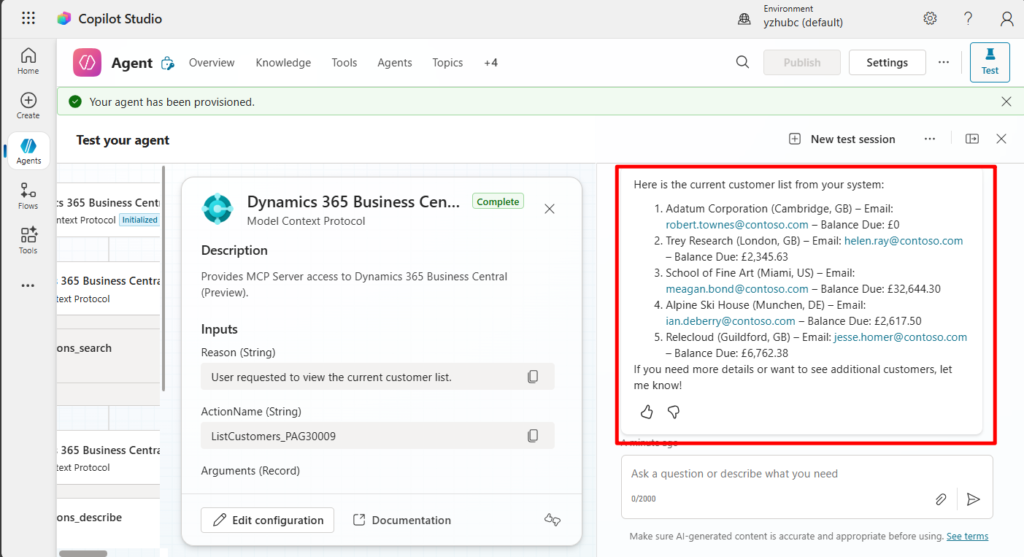
Very simple, give it a try!!!😁
PS:
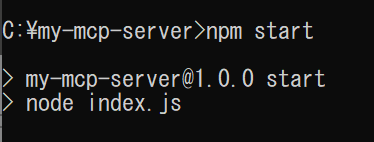
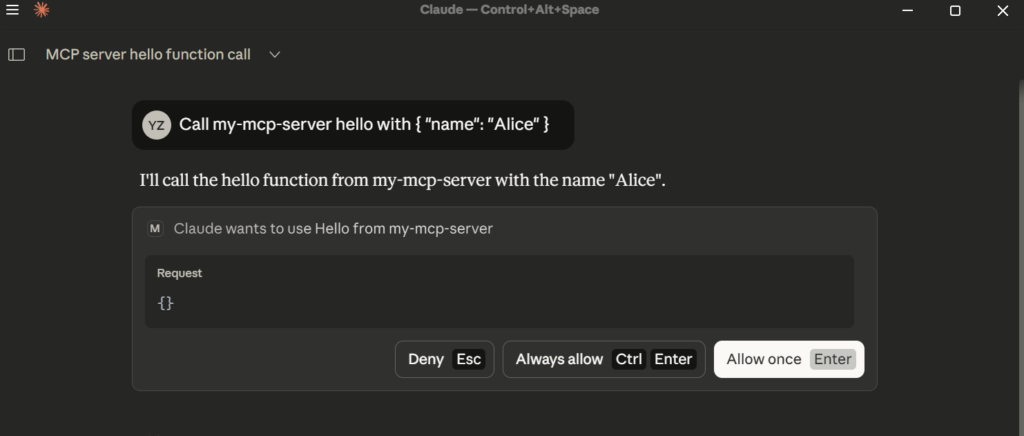
1. The old methods used to set up a local MCP server in tools such as Claude for Desktop are still available. However, this is quite complicated, and I personally do not recommend it.
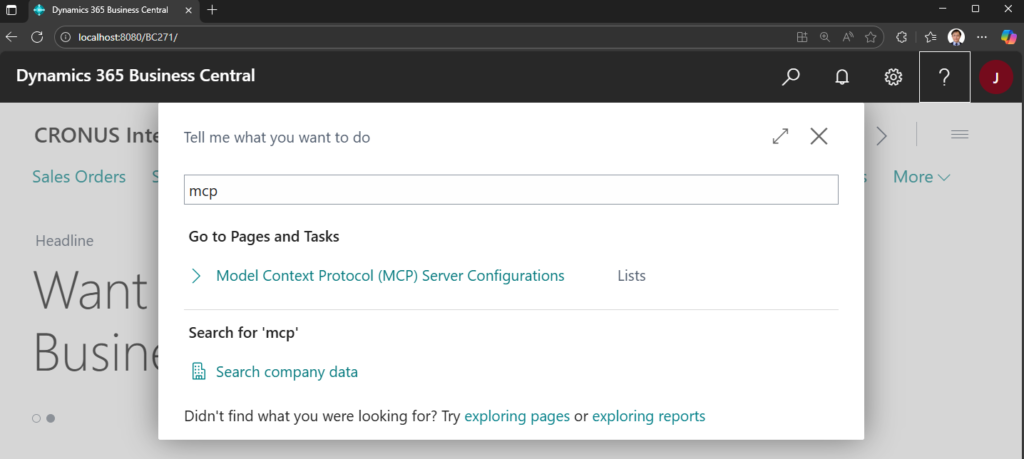
2. This feature also exists in BC27.1 On-Premises, but I haven’t confirmed whether it’s available.
More details: Create agents in Copilot Studio that connect to Business Central
END
Hope this will help.
Thanks for reading.
ZHU
コメント