
Hi, Readers.
The public preview for Dynamics 365 Business Central 2026 release wave 1 (BC28) is available. Learn more: Link.
I will continue to test and share some new features that I hope will be helpful. In this post, I would like to talk about Manage database index usage and cost per company.
Manage database index usage and cost per company:
View index information
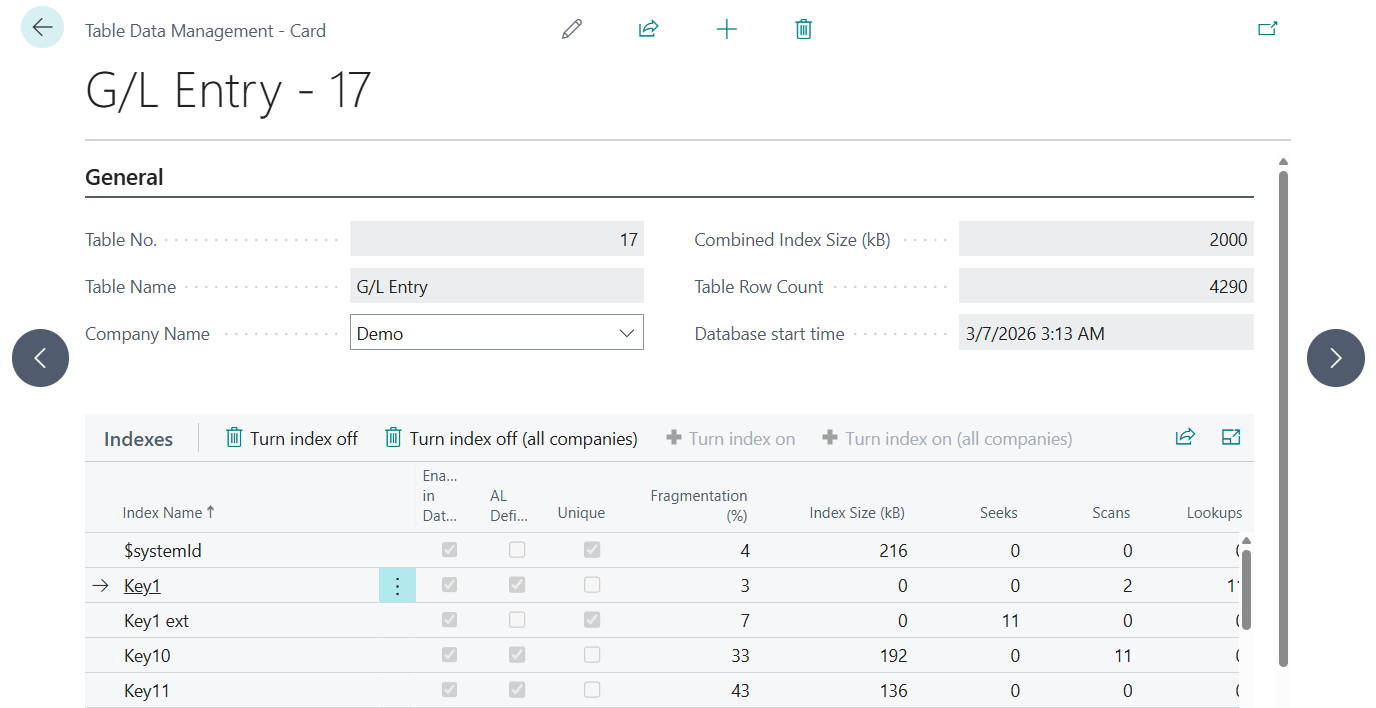
Access detailed index information directly in the UI. Open the Database Index Information page from the Table Information page by selecting a table. Here, you see per-index details from the new Database Index virtual table, including storage usage, SQL Server index usage statistics, and index type (AL-defined or system-generated).Turn off indexes per company
You can turn off non-unique indexes with low usage to reduce storage costs and improve write performance. In the Indexes section of the Database Index Information page, clear the Enabled in Database check box for the unwanted index.Unique indexes, primary keys, SIFT, and systemid indexes are protected from disabling. Disabling an index takes effect immediately. Enabling an index is queued for the next scheduled midnight process.
Feature details in update 28.0 public preview for 2026 release wave 1 – Business Central | Microsoft Learn
Indexes are an effective feature in relational databases, like SQL, to speed up the process of finding data. By indexing your frequently needed data, the overall performance of your application is optimized. For example, when you need to see some information in your application, a database query will run behind the scene to complete your request and it will look up every record until it finds the required information. This process of finding information is time consuming and slows down the application performance. However, if you index the data, like those columns that are referred more often, the database will go directly to that column instead of looking up all records in the table. This action significantly increases the efficiency and overall performance of your application. More details: Indexes overview
In Business Central 2022 wave 1 (BC20), developers and administrators can get insights into missing indexes in the database. More details: Database Wait Statistics page and Database Missing Indexes page
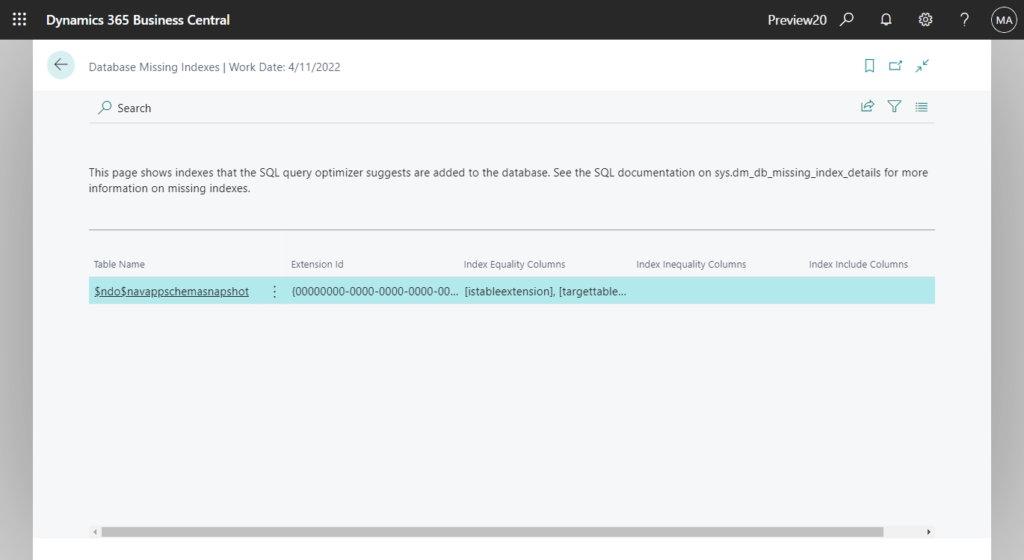
With this wave, Microsoft has further enhanced this feature; we can now view index information in BC client and turn off non-unique indexes. Let’s see more details.
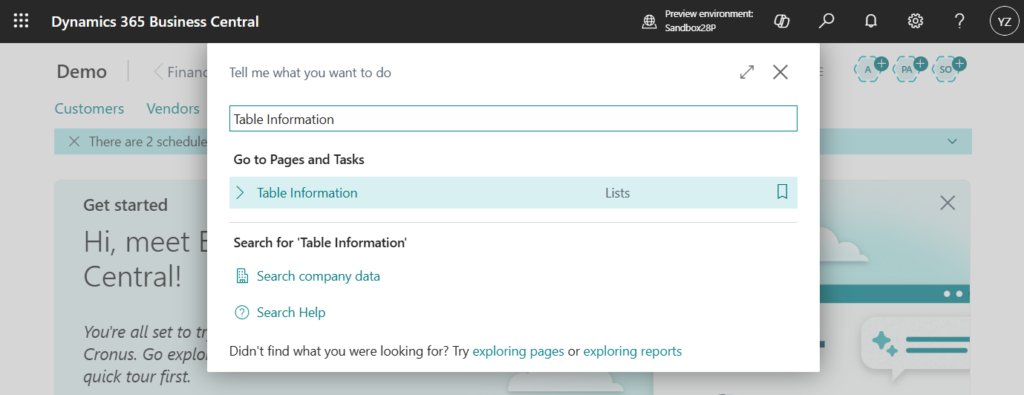
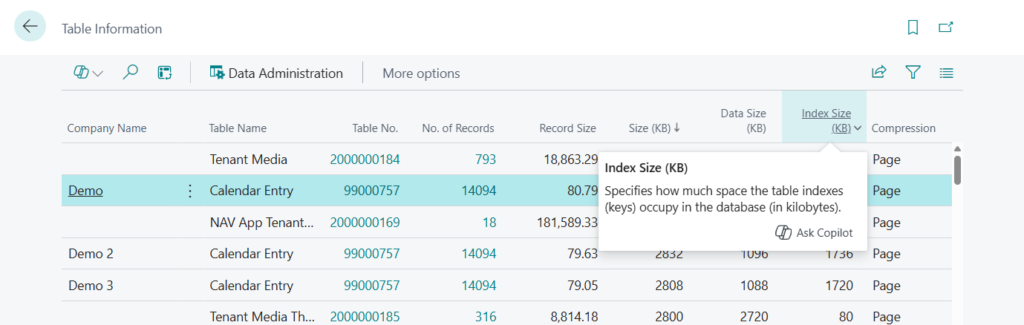
Select Tell Me (Alt+Q) in the upper-right corner, enter Table Information, and then choose the related link.
Select a table, for example, Table No. 17.
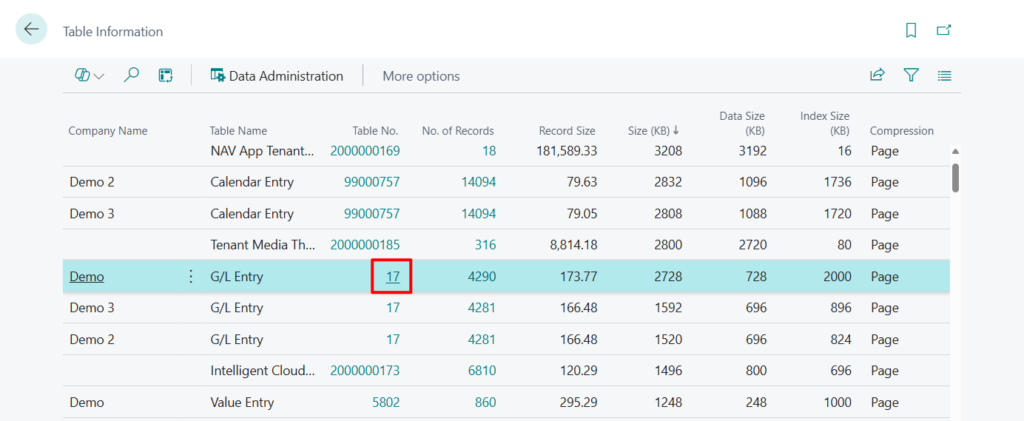
PS: You can also find the Index Size (KB) here.
From there, you can access a new page called ‘Table Data Management‘.
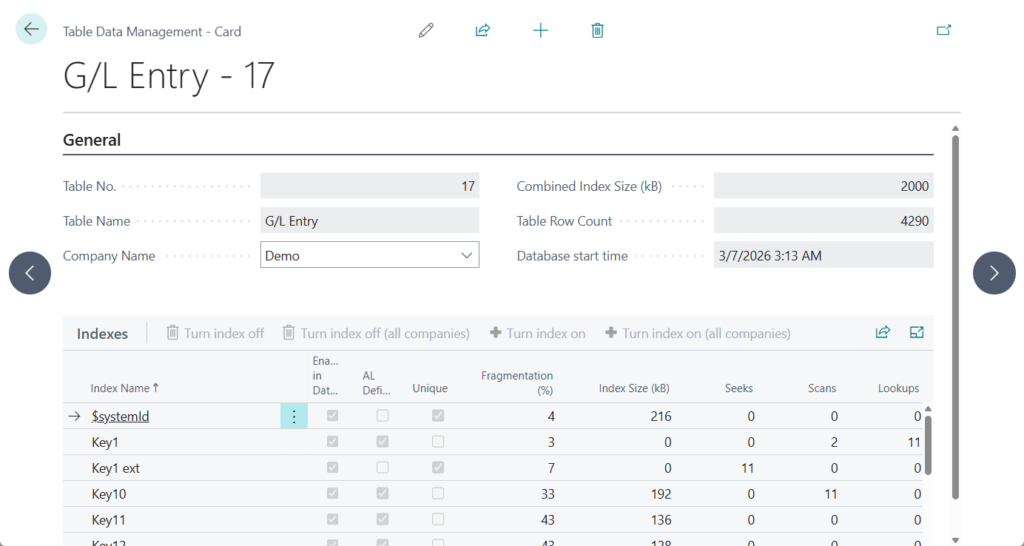
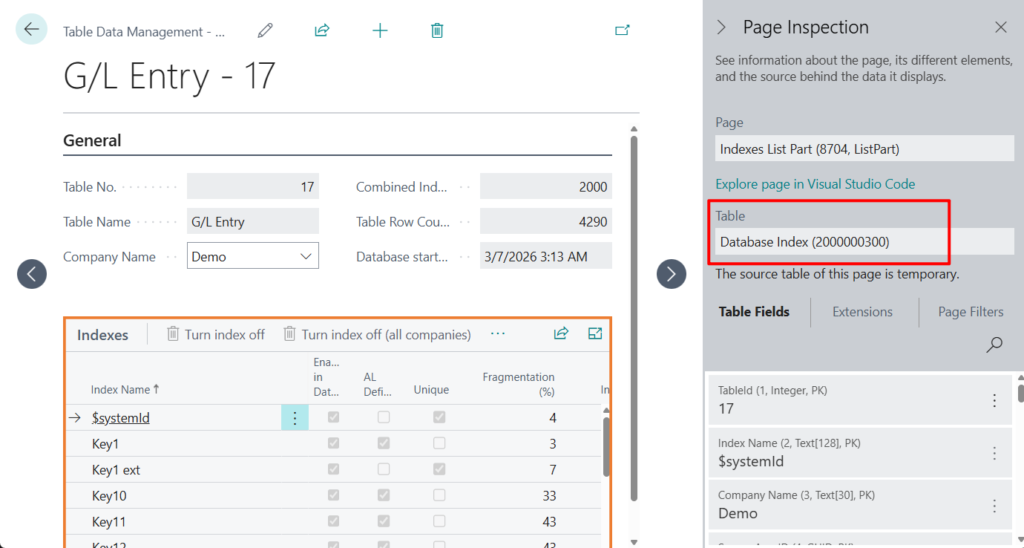
Here, you see per-index details from the new Database Index virtual table, including storage usage, SQL Server index usage statistics, and index type (AL-defined or system-generated).
You can turn off non-unique indexes with low usage to reduce storage costs and improve write performance. In the Indexes section,choose Turn index off or Turn index off (all companies).
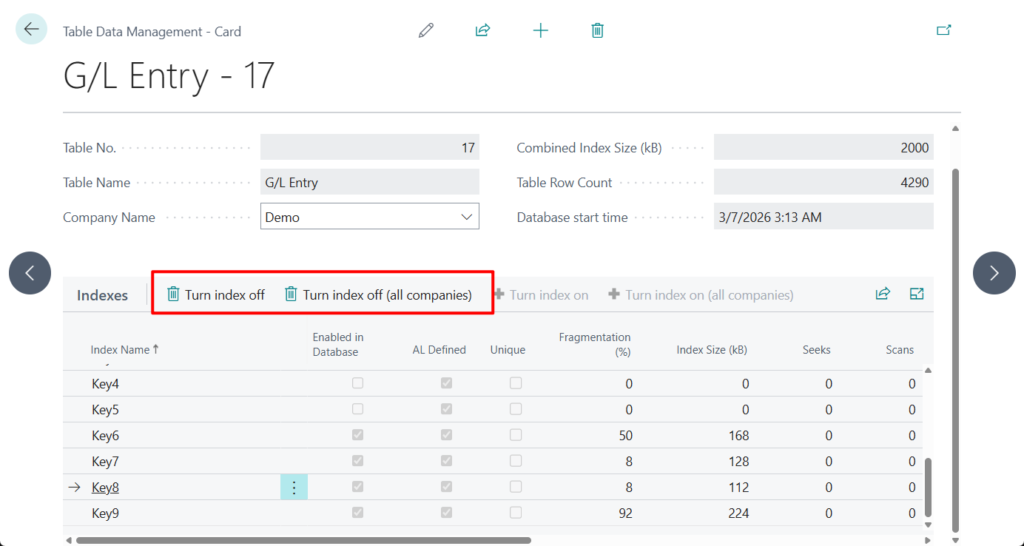
Disabling an index takes effect immediately.
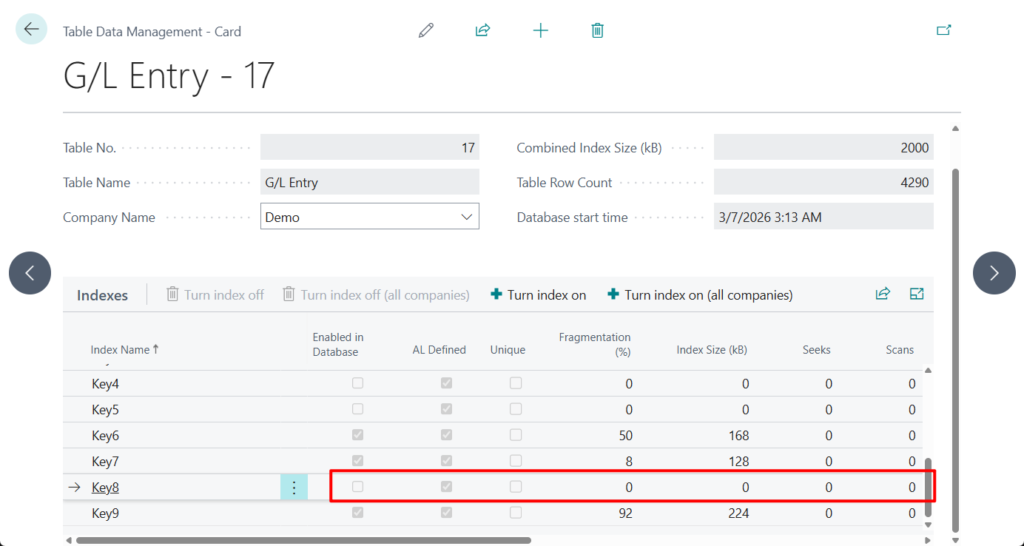
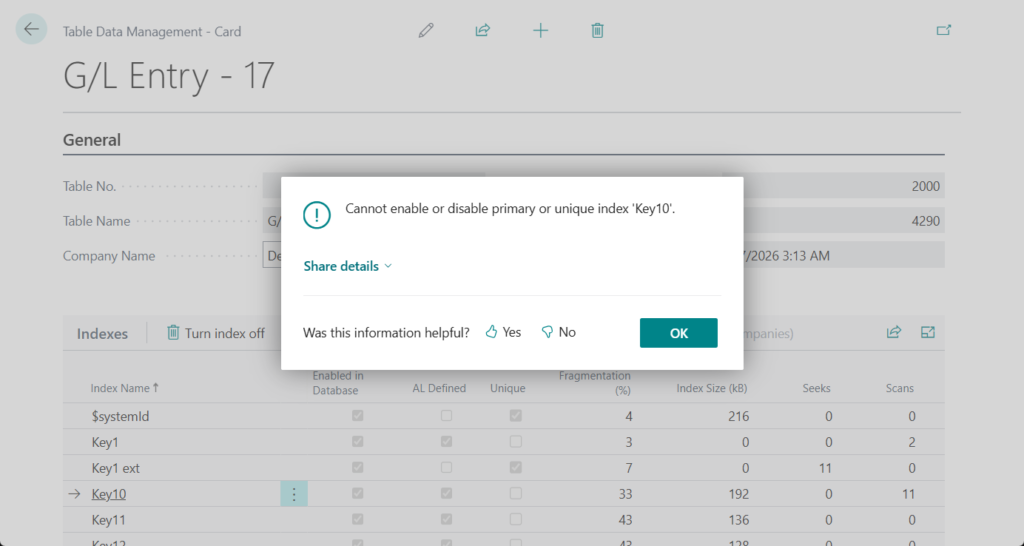
PS: Unique indexes, primary keys, SIFT, and systemid indexes are protected from disabling.
Cannot enable or disable primary or unique index ‘Key10’.
Enabling an index is queued for the next scheduled midnight process.
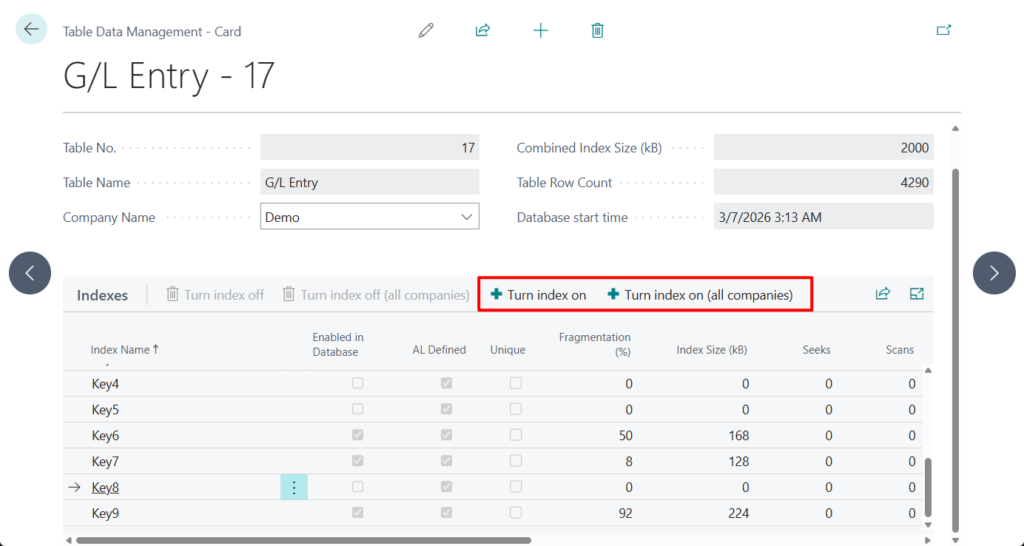
The index has been enqueued to be turned on, it will attempted during the subsequent maintenance window (over the night local time).

This is a fantastic update. It gives developers and admins much-needed flexibility when handling indexes. I highly recommend giving it a try!😁
END
Hope this will help.
Thanks for reading.
ZHU

コメント