
Hi, Readers.
The public preview for Dynamics 365 Business Central 2026 release wave 1 (BC28) is available. Learn more: Link.
I will continue to test and share some new features that I hope will be helpful. In this post, I would like to talk about Create purchase orders from drop shipments.
Create purchase orders from drop shipments:
You can create purchase orders directly from sales orders that are set up for drop shipment by choosing the Create Purchase Orders action.
Drop shipment orders are taken into consideration by the Order Planning page, so drop shipment lines are included when calculating plans. Also, the Planning Worksheet page now includes a dedicated Drop Shipment action group with the Get Sales Orders and Sales Orders actions, similar to the requisition worksheet.
Feature details in update 28.0 public preview for 2026 release wave 1 – Business Central | Microsoft Learn
A drop shipment is the shipment of items from one of your vendors directly to one of your customers.
When a sales order is marked for drop shipment, and you create a purchase order specifying the customer in the Ship-to field, Customer Address, you can link the two documents to instruct the vendor to ship directly to the customer. Let’s look at a simple example.
I created a new sales order for customer number 20000.

And added some items.

To create drop shipments, we must first add the Drop Shipment field to Lines (it is hidden by default, but can be added using features such as Personalization).

On the sales order line for the drop shipment, select the Drop Shipment checkbox.

To prepare a drop shipment, you indicate on the purchase order that it must be shipped to your customer, not to yourself.
Create a purchase order.

In the Ship-to field, select Customer Address.

In the Customer field, select the customer that you’re selling to (customer number 20000).

Choose the Drop Shipments action, and then choose the Get Sales Order action.

On the Sales List page, select the sales order that you prepared.

The line information from the sales order is inserted on the purchase order line(s).

This is the general method for creating Drop shipments. And you can also use the requisition worksheet to create purchase orders.
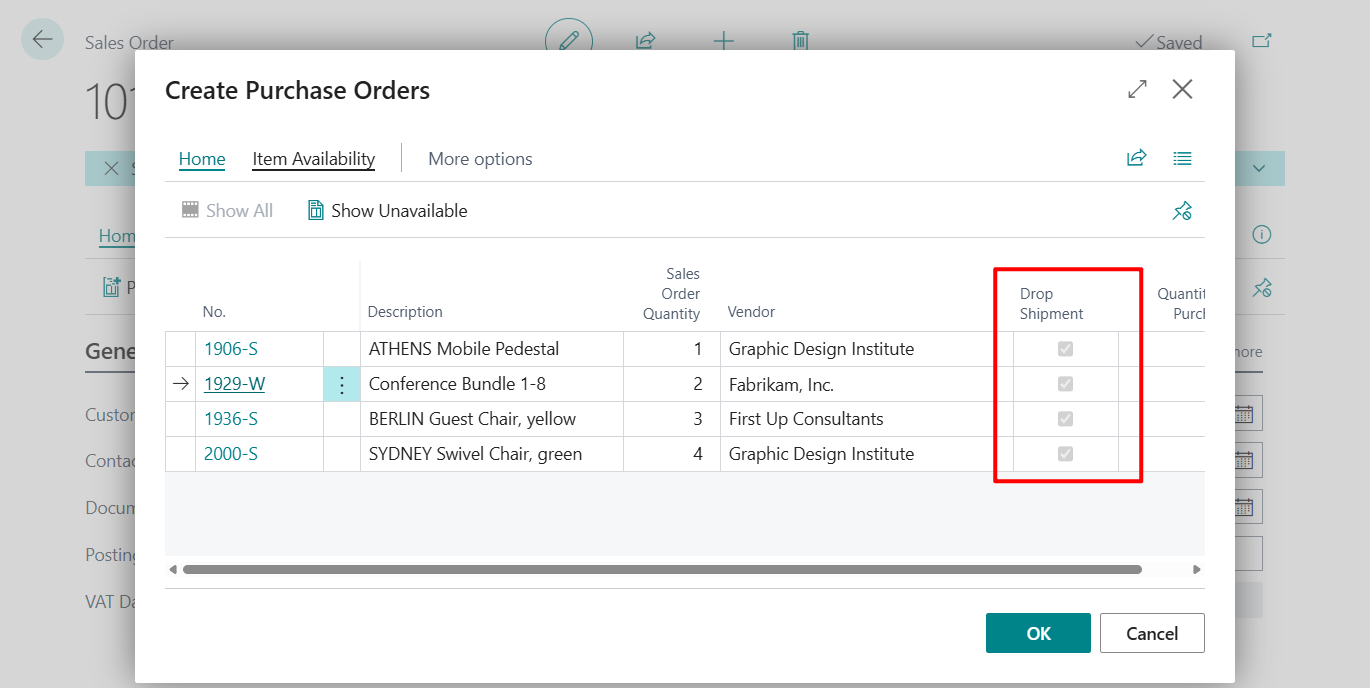
With this wave (BC28), you can create purchase orders directly from sales orders that are set up for drop shipment by choosing the Create Purchase Orders action.

We’ve discussed this feature before, but it didn’t previously support Drop Shipments. More details: Dynamics 365 Business Central Mini tips: Quickly Create Purchase Document from Sales Order (Not Drop Shipment and Special Order)
In BC28:

On the Create Purchase Orders page, review the suggested lines. The vendor is added based on information from the Item Card or the Stockkeeping Unit Card pages. You can change the vendor if needed.


After selecting OK, Purchase order(s) will be created automatically.


Note:
Replenishment System must be equal to ‘Purchase’ in Requisition Line: Worksheet Template Name=, Journal Batch Name=0, Line No.=30000. Current value is ‘Assembly’.


From order planning, as follows:
- On the Order Planning page, use the Calculate Plan action. Drop shipment lines are included.


From a planning worksheet, as follows:
- On the Planning Worksheet page, use the new Drop Shipment action group and the Get Sales Orders action to include sales orders.


Give it a try!!!😁
END
Hope this will help.
Thanks for reading.
ZHU

コメント