
Hi, Readers.
Today I’d like to discuss a question I’ve been asked before, where to find all standard AL namespaces? (Download all AL namespaces).
Namespaces are used to organize code into logical groups and hierarchies, which can prevent naming conflicts that can occur when libraries are combined. Namespaces ensure uniqueness in code names and allow reuse of names in different contexts, and provide structure for the code base, making it easier to navigate and understand. Namespaces are used in many programming languages and with Business Central they’re available with AL.
Standard Object: table 18 Customer
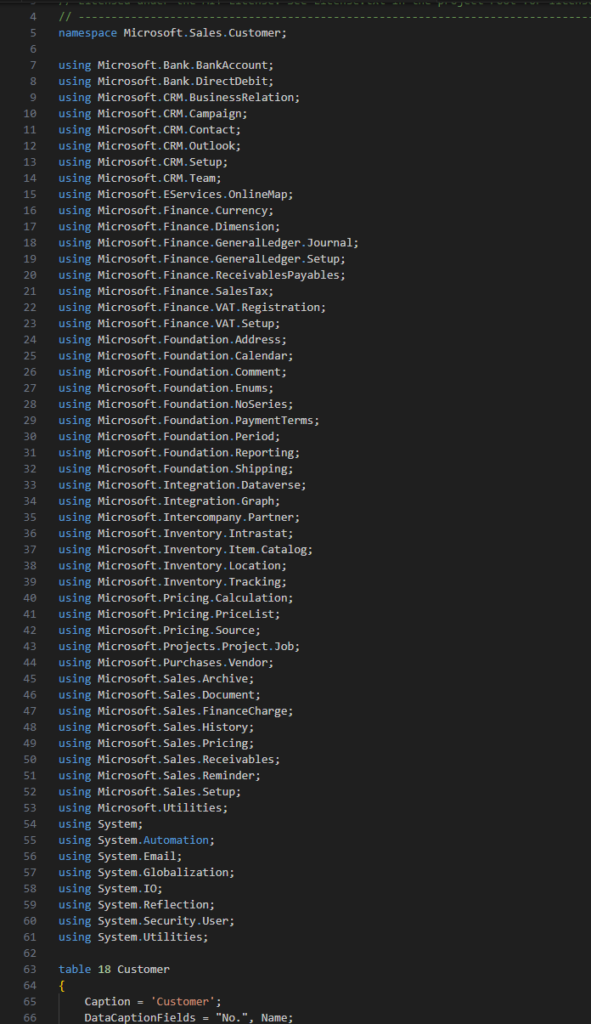
Custom object:

Is there a way to display or download all standard AL namespaces? While previously restricted, the current version makes this entirely possible.
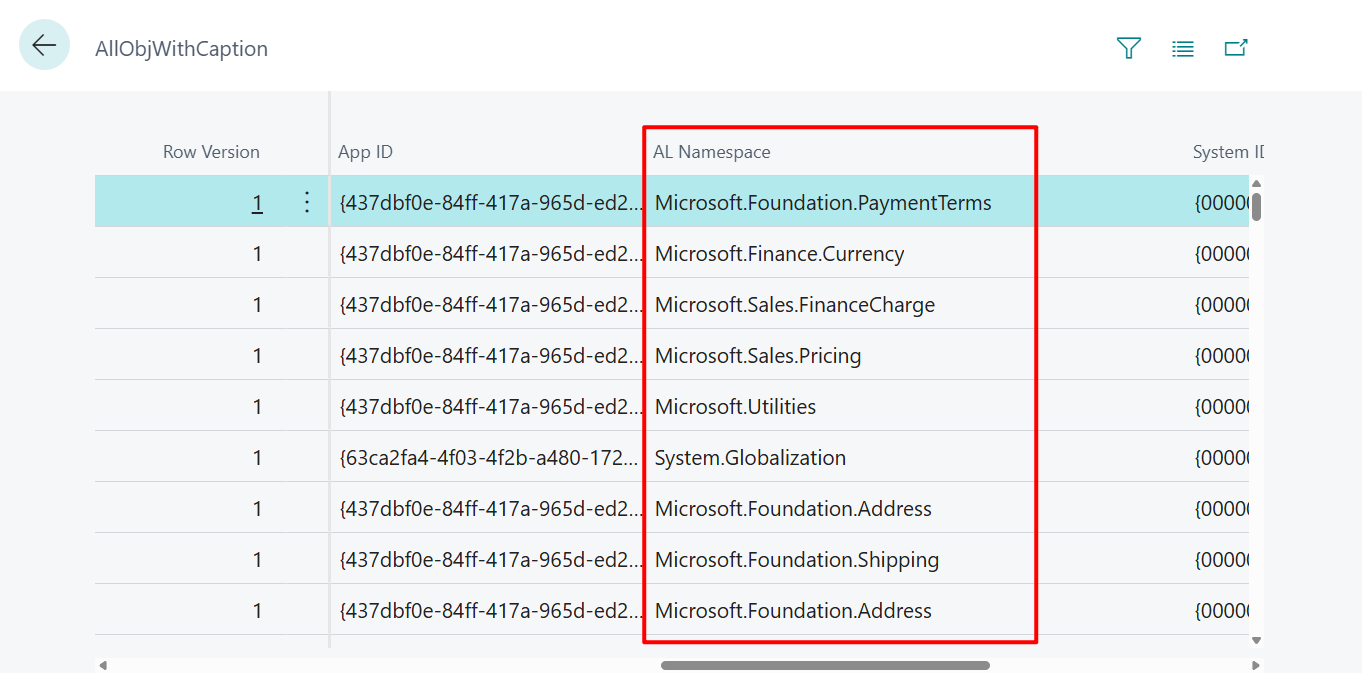
The most direct way to see every namespace assigned to every object (including standard Microsoft objects) is to view the AllObjWithCaption (2000000058) virtual table. For example,
- Open the Table: In your Business Central browser tab, append the following to your URL:
?table=2000000058

- Locate the Column: You will now see a column titled AL Namespace.
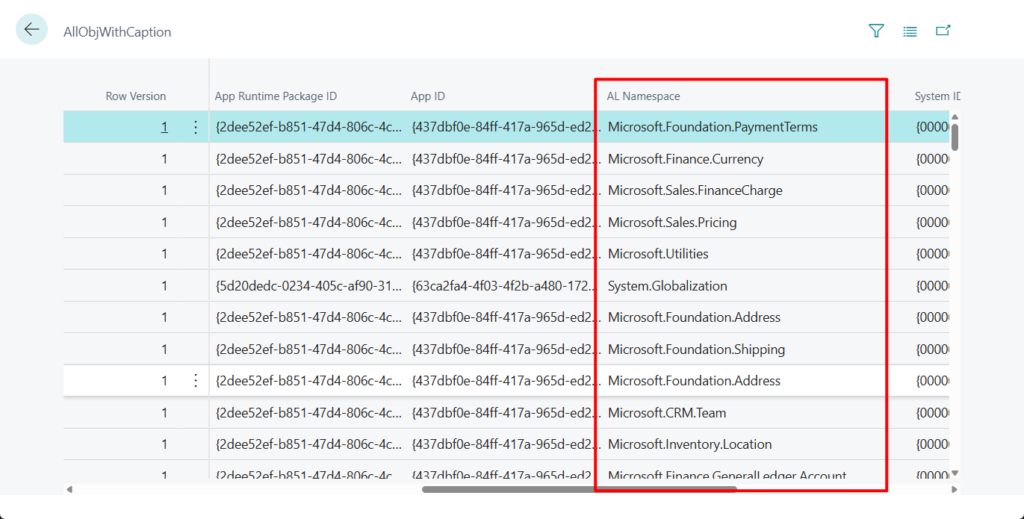
PS: Dynamics 365 Business Central: Viewing table data (Six ways)
That’s good, but directly opening the table doesn’t allow you to download and group these AL Namespaces. We can create a regular list page and then use analysis mode to group the data. Let’s see more details.
PS: Dynamics 365 Business Central: Run Object Tool (Table, Page, Query, Report, XMLport)
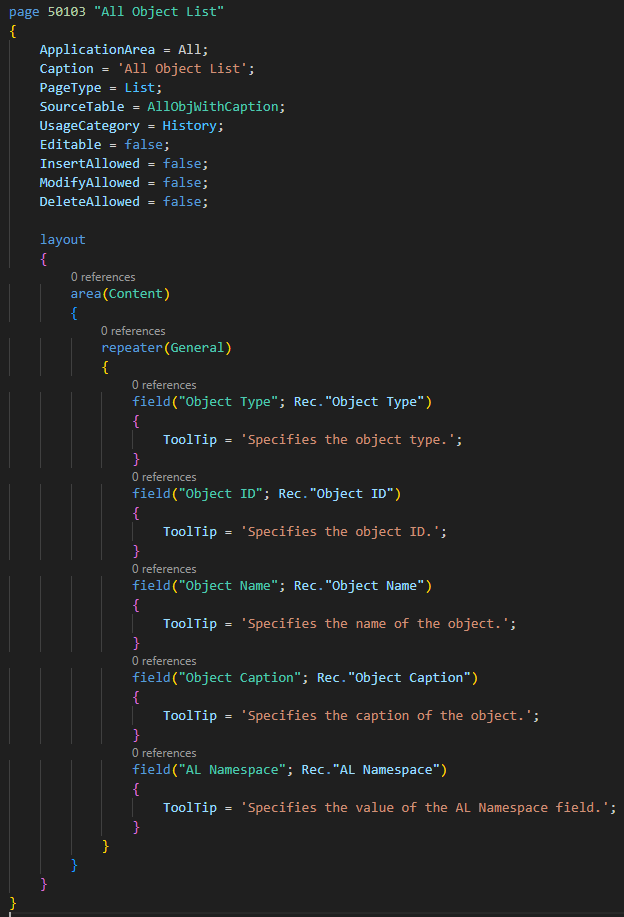
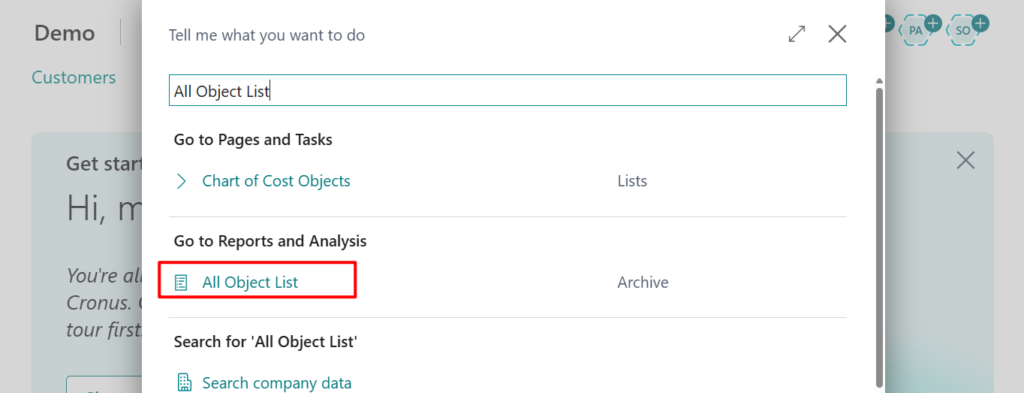
First, I created a simple list page.
Find and open it in BC.
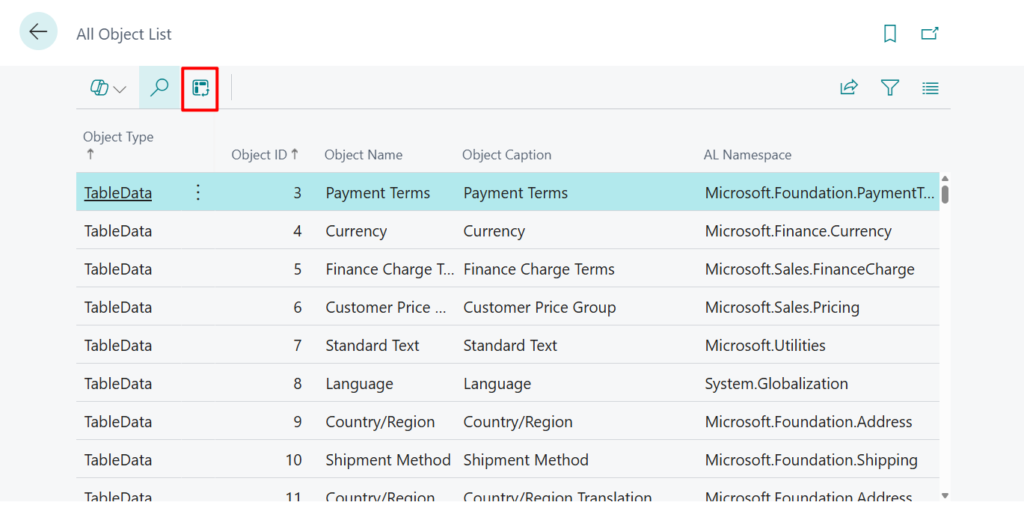
Enter analysis mode.
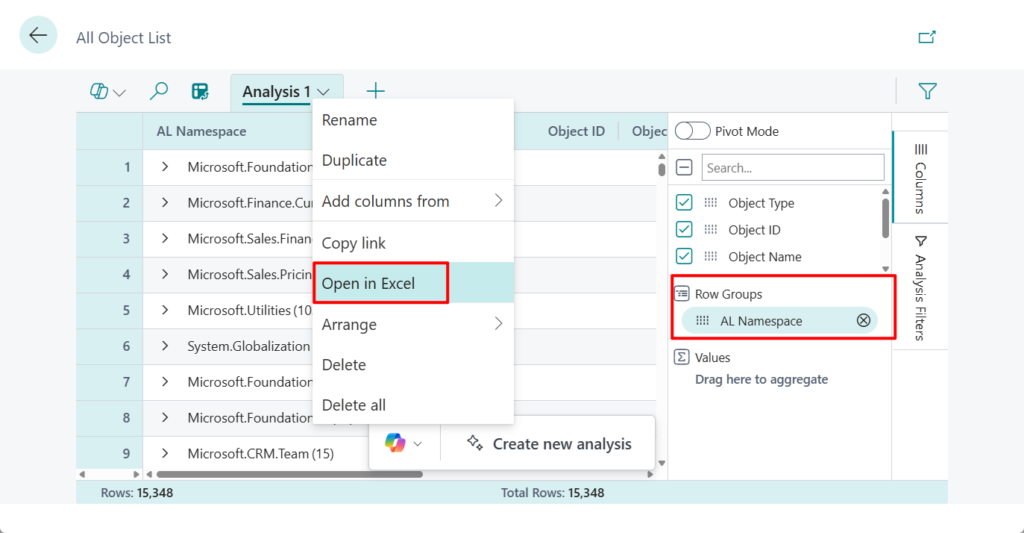
Group by AL Namespace, then export to Excel.
Done.
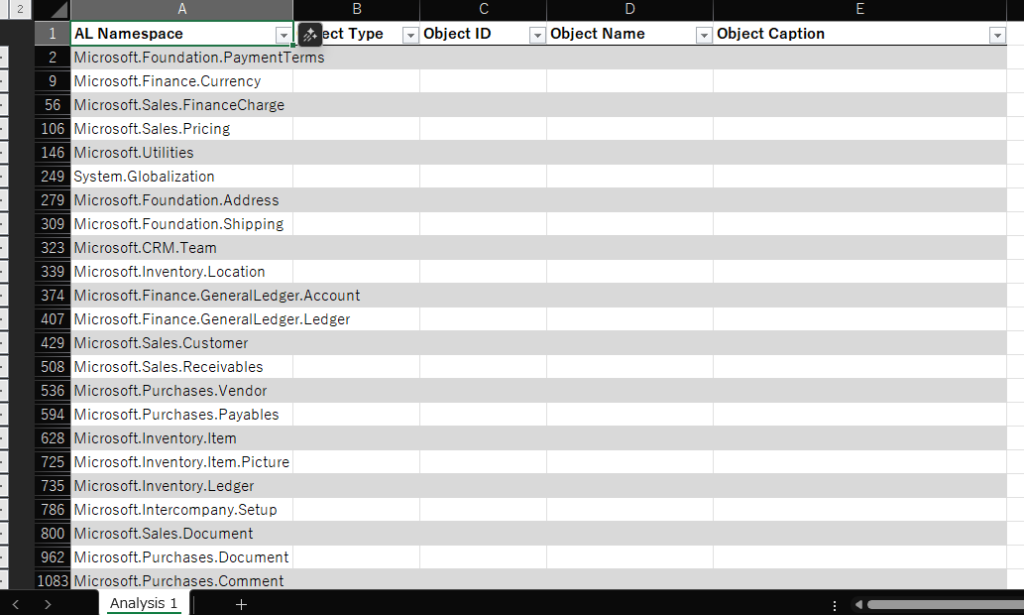
It’s very simple, you can directly download the file below.
Version: W1 27.4 (Platform 27.0.45543.0 + Application 27.4.45366.46024)
PS:
1.
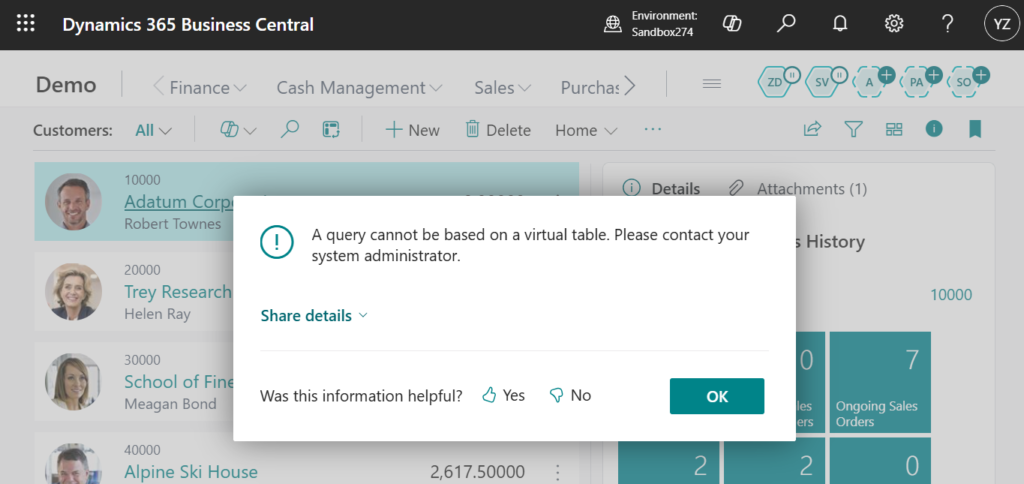
A query cannot be based on a virtual table. Please contact your system administrator.
2. Test code
page 50103 "All Object List"
{
    ApplicationArea = All;
    Caption = 'All Object List';
    PageType = List;
    SourceTable = AllObjWithCaption;
    UsageCategory = History;
    Editable = false;
    InsertAllowed = false;
    ModifyAllowed = false;
    DeleteAllowed = false;

    layout
    {
        area(Content)
        {
            repeater(General)
            {
                field("Object Type"; Rec."Object Type")
                {
                    ToolTip = 'Specifies the object type.';
                }
                field("Object ID"; Rec."Object ID")
                {
                    ToolTip = 'Specifies the object ID.';
                }
                field("Object Name"; Rec."Object Name")
                {
                    ToolTip = 'Specifies the name of the object.';
                }
                field("Object Caption"; Rec."Object Caption")
                {
                    ToolTip = 'Specifies the caption of the object.';
                }
                field("AL Namespace"; Rec."AL Namespace")
                {
                    ToolTip = 'Specifies the value of the AL Namespace field.';
                }
            }
        }
    }
}END
Hope this will help.
Thanks for reading.
ZHU
コメント