

Hi, Readers.
The public preview for Dynamics 365 Business Central 2025 release wave 2 (BC27) is available. Learn more: Link.
I will continue to test and share some new features that I hope will be helpful. In this post, I would like to talk about Record and edit easier with enhanced page scripting tool.
Record and edit easier with enhanced page scripting tool:
Business value:
The page scripting tool, widely used by consultants and customer stakeholders, empowers you to define and run user acceptance tests. Based on user feedback, the tool includes improved script recording and editing capabilities that make user acceptance testing easier and more efficient.
https://learn.microsoft.com/en-us/dynamics365/release-plan/2025wave2/smb/dynamics365-business-central/record-edit-easier-enhanced-page-scripting-tool?wt.mc_id=DX-MVP-5004336
The page scripting tool in the Business Central web client allows you to record your actions, such as opening pages or entering data, and replay them. You can save the recording and share it with others for future playback. An important use case for the tool is capturing and executing user acceptance tests, which is also the initial focus for this release wave.
This feature was first announced and demonstrated at BC TechDays 2023.
More details: BC TechDays 2023 – Opening Keynote (1:25:03~1:30:27)
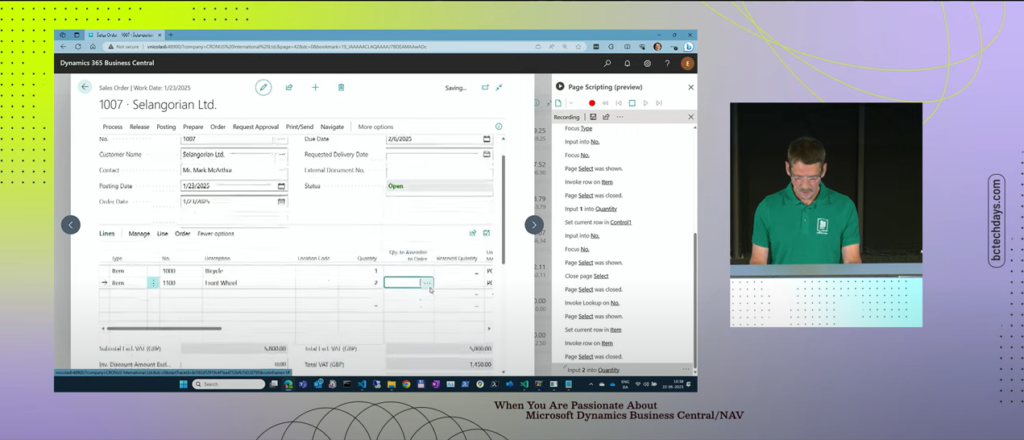
More details: Business Central 2024 wave 1 (BC24): Use in-client page scripting tool for acceptance testing
With this wave (BC27), Microsoft has once again enhanced this feature.
This release adds improvements to the experience of recording and editing scripts. Let’s see more details.
- Define the insert point for the next recorded steps
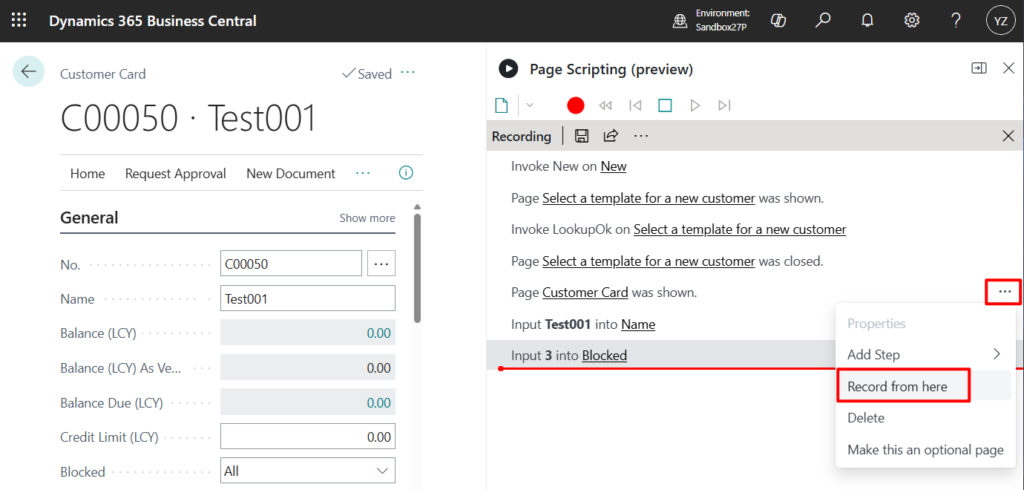
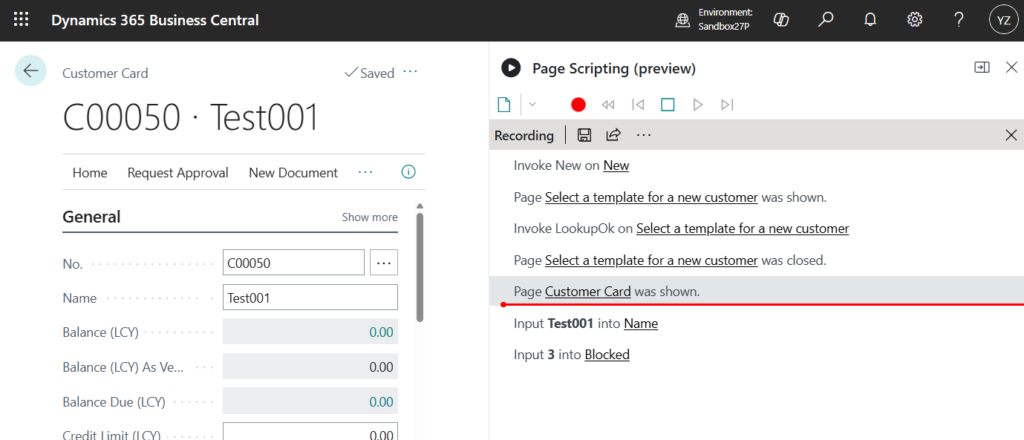
Sometimes you need to insert steps in the middle of a script. Before, you had to edit the script file or delete steps until the insert point and then redo them. Now, you can drag the red insertion line to control where the next recorded steps are inserted.
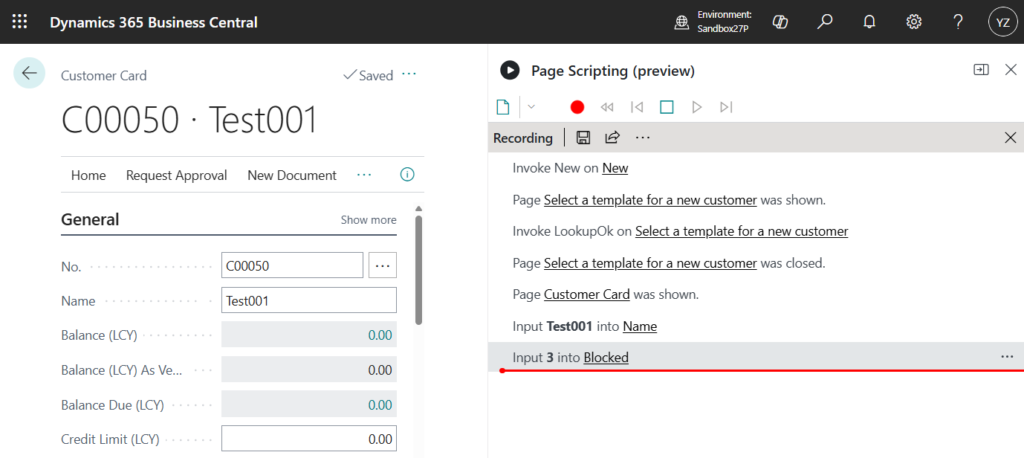
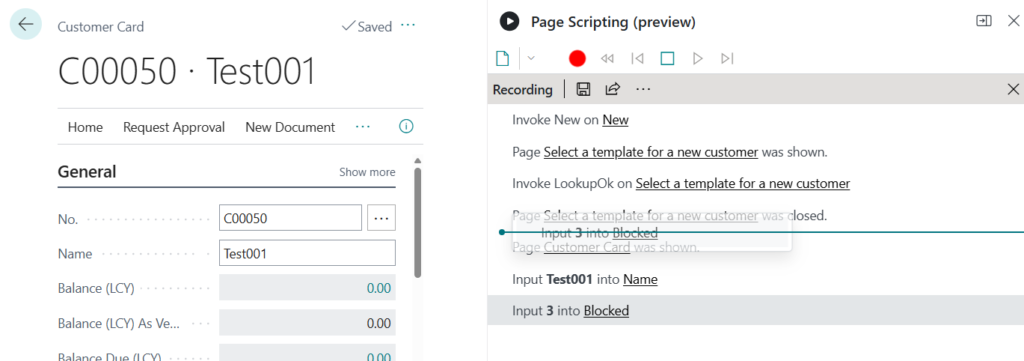
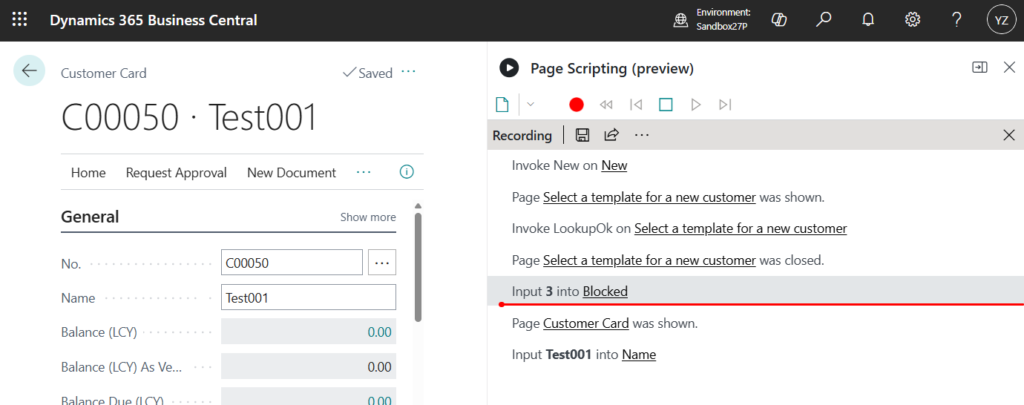
Or click … to the right of the step and select Record from here.
- Rearrange step order
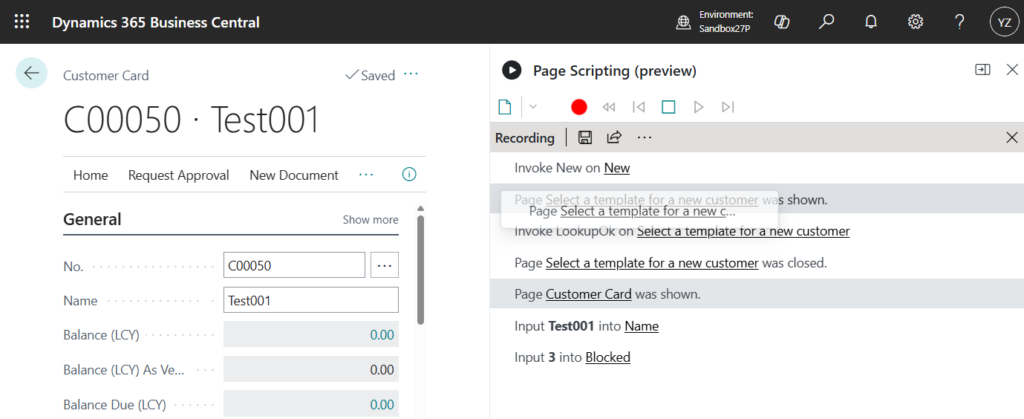
Sometimes you need to change the order of script steps, like when the flow changes or you insert new steps. Now, you can drag a step to move it.
Similar to dragging the red line above.
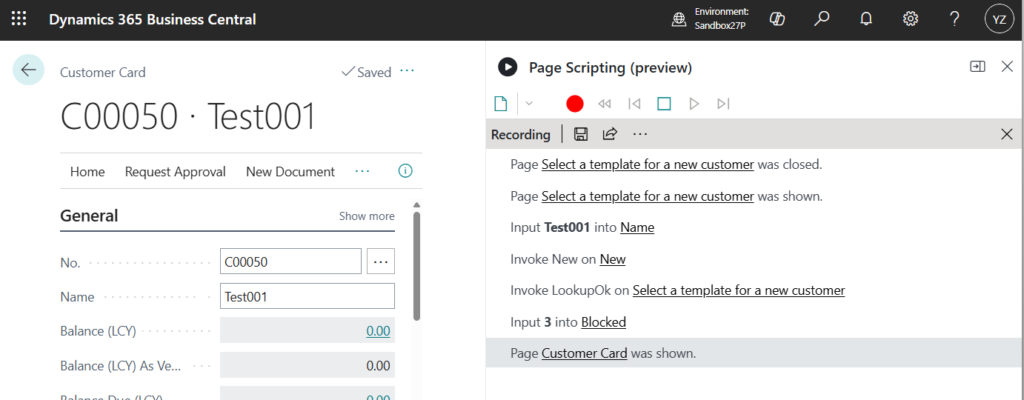
Note that moving steps can cause the script to fail if the new order doesn’t make sense.
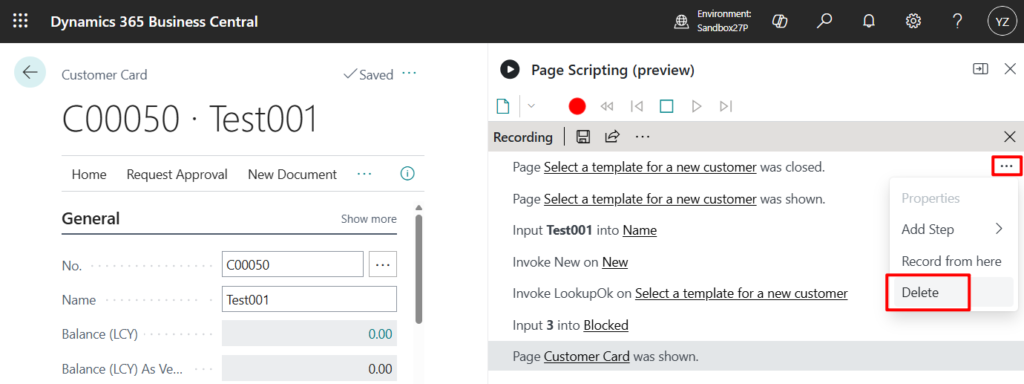
- Delete any arbitrary step
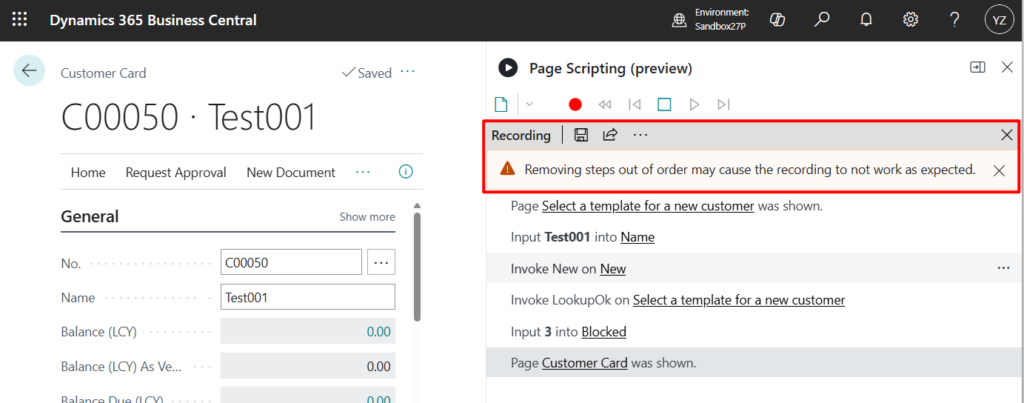
Previously, you could only delete steps from the end of the script. Now, you can delete any step, including those in the middle. The first time you delete a step, you see a warning that this action might break the script.
Removing steps out of order may cause the recording to not work as expected.
- Define script parameters in the UI
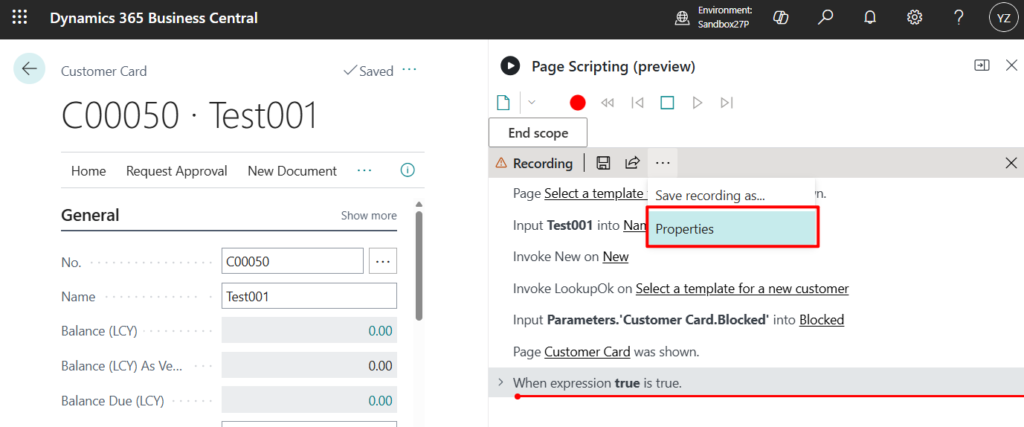
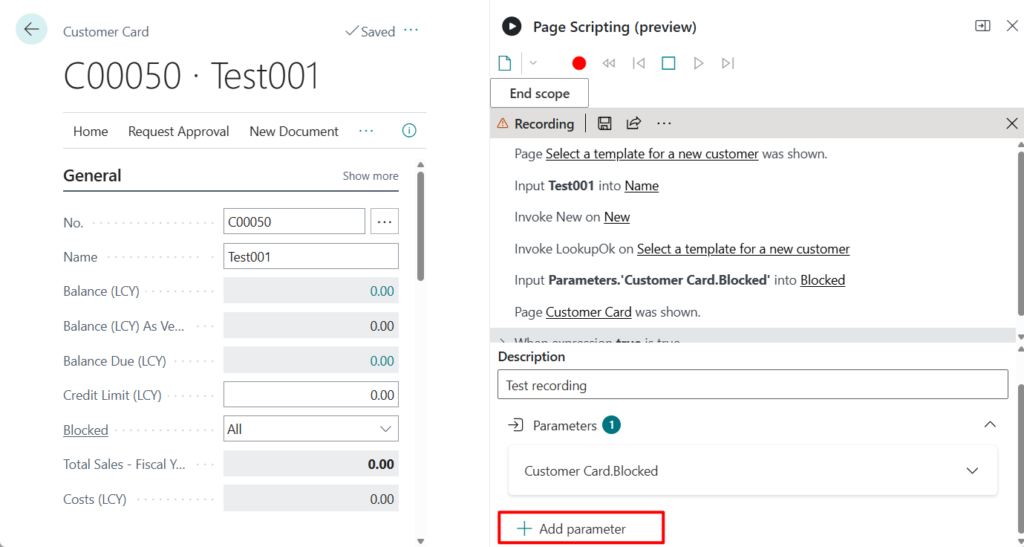
Page scripting supports parameters, which can be values set during execution or passed to other scripts in a suite. Previously, you could only define parameters in the page script YAML file. Now, you can add parameters directly in the UI in the properties section for the script. If a parameter is not set, a dialog prompts you to enter a value during replay.
For example, set a parameter.
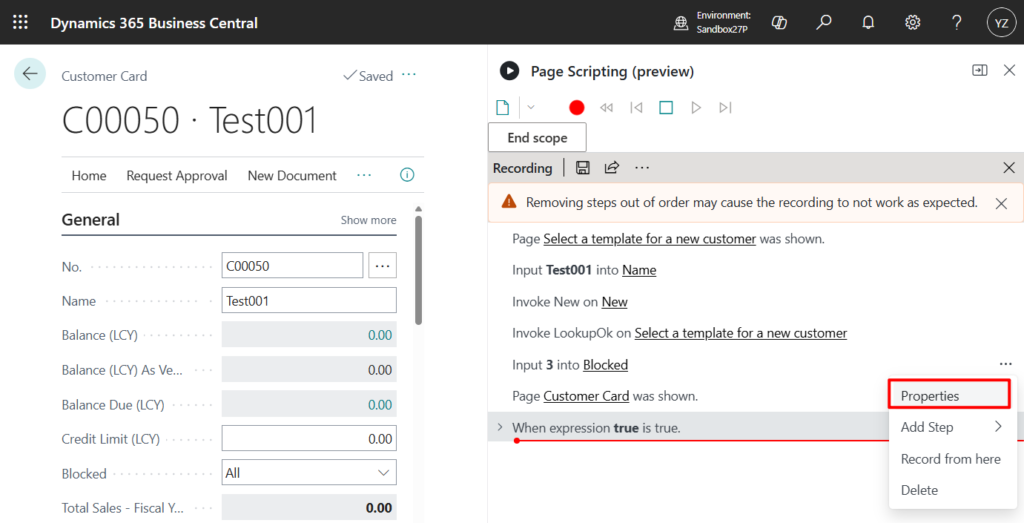
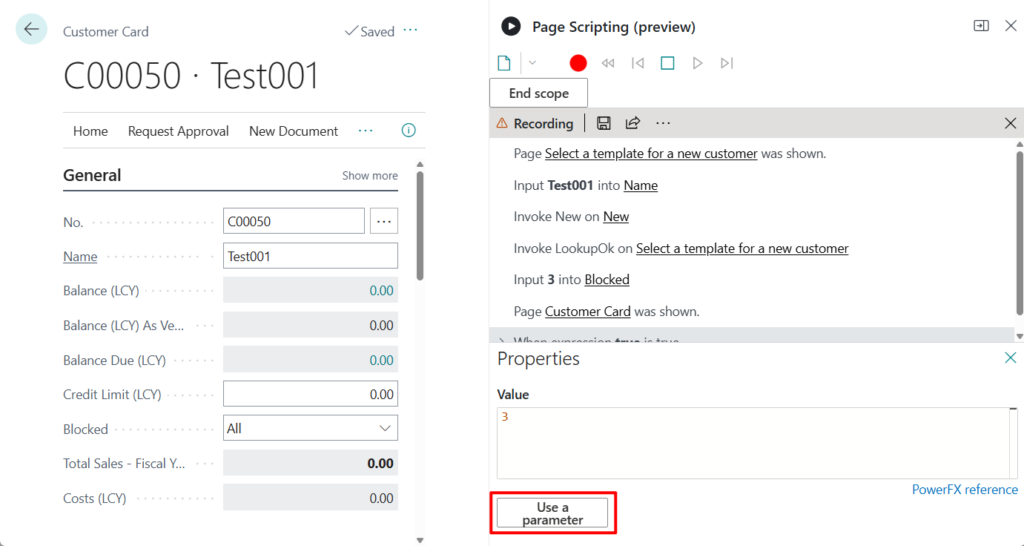
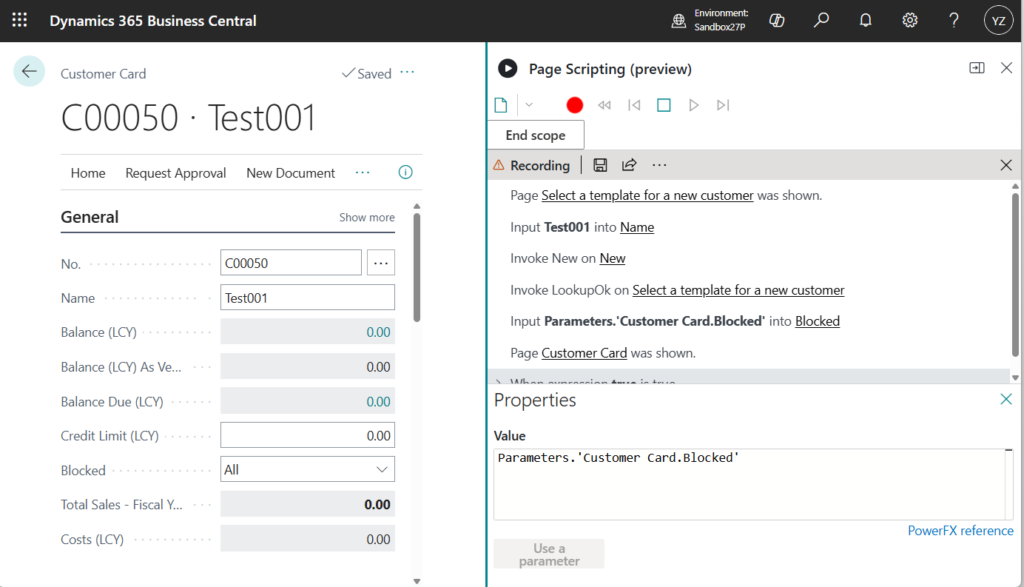
Then chosse Properties -> Parameters
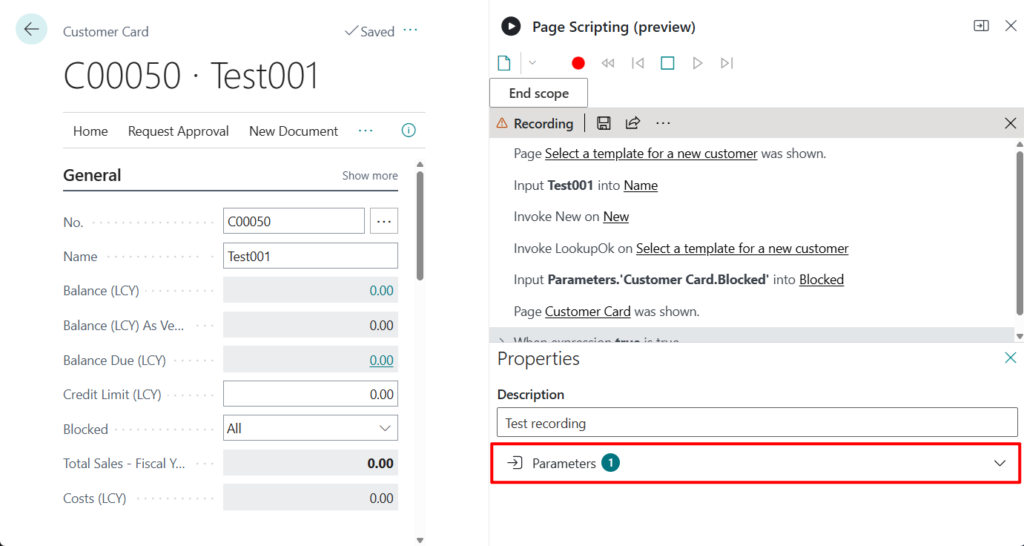
Then you can set the details of this parameter.

You can also add parameters directly here.
- Create a suite of scripts in the UI
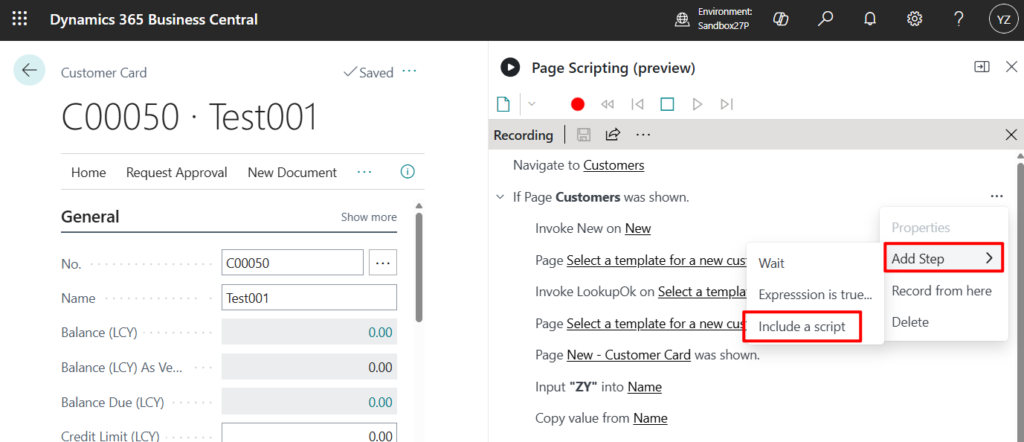
Before, you could create a suite of scripts that run in a certain order by editing a page script YAML file. Now, you can include other scripts from the Page Scripting pane by entering the relative path to the script. You can’t edit inserted script steps in the parent suite script. To pass parameters across included scripts, define them in both the parent suite script and the included scripts.

Great, give it a try!!!😁
PS: Business Central 2025 wave 2 (BC27): Adjust width of Copilot, help, and page scripting panes
END
Hope this will help.
Thanks for reading.
ZHU
コメント