

Hi, Readers.
Today I would like to share another mini tip, how to quickly find the Tenant ID, Azure AD Instance, and Tenant Scope from the domain (tenant) name without signing in.
Your Microsoft 365 tenant ID is a globally unique identifier (GUID) that is different than your organization name or domain.
Generally, as a technician at Business Central, we have the following ways to find the Tenant Id.
1. From Microsoft 365 admin center:


2. From Azure Portal:


3. From Business Central:


4. Using AL Method: Dynamics 365 Business Central: How to get the Azure Active Directory tenant domain name and ID via AL (codeunit 433 “Azure AD Tenant”)
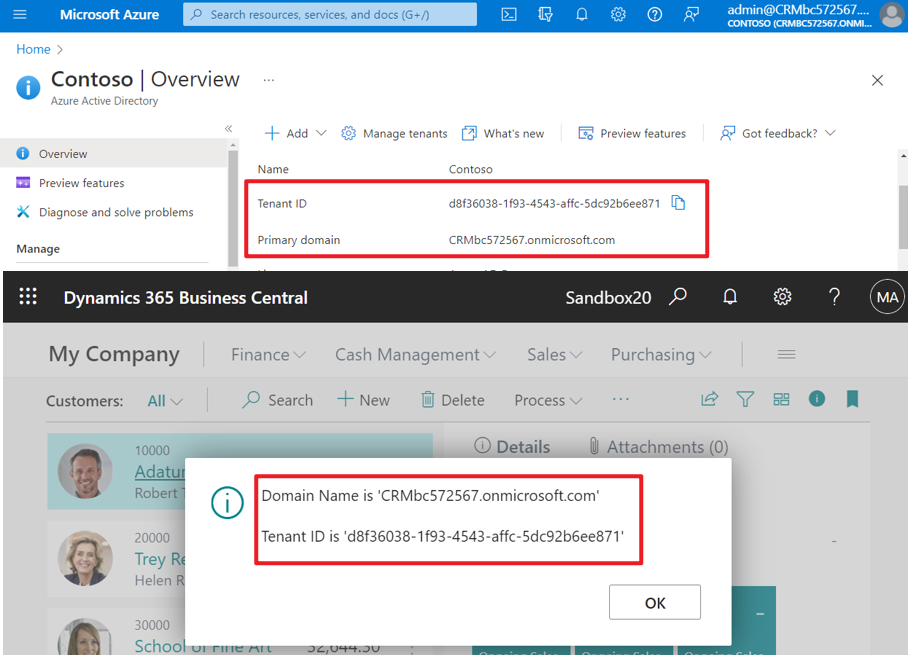
But no matter which one, we need to sign in first. There is actually a very simple way here, below is a small tool provided by Microsoft that can not only find the Tenant ID, but also find the Azure AD Instance and Tenant Scope.
Where’s My Tenant? (Tenant Lookup): You can use this web-based tool to query Azure AD for basic tenant information – this will show you:
- if the tenant exists in Azure AD
- what the tenant’s GUID is
- which Azure AD instance the tenant resides in
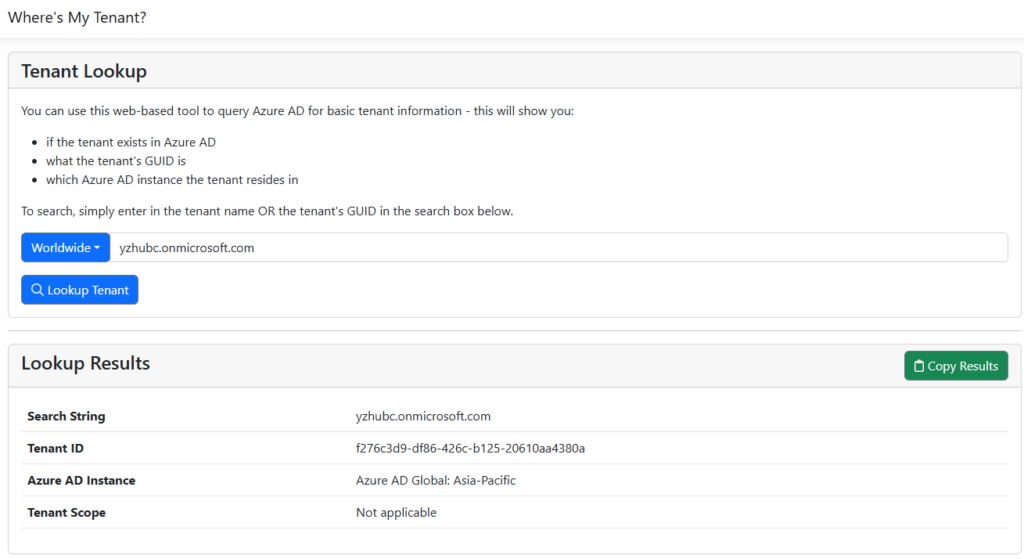
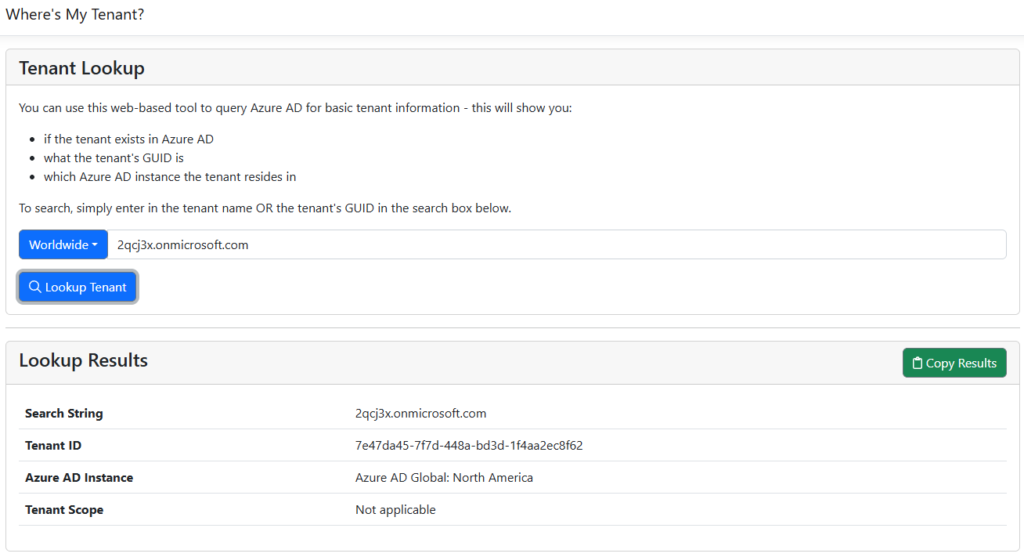
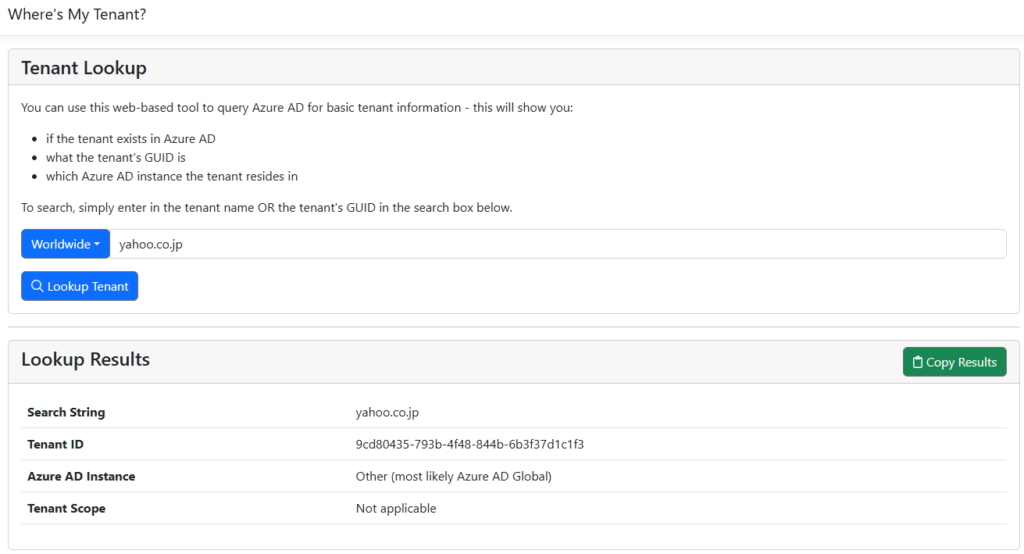
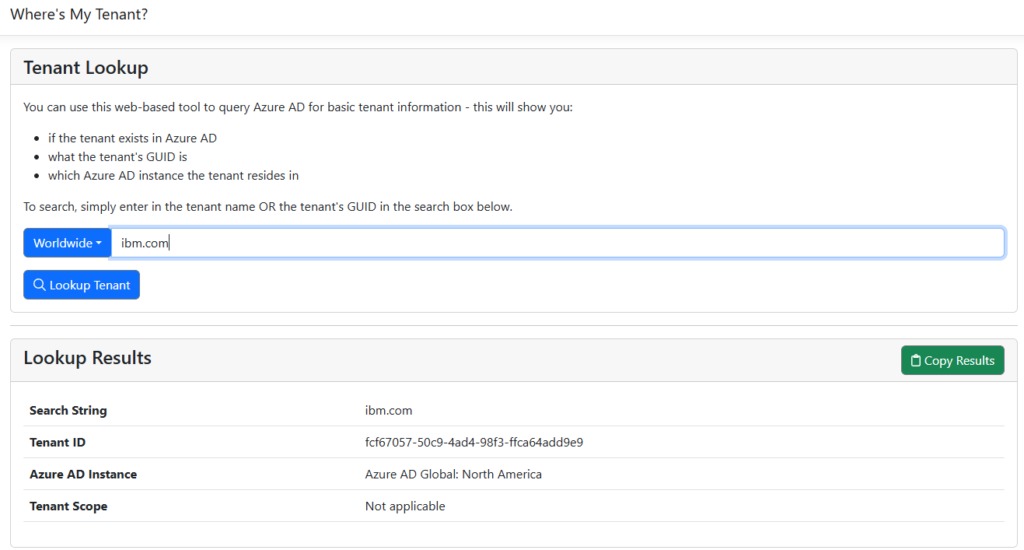
Let’s look at a few examples: Because this doesn’t require a password, as long as you know the domain, you can view information such as Tenant ID.
1. yzhubc.onmicrosoft.com
2. 2qcj3x.onmicrosoft.com
3. yahoo.co.jp
4. ibm.com
PS:
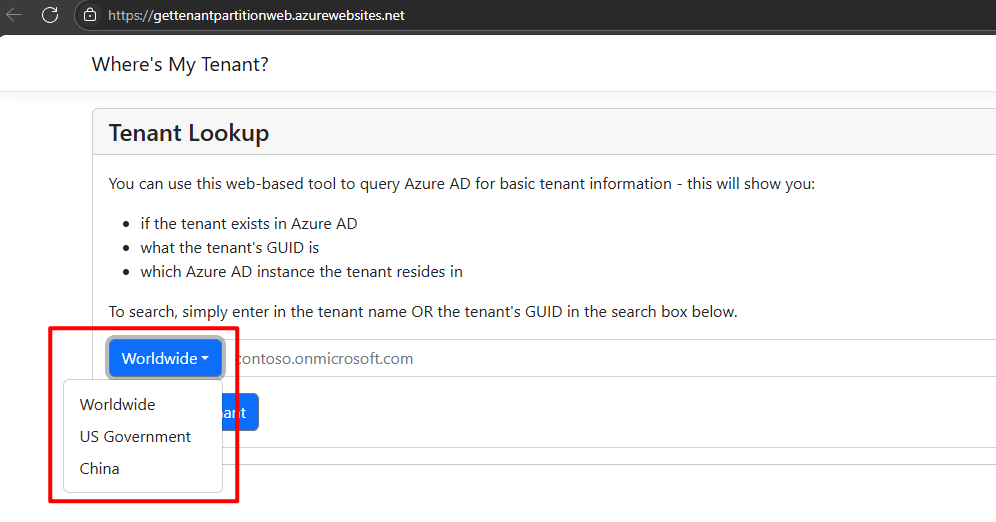
1. In addition to Worldwide, this also supports special categories such as US Government and China.
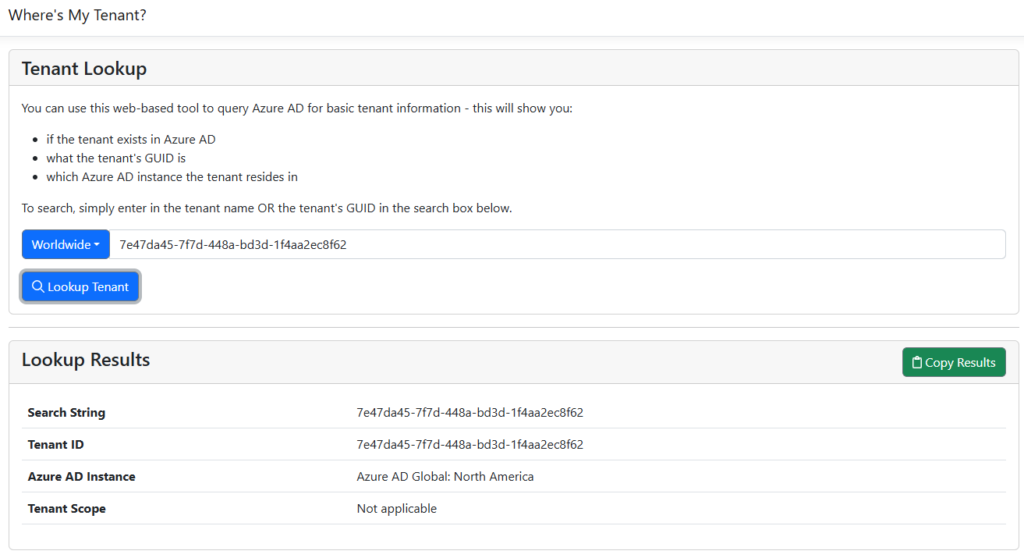
2. You can also query Azure AD Instance by entering the Tenant ID
Very simple, give it a try!!!😁
PS: How to access Dynamics 365 Business Central admin center from the URL without Tenant ID
END
Hope this will help.
Thanks for reading.
ZHU

コメント