

Hi, Readers.
Today I would like to talk about how to hide/disable New, Edit (Edit List), and Delete actions on the page.
In Business Central, actions are displayed at the top of each page, referred to as the action bar.
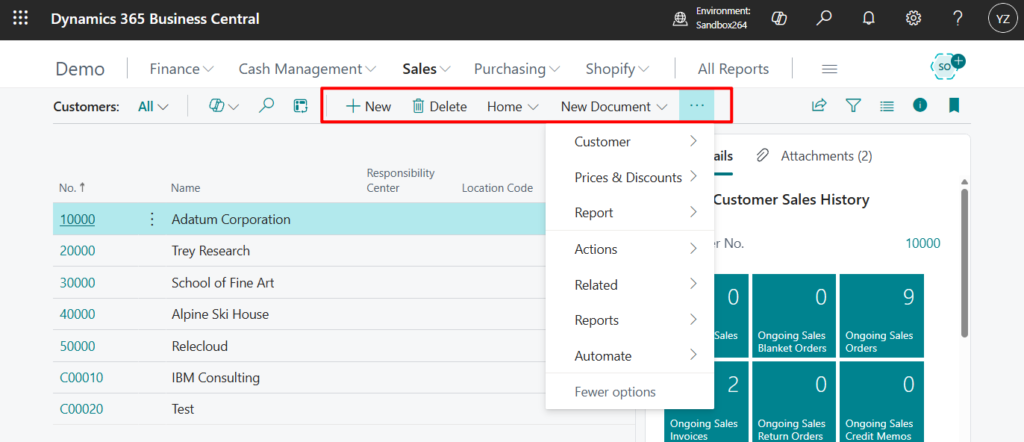
Each page has a different set of actions depending on the page type, and the processes that the page supports. Actions are defined in AL code.
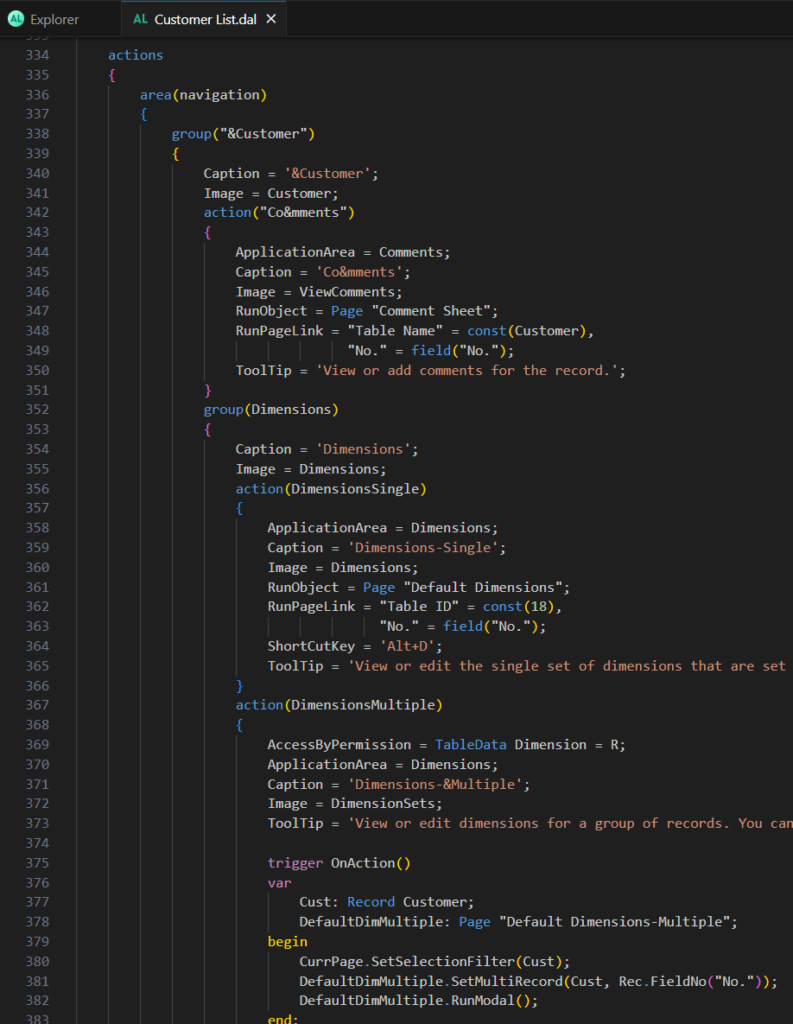

PS:
1. Promoted action groups, action references, and ShowAs Property (New Modern Action Bar)
It is very simple to hide these actions. For example, we can hide them by modifying the UI through Personalization, Page Customization (Profile), or Design (Page Extension). More details: Customize the user interface for user roles – Business Central | Microsoft Learn

Or
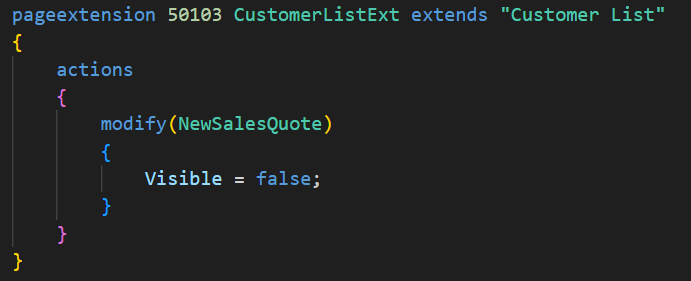
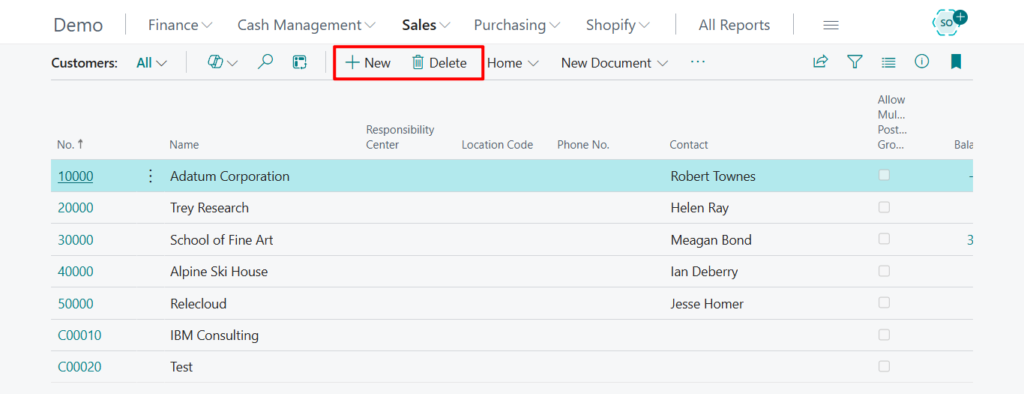
But there are a few very important special actions that are not defined in the code, New, Edit (Edit List), and Delete. Let’s look at a few examples,
Customer List (22, List): List page with card page
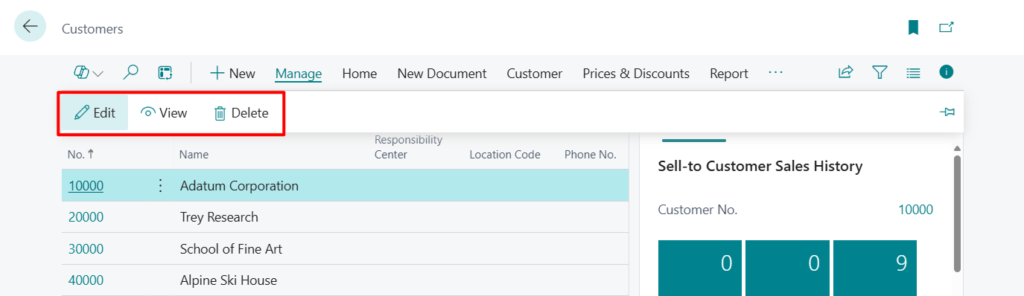
Customer Card (21, Card): Card page

Sales Order (42, Document): Document page

Payment Methods (427, List): List page without card page
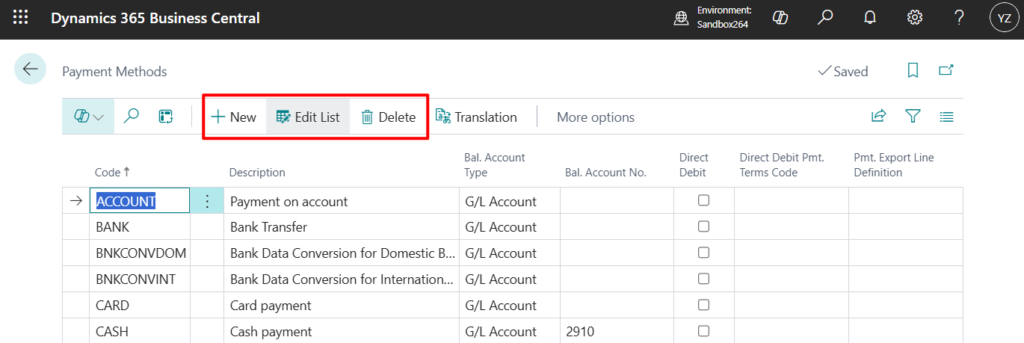
General Journal (39, Worksheet): Worksheet page

And there is also a New action in the Drop-Down List.
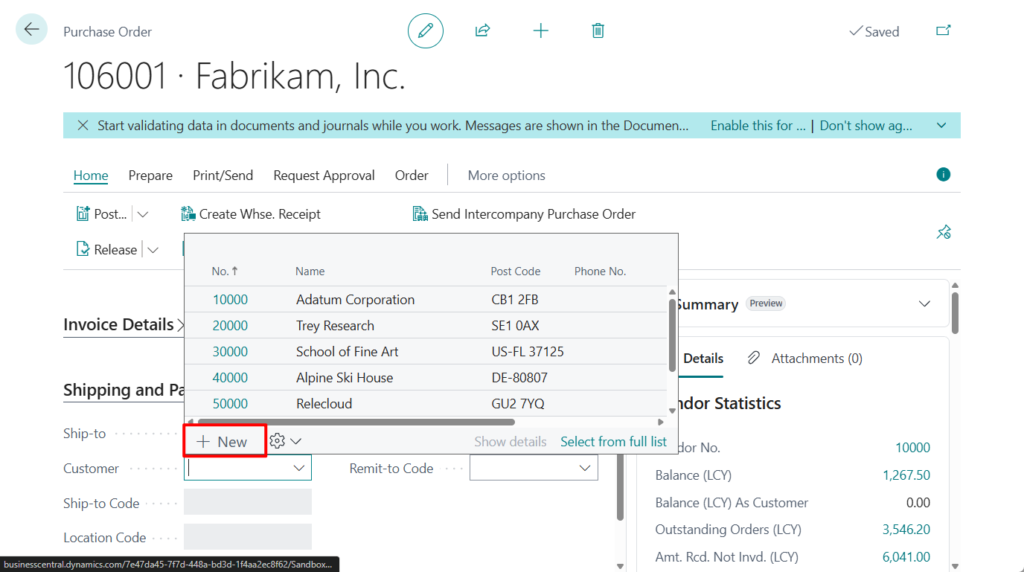
How to hide or disable these actions? As of now, there are two ways.
Excluding user permissions (Using Permission Set)
In fact, these three actions correspond to the following three permissions of Table Data.
- New: Insert Permission
- Edit (Edit List): Modify Permission
- Delete: Delete Permission
PS: Dynamics 365 Business Central: Difference between Table Data and Table in Permissions
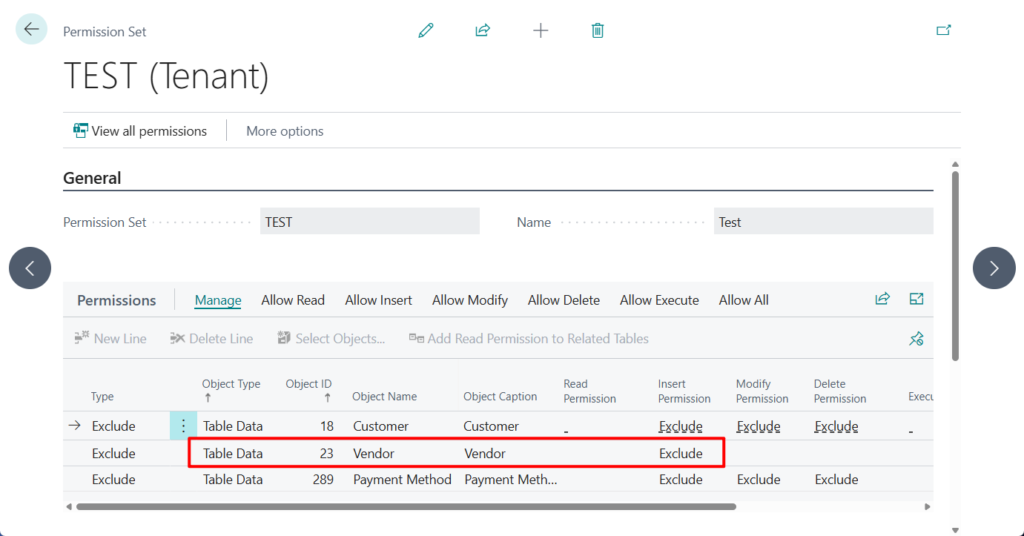
Let’s look at a simple example, I created a test permission set that excluded the insert, modify, and delete permissions for table 18 Customer and table 289 Payment Method.
PS: Permission Exclusion (Exclude in Permission Set)
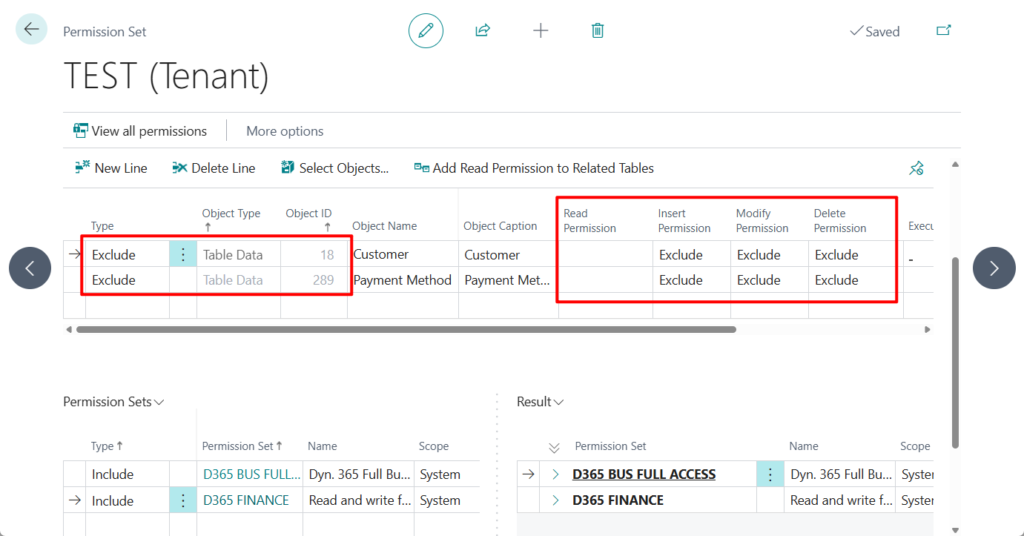
Then grant the permission set to the user.

When the user opens the customer list, he or she will find that these special actions are grayed out.
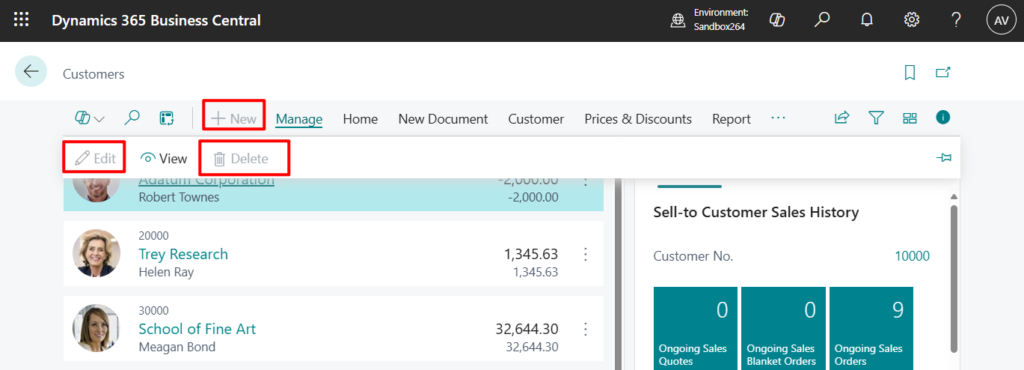
The card information is a bit special. The Edit icon will be grayed out, but the New and Delete icons will not be grayed out. However, nothing will happen when the user clicks on them.

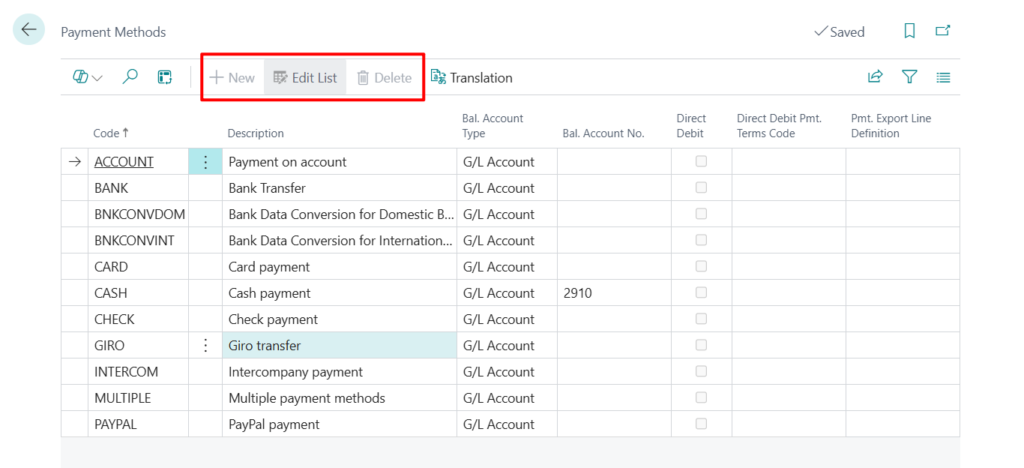
Let’s take a look at the Payment Methods (427, List) page without the card page. The New, Edit List, and Delete buttons are all grayed out.
Also, please note that this method does not hide the New action in the Drop-Down List, but an error message will be displayed after the user clicks it.
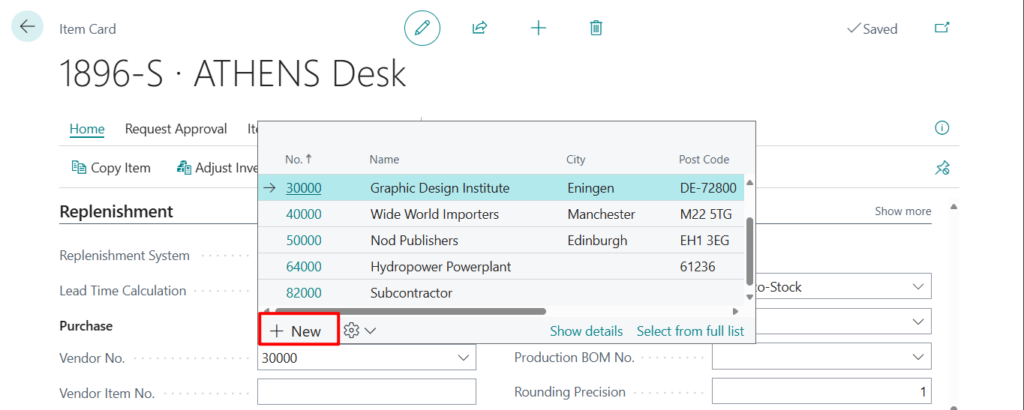
You do not have permission to add new records.
Contact your system administrator.
Page Select – Vendor Card has to close.

Setting the InsertAllowed, ModifyAllowed, and DeleteAllowed properties
First let’s look at these three properties.
- InsertAllowed: Sets a value to specify whether users can add records while using a page.
- ModifyAllowed: Sets the value to determine whether users can modify records while using this page.
- DeleteAllowed: Sets a value that specifies whether users can delete records while using the page.
Applies to:
- Page
- Request Page
For example, standard page 1470 “Product Videos”

The page can be opened, but cannot be inserted, modified, or deleted. Specifically, the New, Edit list/Edit, and Delete actions are not displayed.

In previous versions, these three properties were not editable. For example, “runtime”: “13.0”
AL Language extension verison: 13.0
The property ‘InsertAllowed’ cannot be customized. AL AL0246
The property ‘ModifyAllowed’ cannot be customized. AL AL0246
The property ‘DeleteAllowed’ cannot be customized. AL AL0246

So we can only do this setting on new custom pages. For standard pages, these actions cannot be hidden in this way. But this changes in Business Central 2024 wave 2 (BC25).
AL Language extension verison: 14.0
‘Modifying InsertAllowed from Extensions’ is not available in runtime version ‘13.0’. The supported runtime versions are: ‘14.0’ or greater. AL AL0666
‘Modifying ModifyAllowed from Extensions’ is not available in runtime version ‘13.0’. The supported runtime versions are: ‘14.0’ or greater. AL AL0666
‘Modifying DeleteAllowed from Extensions’ is not available in runtime version ‘13.0’. The supported runtime versions are: ‘14.0’ or greater. AL AL0666

So from Business Central 2024 wave 2 (BC25), we can modify these three properties in pageextension. More details: Business Central 2024 wave 2 (BC25): Support for modifying the properties InsertAllowed, ModifyAllowed, and DeleteAllowed of a page
Let’s look at a few detailed examples.
1. Customer List (22, List)
If we want to hide the New, Edit, and Delete buttons in the list page that contains the card page, we need to customize the Card page. Modifying the properties of the List page will have no effect.
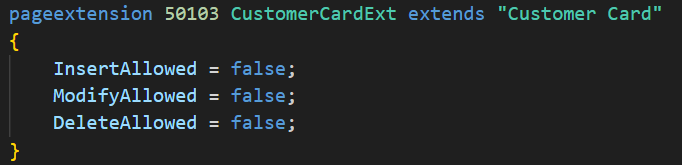
Customer List (22, List):
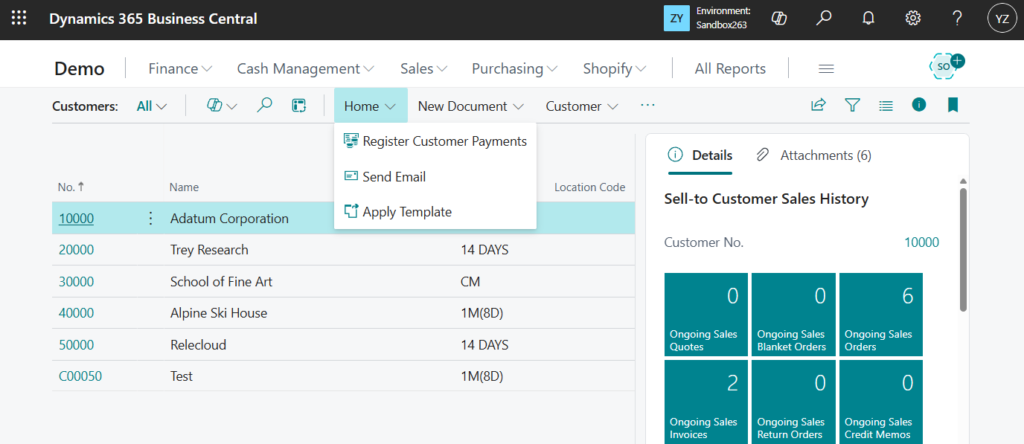
Customer Card (21, Card):

2. Payment Methods (427, List)
For list pages that do not contain card pages, you can directly modify the properties of the list page.
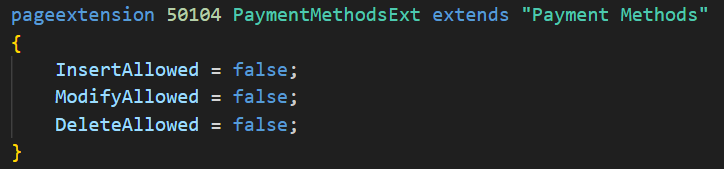
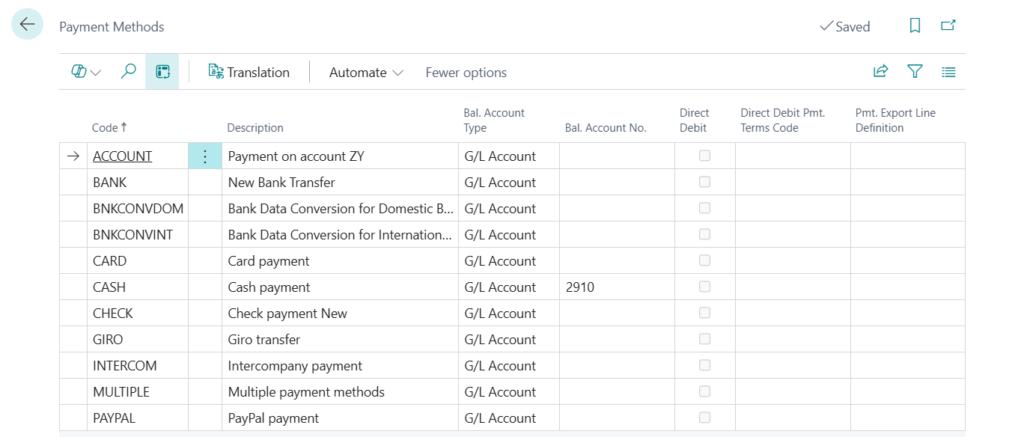
3. Drop-Down List
This is actually a bit complicated. For example, in the case of vendor table, you need to restrict the page 26 “Vendor Card”.


For the Base Unit of Measure field, just restrict page 209 “Units of Measure”

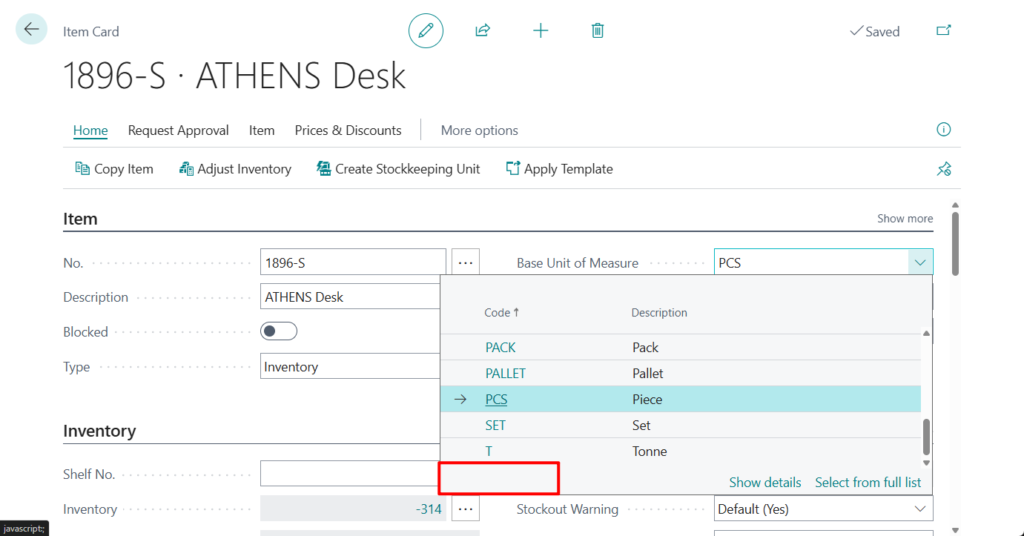
In fact, you only need to look at the page of new data that pops up after clicking New, and then limit this page.
Let’s look at another example, such as the Location Code on Sales Line.

After clicking New, the Location Card (5703, Card) page opens.
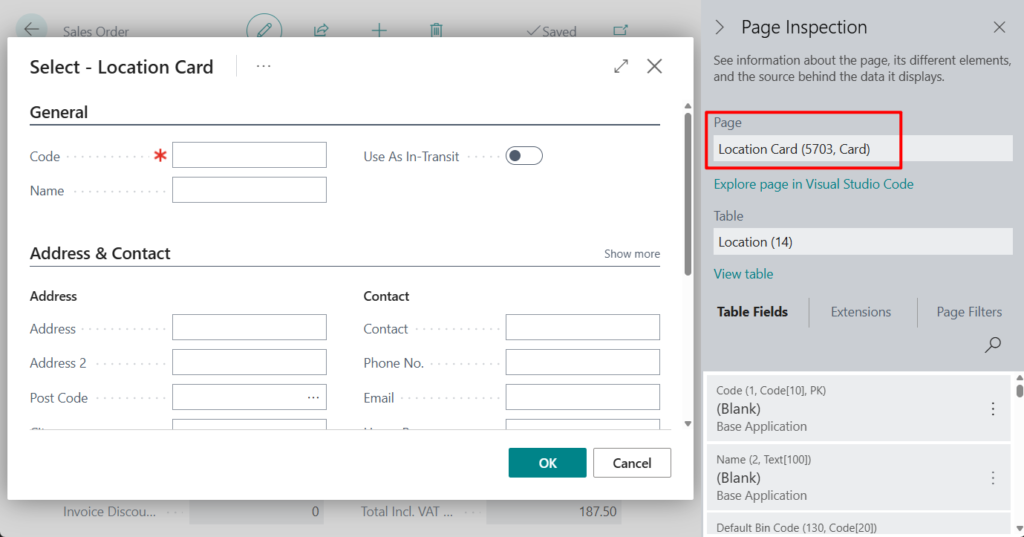
So just change the InsertAllowed property of this page to false, and the New action on the Location Code Drop-Down List will disappear.

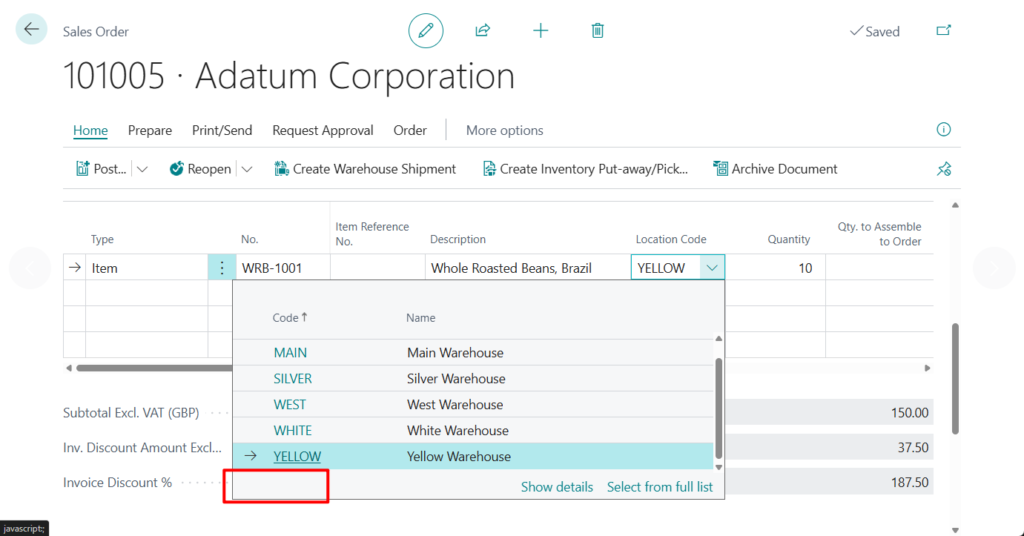
Very simple. But unfortunately variables cannot be set. Otherwise, more control can be achieved.

The same is true in pagecustomization. So when you need to set different permissions for different users, you can try to use Profile (Role) to separate.

Great, give it a try!!!😁
END
Hope this will help.
Thanks for reading.
ZHU


コメント