
Hi, Readers.
The public preview for Dynamics 365 Business Central 2026 release wave 1 (BC28) is available. Learn more: Link.
I will continue to test and share some new features that I hope will be helpful. In this post, I would like to talk about Copy Existing Locations to Create New Locations (Copy Location). As of now, there is no official documentation available.
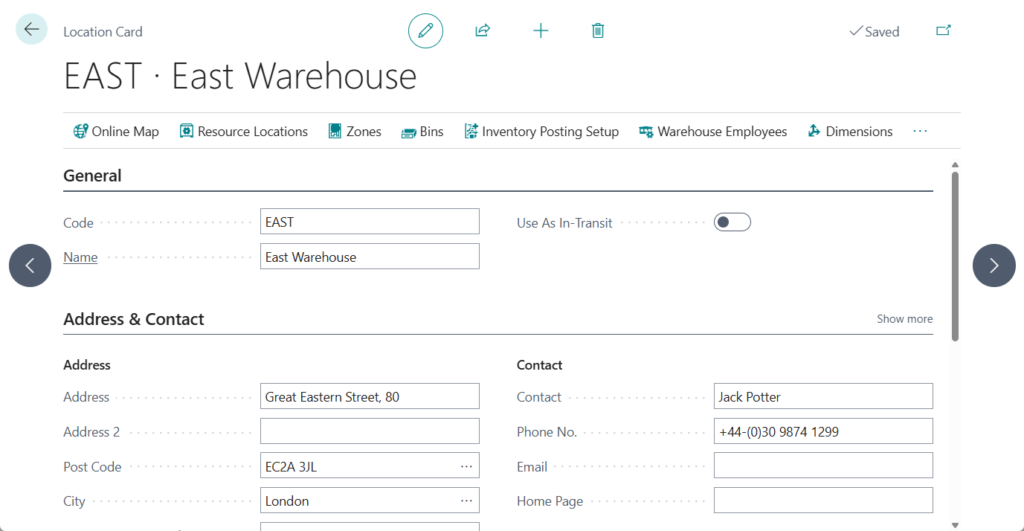
In Business Central, locations are places such as warehouses where you buy, store, or sell items. Business Central uses locations to help keep track of inventory in both simple and complex warehouse processes. You can then create document lines for a specific location, view availability by location, and transfer inventory between locations.
You specify information about a location, such as a warehouse or distribution center, on the Location Card page. You give each location a name and a code that represents the location. You can then enter the location code in other parts of the program when you want to record transactions for a given location.
Traditionally, creating multiple locations required manual entry or Configuration Packages. But with this wave (BC28), it’s as simple as clicking a button: Introducing the ‘Copy Location‘ feature! Let’s see more details.
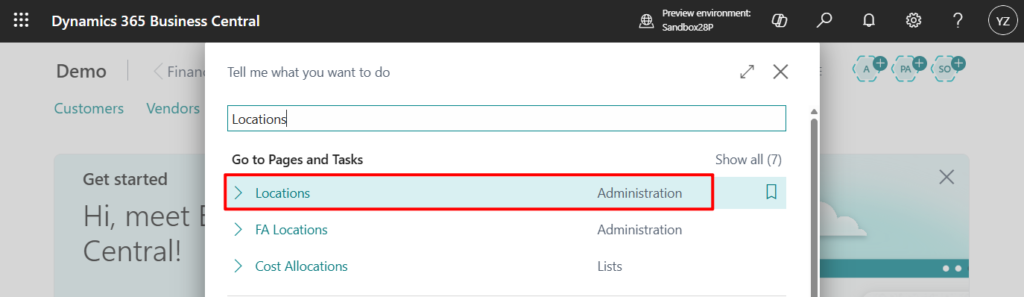
- Select Search (Alt+Q)
 in the upper-right corner, enter Locations, and then choose the related link.
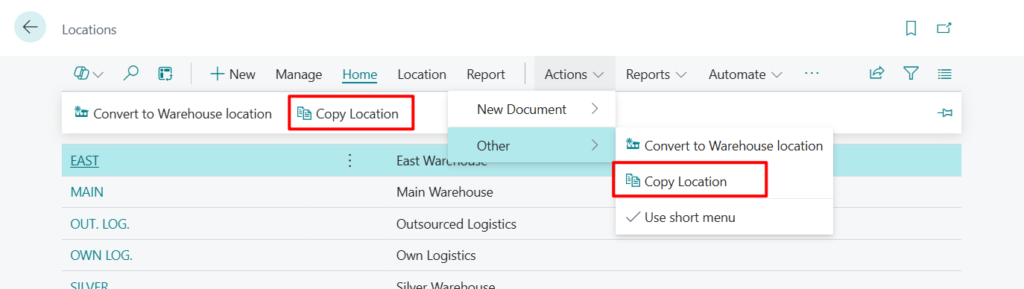
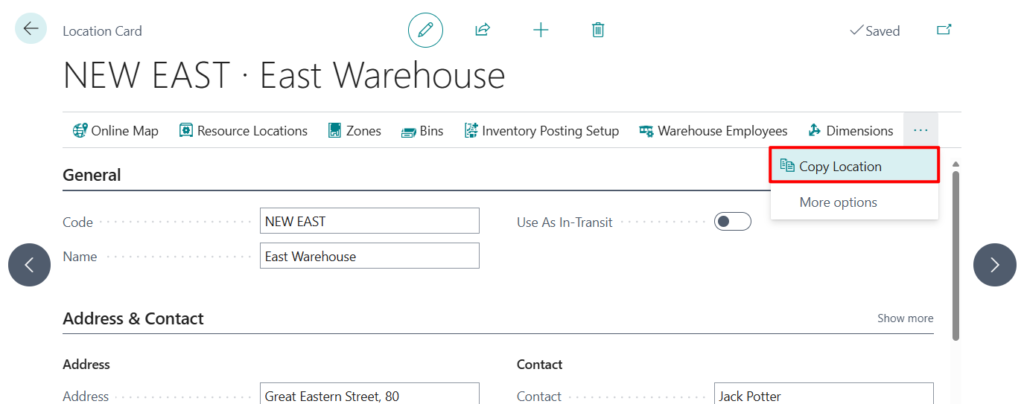
- Select the location that you want to copy, and then choose the Copy Location action.If you cannot find the Copy Location action, choose to view more options, and then find it under Actions, Other.
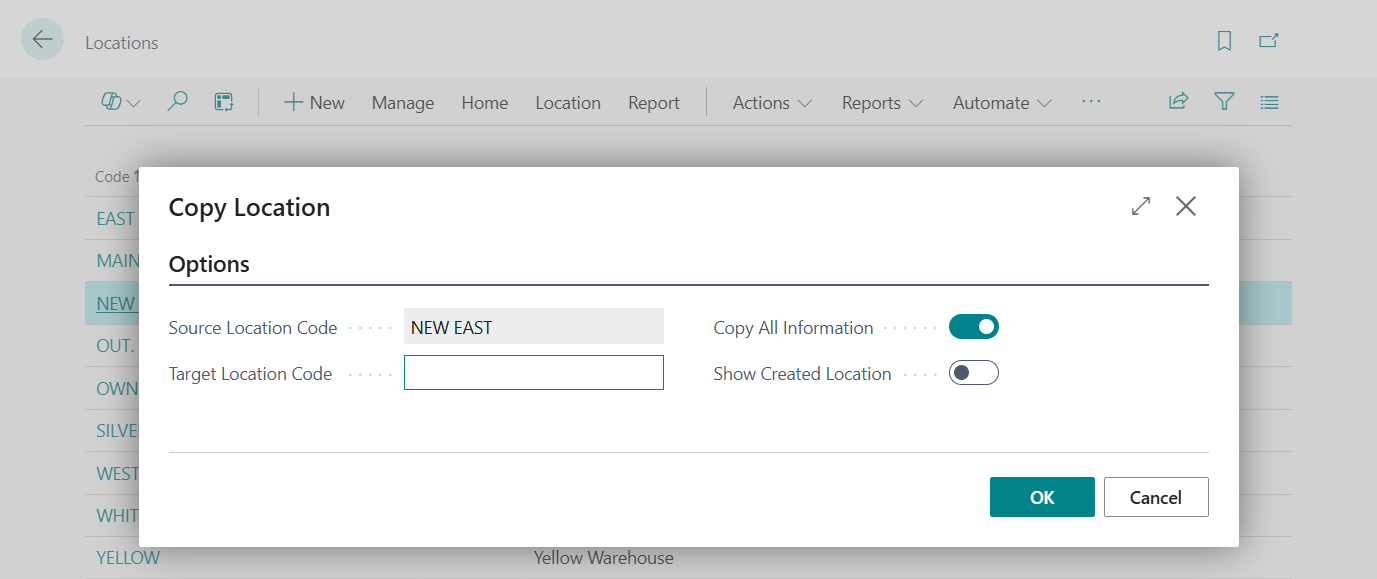
- On the Copy Location page, fill in the fields. Hover over a field to read a short description.
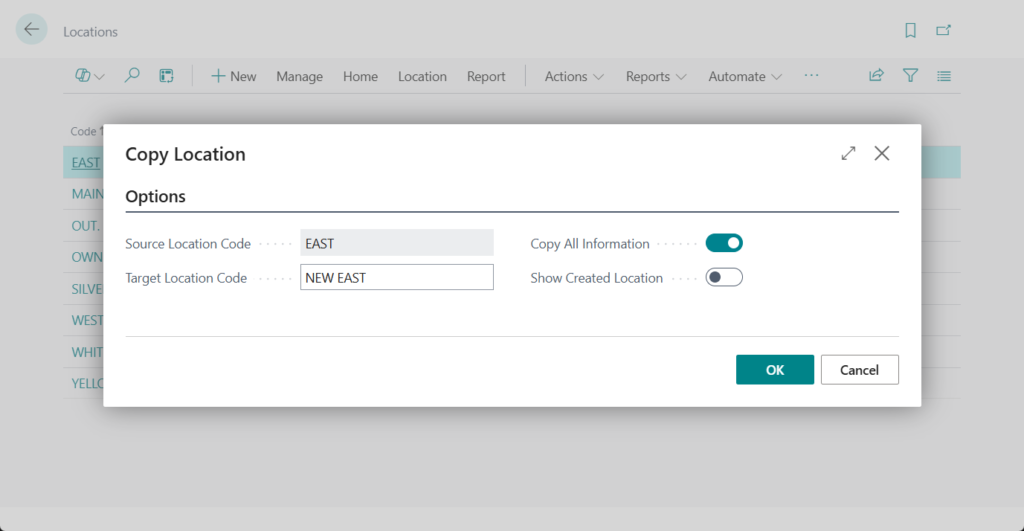
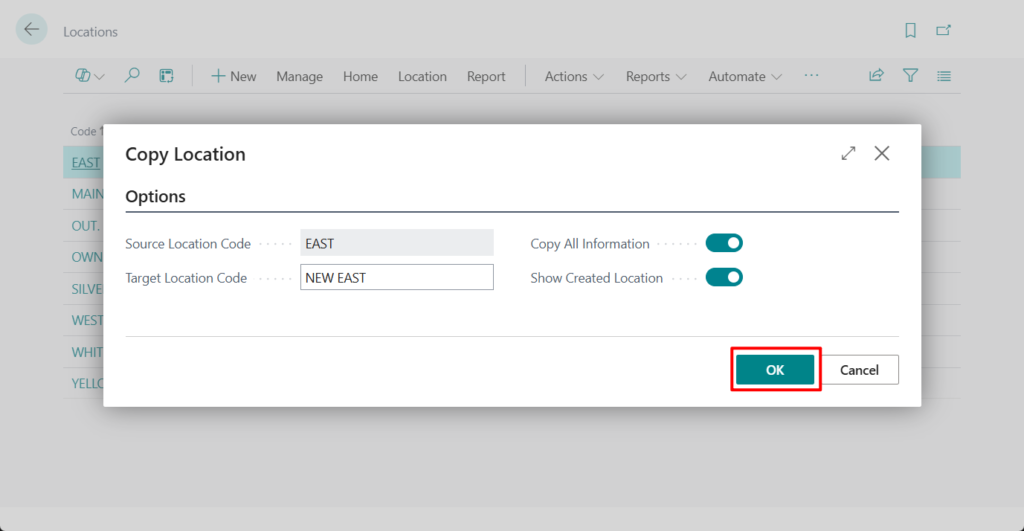
- To copy your selections to the new location, choose the OK button.
Done.
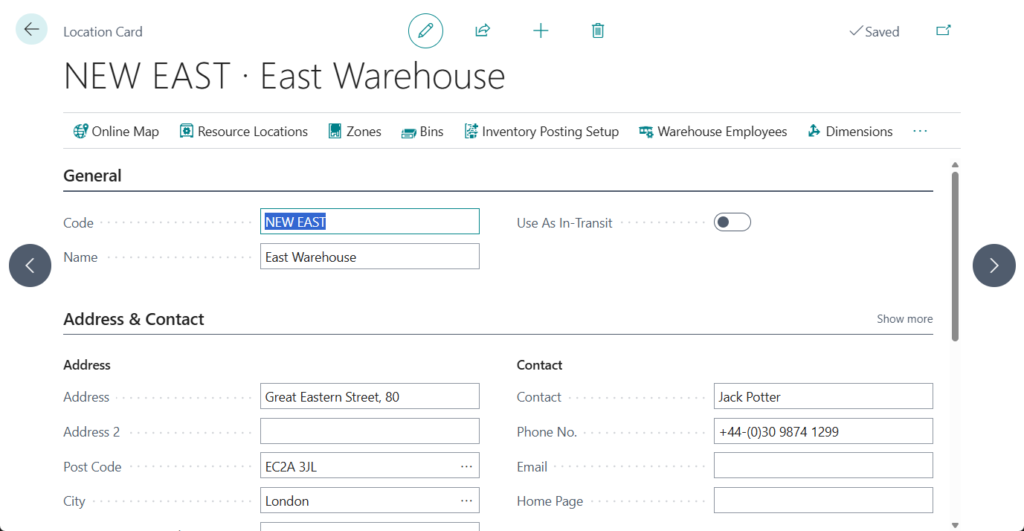
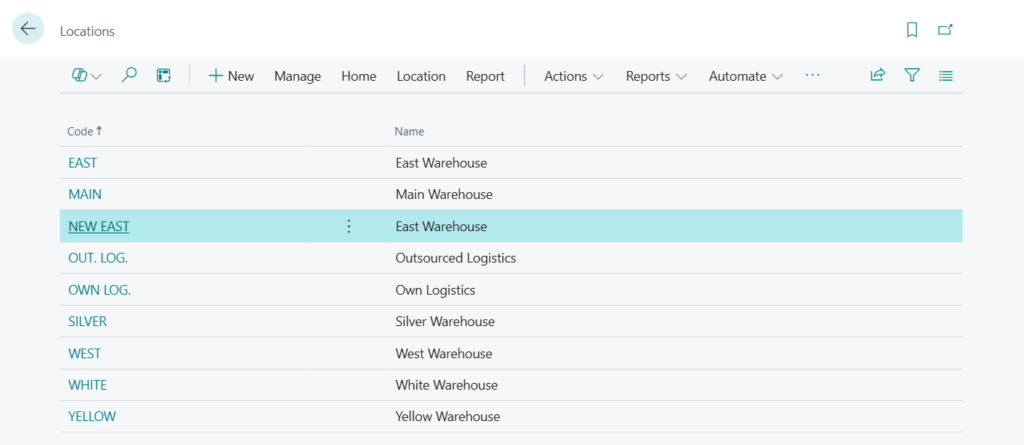
The Copy Location action is also available on the Location Card page.
This is just like Copy Existing Items to Create New Items. Hopefully, Microsoft expands this ‘Copy’ capability across all master data—it would save so much setup time! Give it a try!!!😁
END
Hope this will help.
Thanks for reading.
ZHU

コメント