
Hi, Readers.
The public preview for Dynamics 365 Business Central 2026 release wave 1 (BC28) is available. Learn more: Link.
I will continue to test and share some new features that I hope will be helpful. In this post, I would like to talk about Allow Posting From/To DateFormula (A new way to specify posting periods).
As of now, there is no official documentation available. I will provide an update once it’s officially included in the Microsoft Release Plan.
As you might know, we can use posting periods to specify when users can post to the general ledger. On the General Ledger Setup page, define the period by entering dates in the Allow Posting From and Allow Posting To fields.
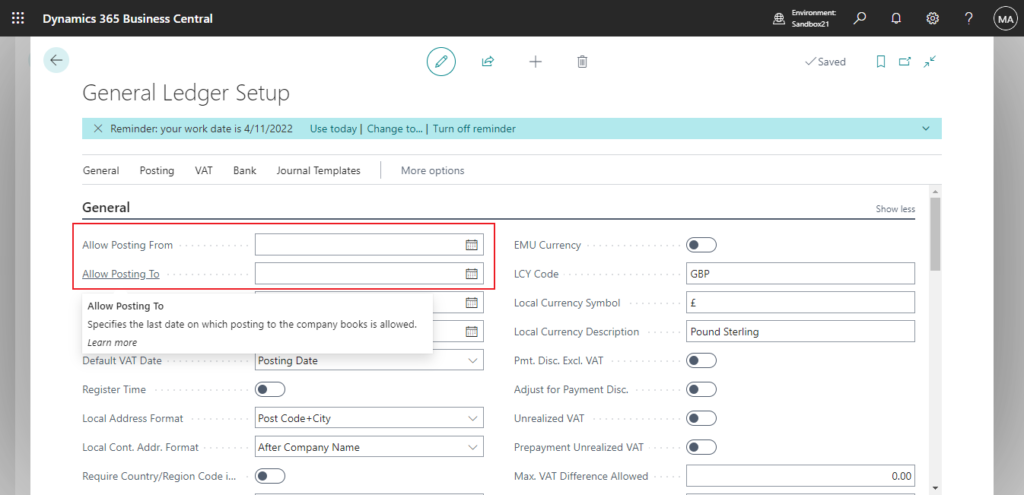
These posting periods apply to the company and to all users. To allow for exceptions, you can define different posting periods for specific users on the User Setup page. These posting periods overrule those specified on the General Ledger Setup page.
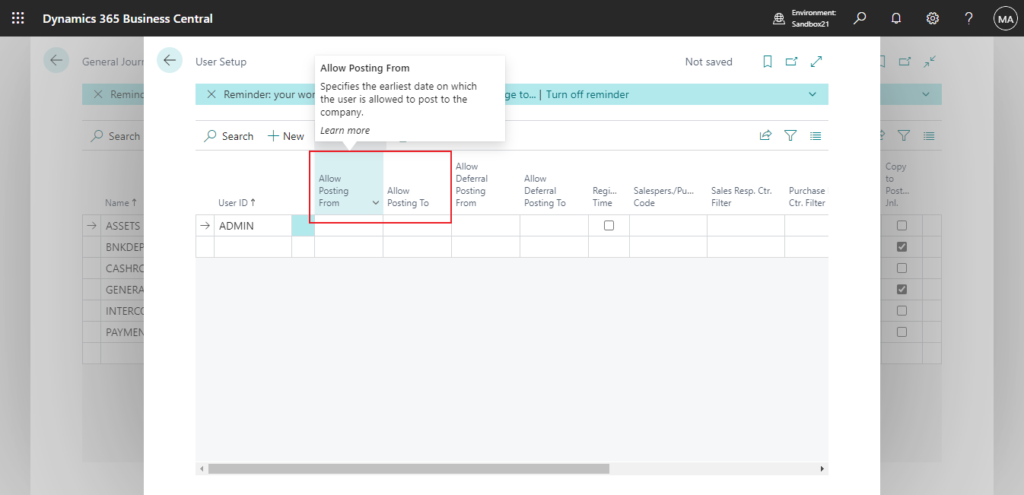
Regardless of the method used, these dates must be updated manually on a regular basis—for instance, changing them every month to reflect the current period.
With this wave (BC28), Microsoft has introduced a more flexible approach to period management. By using DateFormula (e.g., ‘CM’ or ‘CM+1M’), we can now specify posting boundaries relative to the current date, rather than hard-coding fixed dates. Let’s see more details.
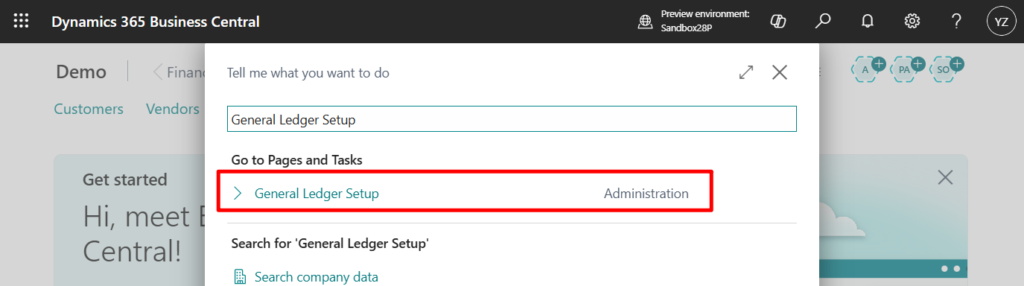
Select Tell Me (Alt+Q) in the upper-right corner, enter General Ledger Setup, and then choose the related link.
Click “Show more” in the General tab.
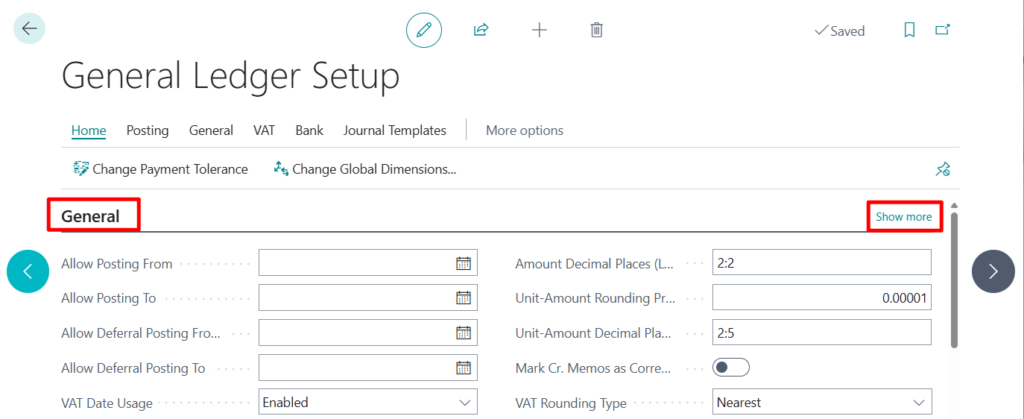
Then you will see two new fields.
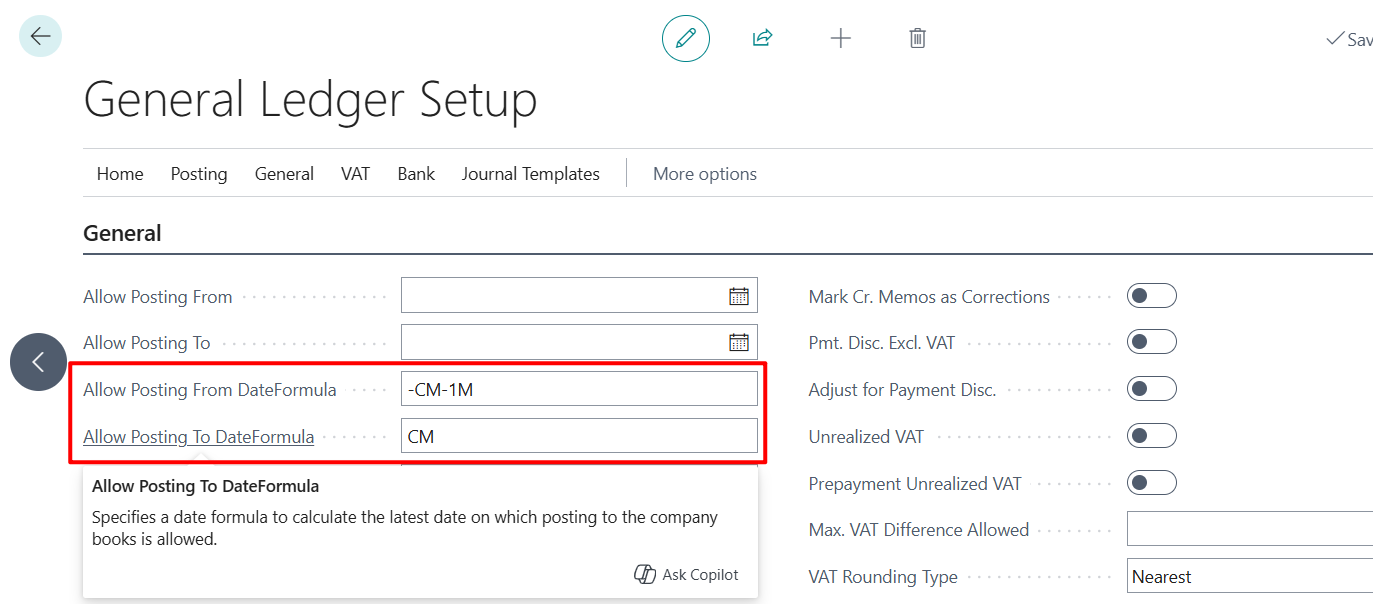
Allow Posting From DateFormula
Specifies a date formula to calculate the earliest date, relative to the workdate, on which posting to the company books is allowed.
Allow Posting To DateFormula
Specifies a date formula to calculate the latest date on which posting to the company books is allowed.
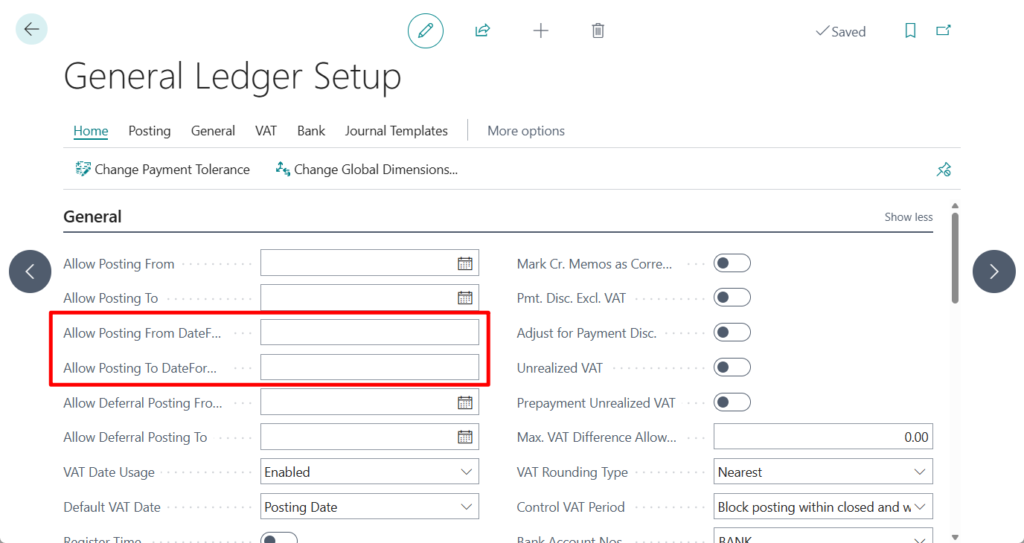
We can set a date formula. For example, if you want to restrict the allowed posting dates to the current month only:
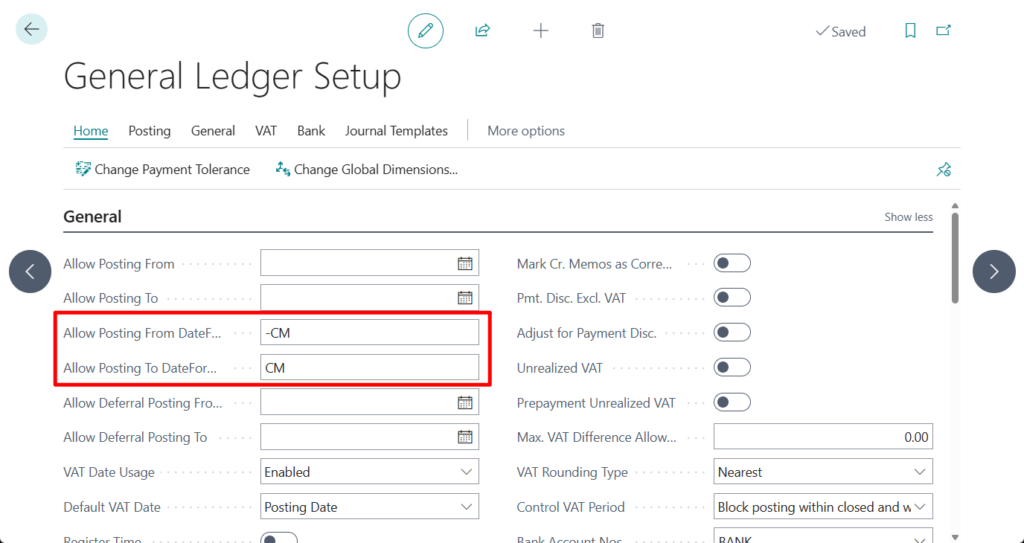
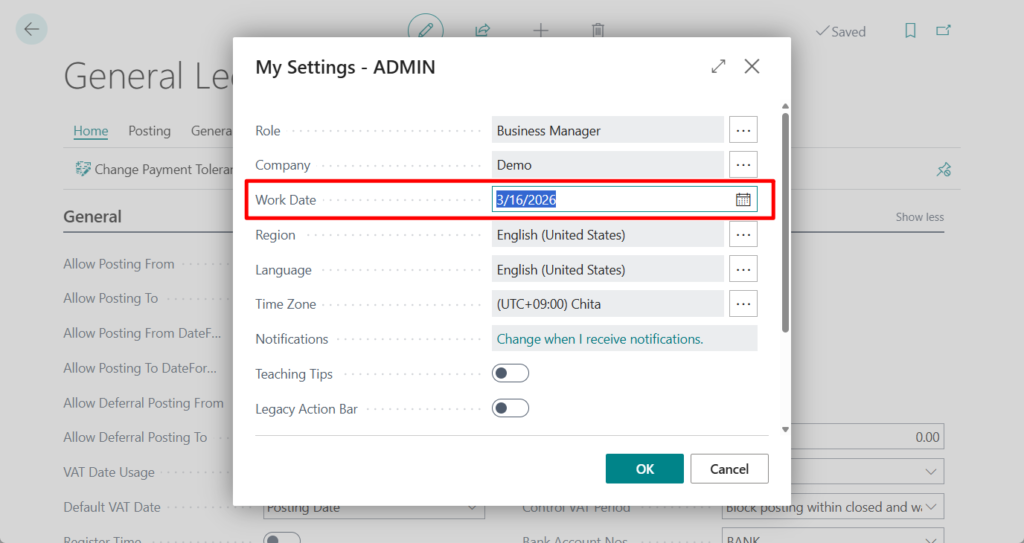
Important Note: This formula is calculated based on the ‘Work Date’ from My Settings, not the system’s ‘Today’ date. This maintains consistency with how the ‘Allow Posting From/To’ logic has always functioned.
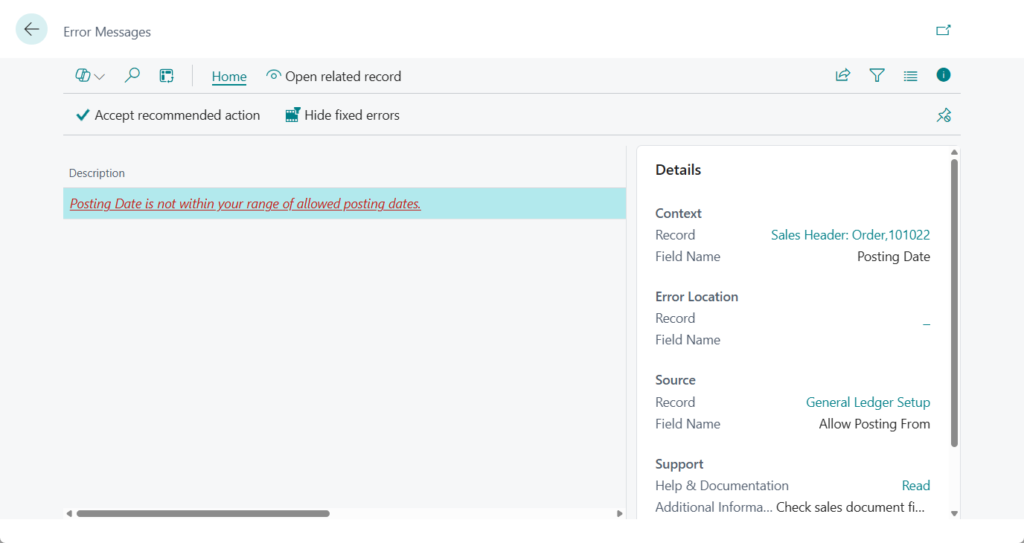
If the posting date falls outside this range, the system will display the following error message. This behavior is consistent with the standard posting date validation process
Posting Date is not within your range of allowed posting dates.
PS: As for how to use the date formula, you can refer to the instructions in MS Learn below.
Work with Calendar Dates and Times -> Use Date Formulas: The date formula can contain a maximum of 20 characters, both numbers and letters. You can use the following letters, which are abbreviations for calendar units.
| Letter | Meaning |
|---|---|
| C | Current |
| D | Day(s) |
| W | Week(s) |
| M | Month(s) |
| Q | Quarter(s) |
| Y | Year(s) |
You can construct a date formula in three ways.
The following example shows how to use C, for current, and a time unit.
| Expression | Meaning |
|---|---|
| CW | Current week |
| CM | Current month |
The following example shows how to use a number and a time unit. A number cannot be larger than 9999.
| Expression | Meaning |
|---|---|
| 10D | 10 days from today |
| 2W | 2 weeks from today |
The following example shows how to use a time unit and a number.
| Expression | Meaning |
|---|---|
| D10 | The next 10th day of a month |
| WD4 | The next 4th day of a week (Thursday) |
The following example shows how you can combine these three forms as needed.
| Expression | Meaning |
|---|---|
| CM+10D | Current month + 10 days |
The following example shows how you can use a minus sign to indicate a date in the past.
| Expression | Meaning |
|---|---|
| -1Y | 1 year ago from today |
For consultants who still find these formulas a bit tricky to grasp, I’ve put together a few reference examples below. I hope you find them helpful for your future implementations!
| Period | Allow Posting From | Allow Posting To |
| Current Month | -CM | CM |
| Previous & Current Month | -CM-1M | CM |
| Current & Next Month | -CM | CM+1M |
| Current Quarter | -CQ | CQ |
| Previous & Current Quarter | -CQ-1Q | CQ |
| Current & Next Quarter | -CQ | CQ+1Q |
| Current Year | -CY | CY |
| Previous & Current Year | -CY-1Y | CY |
| Current & Next Year | -CY | CY+1Y |
| Current Week | -CW | CW |
| Previous & Current Week | -CW-1W | CW |
| Current & Next Week | -CW | CW+1W |
Naturally, the same capability has been added to the User Setup (Page 119), allowing you to define specific posting date ranges for individual users. This provides the granular control needed for different roles within the organization.
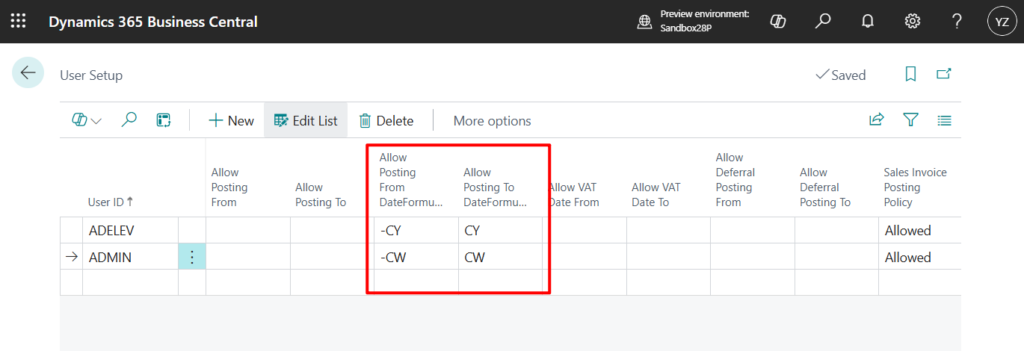
Lastly, regarding priority, Microsoft has implemented a straightforward control: the two setting types are mutually exclusive. For instance, entering a value in ‘Allow Posting From DateFormula’ will automatically clear the ‘Allow Posting From’ field, and vice versa. However, this doesn’t limit your flexibility; it simply means you can mix and match the methods. For example, you can use a static date for the start and a dynamic formula for the end, as shown below.
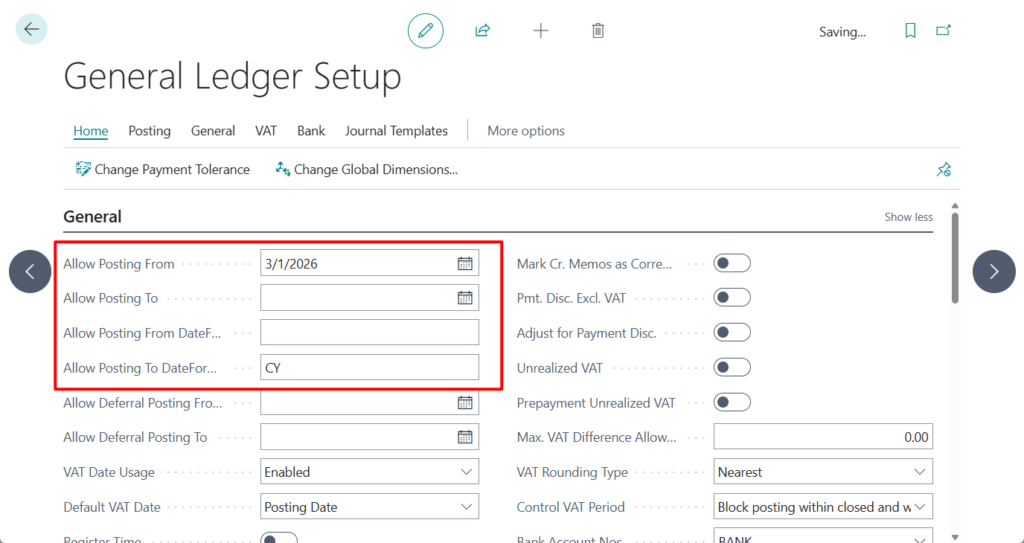
That’s great! Say goodbye to manual date updates! Go ahead and try it out!😁
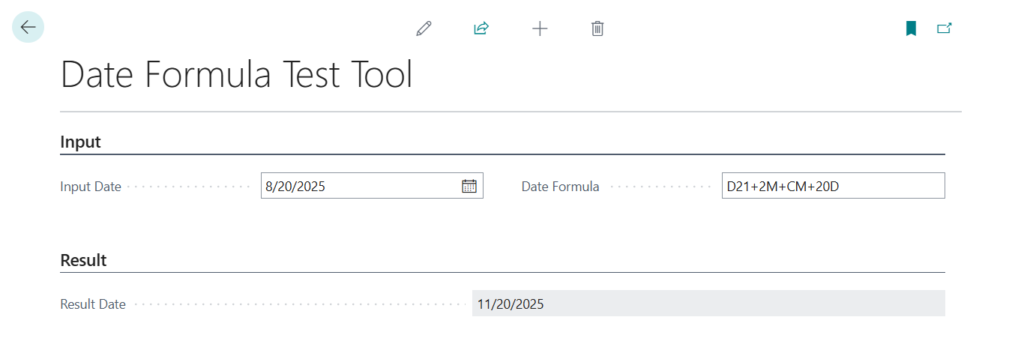
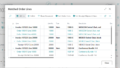
PS: A simple Date Formula testing tool
END
Hope this will help.
Thanks for reading.
ZHU
コメント