
Hi, Readers.
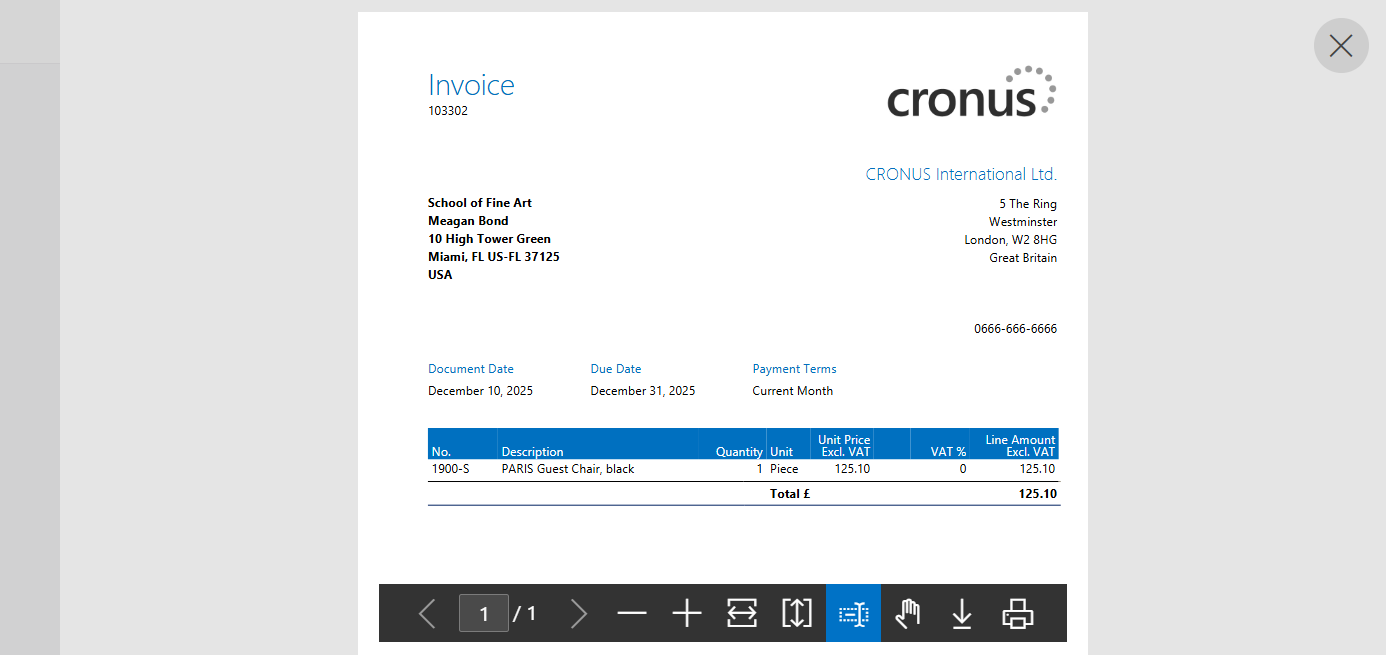
Today I would like to share another mini tip about Business Central, how to run a Report in Preview Mode without the Request Page.
A request page is a page that is run before the report starts to execute. Request pages enable end users to specify options and filters for the report. A request page has a predefined set of buttons depending on the report type and the current layout. The standard buttons are
| Button | Rdlc | Word | Excel | Processing Only |
|---|---|---|---|---|
| Ok | x | |||
| Cancel | x | x | x | x |
| Preview | x | x | ||
| x | x | |||
| SendTo | x | x | x | |
| Download | x |
For example, Standard Sales – Invoice (1306, Report Request):

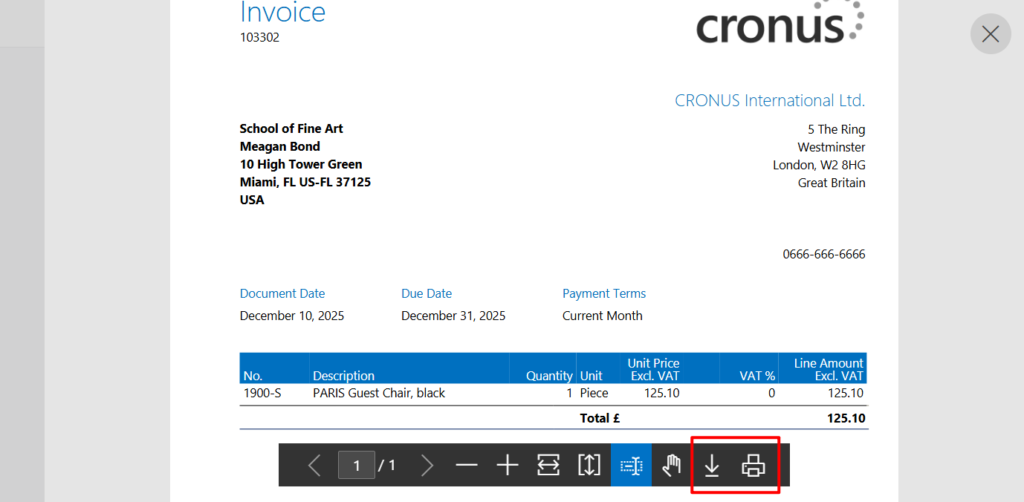
In Preview Mode, you can also choose to download or print.
PS: Dynamics 365 Business Central: How to disable Print or Preview from a report
A question I’ve encountered recently is whether a report can be previewed directly without triggering the Request Page.
First of all, BC allows you to bypass the Request Page during report execution. For example,
Report.UseRequestPage([Boolean]) Method: Gets or sets whether a request page is presented to the user.
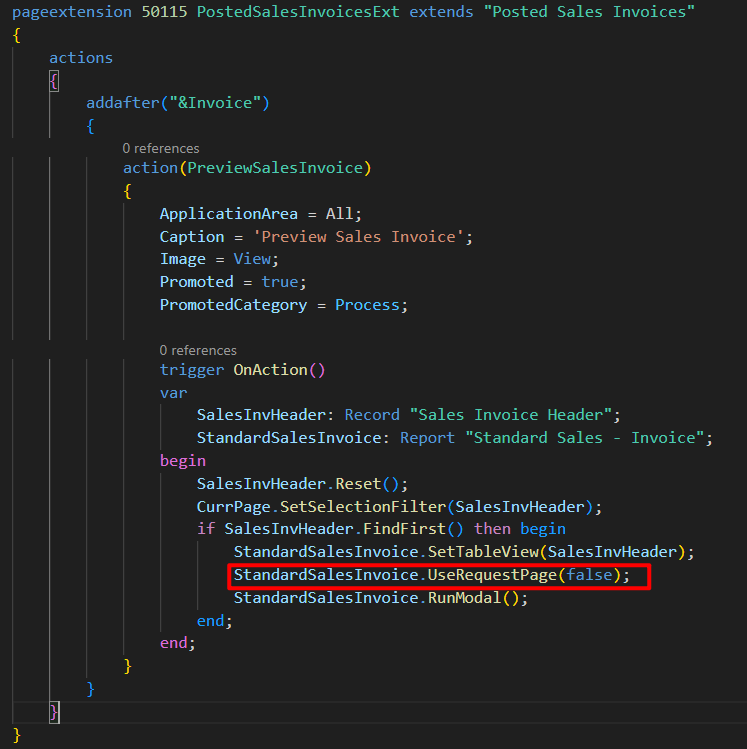
Test code:
pageextension 50115 PostedSalesInvoicesExt extends "Posted Sales Invoices"
{
    actions
    {
        addafter("&Invoice")
        {
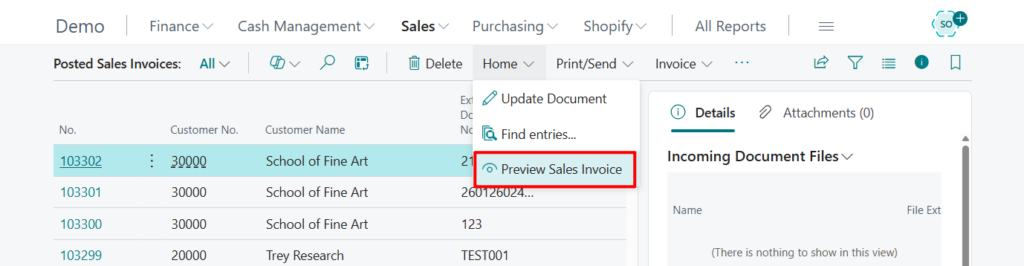
            action(PreviewSalesInvoice)
            {
                ApplicationArea = All;
                Caption = 'Preview Sales Invoice';
                Image = View;
                Promoted = true;
                PromotedCategory = Process;

                trigger OnAction()
                var
                    SalesInvHeader: Record "Sales Invoice Header";
                    StandardSalesInvoice: Report "Standard Sales - Invoice";
                begin
                    SalesInvHeader.Reset();
                    CurrPage.SetSelectionFilter(SalesInvHeader);
                    if SalesInvHeader.FindFirst() then begin
                        StandardSalesInvoice.SetTableView(SalesInvHeader);
                        StandardSalesInvoice.UseRequestPage(false);
                        StandardSalesInvoice.RunModal();
                    end;
                end;
            }
        }
    }
}
Or
Report.Run(Integer [, Boolean] [, Boolean] [, var Record]) Method: Loads and executes the report that you specify.
Report.Run(Number: Integer [, RequestWindow: Boolean] [, SystemPrinter: Boolean] [, var Record: Record])
Test code:
pageextension 50115 PostedSalesInvoicesExt extends "Posted Sales Invoices"
{
    actions
    {
        addafter("&Invoice")
        {
            action(PreviewSalesInvoice)
            {
                ApplicationArea = All;
                Caption = 'Preview Sales Invoice';
                Image = View;
                Promoted = true;
                PromotedCategory = Process;

                trigger OnAction()
                var
                    SalesInvHeader: Record "Sales Invoice Header";
                begin
                    SalesInvHeader.Reset();
                    CurrPage.SetSelectionFilter(SalesInvHeader);
                    if SalesInvHeader.FindFirst() then begin
                        Report.Run(Report::"Standard Sales - Invoice", false, false, SalesInvHeader);
                    end;
                end;
            }
        }
    }
}
However, doing so disables the preview and print options, causing the file to be downloaded directly. This behavior occurs not only on the Web Client but also on Tablet and Phone Clients.
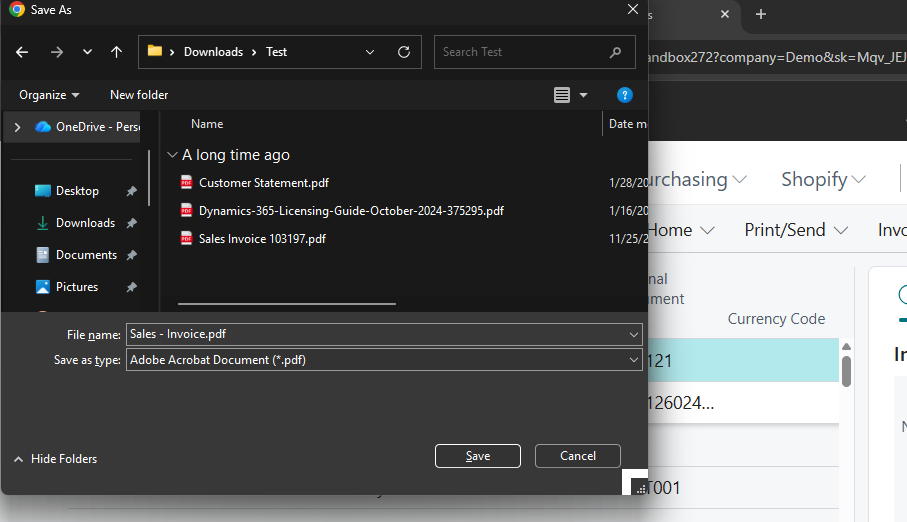
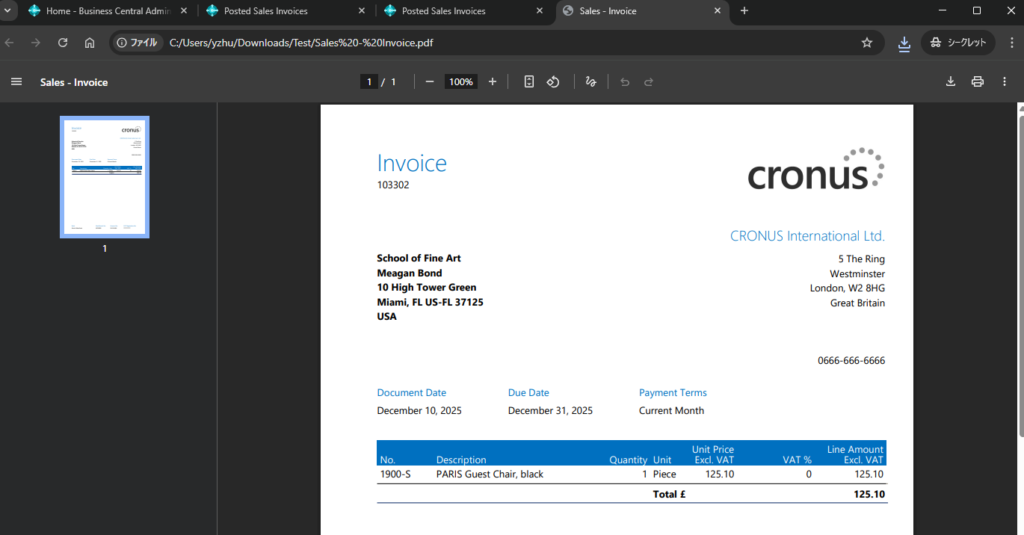
PS: Setting the UseRequestPage property to ‘false’ in the report object yields the same result.
So, is it impossible? Not exactly. However, there is a prerequisite: You must be on Business Central 2025 Release Wave 1 (BC26) or later. This is because the update introduces the ability to preview PDF attachments directly within the Web Client.
With this feature, you can open PDF attachments directly in the Business Central web client without downloading them first. More details: Business Central 2025 wave 1 (BC26): Preview PDF attachments directly in web client (No control add-in and APIs)
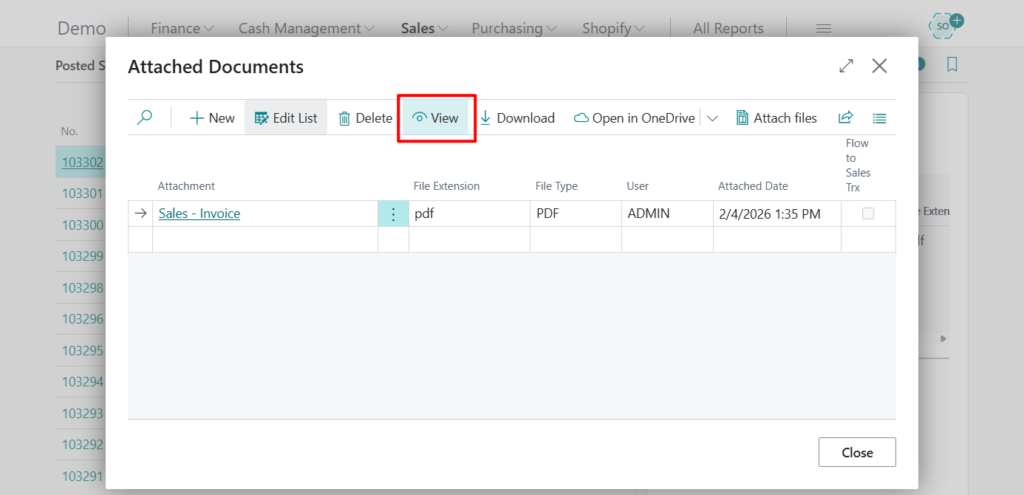
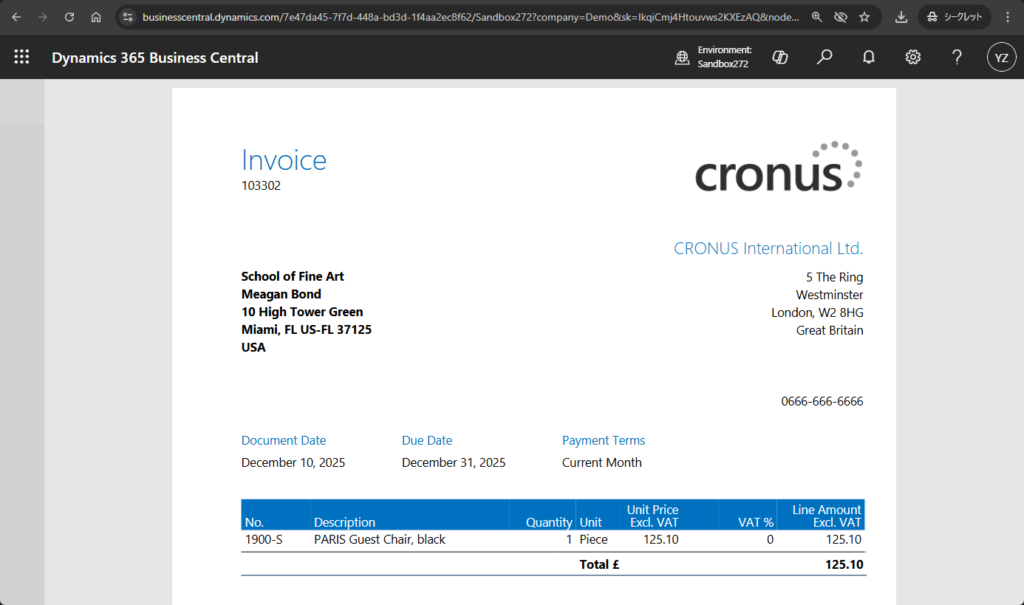
Therefore, we can shift our approach: first, save the report as a PDF, and then display it using the standard PDF preview functionality. Let’s look at two examples.
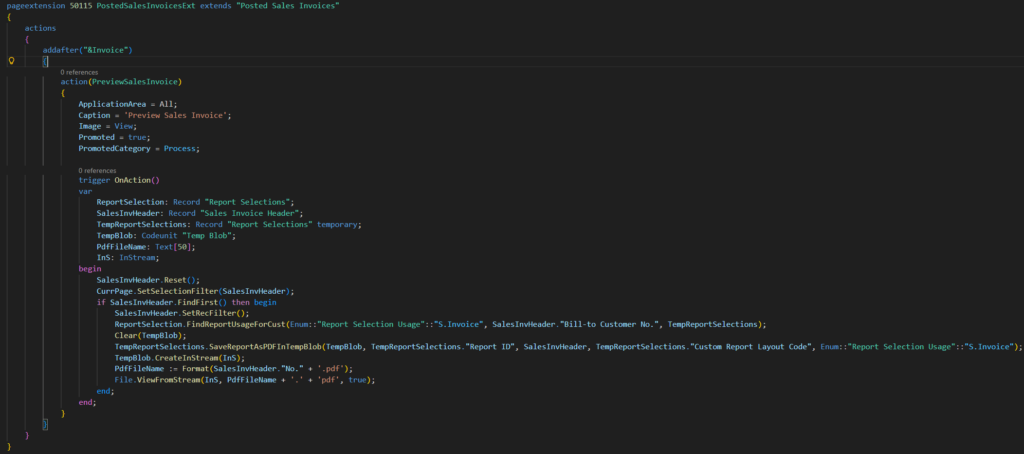
1. Preview Sales – Invoice on the Posted Sales Invoices (143, List) (Using “Report Selections”)
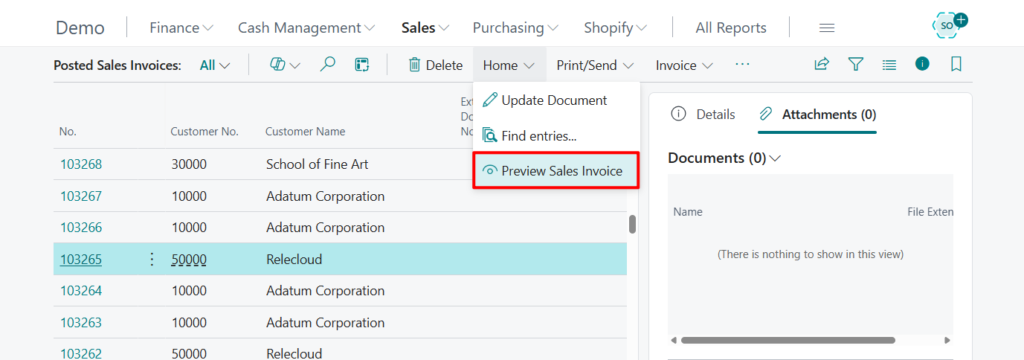
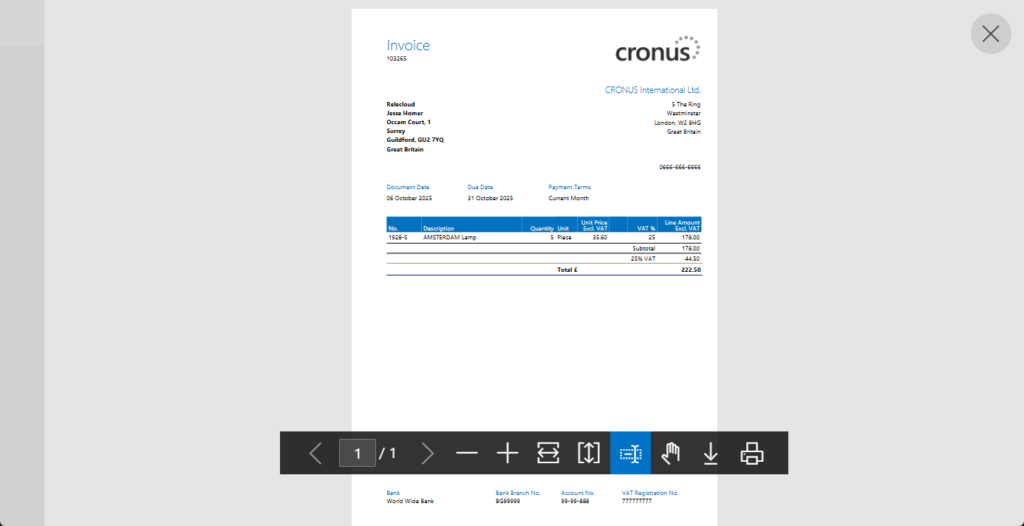
Test video:
Test code:
pageextension 50115 PostedSalesInvoicesExt extends "Posted Sales Invoices"
{
    actions
    {
        addafter("&Invoice")
        {
            action(PreviewSalesInvoice)
            {
                ApplicationArea = All;
                Caption = 'Preview Sales Invoice';
                Image = View;
                Promoted = true;
                PromotedCategory = Process;

                trigger OnAction()
                var
                    ReportSelection: Record "Report Selections";
                    SalesInvHeader: Record "Sales Invoice Header";
                    TempReportSelections: Record "Report Selections" temporary;
                    TempBlob: Codeunit "Temp Blob";
                    PdfFileName: Text[50];
                    InS: InStream;
                begin
                    SalesInvHeader.Reset();
                    CurrPage.SetSelectionFilter(SalesInvHeader);
                    if SalesInvHeader.FindFirst() then begin
                        SalesInvHeader.SetRecFilter();
                        ReportSelection.FindReportUsageForCust(Enum::"Report Selection Usage"::"S.Invoice", SalesInvHeader."Bill-to Customer No.", TempReportSelections);
                        Clear(TempBlob);
                        TempReportSelections.SaveReportAsPDFInTempBlob(TempBlob, TempReportSelections."Report ID", SalesInvHeader, TempReportSelections."Custom Report Layout Code", Enum::"Report Selection Usage"::"S.Invoice");
                        TempBlob.CreateInStream(InS);
                        PdfFileName := Format(SalesInvHeader."No." + '.pdf');
                        File.ViewFromStream(InS, PdfFileName + '.' + 'pdf', true);
                    end;
                end;
            }
        }
    }
}
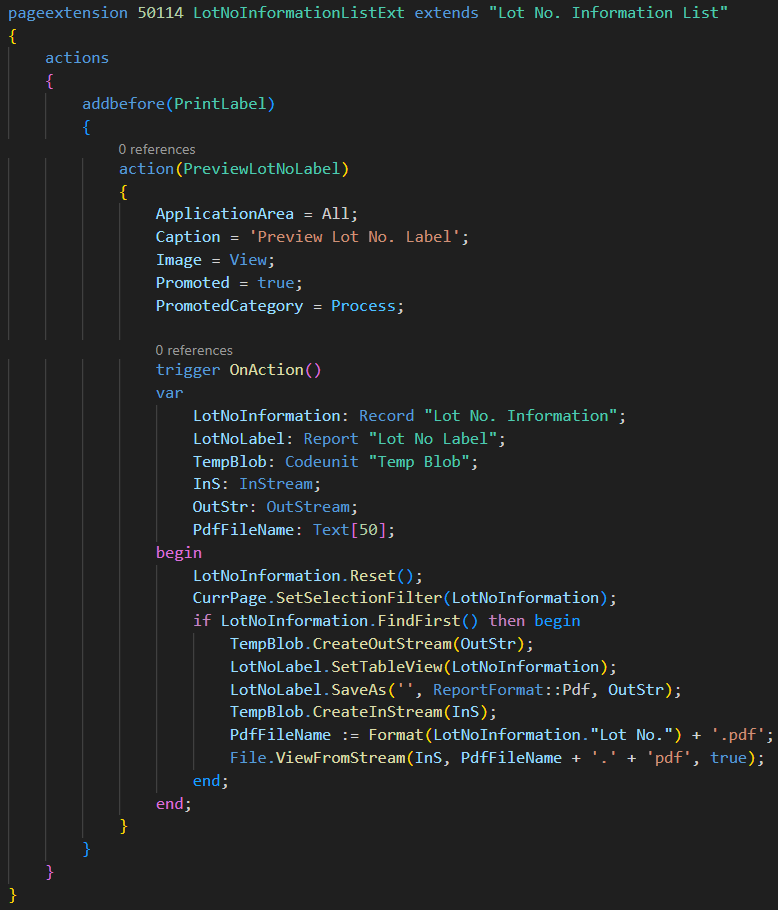
2. Preview Lot No Label on the Lot No. Information List (6508, List) page (Fixed Report)
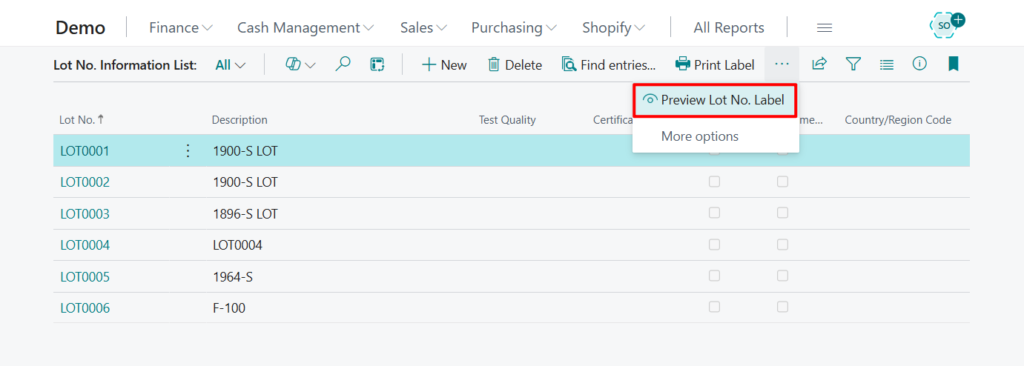
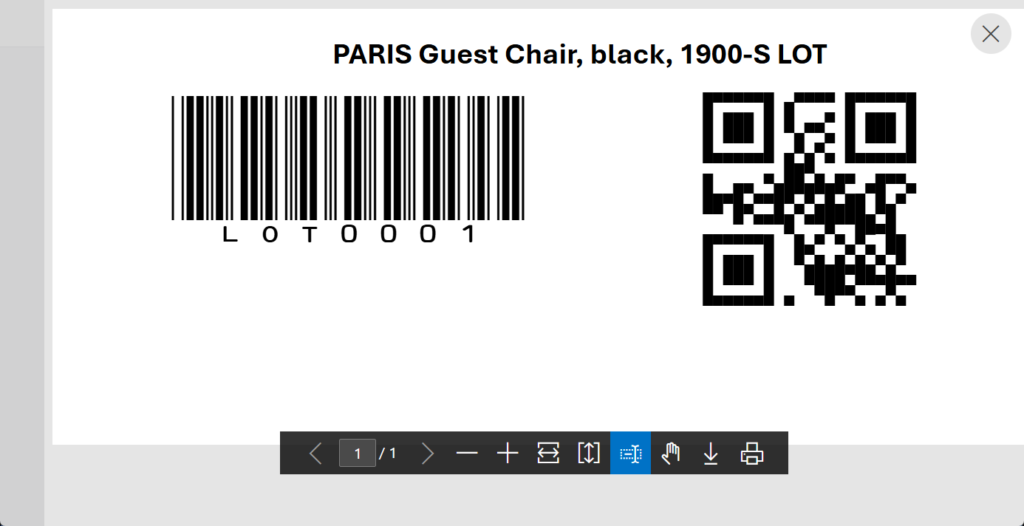
Test video:
Test code:
pageextension 50114 LotNoInformationListExt extends "Lot No. Information List"
{
    actions
    {
        addbefore(PrintLabel)
        {
            action(PreviewLotNoLabel)
            {
                ApplicationArea = All;
                Caption = 'Preview Lot No. Label';
                Image = View;
                Promoted = true;
                PromotedCategory = Process;

                trigger OnAction()
                var
                    LotNoInformation: Record "Lot No. Information";
                    LotNoLabel: Report "Lot No Label";
                    TempBlob: Codeunit "Temp Blob";
                    InS: InStream;
                    OutStr: OutStream;
                    PdfFileName: Text[50];
                begin
                    LotNoInformation.Reset();
                    CurrPage.SetSelectionFilter(LotNoInformation);
                    if LotNoInformation.FindFirst() then begin
                        TempBlob.CreateOutStream(OutStr);
                        LotNoLabel.SetTableView(LotNoInformation);
                        LotNoLabel.SaveAs('', ReportFormat::Pdf, OutStr);
                        TempBlob.CreateInStream(InS);
                        PdfFileName := Format(LotNoInformation."Lot No.") + '.pdf';
                        File.ViewFromStream(InS, PdfFileName + '.' + 'pdf', true);
                    end;
                end;
            }
        }
    }
}
Great. Give it a try!!!😁
PS: Dynamics 365 Business Central Blog Series: Preview files directly in the web client
END
Hope this will help.
Thanks for reading.
ZHU
コメント