

Hi, Readers.
Dynamics 365 Business Central 2025 wave 2 (BC27.2) is generally available. More details: Cumulative Update Summary for Microsoft Dynamics 365 Business Central (December, 2025)
I will continue to test and share some new features that I hope will be helpful. In this post, I would like to talk about Cancel running environment update.
Cancel running environment update:
Business value:
https://learn.microsoft.com/en-us/dynamics365/release-plan/2025wave2/smb/dynamics365-business-central/cancel-running-environment-update?wt.mc_id=DX-MVP-5004336
As an admin, you get more control over your Business Central environment by stopping in-progress updates when needed. This capability ensures system stability and minimizes disruption, giving you confidence that the environment can be safely reverted without manual intervention or data loss.
With this feature, you can now cancel a running update on an environment from the Business Central admin center. This gives you greater control and flexibility during update operations, allowing you to intervene when necessary—whether due to unexpected issues, timing conflicts, or other operational concerns.
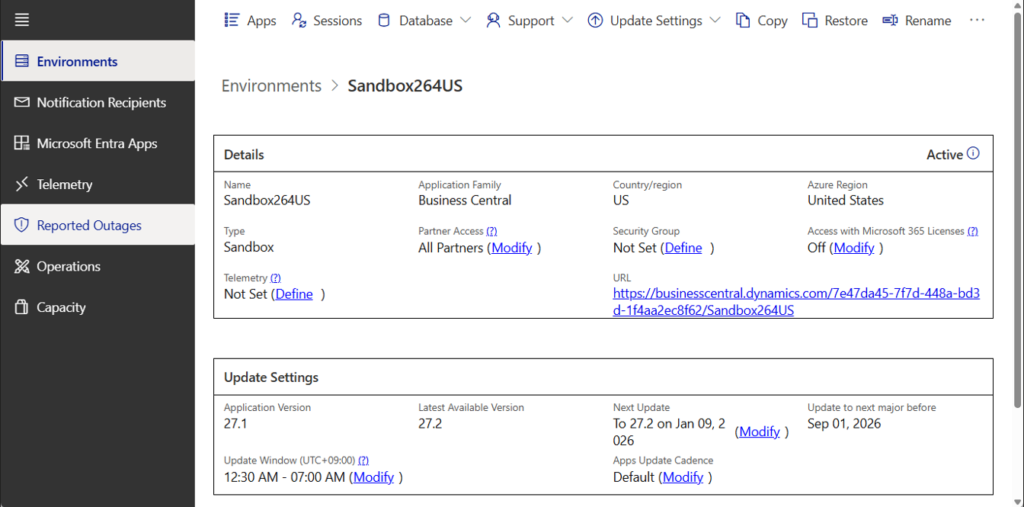
Let’s see more details. Below is my test environment, upgraded from v27.1 to v27.2.
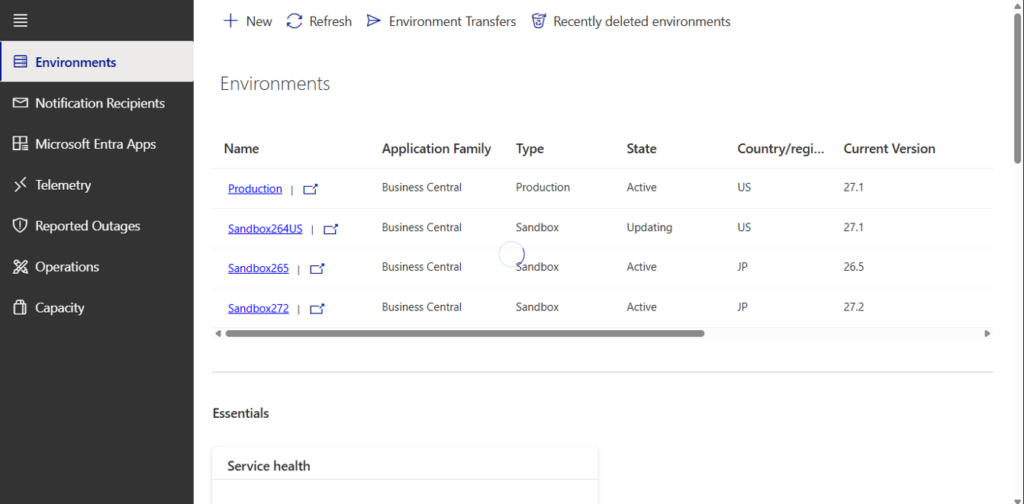
Updating:
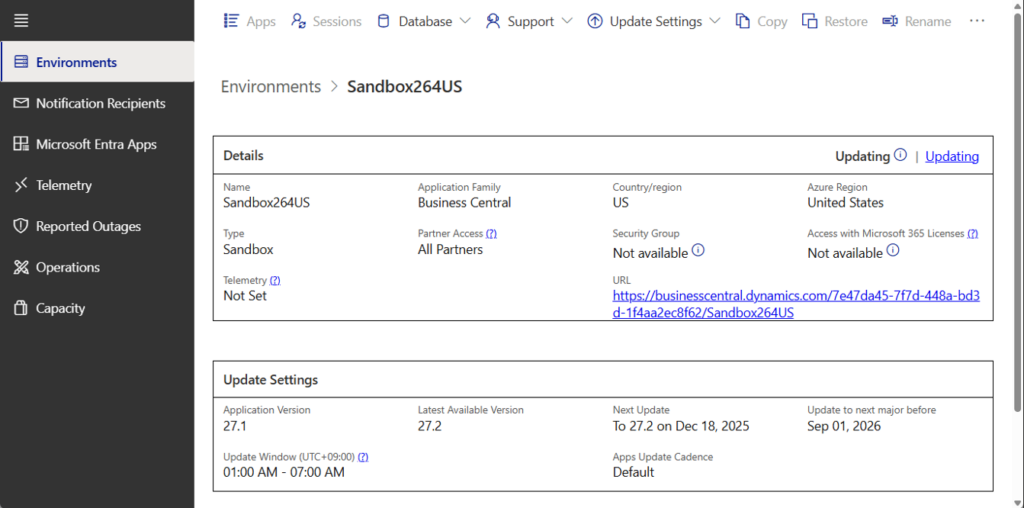
Click on the environment name, and you’ll see a clickable blue “Updating” button in the upper right corner.
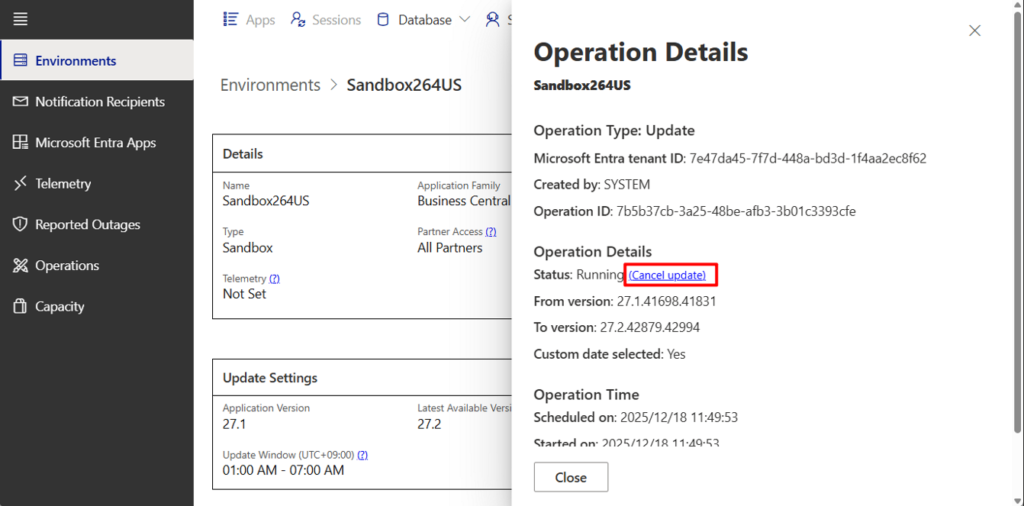
The Cancel update button is available in the Operation Details page that appears after you click the Updating.
After clicking it, the following message is displayed. Choose Yes.
Cancel update
This action will cancel the ongoing environment update. The environment will be restored to its state before the update began. The restore duration depends on the environment size and may take several hours for large environments. Would you like to continue?
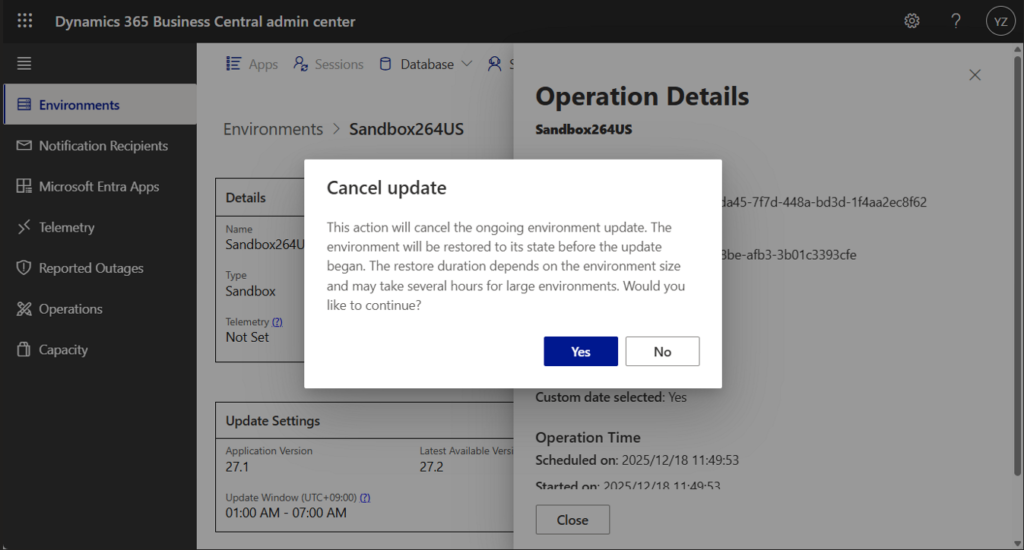
PS: If you click it again, the error message shown below will appear.
Error
The cancelation is already in progress. The operation status will be updated shortly.

When you cancel an update, Business Central automatically starts a recovery operation to restore the environment to its pre-update state. You don’t need to do anything extra—your data stays safe, and your system remains stable.
This can be found in the Operations.
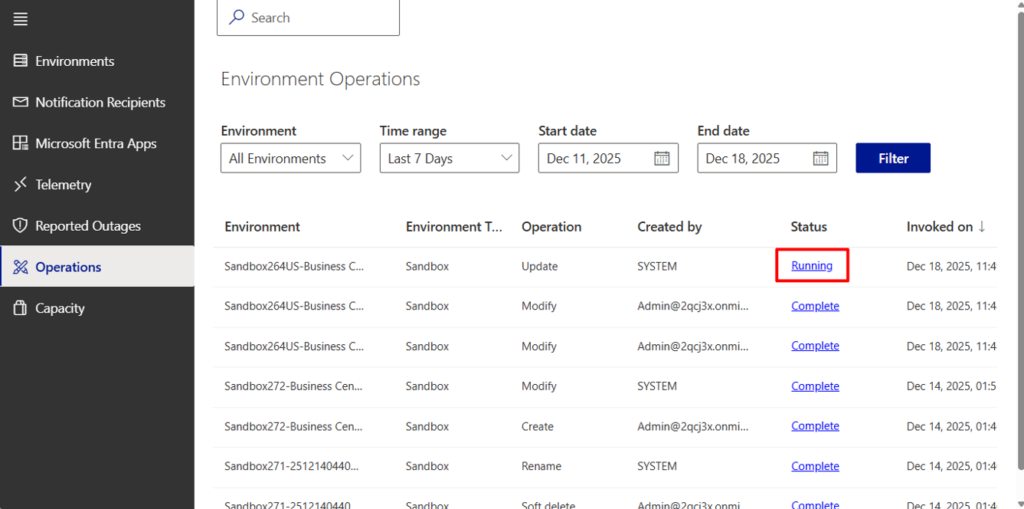

Once completed, it will be updated to the Canceled status.
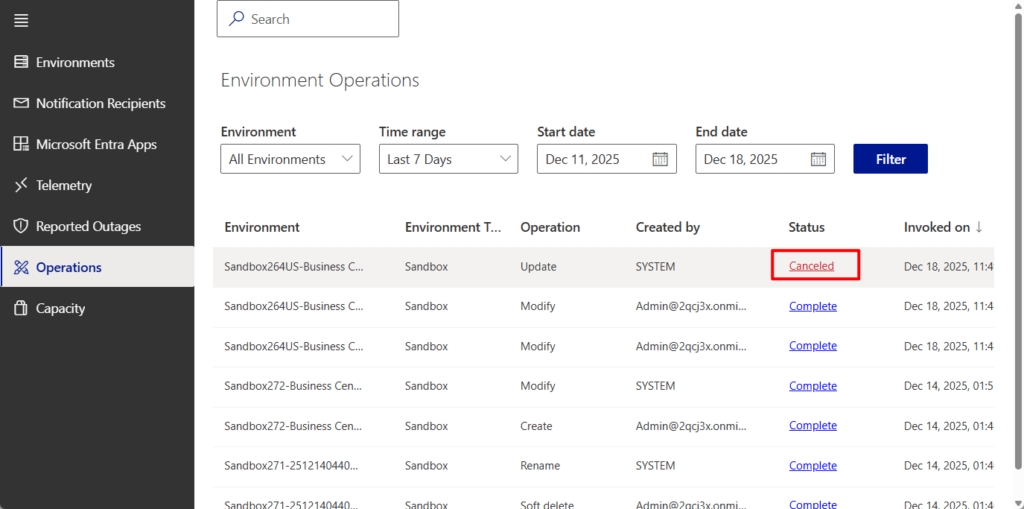
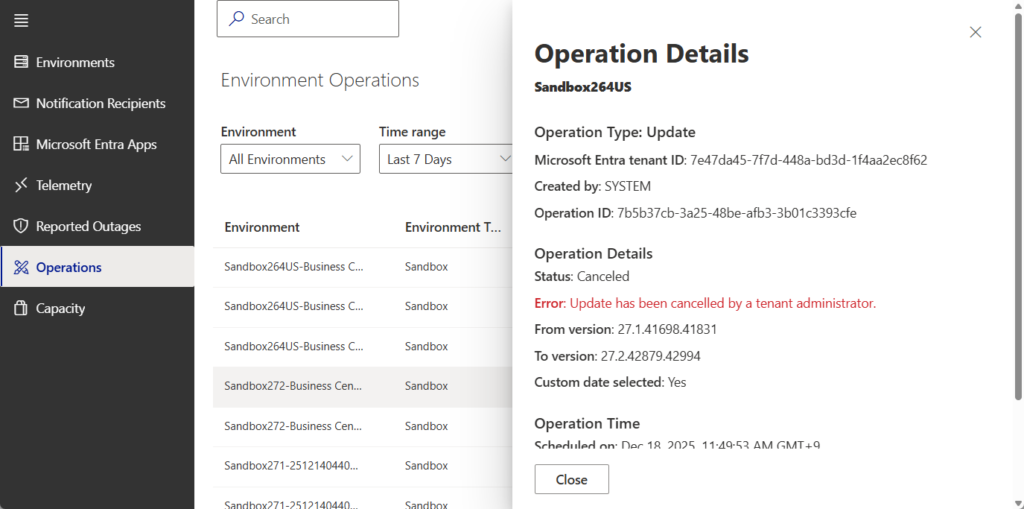
Operation Details
Status: Canceled
Error: Update has been cancelled by a tenant administrator.
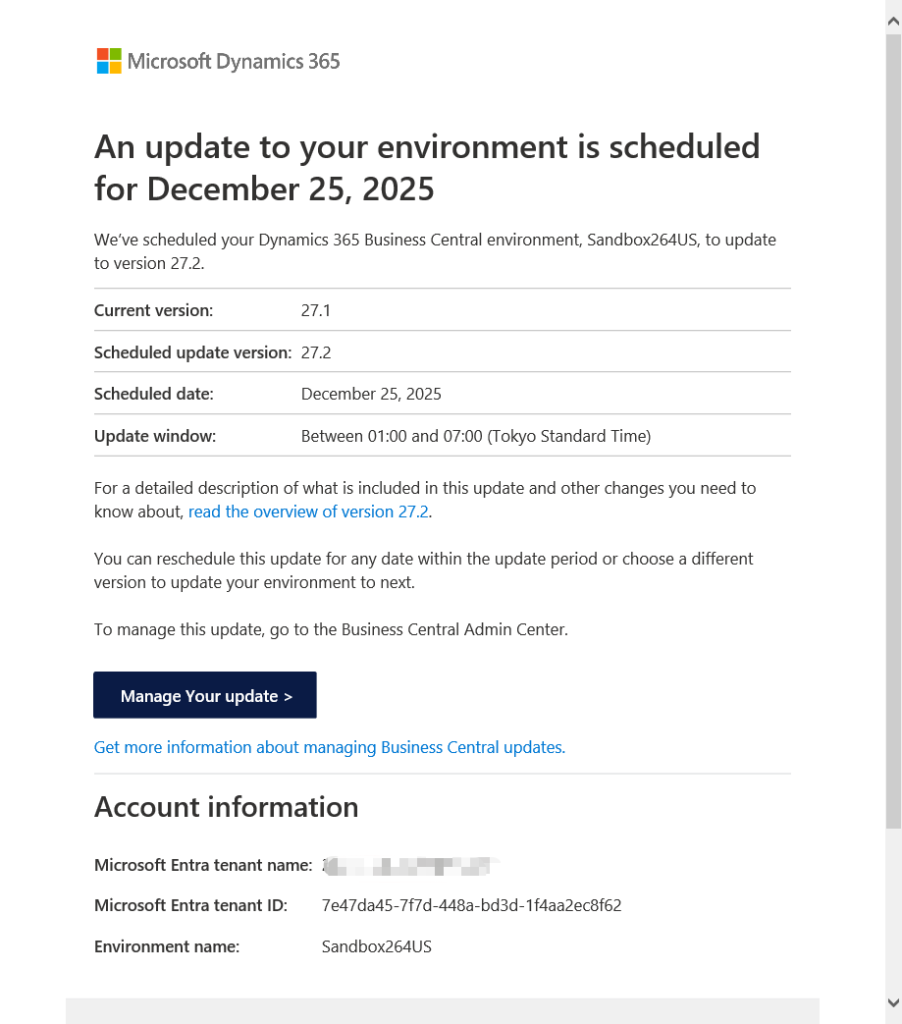
After cancellation, the next update date will be automatically set, and you can see the details in the notification email.
Updates can’t be canceled on environments that are in the Enforced Update Period for the source version of the environment update.
Great, give it a try!!!😁
PS:
1. Managing Updates in the Admin Center – Business Central | Microsoft Learn
END
Hope this will help.
Thanks for reading.
ZHU

コメント