

Hi, Readers.
Today I would like to briefly talk about how to add custom pages, reports, and queries to Role Explorer.
In Business Central, you can open the role explorer from role centers, list pages, and the Tell Me window.
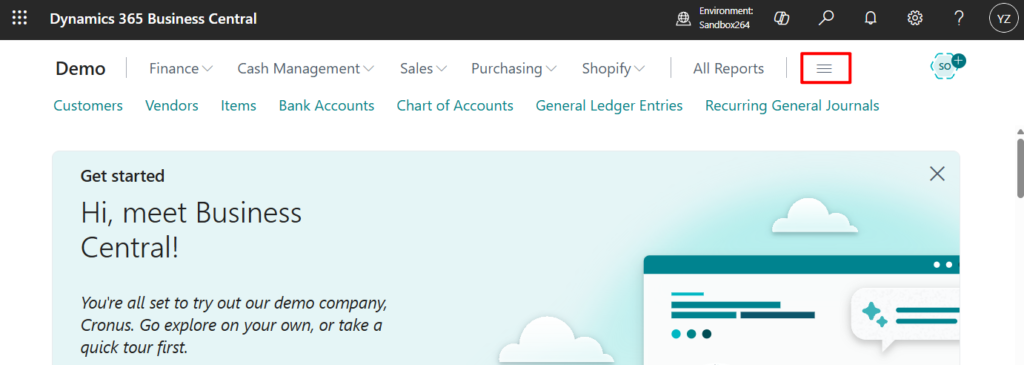
- On your role center or any list page, choose the
 button, or select Shift+F12.
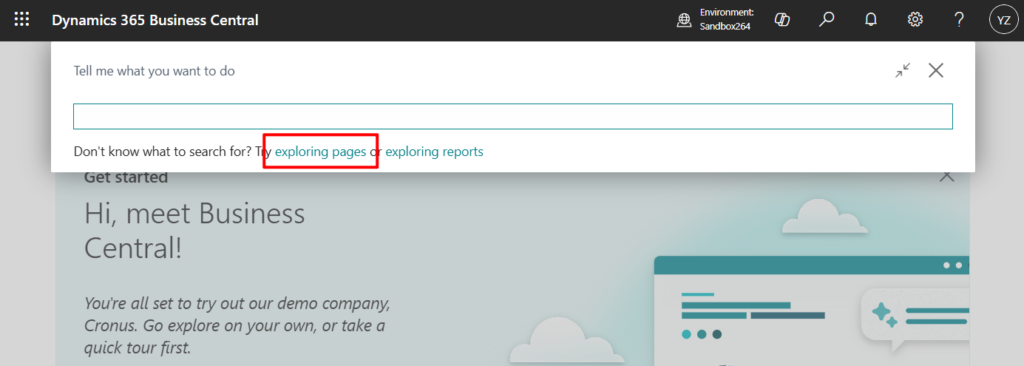
- In the Tell Me window, choose the exploring pages action.
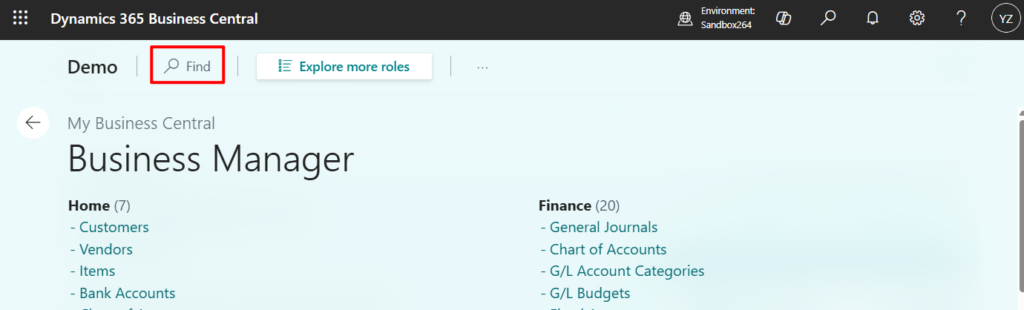
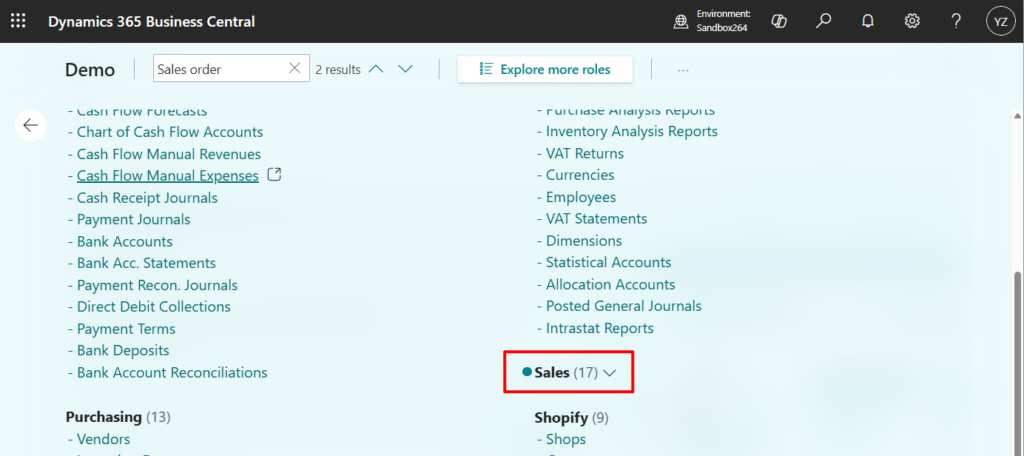
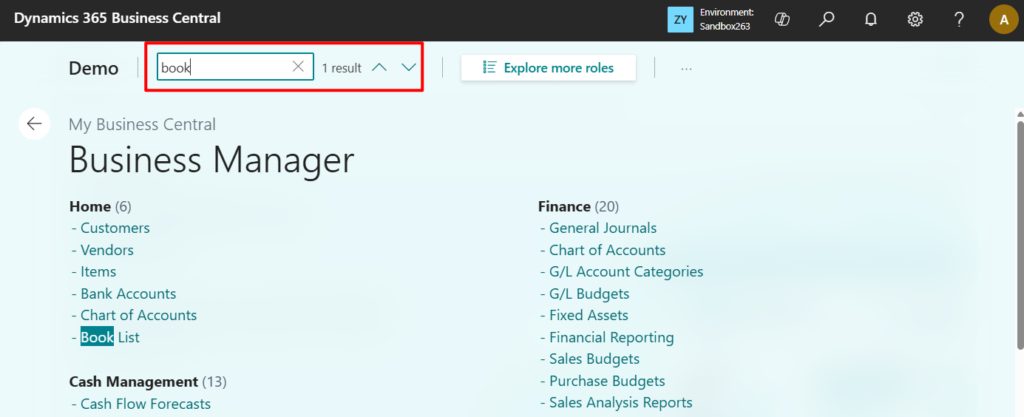
To quickly locate a page or report, select Find, and then enter a word or phrase for what you want to find. Role explorer highlights any matching text.
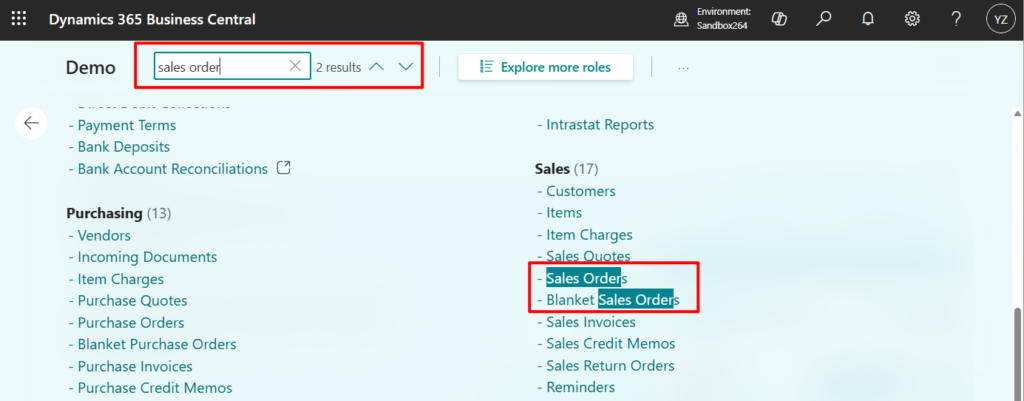
If the page or report is hidden in a collapsed node, the collapsed node is marked with a dot.
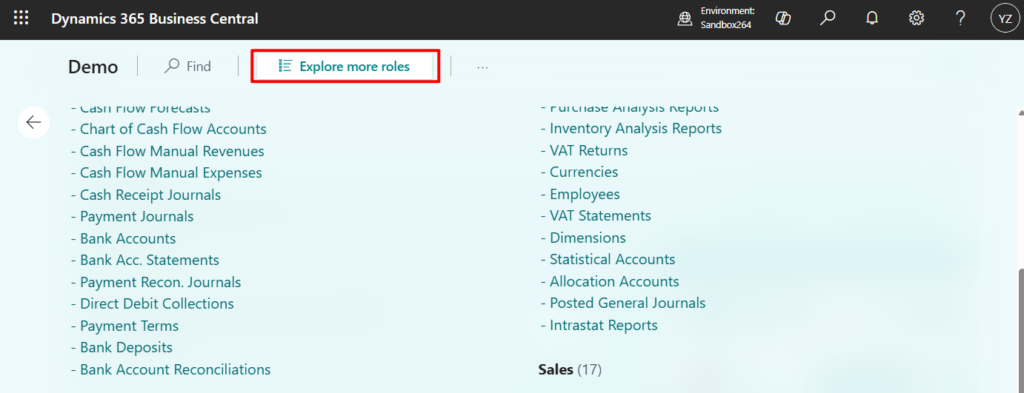
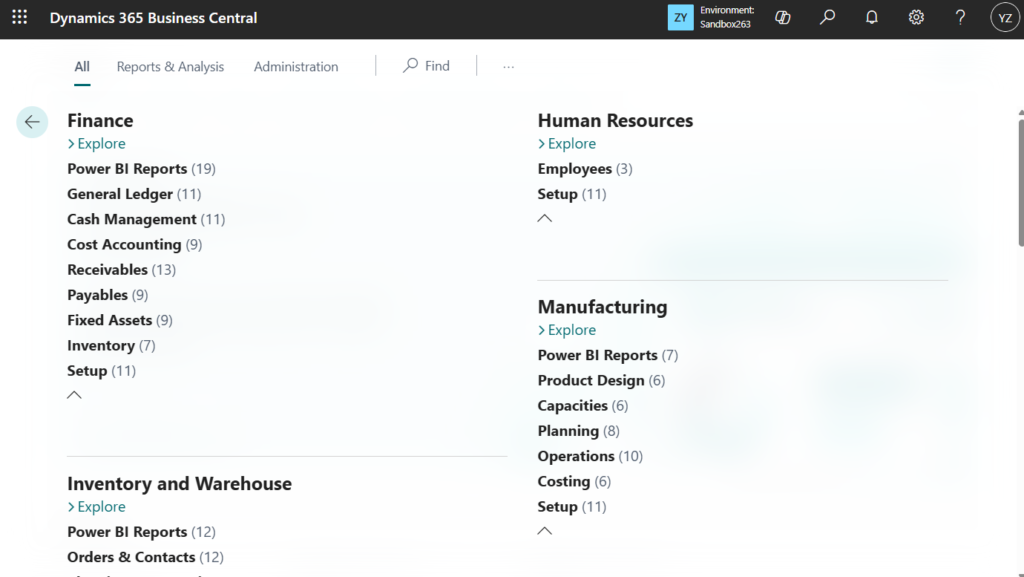
To explore roles other than your own, select Explore more roles. Role explorer displays each role under its own heading, with links to its features. You can find and go to features just like you do when exploring your role.
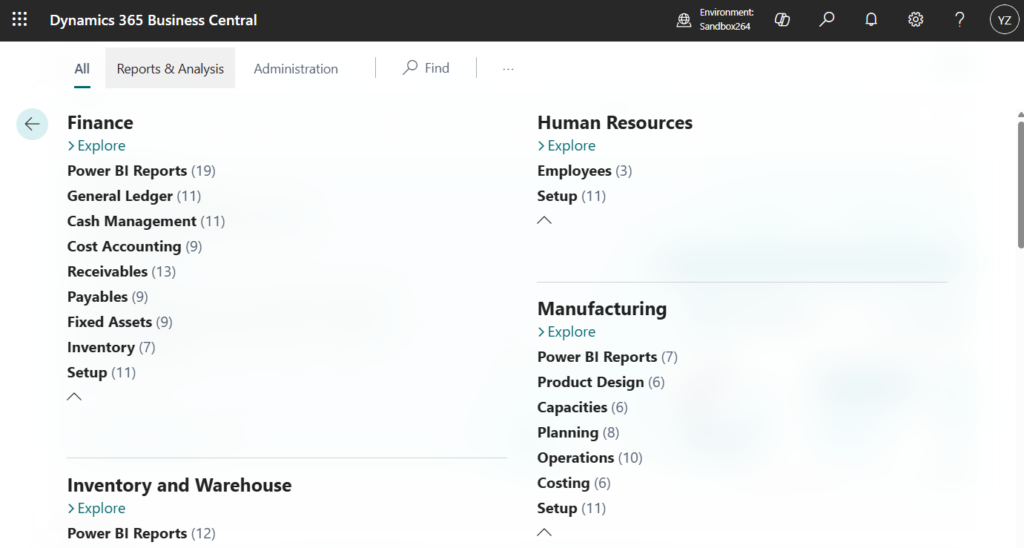
Here’s a question, can Role Explorer be extended? Let’s look at a simple example, I created a new page.
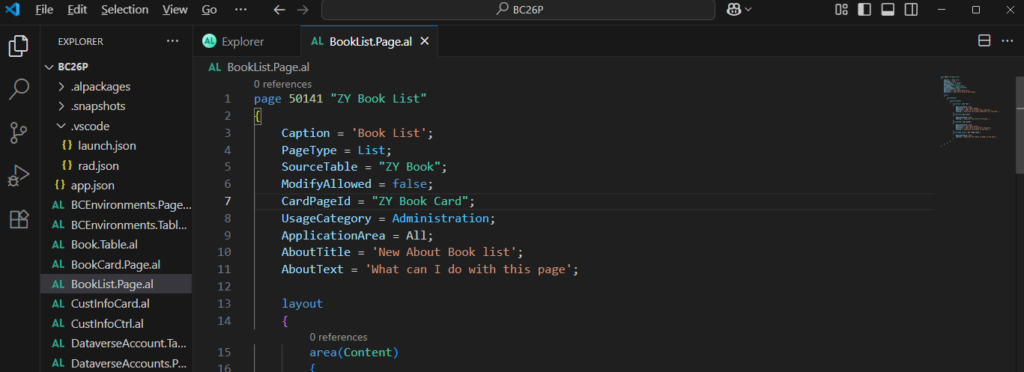
This can be searched in Tell Me.
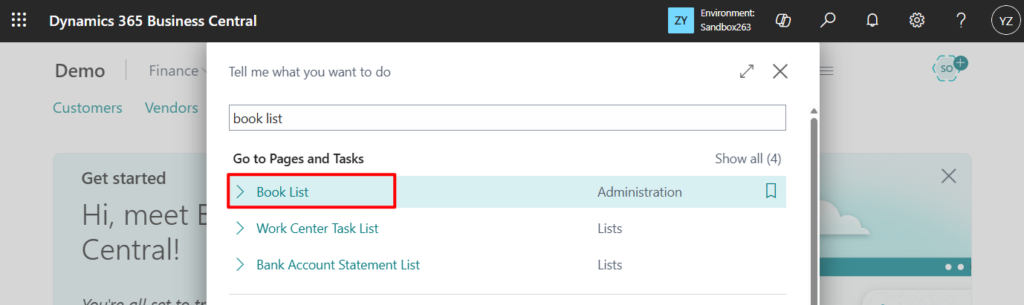
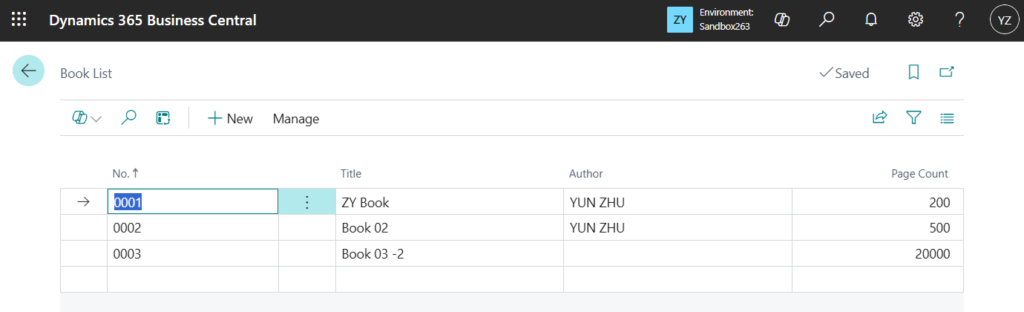
But this new page cannot be found in Role Explorer. Why?
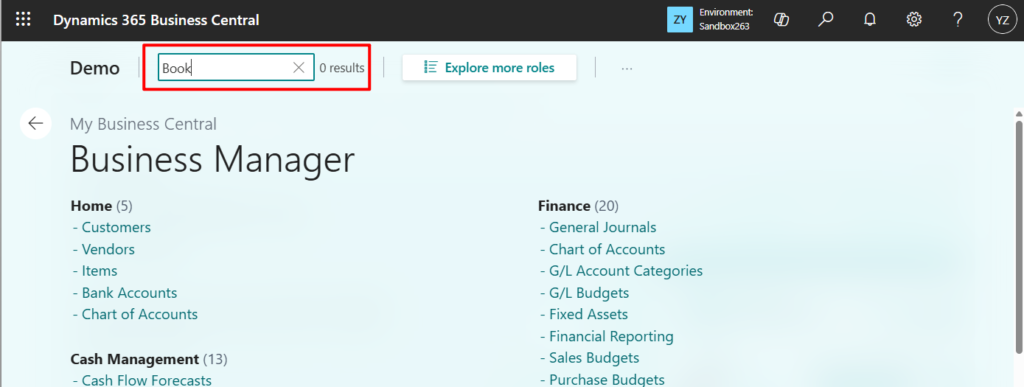
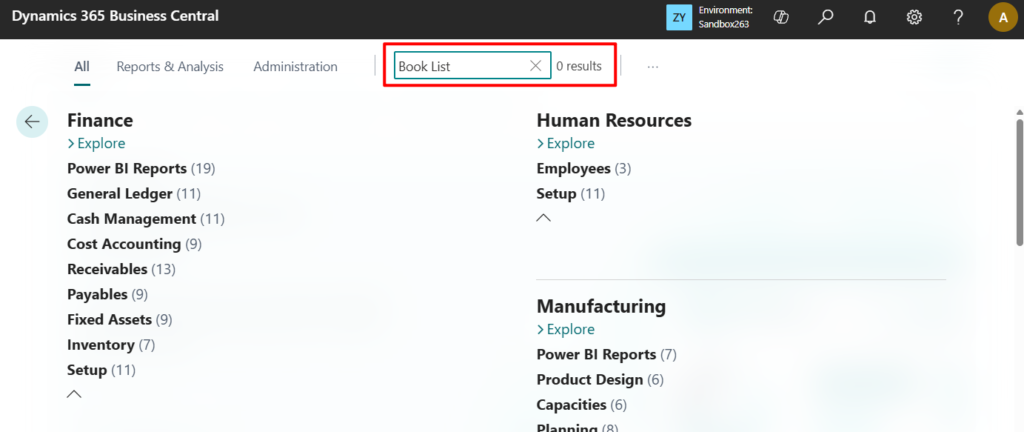
I would like to first talk about what is displayed in Role Explorer. The default content in the Role Explorer is the content displayed in the Role Center set by the current user.
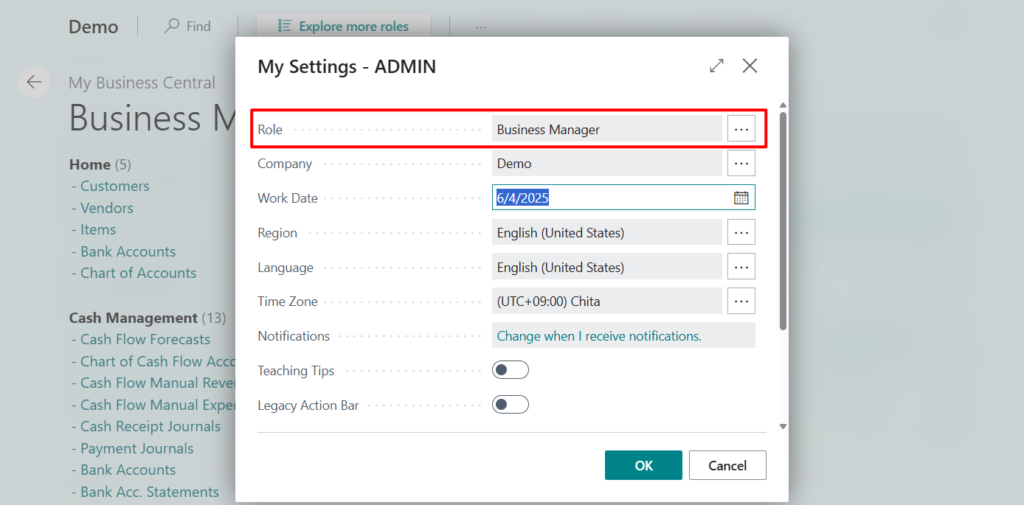
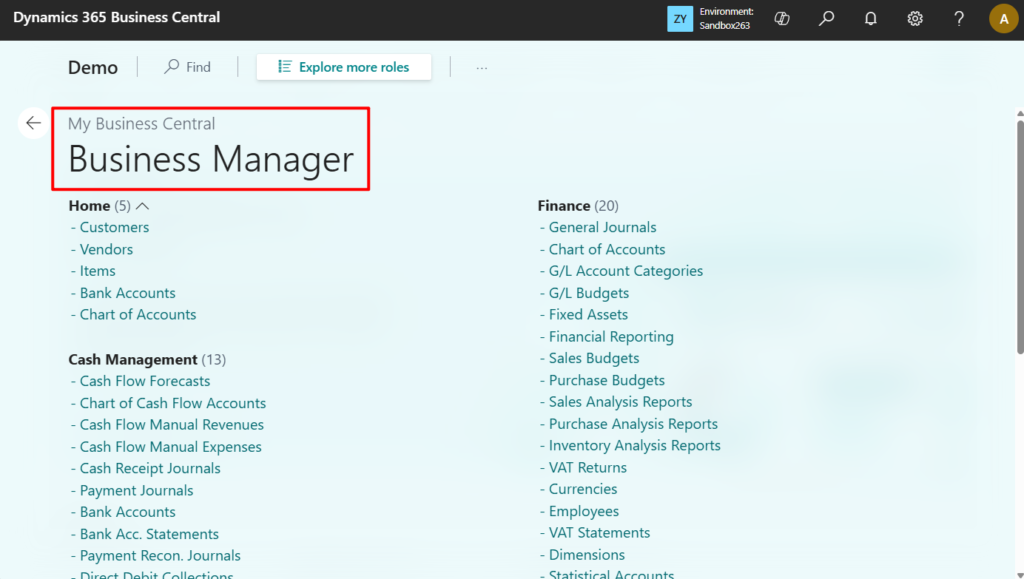
For example,
Home:
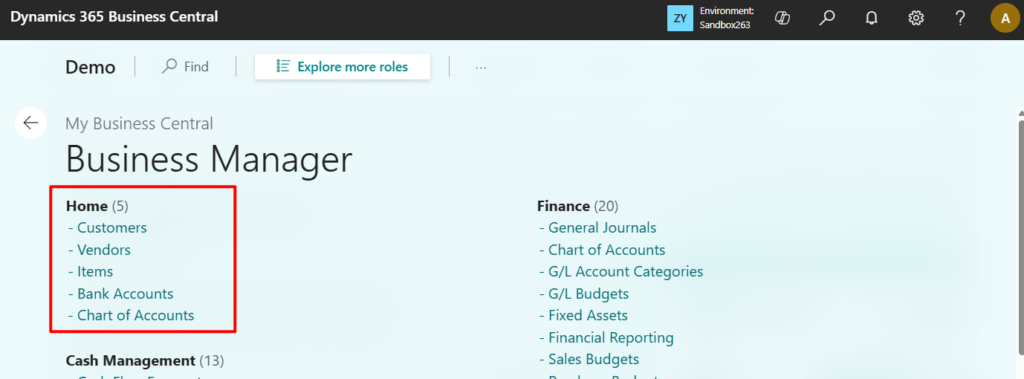
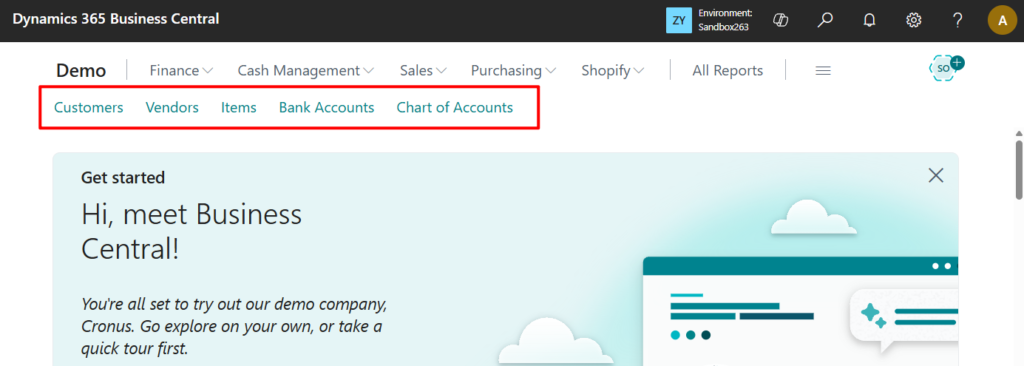
Finance:
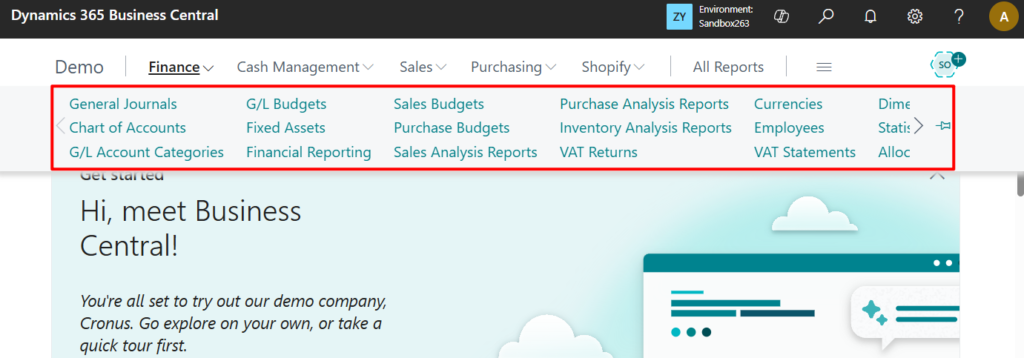
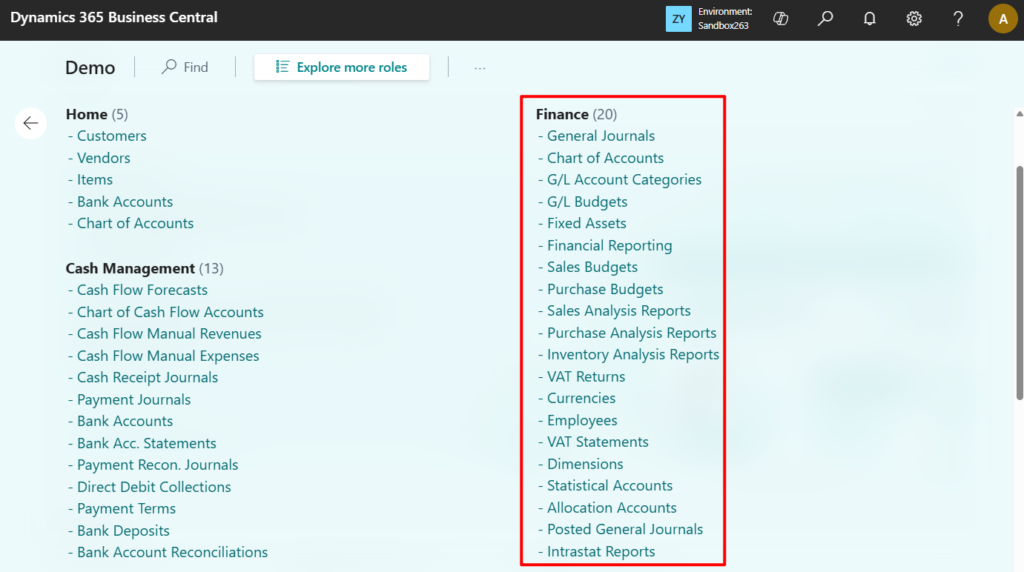
Cash Management:
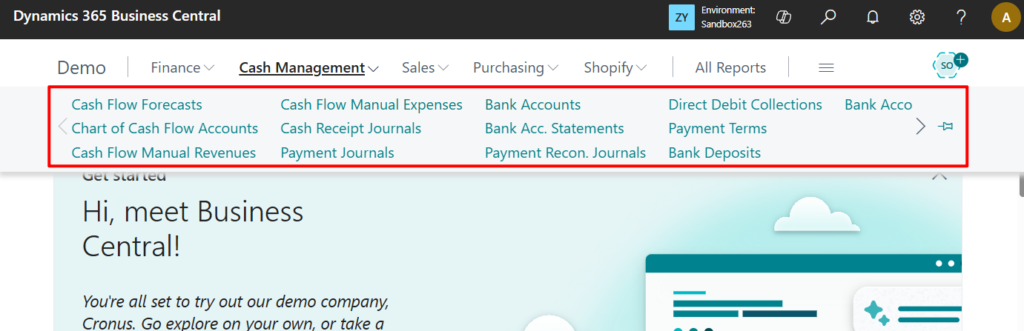
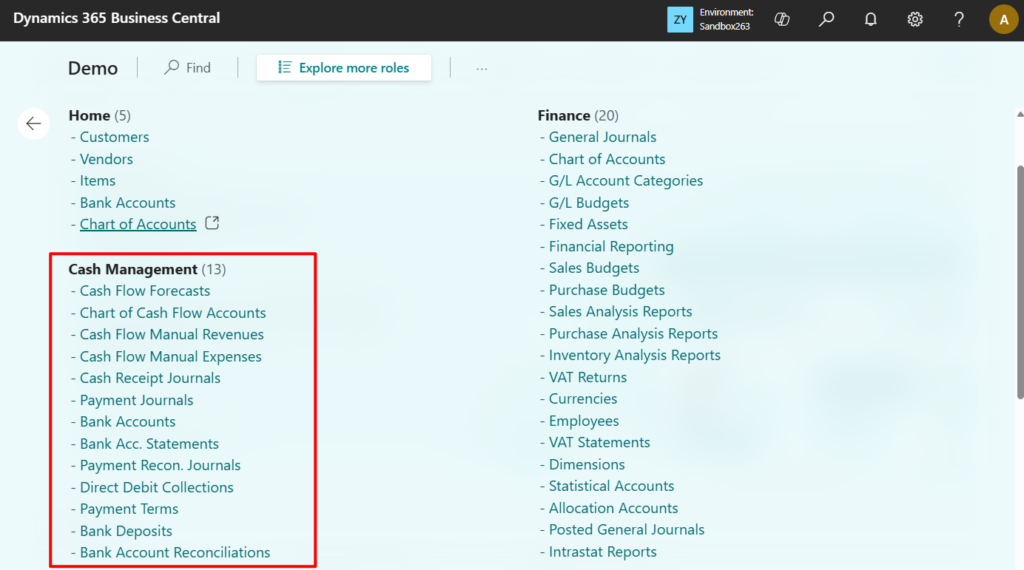
I think you have understood it, so I won’t compare them one by one. Therefore, if you want to add custom pages, reports, and queries to the default Role Explorer, you only need to add them in the Role Center. The simplest way is to use Bookmark, which requires no customization.
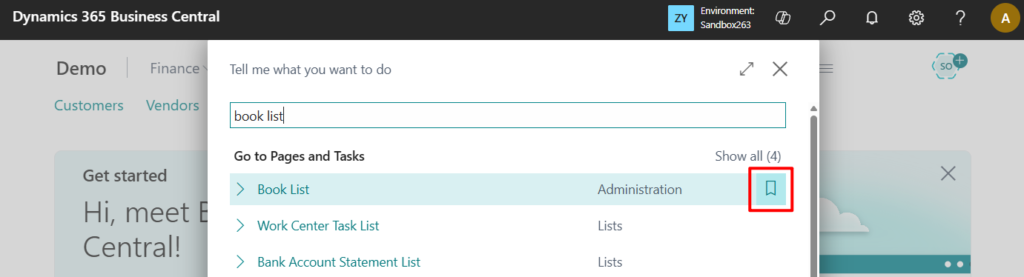
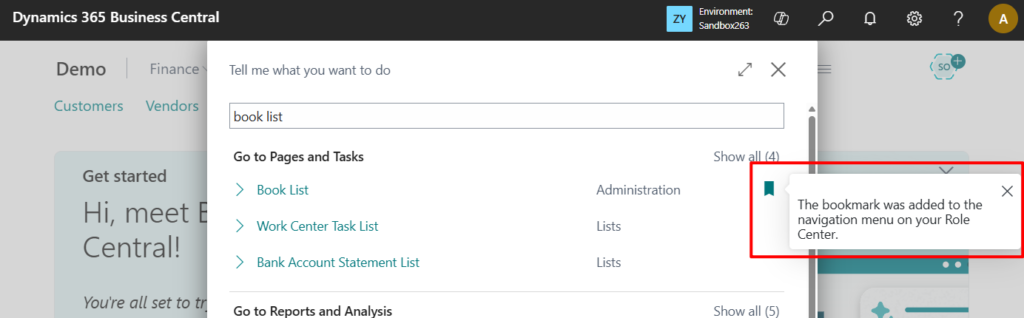
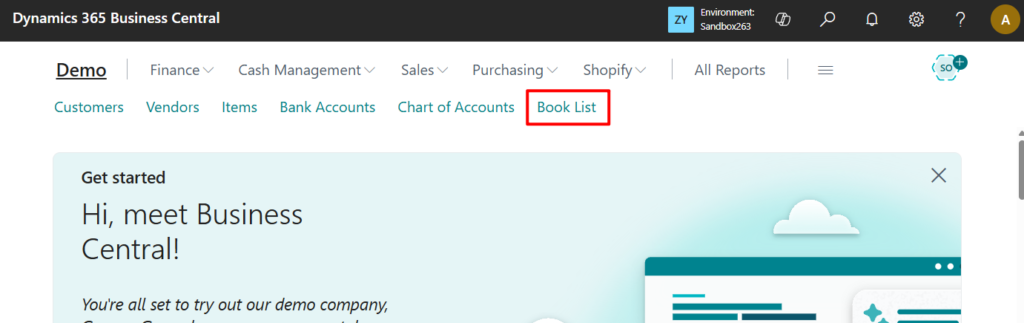
This will then appear in the Home tab and be searchable.
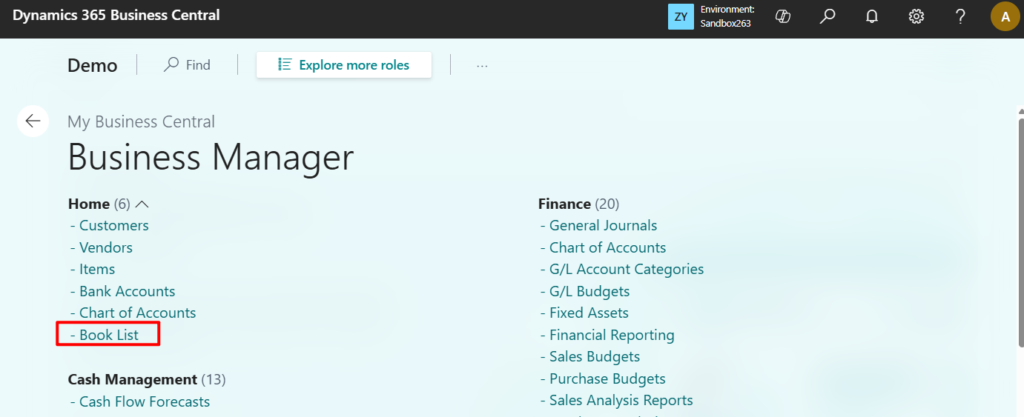
Or you can add new actions through customization, add them to the required groups, or create new groups.
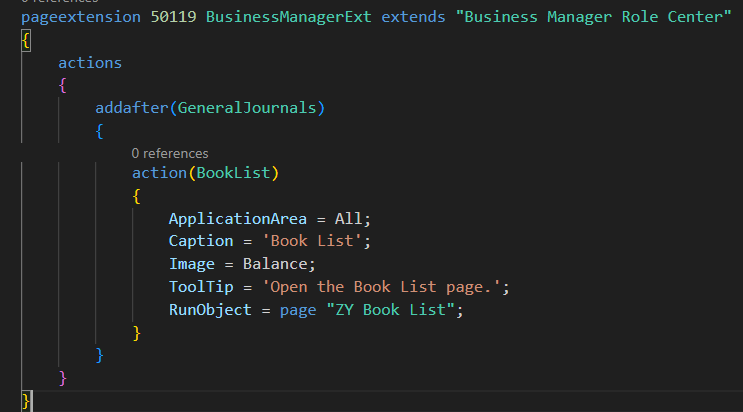
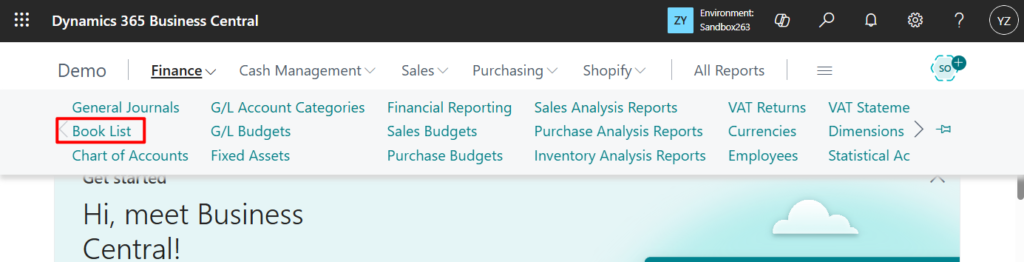
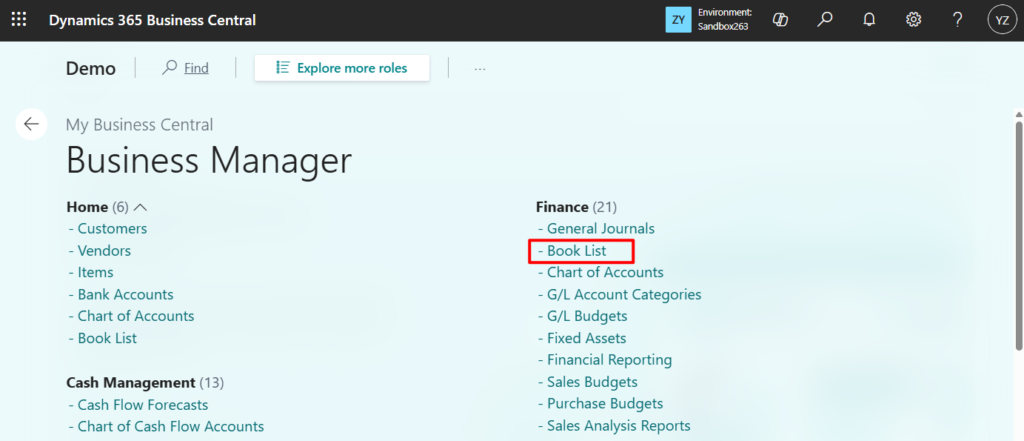
Of course, you can also hide standard content through extensions.
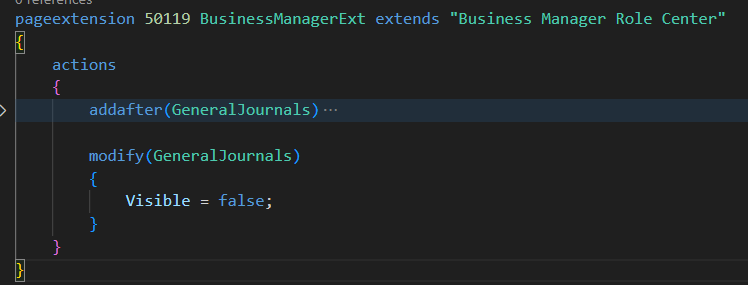
Very simple.
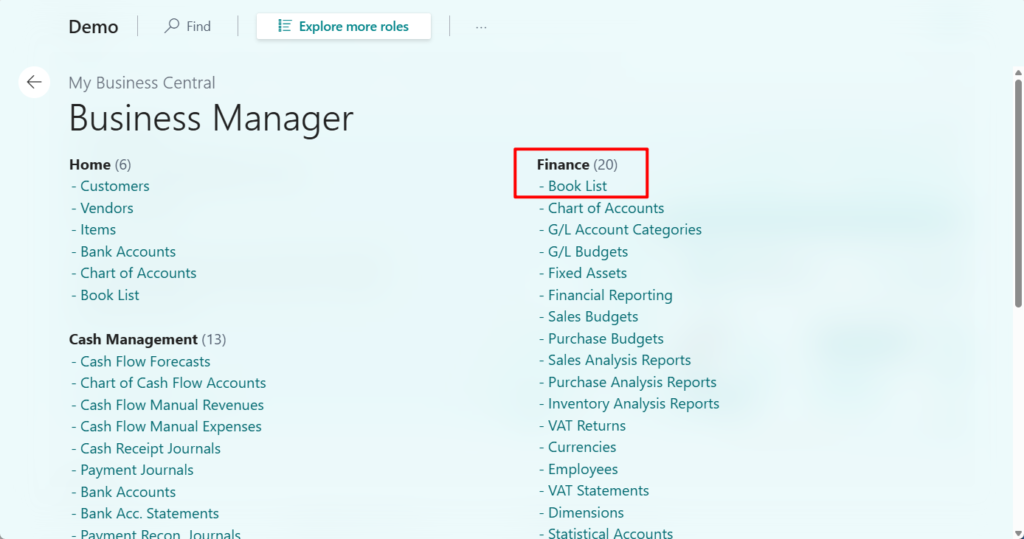
Next, let’s look at what’s displayed in Explore more roles (All). What is displayed here is not the content of the current Role Center, but the content of other Role Centers.
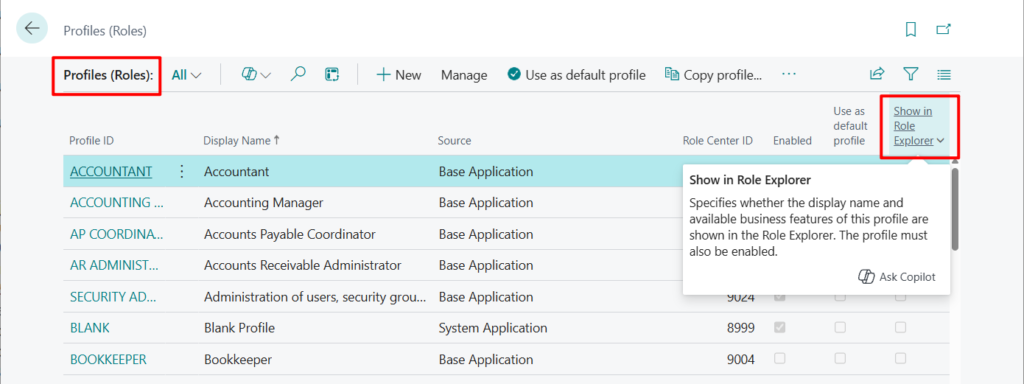
As for which Role Centers to display, we can set them on the following page,
Profiles (Roles) -> Profile (Role)
Show in Role Explorer
Specifies whether the display name and available business features of this profile are shown in the Role Explorer. The profile must also be enabled.
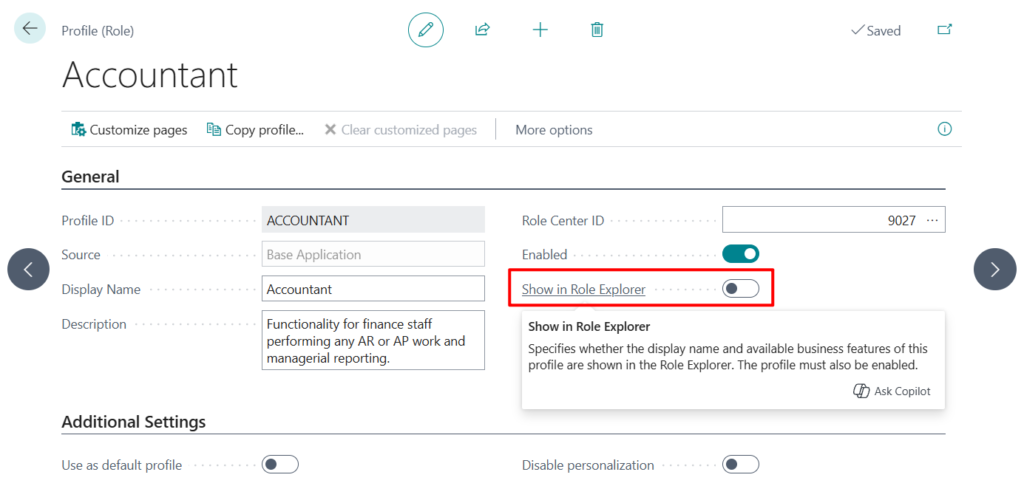
The following is the default display content:
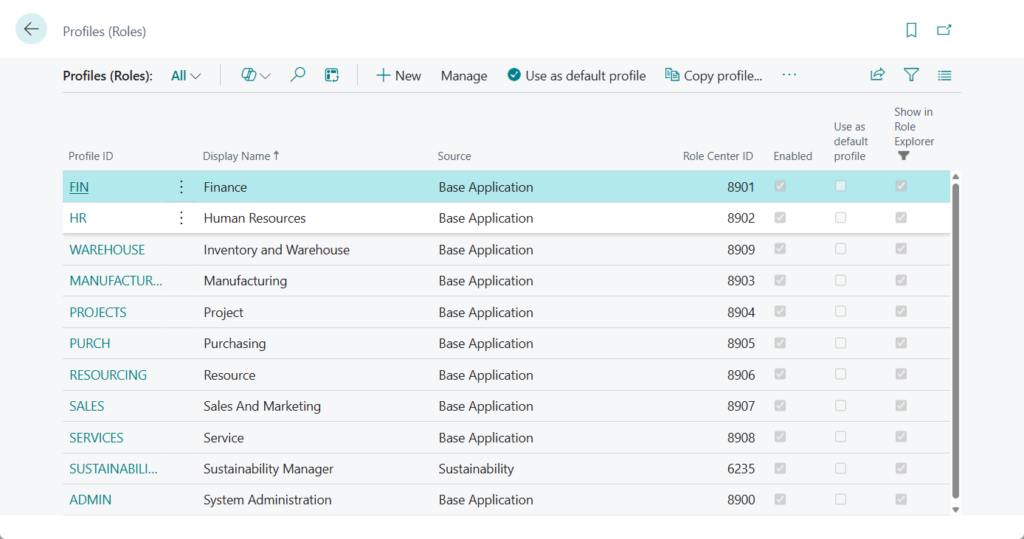
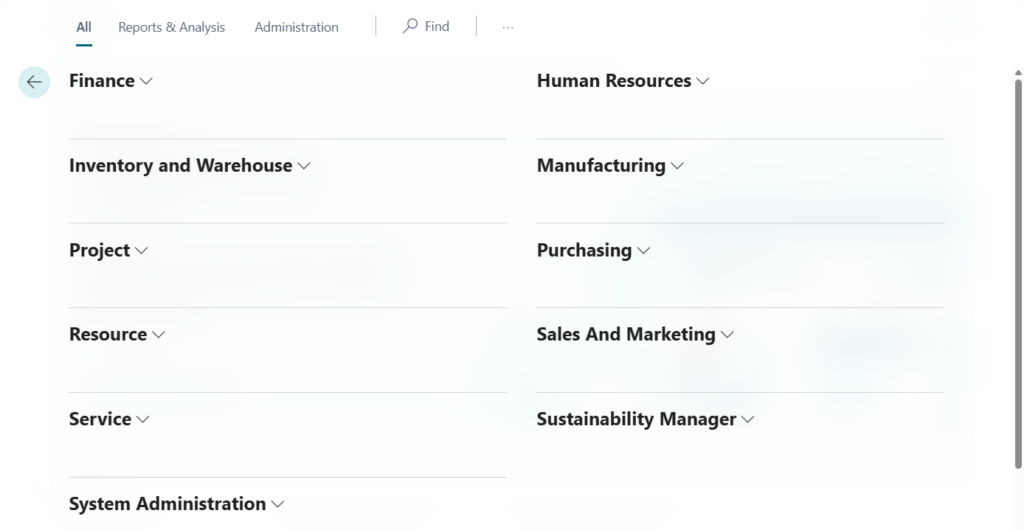
If we want to add custom pages, reports, and queries to Explore more roles (All), we only need to add them to the Role Center first, and then enable Show in Role Explorer.
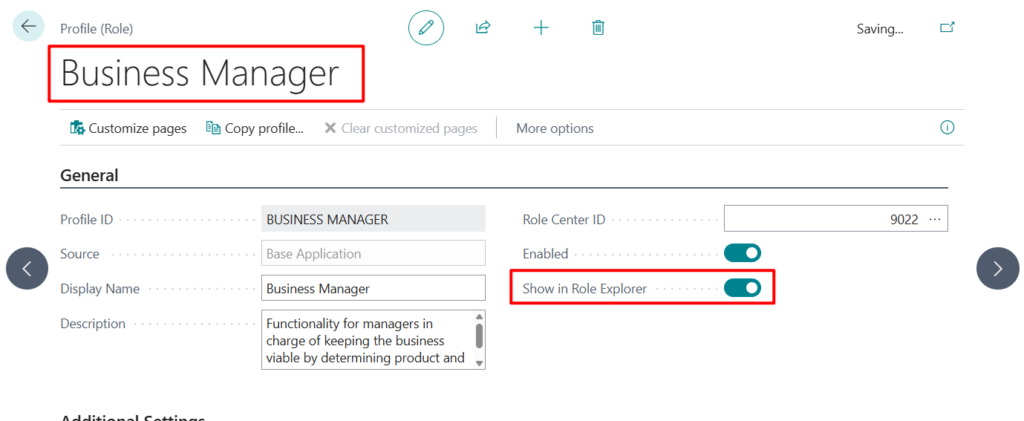
PS: If the Role set in My Settings is consistent with the one here, My Business Central will be displayed with a blue background. If they are inconsistent, it will be displayed in normal white.
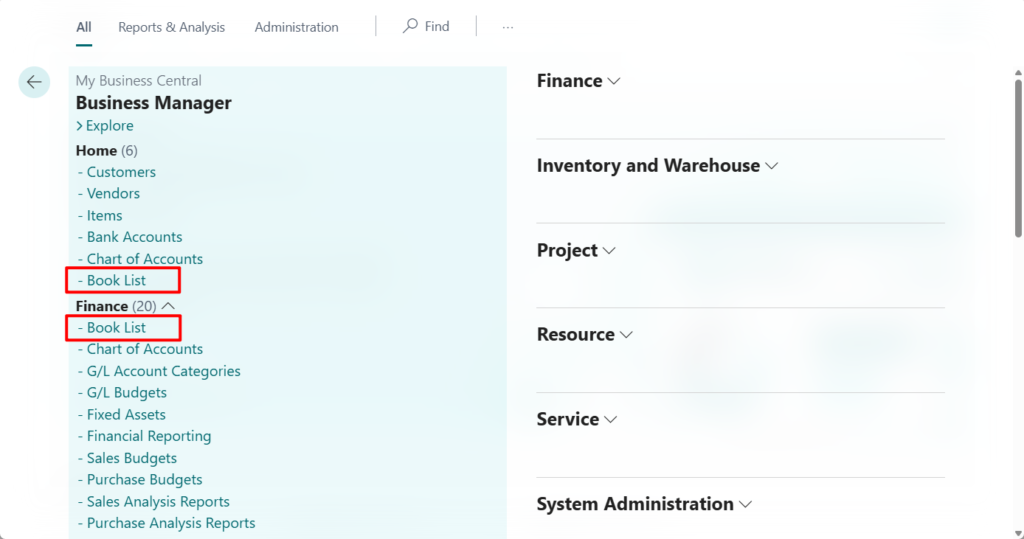
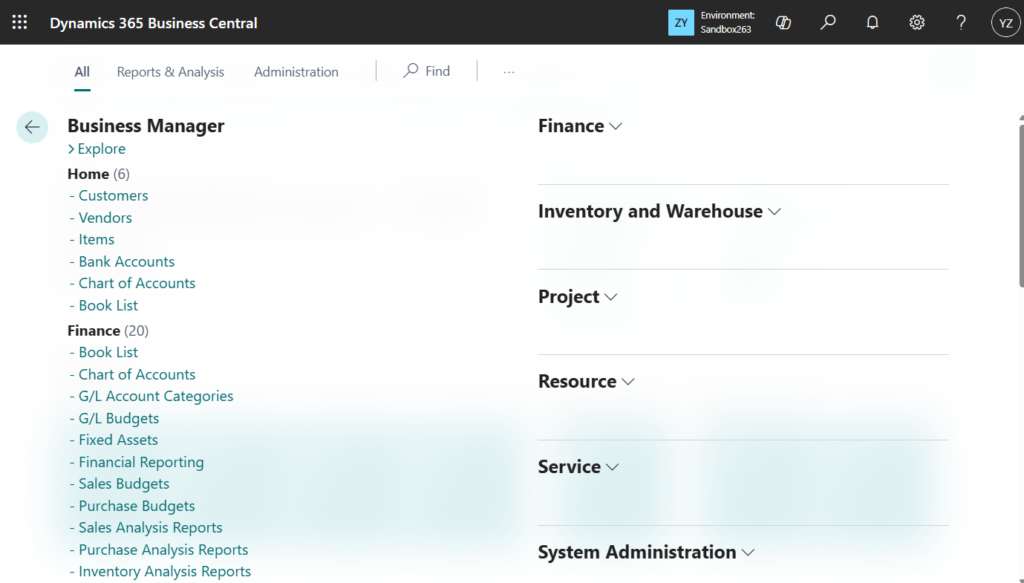
The order in which the Role Center is displayed will be pushed back according to the order in which the Show in Role Explorer is enabled, and will not be displayed in priority due to My Business Central.
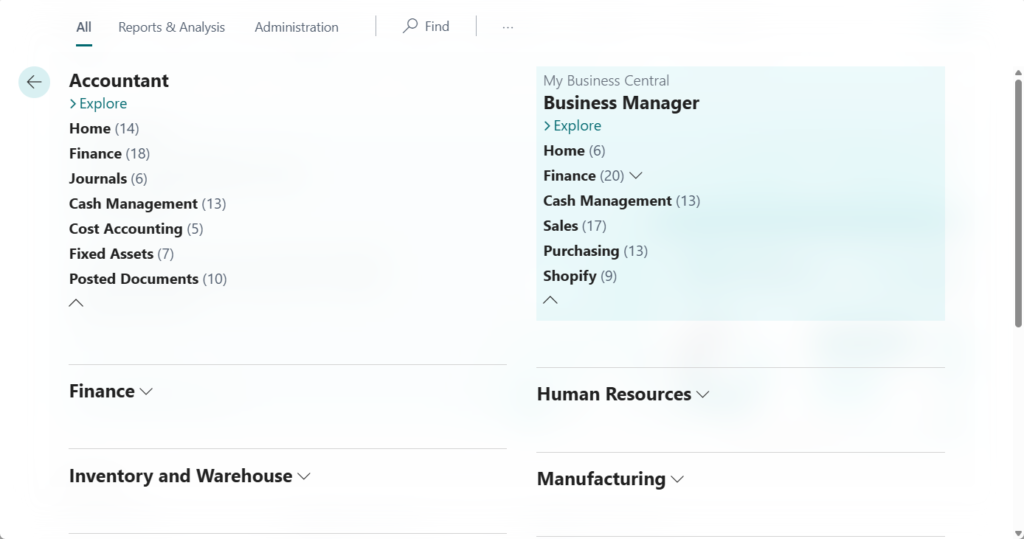
In conclusion, when pages, reports, and queries are added to role centers, they also become available in the Role explorer overviews (if the Role explorer feature is enabled for the roles).
Great, give it a try!!!😁
2. How to make a query searchable (Add Query to Tell me)
3. Finding Pages with the Role Explorer.
END
Hope this will help.
Thanks for reading.
ZHU
コメント