

Hi, Readers.
Business Central 2026 release wave 1 (BC28) Public Preview is scheduled to be released on March 2, 2026. More details: Link
In this post, I will share a new feature that is already available for testing, Download Symbols from Global NuGet Sources, more details: Business Central 2026 release wave 1 (Version 17.0)
Download Symbols from Global NuGet Sources
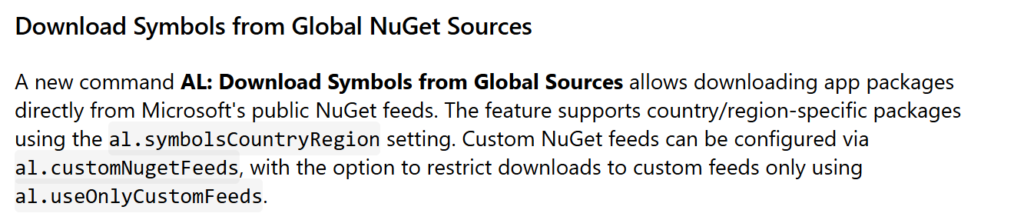
A new command AL: Download Symbols from Global Sources allows downloading app packages directly from Microsoft’s public NuGet feeds. The feature supports country/region-specific packages using the al.symbolsCountryRegion setting. Custom NuGet feeds can be configured via al.customNugetFeeds, with the option to restrict downloads to custom feeds only using al.useOnlyCustomFeeds.
In Business Central, a symbol file is essentially the “source code” for an extension.
When you develop in AL, your project needs to know about the tables, pages, and codeunits that already exist in the base application or other extensions. Since the source code for the base app isn’t living directly in your project folder, Business Central uses symbols to bridge that gap.
So when we started developing the Business Central project, we first need to connect to the development environment and download the symbol file.
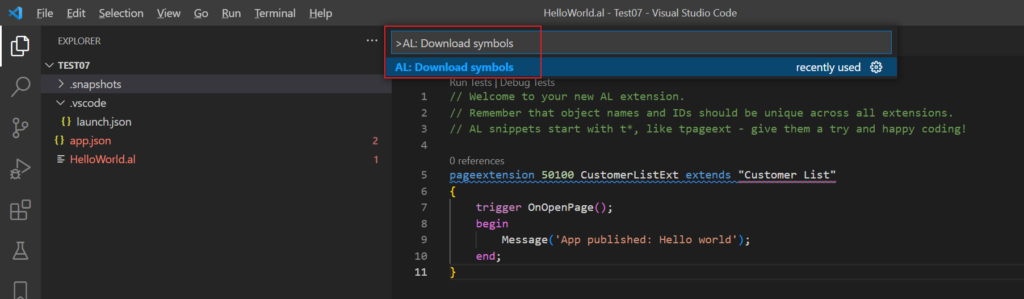
Basic flow: Start VS Code -> Run AL Go! -> Create a new extension -> Modify launch.json -> Download the symbols
Command: AL: Download symbols
The download is successful.
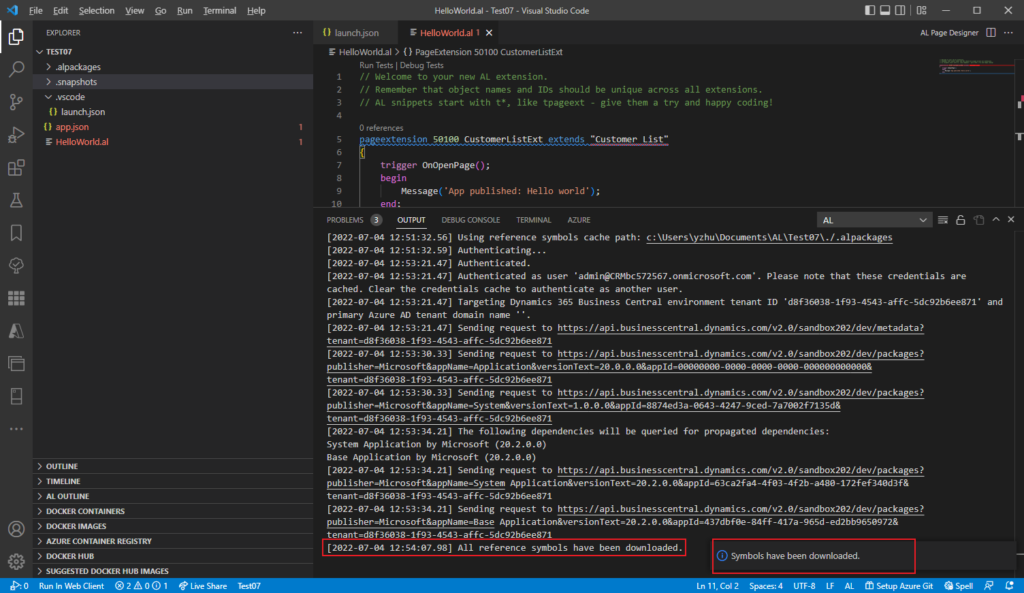
And the symbol files are automatically saved in . /.alpackages.
PS: Change the default directory path where reference symbol packages are located (./.alpackages ->)
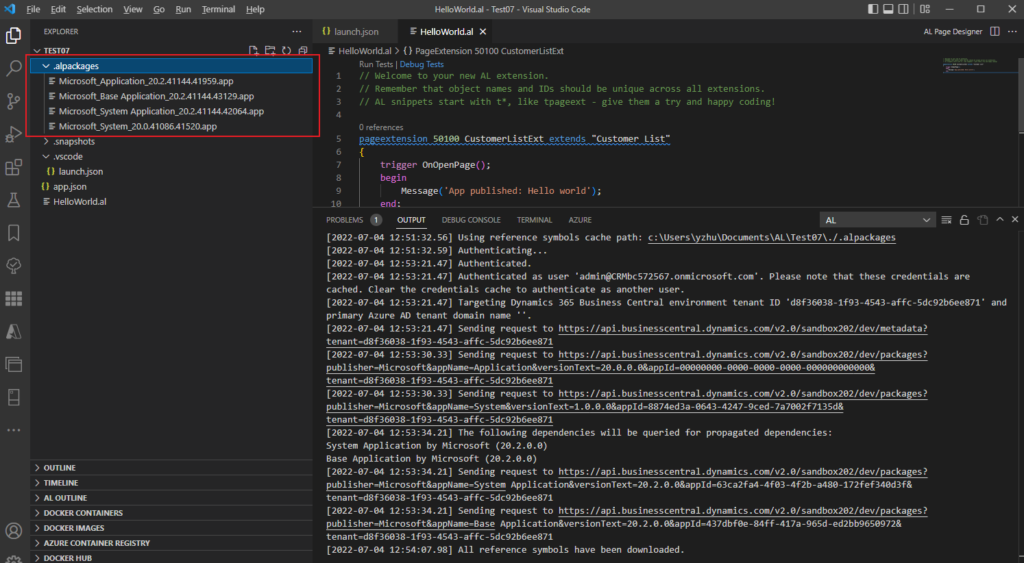
So previously, you had to have a running Docker container or a Sandbox environment just to click “Download Symbols” and start coding. With this wave, you can download them directly from Microsoft’s global repository. Let’s see more details.
Open the Command Palette (Ctrl+Shift+P) in VS Code and select: AL: Download symbols from global sources

Enter the country/region code for symbol localization (e.g., ‘w1’ for worldwide, ‘us’ for United States, ‘at’ for Austria)

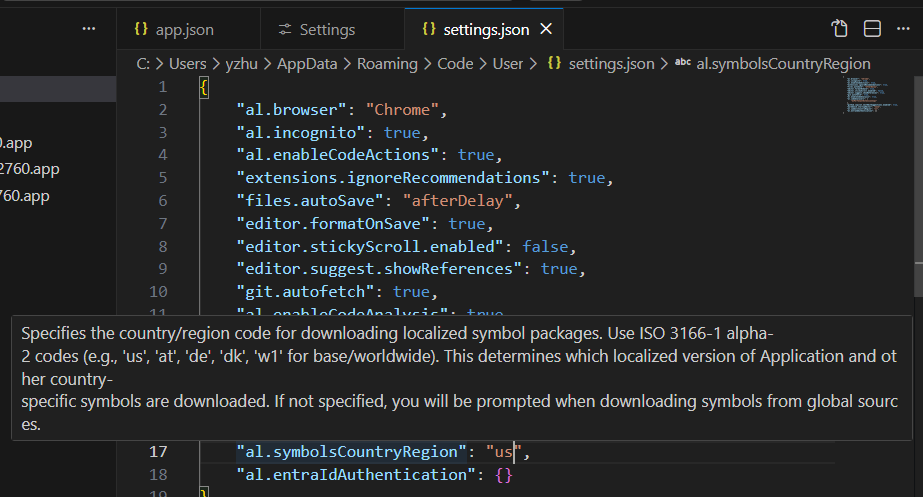
You can save country/region code preference.

PS: In your .vscode/settings.json (or User Settings), you can add the al.symbolsCountryRegion setting to tell the compiler which localized version of the symbols you need before downloading:
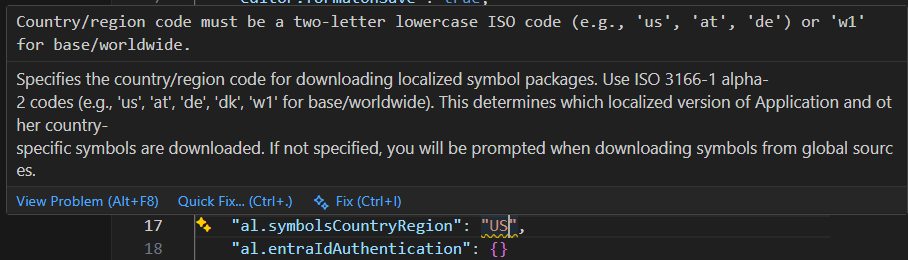
Country/region code must be a two-letter lowercase ISO code (e.g., ‘us’, ‘at’, ‘de’) or ‘w1’ for base/worldwide.
Then symbols will be downloaded automatically.
Symbols have been download from gloabl sources.
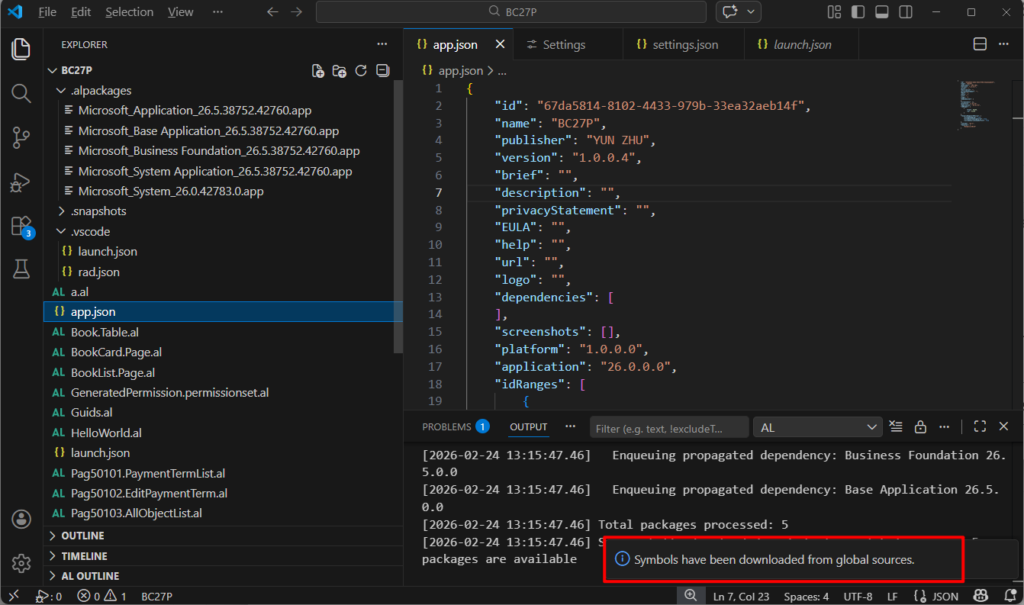
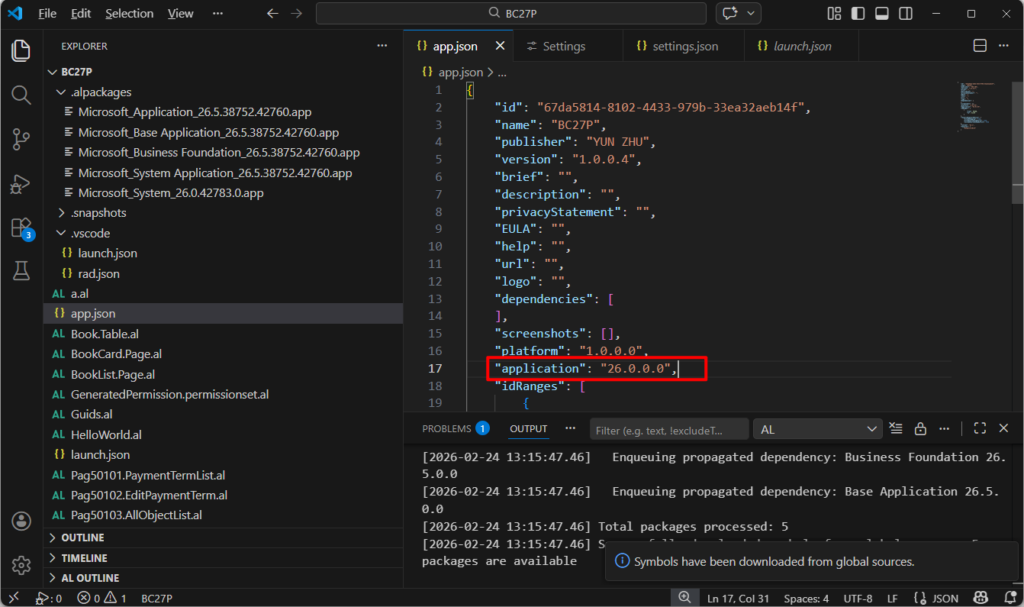
It’s very simple. As for which version you need to download, you can set it through the application property in the app.json file.
Test video:
The advantage is clear: we can download symbol files without creating an environment, and they cover all regions.
Great, give it a try!!!😁
PS:
1. Allow downloading symbols using an Attach type launch configuration
Update: Download symbols from NuGet feed
A new command AL: Download Symbols from Global Sources allows downloading app packages directly from Microsoft’s public NuGet feeds, or optionally from custom feeds if this is set up.
Country/region-specific packages are supported, using the al.symbolsCountryRegion setting, giving developers flexibility when working with localized or external apps.
Custom NuGet feeds can be configured via al.customNugetFeeds, with the option to restrict downloads to custom feeds only using al.useOnlyCustomFeeds.
Usage
- Open Visual Studio Code Command Palette and invoke “AL: Download Symbols from Global Sources”.
- The AL VSIX extension then downloads symbols from Microsoft feeds and/or your custom feeds based on settings.
Feature settings You can control how symbol feeds are handles via these new settings.json entries in Visual Studio Code
- al.nuget – Feeds Array of custom NuGet feed URLs to search for symbol packages. These feeds are checked after the built-in Microsoft feeds. Each URL should point to a public NuGet v3 feed that does not require authentication.
- al.useOnlyCustomFeeds – Boolean. When true, only the feeds specified in al.nugetFeeds are used. Built-in Microsoft feeds are ignored.
- al.symbolsCountryRegion – Country/region code for localized symbol packages. Use ISO 3166-1 alpha-2 codes (e.g., us, de, dk) or w1 for worldwide. If not specified, you will be prompted during download.
Note
https://learn.microsoft.com/en-us/dynamics365/business-central/dev-itpro/whatsnew/preview-feature-details?wt.mc_id=DX-MVP-5004336#download-symbols-from-nuget-feed
- Built-in Microsoft feeds are used unless al.useOnlyCustomFeeds is enabled.
- Country/region codes must follow ISO 3166-1 alpha-2 or w1 for worldwide.
- Custom feeds should be public NuGet v3 feeds without authentication.
END
Hope this will help.
Thanks for reading.
ZHU
コメント