

Hi, Readers.
The public preview for Dynamics 365 Business Central 2026 release wave 2 (BC29) is available. Learn more: Link.
I will continue to test and share some new features that I hope will be helpful. In this post, I would like to talk about Translate objects with the same name in different namespaces (Translations with namespaces).
Translate objects with the same name in different namespaces:
Generate namespace-aware translation identifiers so identically named AL objects can be translated independently while existing non-namespaced translations remain valid.
https://learn.microsoft.com/en-us/dynamics365/business-central/dev-itpro/whatsnew/whatsnew-update-29-0?wt.mc_id=DX-MVP-5004336

We have added a new compiler feature flag,
TranslationsWithNamespaces, that includes the object’s namespace in translation IDs to avoid collisions between objects with the same name. When enabled, the translation ID format also changes so the object and property names are visible. If a readable translation ID would contain non-ASCII characters, the compiler now uses the hashed format so generated translation IDs remain ASCII-only. The new Ids:Namespace AL.ExampleNamespace - Page SamplePage - Property Caption

In Business Central, to add a new language to the extension that you have built, you must first enable the generation of XLIFF files. The XLIFF file extension is .xlf. The generated XLIFF file contains the strings that are specified in properties such as Caption, CaptionML, and Tooltip.
I created a table with Caption.

For example,
Created a new List Page and Card Page, then add a message to OpenPage trigger of Card Page which contains Label.
“OpenPageMesg: Label ‘Developer translation for %1’, Comment = ‘%1 is extension name’, locked = false, MaxLength = 999;“

comment, locked, and maxLength attributes are optional and the order is not enforced.After you install this extension, you can find the language is English in Business Central.


So how to translate it.
In the app.json file of your extension, add the following line:
“features”: [ “TranslationFile” ]

When the extension is built and published, XLIFF file will be Generated.


2. Copy the XLIFF file, or rename it in the Translations folder.

For the translation, you will now have to modify the target-language to the language code you want to translate. For example: ja-JP (Japanese)
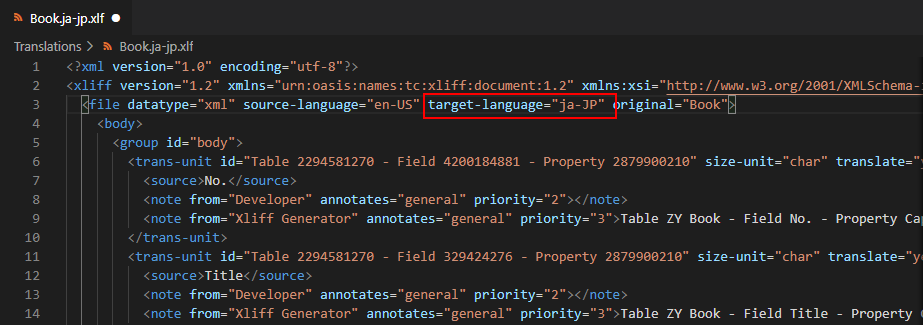
3. Translate
Then add a <target> element per label. The <trans-unit id> attribute corresponds to the object ID in the extension. If the amount of text is very large, it will take a long time.

After the translation is completed and the Extension is installed, The user interface (UI) will change to translated language.


More details: Dynamics 365 Business Central: XLIFF translation files (Working with Translations)
Namespaces are used to organize code into logical groups and hierarchies, which can prevent naming conflicts that can occur when libraries are combined. Namespaces ensure uniqueness in code names and allow reuse of names in different contexts, and provide structure for the code base, making it easier to navigate and understand. Namespaces are used in many programming languages and with Business Central they’re available with AL.
Standard Object: table 18 Customer
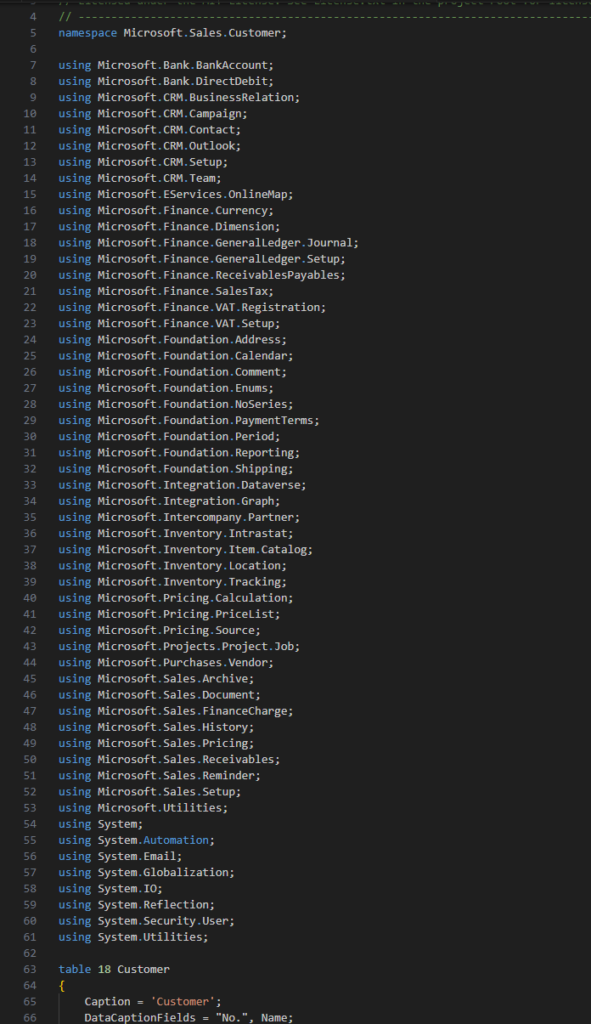
Custom object:

In this major update, Microsoft has added a new setting, TranslationsWithNamespaces, under Features in the app.json file.
TranslationsWithNamespaces: Prefix translation trans-unit identifiers with the object’s namespace so that objects sharing the same name in different namespaces can be translated independently. Requires application platform 18.0 or later.

Let’s look at a simple example.

The new Ids (with TranslationsWithNamespaces):

The previous Ids:

Small update, but it makes life easier. Give it a try!!!😁
END
Hope this will help.
Thanks for reading.
ZHU


コメント