

Hi, Readers.
The public preview for Dynamics 365 Business Central 2026 release wave 2 (BC29) is available. Learn more: Link.
I will continue to test and share some new features that I hope will be helpful. In this post, I would like to talk about Show recently used in lookups.
Add pictures to item variants to differentiate product options:
Business Central now highlights recently used records directly in lookup dialogs. When users open a lookup, the system surfaces records they have recently accessed or worked with, making it easier to select the correct value without performing a search.
The suggestions are personalized to each user and are based on usage signals already collected by the platform. The feature reuses the same server-side intelligence that supports Autofill and recent-record scenarios, ensuring consistent recommendations across Business Central experiences.
Users can still browse and search the full list of available records, but the most relevant and recently used entries are immediately available, helping reduce clicks and accelerate common workflows.
The feature makes Business Central feel more responsive and personalized by adapting lookup suggestions to each user’s working patterns. It reduces repetitive data entry, speeds up transaction processing, and helps users stay focused on their work. By reusing existing server intelligence already powering Autofill experiences, the feature delivers a consistent and efficient way to surface the most relevant records across the application.
https://learn.microsoft.com/en-us/dynamics365/business-central/dev-itpro/whatsnew/preview-feature-details?wt.mc_id=DX-MVP-5004336#user-experiences-show-recently-used-in-lookups
Let’s see more details.
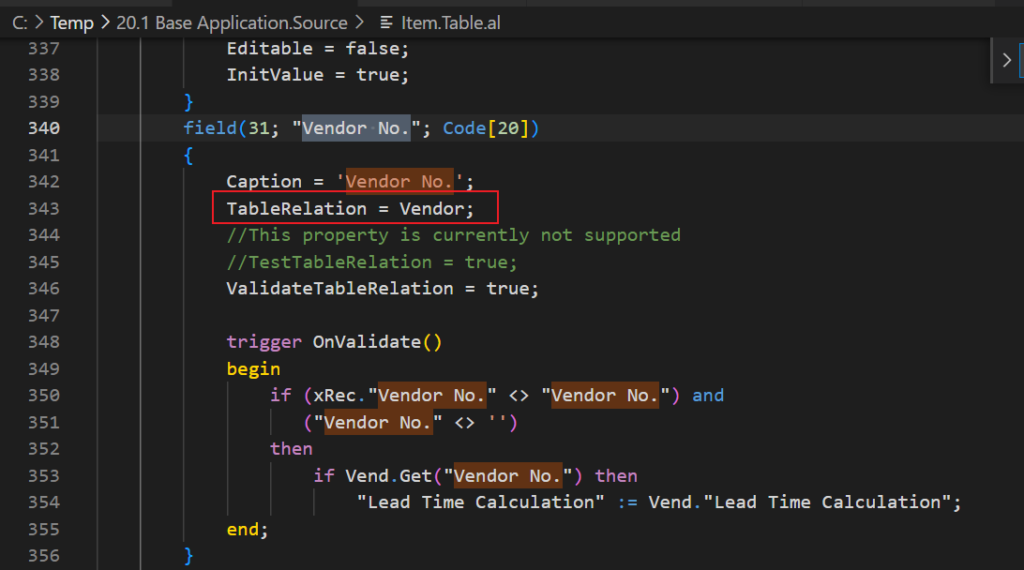
The TableRelation property lets you establish lookups into other tables. For example, on the Item Card you can select a vendor from who you usually purchase an item.
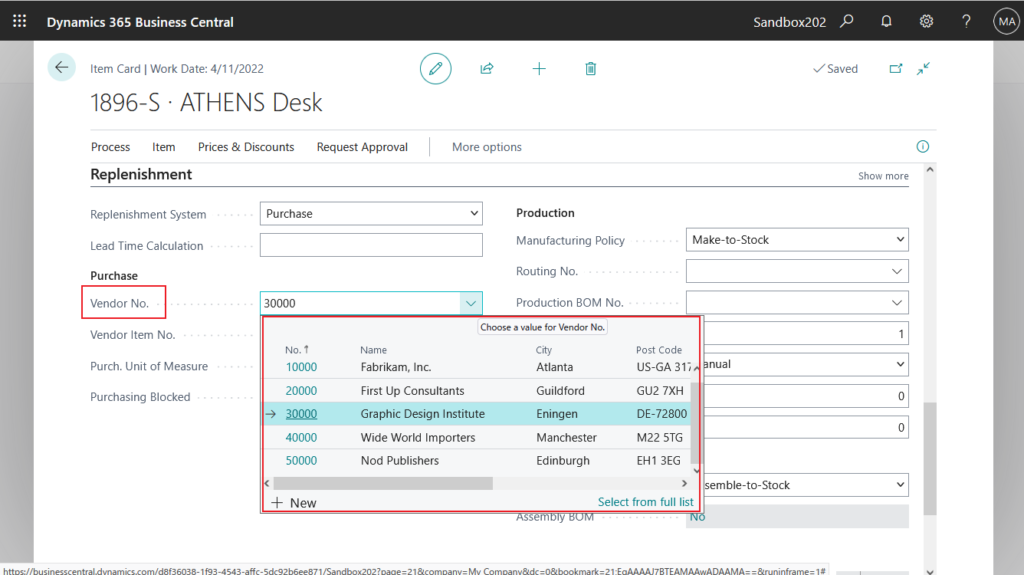
This is done through a table relationship.
The same is true for other fields such as Country/Region Code on the Customer Card and No. on the Sales Order Subform.


On the page (UI), there is a downward arrow on the far right. Clicking it will open a Drop-Down List (Include header). The fields are set in the fieldgroup -> DropDown. If not set, the primary key(s) will be displayed.

More details: Dynamics 365 Business Central: TableRelation, Enum/Option, Lookup and AssistEdit – What’s the difference on the page (UI)
In the latest release, Microsoft introduced a new Recent button to this lookup window, allowing users to instantly view their recently searched and accessed records.

When in Recent mode, simply clicking Search switches back to the standard search view.

If there are no recent search or usage records, this view will remain empty.

Interestingly, this feature seems to operate at the table level rather than being tied to specific pages.
For example, if you select or access an Item on a Sales Order, that same entry will immediately show up under “Recent” when creating a Purchase Order. This indicates that Business Central collects activity signals per data table, allowing recent records to seamlessly cross over between different functional areas like Sales and Purchasing.

Small update, but it makes life easier. Give it a try!!!😁
PS: Dynamics 365 Business Central Blog Series: TableRelation
Update: Business Central 2026 release wave 2 (BC29): Show recently searched in Tell Me

END
Hope this will help.
Thanks for reading.
ZHU


コメント